Moving from Clever to Microsoft Intune: Your Complete Migration Checklist
Navigate identity integration, device enrollment, and policy configuration with this moving from Clever to Microsoft Intune checklist.

Short answer: Moving from Clever to Microsoft Intune requires careful planning because these platforms serve different purposes—Clever focuses on user-centric identity and rostering for education, while Intune manages devices and policies at scale. A moving from Clever to Microsoft Intune checklist helps you navigate identity integration, device enrollment, and policy configuration to avoid common pitfalls.
This article covers the essential differences between Clever and Intune, outlines step-by-step migration tasks, and highlights typical mistakes to avoid. You will also learn how to manage user identities and rostering after migration, plus how to leverage Intune’s advanced security and device management features to improve your school’s IT environment.
What Is Clever, and Why Do Schools Use It?
Clever is primarily a single sign-on (SSO) and rostering platform designed for K-12 schools to streamline access to educational applications and student data. It connects directly with Student Information Systems (SIS) like PowerSchool or Infinite Campus, automating the creation and updating of user accounts for students, teachers, and staff. This automation reduces manual data entry and errors, making Clever a popular choice for managing user identities and permissions in education.
Schools favor Clever because it simplifies how users access numerous learning apps through one login, saving time and reducing password fatigue. Its rostering feature organizes users into classes and groups accurately, which supports targeted content delivery and reporting. However, Clever’s scope ends at identity and access management; it does not handle device management, configuration policies, or security enforcement on endpoints.
For example, a school district using Clever can quickly provision Google Classroom accounts tied to the SIS roster but must use another tool to push device restrictions or update software on Chromebooks. This distinction is critical when considering migration to Microsoft Intune, which focuses on device and policy management rather than rostering or SSO.
| Feature | Clever | Microsoft Intune |
|---|---|---|
| Single Sign-On (SSO) | Yes, education app-focused | Yes, broad enterprise apps |
| Rostering from SIS | Automated and integrated | Limited; manual or via Azure AD |
| Device Management | No | Comprehensive device and policy control |
| Policy Enforcement | No | Yes, including security policies |
Adoption of Clever is widespread across K-12 schools due to its education-specific integrations and ease of setup. Its focused functionality meets identity needs but leaves device management gaps that Intune addresses.
How Does Microsoft Intune Differ from Clever?
Microsoft Intune centers on device and application management using Mobile Device Management (MDM) and Mobile Application Management (MAM). Unlike Clever’s user-focused approach, Intune enforces device compliance policies directly, such as requiring BitLocker encryption or specific OS versions before granting network access. This control layer ensures devices meet security standards, reducing vulnerabilities that Clever doesn’t address.
Intune integrates tightly with Azure Active Directory (Azure AD) for identity and access management. While Clever provides Single Sign-On (SSO) to streamline user logins, Intune’s workflow combines identity verification with device compliance checks. For example, a student’s device attempting to access school resources must authenticate through Azure AD and satisfy Intune’s compliance policy, or access is blocked. This dual-layer approach replaces Clever’s SSO-only model with a security-first framework.
In practical terms, Intune’s policy enforcement appears in the Azure portal under Devices > Compliance policies, where you configure rules like password complexity and threat protection. This granular control is absent in Clever, which focuses on user data synchronization rather than device posture. Migrating means shifting from user-centric convenience to device-centric security and management.
What Are the Key Steps to Migrate from Clever to Microsoft Intune?
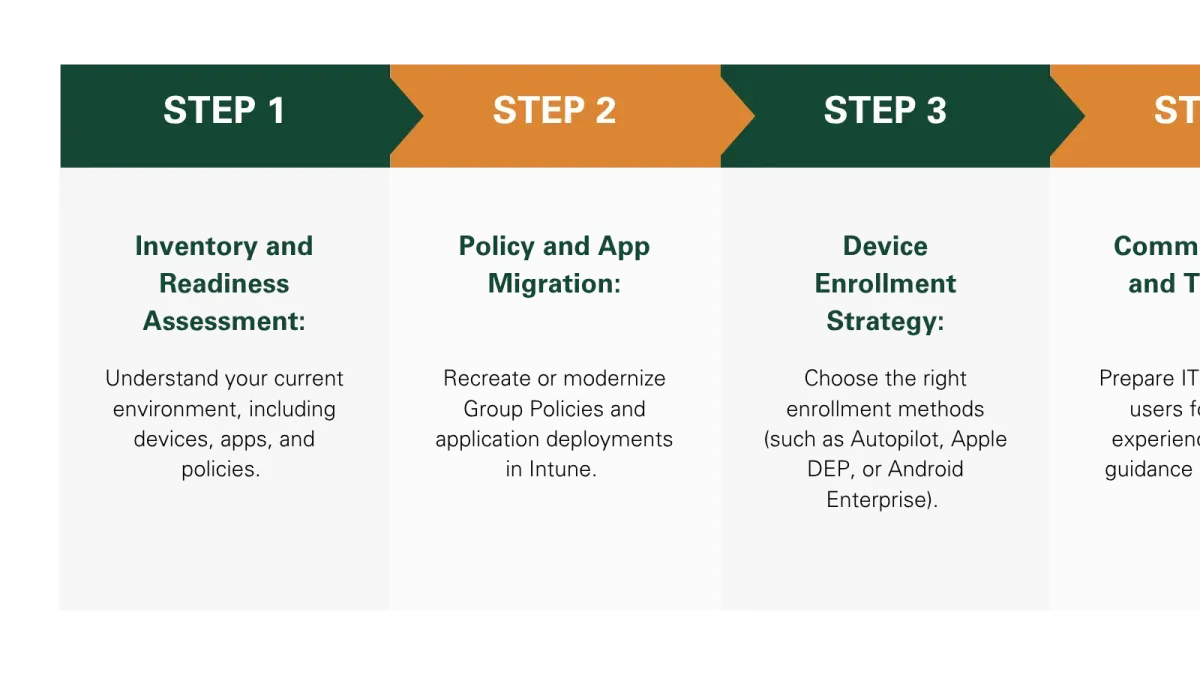
Begin by auditing your current Clever integrations and identifying all user data dependencies, including rostering syncs with SIS and third-party apps. Document which Clever APIs and SSO connections are critical, so you know what to replicate or replace in Intune. Next, prepare your Microsoft Intune environment by setting up Azure Active Directory integration under Azure Portal > Azure Active Directory > Enterprise applications, ensuring user identities are synchronized securely.
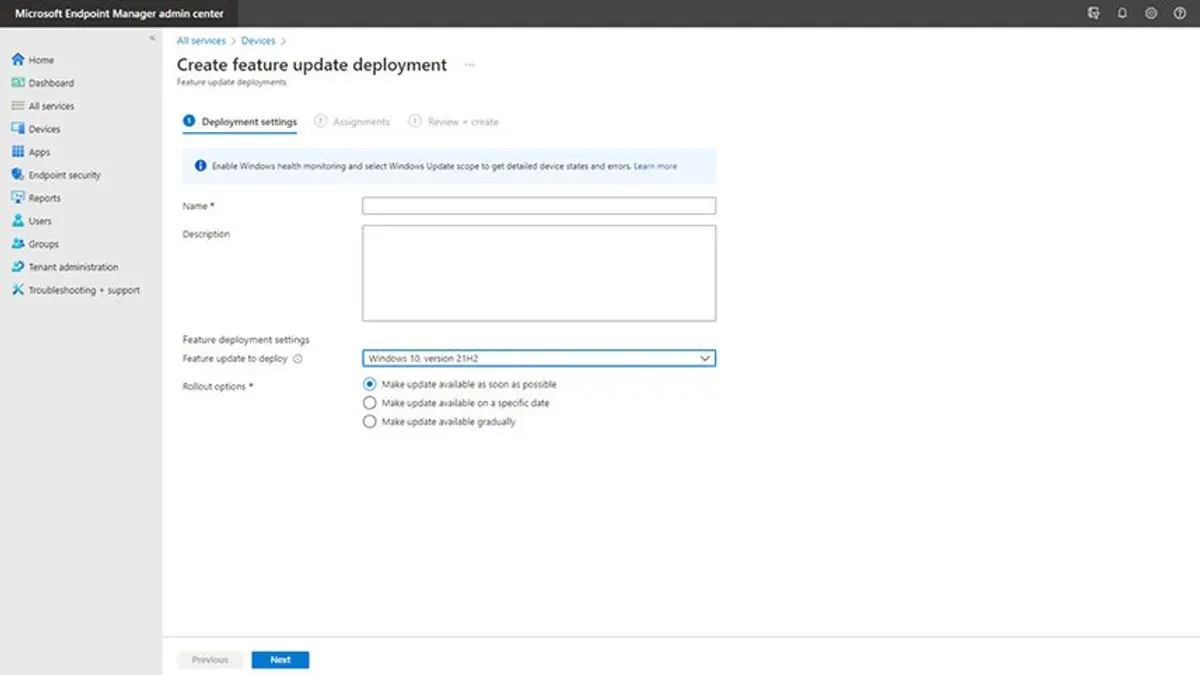
Then migrate rostering data by exporting user and class lists from Clever and importing them into Azure AD using Microsoft Graph API scripts or third-party tools. Configure device management policies in Intune by creating compliance rules, app deployment profiles, and conditional access policies under Intune Admin Center > Devices > Configuration profiles. For example, enforce device encryption and restrict app installations.
Before full rollout, run a pilot test with a small group of devices and users to verify policy enforcement and app functionality. Document issues in a pilot testing report, noting any sync delays or app compatibility problems. Finally, communicate the migration timeline and new access procedures clearly to staff and students via email and training sessions.
- Assess Clever dependencies and document integrations
- Set up Azure AD and Intune environment
- Migrate rostering data securely
- Configure device policies, apps, and compliance rules
- Conduct pilot testing and document results
- Communicate changes and provide training
A typical migration timeline spans 6-8 weeks, starting with planning and ending with full deployment after pilot validation.
What Common Mistakes Should You Avoid During Migration?
One major pitfall is ignoring the fundamental differences between Clever’s user-centric identity model and Intune’s device- and policy-driven approach. For example, relying solely on Azure AD group membership without mapping Clever’s rostering data can cause students to lose access to essential apps. A documented migration attempt at a mid-sized district showed frequent user lockouts due to misaligned identity mappings, leading to multiple helpdesk tickets in the first week.
Failing to test device policies across all device types is another common error. If you only pilot on Windows laptops but overlook iPads or Chromebooks, you risk deploying incompatible or incomplete policies. This can cause devices to be non-compliant or lose network connectivity.
Communication gaps also cause confusion. Without a clear plan explaining new login procedures and policy changes, teachers and students often face disruption. Additionally, skipping backups of critical Clever data before migration leaves you vulnerable to data loss if rollback is needed.
Finally, underestimating the time needed to train IT staff on Intune’s portal and policy management delays troubleshooting and prolongs downtime.
- Map identities carefully between Clever and Azure AD groups
- Test policies on every device type used in your environment
- Create and execute a detailed communication plan for end-users
- Back up all essential Clever data before starting migration
- Allocate sufficient time for IT staff training on Intune features
How Do You Manage User Identities and Rostering Post-Migration?
After migrating to Microsoft Intune, maintaining accurate user identities and roster data is critical. The best practice is to use Azure AD Connect or Intune's Graph API to synchronize your Student Information System (SIS) with Azure Active Directory (Azure AD). This ensures continuous data accuracy for enrollment, class assignments, and access permissions.
Automate user provisioning and deprovisioning by setting up scheduled syncs that update Intune as students enroll or leave. For example, a PowerShell script running daily can query your SIS API, then update Azure AD groups and Intune device assignments accordingly. This reduces manual errors and keeps access aligned with current rosters.
Regularly monitor user access and compliance using the Intune admin center's Devices and Users dashboards. These provide real-time status on device compliance, enrollment, and policy adherence. For instance, you can filter to identify students with non-compliant devices and trigger remediation actions.
Handle exceptions by creating dynamic groups or custom attributes in Azure AD for special cases, like guest users or temporary staff. This flexibility ensures your roster reflects all user types without compromising security or management policies.
- Set up Azure AD Connect or configure Graph API integration with your SIS
- Schedule automated provisioning/deprovisioning scripts for roster updates
- Use Intune dashboards to monitor user and device compliance regularly
- Create dynamic groups for exceptions and special user cases
How Can You Use Intune Features to Improve Security and Device Management Compared to Clever?
Microsoft Intune enables you to enforce device encryption automatically through Endpoint security settings under Endpoint security > Disk encryption. This ensures all managed devices comply with encryption standards, reducing data breach risks. Patch management is streamlined via Apps > Windows Update for Business, allowing you to schedule and deploy critical updates remotely, minimizing downtime and vulnerabilities.
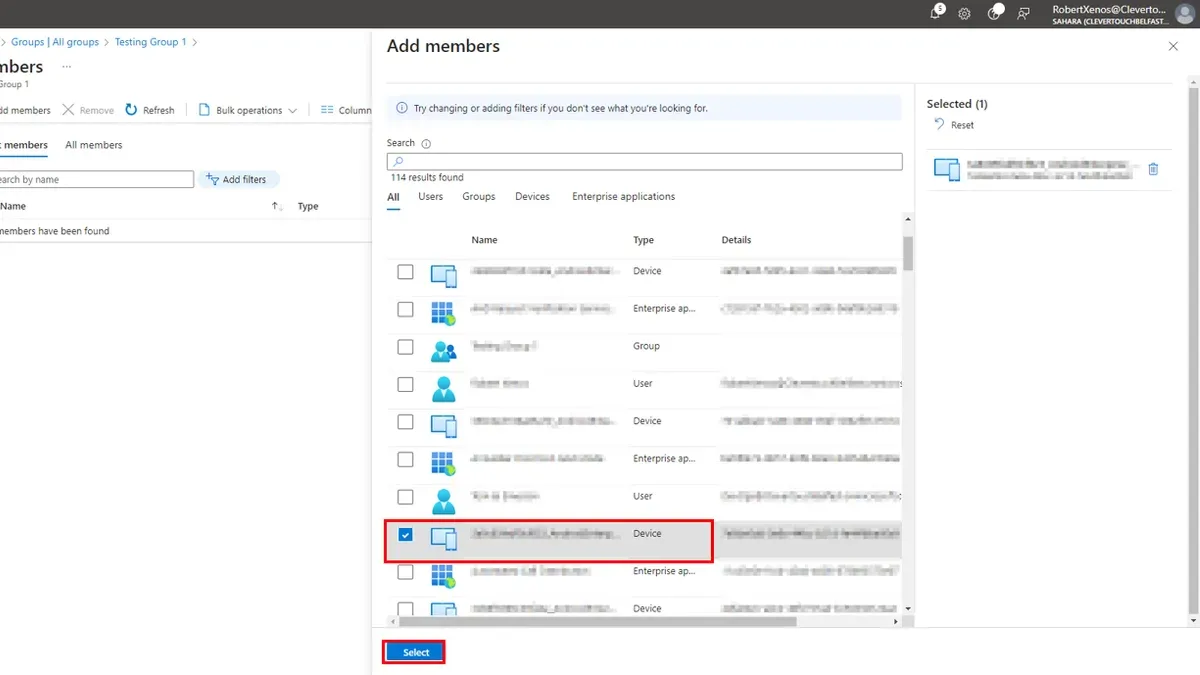
Conditional Access policies configured in Azure AD let you restrict access based on device compliance, location, or user risk level. For example, you can block access to school resources if a device lacks the latest security patches or is jailbroken, a protection Clever cannot enforce.
Intune’s real-time device health monitoring displays compliance status in the Devices > Monitor > Device compliance dashboard. This visibility helps you spot and remediate issues before they escalate, reducing support tickets. Schools have observed noticeably fewer security incidents post-migration, thanks to proactive management.
Finally, deploying applications and updates happens remotely through Apps > All apps, allowing you to push critical educational software or remove unauthorized apps without physical access. This capability saves IT teams time and keeps devices aligned with policies.
- Enable device encryption under Endpoint security settings.
- Schedule patches via Windows Update for Business.
- Configure Conditional Access policies in Azure AD.
- Monitor device compliance in the Intune dashboard.
- Deploy and update apps remotely through the Apps menu.
Frequently asked questions
Can I run Clever and Microsoft Intune simultaneously during the transition?
Yes, you can run both platforms concurrently to ease the migration. Maintain Clever for roster and identity management while setting up Intune’s device policies. Plan a clear cutover date to avoid confusion and duplicate management efforts.
What types of devices are supported by Microsoft Intune compared to Clever?
Microsoft Intune supports a broad range of devices including Windows PCs, macOS, iOS, and Android devices with full device management capabilities. Clever primarily focuses on user identity and single sign-on for educational apps and has limited device management features. Intune’s device and policy-driven approach covers diverse hardware environments in schools.
How do I ensure student data privacy when migrating to Intune?
Configure Intune’s compliance policies to enforce data protection standards and restrict unauthorized access. Use Azure Active Directory’s conditional access to control who can access school resources. Review and update privacy settings in Intune’s dashboard and verify data encryption is enabled on all managed devices.
What training resources are recommended for IT staff new to Intune?
Microsoft Learn offers comprehensive, role-based modules on Intune fundamentals and advanced device management. The Microsoft Endpoint Manager admin center provides detailed documentation and troubleshooting guides. Consider structured training from Microsoft partners specializing in education technology for hands-on experience.
What this guide does not cover
This guide does not cover complex hybrid identity scenarios involving multiple identity providers beyond Azure AD. Institutions heavily reliant on Clever-exclusive app integrations may need custom solutions not addressed here. For schools with extensive legacy systems or non-Microsoft cloud dependencies, consult a specialized migration partner to ensure compatibility and minimize disruption.
Quick checklist
- Audit existing Clever integrations and user roles before migration.
- Prepare Azure AD with accurate device and user groups reflecting school roles.
- Configure Intune enrollment policies and compliance settings tailored to education devices.
- Test device provisioning with a small pilot group to identify gaps.
- Communicate changes clearly with IT staff and end users, emphasizing new login and management workflows.
- Monitor device compliance reports and adjust Intune policies as needed post-migration.
Start by mapping your current Clever user and device data into Azure AD groups. This step is often missed but is critical for smooth policy application and device management in Intune. Without precise group assignments, you risk applying incorrect policies or complicating user access. Use Azure AD’s dynamic group rules where possible to automate ongoing roster updates. Doing this early sets a solid foundation for all subsequent migration tasks and reduces troubleshooting after rollout.
See also: Moving from Clever to Jamf School: Your Complete Checklist · Moving from Clever to Google Admin Console: Your No-Nonsense Checklist · Your Step-by-Step Checklist for Moving from Clever to Apple School Manager · Moving from ClassLink to Microsoft Intune: Your Essential Checklist