Moving from ClassLink to Microsoft Intune: Your Essential Checklist
This checklist guides K-12 IT admins through planning, migrating, and configuring policies when moving from ClassLink to Microsoft Intune.

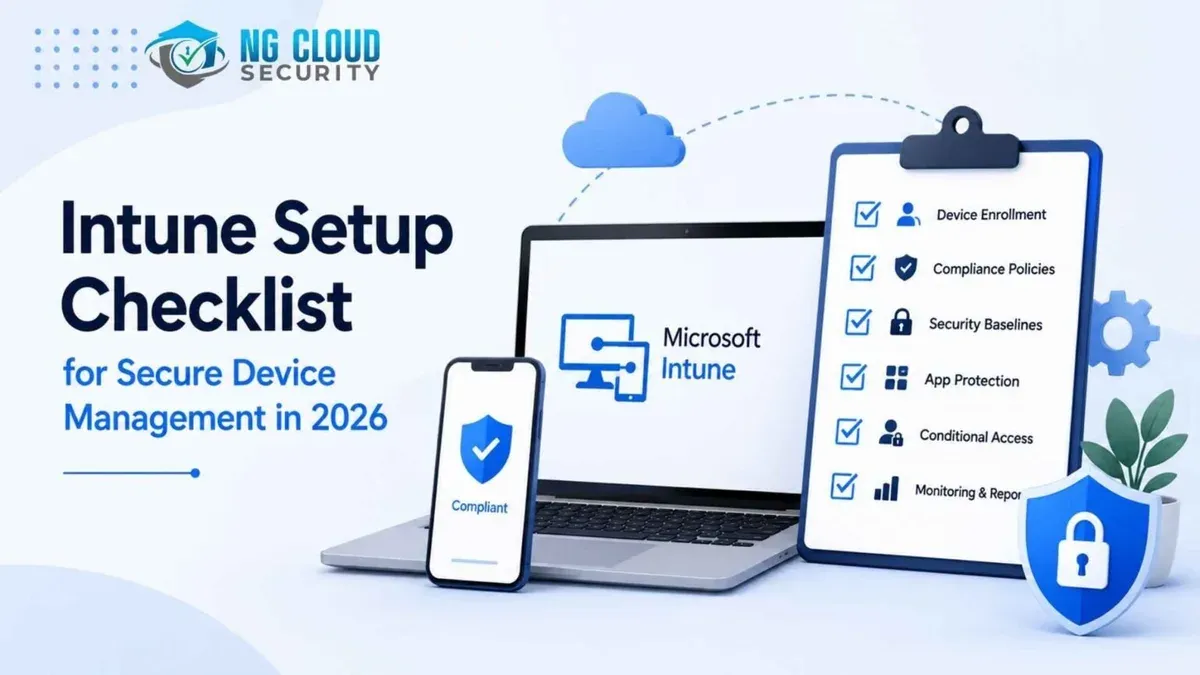
Short answer: Moving from ClassLink to Microsoft Intune requires careful planning to shift from a platform focused on education identity and single sign-on to a comprehensive device and application management system. This moving from ClassLink to Microsoft Intune checklist guides you through preparing your environment, migrating users and devices, and configuring policies to maintain security and usability in your K-12 setting.
This article covers the unique challenges of migrating from ClassLink’s education-centric tools to Intune’s enterprise-grade management capabilities. You’ll get a clear roadmap for assessing your current setup, syncing identities with Azure AD, enrolling devices, deploying apps, and avoiding common pitfalls. The focus is on practical, step-by-step actions tailored for K-12 IT administrators who need a no-nonsense guide to a smooth transition.
What is ClassLink and why move to Microsoft Intune?
ClassLink is primarily a single sign-on (SSO) platform designed for education. It simplifies access to learning resources by allowing students and staff to log in once and reach multiple apps and files without repeated authentication. Its focus is on streamlining digital learning environments rather than device control.
Microsoft Intune, by contrast, is a comprehensive device and application management system built for enterprise-scale environments, including education. Intune manages device security, app deployment, configuration policies, and compliance across Windows, iOS, and Android devices, integrating tightly with Microsoft 365 services.
Schools often migrate from ClassLink to Intune to gain better control over devices beyond SSO. Intune supports scalable device enrollment, granular security policies, remote wipe, and software updates—capabilities ClassLink lacks. It also unifies identity, device, and application management under Microsoft’s ecosystem, reducing complexity for IT teams.
For example, a district using ClassLink struggled with managing Windows laptops and iPads across multiple schools. Moving to Intune allowed centralized device configuration, enforcing encryption and patching automatically. End users experience seamless access through Azure AD sign-in, while IT gains detailed visibility and control.
| Feature | ClassLink | Microsoft Intune |
|---|---|---|
| Single Sign-On | Yes, education-focused | Yes, via Azure AD |
| Device Management | Limited | Full lifecycle management |
| App Deployment | Via SSO links | Direct installation and updates |
| Security Policies | Minimal | Comprehensive (encryption, compliance) |
| Integration | Education apps | Microsoft 365 and broader ecosystem |
How does Microsoft Intune work for education device management?
Microsoft Intune manages educational devices through a cloud-based architecture integrated with Azure Active Directory (Azure AD) and Microsoft 365 Education licenses. Devices enroll via the Company Portal app or automatic enrollment configured in Azure AD, where management profiles assign device restrictions and policies based on user roles. For example, student devices might have stricter web filtering and app controls, while teacher and staff devices get broader access and administrative privileges.
User and group policies are assigned through Intune’s device configuration profiles and compliance policies. These are targeted using Azure AD groups such as “Students,” “Teachers,” and “Staff,” allowing tailored settings and app deployments. Intune also manages app updates and operating system patches centrally, ensuring devices remain compliant with school IT standards.
To picture the process: a student logs into a new device, the device enrolls automatically via Azure AD Join, Intune pushes a “Student Device” policy restricting access to approved apps and websites, and updates install silently overnight. Administrators monitor device compliance and app status through the Intune portal’s dashboard, enabling quick remediation of issues.
- Enroll devices via Azure AD Join or Intune Company Portal
- Assign device configuration and compliance policies by user group
- Deploy apps and updates remotely with targeted assignments
- Monitor device health and compliance in the Intune admin center
What are the key steps to prepare for your migration?
Start by auditing your current ClassLink environment. Identify all applications connected via ClassLink’s single sign-on, the devices enrolled, and user groups segmented by role or grade. For example, list apps like Google Workspace, Clever, or district-specific tools and note which groups access them. This audit reveals what must be replicated or replaced in Intune.
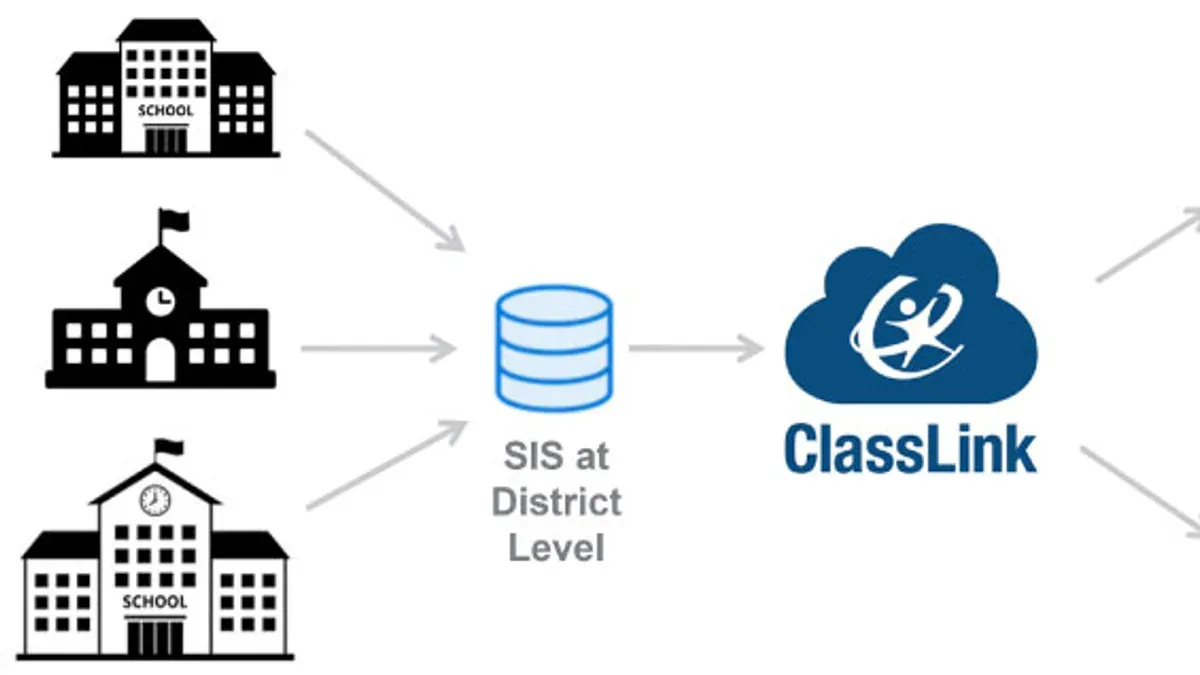
Next, map existing access and authentication flows. Document how users currently sign in, which ClassLink roles control access, and any custom authentication policies. For instance, if middle school students access apps through a specific ClassLink group, plan an equivalent Azure AD group with matching Intune policies.
Communicate changes clearly to all stakeholders—teachers, students, parents, and IT staff. Share timelines and what to expect during device enrollment shifts to avoid confusion and support requests.
Verify your Microsoft 365 licensing includes Intune and confirm your Azure AD tenant is properly configured for education. Check that Azure AD Connect syncs on-premises accounts if applicable, ensuring smooth identity management.
Finally, plan device enrollment strategies. Decide whether to use Autopilot, bulk enrollment, or manual setup. Run pilot tests with a small device group to catch issues early and refine policies.
- Audit ClassLink apps, devices, and user groups
- Map authentication flows to Azure AD and Intune policies
- Communicate migration plans and timelines broadly
- Confirm Microsoft 365 licensing and Azure AD setup
- Plan enrollment methods and conduct pilot testing
How do you execute the migration step-by-step?
Start by setting up your Microsoft Intune tenant in the Azure portal. Navigate to Microsoft Endpoint Manager admin center > Devices > Enroll devices and configure your device enrollment restrictions, compliance policies, and configuration profiles. Assign user and device groups with role-based access control to align with your school's organizational units.
Next, import and sync user identities from your existing directory, typically Azure AD or an on-premises Active Directory synced with Azure AD Connect. Verify that user attributes, especially email and UPN, match to avoid enrollment errors. This ensures seamless policy application and app deployment.
Enroll devices by deploying the Company Portal app or configuring automatic enrollment via MDM. Push required profiles and apps such as Microsoft Office, educational tools, and security agents. For example, a district phased enrollment over two weeks to reduce disruption.
Phase out ClassLink SSO by updating your identity provider settings and communicating redirect changes to staff and students. Monitor device compliance and deployment status through the Intune dashboard, comparing pre-migration reports that showed 60% compliance to post-migration reports aiming for 95% or higher. Troubleshoot enrollment failures by checking device logs and user settings promptly.
- Set up Intune tenant and device policies (1-2 days)
- Import and sync user identities (1 day)
- Enroll pilot devices, deploy profiles and apps (1-2 weeks)
- Phase out ClassLink SSO and redirect users (3-5 days)
- Monitor compliance and resolve issues continuously
What common pitfalls should you avoid during migration?
Underestimating identity syncing complexity causes the most trouble. Intune relies on Azure AD sync, but mismatched user attributes or conflicting UPNs can block device enrollment. One district faced a week-long delay because their synced userPrincipalName conflicted with existing Azure AD records, halting Intune enrollment until corrected.
Skipping pilot testing leads to widespread user disruption. Without a pilot, unexpected enrollment failures or app deployment errors can cascade, leaving teachers unable to access essential resources. For example, a large K-12 network that skipped pilots saw 30% of devices fail enrollment on day one, triggering frantic helpdesk calls.
Ignoring communication with teachers and students disrupts daily operations. Users need clear instructions on new login steps and device behavior. Lack of communication causes confusion and resistance, prolonging the migration timeline.
Overlooking device compatibility and enrollment settings results in incomplete management. Intune requires devices to meet OS version minimums and have proper enrollment profiles. Some older tablets or devices with restrictive local policies may fail enrollment silently.
Failing to maintain backup access during transition risks lockouts. Keep ClassLink or other SSO active in parallel until Intune enrollment and policies stabilize to avoid downtime.
- Verify Azure AD sync settings and user attributes carefully before migration.
- Run a thorough pilot with a representative device sample.
- Communicate clearly and early with all users about changes.
- Check device eligibility and enrollment profiles ahead of time.
- Maintain backup access methods until migration is fully validated.
How do you measure migration success and maintain Intune long term?
Track key performance indicators in the Microsoft Endpoint Manager admin center dashboard. Focus on device compliance rates, user login success percentages, and application deployment status under Devices > Monitor > Device compliance and Apps > Monitor > App installation status. Compare these metrics against your baseline from ClassLink to confirm improvements. For example, if post-migration device compliance stays consistently above 90% and app deployment success is steady at 95% or higher, your migration is on track.
Collect user feedback via surveys or direct support channels. Analyze support ticket trends in your helpdesk system, noting any spikes or recurring issues after migration. A significant drop in login-related tickets compared to pre-migration numbers indicates smoother user experience.
Schedule regular policy reviews in Intune under Devices > Configuration profiles to adjust device restrictions or app permissions as needed. Keep IT staff current by organizing quarterly training sessions on new Intune features and troubleshooting common issues. Train end users on self-service portals to reduce support load.
Plan for growth by setting clear procedures for onboarding new devices through automated enrollment profiles. This ensures scaling your environment without disruption.
- Monitor device compliance and app deployment in Endpoint Manager dashboard
- Compare support ticket volume before and after migration
- Review and update Intune policies regularly
- Train IT staff and users on Intune functions
- Establish scalable processes for new device enrollment
Frequently asked questions
Can I run ClassLink and Microsoft Intune simultaneously during transition?
Yes, you can run both ClassLink and Microsoft Intune simultaneously to ensure a smooth transition. Maintain ClassLink for identity and single sign-on while you gradually enroll devices into Intune. Plan a phased device migration to avoid service disruption and allow time for testing policies in Intune before full cutover.
What types of devices can Microsoft Intune manage in schools?
Microsoft Intune supports a broad range of devices including Windows PCs, macOS computers, iOS and iPadOS devices, and Android tablets and smartphones. This flexibility lets you manage all student and staff devices under one platform, regardless of manufacturer or operating system. Make sure each device’s OS version meets Intune’s enrollment requirements.
How do I handle user authentication changes for students?
When moving from ClassLink’s identity system to Microsoft Intune, coordinate with your Azure Active Directory setup. Use Azure AD Join or Hybrid Azure AD Join for Windows devices, and integrate Intune with Azure AD for unified authentication. Communicate changes clearly to students and provide credentials or password reset options during the migration.
What support resources are available for Intune migration?
Microsoft provides detailed documentation through its Microsoft Endpoint Manager portal and Tech Community forums. You can access step-by-step guides, troubleshooting articles, and best practices for education environments. Additionally, Microsoft FastTrack offers onboarding assistance for eligible institutions to streamline your migration.
What this advice does not cover
This guide does not cover advanced custom integrations or third-party app migrations which may require specialized consulting. If your environment includes complex single sign-on setups beyond Azure AD or involves niche educational software deeply tied to ClassLink’s ecosystem, engage with Microsoft-certified partners or specialized consultants. Also, if your district uses non-Windows device fleets extensively, expect additional planning beyond this checklist.
Quick checklist
- Confirm Azure AD tenants and synchronize user accounts precisely before migration.
- Audit all ClassLink resources and map them to Intune app policies and configurations.
- Set Conditional Access policies in Azure Portal to secure education devices.
- Prepare device enrollment profiles for both Windows and iOS/Android where applicable.
- Communicate schedule and training for IT staff and end users well ahead of the switch.
- Run pilot deployments on a small device group to verify settings and app availability.
- Decommission ClassLink device policies only after Intune management is stable.
- Monitor Intune device compliance reports daily during rollout.
The most useful next step is to start by fully auditing your existing ClassLink-managed assets and user groups. This gives you a clear inventory and highlights potential migration blockers before you build your Intune environment. A thorough initial assessment saves time and prevents surprises during migration.
See also: Moving from ClassLink to Jamf School: Your Precise Migration Checklist · Moving from ClassLink to Google Admin Console: A Practical Checklist · Moving from ClassLink to Clever Checklist: A Practical Guide · ClassLink Implementation Timeline: What You Need to Know to Get Started