Checklist for Moving from Microsoft Copilot to ChatGPT Smoothly
This checklist helps IT teams transition smoothly from Microsoft Copilot to ChatGPT by covering key differences and practical migration steps.

Short answer: Transitioning from Microsoft Copilot to ChatGPT requires a clear plan to handle differences in integration, data access, and user interaction. This moving from Microsoft Copilot to ChatGPT checklist helps you avoid downtime and ensures your team adapts quickly to ChatGPT's standalone environment.
This article covers the main distinctions between the two platforms, how the switch impacts your workflow, and practical steps to prepare your environment and data. You’ll find guidance on training your team effectively, common pitfalls to avoid, and how to monitor ChatGPT usage post-migration. The focus is on actionable steps tailored to IT decision-makers managing this specific transition, cutting through the noise to keep productivity steady.
What are the key differences between Microsoft Copilot and ChatGPT?
Microsoft Copilot operates as a deeply integrated assistant within Microsoft 365 apps like Word, Excel, and Teams, leveraging your organization's data stored in Microsoft Graph. ChatGPT, in contrast, is a standalone AI accessed via web or API with no inherent link to enterprise data unless explicitly connected. This difference shapes how each handles workflows: Copilot adapts instantly within familiar interfaces, while ChatGPT requires separate context setup and data input.
Data privacy models also differ. Copilot processes data within Microsoft’s secured environment following corporate compliance, whereas ChatGPT’s API requires careful management of data sent externally. Customization in Copilot is limited to Microsoft’s framework, but ChatGPT offers broader extensibility through API parameters and plugins.
For example, generating a project report in Word with Copilot can pull live project data automatically. With ChatGPT, you must manually provide the relevant data or integrate external data sources via API, adding preparation steps and potential latency. This impacts response times, with Copilot responding typically within seconds inside apps, while ChatGPT’s response time depends on API calls and input size.
| Feature | Microsoft Copilot | ChatGPT |
|---|---|---|
| Integration Level | Embedded in Microsoft 365 apps | Standalone web/API service |
| Data Access | Direct access to Microsoft Graph data | Requires manual data input or API integration |
| Customization | Limited to Microsoft framework | Extensive via API and plugins |
| Typical Use Cases | Office document generation, email drafting within apps | Broad text generation, coding, chatbot deployment |
| Response Time | Fast, within app context | Variable, depends on API and input size |
Why does switching from Microsoft Copilot to ChatGPT matter to your workflow?
Switching from Microsoft Copilot to ChatGPT changes how your team collaborates on documents. Copilot works inside Microsoft Word or Excel, letting users co-author and edit simultaneously with AI suggestions appearing contextually. ChatGPT requires exporting content or copying text into its interface, slowing down real-time collaboration and increasing manual steps. For example, drafting a project proposal in Copilot involves inline AI edits and formatting, while with ChatGPT, you’d generate text separately and paste it back, adding friction.
Automation and task management also shift. Copilot leverages Microsoft 365 integrations, automating calendar invites or task updates directly. ChatGPT lacks native connections, so you must build custom workflows using APIs or third-party tools, adding complexity and requiring developer resources. This affects turnaround times on routine tasks.
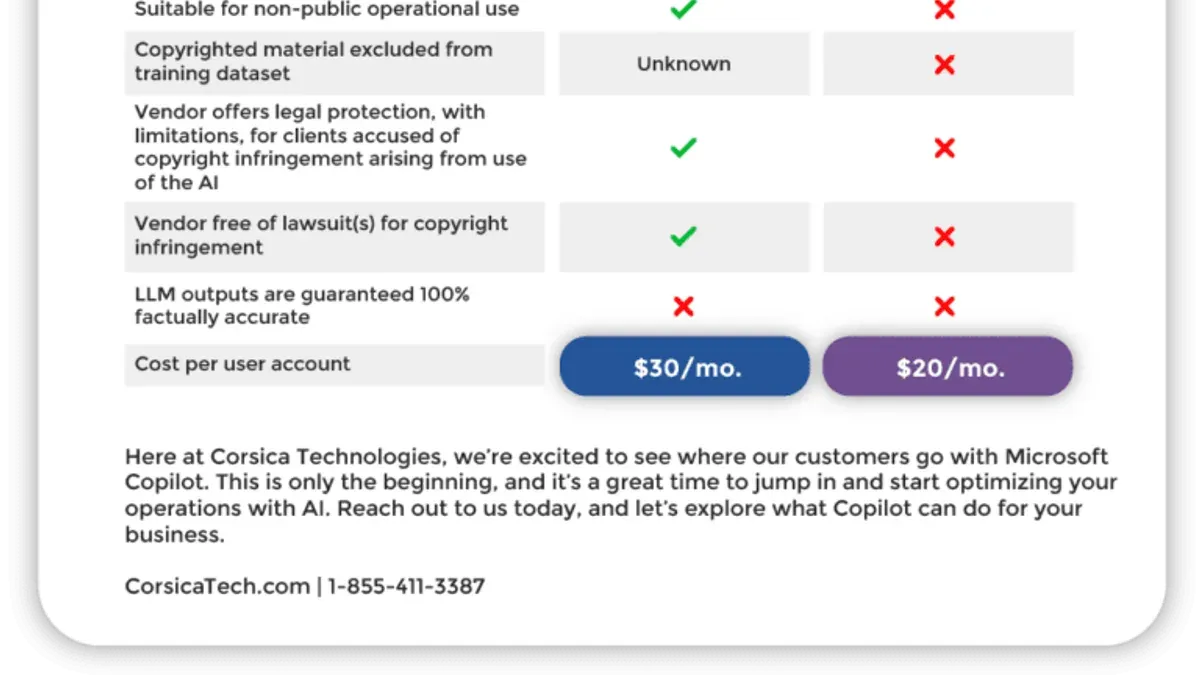
Training your team becomes critical. Users familiar with Copilot’s embedded AI need to adjust to ChatGPT’s standalone interface and manual data handling. Expect a learning curve that impacts productivity initially. Additionally, licensing models differ: Microsoft Copilot licenses tie into Microsoft 365 plans, often bundled for enterprise, while ChatGPT pricing is usage-based and may require separate budgeting, affecting cost predictability.
- Plan for a pause in seamless document collaboration due to interface changes
- Set up API integrations or third-party tools for automation replacement
- Provide targeted training focused on ChatGPT’s standalone workflow
- Review and adjust budgets for new licensing and usage fees
How to prepare your environment and data for migration
Start by auditing all data and configurations tied to Microsoft Copilot. Use Microsoft 365 admin center under "Settings > Integrated Apps" to export current Copilot settings. For example, export your templates and custom prompts manually from the Copilot pane in Word or Outlook. Identify workflows that rely heavily on Copilot’s automation, like automated email drafting or report generation, and list them for prioritized migration.
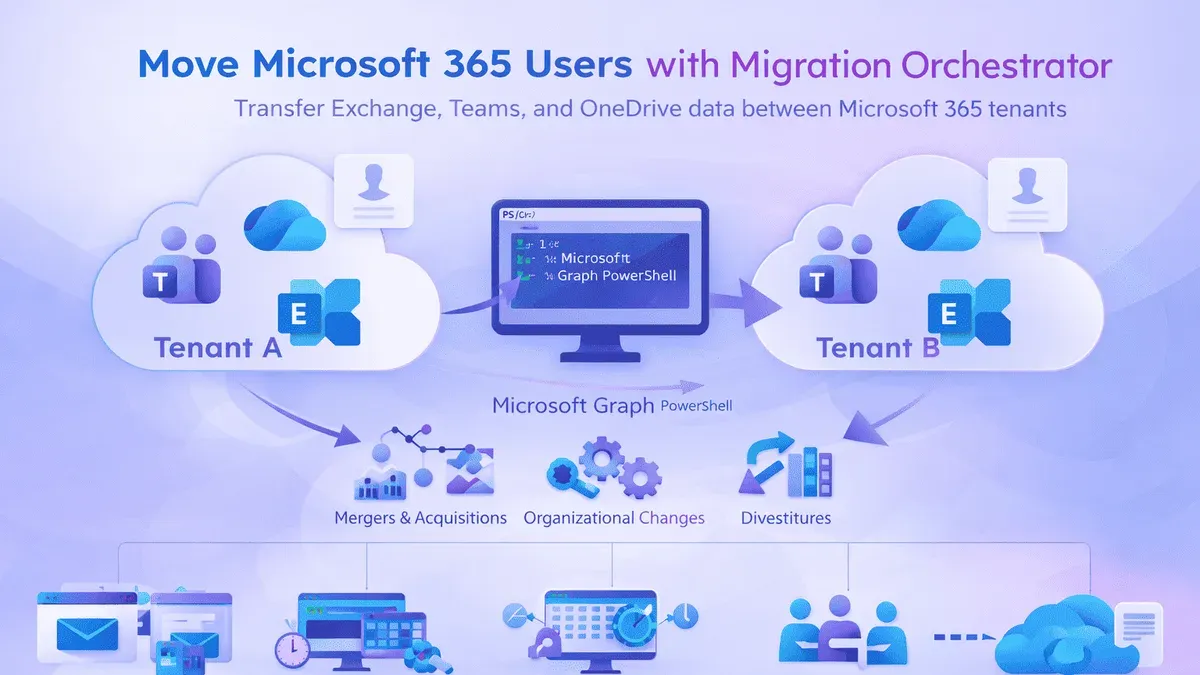
Next, plan for data format conversions. ChatGPT does not directly access Microsoft 365 data, so export any necessary files in common formats like.docx,.xlsx, or.csv. Convert any proprietary workflow scripts into API calls or prompts suitable for ChatGPT. Simultaneously, set up ChatGPT accounts per team needs, and generate API keys securely via OpenAI’s dashboard under "API Keys". Store these keys in a secure vault or password manager to avoid exposure.
For example, if your team uses a Copilot script to generate weekly sales reports from Excel data, export those spreadsheets, then recreate the logic as a ChatGPT prompt or API integration. This avoids workflow interruption and data loss.
- Export Copilot settings via Microsoft 365 admin center.
- Identify and list Copilot-dependent workflows.
- Export relevant data in standard formats (.docx,.xlsx,.csv).
- Convert scripts to ChatGPT prompts or API calls.
- Create ChatGPT accounts and securely generate API keys.
- Store API keys in a secure password manager.
What are the best practices for training your team on ChatGPT?
Minimize disruption by running hands-on workshops that focus specifically on ChatGPT’s interface and command differences compared to Microsoft Copilot. For example, create exercises where users practice prompting ChatGPT with clear, standalone questions instead of relying on in-context commands they used in Copilot. Highlight changed syntax and workflows in concise, accessible documentation, such as a one-page quick reference card outlining ChatGPT prompt structures versus Copilot shortcuts.
Set up a dedicated support channel, like a Microsoft Teams or Slack group, where team members can ask questions and share tips during the early weeks of transition. Encourage peer learning by identifying ChatGPT “champions” within your team who can offer guidance and share successful use cases. A typical training outline might include an introduction session, followed by role-specific practice labs, documentation review, and weekly Q&A check-ins.
Teams that follow this structured approach generally experience smoother adoption and fewer productivity drops. For instance, a finance team shifting from Copilot to ChatGPT reduced their initial downtime by focusing training on prompt clarity and data security practices, supported by ongoing peer discussions.
- Conduct focused, hands-on ChatGPT workshops
- Provide clear, command-specific documentation
- Establish a dedicated support channel for questions
- Promote peer learning with internal ChatGPT champions
- Use a phased training outline with practical labs and Q&A
Which common mistakes should you avoid during the switch?
Assuming Microsoft Copilot and ChatGPT offer the same features without verification causes delays. For example, expecting ChatGPT to automatically access your organization's SharePoint files like Copilot does leads to workflow gaps. Always confirm feature availability and plan workarounds.
Neglecting security and compliance checks is a critical error. One IT team skipped a thorough security review before switching and later discovered ChatGPT API calls exposed sensitive project data. This forced a rollback and costly remediation. Conduct full compliance audits and set up data governance before launch.
Underestimating user resistance and skipping training creates adoption hurdles. Some teams expect users to adapt immediately, but resistance slows progress. Provide clear guidance and hands-on support to ease the transition.
Failing to test integrations before going live risks operational disruptions. A company launched ChatGPT linked to their CRM without testing API response handling, causing data sync failures. Test all integrations end-to-end, including error handling, to avoid downtime.
- Verify feature differences and plan accordingly
- Complete security and compliance audits early
- Invest in user training and support
- Test all integrations thoroughly before rollout
How to monitor and optimize ChatGPT usage after migration
Start by setting up a monitoring dashboard using your ChatGPT management console or an integrated analytics tool. Track key metrics like API call volume, average response time, cost per request, and user engagement rates. For example, a dashboard might show a spike in response time during peak hours, signaling a need to optimize prompt design or scale API capacity.
Collect user feedback regularly through surveys or direct check-ins to identify friction points and feature requests. If users report slow responses or irrelevant outputs, consider adjusting model parameters, refining prompts, or adding relevant plugins to enhance performance. For instance, integrating a domain-specific knowledge plugin can significantly improve answer accuracy.
Schedule quarterly review sessions with your team to assess AI usage against business goals. Use these meetings to align ChatGPT configurations with evolving workflows, address any security or compliance updates, and plan future optimizations. Teams that follow this approach often see steady improvements in efficiency and user satisfaction over time.
- Set up a real-time usage and performance dashboard
- Gather structured user feedback regularly
- Adjust settings and add plugins based on needs
- Hold periodic review sessions to align AI use with objectives
Frequently asked questions
Can I use Microsoft Copilot and ChatGPT together during the transition?
Yes, you can run both side-by-side temporarily to ease the migration. However, expect some workflow friction because Copilot integrates directly into Microsoft 365 apps, while ChatGPT operates through separate interfaces or APIs. Plan for overlapping usage periods but set clear guidelines to avoid confusion or duplicated efforts.
What data security risks should I watch for when switching?
Data handling differs significantly between Copilot and ChatGPT. Copilot works within Microsoft's secure enterprise environment, while ChatGPT often processes data via OpenAI’s cloud, which may require additional compliance checks. Watch for potential data exposure in prompts, ensure you configure API access controls properly, and verify encryption settings on both ends.
How do API limitations affect my current automation scripts?
ChatGPT’s API has different rate limits and response formats compared to Microsoft Graph APIs used by Copilot. Scripts relying on deep Microsoft 365 integration may need rewriting or restructuring. Review your automation for dependency on specific Microsoft API endpoints and adjust calls to fit ChatGPT’s conversational or completion-based API model.
What costs should I expect when adopting ChatGPT compared to Copilot?
ChatGPT pricing is typically usage-based, billed per token processed, whereas Copilot licensing is often bundled with Microsoft 365 subscriptions. Expect potential increases in variable costs depending on query volume with ChatGPT. Budget for API usage fees and factor in possible additional expenses for custom integration or infrastructure adjustments.
What this checklist does not cover
This checklist focuses on typical business workflows and does not cover migration for specialized industry-specific Copilot customizations. If your organization relies on custom AI models integrated deeply into proprietary systems or uses extensive Copilot API extensions tailored for niche tasks, you should consult with specialized AI migration experts. This guide also assumes your data complies with standard enterprise security policies and does not address regulatory or compliance audits related to AI tooling transitions.
Quick checklist
- Review your current Copilot integrations and list all workflows relying on embedded Microsoft 365 features.
- Audit your data sources and export any necessary context or files before disconnecting Copilot.
- Configure ChatGPT with appropriate access controls and API keys through the OpenAI admin console.
- Train your team on ChatGPT’s prompt engineering and limitations, emphasizing how it differs from Copilot’s embedded suggestions.
- Set clear guidelines for data input to ChatGPT to protect sensitive information.
- Establish usage monitoring using OpenAI’s dashboard and implement cost controls if applicable.
- Schedule regular feedback sessions for users to report issues or gaps in the new workflow.
The single most useful next step is to run a pilot test with a small group of users. This helps identify unexpected challenges in workflow adaptation and data handling early, allowing you to adjust training and configurations before a full rollout.
See also: Microsoft Copilot Implementation Timeline: What You Need to Know · ChatGPT Implementation Timeline: How It Evolved and What You Need to Know · Moving from Khanmigo to Microsoft Copilot: Your Practical Checklist · Your Checklist for Moving from Khanmigo to ChatGPT Without Losing Efficiency