Moving from Mosyle to Google Admin Console: Your Essential Migration Checklist
This checklist guides you through migrating device management from Mosyle to Google Admin console smoothly and securely without service disruptions.

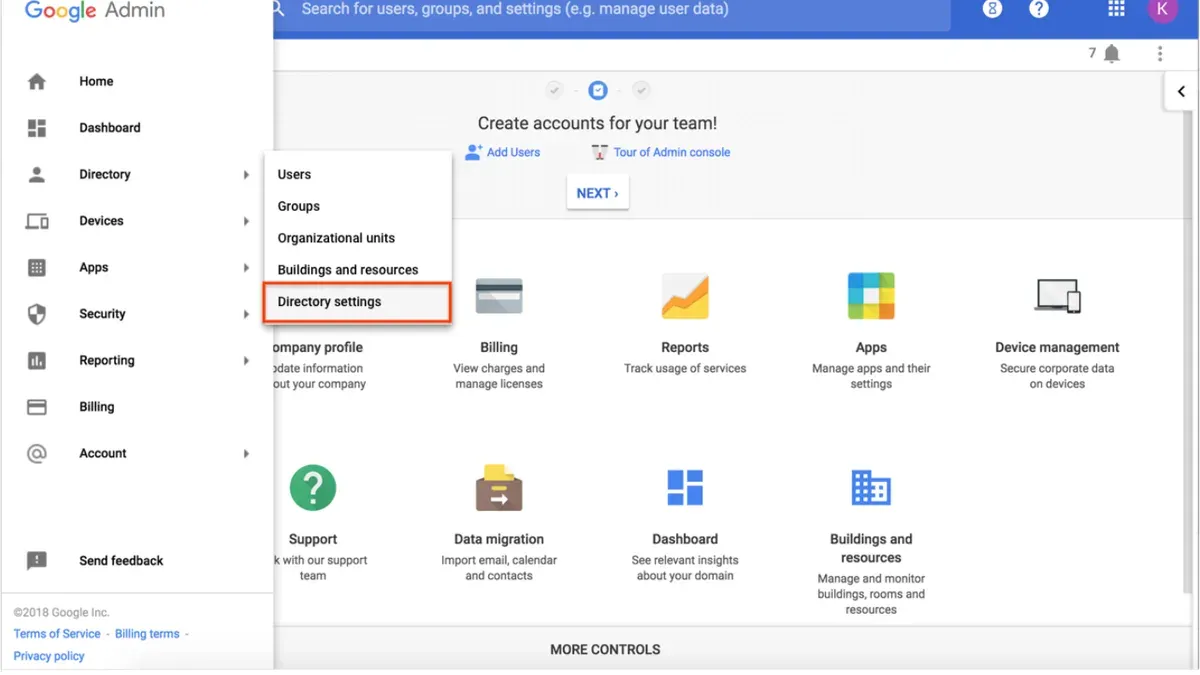
Short answer: Moving from Mosyle to Google Admin console requires careful planning around device enrollment, policy migration, and user permissions to avoid service disruptions. This moving from Mosyle to Google Admin console checklist covers the unique differences between the platforms and outlines clear steps to transition your device management smoothly.
This guide breaks down the key contrasts in device management approaches, how to prepare your environment before starting, and detailed migration actions. You’ll learn how to manage user accounts and permissions securely during the switch, common pitfalls to avoid, and ways to verify and optimize your Google Admin Console setup after migration. Follow this direct, no-nonsense checklist to ensure your school’s or organization’s devices remain secure and manageable throughout the transition.
What are the key differences between Mosyle and Google Admin Console?
Mosyle offers streamlined device enrollment with automated DEP (Device Enrollment Program) integration and a simple app deployment interface focused on K-12 needs. Google Admin Console, while supporting enrollment through zero-touch and Apple DEP, requires more manual configuration steps, especially when managing mixed device types beyond Chrome OS and Android.
The user interface in Mosyle is task-oriented, grouping device management, app deployment, and policy enforcement under clear menus like "Device Management" and "App Catalog." Google Admin Console separates these into distinct sections such as "Devices," "Apps & extensions," and "Security," which can slow initial navigation but offers deeper control for complex policies.
Integration capabilities differ significantly. Mosyle integrates directly with common educational tools but is less native to Google Workspace. Google Admin Console tightly integrates with Google Workspace, allowing seamless policy enforcement on Gmail, Drive, and Classroom alongside device management.
| Feature | Mosyle | Google Admin Console |
|---|---|---|
| Device Enrollment | Automated DEP enrollment with minimal setup | Supports DEP and zero-touch, requires manual profile assignments |
| App Deployment | Centralized App Catalog with one-click install | Separate "Apps & extensions" section, manual package configurations |
| Policy Enforcement | Predefined education-focused policies | Granular policies configurable per device type |
| User Interface | Consolidated, task-based menus | Modular, function-specific sections |
| Integration | Focus on K-12 apps, limited Google Workspace integration | Deep Google Workspace and education tool integration |
For instance, deploying a classroom-ready app in Mosyle might take a few clicks within the "App Catalog," pushing it directly to student devices. In Google Admin Console, you must navigate to "Apps & extensions," select the platform, configure installation policies, and assign organizational units. This reflects a trade-off between Mosyle’s simplicity and Google Admin Console’s flexibility and integration depth.
How do you prepare your environment before migrating?
Start by auditing your Mosyle device inventory and current configurations. Export detailed device reports including "Device List" and "Profiles & Policies" from Mosyle’s Reports section. These exports help you map existing settings to Google Admin Console equivalents and avoid configuration gaps. For example, missing a VPN profile export can disrupt user connectivity after migration.
Communicate the migration plan clearly to stakeholders and end users. Schedule the migration during low-usage hours and inform users of any expected downtime or device re-enrollment steps. Without this, you risk confusion and support overload.
Backup all critical data related to device management. Besides exporting reports, export any custom scripts or device enrollment tokens. Store these backups securely off-platform to prevent data loss.
Verify your Google Admin Console access and admin roles before starting. Confirm you have Super Admin privileges or delegated roles with device management permissions via Admin Console > Account > Admin roles. Lack of proper access delays migration and can cause permission errors.
- Export “Device List” and “Profiles & Policies” reports from Mosyle
- Notify all stakeholders and schedule migration during off-peak hours
- Backup custom scripts, enrollment tokens, and device data
- Confirm Super Admin or delegated device management roles in Google Admin Console
What are the step-by-step actions to migrate device management?
Begin by un-enrolling devices from Mosyle to avoid conflicting management profiles. Use the Mosyle dashboard to select devices, then apply the “Remove Management” command. This process typically takes 1-2 minutes per device but may require user interaction if devices are supervised. Watch for errors like “Device busy” or “Profile removal failed,” which often resolve after a device restart.
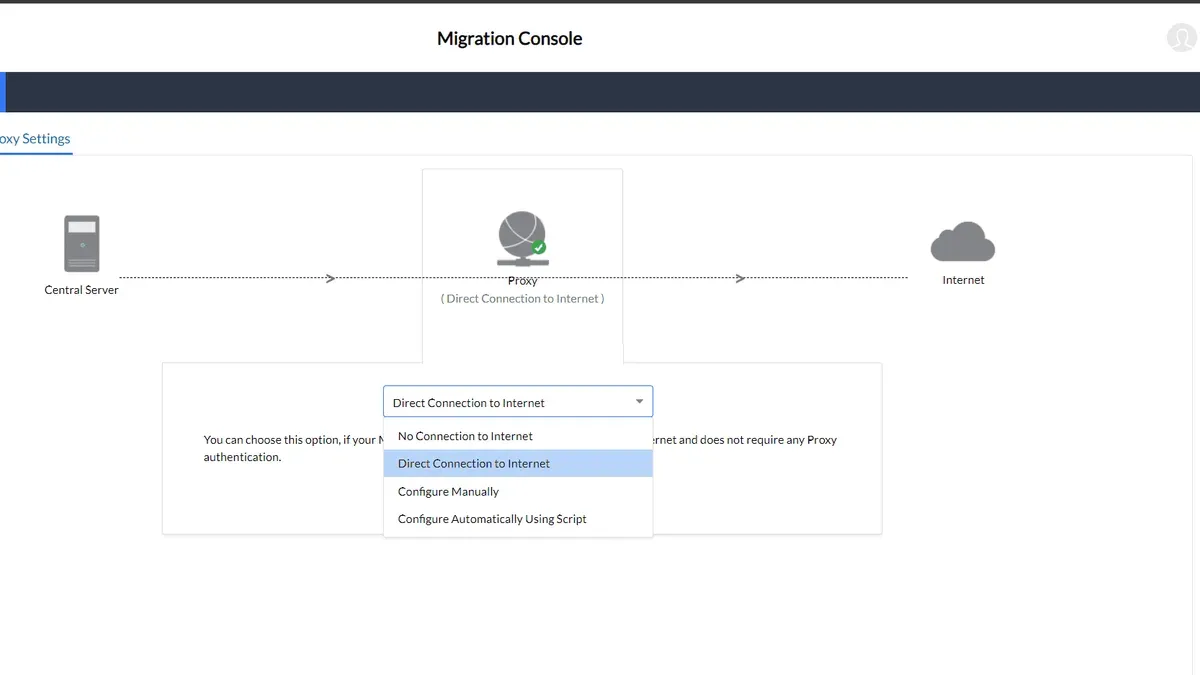
Next, enroll devices into Google Admin Console. For Android or Chrome OS, use Zero-Touch Enrollment via the Google Admin Console under Devices > Chrome Management or Android Management, associating device serial numbers with your domain. For iOS or macOS, manual enrollment through Apple Business Manager linked to Google is required. Expect enrollment to take about 3-5 minutes per device.
After enrollment, replicate your Mosyle policies by creating equivalent device settings, Wi-Fi profiles, restrictions, and app deployments under Devices > Policies in Google Admin Console. Pay special attention to app whitelisting and network access controls, as these differ between platforms.
Finally, test device compliance and functionality. Check device status in the Admin Console, validate policy application, and confirm app installations. For a batch of 50 devices, allow a migration window of 3-5 business days to handle staggered enrollments, troubleshooting, and user support.
- Remove devices from Mosyle using the dashboard’s management removal tool
- Enroll devices via Zero-Touch or manual Apple Business Manager integration
- Recreate policies and app deployments in Google Admin Console’s Devices > Policies section
- Verify device compliance and resolve errors like "Profile removal failed" or enrollment timeouts
- Plan at least 3-5 days for a batch migration of 50 devices to accommodate troubleshooting
How do you handle user accounts and permissions during the switch?
Start by mapping Mosyle user roles to the closest Google Admin Console admin roles. For example, Mosyle’s “Device Manager” aligns with Google’s “Device Management Admin,” while “Help Desk” corresponds to “User Management Admin.” This ensures you maintain proper access without over-privileging users. Review permissions side-by-side to avoid gaps; Google Admin Console offers more granular control, so adjust accordingly.
Synchronizing user credentials depends on your identity setup. If you use Google Workspace accounts tied to Mosyle devices, credentials typically remain intact. If not, plan a staged migration or use Google Cloud Directory Sync to sync on-premises accounts securely. Avoid manual password resets unless necessary.
Replicate your Mosyle organizational units (OUs) and Google groups to mirror device and user structure. For instance, if Mosyle has OUs for "Grade 9 Laptops" and "Staff Tablets," create matching OUs in Google Admin Console under your root domain. This keeps policies consistent and simplifies device targeting.
| Role (Mosyle) | Equivalent Role (Google Admin Console) | Key Permissions Difference |
|---|---|---|
| Device Manager | Device Management Admin | More granular device policy controls in Google |
| Help Desk | User Management Admin | Can manage users but limited device control |
| Super Admin | Super Admin | Full access in both platforms |
Example: Your Mosyle has an OU structure with "Students > Grade 10" and "Staff > IT Team." In Google Admin Console, replicate this by creating Students and Staff OUs, then sub-OUs for each group. Assign device and user policies accordingly to maintain consistent access and restrictions.
- Map all Mosyle roles to Google Admin Console roles before migration.
- Use Google Cloud Directory Sync or a staged approach for user credentials.
- Create matching OUs and groups in Google Admin Console to mirror existing structures.
- Double-check permissions against organizational policies to avoid over- or under-privileging.
What common mistakes should you avoid during this migration?
Failing to communicate migration timelines clearly to your users can cause confusion and increased support tickets. For instance, a school district delayed its rollout announcements, leading to students and staff being locked out unexpectedly, which disrupted classes for several hours.
Neglecting to fully remove devices from Mosyle before enrolling them into Google Admin Console often results in enrollment conflicts. One IT coordinator experienced repeated enrollment failures because devices still had active profiles in Mosyle, requiring manual resets and wasting days.
Overlooking app compatibility issues with Google Admin Console can cause functionality gaps. A district found that some education apps managed through Mosyle did not have equivalent policies in Google Admin Console, forcing them to delay migration while seeking workarounds.
Ignoring audit logs and monitoring during the transition leaves security blind spots. Without reviewing logs under Admin Console > Reports, one IT team missed unauthorized device enrollments, which could have compromised data integrity.
- Announce detailed migration schedules well before starting
- Ensure complete device removal from Mosyle before enrollment
- Test critical apps for compatibility with Google Admin Console policies
- Monitor audit logs closely throughout the migration process
How do you verify and optimize your new Google Admin Console setup?
Start by running compliance and security audits using the Security section under Admin Console. Check the Device Management > Device Settings report for policy status, encryption enforcement, and OS update compliance. For example, a typical audit report shows that 95% of devices have encryption enabled but flags 5% missing critical updates—this indicates where to focus remediation.
Collect user feedback through structured surveys targeting both admins and end users. Include questions on device performance, access issues, and app functionality. A simple template might ask users to rate device responsiveness on a 1–5 scale and report any recurring errors. This feedback uncovers operational gaps not visible in audit logs.
Adjust policies based on audit results and feedback. If devices frequently fall out of compliance due to delayed OS updates, consider tightening update enforcement or scheduling automated reminders. Balance strict controls with user convenience to maintain productivity while securing devices.
Plan training sessions for admins on navigating the Admin Console’s policy management and reporting tools. End user training should cover new workflows and troubleshooting basics to reduce support tickets. Training ensures your team leverages the platform fully and sustains optimized device management.
- Run Security > Device Management reports weekly for compliance metrics
- Distribute feedback surveys quarterly to users and admins
- Refine policies based on audit flags and user input
- Schedule regular training sessions for all stakeholders
Frequently asked questions
Can devices be managed simultaneously by Mosyle and Google Admin Console during migration?
Devices cannot be actively managed by both Mosyle and Google Admin Console at the same time. You must unenroll devices from Mosyle before enrolling them into Google Admin Console to avoid conflicts and policy overlaps. Plan a clear cutover window to minimize management gaps or duplication during the transition.
What happens to existing app licenses when moving from Mosyle to Google Admin Console?
App licenses tied to Mosyle will not automatically transfer to Google Admin Console. You need to reassign or purchase new licenses within the Google Workspace Admin interface or Google Play Console. Review your current licensing agreements and plan for any additional procurement to avoid service interruptions.
How long does the migration process typically take for a mid-sized school district?
The migration duration depends on device volume, network speed, and administrator experience but generally ranges from several days to a few weeks. Key factors include preparing devices for unenrollment, reconfiguring policies, and training staff on Google Admin Console. Allow time for troubleshooting and phased rollout to reduce disruption.
Are there any specific device models that are incompatible with Google Admin Console?
Google Admin Console supports a wide range of Chromebooks and Android devices but does not support non-Google OS devices like iPads or Windows laptops for full device management. Verify device compatibility by checking Google’s official support documentation for your device models before migration. Incompatible devices require alternative management solutions.
Quick checklist
- Audit all devices currently managed in Mosyle and note enrollment status.
- Ensure Google Admin Console has organizational units matching your school's structure.
- Backup any critical device configurations and user policies from Mosyle.
- Configure device enrollment settings in Google Admin Console under Devices > Chrome > Settings.
- Plan user account roles carefully; assign Admin, User, or custom roles in Admin Console Roles > Admin Roles.
- Unenroll devices from Mosyle systematically before enrolling them in Google Admin Console to avoid conflicts.
- Document the migration timeline and communicate clearly with users about expected downtime or changes.
- Test device functionality post-enrollment, focusing on policy enforcement and app deployment.
What this advice does not cover
This guide focuses on IT administrators managing primarily Chrome OS and Android devices. It does not cover detailed migration steps for iOS or macOS devices, which may require additional tools like Apple Business Manager or third-party MDM solutions. If your environment includes significant numbers of Apple devices, consult specialized resources or Apple-certified experts to ensure compliance and smooth migration.
Start your migration by mapping out your existing Mosyle device inventory and matching it to your Google Admin Console's organizational units. This foundational step reduces errors and streamlines enrollment, setting the stage for a clean transition.
See also: Moving from Mosyle to Clever: Your Clear-Cut Migration Guide · Moving from Mosyle to ClassLink: Your Step-by-Step Checklist · How to Switch from Microsoft Intune to Jamf School Without Losing Control · Moving from Microsoft Intune to Google Admin Console: The Complete Checklist