Moving from Mosyle to Clever: Your Clear-Cut Migration Guide
This moving from Mosyle to Clever checklist guides you through key steps for a smooth migration covering authentication, roster syncing, and device management.

Short answer: Moving from Mosyle to Clever requires careful attention to how each platform handles user authentication, roster syncing, and device management. A successful migration hinges on understanding these differences and preparing your data and settings accordingly. This moving from Mosyle to Clever checklist will guide you through the critical technical and procedural nuances to avoid common pitfalls.
This article covers the core distinctions in architecture between Mosyle and Clever, outlines necessary preparatory steps, and provides a detailed, step-by-step migration process. You’ll also learn about frequent mistakes IT administrators make and strategies to tailor Clever’s setup post-migration to your district’s specific needs. Expect a straightforward, no-nonsense guide focused on the behind-the-scenes mechanics that impact your migration success rather than superficial instructions.
What are Mosyle and Clever, and why switch?
Mosyle primarily targets Apple device management, offering streamlined control over iPads and Macs through features like app deployment, device restrictions, and inventory tracking. Its strength lies in device-centric management within Apple’s ecosystem. Clever, by contrast, serves as a broader platform focused on rostering, single sign-on (SSO), and integration across multiple learning management systems (LMS) and student information systems (SIS). It supports a wider variety of devices and applications beyond Apple, enabling centralized user management and seamless access.
The key difference is Clever’s emphasis on automating rostering and providing a unified login experience across diverse educational tools. For example, a district using Mosyle to manage Apple devices may struggle with manual roster updates and fragmented app access. Switching to Clever automates roster syncing from the SIS and connects to popular LMS platforms like Canvas, Google Classroom, and Schoology, reducing admin overhead and improving student experience.
| Feature | Mosyle | Clever |
|---|---|---|
| Device Management | Apple devices only | Limited device control; focus on user access |
| Rostering Automation | Manual or limited SIS sync | Automated SIS integration with multiple systems |
| Single Sign-On (SSO) | Not a core feature | Centralized SSO across hundreds of apps |
| LMS Integrations | Minimal or device-focused | Robust integrations (Canvas, Google Classroom, Schoology) |
Schools typically switch from Mosyle to Clever when they require expanded app integrations, automated and error-free roster syncing, and a smoother sign-on process for students and teachers. One district reported reducing teacher helpdesk tickets by simplifying login procedures and automating roster updates after switching to Clever. If your priority includes managing multiple platforms and easing access rather than solely controlling Apple devices, Clever is likely the better fit.
How does Clever’s architecture differ from Mosyle’s?
Clever functions primarily as a rostering and single sign-on (SSO) hub, centralizing user identity and access management across multiple applications. Mosyle, in contrast, is an MDM (Mobile Device Management) platform focused on Apple devices, handling device enrollment, configuration, and app deployment directly. This fundamental difference shapes how data flows between systems and what IT administrators must manage.
In Mosyle, user provisioning and device enrollment are tightly integrated—admins import users via CSV or sync with directory services, then enroll Apple devices through Mosyle’s Device Enrollment Program (DEP) integration. App distribution and policy enforcement happen within Mosyle’s dashboard. Clever, however, pulls user rosters from the Student Information System (SIS) and syncs them automatically, acting as a master source for user identities. Device enrollment still occurs on the device level, often managed separately through the school’s MDM.
For example, when a new student joins, Clever updates the roster in real time, granting instant access to linked applications via SSO. Mosyle’s device management remains independent, requiring manual or automated enrollment through its own processes. This means your workflow shifts: you delegate roster updates and app access to Clever while retaining device management tasks in Mosyle or another MDM solution.
A typical flow diagram shows Clever as the central hub for authentication and app launch, with Mosyle handling device-level policies and configurations. For IT admins, this means less time managing user accounts manually and more focus on ensuring devices comply with security policies. However, you’ll need to reconcile data between the two systems and adjust your monitoring routines accordingly.
- Understand that user provisioning moves to Clever’s automated roster sync from SIS.
- Keep device enrollment and configuration within your MDM (Mosyle or replacement).
- Adjust workflows to separate user access (Clever) and device control (MDM).
- Plan for ongoing data reconciliation between Clever and your device management tools.
What preparatory steps ensure a smooth migration to Clever?
Before migrating, audit your Mosyle user and device data for accuracy. Check for orphaned devices, inactive users, and outdated profiles using Mosyle’s Devices > Inventory and Users > Accounts pages. For example, you might find 15% of devices no longer in use or duplicate student accounts causing sync conflicts. Document these discrepancies in an audit report highlighting user counts, device status, and enrollment inconsistencies.

Next, back up all critical data and settings from Mosyle. Export device groups, configuration profiles, and app install lists via Settings > Export. Saving this data prevents loss and provides a rollback point if needed. Don’t overlook backing up SSO configurations and API keys, which are vital for seamless Clever integration.
Finally, communicate the migration timeline and expected changes clearly to all stakeholders: teachers, students, and administrators. Use email notices and staff meetings to explain when access disruptions might occur and what new login processes to expect. This reduces confusion and support tickets post-migration.
- Audit Mosyle device and user data (2–3 days)
- Export and back up Mosyle configurations and profiles (1 day)
- Prepare an audit report with discrepancies and cleanup actions (1 day)
- Notify and brief stakeholders on migration schedule and impact (1–2 days)
How to execute the migration step-by-step
Start by setting up Clever accounts with roles matching your current Mosyle permissions. In Clever’s Admin Console, use the “Settings > Users & Roles” tab to create or map roles, ensuring IT admins retain full control while teachers and students get appropriate access. Next, import user data and rostering from your Student Information System (SIS). Use Clever’s SIS integration setup to connect and sync data, verifying all users and classes appear correctly in the “Roster” view before proceeding.
With user data in place, begin decommissioning Mosyle device management. Disable new device enrollments in Mosyle and transition existing devices by enrolling them into Clever Device Management via the Clever portal. This phase typically spans 3–5 business days to minimize disruption. For example, a medium-sized district started on Monday by disabling Mosyle enrollment, completed device re-enrollment by Wednesday, and fully cut Mosyle off by Friday.
After migration, verify app access and authentication flows. Check that Single Sign-On (SSO) works seamlessly from Clever to all linked educational applications. Compare pre- and post-migration device status reports—Mosyle’s “Devices > Device Inventory” versus Clever’s “Devices” dashboard—to confirm all devices are accounted for and compliant.
- Map roles in Clever Admin Console before import
- Connect and sync SIS data fully
- Disable Mosyle enrollment, enroll devices into Clever
- Verify SSO and app access post-migration
- Compare device status reports to confirm completion
What common mistakes to avoid during migration?
One frequent error is neglecting to verify user and device data before importing it into Clever. For example, a district that skipped thorough data validation ended up with duplicate student accounts due to inconsistent roster formats in Mosyle exports. This caused access confusion and delayed the migration by weeks as IT had to manually merge and clean records.
Another common pitfall is inadequate training for teachers and students on new login procedures through Clever’s single sign-on portal. One school reported mass helpdesk tickets when users weren’t prepared for the Clever launch, leading to frustration and lost instructional time. Providing step-by-step guides and live walkthroughs before the switch is essential.
Rushing device unenrollment from Mosyle can create security gaps. In one case, devices were unenrolled too early, leaving some without proper management or access controls for days. Always follow the planned sequence: confirm Clever is fully operational for user authentication before removing device profiles in Mosyle.
- Validate and clean roster data before import to avoid duplicates
- Train end-users thoroughly on Clever login processes before migration
- Complete Clever setup and verification before unenrolling devices from Mosyle
How to optimize Clever post-migration for your school’s needs?
Once you’ve completed the migration, use Clever’s built-in analytics under the "Dashboard > Usage Reports" menu to monitor login trends, app engagement, and roster sync status. For example, tracking monthly SSO login counts helps identify inactive accounts that may indicate data sync issues or training gaps. Regularly reviewing these reports prevents unnoticed access problems.
Customize SSO settings via "Admin Settings > Single Sign-On" to align with your school’s workflows. Adjust session timeouts, enable multi-factor authentication, and configure user role permissions to control who can manage rosters and apps. For instance, setting distinct permissions for IT staff and teachers reduces accidental roster changes while maintaining flexible access.
Plan quarterly data reviews focusing on roster accuracy and app assignments. Use the "Roster Sync" report to spot outdated or duplicated student entries. Clear stale data promptly to maintain system efficiency and prevent login conflicts. Establish a checklist for these reviews to ensure consistency and assign responsibility within your team.
- Regularly analyze Clever usage reports for anomalies
- Fine-tune SSO and permission settings to match roles
- Conduct quarterly roster and app data audits
- Document and assign review tasks to specific admins
Frequently asked questions
Will my existing app licenses transfer from Mosyle to Clever?
App licenses managed through Mosyle will not automatically transfer to Clever. You need to reassign or repurchase licenses within Clever’s platform, depending on your agreements with app vendors. Check your vendor contracts for transfer policies and prepare for a manual license setup in Clever’s App Library.
How do I handle parental consents during the migration?
Parental consents collected via Mosyle do not migrate to Clever. You must inform parents about the switch and collect new consents as required. Use Clever’s Parent Portal setup to streamline consent management post-migration and ensure compliance with district policies.
What happens to device restrictions set in Mosyle after migration?
Device restrictions configured in Mosyle are not carried over to Clever. You’ll need to recreate restrictions using Clever’s policy management settings, such as Smart Restriction Rules or device profiles. Review your existing policies before migration to replicate critical controls accurately.
Can I run Mosyle and Clever simultaneously during transition?
You can run both systems in parallel but avoid managing the same devices in both at the same time. Dual management risks conflicts or policy overrides. Plan for a clear cutover date and gradually shift device management tasks to Clever after testing configurations on a pilot group.
What this guide does not cover
This guide does not cover detailed troubleshooting of platform-specific bugs or third-party app integrations that may require vendor support. If your migration involves complex custom apps or heavily customized device policies beyond standard Mosyle and Clever configurations, consider engaging directly with vendor technical teams or hiring a specialized consultant. Also, this walkthrough assumes you have administrative access and familiarity with your school’s identity provider and SIS integrations.
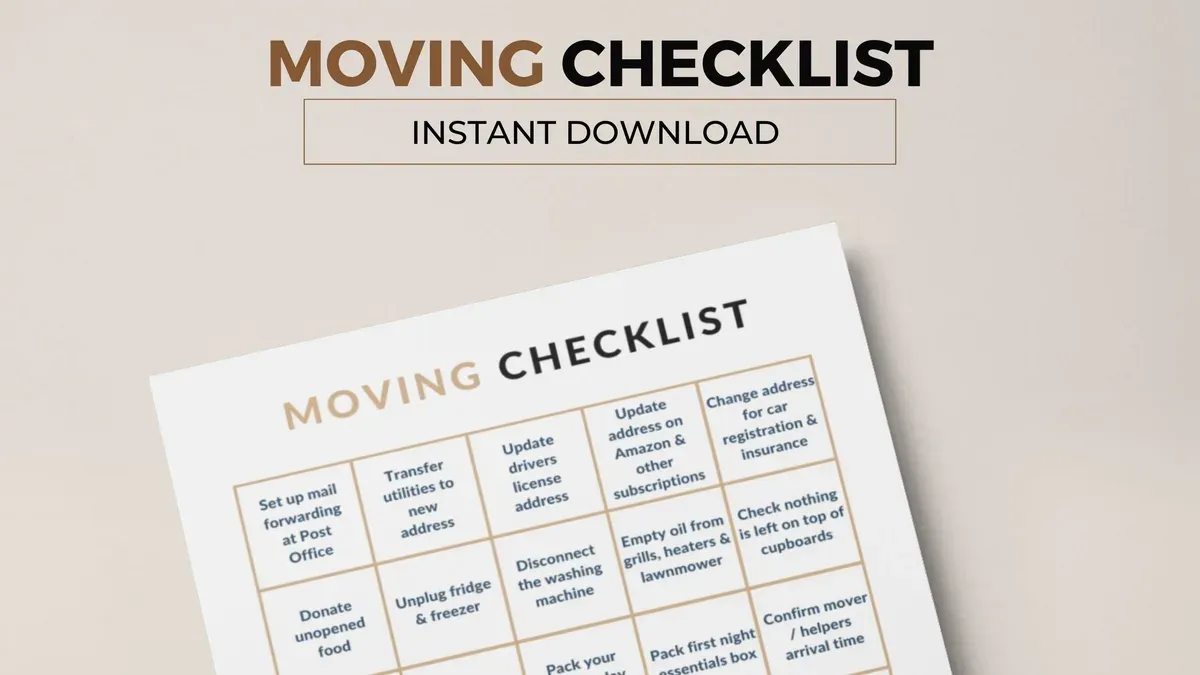
Quick checklist
- Confirm full export of user and device data from Mosyle, including custom fields
- Verify SIS sync settings and data cleanliness before importing into Clever
- Set up Clever district and school-level admin accounts with correct permissions
- Map user roles and groups carefully to avoid misassignments
- Test migration on a small pilot group before full rollout
- Communicate timing and expected downtime clearly to end users
- Review and adjust device profiles and app assignments after migration
- Monitor logs and reports for sync errors or unexpected behavior
Start your migration by exporting a complete and accurate dataset from Mosyle. This foundational step prevents cascading errors and ensures Clever’s architecture can properly ingest your data. Focus on clean SIS data and role mappings before importing. Taking this upfront care saves hours on troubleshooting later and sets your migration on a clear path to success.
See also: Moving from Mosyle to ClassLink: Your Step-by-Step Checklist · Moving from Mosyle to Apple School Manager: Complete Checklist for IT Admins · Mosyle Rollout Plan for School Administrators: A Practical Guide · How to Seamlessly Hand Over a Blackboard Class to a Substitute