Google Gemini Rollout Plan: A Practical Guide for Office Managers
A practical guide for office managers to deploy Google Gemini smoothly, ensuring high adoption and minimal disruption in office workflows.


Short answer: The Google Gemini rollout plan for office managers is a step-by-step approach to deploying Google’s AI platform smoothly across your office systems. It focuses on practical integration, clear communication, and user training to ensure high adoption rates and minimal disruption.
This guide covers what Google Gemini is and why it matters to your office, how to integrate it with existing tools like Google Workspace and third-party apps, and actionable steps to execute the rollout effectively. You’ll find advice on overcoming common resistance, avoiding pitfalls such as inadequate training or poor timing, and how to measure success through usage analytics and feedback loops. Use this guide to make confident, informed decisions that maximize productivity and ease the transition for your team.
What is Google Gemini and why should you care?
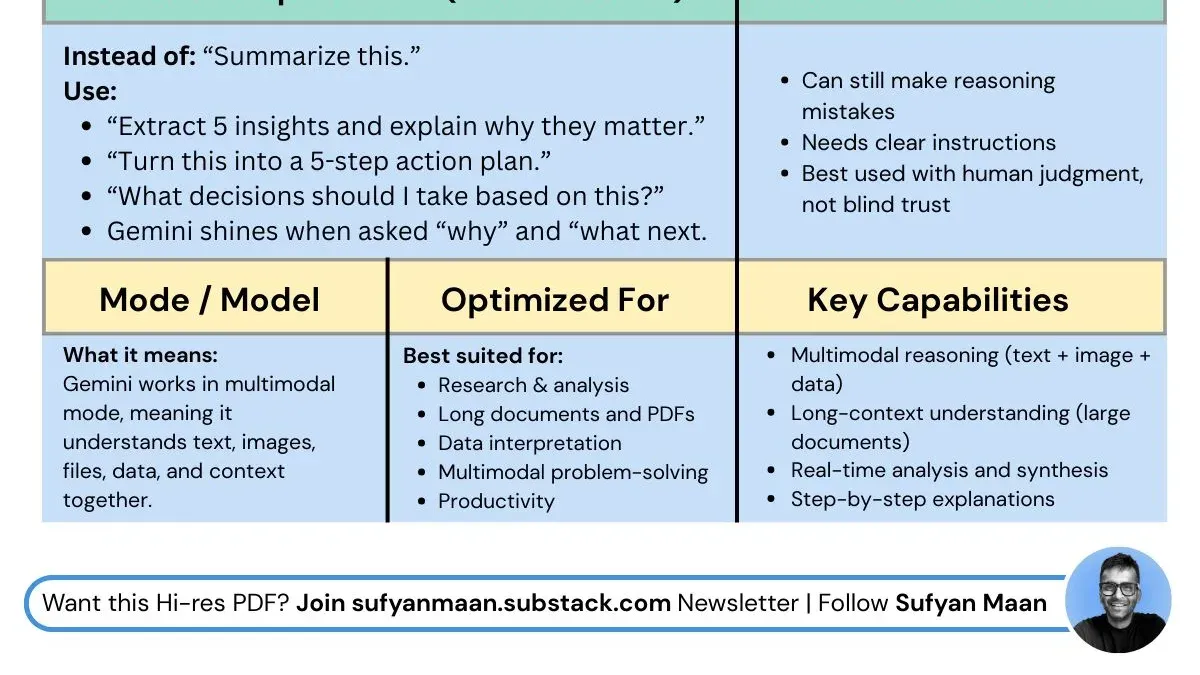
Google Gemini is an advanced AI platform designed to streamline office workflows by combining natural language processing, data analysis, and task automation. Unlike generic AI tools, Gemini integrates deeply with Google Workspace apps and common office software, offering tailored assistance for scheduling, email management, document creation, and data summarization. This integration reduces the need to switch between applications and manual data entry.
Compared to competitors like ChatGPT, which primarily focuses on conversational AI, and Microsoft Copilot, which integrates mainly with Microsoft 365, Gemini’s strength lies in its seamless cross-platform collaboration features and real-time contextual insights. Early adopter offices report noticeable productivity gains by automating repetitive tasks such as meeting follow-ups and report generation, freeing managers to focus on strategic work.
Picture this: Gemini automatically drafts meeting minutes from a Google Meet recording, highlights key action items, and updates your shared project tracker without manual input. This practical automation cuts administrative overhead and keeps your team aligned effortlessly.
How does Google Gemini integrate with existing office systems?
Google Gemini connects seamlessly with widely used office suites like Microsoft 365 and Google Workspace. It supports direct integration through native plugins and APIs, enabling it to work inside apps such as Outlook, Word, Sheets, and Gmail without disrupting your team's usual workflows. For communication, Gemini integrates with platforms like Microsoft Teams and Slack, allowing AI-powered task suggestions and reminders within chat windows.
Technically, Gemini requires admin-level access to configure API connections and install plugins via the organization's software management tools. Once set up, it can automate scheduling by analyzing calendars and proposing optimal meeting times, draft and edit documents using contextual prompts, and perform data analysis by pulling information from spreadsheets or databases.
For example, in a typical office, Gemini cut scheduling coordination time by about 30% by suggesting meeting slots that fit all participants' calendars and sending invites automatically. This reduces back-and-forth emails. Similarly, it can draft first versions of reports based on raw data, saving employees from starting from scratch.
- Verify compatibility with your office suites and communication tools.
- Obtain necessary admin permissions for API and plugin setup.
- Install Gemini plugins via software management consoles.
- Configure Gemini to access calendars, email, and document repositories.
- Train users on triggering AI features within their apps.
What practical steps should you follow to roll out Google Gemini?
Start by assessing your office’s specific needs. Identify departments or teams that will benefit most from Google Gemini's features—these become your pilot groups. For example, the scheduling and data analysis teams may see immediate gains. Define clear goals for the pilot, such as reducing meeting planning time by 30% within the first month. Set measurable success metrics aligned with these goals.

Next, plan training sessions tailored to user roles. Allocate resources like dedicated training time, access to help documents, and a point of contact for troubleshooting. Communicate the rollout timeline and expectations clearly via email and team meetings. For instance, schedule a two-week pilot phase followed by feedback collection.
Gather user feedback continuously during the pilot to identify pain points. Use simple surveys or short interviews to capture input. Adjust training or features as needed before a full rollout. For example, if users struggle with the document drafting plugin, provide additional tutorials or quick reference guides.
- Assess office needs and select pilot teams
- Set explicit goals and success metrics
- Organize role-specific training and assign support resources
- Communicate rollout timeline and expectations clearly
- Collect and act on user feedback during pilot
Sample rollout timeline: Week 1 – Needs assessment and team selection; Week 2 – Goal setting and training development; Week 3 – Pilot launch and initial training; Week 4 – Feedback gathering and adjustments; Week 5 – Full rollout planning based on pilot outcomes.
How can you maximize user adoption and minimize resistance?
Users often worry about job security and the effort required to learn new AI tools like Google Gemini. Address these concerns directly by framing the rollout as a productivity aid rather than a replacement. Communicate transparently about the changes, focusing on how Google Gemini reduces routine tasks and frees time for higher-value work.
Implement ongoing support through dedicated office hours, easily accessible FAQs, and regular training refreshers. Incentives such as recognition programs or small rewards for early adopters can boost engagement. For example, a mid-sized firm increased adoption by 40% after launching weekly drop-in sessions and highlighting success stories in internal newsletters.
Clear communication and continuous support create a positive environment that encourages users to embrace Google Gemini. This approach minimizes resistance by making the transition manageable and showing tangible benefits.
- Address job security concerns upfront in team meetings
- Provide regular hands-on training and open Q&A sessions
- Use internal communications to share success stories and tips
- Offer incentives for early and effective use
- Maintain a feedback channel for ongoing user input
What mistakes should you avoid during the rollout?
Rushing Google Gemini deployment without thorough training is a common pitfall. For example, a mid-sized marketing firm launched Gemini across all departments within two weeks but skipped hands-on training sessions. As a result, users struggled to navigate features like the automated scheduling plugin under the Settings > Calendar Integration menu, causing frustration and low adoption. Training ensures users know where to find and customize tools, reducing confusion and errors.
Neglecting data privacy and compliance is another critical error. Google Gemini accesses sensitive documents and communications, so failing to configure access controls under Admin Console > Security > Access Management can expose confidential information. One financial services company halted their rollout after a compliance audit flagged insufficient data handling policies tied to Gemini's data processing.
Ignoring user feedback or skipping iterative improvements kills momentum. A tech startup deployed Gemini but did not collect input via regular surveys or team check-ins, missing issues like delayed response times in the chat assistant. Experts emphasize continuous iteration based on real user experience to refine workflows and maintain engagement.
- Schedule comprehensive, role-specific training before launch
- Set strict data access permissions and review compliance guidelines
- Establish feedback channels and iterate rollout phases accordingly
How do you measure success and plan for ongoing optimization?
Define clear key performance indicators (KPIs) that reflect office productivity improvements, such as reduced task completion time, number of automated workflows, and user engagement rates. Use Google Gemini’s built-in analytics dashboard located under Admin Console > Reports > Gemini Analytics to track these metrics over time. For example, if scheduling automation cuts meeting setup time from 30 to 10 minutes, that quantifiable gain signals success.
Schedule monthly review meetings with your team to discuss progress, identify challenges, and collect user feedback. Regularly update your KPI dashboard during these sessions to visualize trends and spot areas needing attention. This keeps the rollout dynamic and responsive.
Plan for incremental updates by aligning them with user needs and technology advances. If users request new automation features or integration with additional tools, prioritize these in your roadmap. Scaling Gemini use gradually—starting with a core group before expanding—helps manage risks and adoption.
Example: A mid-size office tracked a 40% reduction in document drafting time within the first quarter post-rollout, using these metrics to justify expanding Gemini’s use to other departments.
- Define and monitor KPIs relevant to your office tasks.
- Hold regular review meetings to update progress and challenges.
- Plan updates based on user feedback and tech improvements.
- Scale deployment gradually for controlled adoption.
Frequently asked questions
What office tasks can Google Gemini automate effectively?
Google Gemini excels at automating routine tasks like scheduling meetings, managing emails, generating reports, and data entry. It can also assist in document drafting and summarizing lengthy communications. These automations help reduce manual workload and improve overall efficiency.
How much technical support will my team need during rollout?
The level of technical support depends on your team's familiarity with AI tools and existing infrastructure. Expect to allocate dedicated IT resources for initial setup, integration via Google Workspace Admin Console, and troubleshooting during the first few weeks. Providing clear documentation and training sessions can reduce ongoing support needs.
Can Google Gemini handle sensitive or confidential information securely?
Yes, Google Gemini uses Google Cloud's security protocols, including encryption at rest and in transit. You should configure access controls within the Google Admin Console to restrict data permissions appropriately. Regular audits and compliance checks are recommended to maintain security standards.
What if some employees resist using Google Gemini?
Resistance is common; address it by demonstrating clear benefits and offering hands-on training. Encourage feedback and tailor use cases to individual roles. Setting up pilot groups and champion users can also help build trust and promote adoption across the team.
Quick checklist
- Confirm Google Gemini compatibility with your core office software (G Suite, Microsoft 365, Slack, etc.)
- Set up admin access via Google Admin Console and configure security policies
- Develop a phased rollout schedule with pilot teams before full deployment
- Prepare training materials focusing on daily tasks automation and communication features
- Communicate clear benefits and changes to staff ahead of deployment
- Monitor user feedback and system performance weekly during rollout
- Adjust settings and support resources based on initial adoption challenges
- Establish key performance indicators (KPIs) related to productivity and user engagement
What this guide does not cover and who should do something else
This guide does not cover deep technical setup or IT infrastructure specifics, which require specialized expertise. If your environment involves complex network configurations, custom integrations, or strict compliance requirements, consult your IT department or a certified Google partner. Not all office environments or roles will benefit equally from Google Gemini; assess whether its AI-driven features align with your team’s workflows and needs before committing to a full rollout.
Start with a small pilot group to validate compatibility and user experience. This step helps identify unforeseen challenges and tailor training effectively. The single most useful next step is to schedule your pilot rollout session using the Google Admin Console, ensuring you have clear metrics and feedback channels in place from day one.