How to Use the Blackboard Mobile App with Students: A Practical Guide
Discover practical steps to use the Blackboard mobile app with students for course management, communication, and enhanced engagement.

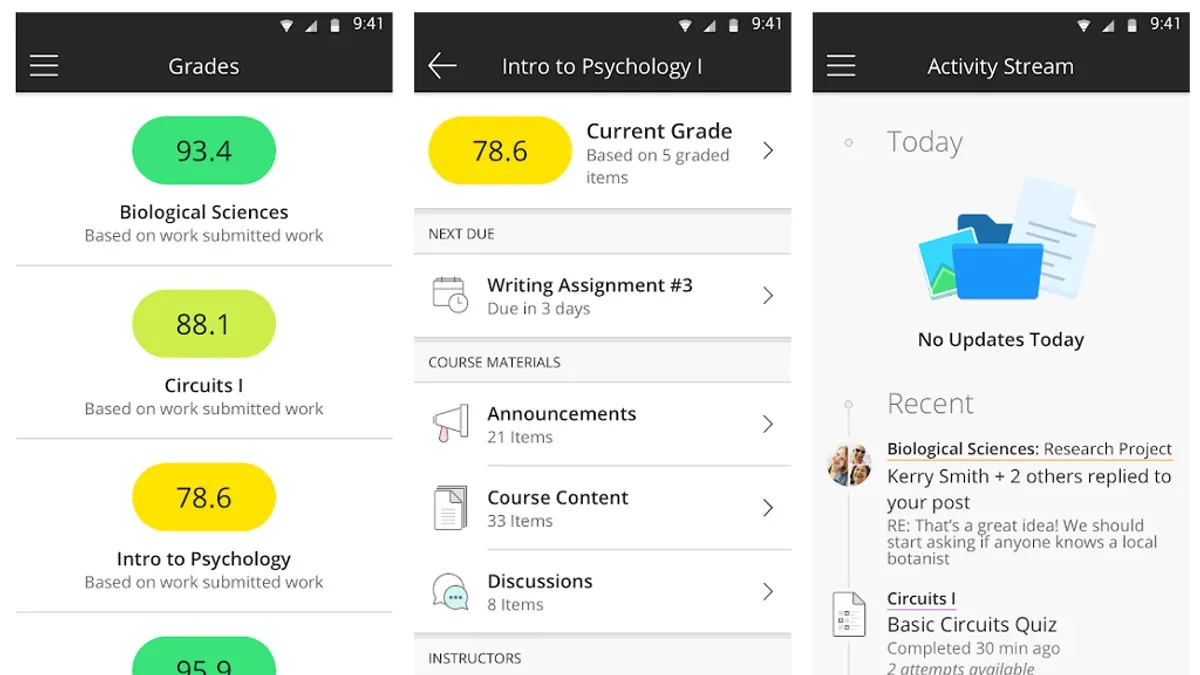
Short answer: You use the Blackboard mobile app with students by installing it on your device, signing in with your institutional credentials, and leveraging its tools to manage courses, communicate, and monitor student progress on the go. The app lets you post announcements, grade submissions, and engage students through discussion boards and messages directly from your phone or tablet.
This article outlines how to use the mobile app with students in Blackboard, focusing on practical steps to set up the app, navigate essential student-centered features, and actively support engagement and participation. You will find clear instructions and educator workflows designed to integrate the app seamlessly into your teaching routine, along with troubleshooting tips and optimization strategies for different teaching scenarios.
What do you need before starting with the Blackboard mobile app?
You need a compatible smartphone or tablet running either iOS 13.0 or later, or Android 8.0 or later. Supported devices include iPhones, iPads, and a wide range of Android phones and tablets. Ensure your device has enough storage space to install the app and accommodate updates.
Access to your institution’s Blackboard system is mandatory. You must have valid Blackboard credentials provided by your educational institution. Typically, this means your institutional email and password used for logging in via your school’s Blackboard portal. Without these, you cannot connect to your courses or interact with students.
A stable internet connection is essential. You can use Wi-Fi or cellular data, but a reliable network will prevent connectivity issues during live interactions or content uploads. If working in low-signal areas, plan to download necessary materials in advance.
Students must have permissions enabled to receive notifications and share content if you want to engage them fully through the app. Verify that push notifications are allowed in both the device settings and Blackboard app settings.
| Device Type | Operating System |
|---|---|
| iPhone, iPad | iOS 13.0 or later |
| Android phones, tablets | Android 8.0 or later |
- Download the Blackboard app from Apple App Store or Google Play Store. You should see the app icon appear on your device.
- Open the app and enter your institution’s Blackboard URL when prompted. A login screen will appear.
- Enter your institutional username and password. Successful login leads to your Blackboard course dashboard.
- Go to device settings and enable notifications for Blackboard. The app will prompt you to allow notifications if not enabled.
How do you install and set up the Blackboard mobile app for student interaction?
Start by downloading the Blackboard app from the Apple App Store for iOS devices or Google Play Store for Android devices. Search for "Blackboard" and select the official app published by Blackboard Inc. Once downloaded, open the app to begin setup.
- Launch the app; select "Find your school" and enter your institution’s name or domain to link the app to your Blackboard environment. You should see your institution appear in the search results.
- Tap your institution name, then log in using your institutional Blackboard credentials. Successful login leads to the app homepage with your courses listed.
- Access the app settings and select "Notifications". Choose to enable notifications for key student activities like submissions, posts, and grades. Balance is crucial: too many alerts can cause overload, but missing updates delays your responses.
- Verify course access by selecting each course from the homepage. Confirm that enrolled students appear correctly under the course roster section, ensuring you can manage participants effectively.
Following these steps sets up your Blackboard mobile app for real-time student interaction and management.
How do you navigate key student-focused features on the Blackboard mobile app?
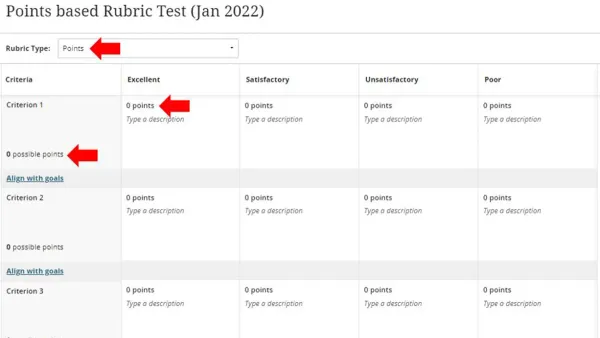
To manage and engage students effectively, start by accessing course content and assignments from the Courses tab. Tap on a course to see all content areas and assignments. Open individual assignments to view submissions and grade them directly within the app. When grading, use the provided rubric or enter numeric/text feedback, then submit to update the gradebook.
For communication, use the Announcements feature to send updates visible to all students. Navigate to the course menu, select Announcements, tap the + icon, compose your message, and post. Students receive notification alerts if enabled. For direct communication, use the Messages tool to contact individual students or groups privately.
To monitor student progress, access the Performance Dashboard via the course menu. Review participation indicators such as last access date and submitted work to identify students needing attention. For example, if a student hasn’t logged in for several days, you can send a reminder message quickly.
- Open the Blackboard app and select the target course; you see the course homepage with content sections.
- Tap Assignments, select a submission to grade; the grading interface appears with rubric and comment options.
- Go back to the course menu, tap Announcements; tap + to create a new announcement, then post it.
- From the course menu, select Messages, pick a student or group, compose and send your message.
- Access the Performance Dashboard from the course menu to view student activity and participation metrics.
How do you support student engagement and participation via the mobile app?
Use discussion boards and real-time chat to prompt interaction. Post clear, focused questions or prompts in the Discussion Board, then monitor and respond promptly to keep conversations active. The real-time chat feature lets you address questions or encourage dialogue during live sessions or study groups.
Create timely polls or quick quizzes to check understanding. Use the Test tool to build short, mobile-friendly quizzes and deploy them during or after lessons. Students can submit answers quickly, boosting participation and giving you immediate feedback.
Schedule reminders and deadline alerts through the app’s Notification Settings. Send push notifications about upcoming assignments or exams to keep students on track. Educators who integrated polls and reminders observed a noticeable increase in student responses and on-time submissions.
Encourage multimedia submissions by allowing students to upload photos, videos, or audio files via Assignments. This supports varied learning styles and makes content creation easier on mobile devices.
- Post a discussion prompt in the Discussion Board; you should see it listed under the course's Forums.
- Create a short quiz using the Test tool; students should be able to access and submit via the app.
- Set a deadline alert in Notifications; students receive a push notification before due dates.
- Enable multimedia submissions in Assignment settings; students can upload files through their mobile device.
What common issues might disrupt your use of the Blackboard mobile app and how do you fix them?
Login and authentication errors often arise when credentials are outdated or institutional access changes. Clear cached data in the app settings and re-enter your login details to resolve this. You should see your courses load immediately after successful login.
Sync problems between the mobile app and desktop Blackboard can cause outdated content or missing submissions. Force a manual sync by pulling down the course list screen. A spinning sync icon followed by updated content confirms success.
Missing notifications or delays in student submissions usually stem from incorrect notification settings or poor connectivity. Verify notification permissions in your device settings and ensure the app runs in the background. Notifications should appear promptly after setup.
App crashes or performance lags vary by device but often improve by updating the app to the latest version and clearing cache. Restart the device after updates. If crashes persist, reinstalling the app typically resolves underlying issues.
- Clear app cache and data: Go to device Settings > Apps > Blackboard > Storage > Clear Cache and Clear Data. Then reopen the app; courses should load without error.
- Force sync: Open Blackboard app, pull down on your course list to trigger sync. Wait for refreshed content and no error messages.
- Check notifications: In device Settings > Apps > Blackboard > Notifications, enable all relevant alerts. Confirm notifications arrive with new messages or submissions.
- Update and restart: Visit your app store, update Blackboard to the latest version, then restart your device. Open the app to confirm stable performance.
- Reinstall if needed: Uninstall Blackboard, then reinstall from your app store. Log back in and verify smooth operation.
How can you optimize the mobile app experience for different teaching contexts?
Adjust notification settings by course type to match your teaching context. For large lectures, limit announcements to essential updates only, reducing message fatigue. Small seminars benefit from more frequent, personalized notifications to foster interaction. Use the app's “Notification Settings” under each course to customize alerts for grades, posts, and submissions accordingly.
Integrate the app into synchronous classes by using real-time chat and quick polls to engage students actively. For asynchronous courses, leverage discussion boards and assignment feedback within the app to maintain steady communication. This balance ensures the app supports your chosen teaching style without overwhelming students or yourself.
Support students with limited tech access or disabilities by prioritizing lightweight content and enabling captions or alternative text in multimedia submissions. The app’s compatibility with screen readers and adjustable font sizes can improve accessibility. Encourage use of offline features where possible to help those with unstable internet.
Balance mobile and desktop workflows by reserving detailed grading and content creation for desktop use, while handling communication and quick checks via mobile. Educator feedback shows this division prevents overload and keeps workflows efficient, especially when managing multiple courses.
- Customize notifications per course based on class size and interaction needs
- Use real-time features for synchronous sessions and asynchronous tools for self-paced learning
- Enable accessibility options and offline capabilities for inclusivity
- Divide tasks between mobile and desktop to maintain efficiency without burnout
Frequently asked questions
Can students submit assignments directly from the Blackboard mobile app?
Yes, students can submit assignments directly through the Blackboard mobile app. They need to access the specific assignment, tap the submission area, and upload files from their device or cloud storage. Supported file types include common documents like PDFs, Word files, and images. Ensure students have a stable internet connection to complete the upload successfully.
How do I receive push notifications about student activities?
To receive push notifications, enable notifications within the app’s settings under Account > Settings > Notifications. Customize alerts for activities such as assignment submissions, discussion posts, and grades. Also, verify that your device’s system settings allow Blackboard notifications. This ensures you won’t miss important student interactions.
Is the Blackboard mobile app secure for communicating with students?
The Blackboard mobile app uses encrypted connections to protect communications and data exchanges. Messages and notifications are secured within the app framework, adhering to institutional privacy standards. However, avoid sharing sensitive personal information through chat and encourage students to use official channels for confidential matters.
What should I do if the app doesn’t sync my course updates?
If the app isn’t syncing course updates, first check your internet connection. Then, force a manual refresh by pulling down the course list or logging out and back in. Clear the app cache via your device settings if issues persist. Finally, confirm your Blackboard server isn’t experiencing downtime by consulting your institution’s IT support.
What this advice does not cover
This guide focuses on the educator’s perspective of using the Blackboard mobile app; it does not cover detailed student-side functionality or institution-specific customizations. If you need help with advanced administrative settings, integrations with third-party tools, or institution-wide deployment strategies, consult your IT department or Blackboard support. For hands-on student tutorials, direct learners to official Blackboard student resources or training modules.
Quick checklist
- Confirm you have an active Blackboard instructor account and course access.
- Download the Blackboard Instructor app from your device’s app store.
- Log in using your institution’s credentials and set notification preferences.
- Familiarize yourself with course content navigation and gradebook access.
- Use announcements and discussion boards to initiate student engagement.
- Monitor participation via the Gradebook and Activity Overview sections.
- Troubleshoot common issues like login errors or sync problems promptly.
- Adjust app settings to fit your teaching context, such as notification frequency and offline access.
The most useful next step is to open the Blackboard Instructor app right now and explore setting up an announcement for your current course. This immediate action starts the process of active student engagement and helps you build confidence managing your course on the go.
See also: How to Use the Class Calendar in Blackboard: Sync and Manage Your Schedule · How to Leave Clear, Actionable Feedback on Student Work in Blackboard · How to Grade Student Work Efficiently in Blackboard · How to Create Assignments in Blackboard: A Step-by-Step Guide