How to See Where You're Logged Into Snapchat: Step-by-Step Guide
Discover how to check where you're logged into Snapchat by viewing active devices and login activity to keep your account secure.


This article explains how to see where you're logged into Snapchat, focusing on interpreting device and location information correctly. Snapchat users often want to verify which devices have active sessions and identify login locations to maintain account security. However, Snapchat's interface provides limited details, and understanding what is shown—and what is not—is crucial for making informed decisions about account safety.
Snapchat does not display exact addresses or detailed device info, but it offers a list of active devices and recent login activity timestamps. Learning where to find this information and how to interpret it helps users decide whether to log out sessions or update security settings. This guide provides clear, step-by-step instructions on accessing and understanding Snapchat login data.
Before you start: What is needed to check Snapchat login locations
To check where a Snapchat account is logged in, access to the Snapchat app or the official Snapchat web account is mandatory. This requires having the correct login credentials—the username and password—for the account in question. Without these, it is impossible to view login sessions or device information.
Snapchat's security interface provides a list of active devices currently logged into the account but does not offer detailed geographic location data. Instead, it generally shows device types (such as iPhone, Android, or web) and the approximate last active time. For example, the login activity screen might list "iPhone 13 - Last active 2 hours ago" or "Web login - Last active 15 minutes ago." No precise IP addresses or city-level locations are displayed.
Users should be aware that Snapchat's privacy design limits the availability of historical login data. Only recent active sessions are visible, and older login history is typically not accessible. This means that checking for suspicious activity relies on reviewing currently active devices rather than a detailed past login timeline.
- Open the Snapchat app or visit the Snapchat web login page and enter valid account credentials. Upon successful login, the main interface or profile screen should appear.
- Navigate to the settings menu by tapping the profile icon, then the gear icon in the top-right corner. The settings screen should load.
- Scroll to find the "Login Activity" or "Security" section, depending on the Snapchat version. Selecting this will display a list of active devices with basic details like device name and last active time.
Tip: The "Login Activity" section does not show exact locations but provides enough information to identify unfamiliar devices or sessions.
How to see what devices you're logged into on Snapchat
- Open the Snapchat app and tap the profile icon in the top-left corner to access your profile.
- Tap the gear icon in the top-right corner to open Settings. You should see a list of settings categories.
- Scroll down and select Login Verification or Connected Devices. On some app versions, this may be under Account Security.
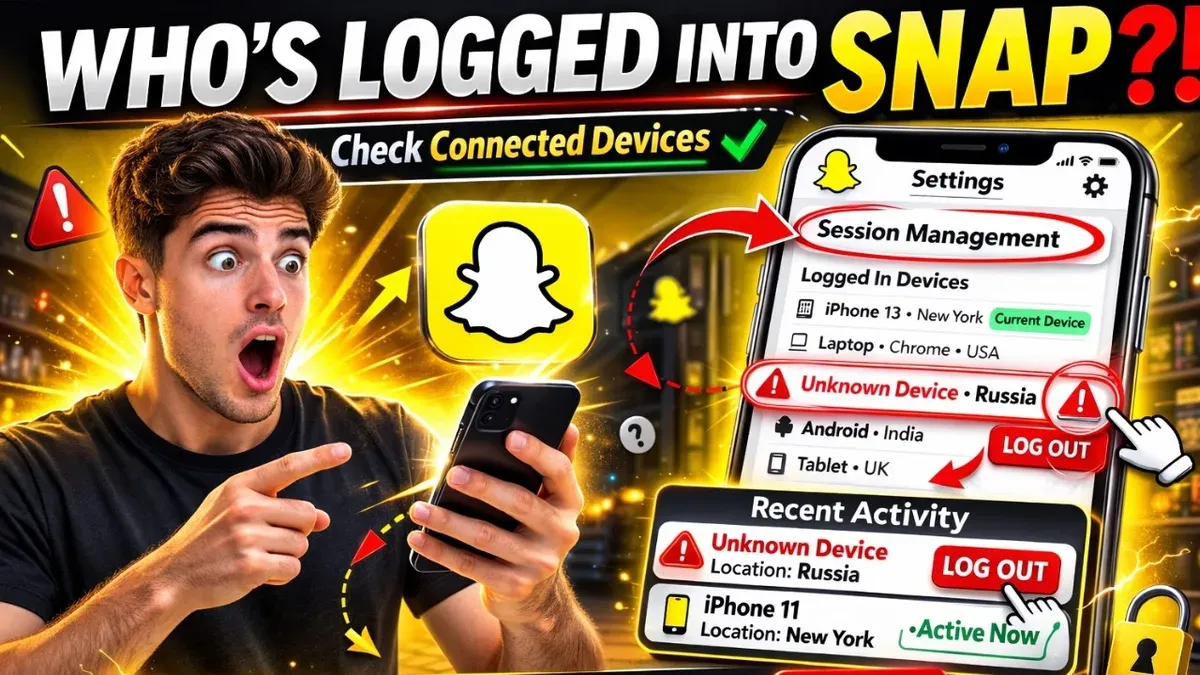
- In this section, view the list of devices currently logged into your Snapchat account. Each entry typically includes the device type, such as "iPhone," "Android," or a browser name, alongside a timestamp of the last activity on that device.
- Interpret the device names carefully: generic labels like "Chrome" indicate a web login, while specific device types show mobile or tablet sessions. The timestamps help identify recent activity and confirm whether the session is current.
The list does not always provide exact device models or precise locations but gives enough detail to recognize unfamiliar devices or sessions.
Tip: If a device listed seems unfamiliar or shows activity from an unexpected time, consider logging out of that session to secure the account.
How to see where you are logged in on Snapchat
Snapchat does not provide users with exact geographic locations for active logins. Instead, it offers limited data, primarily through IP addresses, which can suggest a general area but not a precise location. This is part of Snapchat's privacy design to protect user information.
To get a sense of where logins originate, users can combine device information from the Connected Devices section with IP addresses found in login verification emails or security alerts sent by Snapchat. These IP addresses can be looked up using external IP location services to approximate the city or region of the login attempt.
For example, a security alert email might show an IP address like "192.0.2.1" with a timestamp. Using a public IP lookup tool, this IP could resolve to a metropolitan area, helping verify whether the login is legitimate. However, this method only provides an approximate location and not the exact spot or device location.
Snapchat does not support third-party tools that provide more detailed location tracking of logged-in devices. Settings within the app do not reveal GPS coordinates or detailed maps of login locations. Users should be cautious about relying on external apps claiming to offer precise Snapchat login locations, as these often lack accuracy or violate privacy policies.
- Open the email inbox linked to the Snapchat account and find recent security or login verification emails from Snapchat.
- Locate the IP address included in the email's login details.
- Use a trusted IP lookup website (such as iplocation.net) to enter the IP address and see the approximate geographic region.
- Cross-reference this with the device information shown under Connected Devices in Snapchat's settings to confirm the session.
- If the IP or device does not match expected locations or devices, consider logging out those sessions and securing the account.
How to check your Snapchat login history
Snapchat does not offer a dedicated, detailed login history directly within the app like some other social platforms. However, users can view some security-related activity through account data requests and email notifications associated with account access.
To review login-related activity, the first step is to check the email inbox linked to the Snapchat account. Snapchat occasionally sends security alerts or login notifications that approximate the device type and IP location. These notifications are not comprehensive but provide clues about recent access.
For a more thorough review, Snapchat allows users to download their account data, which may include recent login sessions and security events. The data export can be requested via the Snapchat account portal on a web browser.
- Go to the Snapchat Accounts portal at accounts.snapchat.com and log in with Snapchat credentials. Upon success, the data management options appear.
- Click on "My Data" to access data export features. This page details the types of data available, including login history if applicable.
- Submit a request for data download by clicking "Submit Request." Snapchat processes this request, which may take several hours to a few days.
- Once ready, a download link is sent to the registered email. Download and unzip the file to locate the login history or security events file if provided.
The login history in the downloaded data is typically limited and not as detailed as some competitors. It may include timestamps and IP addresses of recent sessions but lacks device model specifics or exact geographic coordinates.
Comparison: Unlike Facebook or Google, Snapchat retains less granular login metadata accessible to users. This reflects Snapchat’s focus on privacy but limits user insight into past login details.
Tip: Regularly reviewing email notifications and downloading account data can help detect unauthorized access that isn’t visible within the app.
Can you see where someone logged into your Snapchat?
Snapchat notifies account owners when a new device signs in or when unusual login activity is detected. These notifications typically appear as emails or in-app alerts titled "New Login Detected" or "Unusual Login Attempt." They include basic information such as the device type and an approximate location based on the IP address, though exact geographic details are not provided.
To verify if a login was authorized, users should review the device details and location in the alert. If the login is unfamiliar or suspicious, Snapchat recommends taking immediate action to secure the account. This includes changing the password and enabling two-factor authentication through the "Login Verification" settings.
Snapchat allows users to remotely log out of all other devices from the app. By navigating to Settings > Login Verification or Connected Devices, users can end sessions on any device that might be compromised. This feature is essential for regaining control after detecting unauthorized access.
Reports from various security forums indicate that unauthorized logins often occur via phishing or credential reuse. While exact numbers are unavailable, these incidents underline the importance of monitoring Snapchat notifications and promptly responding to alerts.
- Open Snapchat and tap your profile icon.
- Tap the gear icon to open Settings.
- Go to "Login Verification" or "Connected Devices." You should see a list of active sessions.
- Review the devices and locations; if any session looks suspicious, tap "Log Out" next to it.
- Immediately change the account password and enable "Login Verification" if not already active.
Tip: Regularly check email notifications from Snapchat for any login alerts that may not appear in-app.
How to log out of devices you no longer use on Snapchat
Removing active sessions from devices no longer in use is essential to maintaining Snapchat account security. This can be done through either the Snapchat app or the web interface by managing connected devices and sessions.
- Open Snapchat and tap the profile icon in the top-left corner, then tap the gear icon to access Settings. Scroll to find Login Verification or Connected Devices. This list shows devices currently logged into the account.
- Select the device or session to log out from. Tap Log Out or Remove to terminate access. Upon success, the device will no longer appear in the active sessions list.
- Alternatively, visit accounts.snapchat.com and sign in. Navigate to Manage Devices to view and remove sessions remotely by clicking Remove next to each device.
- After logging out unwanted devices, change the account password immediately to prevent unauthorized access. Go to Settings > Password and create a strong, unique password.
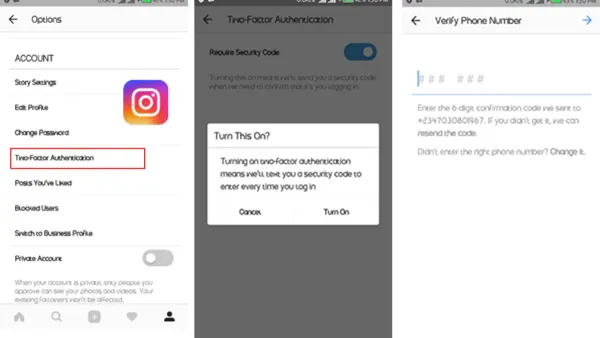
- Enable two-factor authentication (2FA) via Settings > Login Verification to add an extra security layer. 2FA significantly reduces the risk of account compromise even if the password is exposed.
Logging out of unused devices cuts off potential unauthorized access points. Changing the password and enabling 2FA together enhance security more effectively than either measure alone. Regularly reviewing active sessions and updating credentials is a best practice for ongoing account protection.
Tip: Remove unknown devices immediately and follow up by resetting the password and enabling 2FA to ensure comprehensive security.
Troubleshooting common issues when checking Snapchat login activity
If the device list is empty or not updating, start by refreshing the Snapchat app or restarting the device. Persistent emptiness may indicate a sync issue or temporary server problem. Verify that the app is updated to the latest version available in the app store, as outdated versions can cause display errors.
Missing login notifications or security alerts can result from notification settings being disabled. Check the device’s notification permissions for Snapchat to ensure alerts are allowed. Also, review the email address linked to the Snapchat account for missed notifications in spam or filtered folders.
Common error messages include "Unable to load devices," "Check your internet connection," or "Something went wrong." These often arise from connectivity problems or server downtime. Confirm a stable internet connection and try again after some time.
If login activity appears suspicious but cannot be resolved through app controls, contacting Snapchat Support is advised. Use the Snapchat Support portal or app help section to report account security concerns. Official guidance recommends providing detailed information about unusual activity and any error messages encountered.
- Open Snapchat and navigate to Settings > Login Verification or Connected Devices. Expect to see a current list of active sessions if the app syncs properly.
- If the list is empty or errors appear, close and reopen the app, then check for app updates. Successful update is confirmed by the version number matching the latest release.
- Verify notification settings: go to device Settings > Notifications > Snapchat, and ensure alerts are enabled. When enabled correctly, login alerts will appear as push notifications.
- Check the email linked to Snapchat for login alerts, including spam or junk folders. Presence of recent login emails confirms alert delivery.
- If problems persist, visit Snapchat Support at support.snapchat.com or use the in-app help feature to submit a security concern. Receipt of a support ticket or response confirms the request was successfully made.
Frequently asked questions
Can i see where my snapchat has been logged in?
Snapchat does not provide a direct, detailed map or list of exact locations where an account has been accessed. Users can view the devices currently logged into their account via the Snapchat settings, but location details are limited and often generalized. For precise location tracking, external methods or alerts are necessary.
How to see where you've logged in on snapchat?
Snapchat shows active login sessions under the "Login Verification" or "Connected Devices" section within the app's settings. However, it typically displays device types rather than exact login locations. Users should check for unfamiliar devices and consider account security if unknown logins are detected.
How to see where i'm logged in on snapchat?
To see devices currently logged in, open Snapchat, go to Settings > Login Verification or Connected Devices. This view lists devices with recent access but does not specify detailed geographic locations. It helps identify active sessions but has limited location information.
How to check where i've logged in on snapchat?
Snapchat does not offer a comprehensive login history with locations. Users can review active devices in settings but cannot access past login locations or timestamps directly through the app. Monitoring connected devices regularly is recommended to spot unauthorized access.
How to see what devices you are logged into on snapchat?
Navigate to Snapchat Settings, then select "Login Verification" or "Connected Devices." This section lists all devices currently authorized to access the account. From here, sessions can be logged out individually to secure the account against unwanted access.
What This Advice Does Not Cover and When to Seek More Help
Snapchat does not provide users with precise geographic locations or a comprehensive login history. The information available is limited to device types and approximate login times without exact IP addresses or physical locations. For users needing detailed forensic data or suspecting serious account breaches, contacting Snapchat Support directly or consulting cybersecurity professionals is necessary.
Account recovery options and two-factor authentication setup are beyond the scope here but are essential for securing a compromised account. This guide focuses strictly on interpreting the accessible login data within the Snapchat app and managing device sessions.
For ongoing security, regularly review connected devices and update login credentials when suspicious activity is detected.
The most effective next step is to immediately check the “Login Verification” section within Snapchat’s settings to enable two-factor authentication, adding a critical layer of protection beyond monitoring device logins.
See also: How to See Where You're Logged Into Signal: Step-by-Step Guide · How to Report Impersonation on Snapchat: A Clear Step-by-Step Guide · How to See Where You're Logged Into Reddit: Step-by-Step Guide · How to See Where You're Logged Into Instagram: Step-by-Step Guide