How to Turn On Two-Factor Authentication on Facebook: Step-by-Step Guide
This guide shows how to turn on two-factor authentication on Facebook to add an extra security layer and protect your account from unauthorized access.

This article explains how to turn on two-factor authentication on Facebook for personal accounts, pages, and Business Manager. Two-factor authentication adds an extra layer of security by requiring a secondary verification step beyond the password, reducing risks of unauthorized access.
Before enabling two-factor authentication, ensure access to a mobile device or authentication app, as these are commonly required for verification codes. This guide covers the process on the Facebook app, business pages, and Business Manager, including alternative methods and solutions when standard options are unavailable.
Specific steps include navigating to Security and Login settings on the Facebook app or Business Manager dashboard and choosing between authentication methods such as text messages, authentication apps, or security keys. Troubleshooting tips address common issues like code delivery failures and account lockouts.
Before you start: What is needed to enable two-factor authentication on Facebook
Enabling two-factor authentication (2FA) on Facebook requires preparation to avoid setup errors and ensure smooth activation. A valid Facebook account with correct login credentials is essential, as access to the account is mandatory to activate 2FA. Users must access either the Facebook app on a smartphone or the desktop site, depending on their preference for setup.
A mobile device is necessary to receive authentication codes, either through SMS messages or an authentication app such as Google Authenticator or Microsoft Authenticator. It is advisable to prepare backup verification methods, like recovery codes or alternative authentication apps, to avoid lockout in case the primary method is unavailable.
Common setup errors include entering the wrong phone number or losing access to the device that receives the codes. Statistics show that accounts with 2FA enabled significantly reduce the risk of unauthorized access compared to those without it. Preparing all required elements before starting prevents interruptions and enhances account security.
- Confirm login credentials work by signing into Facebook on the chosen device; successful login leads to the homepage.
- Ensure the mobile device can receive SMS or install a compatible authentication app; test this by sending or receiving a test message or opening the app.
- Locate and save backup options in advance, such as printing recovery codes or setting up an alternate authenticator; these should be accessible from the security settings.
- Verify stable internet or mobile network connectivity to receive codes promptly during setup.
How to turn on two factor authentication on Facebook app
- Open the Facebook app and tap the menu icon (three horizontal lines) in the bottom-right corner. This opens the main navigation menu.
- Scroll down and select Settings & Privacy, then tap Settings. The settings screen will appear.
- Under Security, tap Security and Login. This section manages login and security options.
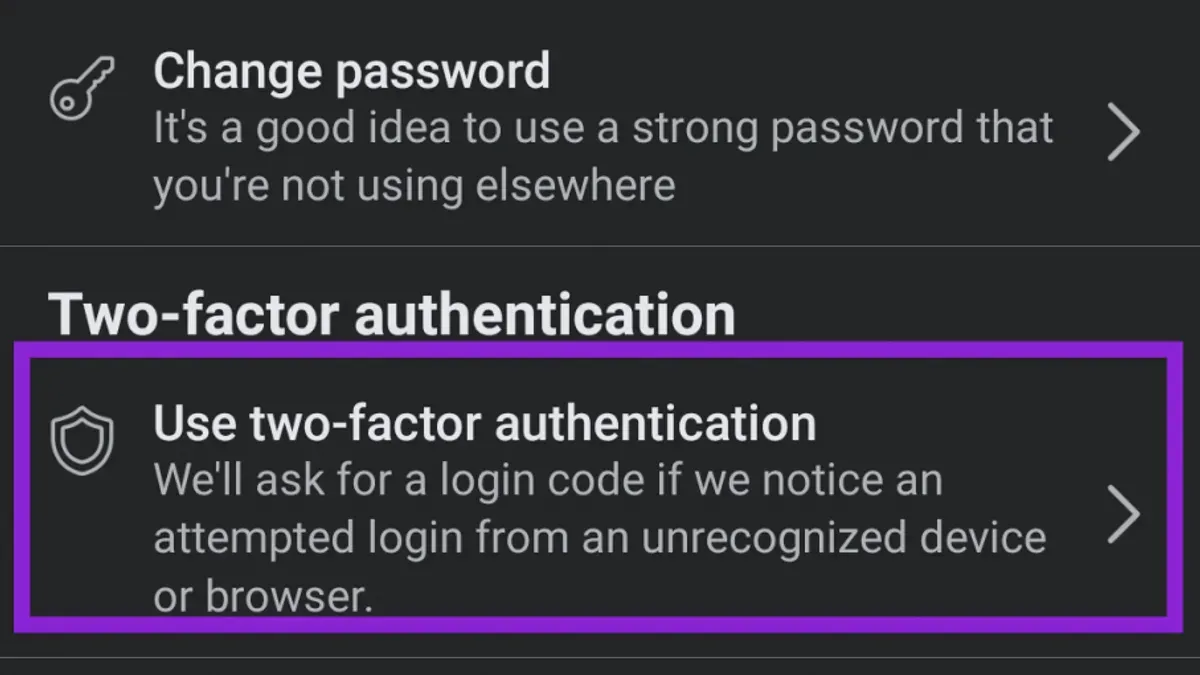
- Find and tap Two-Factor Authentication. The two-factor authentication setup page will open.
- Tap Use two-factor authentication to begin. Facebook will prompt to choose a preferred authentication method.
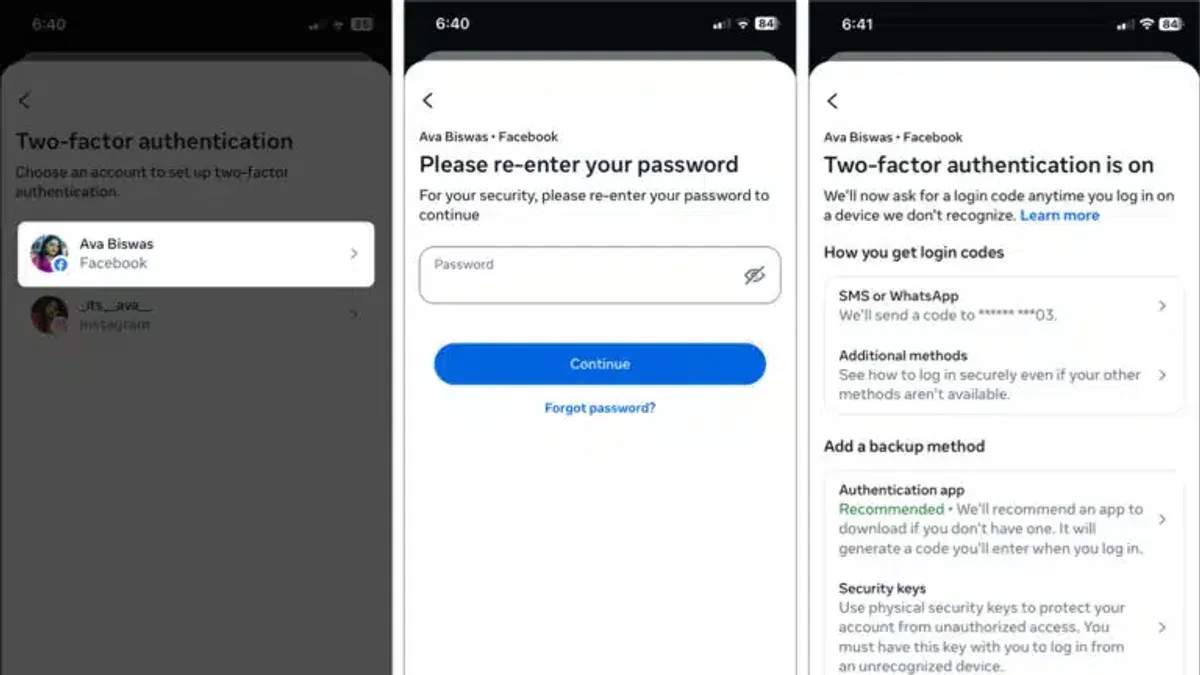
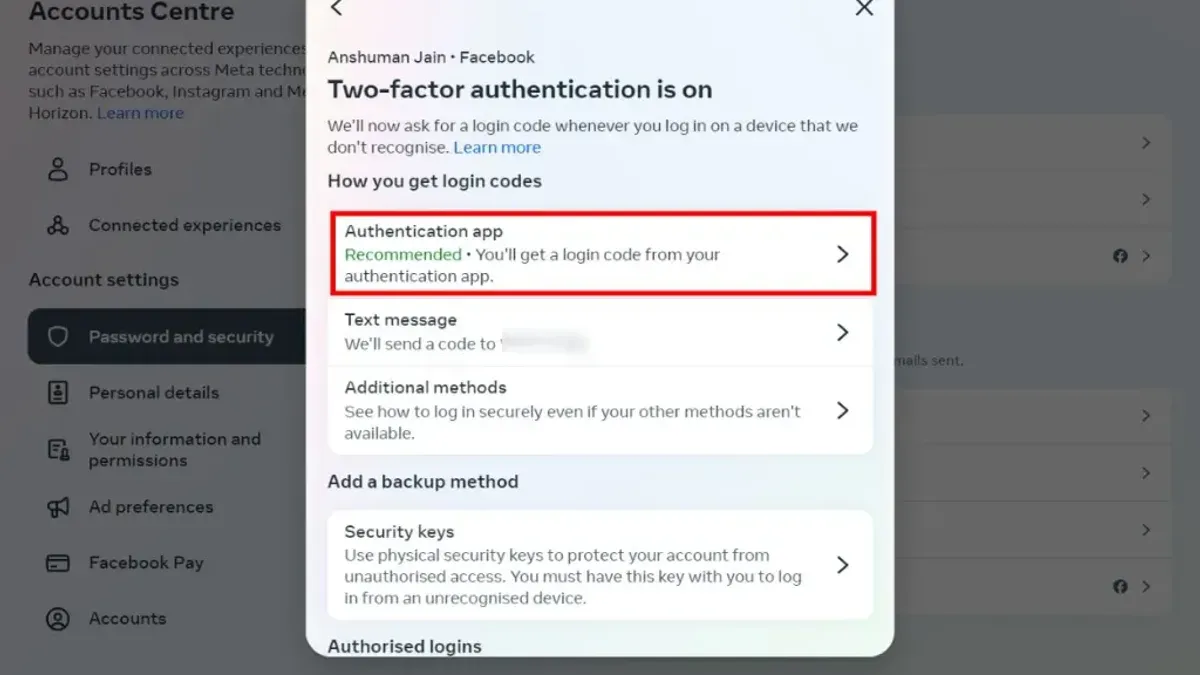
- Select an authentication method: Authentication App (e.g., Google Authenticator), Text Message (SMS), or Security Key. Each method has distinct setup instructions presented on screen.
- Complete the setup by verifying the chosen method, such as entering a code from the authentication app or SMS. Confirmation appears once verification succeeds.
- Save the provided backup codes in a secure place. These codes allow account recovery if the primary authentication method is inaccessible.
Tip: Using an authentication app offers stronger security than SMS and is recommended when possible.
How to turn on two factor authentication on Facebook page
Two-factor authentication (2FA) on Facebook Pages is controlled through the personal accounts of the page administrators. Since Pages do not have independent login credentials, securing the personal accounts managing those pages is the key to protecting the Page from unauthorized access. Enabling 2FA on each admin's personal Facebook account adds an additional security layer by requiring a second verification step when signing in.
To secure a Facebook Page, each administrator must enable 2FA on their personal account following the standard Facebook 2FA setup process. Once 2FA is active, any login attempt to the admin account, and thus the Page, requires verification through the chosen second factor, reducing risks from compromised passwords.
Coordination among all Page admins is essential. If even one admin does not enable 2FA, the Page remains vulnerable through that account. Regular reminders and clear communication about the security benefits can help ensure all admins comply. Many security breaches on Pages have been prevented due to admins' use of 2FA, which stops unauthorized access even when credentials are exposed.
- Log in to the personal Facebook account linked to the Page.
When successful, the profile homepage appears. - Go to Settings & Privacy > Settings > Security and Login.
The Security and Login page opens. - Find and click on Two-Factor Authentication.
The 2FA setup screen displays available methods. - Choose a preferred authentication method (authentication app, text message, or security key) and follow prompts.
2FA is enabled after completing verification. - Repeat these steps for each Page admin to secure all access points.
Tip: Use authentication apps for stronger security than SMS codes, which can be vulnerable to SIM swapping.
How to turn on two factor authentication on Facebook business manager
Facebook Business Manager requires stronger security controls due to the sensitive data and multiple user accesses involved. Enabling two-factor authentication (2FA) reduces risks such as unauthorized access and account takeover, which are common when relying solely on passwords.
- Log into Facebook Business Manager and click the gear icon in the top-right corner to open Business Settings. Confirmation: The Business Settings menu appears.
- In the left sidebar, select Security Center. Confirmation: Security Center page displays security options and user status.
- Locate the Two-Factor Authentication section and choose to either Require 2FA for all users or Require 2FA for admins only. Confirmation: A prompt confirms the enforcement policy.
- Set enforcement policies specifying how strictly 2FA is required, such as immediate enforcement or a grace period for users to comply. Confirmation: The policy is saved and visible in Security Center.
- Notify all users to enable 2FA on their accounts. Use the User Access list in Security Center to verify who has completed 2FA setup. Confirmation: User status updates from "Not Enabled" to "Enabled" or "Compliant."
- If users face issues enabling 2FA, common fixes include ensuring updated app versions, verifying authentication apps, or using text message codes. Confirmation: Troubleshooting steps resolve user errors and update status correctly.
Before enforcing 2FA, Business Manager accounts are vulnerable to password leaks and phishing attacks. After enforcement, the requirement of a second authentication factor significantly reduces unauthorized access, protecting business assets and data.
How to turn on two factor authentication facebook without logging in
Facebook does not allow enabling two-factor authentication (2FA) without first logging into the account. This restriction is a core security measure designed to prevent unauthorized users from altering account security settings. Attempting to activate 2FA without access violates Facebook’s official security policy and is not supported.
To enable two-factor authentication after losing account access, the first step is to recover the account. The standard recovery process involves resetting the password using the “Forgot Password?” option on the login page. This initiates identity verification through email, phone number, or previously set trusted contacts.
Once the account is recovered and logged in, navigate to Settings & Privacy > Settings > Security and Login > Use two-factor authentication to enable 2FA and select preferred authentication methods. This sequence ensures control is fully restored before enhancing security.
Tip: Be cautious of phishing scams or services claiming to enable 2FA without login; these are fraudulent and risk account compromise.
- Go to the Facebook login page and click “Forgot Password?” This opens the account recovery interface.
- Enter the email address or phone number associated with the account and follow prompts to receive a recovery code. A success indication is receiving the code via chosen contact method.
- Verify identity by entering the received code and resetting the password. Confirmation appears as the ability to log into the account.
- Log into Facebook with the new password.
- Go to Settings & Privacy > Settings > Security and Login > Use two-factor authentication. Choose the preferred 2FA method and complete setup.
How to turn on two factor authentication facebook without whatsapp
Facebook supports multiple two-factor authentication (2FA) methods aside from WhatsApp, including SMS codes, authentication apps like Google Authenticator or Authy, and physical security keys. Each option offers a distinct balance of security and convenience. SMS codes are easy to set up but vulnerable to SIM swapping. Authentication apps provide stronger security without requiring mobile network access. Security keys offer the highest protection but need compatible hardware.
To switch from WhatsApp to another 2FA method, first log in to Facebook and navigate to Settings & Privacy > Settings > Security and Login > Two-Factor Authentication > Authentication Methods. Remove WhatsApp as a method, then select and configure a preferred alternative.
- Choose "Text Message (SMS)" to receive codes via your phone number. Enter your number and confirm the code sent by SMS. The screen will confirm successful setup.
- For an authentication app, select "Authentication App." Facebook will display a QR code. Open the chosen app (Google Authenticator, Authy, etc.) and scan the QR code. Enter the generated 6-digit code in Facebook to verify. A confirmation message will appear.
- To use a security key, select "Security Key" and follow prompts to register a compatible USB or NFC key. Facebook will confirm when the key is linked.
Tip: Authentication apps work offline and are less susceptible to interception than SMS.
| 2FA Method | Security | Convenience |
|---|---|---|
| SMS Codes | Moderate (susceptible to SIM swap) | High (no extra app needed) |
| Authentication Apps | High (time-based, device-specific) | Moderate (requires app installation) |
| Security Keys | Very High (hardware-based) | Low (needs physical key) |
How to turn off two factor authentication facebook
Disabling two-factor authentication (2FA) on Facebook reduces account security and is generally not recommended unless necessary, such as temporarily troubleshooting access issues. To turn off 2FA, access the Security and Login settings in the Facebook account.
- Log in to the Facebook account and go to the Settings & Privacy menu.
- Select Settings, then navigate to Security and Login.
- Find the Two-Factor Authentication section and click Edit.
- Choose the option to Turn Off two-factor authentication.
- Confirm the identity by entering the account password or completing the verification prompt as requested.
- Once confirmed, 2FA will be disabled, and the account will rely solely on the password for login security.
Warning: Turning off 2FA increases vulnerability to unauthorized access. Accounts without 2FA are significantly more exposed to hacking attempts, phishing, and credential theft. Facebook and security experts strongly advise keeping 2FA enabled unless there is a compelling reason to disable it temporarily.
Tip: If disabling 2FA is necessary, immediately re-enable it once the issue is resolved to maintain optimal account protection.
Troubleshooting common issues when turning on two-factor authentication on Facebook
Not receiving SMS codes is a frequent problem. First, verify the phone number registered under Settings & Privacy > Security and Login > Two-Factor Authentication. Ensure the phone has network coverage and is not blocking messages from unknown senders. If SMS delivery fails repeatedly, switch to an authentication app like Google Authenticator or Authy.
If the authentication app does not generate codes, check that the device’s time is synchronized automatically; incorrect time settings cause code mismatches. Reinstalling or re-adding Facebook to the authentication app often resolves setup errors.
Lost access to the primary authentication method or backup codes requires immediate action. Use any saved recovery codes or trusted contacts to regain entry. If none are available, account recovery through Facebook’s identity verification process is necessary.
In Facebook Business Manager, issues with enforcement policies arise when users have not completed 2FA enrollment. Admins can view compliance status in Business Settings > Security Center. Non-compliant users must be prompted to finish setup, or their access may be restricted.
If locked out due to 2FA, follow these steps:
- Go to Facebook login and select “Forgot Password?” to reset credentials; successful reset leads to login access.
- When prompted for 2FA code, choose “Try another way” or “Use recovery code” if available; successful entry grants access.
- If all else fails, submit an identity verification request via the help center; Facebook’s response time varies.
Tip: Always save backup codes in a secure location to avoid lockout complications.
Frequently asked questions
How to turn on multi factor authentication on facebook?
Multi-factor authentication on Facebook is enabled through the Security and Login settings. Navigate to Settings & Privacy > Settings > Security and Login > Use two-factor authentication. Select a preferred authentication method such as authentication app, text message, or security key, then follow the prompts to complete setup.
How to turn on two factor verification on facebook?
Two-factor verification is turned on via the Security and Login section in account settings. After accessing 'Use two-factor authentication,' choose an authentication method and enter the required information. Confirm the setup by entering the code received from the chosen method to activate two-factor verification.
How to turn on two factor authentication on facebook business page?
Two-factor authentication for a Facebook business page requires enabling it on the personal account that manages the page. The page itself does not have independent two-factor settings. Ensure the personal Facebook account managing the page has two-factor authentication enabled under Security and Login settings to protect access.
How to turn on two factor authentication facebook iphone?
On an iPhone, open the Facebook app and tap the hamburger menu. Go to Settings & Privacy > Settings > Security and Login > Use two-factor authentication. Choose the preferred method, such as authentication app or text message, then follow on-screen instructions to complete activation.
What this guide does not cover and who should do something else
This guide does not cover advanced enterprise identity solutions beyond Facebook’s built-in two-factor authentication options and is not a substitute for comprehensive organizational security policies. Organizations with dedicated IT security teams should consider enterprise-grade multi-factor authentication systems that integrate with corporate identity providers and enforce device management policies. This article focuses on individual users and small to medium business administrators managing Facebook accounts and pages within the platform’s standard security settings.
For further protection, the most useful next step is to regularly review active login sessions and authorized devices under Facebook’s Security and Login settings. Removing unfamiliar devices promptly complements two-factor authentication and helps prevent unauthorized access.
See also: How to Turn On Two-Factor Authentication on Bluesky: Step-by-Step · How to Turn On Two-Factor Authentication on BeReal: Step-by-Step · How to See Where You're Logged Into Facebook: A Step-by-Step Guide