How to See Where You're Logged Into Tumblr: A Step-by-Step Guide
This guide shows how to see where you're logged into Tumblr, helping you manage active sessions and secure your account effectively.

This guide explains how to see where you're logged into Tumblr and manage active sessions effectively. Tumblr users concerned about account security or managing multiple devices will find clear, actionable steps to identify all logged-in locations and control access promptly. The process involves navigating Tumblr's account settings to view active sessions listed by device and location details where available.
Users can also learn how to log out remotely from specific devices via the web interface or mobile app. Understanding the limitations of Tumblr's session management, this guide provides practical advice for monitoring login history and maintaining account security. Follow these steps to keep the Tumblr account secure and ensure that only authorized devices have access.
Before you start: What is needed to see where you're logged into Tumblr
Accessing information about active Tumblr sessions requires a valid, active Tumblr account with login credentials ready. Ensure the username and password are at hand since this information is necessary to sign in and reach the session management features. Access can be gained through the Tumblr app on mobile devices or through a web browser on a PC or mobile device. Both platforms offer session details, but the interface layout and navigation paths differ.
Familiarity with Tumblr’s settings menu is essential. On the desktop, settings are typically located by clicking the profile icon in the top-right corner, then selecting "Settings" from the dropdown menu. On the mobile app, tap the account icon at the bottom right, then the gear icon for Settings. Recognizing these entry points ahead of time accelerates locating the session or security sections.
Having example screenshots or a mental map of these settings areas can help orient users during the process. For example, on the desktop, the "Security" tab within settings often contains session information. On mobile, session data may be nested under "Account" or "Security & Privacy." Understanding this variation prevents confusion during navigation.
- Prepare login credentials to sign into Tumblr. Successful login leads to the dashboard or home screen.
- Open the Tumblr app or a web browser and navigate to the account settings. The expected outcome is seeing a menu with options like "Account," "Security," or "Settings."
- Locate the section related to security or account activity. When found, options for managing sessions or viewing active logins should be visible.
Tip: Keep the Tumblr app or browser updated to the latest version to ensure access to the most current session management features.
How to see where you're logged in on Tumblr
- Log in to Tumblr using a desktop browser or the official mobile app. Successful login will display the Tumblr dashboard.
- On desktop, click the profile icon in the upper-right corner, then select Settings from the dropdown menu. In the app, tap the Account tab at the bottom right and then open Settings.
- Scroll to the Account section and choose Security. This section contains options related to login management.
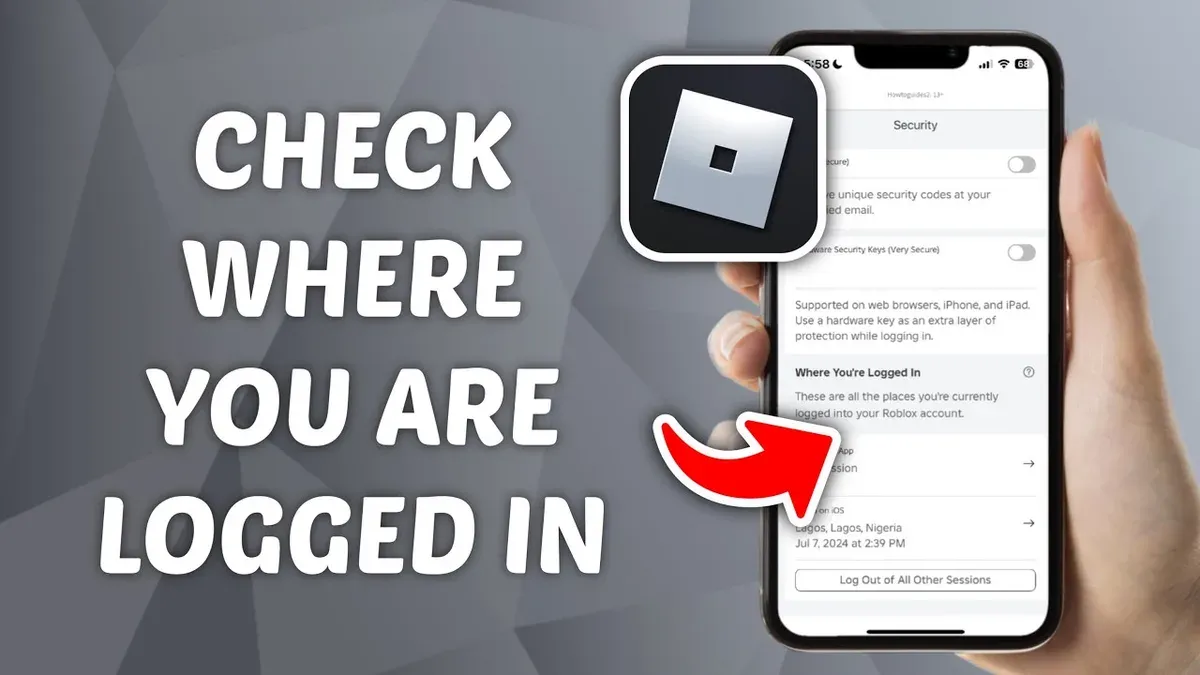
- Locate the panel labeled Sessions or Active Logins. This panel lists all devices currently logged into the account, showing device types (e.g., Desktop, iPhone, Android), approximate locations, and login timestamps.
- Review the list carefully. Confirm each device and location matches known login activity. Any unfamiliar device or location could indicate unauthorized access and should be addressed immediately by logging out of those sessions and changing the password.
The desktop interface provides a more detailed view including exact login times, while the app offers a concise list but may lack some location details. Checking from both platforms ensures comprehensive session monitoring.
How to log out of Tumblr on PC and other devices
Logging out of Tumblr on the current device is straightforward. On a PC, click the account icon in the top-right corner, select "Settings," then scroll down and click "Log out." The app requires tapping the profile icon, accessing the settings gear, and choosing "Log out" at the bottom. Successful logout redirects to the login screen, confirming the session ended.
To log out of all other sessions remotely, access "Settings" from the account menu on the web. Under the "Security" section, select "Sessions." Here, click "Log out of all other sessions." This action ends all Tumblr sessions except the one currently in use. A confirmation message should appear, verifying the command was executed.
If unauthorized access is suspected or full logout is desired, resetting the password is the most effective method. After changing the password in "Settings" > "Account" > "Password," all active sessions across devices will be terminated except the one used to change the password. This ensures complete control over account access.
Best practice is to confirm logout success by attempting to access Tumblr on a second device or browser where the session was active. If prompted to log in again, the logout was effective. Remote session clearing is reliable but may occasionally have a delay, so verifying is recommended.
- On PC, click the profile icon, select "Settings," then "Log out." The login screen appears.
- On the app, tap the profile icon, then settings gear, and tap "Log out." The app returns to the login page.
- To log out remotely from other devices, go to "Settings" > "Security" > "Sessions," then click "Log out of all other sessions." Confirmation appears.
- For full logout, change the password under "Settings" > "Account" > "Password." All other sessions end.
- Verify by checking Tumblr on another device to ensure a login prompt appears.
How to view history on Tumblr app and web
Tumblr does not offer a comprehensive browsing or login history feature within its app or web interface. Users cannot access a detailed log of all viewed posts, blogs visited, or login attempts through Tumblr’s native settings. This limitation often causes confusion when trying to track account activity or browsing history directly on the platform.
However, Tumblr does provide a limited recent activity log related to login attempts. To check this, navigate to the Account Settings > Security section on the web or app. Here, users will see recent login locations and devices if available, which helps identify potentially unauthorized access. This activity log is not exhaustive and focuses solely on login events, not content interaction.
To track viewed content history, users must rely on browser history or third-party tools. Web browsers save visited URLs, including Tumblr posts and blogs, which can be accessed through the browser’s history menu. This method works only for web access and does not cover app activity.
Regarding deleted blogs or posts, Tumblr’s interface does not provide a way to view or recover such content. Once a blog or post is deleted, it is removed from user access and cannot be retrieved through Tumblr. External archiving services or cached pages might offer limited recovery options but are not officially supported.
How to log into Tumblr with username and troubleshoot login issues
Tumblr allows login using either an email address or a username linked to the account. Using a username requires entering the exact handle without @, while email login depends on the email registered with Tumblr. Both methods redirect to the same password entry screen.
- Open the Tumblr app or visit tumblr.com and click the "Log in" button; a login screen appears prompting for email, phone, or username.
- Enter the Tumblr username (e.g., exampleuser) without any symbols; if correct, the password field will appear next.
- Input the account password and tap "Log in." Successful login redirects to the dashboard.
Common login errors include "Incorrect password," "Account not found," or the app/web failing to load after credentials input. These usually arise from typos, outdated app versions, or connectivity issues.
Troubleshooting steps:
- Use the "Forgot password?" link on the login page to reset the password via the registered email.
- Clear the app cache or browser cookies to remove corrupted data that might block login.
- Reinstall the Tumblr app to ensure the latest version with all bug fixes.
- Verify internet connection stability, as intermittent connectivity can cause login failures.
Tip: Confirm the username spelling and case sensitivity carefully, as Tumblr usernames are case-insensitive but must match exactly without extra spaces.
How to see Tumblr original posts only and browse without logging in
Tumblr does not provide a direct filter to view only original posts within its search interface. However, users can approximate this by searching with specific tags or phrases that creators commonly use to mark original content, such as "#originalpost," "#OP," or "#myart." Using these tags narrows results but does not guarantee all posts are original, as tagging is user-dependent.
Browsing Tumblr content without logging in is possible through its public web interface. Users can visit Tumblr blogs directly or use search without an account, but this limits access to some features like following blogs, liking posts, or viewing certain content behind login walls. The public interface does not offer extensive filtering options, restricting exploration to what is openly available.
Third-party Tumblr viewer tools and websites enable anonymous browsing and sometimes offer enhanced filtering or archiving capabilities. Examples include services like Tumview or specialized archive sites, though their reliability varies and they may not always have up-to-date content. Users should be cautious about privacy and data security when using these external tools.
Tip: Combining Tumblr’s native tag search with third-party viewers can improve the chances of finding original posts while browsing anonymously.
How to find someone on Tumblr and view deleted Tumblr blogs
To find a Tumblr user, search by their username or blog name using Tumblr’s built-in search bar. Enter the exact username or blog name to get direct results. If the built-in search doesn’t yield results, external search engines like Google can help by including site:tumblr.com followed by the username or blog name in the query.
When a Tumblr blog is deleted, it is removed from Tumblr’s servers and is generally not recoverable through the platform. Deleted blogs no longer appear in search results or on the user’s profile, and their content is permanently inaccessible through normal means.
However, deleted content may still be accessible via web archives or cached pages. The Wayback Machine (archive.org) often stores snapshots of Tumblr blogs taken before deletion. To check, enter the blog’s URL into the Wayback Machine search bar and review available archived versions. Google’s cached pages may also retain recent snapshots, accessible via the search results dropdown next to the URL.
- Go to the Tumblr search bar and type the username or blog name. Press Enter and look for the profile in the results.
- If not found, open a search engine and enter site:tumblr.com [username or blog name]. Review the results for the blog.
- To view deleted blogs, visit archive.org and enter the full Tumblr blog URL (e.g., username.tumblr.com). Select a date from the calendar to view archived content.
- If the blog is not archived, try searching for cached versions via Google by searching the URL and clicking the cached option if available.
Tip: Use exact usernames or blog names for precise search results; misspellings significantly reduce success.
Troubleshooting Tumblr login and session management issues
Sometimes Tumblr may fail to display active sessions or login history due to server delays or app glitches. If the sessions list is empty or outdated, refreshing the app or web page often resolves the issue. Clearing browser cache and cookies can also fix persistent display problems. If the login history remains inaccessible, it likely means Tumblr’s interface is temporarily limited or undergoing maintenance.

Loading failures on the Tumblr login page frequently result from network issues, browser incompatibilities, or outdated app versions. Switching to a different browser or updating the Tumblr app can help. Disabling browser extensions that block scripts or ads may also restore normal loading. Checking Tumblr’s status page or social media can confirm if a wider outage is causing the problem.
When login attempts fail repeatedly despite correct usernames and passwords, the account could be locked or passwords may have been changed externally. Use the 'Forgot password?' feature to reset credentials securely. Ensure two-factor authentication is enabled to reduce unauthorized access risks. If login issues continue, contacting Tumblr support is recommended.
Handling suspicious sessions and account breaches
Suspicious sessions often appear as unknown devices or locations in the active sessions list. Immediately logging out of all devices and changing the password is critical. Activating login notifications helps detect future unauthorized attempts. In severe cases, reviewing connected apps and revoking access to unrecognized ones strengthens security. Users should monitor their email for security alerts from Tumblr.
- Open Tumblr settings and navigate to the Security section; the active sessions list should load without errors.
- If sessions fail to display, refresh the page or reinstall the app; successful load shows device names and login times.
- Attempt login using correct credentials; if unsuccessful, initiate password reset via 'Forgot password?'.
- After resetting, verify that login succeeds and the sessions list updates accordingly.
- Check for unknown sessions; if found, use 'Log out of all sessions' and change the password immediately.
Frequently asked questions
Can you see your history on tumblr?
Tumblr does not provide a direct feature to view a full login or browsing history. Users can check recent activity within the account settings to see active sessions but detailed history like visited posts or searches is not accessible. For post history, users can review their own blog archives or liked posts.
How to log out tumblr?
To log out of Tumblr, open the account menu by clicking the profile icon, then select "Log out" at the bottom of the dropdown. This action will sign out the current session on the device being used. Logging out does not automatically log out other devices.
How to log out of tumblr pc?
On a PC, log out by clicking the profile avatar in the top-right corner of the dashboard, then choosing "Log out" from the menu. This ends the session on that computer only. To manage other sessions, use the Security settings in the account dashboard.
How to view deleted tumblr blogs?
Deleted Tumblr blogs are not accessible through Tumblr’s platform once removed. Some content may be found via internet archives or third-party services, but this is not guaranteed. Tumblr does not offer a feature to recover or view deleted blogs.
How to view tumblr without account?
Tumblr content can be browsed without an account by visiting the website and searching for public blogs or tags. Some features like liking or commenting require login, but general browsing of original posts is available without signing in. Use direct URLs or search engines to find specific Tumblr pages.
What This Guide Does Not Cover
Tumblr does not provide a detailed login or browsing history like some platforms. Users cannot view comprehensive past sessions beyond the current active logins visible in the account settings. This means there is no way to access a full log of previous login locations or devices. For advanced security monitoring or forensic investigations, relying solely on Tumblr’s interface is insufficient.
Users requiring detailed session logs or forensic account analysis should consider third-party security tools or consult cybersecurity professionals. Additionally, if suspicious activity is ongoing, contacting Tumblr Support directly is advisable to secure the account.
Next Step: Secure Active Sessions
After identifying where the Tumblr account is logged in, the most effective next step is to immediately log out of any unfamiliar or unused devices. This can be done from the “Settings > Security” section under “Sessions.” Regularly reviewing and managing active sessions helps maintain account security and prevents unauthorized access.
Tip: Changing the account password after logging out of suspicious sessions adds an extra layer of protection.
See also: How to See Where You're Logged Into Tinder: Step-by-Step Guide · How to See Where You're Logged Into TikTok: Step-by-Step Guide · How to See Where You're Logged Into Threads: A Step-by-Step Guide · How to See Where You're Logged Into Telegram: Step-by-Step Guide