How to See Where You're Logged Into WeChat: Step-by-Step Guide
Discover how to check active WeChat sessions and manage device logins to secure your account effectively.

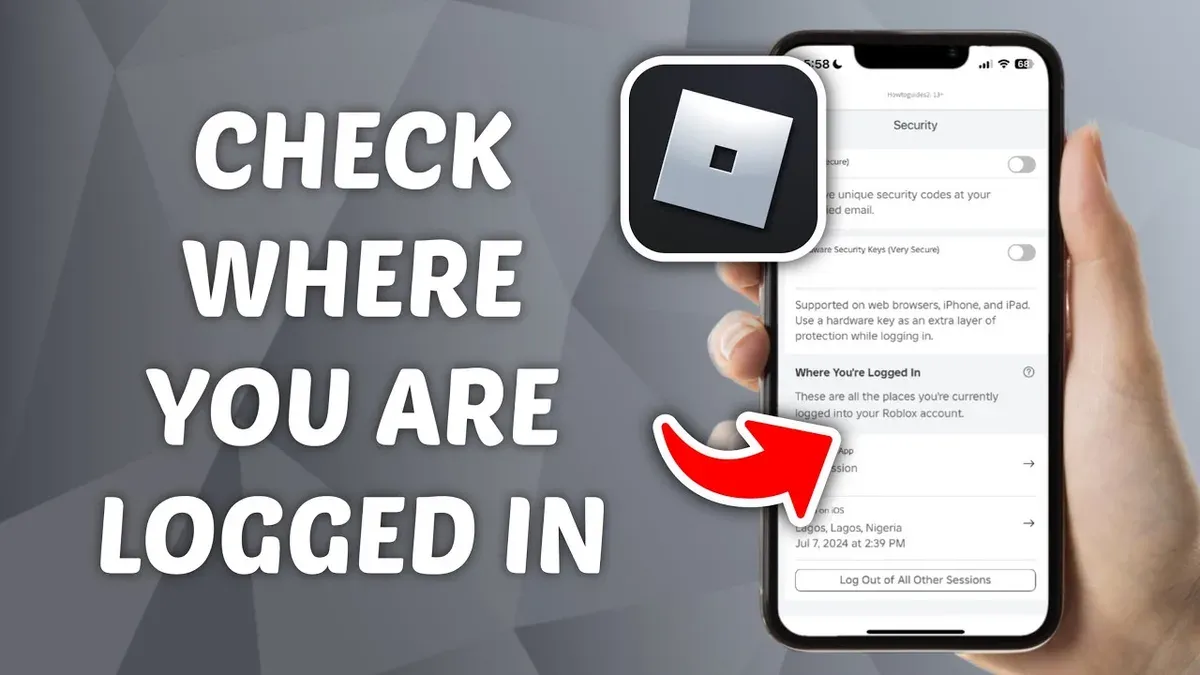
This guide explains how to see where you're logged into WeChat and manage active sessions effectively. Securing a WeChat account requires understanding device and session management tools built into the app. Users often overlook options for checking active logins, especially on PC and web platforms, which can expose accounts to unauthorized access.
Start by confirming access to the primary device linked to the WeChat account, as some steps require live verification or QR code scans. This article covers logging into WeChat on PC and web without scanning QR codes, verifying account identity, and recovering forgotten passwords. The focus is on precise navigation within WeChat's settings and security menus to maintain control over account access.
Before you start: What is needed to check active WeChat sessions
To view active WeChat sessions, access to the WeChat mobile app with the account already logged in is essential. The mobile app serves as the primary control point for managing device logins and session details. Basic familiarity with the app’s settings menu is required, especially navigating to the “Settings” > “Security” or “Account Security” sections where session management options are located.
An active internet connection on the device used to check sessions is mandatory to fetch real-time data about logged-in devices. WeChat supports login on Android and iOS devices, Windows and macOS PCs, and the WeChat Web client accessible via browsers. However, session details may be limited due to privacy policies; for example, exact locations might not always be visible, but device types and login timestamps usually are.
Typically, users will find a list of currently logged-in devices under “Manage Devices” or “Devices” in the security settings. These entries often include device names, last active times, and login methods (e.g., QR code, password). Screenshots within the app show these options clearly, aiding recognition during the process.
How to log into WeChat on PC and Windows
- Download the official WeChat desktop client from https://weixin.qq.com/ for Windows or Mac. After installation, launch the app; the login screen will display a QR code.
- Open the WeChat mobile app on the logged-in device. Go to the Discover tab, then tap Scan to scan the QR code shown on the PC screen. A login confirmation prompt appears on the phone.
- Confirm the login on the mobile device. The PC client will then load the account interface, indicating a successful login. This method provides secure two-factor authentication using the mobile device.
- If QR code scanning is not possible, select the Log in with WeChat ID option under the QR code. Enter the WeChat ID or linked phone number and password. Follow any on-screen verification prompts, such as CAPTCHA or SMS verification, to complete login.
- After logging in, navigate to Settings > General > Manage Devices to review authorized devices. Enable Stay logged in to avoid repeated logins, but only on trusted computers to maintain account security.
Tip: When scanning the QR code, ensure the mobile device has internet connectivity to receive the login confirmation prompt promptly.
How to log in to WeChat Web without scanning QR code
WeChat Web primarily requires scanning a QR code with the mobile app to authenticate login. This method ensures secure, device-specific access by linking the session directly to a verified mobile account. Bypassing the QR code scan is not officially supported and significantly compromises account security.
Some third-party tools and browser extensions claim to enable WeChat Web login without QR code scanning by using stored credentials or session cookies. These methods pose serious security risks, including potential exposure of passwords and unauthorized account access. WeChat's security protocols actively detect and block unauthorized login attempts from such tools.
For users seeking alternatives, WeChat offers a desktop app that accepts username and password login along with multi-factor verification, providing a safer option than bypassing QR code login on the web platform.
Tip: Avoid third-party login tools for WeChat Web to prevent data breaches and account compromise.
How to verify WeChat account identity
Verification confirms the ownership and security of a WeChat account and is necessary to access certain features such as wallet services, account recovery, and session management. WeChat offers several verification methods: phone number confirmation, email verification, and government ID authentication. The platform may require verification when suspicious activity is detected, when accessing sensitive features, or during account recovery.

To verify identity, follow these steps:
- Open WeChat and go to Me > Settings > Account Security > Verify Identity. A verification prompt appears.
- Select the preferred verification method: phone number, email, or government ID.
- If choosing phone number, enter the registered number and wait for the SMS code. Enter the code to confirm.
- If selecting email verification, input the linked email address, then check the inbox for a confirmation link or code and follow instructions.
- For government ID verification, upload a clear photo of the ID as requested, then submit for review. This process may take a few hours.
- Upon successful verification, the app displays a confirmation screen and unlocks additional security options such as device management and enhanced login protection.
Note: Verification prompts often appear automatically when attempting to use wallet features or after suspicious login attempts.
Tip: Keep verification information up to date to avoid interruptions in account access and security features.
How to see where your WeChat account is logged in
- Open the WeChat mobile app and tap on the Me tab at the bottom right corner. This opens the personal settings menu.
- Tap Settings, then select Account Security. This section manages login and security options for the account.
- Choose Devices or Login Devices. A list of active sessions will appear, showing all devices currently logged into the WeChat account.
- Review each device entry. Details typically include the device type (e.g., iPhone, Windows PC), approximate location if available, and the last login timestamp. This helps identify unfamiliar or unauthorized sessions.
- To log out from a specific device, tap the device entry and select Log Out. Confirm the action to terminate that session remotely. The device will lose access until reauthorized.
Device information shown may vary by platform but generally covers device model, login time, and location details. If suspicious devices appear, logging out immediately is advised.
Tip: Regularly checking active sessions helps maintain account security and detect unauthorized access early.
How to login to WeChat if forgot password
When the WeChat password is forgotten, account access can still be regained using linked recovery options. The primary method involves resetting the password via the associated phone number or email address.
- Open the WeChat login screen and tap "Forgot Password?". The system will prompt for the recovery method, such as phone number or email. Successful selection moves to verification.
- If using a linked phone number, enter the number and request an SMS verification code. Upon receiving the code, input it to confirm identity. A successful code entry leads to the password reset page.
- If using an email, input the registered email address. WeChat sends a reset link or code to the email. Follow the link or enter the code to proceed to reset the password.
- Create a new password following WeChat’s complexity requirements. Upon setting the new password, the system confirms the update and redirects to the login screen for re-entry.
If the account does not have linked recovery options set, the reset process will fail with messages like "No recovery method found" or "Verification failed". In these cases, identity verification through WeChat support is necessary, which may require submitting government ID or answering security questions.
Tip: Always ensure phone numbers and emails are updated in account settings to avoid recovery complications.
How to look up or find your WeChat password
WeChat does not store or display user passwords for security reasons. Passwords are encrypted and never retrievable, preventing unauthorized access. Attempting to locate a password within the app or through third-party tools is ineffective and risky.
Instead of searching for a forgotten password, users should reset it using WeChat's official password recovery process. This method ensures account security by verifying identity through linked phone numbers or email addresses.
Tip: Use a reliable password manager to store WeChat credentials securely and avoid forgetting them in the future.
Beware of third-party software or websites claiming to recover or reveal WeChat passwords. These are often scams designed to steal personal data or compromise accounts. Official WeChat security policies explicitly warn against such tools to protect user information.
How to log out of WeChat on all devices
To maintain account security, remotely logging out of all active WeChat sessions is essential when a device is lost or suspicious activity is detected. This feature is accessible through the WeChat mobile app and affects most logged-in devices immediately.

- Open the WeChat app and tap Me at the bottom right.
- Select Settings from the menu.
- Tap Account Security.
- Choose Manage Devices or Logout Devices (the exact label may vary slightly).
- Review the list of devices currently logged into the account, which includes device type and last active time.
- Tap Log Out of All Devices or a similar option to initiate remote logout.
- Confirm the action in the pop-up dialog to proceed. A confirmation screen will indicate that all sessions except the current one are logged out.
Important: Web sessions on browsers may remain active even after remote logout and should be checked separately under Manage Devices. Users should manually log out from web sessions if necessary.
Tip: Use this option immediately after noticing unfamiliar devices or if a phone is lost to prevent unauthorized access.
Troubleshooting common WeChat login problems
Verification code delays or failures occur frequently. If a code does not arrive within a few minutes, check the network connection and ensure the phone number or email linked to the account is correct. Resend the code after waiting at least 60 seconds to avoid server blocking. If the message "Verification code expired" appears, request a new code promptly.
QR code scanning errors on PC or Web often result from an outdated app or screen glare. Confirm the mobile app is updated and hold the phone steady over the code. If the QR code refreshes too quickly or fails to load, clear browser cache or restart the desktop app.
Account lockouts happen after multiple failed login attempts or suspicious activity. The message "Account locked for security reasons" requires waiting 24 hours before retrying or unlocking via linked phone verification. Persistent locks may require submitting identity verification through WeChat support.
If self-help fails, contact WeChat support through the official app: go to Me > Settings > Help & Feedback > Contact Us. Describe the issue clearly and provide relevant screenshots or error messages to expedite the process.
Frequently asked questions
How to look up my wechat password?
WeChat does not display the password once set, for security reasons. If the password is forgotten, use the "Forgot Password" option on the login screen to reset it via linked phone number, email, or security questions. Direct password lookup within the app is not possible.
How to find my wechat password?
The password cannot be retrieved directly from WeChat. Instead, reset it using the account recovery process through the login page. Verification via phone or email is required to set a new password.
How to login to wechat web?
Access web.wechat.com and scan the QR code with the WeChat mobile app under "Discover" > "Scan". Alternatively, use the "Login with phone number" option if available, which requires SMS verification. Ensure the mobile app has internet access for successful login.
How to log in wechat?
Open the WeChat app and enter the registered phone number or WeChat ID along with the password. If using a new device, verification through SMS or linked email may be required. For PC or web, scan the QR code from the mobile app or use phone number login if supported.
How to log in wechat on windows?
Download and install the WeChat desktop app for Windows. Launch it and scan the displayed QR code using the WeChat mobile app under "Discover" > "Scan". After scanning, confirm login on the phone to access the desktop client.
What This Guide Does Not Cover
This guide does not cover recovering accounts without any linked phone number or email, as WeChat’s security protocols limit recovery options in such cases. Users who have lost access to both their registered phone number and email must contact WeChat support directly, which often requires providing identification and may not guarantee account recovery.
This guide also does not address advanced security threats such as account hacking beyond session management or the use of third-party tools for password recovery, which can pose risks to account safety.
For businesses or users requiring multi-account management or enterprise-level security controls, consulting specialized WeChat enterprise solutions or official WeChat support is recommended.
Next Step to Maintain Account Control
Regularly reviewing the list of devices and sessions logged into the WeChat account remains the most effective way to maintain control and security. Access the "Manage Devices" section in WeChat’s settings frequently, especially after using public or shared devices, to promptly log out any unfamiliar or unused sessions and update the password if necessary.
See also: How to See Where You're Logged Into Viber and Manage Sessions · How to See Where You're Logged Into Tinder: Step-by-Step Guide · How to See Where You're Logged Into Telegram: Step-by-Step Guide · How to See Where You're Logged Into TikTok: Step-by-Step Guide