How to Set Up a Passkey for Amazon: A Step-by-Step Guide
This guide explains how to set up a passkey for Amazon, improving security and easing login with device-specific instructions and troubleshooting tips.

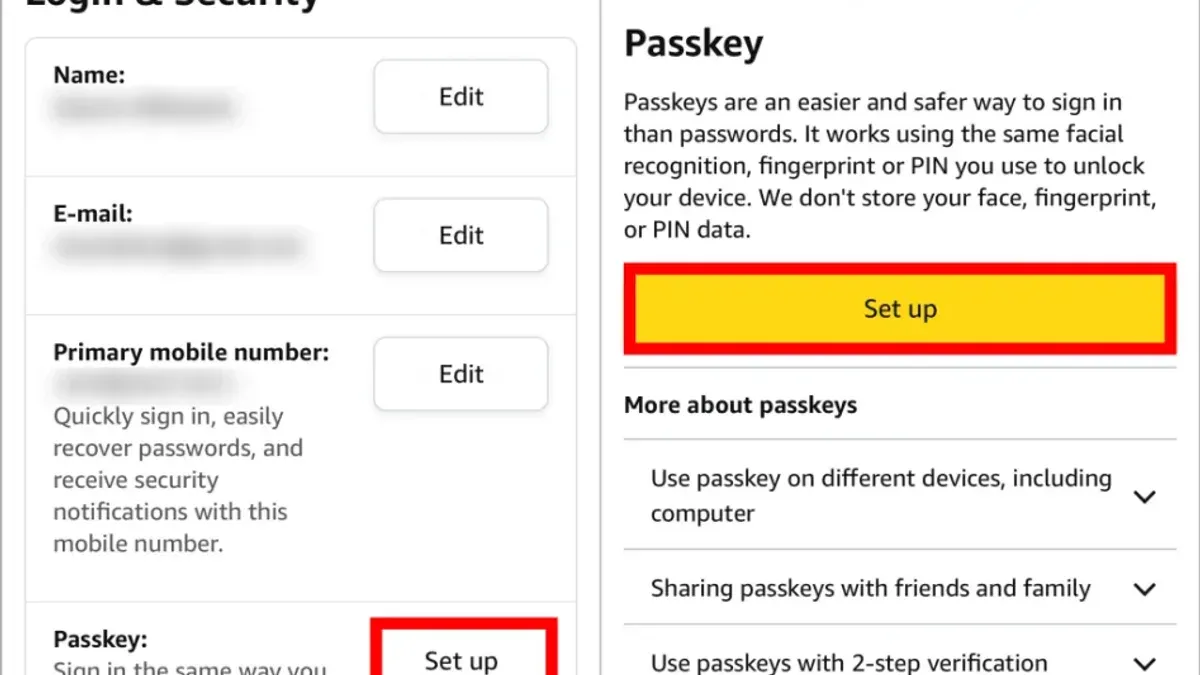
This article explains how to set up a passkey for Amazon, detailing the differences between passkeys, PINs, and passwords and providing device-specific instructions. Setting up a passkey enhances account security and streamlines the login and purchase authentication process on Amazon services.
Passkeys are a modern alternative to traditional passwords, leveraging biometric data or device credentials for authentication. PINs and passwords still play roles in certain Amazon features, such as Prime purchases or credit card transactions, making it essential to understand when and how each method applies. This guide covers setup steps for iPhone, Android, and other devices, plus practical troubleshooting tips to resolve common issues.
Before you start: What is needed to set up a passkey for Amazon
A passkey is a secure digital credential that replaces traditional passwords with cryptographic authentication, enhancing security and simplifying login. Unlike passwords, passkeys are not stored on servers and cannot be guessed or phished. They differ from PINs, which are short numeric codes used for quick verification, often on specific devices or for purchases.
Setting up passkeys for Amazon requires compatible hardware and software. Supported devices include smartphones and computers with biometric or PIN authentication capabilities. On iPhones, iOS 16 or later is required. Android devices typically need Android 9 or later with the latest Amazon app installed. Desktop browsers like Chrome, Edge, or Safari must support WebAuthn and FIDO2 standards.
An active Amazon account is mandatory. The account should have basic security measures enabled, including email verification and preferably two-factor authentication (2FA). Passkeys work alongside existing credentials such as PINs for Amazon Prime or Amazon credit card purchases, which provide additional layers of security.
- Confirm device compatibility: Check device operating system and version. If compatible, proceed to the next step.
- Update the Amazon app or browser to the latest version supporting passkeys. Successful update shows version number or notification.
- Ensure an active Amazon account with verified email and 2FA enabled. Account settings should indicate these security features are active.
- Familiarize with related credentials like PINs for Amazon Prime or credit card verification to understand their function alongside passkeys.
How to set up a passkey for Amazon on iPhone
- Open the Amazon app or Safari browser and navigate to the Amazon login page. Enter the email or phone number linked to the Amazon account and tap to proceed to the password entry screen.
- At the password screen, select the option to use a passkey or biometric login if available. On iPhone, this triggers Face ID or Touch ID setup prompts for creating a new passkey linked to the device.
- Follow the on-screen instructions to authenticate with Face ID or Touch ID. Once authenticated, the passkey will be generated and securely stored in the iOS Keychain, eliminating the need for a password on subsequent logins.
- Log out and attempt to sign in again using the passkey option. Successful authentication using Face ID or Touch ID confirms the passkey setup is complete and functional.
- To manage saved passkeys, open the iPhone Settings app, navigate to Passwords & Accounts > Website & App Passwords, and find the Amazon entry. From here, passkeys can be viewed, edited, or deleted as needed.
Tip: Setting up a passkey on iPhone typically takes seconds compared to typing a password, speeding up Amazon login and purchase authentication.
How to set up a passkey on the Amazon app (Android and other devices)
Setting up a passkey on the Amazon app for Android and compatible devices involves enabling biometric authentication within the app's security settings. This method replaces the need for traditional passwords during login, offering quicker access and enhanced security. Note that the exact menu names and options may vary slightly depending on the Android version and the Amazon app update installed.
- Open the Amazon app and tap the menu icon (three horizontal lines) in the top-left corner. The menu panel should appear.
- Scroll down and select "Settings," then tap "Account Settings." This opens account-related options.
- Tap "Login & Security" and then select "Passkeys" or "Biometric Authentication," depending on the version. A prompt to enable biometrics appears.
- Follow the on-screen instructions to register a biometric passkey using the device’s fingerprint sensor or face recognition. Successful registration shows a confirmation message.
- To verify functionality, log out of the app and attempt to log back in. The app should prompt for biometric authentication instead of a password.
Tip: If the biometric option is grayed out, ensure that device biometrics are set up in Android settings and the Amazon app is updated to the latest version.
Biometric authentication on Android devices generally achieves high success rates, though factors like sensor quality and lighting can affect recognition reliability. Different Android versions may have varying biometric framework support, so some older devices might offer limited passkey functionality within the Amazon app.
How to set up a password for Amazon purchases and Amazon Prime
Amazon uses a primary account password for general access and separate purchase confirmation passwords or PINs for added transaction security. The account password controls login and access to services like Amazon Prime, while purchase-specific passwords or PINs provide an extra layer when completing orders or managing payment options.
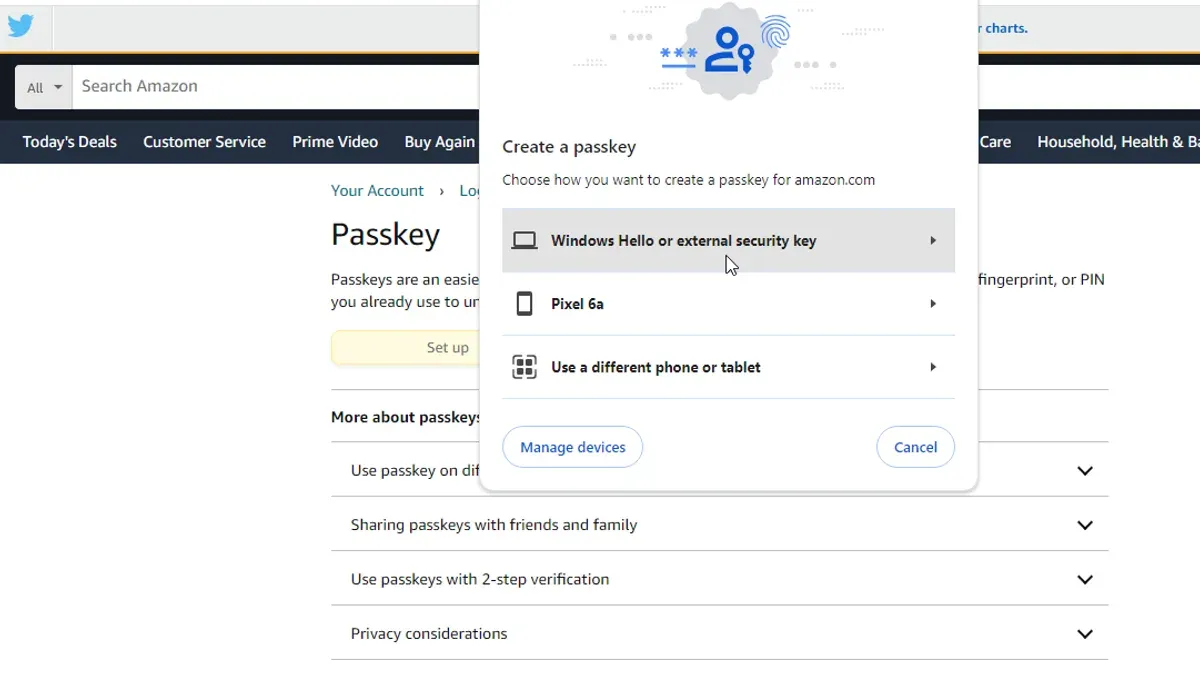
To create or change the Amazon account password, follow these steps:
- Go to Amazon.com and sign in with the current credentials; the Account & Lists menu should appear.
- Navigate to Your Account > Login & Security; the current account details will be visible.
- Select Edit next to the password field; a password change form appears.
- Enter the current password, then the new password twice. The new password must be at least 6 characters and include a combination of letters, numbers, and symbols; a strength meter indicates if it meets security requirements.
- Click Save Changes; a confirmation message will appear once updated successfully.
To enable purchase confirmation passwords, access Your Account > Login & Security > Advanced Security Settings and activate the purchase password or PIN feature. This setting prompts for an additional password or PIN when authorizing purchases or using payment methods.
For Amazon Prime membership management, the same account password applies; changing it as above updates Prime access security. Ensure the account password is strong and unique to protect subscription details and payment information.
How to set pin for Amazon Prime and Amazon credit card purchases
Amazon allows users to add an extra layer of security by setting PINs for Prime Video and Amazon credit card purchases. These PINs act as quick authentication tools, requiring entry before confirming a purchase or streaming title, helping prevent unauthorized use.
To set or change the Prime Video PIN, navigate to the Amazon Prime Video settings page. Select Parental Controls, then find the PIN for Purchases and Rentals section. Click Change or Set PIN, enter a 5-digit PIN, and confirm it. Once saved, the PIN will be required for purchases and rentals on Prime Video.
For Amazon credit card purchase PINs, log into the Amazon Credit Card portal. Under Account Settings, locate Security Settings or Purchase PIN. Follow prompts to create or update a 4- to 6-digit PIN. This PIN must be entered during certain card transaction verifications.
- Sign in to the Amazon Prime Video account and go to Settings > Parental Controls. The page should display options for purchase PIN management.
- Select Set PIN or Change PIN. A prompt will appear to enter a new 5-digit PIN.
- Enter the desired PIN twice for confirmation. A message will confirm the PIN has been saved.
- Log into the Amazon Credit Card online account and go to Account Settings > Security Settings.
- Find the Purchase PIN section and select Set PIN or Change PIN. An input field appears for the new PIN.
- Enter and confirm the new PIN. The system will confirm the update once successful.
When making purchases or streaming content, the system prompts for the respective PIN to verify identity. This reduces fraud risk by requiring knowledge of the PIN in addition to account credentials. However, PINs are only effective if kept confidential and combined with strong passwords or passkeys.
Tip: Choose a PIN that is easy to remember but hard to guess, avoiding common sequences or birthdays.
How to set up a passcode for Amazon account security
Passcodes serve as a numeric or alphanumeric alternative or complement to passkeys and passwords within Amazon's security framework. They provide a quick, device-specific authentication method, especially useful when biometric options are unavailable or inconvenient. Unlike passwords, passcodes are generally shorter and easier to enter, but they offer less complexity and thus are best used alongside other security measures.
To enable and manage a passcode on Amazon, access the Amazon app or website settings under "Account & Lists" > "Login & Security" > "Two-Step Verification Settings" or "Device Passcode" options, depending on the device. On mobile devices, especially Android and iOS, passcode setup often involves creating a PIN or numeric passcode that unlocks the Amazon app or authorizes purchases. Successful setup is confirmed when the app requests the passcode for login or purchase confirmation.
Compared to passkeys, passcodes do not rely on hardware-backed biometric authentication, making them less secure but more universally compatible. They are preferable when biometric sensors fail or are unavailable. User feedback and Amazon help resources indicate passcodes effectively add a security layer without complicating access, balancing convenience and protection.
- Open the Amazon app or visit the Amazon website and sign in to the account. The account dashboard should appear.
- Navigate to "Account & Lists" and select "Login & Security". The security settings page should load.
- Locate and select "Two-Step Verification Settings" or "Device Passcode". The passcode setup interface should display.
- Choose the option to enable a passcode, enter a numeric or alphanumeric code as prompted, then confirm it. A confirmation message should appear indicating the passcode is active.
- Test the passcode by signing out and signing back in or by attempting a purchase, verifying the passcode prompt appears and accepts the code.
Troubleshooting common issues when setting up Amazon passkeys
Passkeys may fail to save or sync across devices if the Amazon account is not properly linked or if device synchronization is disabled. A common error message is "Passkey could not be saved," which often indicates a connection issue or outdated app version. Ensuring the Amazon app or browser is updated to the latest version usually resolves this.
Biometric authentication failures frequently stem from misconfigured device security settings or dirty sensors. Users often see "Biometric authentication failed" prompts, which can be fixed by re-registering fingerprints or Face ID data in the device settings.
Compatibility issues arise when the Amazon app or browser does not support passkeys on certain devices or operating system versions. If the option to set up a passkey does not appear, verify device compatibility and update the OS or app accordingly.
To reset or remove a faulty passkey, navigate to Amazon account settings under "Login & Security," select "Passkeys," then choose the passkey to delete or reset. After removal, a new passkey can be created following the standard setup process.
If problems persist after these steps, contacting Amazon support is advisable. Support can assist with account-specific errors or system-wide issues affecting passkey functionality.
- Open the Amazon app or website and go to "Account Settings" > "Login & Security." Expected: A list of security options including passkeys.
- Select "Passkeys," then choose the problematic passkey and tap "Remove" or "Reset." Expected: Confirmation prompt and removal of the passkey.
- Update the Amazon app or browser to the latest version available. Expected: No new update notifications and access to passkey setup options.
- Re-register biometric data in device settings (e.g., fingerprint or Face ID). Expected: Successful biometric enrollment confirmation.
- Attempt to set up the passkey again. Expected: Passkey setup completes without error and syncs across devices.
Security considerations when using passkeys, PINs, and passwords with Amazon
Passkeys offer superior security compared to traditional passwords and PINs by leveraging cryptographic techniques and biometric authentication, which greatly reduce risks of phishing and credential theft. Security experts emphasize that passkeys eliminate the need to remember complex passwords and avoid reuse, a common cause of breaches. However, passkeys depend on device integrity; losing a device without backup options can lock users out.
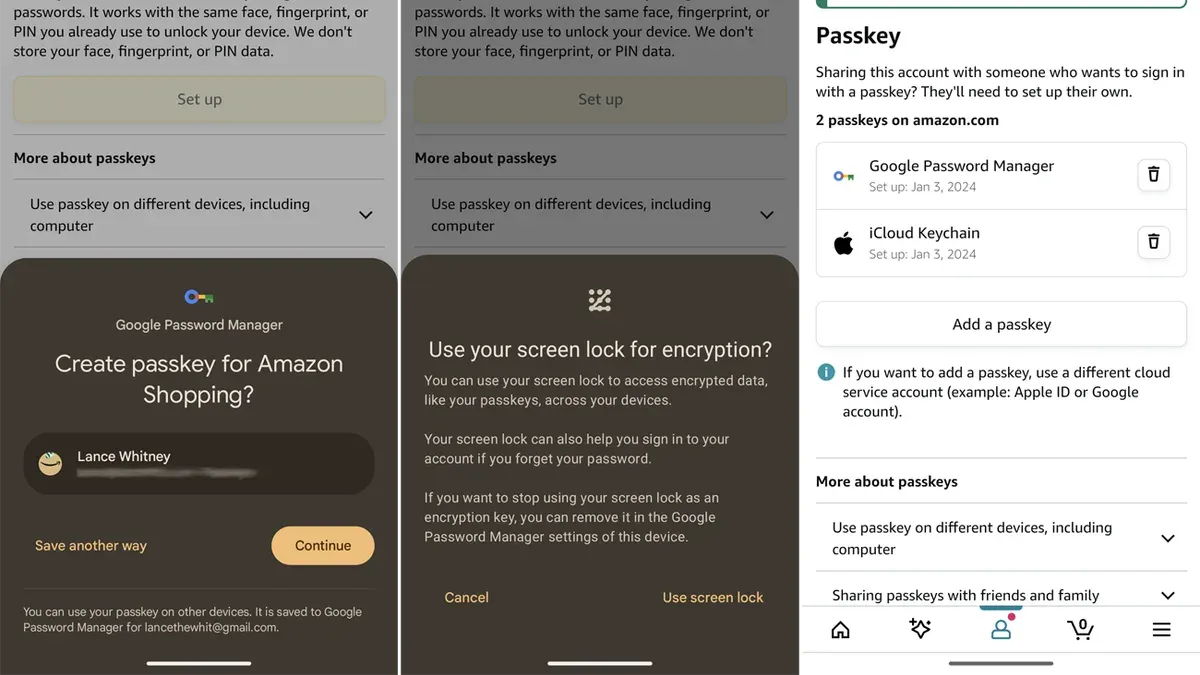
Weak PINs and passwords remain a frequent vulnerability. PINs like "1234" or passwords based on common words or patterns are easily compromised. Amazon recommends using a strong, unique password with a combination of letters, numbers, and symbols. Enabling two-factor authentication adds a critical layer of security.
Credential management should include regularly updating passwords and PINs, using password managers for secure storage, and promptly revoking access from lost or stolen devices. Users should also set up recovery options within Amazon’s security settings to prevent lockouts.
Tip: Always register multiple authentication methods and keep recovery contacts up to date to avoid losing access if a device is lost or passkeys fail.
Frequently asked questions
How to set up amazon passkey?
To set up an Amazon passkey, start by navigating to the Amazon account settings on a compatible device. Look for the "Security & Login" section and select "Manage Passkeys." Follow the prompts to create a passkey using your device’s biometric or security features. This process typically requires a device that supports passkey technology, such as recent smartphones or computers with biometric sensors.
How to set up a passkey on amazon app?
Open the Amazon app and access the menu by tapping the three horizontal lines. Go to "Account" then select "Login & Security." If passkey setup is supported on the device, there will be an option to "Add Passkey" or "Enable Passkey Login." Follow the on-screen instructions, which usually involve verifying identity and registering the device’s biometric or PIN security.
How to set up password for amazon prime?
Amazon Prime uses the same password as the main Amazon account. To set or change this password, go to "Account & Lists" on the Amazon website, select "Login & Security," and click "Edit" next to the password field. Enter the current password, then set a new strong password to protect both Amazon and Prime services.
How to create a passkey for amazon?
Creating a passkey involves using device-level security features integrated with Amazon’s login system. Access the Amazon security settings and select "Add Passkey." The device will guide through biometric verification or PIN creation to link the passkey securely to the Amazon account.
How to set pin for amazon credit card?
To set a PIN for the Amazon credit card, log in to the Amazon Credit Card management page. Select "Manage Card" then "Set or Change PIN." Follow the prompts to create a 4-digit PIN, which will be used for in-store purchases and ATM withdrawals. The PIN should be memorable but not easily guessable.
What this advice does not cover and who should do something else
This article does not cover legacy authentication methods such as two-factor authentication via SMS codes or third-party password managers integration with Amazon. Passkey availability and features may vary depending on the device manufacturer and operating system updates. Users with older devices or unsupported operating systems may not be able to use passkeys and should rely on passwords and PINs to secure their Amazon accounts and purchases. Additionally, this guide does not address enterprise or bulk account management for Amazon business users.
For those seeking the most streamlined and secure login experience, the single most useful next step is to verify the device’s operating system and the Amazon app version are fully updated. This ensures access to the latest passkey features and security improvements. Then, follow the device-specific setup instructions to enable passkeys, or configure PINs and passwords where passkeys are unavailable. Regularly reviewing and updating security credentials helps maintain strong protection against unauthorized access.
See also: How to Secure Your X (Twitter) Account: Step-by-Step Guide · How to Secure Your YouTube Account: Step-by-Step Guide · How to Secure Your WeChat Account: A Complete Step-by-Step Guide · How to Secure Your Tumblr Account: A Clear Step-by-Step Guide