Switching from Quizizz to Blooket: A Step-by-Step Educator’s Guide
Discover how to switch from Quizizz to Blooket with clear steps, platform comparisons, and tips to enhance student engagement through game-based learning.

Short answer: Switching from Quizizz to Blooket involves understanding the distinct features each platform offers and adapting your quiz content accordingly. Blooket emphasizes interactive, game-based learning with customizable avatars and varied game modes, while Quizizz focuses on streamlined quiz delivery and detailed performance reports. To switch smoothly, you’ll need to learn Blooket’s quiz creation process, import content efficiently, and engage students with its unique gameplay.
This guide covers the educator’s decision-making process behind switching from Quizizz to Blooket. You’ll gain clear insights into platform differences, step-by-step instructions for creating and converting quizzes, practical hosting tips using join codes, and ways to customize player experience. Additionally, it highlights common pitfalls to avoid and compares Blooket with similar tools to confirm your choice confidently.
Understand the Key Differences Between Quizizz and Blooket
Quizizz primarily serves as a quiz and assessment platform, designed to deliver quizzes with immediate feedback and detailed reports. It emphasizes traditional question formats like multiple-choice and polls, making it straightforward for formative assessments. Blooket, by contrast, integrates quiz content into varied game modes, focusing on game-based learning to boost engagement through competitive and collaborative play.
The user interface of Quizizz centers on simplicity and clarity, with a dashboard that organizes quizzes by class and subject. Blooket’s interface is more playful, featuring colorful game boards and animated "Blooks"—characters that students can choose and customize, enhancing personalization and motivation.
Content creation differs notably: Quizizz offers a robust question editor with options for images, memes, and timers, and supports importing questions via CSV files. Blooket simplifies content input but pairs quizzes with multiple game formats like "Tower Defense" or "Cafe," changing how questions are experienced. Customization focuses on gameplay rather than quiz structure.
| Feature | Quizizz | Blooket |
|---|---|---|
| Primary Use | Quizzes and assessments | Game-based learning with quizzes |
| User Interface | Dashboard with quiz lists and reports | Game boards with animated Blooks |
| Engagement Style | Individual pacing, immediate feedback | Competitive/Collaborative game modes |
| Content Creation | Rich question types, CSV import | Simplified input, multiple game modes |
For example, in Quizizz you might assign a vocabulary quiz where students proceed at their own pace and see scores instantly. In Blooket, the same vocabulary questions could be played in a "Battle Royale" mode where students answer to earn points while competing against classmates, making the experience more dynamic and socially driven. Understanding these differences helps you decide if shifting to Blooket fits your engagement goals and classroom style.
How to Create a Quiz on Blooket
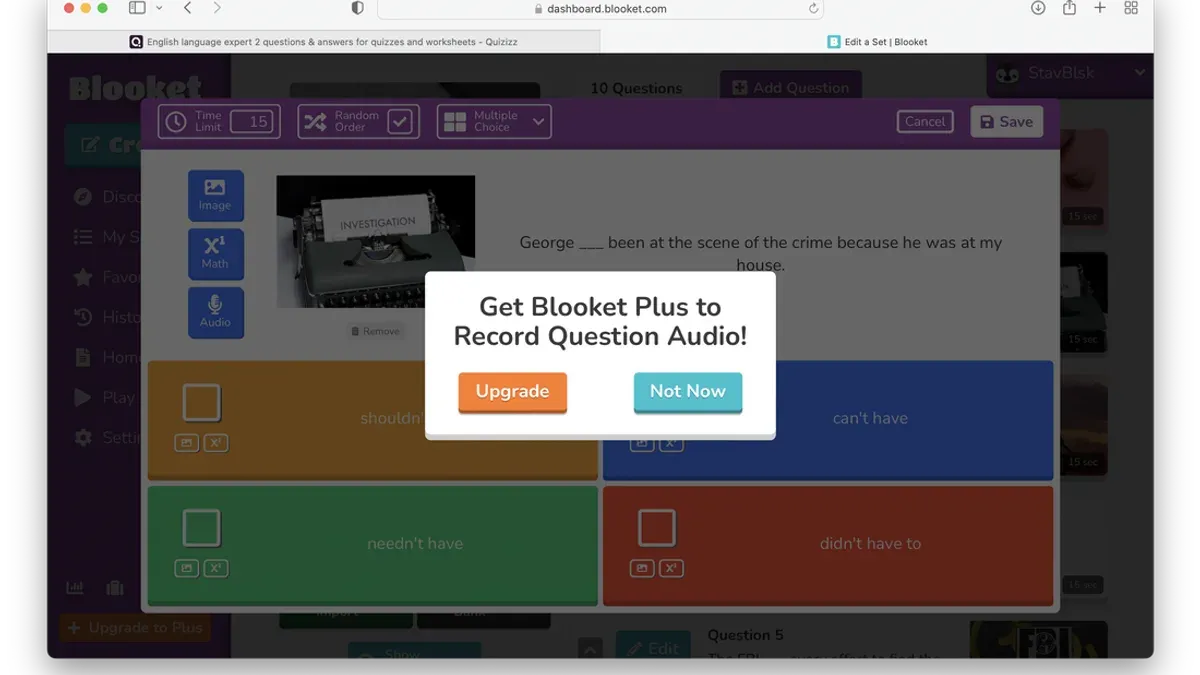
To create a quiz on Blooket, start by logging into your educator account. Click the “Create” button on the dashboard, then select “Create a Set” to begin building your quiz. Name your quiz clearly to keep your content organized, for example, “Science Basics Review.”
Next, add questions one at a time. Each question requires a prompt and multiple answer options, with one correct answer marked. Blooket supports text and image-based questions, so consider adding images to enhance engagement. For instance, a question might be “What planet is known as the Red Planet?” with answer choices including “Mars” as the correct option.
When crafting questions, keep answers concise and clear to suit Blooket’s fast-paced game modes like Tower Defense or Cafe. Avoid overly complex phrasing to maintain student focus during gameplay.
After entering all questions, click “Save Set”. Your quiz will appear in your library, where you can edit, duplicate, or delete it. Organize quizzes using tags or categories to find them easily for future classes.
Using this method, you can smoothly transition your Quizizz content into Blooket-ready quizzes tailored for interactive learning.
- Log in and click “Create” > “Create a Set”
- Name your quiz clearly
- Add questions with one correct answer each
- Use concise wording and optional images
- Save the quiz and organize with tags
How to Convert Quizlet Content to Blooket Quizzes
Since Blooket does not support direct import from Quizizz, you can use Quizlet flashcard sets as an intermediate source to create Blooket quizzes. The process involves exporting content from Quizlet, formatting it properly, and then importing it into Blooket.
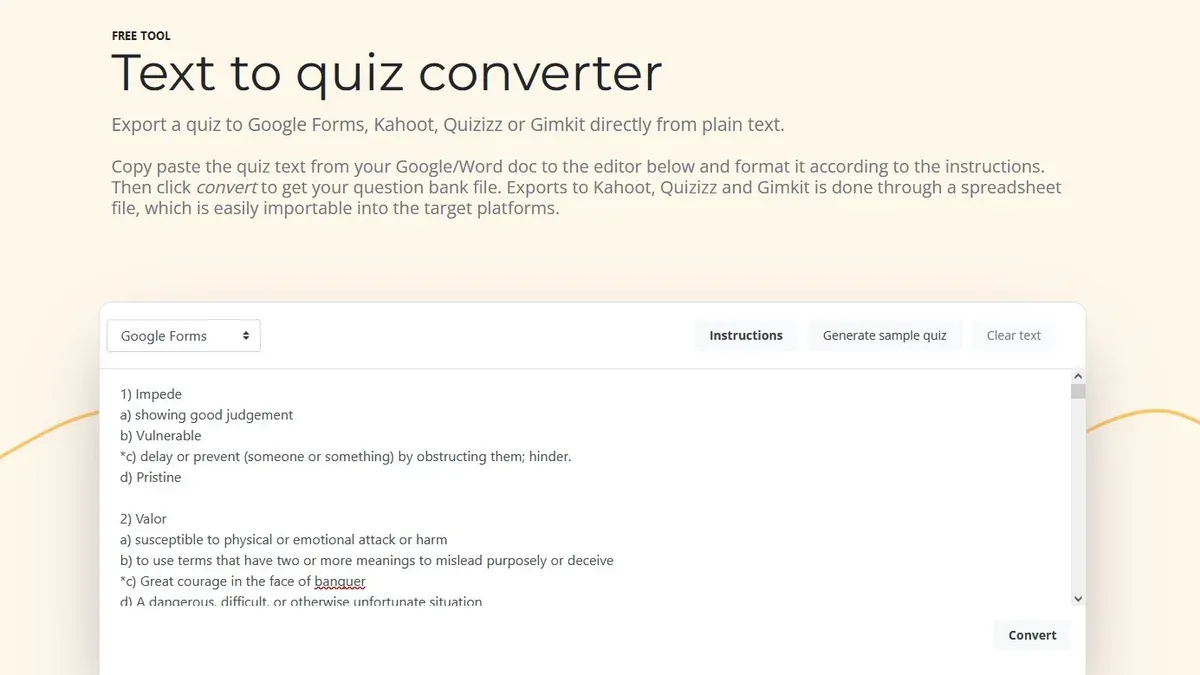
First, open your Quizlet set and use the "Export" option under the menu. Choose the tab-delimited format, which lists terms and definitions separated by tabs. Copy this exported data into a spreadsheet program like Excel or Google Sheets.
Next, format the spreadsheet so the first column contains the quiz question (usually the term) and the second column contains the answer (definition). Blooket expects a simple two-column format for questions and answers when importing. Save or copy this formatted data as plain text, ensuring questions and answers are separated by tabs or commas.
In Blooket, navigate to "Create a Set," then select "Import" from the options. Paste your formatted Quizlet content into the import box. Blooket will parse the data and generate questions and answers. Review the imported questions and edit any formatting issues, such as overly long questions or inconsistent capitalization.
For example, a Quizlet set with vocabulary terms and their definitions can be exported, cleaned up in a spreadsheet, and imported into Blooket to quickly create an engaging quiz. Screenshots of the import screen show the paste box and preview of parsed questions for verification.
Keep in mind that Blooket currently supports only basic question types via import, so complex question formats or images will need manual addition. Maintaining consistent formatting during export-import avoids errors and saves time.
- Export Quizlet set using the "Export" tab-delimited option
- Format questions and answers in two columns in a spreadsheet
- Copy formatted data and paste into Blooket's "Import" quiz feature
- Review and edit imported questions for consistency
- Manually add images or complex question types if needed
How to Use Quizizz Before Switching: Key Features to Note
Quizizz offers live games, homework assignments, and detailed performance reports that support both synchronous and asynchronous learning. Live games engage students in real time with countdown timers and immediate feedback, while homework assignments allow asynchronous completion with flexible deadlines. Reports provide insights on question-level accuracy, individual student performance, and class-wide trends, accessible through the Reports tab in your dashboard.
A distinctive feature is Quizizz’s tab-switch detection, which tracks if students navigate away from the quiz window during live sessions. For example, if a student switches to another browser tab or application, Quizizz flags this behavior, helping you monitor focus and deter cheating. This feature supports classroom management by encouraging sustained attention.
When you transition to Blooket, your Quizizz content remains accessible in your account but will no longer receive updates or new features. You may want to export quiz results and reports before fully switching, as Blooket does not import Quizizz data directly. Consider how you will replicate Quizizz’s report depth and tab-switch monitoring within Blooket’s environment.
- Use live games and homework for varied engagement modes
- Review detailed reports under the Reports tab
- Note tab-switch detection’s role in monitoring focus
- Export Quizizz reports before moving on
- Plan to adapt monitoring and reporting strategies in Blooket
How to Join and Host a Blooket Game Using Join Codes
To host a Blooket game, start by logging into your Blooket account and selecting the quiz you want to use. Click the Host button on the quiz page, which opens the game settings. Choose your preferred game mode and customize any options such as time limits or question order. Once set, click Start Game to generate a unique join code displayed prominently on the screen.
Share this join code with your students. They will go to blooket.com and click Join a Game at the top. Students enter the join code into the provided field and select a player icon, called a "Blook," to represent themselves in the game.
Managing the session is straightforward: monitor the player count on the host screen to ensure everyone has joined before starting. You can remove players if needed by clicking their names or pause the game to address any issues. For example, if your join code is 45279, students enter this on the Join page, pick Blooks, and wait in the lobby until you launch the game.
- Log in, select quiz, and click Host.
- Customize game mode and settings.
- Share the generated join code with students.
- Students visit blooket.com, click Join a Game, and enter the join code.
- Monitor and manage participants from the host screen.
- Start the game once all players have joined.
How to Change Blooks in Blooket and Customize Player Experience
Blooks are the fun, visual avatars players choose to represent themselves during Blooket games. They add a layer of personalization that increases student engagement by allowing players to pick characters they connect with, from animals to fantasy creatures. This feature is unique to Blooket and can transform the classroom atmosphere from routine quiz-taking to a lively game experience.
To change Blooks before starting a game, instruct your students to visit the game lobby where a "Choose Your Blook" button appears. Clicking this opens a gallery of available Blooks. Players scroll through and select their preferred Blook by clicking on it. Visual examples include a cartoon owl, a wizard, or a robot, each with distinct designs that appeal to different interests.
During gameplay, players can’t change Blooks, but you as the host can reset the game or start a new session, allowing students to pick new Blooks if desired. Encourage students to choose different Blooks in subsequent rounds to keep engagement high and foster friendly competition.
To promote participation, use Blook choice as a motivator. For example, offer extra points or recognition for creative or thematic Blook selections related to lesson content. This strategy turns avatar selection into an extension of the learning experience.
Visual aids like screenshots are found under the lobby interface: the "Choose Your Blook" button is located near the player list, and the Blook gallery shows a grid of colorful icons. Missing this step is common; remind students and co-teachers to familiarize themselves with this area before the game starts.
- Direct students to "Choose Your Blook" in the game lobby before starting.
- Show the Blook gallery and highlight popular options like animals and fantasy characters.
- Encourage changing Blooks between game rounds to keep interest fresh.
- Use Blook choice as an engagement tool tied to lesson themes or rewards.
- Remind players that Blook changes aren’t possible mid-game but possible in new sessions.
Avoid Common Mistakes When Switching From Quizizz to Blooket
One frequent error educators make is assuming they can directly import quizzes from Quizizz into Blooket without reformatting. Quizizz and Blooket use different data structures, so questions and answers often require manual adjustment or re-entry through Blooket’s import tool to ensure compatibility and proper functionality.
Another common pitfall is neglecting to introduce students to Blooket’s variety of game modes before fully switching. Unlike Quizizz’s mostly quiz-centric design, Blooket offers diverse game types that impact pacing and engagement. Jumping straight into advanced modes without practice can confuse students and reduce participation.
Lastly, overlooking the differences in reporting and analytics features can hinder your ability to track student progress effectively. Blooket’s reports are less detailed than Quizizz’s, focusing more on game outcomes than item-level analysis. Educators who expect the same depth of data often find themselves unprepared to interpret results or plan follow-up instruction.
For example, a middle school teacher who imported a Quizizz quiz directly into Blooket without adjusting the format encountered mismatched answers during gameplay, frustrating students and wasting class time. Additionally, skipping a demo of Blooket’s “Tower Defense” mode led to confusion, as students did not understand the rules, diminishing engagement.
- Manually format and review quiz content before importing to Blooket
- Schedule a trial session to familiarize students with Blooket’s different game modes
- Adjust expectations for reporting detail; supplement with manual tracking if needed
- Test quizzes and game modes yourself before live sessions
- Communicate changes clearly with students to ease the transition
Compare Kahoot, Quizizz, and Blooket to Confirm Your Choice
When deciding between Kahoot, Quizizz, and Blooket, consider their unique strengths and how they fit your classroom goals.
| Platform | Key Strengths | Ideal Use Cases | Pricing & Accessibility | Engagement Style |
|---|---|---|---|---|
| Kahoot | Simple interface, live game focus, robust question bank | Quick-paced review sessions, live competitions | Free tier with basic features; paid plans offer advanced reports and branding; accessible on all devices with a web browser or app | Fast-paced, competitive quiz games with real-time leaderboard |
| Quizizz | Homework assignments, detailed reporting, self-paced quizzes | Blended learning, formative assessments, asynchronous tasks | Free and paid plans; integrates with LMS; supports multiple languages | Self-paced quizzes with gamification elements like power-ups and memes |
| Blooket | Varied game modes, playful avatars, customizable game settings | Engagement-focused review, collaborative or competitive gameplay | Free with optional subscriptions for enhanced features; browser-based with no app required | Game-based learning through diverse modes encouraging repeated play |
For example, if you want to energize a 10-minute review with friendly competition, Kahoot’s live leaderboard and buzzer-style questions fit well. If you assign homework that students complete at their own pace while tracking progress, Quizizz offers detailed reports and seamless LMS integration. Blooket suits classrooms where varied game formats and avatar customization keep students motivated for multiple rounds.
Choosing depends on your priorities: live interaction, asynchronous assessment, or game-based engagement. Review your class dynamics and select the platform that aligns with your teaching style and students’ preferences.
Read next
- Switching from Pear Deck to Blooket: A Practical Educator’s Guide
- Switching from Microsoft Forms to Blooket: A Practical Educator’s Guide
- Switching from Nearpod to Blooket: A Practical Educator’s Guide
- Switching from Kahoot to Blooket: Complete Guide to a Smooth Transition
Frequently asked questions
How to make a quiz on blooket?
To make a quiz on Blooket, log into your educator account and click on the "Create" button at the top right. Choose "Create a Set," then input your questions and multiple-choice answers manually. You can add images or change time limits per question before saving the quiz.
How to create a blooket quiz?
Creating a Blooket quiz starts with selecting "Create a Set" from your dashboard. Enter your quiz title, add each question with up to four answer options, and mark the correct one. After reviewing, save your set to make it available for hosting games.
How to turn quizlet into blooket?
Turning Quizlet content into Blooket quizzes requires exporting your Quizlet flashcards first. Export the terms and definitions as a plain text file, then copy and paste them into Blooket’s "Import" feature within the quiz creation page. Adjust formatting if needed before saving.
How to add a quizlet to blooket?
To add a Quizlet to Blooket, access your Quizlet set and use the "Export" option to copy the content. In Blooket’s "Create a Set" section, click "Import from Quizlet," then paste the data. Review and edit questions or answers, then save the new quiz set for use.
How to convert quizlet to blooket?
Converting Quizlet sets to Blooket quizzes involves exporting your Quizlet content as plain text and importing it into Blooket’s quiz builder. Ensure the formatting matches Blooket’s requirements by separating terms and definitions properly. This method avoids manual re-entry and speeds up quiz creation.
Quick checklist
- Review each platform’s unique features and decide which aligns best with your instructional goals.
- Create or convert your quiz content carefully, ensuring question formats match Blooket’s requirements.
- Familiarize yourself with Blooket’s dashboard, focusing on quiz creation, game hosting, and player customization.
- Practice hosting a Blooket game using join codes to ensure smooth student participation.
- Customize Blooks to enhance player engagement and maintain a fun classroom atmosphere.
- Watch out for common pitfalls like incomplete content transfer or overlooking game mode differences.
- Compare Kahoot, Quizizz, and Blooket objectively before finalizing your platform choice.
What this guide does not cover
This guide does not cover advanced data analytics or integration with Learning Management Systems (LMS), which may require additional tools, subscriptions, or technical expertise. If your instructional approach depends heavily on detailed student performance tracking or seamless LMS integration, consider supplementary resources or vendor support to address those needs.
The best next step is to create a simple Blooket quiz from scratch and host a trial game with a small group of students or colleagues. This hands-on experience will reveal nuances in game flow, student interaction, and platform settings that text-based guidance alone cannot convey, preparing you to confidently transition your classroom engagement to Blooket.