Moving from Quizlet to Microsoft Forms: Your Complete Checklist Guide
Follow this checklist to smoothly move your study content from Quizlet to Microsoft Forms, creating versatile quizzes and checklists.

Short answer: Moving from Quizlet to Microsoft Forms requires understanding the differences in interactivity and customization between the two platforms, then carefully transferring your study sets into Microsoft Forms quizzes and checklists. This moving from Quizlet to Microsoft Forms checklist will guide you through preparing your existing content, creating versatile forms, and integrating checklist workflows tailored to educators and trainers.
This article covers the key distinctions between Quizlet’s flashcard-centered study sets and Microsoft Forms’ flexible quiz and checklist environment. You will learn how to export and adapt your Quizlet content, set up Microsoft Forms quizzes and checklists with actionable workflows, and avoid common pitfalls during the transition to ensure a smooth, efficient migration.
Understand the Key Differences Between Quizlet and Microsoft Forms
Quizlet centers on interactive flashcards and study modes like Match and Learn that promote memorization through repetition. It excels in simple self-paced study but offers limited options for formal assessments or checklist-style workflows. Microsoft Forms, by contrast, is designed for creating quizzes, surveys, and importantly for you, checklists that fit structured assessment and tracking needs.
Microsoft Forms integrates seamlessly with Microsoft 365, enabling real-time collaboration, automatic data aggregation in Excel, and advanced reporting. This makes it ideal for educators and trainers who need to monitor progress, analyze responses, or share results within their teams.
| Feature | Quizlet | Microsoft Forms |
|---|---|---|
| Primary Use | Flashcards, study modes | Quizzes, surveys, checklists |
| Assessment Types | Self-study and practice | Formal quizzes, graded assessments, checklists |
| Checklist Support | No native checklist feature | Yes, with checkbox questions |
| Collaboration | Limited to shared sets | Real-time editing and sharing within Microsoft 365 |
| Reporting & Analytics | Basic progress tracking | Detailed response summaries and export options |
For example, if you previously used Quizlet to help students memorize vocabulary through flashcards, switching to Microsoft Forms lets you create a checklist to track vocabulary words each student has mastered. You can assign the checklist, collect completion data, and generate reports to identify which words need reinforcement—all within one platform.
Prepare Your Quizlet Content for Migration
Begin by exporting your Quizlet sets to organize the content before importing into Microsoft Forms. Quizlet allows exporting study sets as plain text or CSV files. To export, open your set, click on the Options menu, then select Export. The data will appear as two columns separated by tabs: the term and the definition.
For example, a Quizlet export might look like:
Term 1\tDefinition 1
Term 2\tDefinition 2
Term 3\tDefinition 3
This format is not directly importable into Microsoft Forms, so you’ll need to convert it.
Next, clean and format this data in a spreadsheet program like Excel. Place terms in one column labeled Question and definitions in an adjacent column labeled Answer. Remove any extra line breaks or special characters that can cause import errors.
Consider how you want to structure quizzes or checklists in Microsoft Forms. For instance, if you use Quizlet’s matching or flashcard modes, you might create multiple-choice questions or short answer quizzes in Forms. Organizing your data into clear, consistent columns ensures smooth recreation of your content.
- Export Quizlet sets via Options > Export
- Copy export data into Excel or Google Sheets
- Label columns clearly as Question and Answer
- Clean data: remove extra spaces, tabs, and special characters
- Plan your quiz/checklist structure before importing
Create Checklists and Quizzes in Microsoft Forms
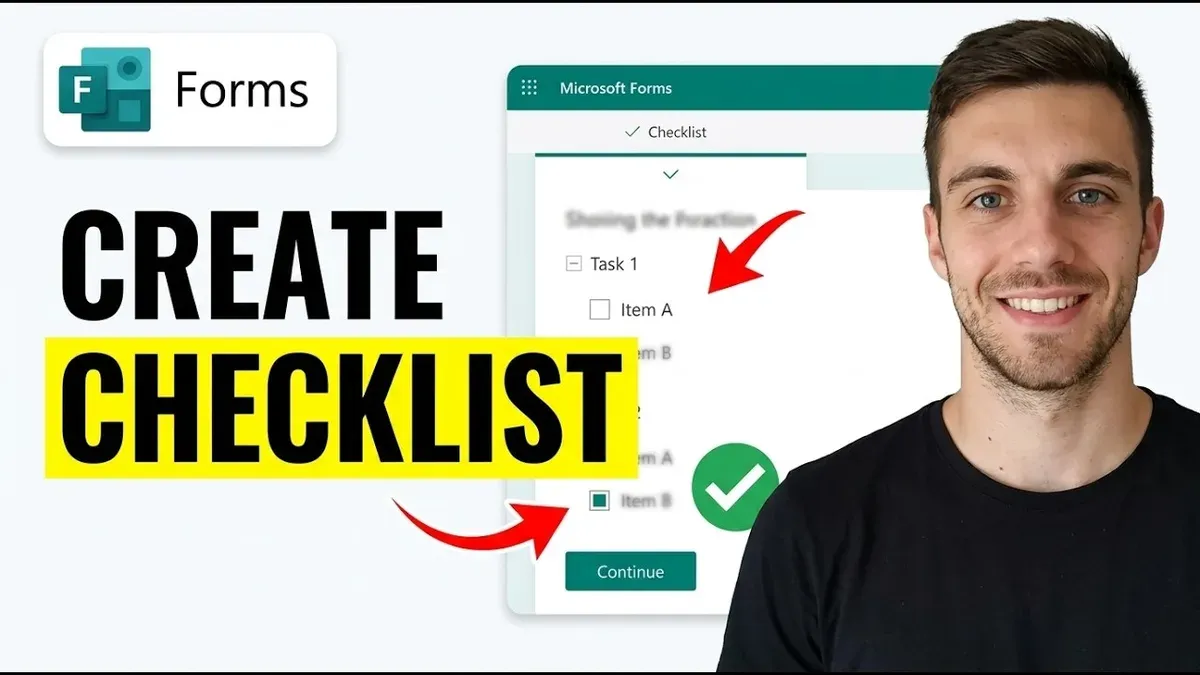
Begin by opening Microsoft Forms and selecting New Form. To replicate a Quizlet flashcard set, choose the Choice question type and enable the Multiple answers option when creating checklist-style questions. For example, transform a flashcard asking "Which of these are mammals?" into a checklist with options like "Dolphin," "Shark," and "Eagle."

Use the Branching feature under the ... menu on each question to guide respondents to targeted feedback or follow-up questions based on their answers, mimicking Quizlet’s interactive study flow. For instance, incorrect choices can branch to a brief explanation before returning to the main quiz.
Leverage Microsoft Forms’ built-in analytics by clicking on the Responses tab to track completion rates, average scores, and question-level insights. This data enhances your ability to adjust your checklists and quizzes for clarity and effectiveness.
As a worked example, a Quizlet set of 10 flashcards about world capitals can become a Microsoft Forms quiz with 10 choice questions, each listing multiple cities where users select the correct capital(s). Branching can provide instant feedback on each question, and the responses panel will help you monitor which capitals are most frequently missed.
- Start a new form and select Choice question type
- Enable multiple answers for checklist questions
- Use Branching to add conditional feedback
- Review analytics in the Responses tab
Implement Microsoft Forms Checklists in Your Workflow
Integrate your Microsoft Forms checklists directly into lesson plans or training sessions by embedding them in Microsoft Teams channels or SharePoint pages. This centralizes access and encourages real-time participation. Within Microsoft 365, configure sharing settings under the "Send" menu to control who can respond—select from "Anyone with the link," "Only people in your organization," or specific individuals. Adjust permissions to allow editing or restrict to response submission only.
Leverage Microsoft Power Automate to trigger automated follow-ups based on form responses. For example, when a trainee submits a checklist indicating incomplete tasks, you can set up a flow to notify trainers via email or post a reminder message in Teams. This reduces manual tracking and ensures timely interventions.
Consider a training coordinator who replaced paper checklists with Microsoft Forms. By embedding forms in Teams and automating notifications for incomplete items, they saw smoother session workflows and faster completion rates. The transparency in real-time response tracking also improved team accountability.
- Embed forms in Teams or SharePoint for easy access
- Set precise sharing and permission options under the "Send" menu
- Create Power Automate flows to trigger notifications or reminders
- Use response tracking to monitor progress and adjust training accordingly
Avoid Common Pitfalls When Transitioning from Quizlet
One frequent mistake is assuming question types and interactivity transfer directly from Quizlet to Microsoft Forms. For example, Quizlet’s matching games and flashcards don’t have exact equivalents in Forms, which relies on choice, text, rating, and ranking questions. If you import content without adjusting question types, your forms may confuse learners or limit engagement. Always review and adapt question formats to fit Forms’ capabilities.

Another common error is overlooking necessary content reformatting. Quizlet sets often use concise prompts and answers, but Microsoft Forms benefits from clearer instructions and expanded answer choices to support quizzes and checklists effectively. Without reformatting, users might struggle with ambiguous questions or incomplete response options.
Lastly, ignoring collaboration and sharing settings causes disruptions. Quizlet’s sharing defaults differ significantly; in Microsoft Forms, permissions must be explicitly set under “Share” to control who can respond or edit. Failing to configure these properly can lead to unauthorized edits or limit access, undermining your workflow.
For instance, an educator once migrated flashcards directly into Forms without converting them into choice questions and neglected to adjust sharing settings. The result was a non-interactive form inaccessible to students. The fix involved recreating questions as multiple-choice items and setting the form’s sharing option to “Anyone with the link can respond.”
- Review and adapt question types to match Forms functionality
- Reformat content with clear instructions and full answer options
- Set precise sharing and collaboration permissions before deployment
Read next
- Moving from Quizlet to Kahoot: Your Complete Checklist Guide
- Move from Quizlet to Google Forms Checklist: A Step-by-Step Guide
- Moving from Quizlet to Gimkit: Your Complete Checklist Guide
- Moving from Quizlet to Edpuzzle: Your Complete Checklist Guide
Frequently asked questions
Can I directly import Quizlet flashcards into Microsoft Forms?
No, Microsoft Forms does not support direct import of Quizlet flashcards. You need to manually recreate your flashcard content by entering questions and answers into Forms. Alternatively, export your Quizlet data as text and copy-paste it into Microsoft Forms fields.
What are the main advantages of using Microsoft Forms over Quizlet for assessments?
Microsoft Forms offers more customizable question types, including multiple-choice, ranking, Likert scales, and text responses, allowing for diverse assessment formats. It integrates seamlessly with Microsoft 365 tools and provides real-time analytics and automatic grading, which Quizlet’s flashcard-focused platform lacks.
How do I create a checklist-style quiz in Microsoft Forms?
Create a new form, choose the “Choice” question type, then select the “Multiple answers” option to allow checklist selections. Use clear, concise prompts and enable required questions where needed to ensure full completion. You can also add branching to guide respondents based on their answers.
Is Microsoft Forms suitable for all types of quiz content that Quizlet supports?
Microsoft Forms handles a broad range of quiz types but does not replicate Quizlet’s interactive flashcard and game modes like Match or Gravity. For straightforward quizzes and checklists, it works well, but dynamic study set features unique to Quizlet are not available.
Quick checklist
- Export your Quizlet content via the "Export" option under the set menu.
- Review and clean your exported terms and definitions for clarity and completeness.
- Open Microsoft Forms and select "New Quiz" or "New Form" based on your needs.
- Recreate flashcard-style questions as multiple-choice or short answer in Forms.
- Design checklist items using the "Choice" question type with multiple selections enabled.
- Test your form by using the "Preview" function to ensure all questions behave as expected.
- Share your Microsoft Forms link through your usual channels, such as email or LMS announcements.
- Regularly review responses and adjust forms for clarity or additional feedback.
Limits of this advice
This guide does not cover migrating large-scale class data or integrating Microsoft Forms with third-party LMS platforms; users with those needs should seek specialized solutions or consult platform-specific support. Additionally, if you require advanced analytics beyond Microsoft Forms’ built-in reporting, consider complementary tools or custom reporting setups.
Your most practical next step is to export a small Quizlet set, then recreate it as a Microsoft Form quiz or checklist. This hands-on approach reveals key differences immediately and helps tailor your workflow with minimal risk.