Blooket Rollout Plan for Homeschool Families: A Step-by-Step Guide
A straightforward Blooket rollout plan for homeschool families to set up and use the platform effectively for enhanced learning engagement.

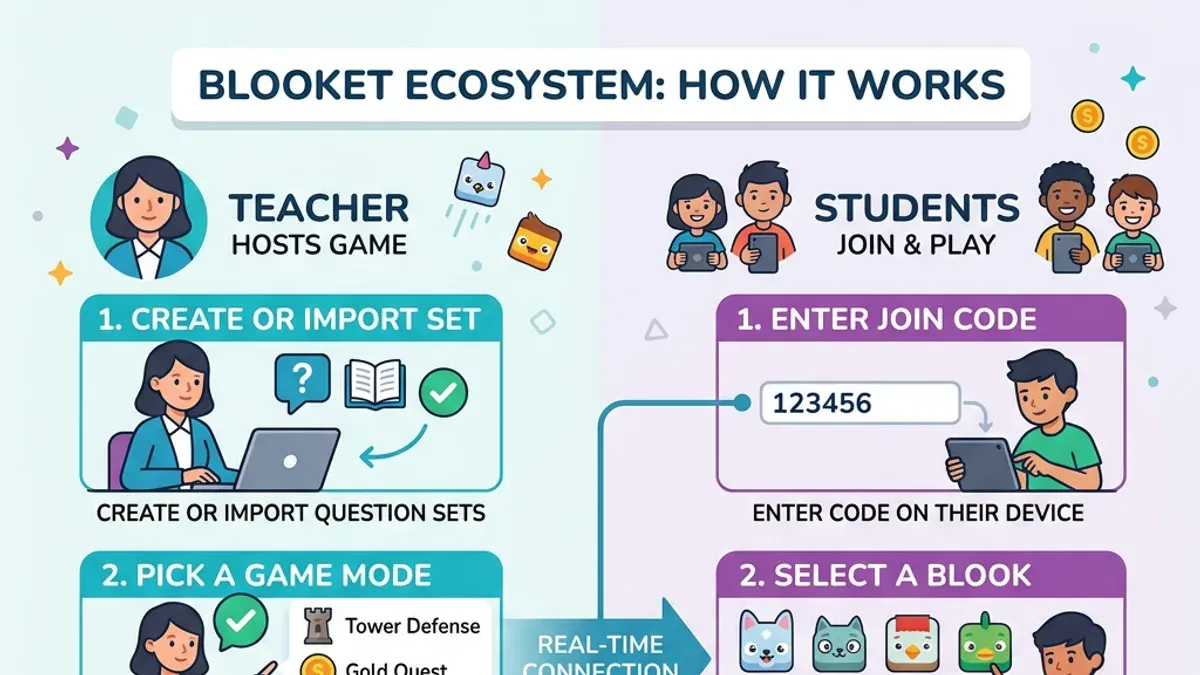
Short answer: The Blooket rollout plan for homeschool families is a straightforward process that helps you set up and use Blooket effectively to boost your child's learning engagement and track progress. It focuses on tailoring Blooket’s features to fit the homeschooling environment, balancing educational value with ease of use and parental control.
This guide covers what Blooket is and why it fits homeschool settings, step-by-step setup instructions, tips for integrating it into your daily routine, common mistakes to avoid, and how to handle technical issues. Each section addresses your unique needs as a homeschool parent or guardian, offering clear, actionable steps without classroom jargon or unnecessary complexity.
What is Blooket and why is it useful for homeschool families?
Blooket is an educational game platform centered on quizzes and review activities. It turns traditional learning content into interactive games that children can play individually or in groups, blending education with entertainment. For homeschool families, Blooket offers a self-paced approach that fits diverse schedules and learning speeds, making it a flexible tool to boost motivation and engagement.
Unlike standard worksheets or flashcards, Blooket provides variety through multiple game modes, such as Tower Defense and Gold Quest, which keep children interested and eager to participate. Access is simple—students log in from any device with an internet connection, and many features are available for free. This lowers barriers for families who want to try it without upfront costs, while optional paid plans add advanced tracking and customization.
Homeschool parents report that Blooket helps children focus on subjects they otherwise find dry, such as history or vocabulary, by turning review into a challenge rather than a chore. For example, a parent might assign a 15-minute Blooket quiz on math facts after regular lessons; the child plays through a game mode that rewards correct answers with points, providing immediate feedback and a sense of accomplishment. Compared to traditional tools, Blooket’s game-based format encourages repeated practice without boredom.
How do you set up Blooket for students at home?
Start by creating a parent or teacher account on Blooket.com using a valid email address. After logging in, select "Create a Set" from the dashboard to either build your own question set or browse the library for existing sets suitable for your child's grade and subjects. Naming your set clearly helps keep content organized—for example, "5th Grade Math Review."
Next, set up student profiles by clicking "Manage Students" under your account menu. You can assign nicknames or initials to keep track of individual progress without needing full personal details. This is especially useful if multiple children use the same device.
To start a game, choose "Host a Game" and select your question set. Share the unique game code generated with your child, who enters it on their device at join.blooket.com. Blooket supports any device with a web browser and a stable internet connection; a minimum broadband speed is recommended for smooth gameplay.
Common issues include connection drops or loading errors, often resolved by restarting the browser or switching to Chrome or Firefox. If a device lacks a camera or microphone (not required for Blooket), no problem—only keyboard or touchscreen input is needed.
- Create a parent/teacher account on Blooket.com
- Build or select a question set relevant to your child's needs
- Set up student profiles with simple identifiers
- Host a game and share the game code for your child to join
- Use a compatible device with stable internet; troubleshoot with browser refresh or switch if needed
How can you effectively integrate Blooket into your homeschool routine?
Start by setting a consistent schedule that fits your child's attention span. For younger children, 15-20 minute Blooket sessions two to three times a week work best. Older students may handle 30-minute sessions more frequently. Balance these game-based sessions with reading, hands-on activities, and rest to avoid burnout.
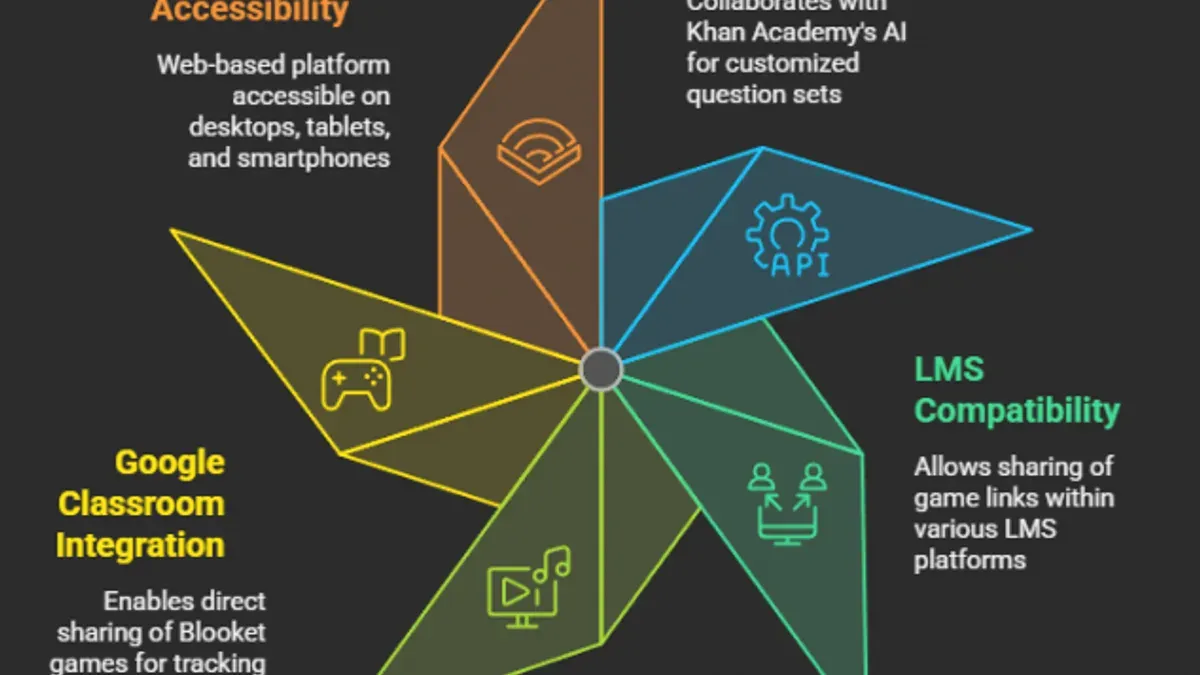
Use Blooket’s progress reports found under the “Reports” tab to monitor how your child performs on different question sets. These reports highlight strengths and pinpoint topics needing review, allowing you to tailor upcoming lessons. For example, if a report shows repeated mistakes in math facts, allocate more time to targeted practice outside Blooket.
Incorporate Blooket across subjects by creating or selecting question sets in areas like science, history, or vocabulary. A sample weekly schedule might have science quizzes on Monday, vocabulary on Wednesday, and math on Friday, each followed by discussion or related activities. This variety keeps learning dynamic and reinforces multiple skills.
Picture a homeschool day where after a reading session, your child spends 20 minutes on a Blooket game focused on history facts. You check the progress report afterward, noting a need to revisit certain events next week. This approach makes Blooket a purposeful part of your routine rather than a standalone game.
- Schedule Blooket sessions based on attention span and age
- Balance games with other learning activities
- Regularly review Blooket progress reports to guide lessons
- Rotate subjects to cover diverse topics
What mistakes should you avoid when using Blooket at home?
Overusing Blooket games can lead to burnout or distraction. For example, a homeschool parent who scheduled daily Blooket sessions found that their child lost interest after a week. The solution was to limit sessions to twice a week and mix in offline activities, maintaining engagement without fatigue.
Another common mistake is ignoring Blooket’s progress data and treating it solely as entertainment. One family initially played without reviewing the "Reports" tab, missing opportunities to identify weak subjects. After starting to monitor these reports regularly, they tailored question sets to target gaps, improving learning outcomes.
Failing to customize question sets to your specific learning goals reduces Blooket's effectiveness. If you use only public sets unrelated to your curriculum, the material may not reinforce what you teach. Adjust or create question sets in the "Create" menu to align with your lesson plans.
Technical issues also disrupt use. Insufficient devices or unstable internet can prevent smooth gameplay. One homeschooler resolved frequent disconnections by switching from Wi-Fi to a wired connection and ensuring each child had a device with updated browsers, minimizing delays and frustration.
- Limit Blooket sessions to avoid burnout—try twice a week.
- Use "Reports" to track progress and adjust focus areas.
- Customize question sets to match your curriculum.
- Ensure reliable internet and enough devices before sessions.
How do you handle technical challenges when rolling out Blooket at home?
Reliable internet and device compatibility are your first hurdles. Blooket works best on modern browsers like Chrome or Firefox on desktops and laptops, with full functionality on iPads and Android tablets. Smartphones may limit some game features and are less ideal for multiple users. Ensure your Wi-Fi network is stable; dropped connections often cause game interruptions. If your internet is unstable, consider using an Ethernet connection for desktop devices to reduce lag.
Managing multiple users on one device requires careful profile handling. Each child should have a separate Blooket account or use distinct nicknames during games to track progress accurately. Switching between accounts can be done via the profile icon on the top right, but frequent switching might slow game flow. A practical solution is to schedule turns or use different devices when possible.
Common login issues stem from password errors or browser cache problems. Clearing your browser’s cache and cookies often resolves loading failures. If games won’t start, check that your browser allows pop-ups and that any ad blockers are disabled for the Blooket site. Reload the page or restart the device if connectivity issues persist.
When these steps don’t fix problems, seek support from Blooket’s Help Center or community forums. Parents often find quick answers from other homeschoolers who share setups similar to theirs. For example, a parent using an older Chromebook reported lag until switching to a tablet with a newer OS, which Blooket’s community confirmed as a common fix.
- Use Chrome or Firefox on desktops/laptops for best compatibility
- Ensure stable Wi-Fi or use Ethernet for wired connection
- Create separate accounts or nicknames for each child
- Clear browser cache and disable ad blockers if issues occur
- Consult Blooket Help Center or forums if problems persist
Frequently asked questions
Is Blooket free for homeschool students?
Blooket offers a free version accessible to homeschool students that includes essential game modes and question sets. Some premium features, like advanced reports and custom game creation, require a paid subscription. You can start with the free plan and evaluate if the additional features are necessary for your homeschool setup.
Can multiple kids use one Blooket account at home?
One parent account can manage multiple student profiles by creating separate usernames for each child. This allows you to track individual progress without needing multiple paid accounts. However, simultaneous gameplay on one account may cause conflicts, so ensure each child uses their unique username during sessions.
What age is Blooket suitable for in homeschooling?
Blooket is suitable for children roughly ages 6 and up, adapting well through middle school. Its content and question difficulty can be customized to match various grade levels. Younger children may need parental guidance to navigate game modes and read questions.
Does Blooket require constant internet connection?
Yes, Blooket requires an active internet connection to access games, retrieve questions, and sync progress. Since games run on Blooket’s servers, offline play is not supported. Ensure your device has stable Wi-Fi or mobile data during sessions.
Quick checklist
- Create a free Blooket teacher account via the official website and familiarize yourself with the dashboard.
- Set up individual student profiles or assign simple join codes for easy access.
- Choose or customize question sets that match your curriculum and schedule regular game sessions.
- Monitor progress through the Reports tab to identify strengths and gaps.
- Prepare for common technical issues: ensure stable Wi-Fi, use updated browsers, and have backup devices ready.
- Limit game sessions to avoid fatigue and maintain educational focus.
- Encourage your child to reflect on what they learned after each game.
What this advice does not cover
This plan does not cover using Blooket in formal school settings or large group environments, which have different administrative needs and constraints. If you are a teacher managing multiple classrooms or a homeschool cooperative leader coordinating many families, consult resources tailored to those contexts for user management, advanced reporting, and group play features.
The single most useful next step is to log into your Blooket teacher dashboard and start by selecting or creating a question set that aligns closely with your child’s current learning objectives. This ensures your first game session is purposeful and productive, setting a solid foundation for ongoing use.
See also: Mosyle Rollout Plan for School Administrators: A Practical Guide · Google Admin Console Rollout Plan: A Guide for School Administrators · How to Create and Use a Mosyle Implementation Timeline Effectively