Mosyle Rollout Plan for School Administrators: A Practical Guide
Learn a practical Mosyle rollout plan for school administrators to manage Apple devices efficiently and minimize classroom disruption.

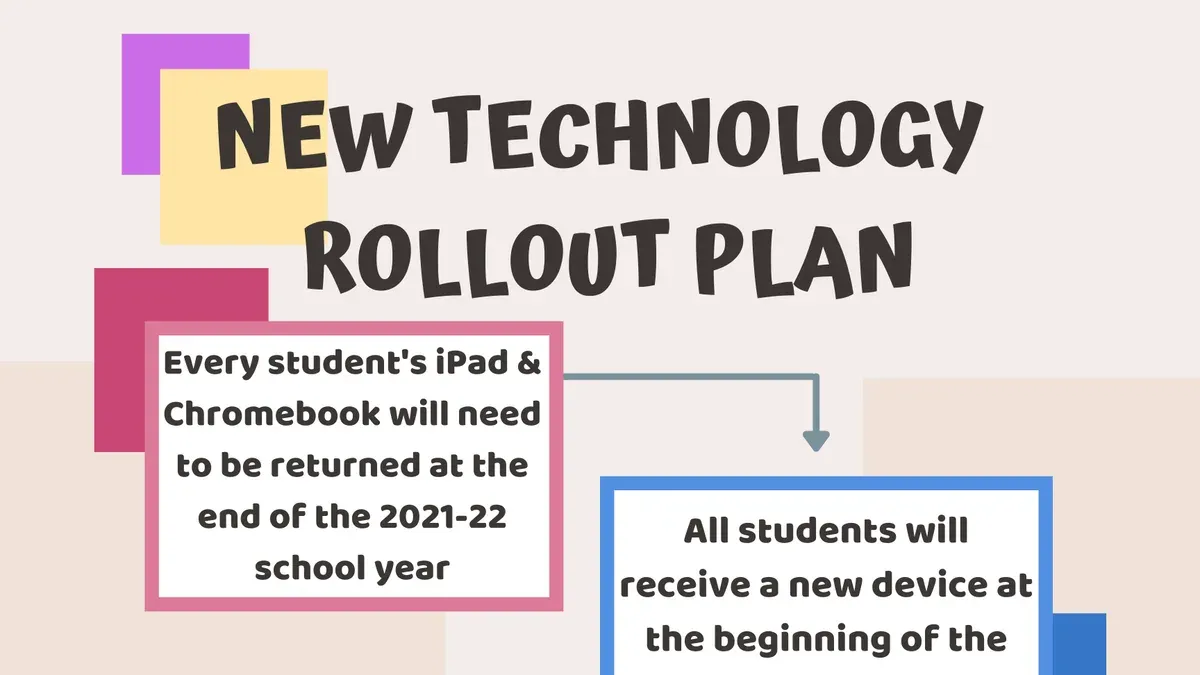
Short answer: A Mosyle rollout plan for school administrators is a structured approach to deploying and managing Apple devices using Mosyle's mobile device management platform. It ensures smooth setup, consistent configuration, and efficient app distribution while minimizing disruption to learning.
This guide covers what Mosyle is and how it works, key planning steps for your rollout, device and app management strategies, common pitfalls to avoid, and scenarios where Mosyle might not fit your school’s needs. You'll get clear, actionable advice focused on balancing technical setup with practical challenges faced by school IT teams.
What Is Mosyle and Why Should You Use It in Your School?
Mosyle is a mobile device management (MDM) and classroom management platform designed specifically for educational environments. It enables you to manage hundreds or thousands of devices from a single dashboard, streamlining tasks such as device enrollment, configuration, and app deployment. This centralized control reduces the time your IT team spends on routine maintenance and frees up resources for other priorities.
Key benefits include enhanced security features like remote device locking and data wipe, ensuring compliance with school IT policies and protecting student data privacy. Mosyle's automation options allow you to push updates and apps silently, minimizing classroom disruption. For example, you can schedule app installations overnight so devices are ready for use each school day.
Many schools report significant improvements in device management efficiency after adopting Mosyle, with reduced manual intervention and faster onboarding of new devices. For instance, a school district managing over 5,000 iPads cut setup time by more than half through automated enrollment and configuration profiles. This practical approach helps maintain a secure, consistent learning environment with less effort.
How Does Mosyle Work? The Technical Basics You Need to Know
Mosyle operates through a cloud-based platform that integrates seamlessly with Apple School Manager and Google Workspace, allowing centralized device and user management. When you enroll devices, Mosyle supports Automated Device Enrollment (ADE) for Apple devices, which streamlines setup by linking devices directly to your MDM server during activation. For non-Apple or older devices, manual enrollment is available, and BYOD devices can be managed with customized profiles and limited control depending on user roles.
Policies, profiles, and app management are configured within Mosyle’s dashboard under the “Configurations” tab. For example, setting a Wi-Fi profile involves defining SSID, security type, and credentials, then assigning it to a user group or device category. Once set, these profiles push automatically to enrolled devices, ensuring consistent settings across your fleet.
Consider the enrollment flow: a new iPad shipped to your school is powered on, connects to Wi-Fi, and contacts Apple’s activation server. Apple directs it to your Mosyle MDM via ADE, which then pushes your preset policies, apps, and restrictions without manual input. This reduces setup time and errors.
- Connect Mosyle to Apple School Manager or Google Workspace in the integrations menu.
- Choose enrollment method: ADE for Apple devices, manual for others.
- Configure policies and profiles under Configurations.
- Assign profiles to device groups or users.
- Verify devices receive settings upon activation.
What Are the Key Steps in Planning Your Mosyle Rollout?
Start by assessing your current device fleet and network. Inventory all devices, noting models, OS versions, and existing management status. Check network capacity and Wi-Fi coverage to handle simultaneous enrollments and updates without slowdowns. For example, if you have 500 devices across three buildings, verify each location’s network can support at least 50 concurrent connections.
Set clear objectives and success metrics. Define what a successful rollout looks like—such as 90% device enrollment within two weeks, zero major disruptions, or user satisfaction scores above a set threshold. This keeps your team focused and helps measure progress objectively.
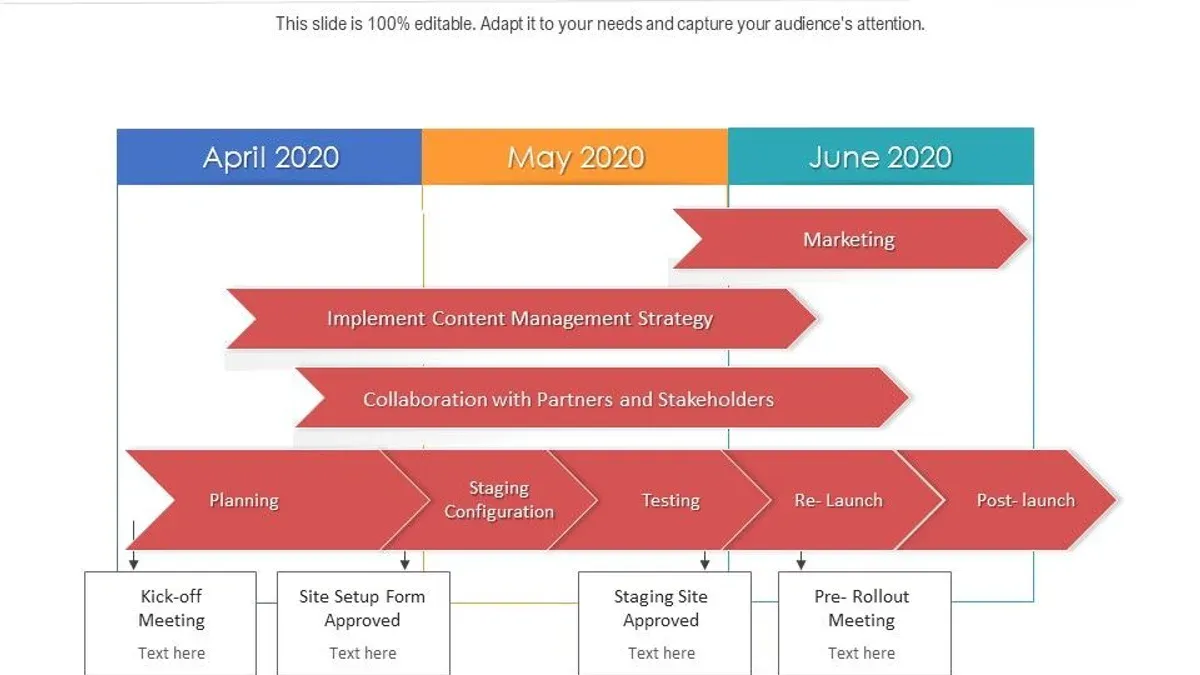
Build a phased deployment plan. Start with a pilot group of about 5-10% of users, ideally a mix of tech-savvy staff and less experienced users. Use their feedback to fix issues before full deployment. A typical timeline might be: Week 1 pilot enrollment, Week 2 review and adjustments, Weeks 3-5 full rollout.
Train IT staff and end-users before and during rollout. Provide step-by-step guides, short videos, or live sessions on enrollment and using Mosyle features. Train your helpdesk to handle common questions and troubleshooting.
Establish support channels and escalation procedures. Create a dedicated email or helpdesk queue for rollout issues. Define who handles escalations—whether a senior IT technician or Mosyle support—and response time targets.
Readiness Assessment Checklist:
- Complete device inventory with OS and management status
- Network stress test for peak enrollment periods
- Defined rollout objectives and success metrics
- Phased deployment schedule with pilot group identified
- Training materials prepared for IT and end-users
- Support channels and escalation paths established
How Can You Use Mosyle to Manage Devices and Apps Effectively?
Use Mosyle’s dashboard to monitor all devices in real time under the “Devices” tab, where you can view statuses such as enrollment, last check-in, and compliance. This allows you to spot issues immediately, reducing troubleshooting time. For app deployment, navigate to “Apps” and push new installations or updates remotely, avoiding classroom disruptions and ensuring all students have the latest tools.
Configure security policies by selecting “Policies” to set restrictions like disabling camera use or app installations, run compliance checks automatically, and enable remote wipe if a device is lost or compromised. This centralizes control and enforces school policies consistently.
Leverage classroom management features under “Classroom” to give teachers oversight of student devices – locking screens, launching approved apps, or monitoring activity to increase engagement. Before Mosyle, managing apps and devices often required manual updates or physical access, consuming hours weekly. With Mosyle, these tasks are streamlined, saving significant administrative time.
For example, a school district reported reducing device update time from several hours per week to under 30 minutes by using Mosyle’s remote deployment and monitoring tools, freeing IT staff to focus on other priorities.
- Use the “Devices” tab for real-time status and troubleshooting.
- Deploy and update apps remotely via the “Apps” section.
- Set security policies and enable remote wipe under “Policies.”
- Support teachers with device control tools found in “Classroom.”
What Common Mistakes Should You Avoid During Your Mosyle Rollout?
Neglecting a thorough device inventory and compatibility check can stall your rollout before it starts. One school discovered that several older iPads didn’t support the latest Mosyle profiles, forcing last-minute replacements and delays. Always verify device models and OS versions against Mosyle’s requirements upfront.
Skipping pilot testing or ignoring pilot feedback leads to unforeseen issues during full deployment. A district that bypassed pilot testing faced widespread app crashes because of improper policy settings that pilot users had flagged. Pilot phases reveal real-world challenges and user concerns you can fix early.
Underestimating training needs causes frustration and resistance. Staff and students unfamiliar with Mosyle’s Self Service portal struggled to install apps, causing a flood of helpdesk tickets. Comprehensive training tailored to roles prevents confusion and builds confidence.
Failing to communicate clearly with all stakeholders creates misinformation and low buy-in. One rollout faltered because teachers weren’t informed about device restrictions, generating backlash and noncompliance. Keep everyone updated on timelines, changes, and support channels.
Overcomplicating policy settings with excessive restrictions often frustrates users and prompts workaround attempts. Simplify policies to essential controls initially and expand as needed. This approach minimizes user friction and eases troubleshooting.
- Verify device inventory and compatibility before rollout.
- Conduct pilot testing and incorporate feedback.
- Provide role-specific training for staff and students.
- Maintain clear communication with all stakeholders.
- Start with simple policy settings to avoid user frustration.
When Is Mosyle Not the Right Choice for Your School?
Mosyle is optimized for Apple device management. If your school relies heavily on Windows or Android devices, Mosyle’s feature set will fall short. For instance, schools with a mixed fleet often find solutions like Microsoft Intune or Google Workspace Device Management better suited due to broader cross-platform support and integrations.
Some institutions require highly customized or on-premise MDM environments for data control or compliance reasons. Mosyle’s cloud-first design limits these options, making on-premise solutions like Jamf Pro or VMware Workspace ONE more appropriate when granular customization or local hosting is a priority.
Schools with minimal IT staff might struggle even with Mosyle’s streamlined cloud tools. If your team lacks capacity for any device management overhead, simpler endpoint controls or outsourced MDM services could reduce operational strain.
Finally, budget constraints can be a barrier. Mosyle’s licensing costs may exceed the budget for smaller districts or schools with large device counts. Alternatives with flexible pricing models or open-source options might offer better financial fit without sacrificing core functionality.
For example, a rural school district with mostly Windows laptops, a single IT technician, and tight budgets might find Microsoft Intune more practical than Mosyle due to platform compatibility, lower cost, and integrated support within existing Microsoft infrastructure.
Frequently asked questions
How long does it take to fully roll out Mosyle in a school?
Rolling out Mosyle depends on your school's size and existing infrastructure. Small schools can complete setup within a few days, while larger districts might take several weeks. Key factors include device enrollment, policy configuration, and staff training, which require careful scheduling to avoid disruptions.
Can Mosyle manage non-Apple devices effectively?
Mosyle primarily focuses on Apple device management, offering deep integration with iOS, iPadOS, and macOS features. It has limited capabilities for managing non-Apple devices and is not recommended as a sole solution if your environment includes many Windows or Android devices. For mixed-device environments, consider complementary management tools.
What training resources does Mosyle provide for school staff?
Mosyle offers a range of training materials including video tutorials, detailed user guides, and live webinars accessible via the Mosyle Academy portal. You can also schedule personalized onboarding sessions with Mosyle support to address specific school needs. Regular updates to resources help staff stay current with new features and best practices.
How does Mosyle ensure student data privacy and security?
Mosyle complies with major student privacy laws such as FERPA and COPPA. It uses encrypted communication channels for data transfer and stores data on secure servers with strict access controls. Administrators can configure granular device restrictions and monitoring policies to protect student information at all times.
Quick checklist
- Define clear rollout phases: pilot, phased expansion, full deployment.
- Set up Mosyle Manager with your Apple School Manager integration before device enrollment.
- Create device groups by grade or department for targeted configuration profiles.
- Establish app deployment policies using the Mosyle Business Portal.
- Train your IT staff on Mosyle’s dashboard and reporting features.
- Communicate rollout timelines and support channels to teachers and staff.
- Monitor device compliance and troubleshoot enrollment issues promptly.
What this advice does not cover and when to seek help
This guide focuses on administrative rollout planning and does not cover detailed technical troubleshooting or custom scripting scenarios. If your school needs advanced automation beyond Mosyle’s standard features, or faces complex network restrictions, consult a dedicated Apple device management specialist or your Mosyle support representative. For deep integration with other IT systems or custom development, hiring a professional with MDM scripting expertise is recommended.
Start by setting up your Apple School Manager connection and syncing your devices into Mosyle. This foundational step ensures smooth enrollment and management, letting you build configurations and deploy apps efficiently. Prioritize clear communication with your staff to avoid surprises and reduce support tickets during rollout.
See also: How to Create and Use a Mosyle Implementation Timeline Effectively · Switching from Clever to Mosyle: A Clear Guide for IT Admins · Switching from ClassLink to Mosyle: A Clear Step-by-Step Guide