How to Install and Set Up Audacity on Your Mac: A Step-by-Step Guide
Step-by-step guide on how to install Audacity on Mac, covering download, installation, permissions, and troubleshooting for a smooth setup.

Short answer: To install Audacity on Mac, download the latest official DMG file from the Audacity website, open it to mount the installer, then drag the Audacity app into your Applications folder. Afterward, adjust security and permission settings in System Preferences to allow the app to run smoothly on your Mac.
This article covers how to install Audacity on Mac with a focus on Mac-specific challenges like permission settings and Gatekeeper restrictions. You’ll find a step-by-step guide for downloading, installing, and configuring Audacity, including tips for MacBook, MacBook Air, and MacBook Pro users. Additionally, it explains how to troubleshoot common installation issues and optimize your first use of Audacity for audio editing.
Before You Start: What You Need to Install Audacity on Mac
To ensure a smooth installation of Audacity on your Mac, start by verifying your macOS version. Audacity’s latest releases typically support macOS 10.12 (Sierra) and later. You can check your macOS version by clicking the Apple menu and selecting About This Mac. If your version is older, consider updating to meet compatibility requirements.
Next, confirm you have a stable internet connection for downloading the installation file. Interruptions during download can corrupt the installer and cause failures.
Administrator access is required to install Audacity. Make sure you have the Mac user account credentials with admin privileges; otherwise, the installation will not complete.
If you plan to record audio, prepare any external devices like microphones or audio interfaces. Ensure they are compatible with your Mac and properly connected. Audacity will request permission to access these devices during setup.
Understand that Audacity requires certain permissions on macOS, including access to the microphone and file system. You will be prompted to grant these during or after installation; without them, key functions may not work correctly.
- Check your macOS version via Apple menu > About This Mac; ensure it is macOS 10.12 or newer.
- Confirm a stable internet connection to download the installer file without interruption.
- Verify you have administrator privileges on your Mac user account.
- Connect and test any external audio devices you intend to use with Audacity.
- Prepare to grant Audacity permissions for microphone and file system access when prompted.
Download Audacity for Mac from the Official Source
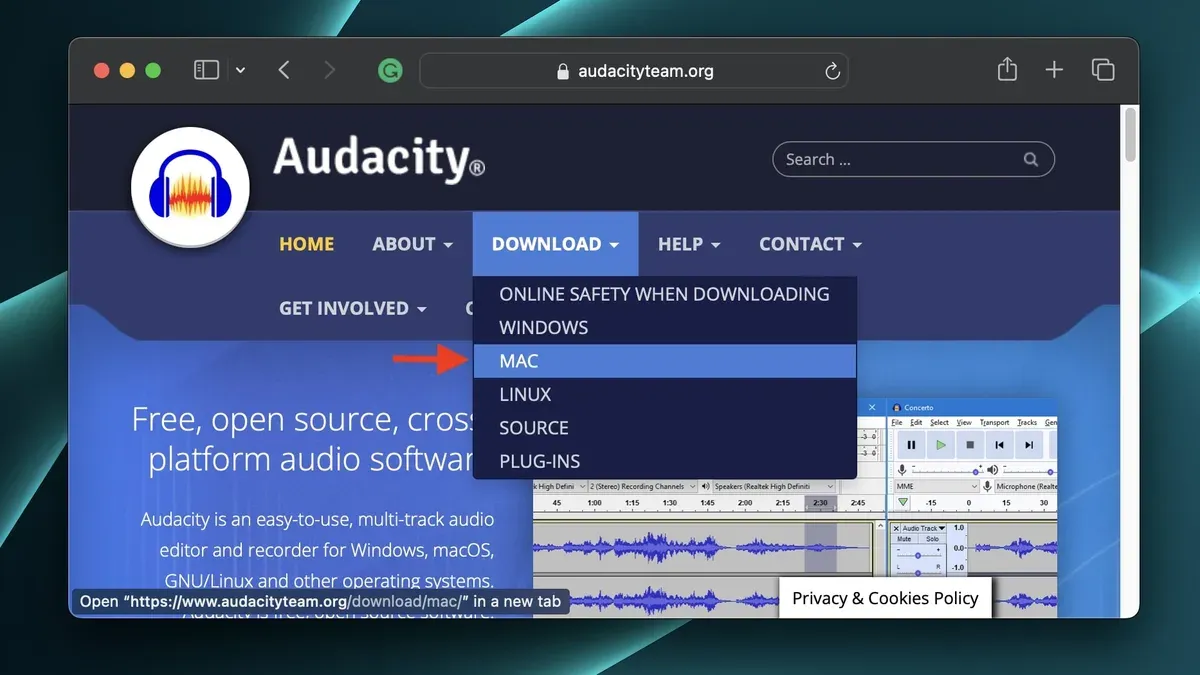
To ensure you get a safe and reliable version of Audacity, always download it directly from the official Audacity website at https://www.audacityteam.org/download/mac/. This avoids counterfeit or outdated software that could compromise your Mac's security or functionality.
Once on the download page, you'll see options for different Mac versions. Choose between the Universal installer, which supports both Apple Silicon (M1/M2) and Intel-based Macs, or the Intel-only version if you know your Mac uses an Intel processor. Selecting the correct version ensures optimal performance and compatibility.
Audacity is not available through the Mac App Store, so avoid searching there to prevent downloading unofficial apps. Downloading directly from the official site also lets you verify the installer file size and hash if you want to confirm its integrity.
After downloading, locate the installer file in your Downloads folder. The Universal installer typically has a size around 30-40 MB, while the Intel-specific installer may be slightly different. Checking this helps confirm you have the correct file.
- Open your web browser and go to the official Audacity Mac download page. You should see the latest version labeled clearly with download links.
- Select the appropriate installer for your Mac: click the “Universal” version for Apple Silicon or the Intel version if applicable. A download prompt will appear.
- Save the installer file to your preferred location, usually the Downloads folder. The download progress should display in your browser.
- After the download completes, verify the file size matches the one listed on the website (approximately 30-40 MB for Universal). This confirms a complete download.
- If you want to verify integrity further, check the SHA256 hash provided on the website against your downloaded file using Terminal commands like shasum -a 256 [filename]. Matching hashes confirm a safe download.
Following these steps ensures you have the authentic Audacity installer tailored to your Mac model, ready for a smooth installation.
Install Audacity on Mac: Step-by-Step Process
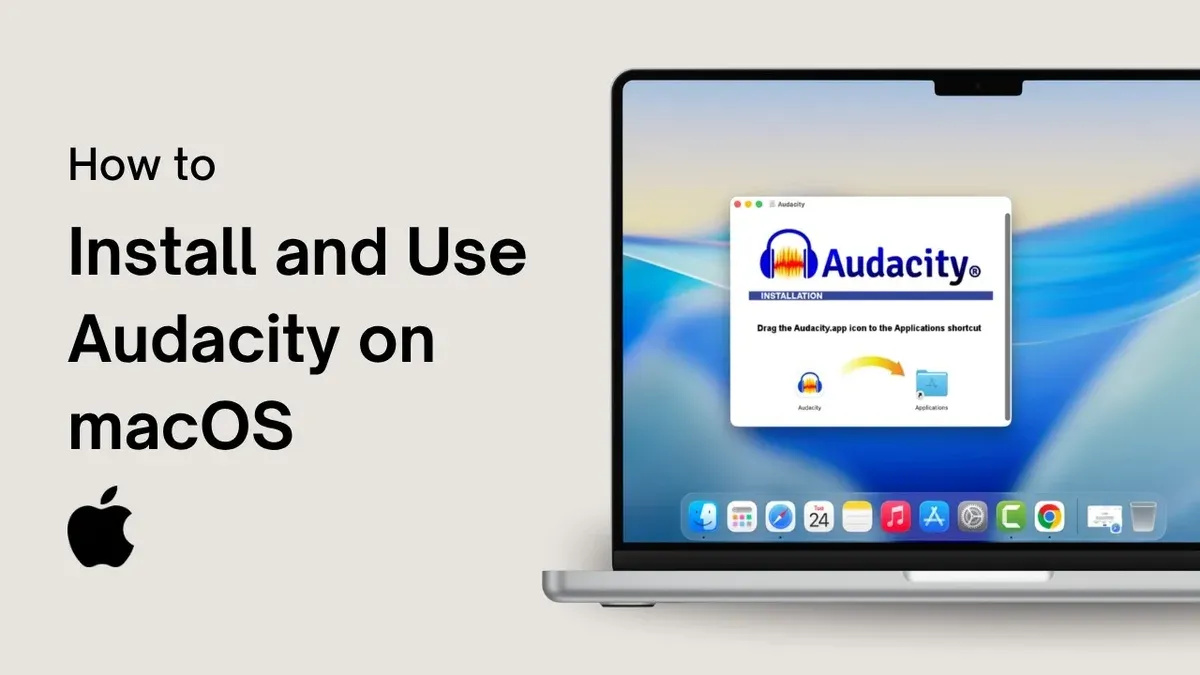
After downloading the Audacity.dmg file, you need to mount it to access the installer. Mounting means macOS treats the file as a virtual disk, opening a window with the app inside.
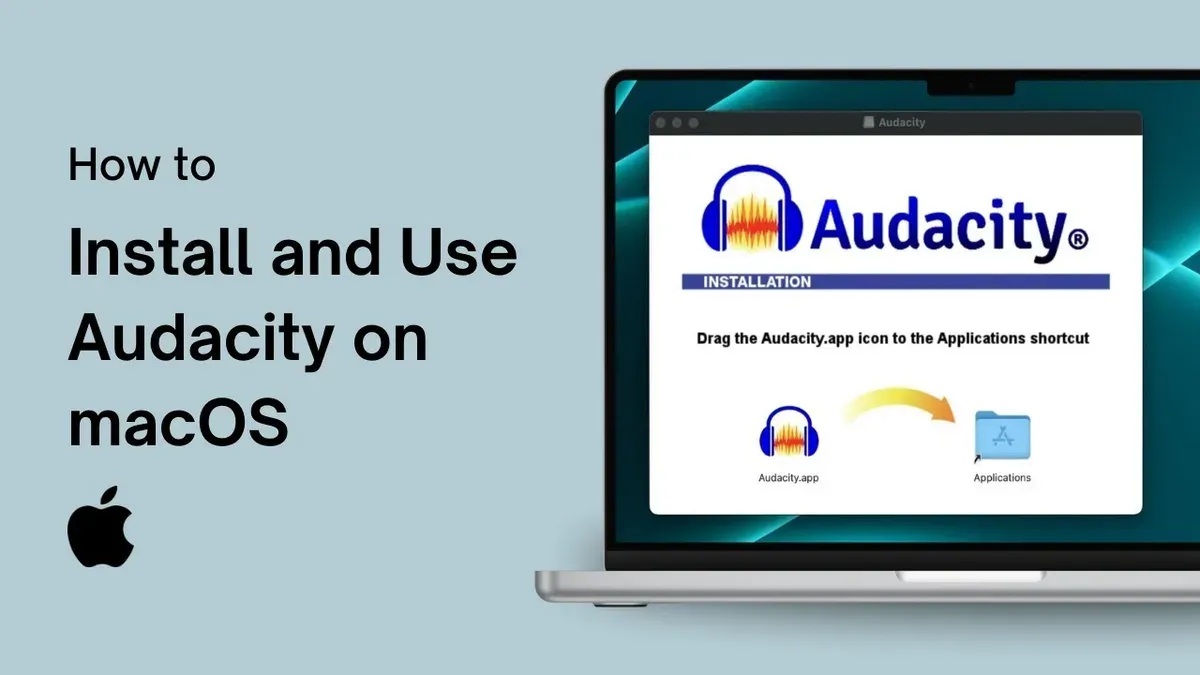
- Double-click the downloaded.dmg file in your Downloads folder. A new window will open showing the Audacity app icon and a shortcut to the Applications folder.
- Drag the Audacity icon onto the Applications folder shortcut. This copies Audacity into your Applications directory, making it available like other installed apps.
- Close the.dmg window and eject the mounted disk by clicking the eject icon next to it in Finder’s sidebar or by right-clicking and selecting "Eject".
- Open your Applications folder and double-click Audacity to launch it. If macOS displays a message that the app is from an unidentified developer or is blocked by Gatekeeper, don’t worry.
- Go to System Preferences > Security & Privacy > General tab. You’ll see a message saying "Audacity was blocked because it is not from an identified developer." Click "Open Anyway."
- Confirm by clicking "Open" in the following prompt. Audacity will now launch, and macOS will remember this permission for future launches.
Installing Audacity involves mounting the dmg file, dragging the app to Applications, and managing Gatekeeper’s security prompts to allow a smooth launch.
- Open.dmg file to mount virtual disk
- Drag Audacity to Applications folder
- Eject the mounted disk
- Launch Audacity from Applications
- Allow Audacity in Security & Privacy if blocked
Set Up Audacity on Your Mac for First Use
After installing Audacity, launch the app from your Applications folder. macOS will likely prompt you to grant permissions for microphone access and sometimes for accessibility features. These permissions are essential for recording audio and using advanced functions like keyboard shortcuts.
- Open Audacity. When macOS asks for microphone access, click OK to allow. If you deny, Audacity cannot record audio.
- Go to Audacity > Preferences > Devices. Under Recording, select your preferred input device, such as "Built-in Microphone" or an external audio interface. Under Playback, choose your output device like "Built-in Output" or headphones. You should hear playback through the selected device when testing.
- Navigate to Audacity > Preferences > Quality. Set the Default Sample Rate to 44100 Hz, the standard for Mac audio compatibility. The Default Sample Format is best left at 32-bit float for editing flexibility.
- If you plan to use keyboard shortcuts or other advanced controls, open System Preferences > Security & Privacy > Privacy > Accessibility. Add Audacity to the list by clicking the + button and selecting it. This enables full control features.
Completing these steps ensures Audacity is correctly configured for recording, playback, and smooth operation on your Mac.
- Grant microphone permission when prompted
- Set input and output devices in Preferences > Devices
- Configure sample rate to 44100 Hz in Preferences > Quality
- Enable accessibility permission in System Preferences if needed
How to Use Audacity on Mac: Basic Audio Editing Workflow
Start by importing audio files via File > Import > Audio. Note that Apple Music tracks protected by DRM cannot be imported directly; use unprotected audio files or recordings instead.
To edit, select the audio portion you want and use the toolbar icons or keyboard shortcuts for Cut (Cmd+X), Copy (Cmd+C), Paste (Cmd+V), and Trim (Edit > Remove Special > Trim Audio). For fade effects, highlight the region and select Effect > Fade In or Fade Out.
Recording directly is straightforward: click the red Record button to capture from your Mac’s built-in microphone or an external device. Ensure your input device is selected under Audacity > Preferences > Devices. When recording, watch the waveform appear in real-time.
To export your edited audio, use File > Export and choose from common formats like WAV, MP3, or AIFF. Setting the bitrate to 192 kbps or higher balances quality and file size. After exporting, verify the file plays correctly in your audio player.
- Import an audio file: choose File > Import > Audio and select your track. The waveform appears on the timeline.
- Edit audio: select a section, press Cmd+X to cut, then Cmd+V to paste elsewhere. Use Edit > Remove Special > Trim Audio to isolate a segment.
- Add fade: highlight a part, go to Effect > Fade In or Fade Out. Observe the waveform shape change.
- Record audio: click the red Record button. Confirm the input device in preferences. Watch the waveform build during recording.
- Export your project: select File > Export > Export as MP3. Set bitrate to 192 kbps or above, name your file, and save. Check playback in your preferred player.
Troubleshoot Common Audacity Installation and Setup Issues on Mac
If Audacity won’t open, Mac’s security settings often block it with messages like “Audacity can’t be opened because Apple cannot check it for malicious software.” To fix this, go to System Preferences > Security & Privacy > General, then click Open Anyway next to the message about Audacity. You should then be able to launch the app successfully.
If Audacity doesn’t recognize your audio input or output devices, first ensure your devices are properly connected and selected in System Preferences > Sound. Then, in Audacity, check Audacity > Preferences > Devices to select the correct input/output. Restart Audacity if changes aren’t reflected immediately.
Permission errors related to microphone or file access often appear as “Permission denied” or “Unable to access microphone.” Resolve this by enabling microphone and file access in System Preferences > Security & Privacy > Privacy. Check both Microphone and Files and Folders sections and ensure Audacity is allowed.
Crashes or freezes can occur due to macOS version conflicts or hardware limitations, especially on older Mac models. Updating macOS to the latest compatible version and installing the latest Audacity update usually helps. If crashes persist, try resetting Audacity preferences by deleting the audacity.cfg file located in ~/Library/Application Support/audacity.
- Open System Preferences > Security & Privacy > General and click Open Anyway for Audacity to bypass security blocks. You should see Audacity launch.
- Verify your audio devices are selected in System Preferences > Sound and in Audacity’s Preferences > Devices. Restart Audacity to apply.
- Enable microphone and file access for Audacity under System Preferences > Security & Privacy > Privacy. Audacity should then record and save files properly.
- If Audacity crashes, update macOS and Audacity, then delete the
audacity.cfgpreference file. Relaunch Audacity and confirm stability.
Installing Audacity on Different Mac Models: MacBook, MacBook Air, and MacBook Pro
Audacity installation and performance can vary depending on your MacBook model due to differences in processor architecture and hardware capabilities. The key distinction lies between Intel-based Macs and those with Apple Silicon (M1, M2 chips).
When downloading Audacity, choose the version compatible with your processor. Apple Silicon Macs require the ARM-optimized installer, while Intel Macs should use the x86 version. Running the wrong version may cause slower performance or unexpected errors.
Performance-wise, MacBook Pro models generally provide better audio editing responsiveness due to more powerful CPUs, higher RAM options, and improved thermal management. MacBook Air models, while capable, may experience occasional slowdowns during intensive tasks like multi-track editing or applying complex effects because of their fanless design and lower sustained performance.
To optimize battery life and system responsiveness on MacBooks when using Audacity, consider the following:
- Enable "Energy Saver" settings to prevent background processes from draining resources.
- Close unnecessary applications to free CPU and RAM.
- Plug into power during extended editing sessions to maintain peak performance.
- Lower Audacity's buffer size in Preferences > Recording to reduce latency but balance it to avoid audio dropouts.
Benchmarks show that MacBook Pro can handle larger projects with smoother playback and faster export times compared to MacBook Air, which may struggle with projects containing many tracks or effects.
By selecting the correct installer and managing system resources thoughtfully, you can ensure a stable and efficient Audacity experience on any MacBook model.
Frequently asked questions
How to install audacity on windows?
To install Audacity on Windows, visit the official Audacity website and download the Windows installer executable file. Run the installer and follow the prompts, choosing your preferred installation options. Make sure to allow the app through your firewall if prompted, and install any optional libraries like LAME for MP3 support to maximize functionality.
How to install audacity?
Installing Audacity involves downloading the installer compatible with your operating system from the official site. For Mac or Windows, run the installer file, accept the license agreement, and select the installation folder. The process typically completes within a few minutes, after which you can launch Audacity and configure initial preferences.
How to install and set up audacity?
After installing Audacity, open the application and configure audio input and output devices under Preferences > Devices. Adjust recording and playback volumes and enable features like software playthrough if needed. Setting the correct microphone and speaker options ensures smooth recording and monitoring during your editing sessions.
How to install audacity on windows 11?
Installing Audacity on Windows 11 follows the same steps as previous Windows versions: download the installer from the official website and run it. Windows 11 may prompt for permission to run the installer; confirm to proceed. After installation, verify the app’s permissions in Settings > Privacy & Security to ensure microphone access is enabled for recording.
Does audacity work on mac?
Yes, Audacity is fully compatible with Mac computers, including MacBook Air and MacBook Pro models. The app supports macOS-specific audio interfaces and requires permission to access microphones in System Preferences under Security & Privacy. This ensures you can record and edit audio seamlessly on your Mac.
Quick checklist
- Verify your Mac meets the minimum system requirements for Audacity (macOS 10.7 or later).
- Download Audacity only from the official website to avoid corrupted or unsafe files.
- Allow permissions in System Preferences under Security & Privacy to run Audacity correctly.
- Set your preferred audio input and output devices in Audacity’s Preferences before recording.
- Use the built-in Effects menu for basic editing and familiarize yourself with the timeline controls.
- If installation fails, check for conflicting software or outdated macOS versions and update accordingly.
- Adjust permissions specifically for MacBook Air or Pro models if you encounter hardware-specific issues.
What this guide does not cover
This guide does not cover advanced plugin installation or troubleshooting DRM-protected Apple Music files, which require additional tools outside Audacity. If you need to work with DRM-protected audio or specialized plugins, consider dedicated software solutions designed for those purposes.
As the next step, focus on exploring Audacity’s Preferences menu to customize audio input/output devices and recording quality settings. This ensures your Mac’s hardware and Audacity work seamlessly together, setting a solid foundation for efficient audio editing.