
Moving from Airtable to ClickUp Checklist: Expert Guide for Smooth Transition
Learn how to move from Airtable to ClickUp checklist smoothly by understanding key differences, preparing data, and optimizing workflows.

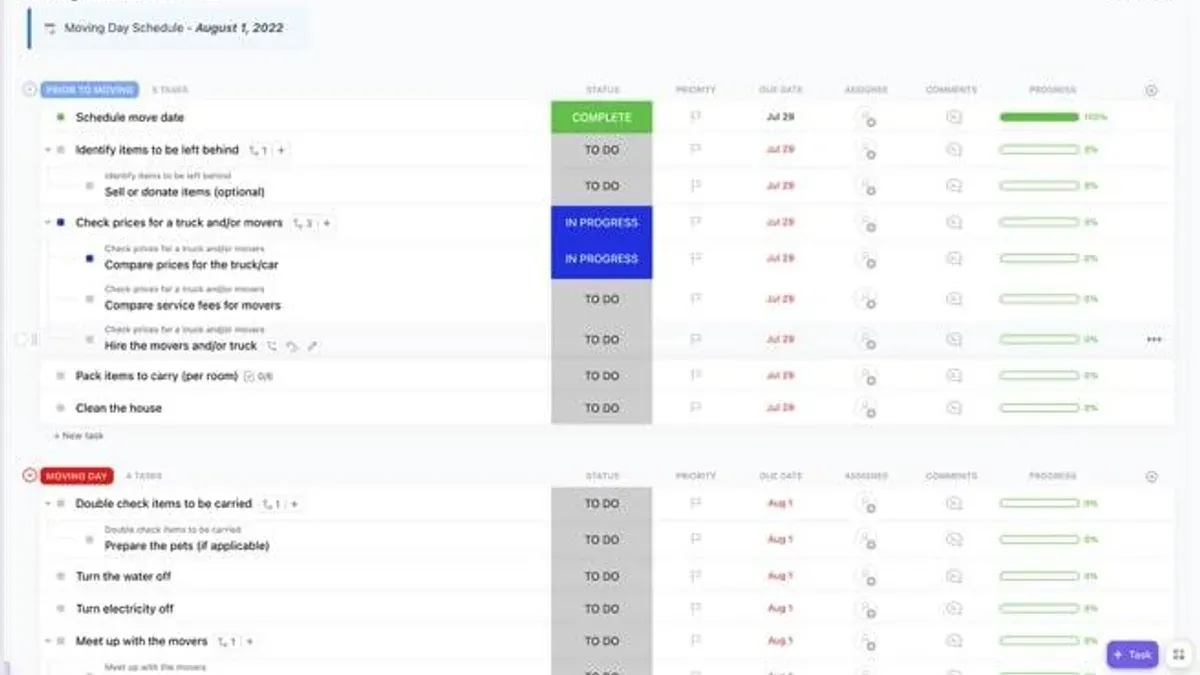
Short answer: Moving from Airtable to ClickUp checklist involves more than just migrating data; it requires understanding how ClickUp handles checklist items within tasks, its unique features like nested subtasks and automation, and adjusting your workflows accordingly. This guide walks you through preparing your Airtable data, importing it effectively, and adapting to ClickUp’s checklist system for seamless task management.
This article covers the essential differences in checklist management between Airtable and ClickUp, practical steps to prepare and import your data, and expert advice on reshaping your workflows to leverage ClickUp’s capabilities. You will also learn common pitfalls to avoid during the transition, ensuring you move from Airtable to ClickUp checklist smoothly and efficiently.
Understand the key differences between Airtable and ClickUp checklists
Airtable uses a flexible, database-driven approach where checklists are structured as records within tables. Each checklist item is an individual record that can include multiple fields, attachments, and linked records. This setup allows you to customize views, filter, and sort checklist data extensively within Airtable’s grid, gallery, or calendar layouts.
ClickUp, by contrast, centers checklists within its task management framework. Checklists are nested inside tasks, subtasks, or docs, making them inherently tied to actionable items. This design prioritizes task progress tracking and integrates checklists seamlessly with ClickUp’s automation, dependencies, and reporting features.
| Feature | Airtable Checklist | ClickUp Checklist |
|---|---|---|
| Structure | Records in tables with customizable fields | Nested lists within tasks, subtasks, docs |
| Collaboration | Comments per record, shared views | Task comments, mentions, real-time updates |
| Automation | Limited to record triggers and external integrations | Built-in automation for checklist completion, task status changes |
| Reporting | Custom views and summary blocks | Progress tracking, dashboards with checklist status |
For example, imagine managing a product launch checklist. In Airtable, each checklist item is a separate row with fields for owner, deadline, and status. You can filter to see only high-priority items or group by owner. In ClickUp, the checklist lives inside the launch task, letting you check off items as subtasks progress, trigger automations like status updates, and view overall task completion in dashboards.
This difference means when you move from Airtable to ClickUp, you shift from a data-centric checklist to an action-driven one. Your workflows must adapt to leverage ClickUp’s deeper task integration rather than replicating Airtable’s table-based data layout.
Prepare your Airtable data for migration to ClickUp checklists
Start by pinpointing all checklist-related fields in your Airtable base, including linked records that represent subtasks or checklist items. For example, if you have a table named "Project Tasks" with a linked field to "Checklist Items," you'll need to export both tables to capture the full checklist structure.
Flatten your data by creating a single table view that combines task details and checklist items into rows. This often means creating a formula or concatenated field that merges checklist item details with their parent task for easier import. For instance, convert linked checklist records into separate rows with columns for task name, checklist item, status, and due date.
Use Airtable’s CSV export function by clicking the view dropdown menu and selecting "Download CSV." Export each relevant table separately to preserve data integrity. Ensure that your CSV files include key metadata like completion status and assigned users, as ClickUp checklists support these features.
As a concrete example, imagine your original Airtable "Project Tasks" table has columns: Task Name, Linked Checklist Items, and Status. After restructuring, you create a "Flattened Checklist" table with columns: Task Name, Checklist Item, Checklist Status, and Assignee. Export this as CSV for upload to ClickUp.
During export, watch for multi-select or linked record fields that may export as comma-separated values. These require manual splitting or reformatting before import. Screenshots of the export process show clicking the view menu, selecting "Download CSV," and saving files locally.
- Identify and list all checklist-related fields and linked records
- Create a flattened table combining tasks and checklist items
- Use the Airtable view dropdown to export each table as CSV
- Include metadata like status and assignee in exports
- Prepare CSV files by splitting multi-select or linked fields if needed
Import and recreate checklists in ClickUp effectively
Start by exporting your Airtable checklist data as a CSV file with columns representing tasks, subtasks, assignees, priorities, and dependencies. In ClickUp, navigate to your desired Space or Folder, click the profile menu, and select Import. Choose CSV as the import source to upload your file.
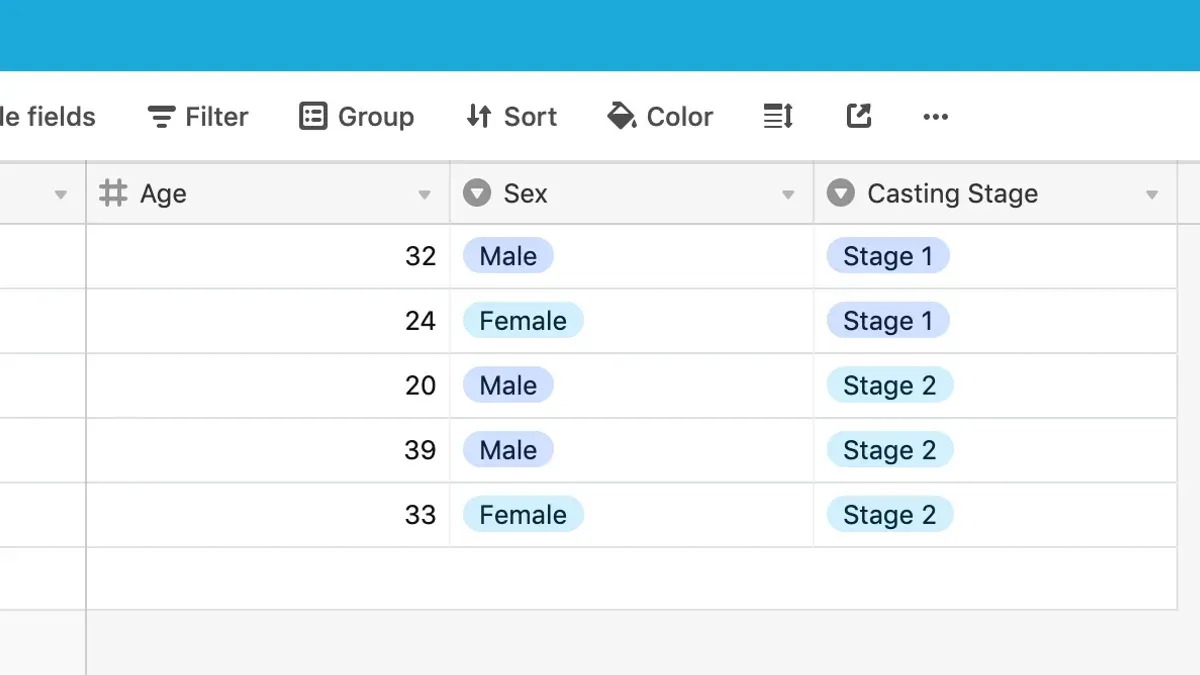
During the import, map Airtable columns carefully: assign the main task column to ClickUp Tasks, subtasks to Subtasks, and checklist items can be recreated manually within tasks after import. For example, if your Airtable CSV has a "Task Name" column, map it to ClickUp's task title, and "Assignee" to ClickUp assignees. Priorities should align with ClickUp's priority flags (Urgent, High, Normal, Low).
Preserving task dependencies requires extra attention: ClickUp does not automatically link dependencies during CSV import. After import, manually set dependencies by editing tasks and selecting Dependencies under the task options. This trade-off means you must reestablish relationships but gain precise control over workflow sequencing.
Once tasks and subtasks are imported, recreate checklist items within each task by opening the task, selecting the Checklist section, and adding items according to your Airtable subtasks or checklist points. This manual step ensures full use of ClickUp’s checklist features, such as progress tracking and assignee-specific items.
For example, importing a marketing campaign checklist exported from Airtable as CSV will result in tasks like "Design Assets" and "Content Draft" as ClickUp tasks, with subtasks like "Logo Creation" imported as subtasks. Checklists such as "Approval Steps" are then built inside the respective tasks, allowing you to assign and track them easily.
- Export Airtable checklist data as CSV with key columns
- Use ClickUp’s CSV Import tool, mapping columns to tasks, subtasks, assignees, and priorities
- Manually set dependencies inside ClickUp after import
- Recreate checklist items within tasks using ClickUp’s checklist feature
- Verify task assignments and priorities for consistency
Adapt your workflows to leverage ClickUp checklist features
To fully benefit from ClickUp checklists, you must go beyond simple migration and integrate its automation, organization, and collaboration tools into your workflows. ClickUp allows you to set up automation recipes such as "When checklist item is checked, notify assignee" or "Automatically create a follow-up task when all checklist items are complete." These automations reduce manual oversight and ensure important steps receive timely attention.
Organize your checklists within ClickUp by using nested Spaces, Folders, and Lists to mirror your team’s project structure. For example, place checklists related to a product launch inside a Folder named "Launch Campaign" under a Space called "Marketing." Use the Board or List views to toggle between visualizing progress or detailed task breakdowns, improving checklist visibility for all stakeholders.
Enhance checklist tasks by attaching relevant files directly to checklist items, adding comments for context or clarifications, and enabling time tracking for accountability. Imagine a design review checklist where each step includes image attachments and client feedback in comments, while time tracked on each item helps identify bottlenecks.
Users report that incorporating ClickUp’s reminders and integrations with communication platforms like Slack or email increases follow-through on checklist items. Leveraging these features transforms checklists from static lists into dynamic workflow engines tailored to your team’s needs.
- Set up automations for checklist item completion notifications and task creation
- Structure checklists inside Spaces, Folders, and Lists for contextual clarity
- Use comments, attachments, and time tracking on checklist tasks to enrich collaboration
- Integrate with communication tools to maintain momentum and accountability
Avoid common mistakes when moving from Airtable to ClickUp checklists
One frequent pitfall is neglecting the structural differences between Airtable and ClickUp. For example, a project manager once migrated a complex Airtable base without flattening nested checklist items properly, resulting in incomplete task details within ClickUp. The team missed critical subtasks because they were embedded as linked records in Airtable, which didn't translate directly into ClickUp's checklist format.
Another common error is skipping thorough user training on ClickUp’s checklist capabilities. Without clear guidance on features like checklist item assignments, dependencies, and automation triggers, teams struggle to adopt the new system. This often leads to reverting back to spreadsheets or fragmented task tracking.
Finally, failing to plan for ongoing maintenance and updates post-migration can stall momentum. In one case, outdated checklists persisted because no one was assigned responsibility to review and update them regularly in ClickUp, causing clutter and confusion.
Learn from these examples by anticipating structural challenges, investing in user onboarding, and setting up a maintenance cadence.
- Map Airtable’s linked records to ClickUp subtasks or checklist items explicitly
- Conduct hands-on training sessions covering checklist assignments, dependencies, and automation
- Assign a checklist owner for regular review and updates after migration
- Test a pilot checklist migration to identify gaps before full rollout
Read next
- Moving from Airtable to Basecamp Checklist: A Clear Expert Guide
- Moving from Airtable to Asana Checklist: Your Expert Transition Guide
- Airtable Rollout Plan for New Employees: A Practical Expert Guide
- Master Airtable Implementation Timeline: From Setup to Project Success
Frequently asked questions
How do I export checklists from Airtable for use in ClickUp?
To export checklists from Airtable, first create a filtered view containing only the checklist items or tasks you want to migrate. Then, use Airtable's CSV export feature by clicking on the view’s dropdown menu and selecting "Download CSV." This CSV can be imported into ClickUp, but you’ll need to map the checklist items manually or use templates to recreate the checklist structure effectively.
Can I automate checklist updates after moving to ClickUp?
Yes, ClickUp supports automation through its built-in Automations feature. You can set triggers such as task status changes or due dates to automatically update checklist items, assign tasks, or send notifications. Additionally, ClickUp integrates with tools like Zapier and Integromat, enabling more advanced automation workflows that keep your checklists synced and updated without manual input.
What are the limitations of ClickUp checklists compared to Airtable?
ClickUp checklists are primarily designed for task tracking within tasks or subtasks and do not support complex relational database functions like Airtable's linked records or formula fields. They lack the ability to display checklist data in grid or calendar views independently. Therefore, if your workflow relies heavily on database-style manipulation or custom views of checklist items, you might need to adjust expectations or use additional ClickUp features like Custom Fields and Lists.
Is it possible to link ClickUp checklists back to Airtable after migration?
Direct linking of ClickUp checklists back to Airtable is not natively supported. However, you can create integrations using third-party tools such as Zapier or Make to sync data between Airtable and ClickUp. These integrations can update Airtable records based on changes in ClickUp checklists, but setting this up requires careful configuration and may involve some latency depending on the sync frequency.
Quick checklist
- Review your Airtable checklists and identify essential fields and dependencies.
- Export checklist data as CSV ensuring task names, statuses, and notes are included.
- Set up a dedicated ClickUp List or Folder for your checklists to maintain organization.
- Import CSV files into ClickUp using the Import Data feature, mapping columns carefully.
- Recreate nested checklist items manually if needed, as ClickUp treats checklist items differently from Airtable records.
- Customize ClickUp statuses and priorities to match your workflow requirements.
- Test your new checklists with a small team subset before full rollout.
- Train your team on ClickUp checklist features like sub-tasks, dependencies, and automation.
This guide’s limits and who to consult
This guide focuses specifically on checklist migration and adapting workflows within ClickUp. It does not cover full database migrations, complex relational data, or advanced project management setups that may exist in Airtable. Teams with highly customized Airtable bases involving scripts, integrations, or complex formulas should consider consulting a ClickUp migration specialist or developer to avoid data loss and workflow disruption.
Start by thoroughly auditing your current checklists and workflows in Airtable to identify what truly needs replicating versus what can be improved or simplified in ClickUp. This step saves time and prevents unnecessary complications during migration.



