
Moving from Airtable to Google Chat Checklist: A Clear Expert Guide
Learn how to transition your task management from Airtable to Google Chat checklist for better team collaboration and streamlined workflows.

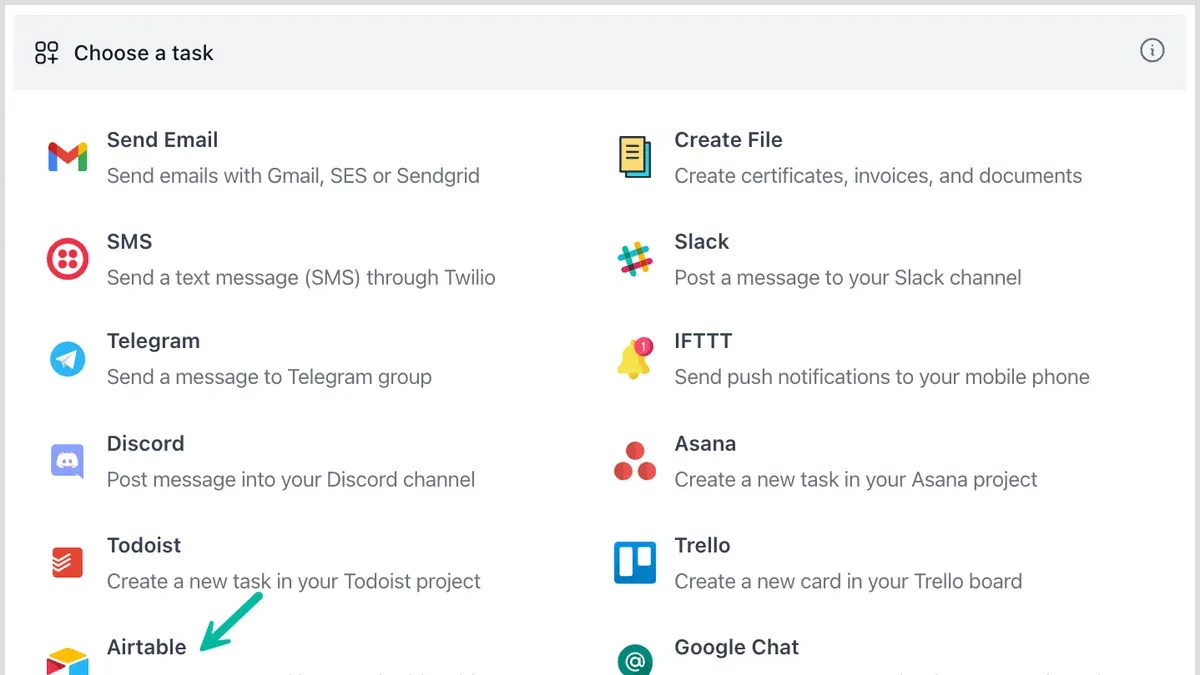
Short answer: Moving from Airtable to Google Chat checklist means transitioning your task and checklist management from a flexible database platform to a communication-focused environment where checklists are integrated directly into team conversations. This shift allows you to streamline workflows by embedding actionable items within chats, improving real-time collaboration and reducing context switching.
This article covers everything you need to know about moving from Airtable to Google Chat checklist. You'll learn how to prepare and export your Airtable data, set up checklist workflows inside Google Chat spaces, migrate checklist items step-by-step, and avoid common pitfalls during the transition. The focus is on maintaining checklist functionality while leveraging Google Chat’s communication hub to keep your team aligned and productive.
Understand what moving from Airtable to Google Chat means for your workflow
Airtable excels as a relational database and visual organizer, enabling you to create complex tables, link records, and view data in grids, calendars, galleries, or kanban boards. It’s designed for detailed data management and customizable workflows with rich metadata and multiple field types.
Conversely, Google Chat is primarily a real-time communication platform that incorporates checklist features directly into conversations. Rather than managing data in structured tables, checklists here serve as collaborative to-dos embedded within chat rooms or direct messages, emphasizing immediacy and team interaction.
| Feature | Airtable | Google Chat Checklist |
|---|---|---|
| Primary Purpose | Relational database and project organizer | Real-time messaging with embedded task lists |
| Data Structure | Multi-table with linked records and custom fields | Simple linear checklists within chat threads |
| Collaboration Style | Database edits and views by multiple users | Live discussion with checklist updates visible inline |
| Notification System | Custom alerts and automations | Instant chat notifications and mentions |
For example, a marketing team using Airtable to track campaign assets, deadlines, and approvals with linked records would, after migration, manage daily task checklists inside Google Chat rooms. This centralizes communication and task updates but requires simplifying complex data into linear action items.
This shift means you trade Airtable’s robust data modeling for Google Chat's streamlined, communication-focused task tracking. Your team’s collaboration becomes more conversational and immediate, but some data relationships and visual organization will need rethinking.
Search effectively in Airtable to prepare your data for migration
To migrate your checklists from Airtable to Google Chat smoothly, start by locating all relevant checklist items across your bases and tables. Use Airtable’s global search bar at the top left to enter keywords like "checklist," "task," or specific project names. This search scans all accessible bases and surfaces records containing those terms.
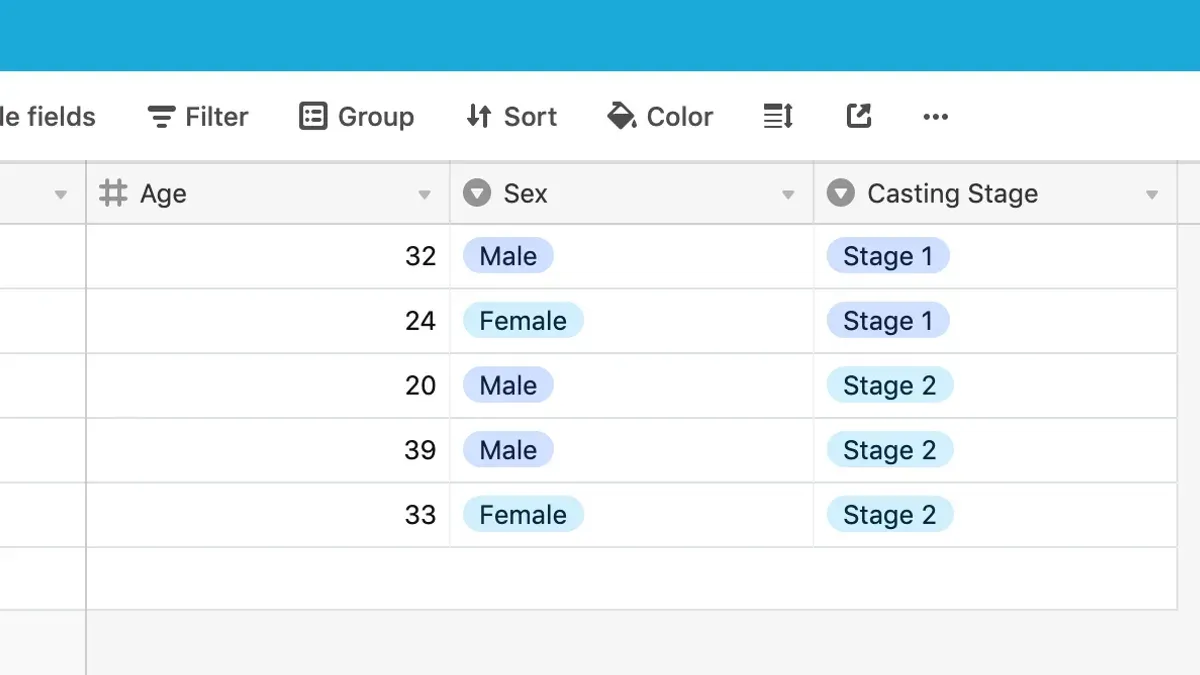
Within each base, leverage table-level filtering by clicking the filter icon in the view bar. For example, set filters such as Status is not empty or Checklist Completed is false to isolate actionable items. Sorting by due dates or priority can help you prioritize data for migration.
Once identified, export checklist data using Airtable’s CSV export feature. Open the view menu (three dots) beside the table name, select Download CSV, and save the file. This export keeps columns like task names, assignees, due dates, and completion status intact, allowing easier manual recreation or import into Google Chat’s checklist system.
For seamless authentication and integration, sign up or log into Airtable using your Google account. This simplifies linking data and reduces login friction when accessing Airtable alongside Google Chat.
For example, a project manager searching for "Sprint Checklist" across multiple bases can quickly filter for incomplete tasks, export the relevant CSV files, and prepare them for checklist setup in Google Chat channels.
- Use the global search bar to find checklist-related records across bases
- Apply table filters to refine checklist items by status or priority
- Export filtered views as CSV files for clean data extraction
- Sign in to Airtable with Google for smooth integration
Set up Google Chat checklists to replicate your Airtable workflows
Begin by creating dedicated Spaces within Google Chat for each project or team, mirroring how you organized bases or tables in Airtable. For example, name a Space "Product Launch Tasks" to centralize all related communications and checklists.
Within a Space, you can add checklists directly into messages by clicking the “+” icon and selecting the Google Tasks or Keep integration. These tools allow you to create task lists that team members can edit collaboratively in real time. For instance, a checklist titled "Pre-Launch Checklist" might include items like "Finalize copy," "Approve design assets," and "Schedule marketing emails." Each item can be checked off as completed, automatically updating for everyone in the Space.
To enhance collaboration, pin important checklists to the Space’s chat stream or add them as files using Google Docs or Sheets. These can be accessed and edited simultaneously by multiple team members, ensuring everyone sees the latest updates without switching apps. Real-time notifications in Google Chat alert you instantly when tasks are updated or completed.
Remember to assign clear task ownership and due dates within Google Tasks linked to your checklists. This setup replicates Airtable’s record assignment and deadline features while leveraging Google Chat’s communication focus.
- Create a Space named for each project or team
- Add checklists via Google Tasks or Keep in chat messages
- Pin or share checklist documents for easy access and collaboration
- Assign tasks and set due dates within the checklist tools
- Use real-time notifications to stay updated on progress
Migrate your checklist data step-by-step from Airtable to Google Chat
Begin by exporting your checklist data from Airtable using the CSV export feature found under the "Download CSV" option in your base's view menu. This export includes all checklist items, statuses, and due dates in a simple spreadsheet format compatible with many systems.

Next, prepare the data for Google Chat by formatting the CSV to match Google Tasks or Keep input requirements. This usually means ensuring columns are clearly labeled, such as "Task Name," "Due Date," and "Status." Remove any Airtable-specific formulas or fields that won’t transfer.
You can migrate manually by copying tasks into Google Tasks within your Google Chat Space or use third-party automation tools like Zapier or Integromat for bulk transfers. Manual migration gives you control and immediate error correction but can be time-consuming for large datasets. Automated migration saves time but requires setup and monitoring for errors.
Communicate the upcoming change with your team via an announcement in Google Chat, highlighting the new checklist location and how to access it. Schedule a short training session demonstrating checklist creation, task updates, and comment features to ensure smooth adoption.
Example checklist migration
| Airtable Checklist | Google Chat Checklist |
|---|---|
| Task: Finalize project scope Status: In Progress Due: Oct 30 | Task: Finalize project scope Due: Oct 30 Status: Marked as "In Progress" in task comments |
Migration checklist with time estimates
- Export Airtable CSV (5 minutes)
- Format CSV for Google Tasks (15-30 minutes depending on data complexity)
- Choose migration method: manual (variable, 30+ minutes) or automated (setup 1-2 hours)
- Import or enter tasks into Google Chat checklists (time varies)
- Notify and train team (30 minutes)
Manual vs Automated migration: pros and cons
| Manual Migration | Automated Migration |
|---|---|
Pros:
| Pros:
|
Cons:
| Cons:
|
Avoid common mistakes when moving from Airtable to Google Chat checklists
One major pitfall is underestimating the differences in data structure and collaboration style between Airtable and Google Chat. Airtable supports relational databases and complex fields, while Google Chat checklists, built through Google Tasks or Keep, handle simpler linear lists. For example, a project lead migrating multi-level dependent tasks from Airtable found that Google Chat flattened these dependencies, causing confusion and missed deadlines.
Ignoring user training and communication needs compounds these issues. When one team failed to hold walkthrough sessions for Google Chat’s checklist features, users continued to rely on old Airtable habits, resulting in duplicated efforts and lost updates.
Lastly, beware of checklist complexity that Google Chat may not support natively. Features like attachments, rich text, or automated status changes available in Airtable do not transfer. Attempting to replicate these without adjusting workflows led to incomplete task records and extra manual tracking.
Key pitfalls to avoid:
- Misaligned data models: Expect simplified checklist structures and plan workflow adjustments accordingly.
- Skipping user onboarding: Provide training sessions and clear documentation on new checklist use within Google Chat.
- Overloading checklists: Break down complex Airtable tasks into manageable items compatible with Google Chat capabilities.
Taking these precautions prevents delays, data loss, and team frustration during your migration.
Read next
- Moving from Airtable to ClickUp Checklist: Expert Guide for Smooth Transition
- Moving from Airtable to Basecamp Checklist: A Clear Expert Guide
- Moving from Airtable to Asana Checklist: Your Expert Transition Guide
- Airtable Rollout Plan for New Employees: A Practical Expert Guide
Frequently asked questions
How to search in airtable?
To search in Airtable, use the search bar located at the top right of your base interface. Enter keywords related to the record or field you want to find. You can also use filter options by clicking the “Filter” button to narrow down results based on specific field values.
How to search in Airtable for checklist items?
When searching for checklist items in Airtable, focus on the specific field where checklist data are stored, often a checkbox or single select field. Use the filter feature to display records where the checklist item field is checked or matches a particular status. Additionally, you can search within text fields that describe checklist tasks for more granular results.
Can I sign up for Airtable with Google?
Yes, Airtable allows you to sign up using your Google account. On the sign-up page, select the “Continue with Google” option to authenticate via your Google credentials, which streamlines access and integrates with your existing Google workspace.
What are the best practices for checklist management in Google Chat?
Best practices include creating dedicated spaces or rooms for checklist tracking, using Google Chat’s integration with Google Tasks or Keep for checklist visibility, and tagging relevant team members to assign items. Keep checklist updates frequent and use message threads to discuss progress without cluttering the main chat.
Is it possible to automate checklist migration from Airtable to Google Chat?
Automation is possible but typically requires third-party tools or custom scripts using the Airtable API and Google Chat API. Platforms like Zapier or Integromat can facilitate data transfer by triggering checklist updates from Airtable to Google Chat messages or tasks, reducing manual effort during migration.
Quick checklist
- Review all checklist items and categories in Airtable to confirm what needs migrating
- Export checklist data from Airtable using CSV format for easy import
- Create dedicated Google Chat spaces or rooms aligned with your project teams
- Use Google Chat's built-in checklist feature within message threads to replicate Airtable task groups
- Manually input or import checklist items into Google Chat tasks ensuring proper descriptions and due dates
- Test checklist notifications and reminders within Google Chat to maintain accountability
- Train your team on using checklists inside Google Chat for seamless adoption
Scope and limitations
This guide does not cover migrating Airtable’s rich database relations or advanced automations beyond checklist data, so teams relying heavily on those features may need additional tools or strategies. Complex workflows involving multiple linked tables or custom scripts will require specialized migration planning outside the scope of simple checklist transfer. If your project management depends on deep Airtable integrations, consider consulting an expert or exploring third-party migration services.
Start by focusing on one project or team space in Google Chat to migrate a small, manageable checklist. This approach allows you to identify and resolve migration challenges early and ensure your communication-centric workflow runs smoothly before scaling up.



