
How to Install Blender on Mac: A Clear Step-by-Step Guide
Follow this clear step-by-step guide to install Blender on your Mac, covering Apple Silicon and Intel models, addons, and macOS-specific tips.


Short answer: Installing Blender on your Mac is straightforward once you know where to download the official installer and how to handle system security settings. Whether you have a MacBook Air, MacBook Pro, or an Intel-based Mac, you can get Blender running efficiently by following clear, step-by-step instructions.
This guide covers how to install Blender on Mac hardware including Apple Silicon and Intel models, ensuring you understand the differences that matter for performance and compatibility. You will also learn how to install popular addons like D-NOISE, address common macOS-specific issues during installation, and even how to configure Blender for all users on your Mac. If you’re comparing with Windows installation, there’s a brief section for that too.
Before you start: What you need to install Blender on Mac
To install Blender smoothly on your Mac, start by verifying your Mac model and macOS version meet Blender’s system requirements. Blender supports macOS 10.13 (High Sierra) and later, but newer versions run best on macOS 11 (Big Sur) or newer. You must have at least 4 GB of RAM, though 8 GB or more is recommended for complex projects.
Check if your Mac uses Apple Silicon (M1, M2 chips) or Intel processors. Blender provides separate installers optimized for each architecture to ensure peak performance and compatibility.
Ensure you have at least 500 MB of free disk space for Blender itself, plus extra room for project files and addons. A stable internet connection is essential for downloading Blender safely from its official source at blender.org; avoid third-party sites to prevent security risks and corrupted files.
| Requirement | Minimum | Recommended | Mac Models |
|---|---|---|---|
| macOS Version | 10.13 (High Sierra) | 11 (Big Sur) or later | MacBook Air (2013+), MacBook Pro (2013+), iMac (2014+), Mac mini (2014+) |
| Processor | Intel or Apple Silicon | Apple Silicon for best performance | Intel Core i5/i7 or Apple M1/M2 |
| RAM | 4 GB | 8 GB or more | All supported Mac models |
| Disk Space | 500 MB free | 1 GB or more | All supported Mac models |
- Identify your Mac model: Click the Apple menu > About This Mac. You should see your model and macOS version displayed.
- Confirm your macOS version is 10.13 or newer. If it’s older, update via System Preferences > Software Update.
- Check your processor type in the About This Mac window. Note whether it’s Apple Silicon or Intel.
- Verify you have enough free disk space by opening Finder, selecting your startup disk, and pressing Command + I to view available space.
- Ensure your internet is connected and stable for downloading Blender from blender.org.
Completing these checks will prepare your Mac for a smooth Blender installation process tailored to your hardware.
How to download Blender for Mac safely and securely
Begin by opening your preferred web browser and navigating to Blender’s official website at https://www.blender.org/download/. This is the only safe and reliable source to obtain the latest Blender installer tailored for your Mac.
On the download page, locate the Mac section, which typically offers two distinct installer options: one for Intel-based Macs and another for Apple Silicon (M1, M2) models. Selecting the correct version ensures optimal performance and compatibility.
Do not download Blender from third-party sites or unofficial repositories, as these can contain outdated versions or malicious software.
After downloading, verify the file’s integrity if Blender provides a checksum or signature on the download page. Use macOS Terminal commands like shasum -a 256 [filename] to compare your file’s checksum against the official one. This step confirms the download wasn’t corrupted or tampered with.
- Open a browser and go to https://www.blender.org/download/. You should see the Blender download page displayed.
- Scroll to the Mac download section; identify the two installer options labeled for Intel and Apple Silicon. The correct one matches your Mac’s processor.
- Click the relevant download button for your Mac. The installer file should begin downloading.
- Once downloaded, check for an official checksum on the page. Open Terminal and run shasum -a 256 [downloaded-file]. The output should match the official checksum exactly.
Following these steps ensures you have a secure, compatible Blender installer ready for your Mac.
How to install Blender on MacBook Air and MacBook Pro
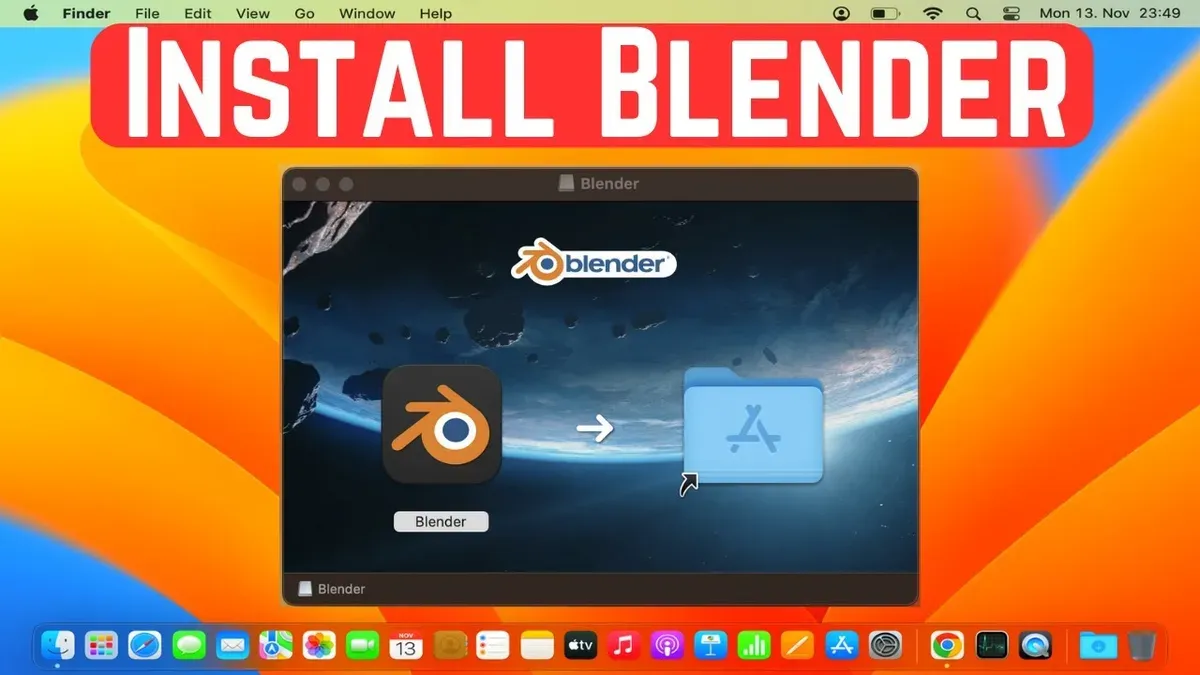
Installing Blender on MacBook Air or MacBook Pro is straightforward. Start by opening the downloaded Blender.dmg file; this will mount a virtual disk on your desktop or Finder sidebar.
- Double-click the.dmg file. A window will appear showing the Blender application icon and a shortcut to your Applications folder.
- Drag the Blender icon directly into the Applications folder. This copies Blender to your system’s main apps location, ensuring accessibility and proper permissions.
- Close the.dmg window and eject the virtual disk by clicking the eject icon next to it in Finder or right-clicking and choosing Eject.
- Launch Blender from the Applications folder by double-clicking it. On first launch, macOS may warn that the app was downloaded from the internet; confirm you want to open it to proceed.
- If macOS blocks Blender from opening, go to System Preferences > Security & Privacy > General tab, and click “Open Anyway” next to the Blender message.
- Once Blender opens, confirm it runs smoothly on your MacBook Air or Pro. For example, on an M1 MacBook Air, Blender launches quickly and uses Apple Silicon optimally.
- If you want to keep multiple Blender versions, rename the app bundles (e.g., “Blender-3.5”) before moving them into Applications to avoid overwriting.
This approach ensures Blender installs cleanly, respects macOS security, and lets you manage different Blender versions alongside your other applications.
How to install Blender on Mac Intel models
Installing Blender on Intel-based Macs involves selecting the correct version and ensuring compatibility with some legacy components. Begin by downloading the Intel-specific build from Blender's official website; this ensures native performance without relying on translation layers.
- Download the Intel version of Blender from the official site. When the download completes, you will have a.dmg file tailored for Intel processors.
- Open the.dmg and drag the Blender app into your Applications folder. This matches the procedure used for Apple Silicon but ensures the correct binary is installed.
- If you encounter missing legacy dependencies or compatibility warnings, install Rosetta 2 by opening Terminal and running softwareupdate --install-rosetta. Rosetta 2 allows Intel apps to run on Apple Silicon but is generally unnecessary on Intel Macs.
- Launch Blender from Applications. To confirm it’s running natively, open Activity Monitor, select Blender, and check the “Kind” column—it should read “Intel”.
Performance-wise, Blender on Intel Macs is fully functional but generally slower compared to Apple Silicon models, especially on tasks like rendering and viewport responsiveness. Below is a qualitative comparison of typical Blender performance factors between Intel and Apple Silicon Macs:
| Performance Aspect | Intel Macs | Apple Silicon Macs |
|---|---|---|
| Rendering speed | Moderate to slow depending on CPU generation | Faster due to optimized Apple Silicon cores |
| Viewport responsiveness | Sufficient for most scenes | Typically smoother with better GPU integration |
| Battery efficiency | Lower, more power consumption | Higher efficiency, longer battery life |
How to install D-NOISE for Blender on Mac OS
D-NOISE is a popular addon that enhances Blender’s denoising capabilities using AI. To install it on your Mac, ensure you download the version compatible with your Blender release from the official D-NOISE website or a trusted source.
- Open Blender and navigate to Edit > Preferences.
- Select the Add-ons tab on the left panel.
- Click Install... at the top-right corner and locate the downloaded D-NOISE .zip file on your Mac.
- Once installed, check the box next to D-NOISE in the addon list to enable it; you should see it appear in the Render Properties panel.
- Test the addon by rendering a scene and verifying that D-NOISE options such as AI denoising are accessible.
Common macOS-specific issues include permission errors preventing addon activation. If you encounter this, go to System Preferences > Security & Privacy > Privacy > Files and Folders and ensure Blender has access to your Downloads folder or wherever the addon was installed from.
If Blender doesn’t recognize the addon, confirm the downloaded file matches your Blender version and is not corrupted. Re-download if necessary. Restart Blender after installation to resolve any loading glitches.
Following these steps will integrate D-NOISE smoothly into Blender on your Mac, enhancing your rendering workflow.
How to install Blender on Windows: A brief comparison
Installing Blender on Windows shares core similarities with the Mac process but differs in execution details due to the operating system’s architecture and permissions model. You begin by downloading the official Blender installer from blender.org, ensuring you select the Windows version that matches your system’s 64-bit architecture.
- Run the downloaded.exe installer file. You will see a standard Windows installation wizard prompting you to accept the license agreement and choose the installation folder.
- Follow the prompts to complete the installation. Once finished, Blender will be available from the Start menu or desktop shortcut.
- Windows handles permissions differently; you typically do not need to adjust security settings manually unless your user account has limited privileges.
- Switching between Mac and Windows Blender installations is straightforward. Blender’s file formats and preferences remain compatible, allowing seamless workflow continuity across platforms.
Below is a side-by-side summary of the Blender installation steps for Mac and Windows:
| Step | Mac Installation | Windows Installation |
|---|---|---|
| Download | Official Blender site, select Mac Intel or Apple Silicon build | Official Blender site, select Windows 64-bit installer |
| Install | Drag.app from.dmg to Applications folder | Run.exe installer and follow wizard prompts |
| Permissions | Adjust in Security & Privacy if needed | Usually no manual changes required |
| Access | Launch from Applications folder or Dock | Launch from Start menu or desktop shortcut |
| Cross-platform | Compatible file formats and preferences | Compatible file formats and preferences |
Troubleshooting Blender installation issues on Mac
If Blender won’t open, macOS security settings often block the app. Go to System Preferences > Security & Privacy > General and look for a message about Blender being blocked. Click Allow Anyway, then try opening Blender again. You may need to right-click the app and select Open to bypass Gatekeeper restrictions.
Performance issues on older Macs or Intel models are common. Check Activity Monitor for CPU spikes or memory pressure while running Blender. Lowering viewport rendering quality or closing other applications can improve responsiveness. For Intel Macs, disabling add-ons that heavily tax the CPU or GPU may help.
Addon installation errors, including with D-NOISE, usually stem from permission restrictions or incompatible versions. Ensure you install addons via Edit > Preferences > Add-ons > Install and enable them afterward. If you see errors like "Failed to register module" or "ImportError," verify the addon matches your Blender version and macOS architecture.
To reset Blender preferences or perform a clean reinstall:
- Quit Blender completely.
- Navigate to
~/Library/Application Support/Blender/in Finder. - Rename or delete the folder matching your Blender version to reset preferences.
- Move Blender.app from Applications to Trash, then empty it.
- Download a fresh copy from the official site and reinstall.
Common error messages and solutions:
| Error Message | Cause | Solution |
|---|---|---|
| “Blender can’t be opened because it is from an unidentified developer” | macOS Gatekeeper blocking app | Allow app under Security & Privacy and open via right-click |
| “Failed to register module” | Addon incompatibility or permission issue | Check addon version, reinstall via Preferences > Add-ons |
| “ImportError: No module named …” | Addon missing dependencies or wrong architecture | Use compatible addon version, verify Python dependencies |
| “Blender running slowly or freezing” | High CPU/GPU load on older Macs | Lower viewport quality, close other apps, disable heavy addons |
How to install Blender for all users on a Mac
To make Blender accessible to multiple user accounts on the same Mac, install it in the system-wide /Applications folder. This location allows every user to launch Blender without duplicating the app in their personal folders.
After placing Blender in /Applications, set the folder permissions to ensure read and execute access for all users. Typically, the Applications folder and its contents are owned by root:admin with permissions drwxr-xr-x (755), which grants all users the ability to run Blender.
Addon management differs by user: addons installed globally reside in /Library/Application Support/Blender, but many users prefer installing addons in their home directory under ~/Library/Application Support/Blender for customization without affecting others.
Advantages of a shared Blender installation include saving disk space and simplifying updates. The limitation is that users cannot share addon settings easily unless addons are installed globally, which requires admin access and careful permission management.
- Drag the Blender app into /Applications. You should see Blender appear alongside other system apps.
- In Finder, select Blender in /Applications, press Command+I to open Info, and verify "Sharing & Permissions" shows everyone: Read & Execute.
- If needed, click the lock icon, authenticate, and adjust permissions using the gear menu to "Apply to enclosed items" to propagate settings.
- Advise users to install personal addons via Blender preferences under their home folder, avoiding permission conflicts.
Read next
- How to Install Figma on Mac: A Step-by-Step Expert Guide
- How to Install Obsidian on Mac: A Clear Step-by-Step Guide
- How to Install Notion on Mac: A Clear Step-by-Step Guide
- How to Install Discord on Mac: A Step-by-Step Guide for Smooth Setup
Frequently asked questions
Can you get blender on mac?
Yes, Blender is fully available for Mac. You can download the latest macOS-compatible installer directly from Blender’s official website to ensure you get a safe and up-to-date version tailored for your Mac hardware.
Does blender run on mac?
Blender runs smoothly on Mac, including both Intel and Apple Silicon models. It supports macOS versions that meet the minimum requirements, providing full functionality for modeling, animation, and rendering.
Does blender work on mac?
Blender works effectively on Mac systems with proper installation. You just need to ensure your Mac meets Blender’s system requirements and that you install the correct version for your processor architecture.
Can you run blender on mac?
You can run Blender on Mac by downloading the appropriate macOS version and following the installation steps. Once installed, Blender launches like any other Mac application and integrates well with macOS features.
Can you download blender on mac?
Downloading Blender on Mac is straightforward and free. Visit Blender’s official website, select the macOS download option, and save the installer to your Mac, then proceed with the installation as guided.
Quick checklist
- Verify your Mac meets Blender’s minimum system requirements
- Download Blender only from the official blender.org website
- Follow the installation steps specific to your Mac model and processor (Intel or Apple Silicon)
- Install D-NOISE addon via Blender’s Preferences > Add-ons menu and enable it
- Allow Blender permissions in macOS Security & Privacy if blocked
- Use the official Blender installer for multi-user setups to ensure proper permissions
- Refer to troubleshooting tips if Blender crashes or fails to launch after installation
This guide’s limits
This guide does not cover advanced Blender configuration or troubleshooting beyond installation and common addon setup. Users with highly customized workflows, professional render farm setups, or very old Mac hardware may require specialized advice from Blender forums or Apple support. Complex addon conflicts and scripting issues also fall outside this scope.
For Windows users, only a brief comparison is provided here; refer to dedicated Windows installation resources for complete guidance.
Next step
Once Blender is installed and running smoothly on your Mac, the best next step is to explore Blender’s built-in tutorials and community resources to familiarize yourself with the interface and essential workflows. This foundational knowledge will enable you to maximize Blender’s powerful features and make the most of your hardware setup.



