Moving from Airtable to Miro Checklist: Expert Guide for Seamless Transition
This expert guide provides a moving from Airtable to Miro checklist to help you prepare data, structure boards, and align workflows for a smooth transition.

Short answer: Moving from Airtable to Miro involves more than just transferring data; it requires adapting your workflow from a database-focused setup to a visually-driven collaboration environment. A moving from Airtable to Miro checklist ensures you cover key steps such as data preparation, board structuring, and workflow alignment to avoid disruption and maintain productivity.
This article guides you through the practical nuances of this transition. You'll learn how to prepare your Airtable data for migration, set up Miro boards effectively for project management, move and arrange tables within Miro, and create checklists to track progress. Additionally, it highlights common pitfalls to avoid and shares tips for maximizing Miro’s visual collaboration features to fit your team’s needs.
Understand the Differences Between Airtable and Miro
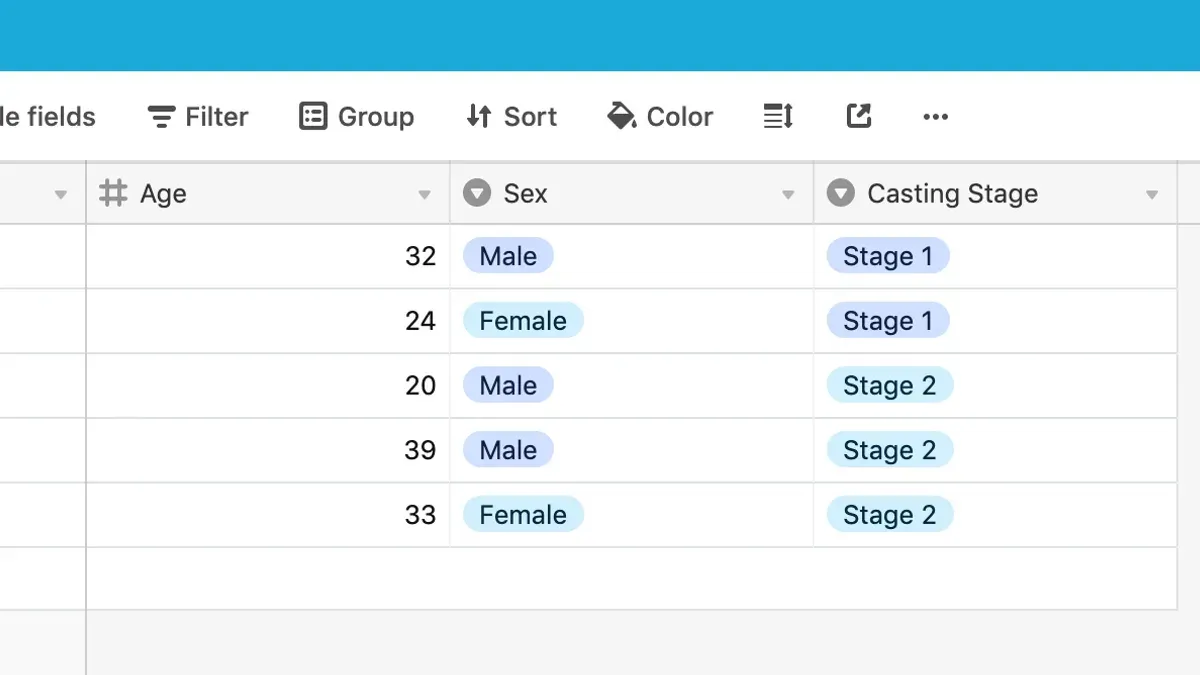
Airtable organizes information primarily as a database combined with spreadsheet functionality, enabling structured data entry, filtering, and relational linking. You input rows and columns, creating tables that track project elements like tasks, deadlines, and resources in a grid format. This setup excels at precise data management and querying but can feel limited when visualizing workflows or brainstorming collaboratively.
Miro, by contrast, offers a freeform visual canvas where you arrange sticky notes, diagrams, flowcharts, and images. Instead of rigid tables, you create spatial relationships and visual hierarchies that support brainstorming, mapping processes, and collaborative design. Project tracking in Miro hinges on how you structure boards, grouping elements spatially and using visual cues rather than database filters.
For example, managing a product launch in Airtable might involve filtering tasks by deadline or assignee using views, while in Miro, you’d visually cluster tasks by phase, add comments directly on cards, and use connectors to show dependencies. This makes team interaction more dynamic, fostering real-time collaboration and idea sharing.
User feedback often highlights Miro’s strength in enhancing team engagement and creativity, especially when projects require visual mapping or cross-functional input, areas where Airtable’s grid-based approach can constrain interaction.
Prepare Your Airtable Data for Migration
Start by exporting relevant Airtable bases and views that you want to move into Miro. Navigate to the base, then click the “View” dropdown to select the view best representing the data you need. Use the “Download CSV” option under the view menu to export a CSV file, or use the “Download as Excel” option if you prefer Excel format.
Identify which parts of your data translate well into Miro’s visual workspace. For example, task lists, timelines, or status columns can become sticky notes, shapes, or frames. Complex relational data may require simplification or reformatting since Miro is not designed for database management.
Decide what to archive or leave behind to reduce clutter. Avoid exporting large attachment fields or overly detailed comment threads unless they are critical. Instead, keep these in Airtable for reference or export selectively.
For instance, if you have a project tracking base with multiple views, export only the “Active Projects” view as CSV. This limits migration to current tasks and statuses, making your Miro board manageable and focused.
Step-by-step export instructions:
- Open the Airtable base and select the view to export.
- Click the view dropdown arrow next to the view name.
- Select "Download CSV" or "Download as Excel."
- Save the file to your local device.
Checklist for data selection:
- Export only active or relevant views, not entire bases indiscriminately.
- Exclude large attachments unless essential.
- Filter out completed or archived records to minimize clutter.
- Prioritize columns that reflect status, deadlines, and key project info.
Set Up Your Miro Board for Effective Project Management
Begin your Miro board setup by choosing between a template or a blank canvas. Miro offers templates like "Kanban Framework," "Project Planning," and "Agile Workflows" that can align well with typical Airtable bases, saving setup time. For instance, the Kanban template provides columns and cards that visually represent task status, similar to Airtable views but with added drag-and-drop flexibility.
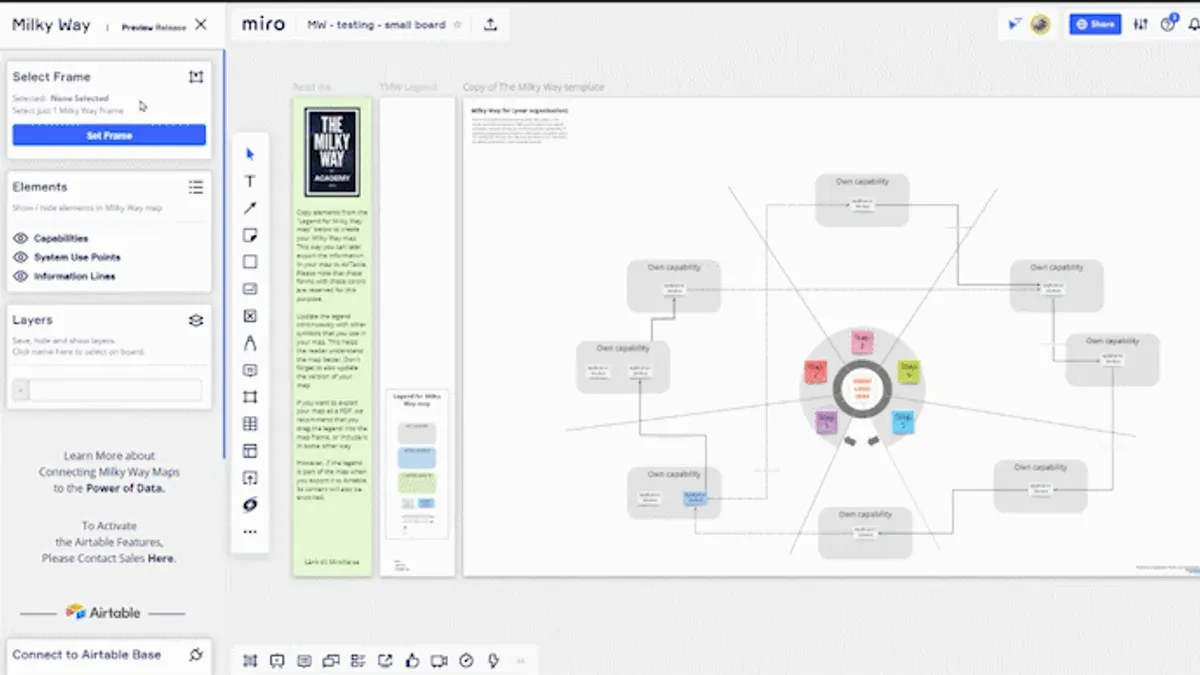
Once your board is created, configure permissions by clicking the board name, selecting "Share," and then "Board settings." Set your board to "Private" to restrict access only to invited collaborators, preventing accidental edits or data exposure. You can also assign viewer or editor roles to control interaction levels.
Organize your board content by creating frames corresponding to Airtable tables or project phases. Inside frames, use tables for structured data and complement them with sticky notes, icons, or diagrams to represent relationships or priorities more visually. For example, replicate an Airtable project tracker by placing a frame titled "Q4 Deliverables," adding a table with task details, and surrounding it with status icons and comment sticky notes for team input.
Remember to use Miro’s alignment and distribution tools found under the "Arrange" menu to keep elements tidy and readable. This structured yet flexible layout helps maintain clarity while adapting Airtable’s tabular data into a visually dynamic workspace.
- Select a relevant template or start with a blank board depending on your workflow needs.
- Set board privacy by navigating to "Share" > "Board settings" and choosing "Private."
- Create frames named after Airtable tables or project stages.
- Use tables inside frames to hold structured data, enhancing them with visual elements like sticky notes and icons.
- Use the "Arrange" menu to align and distribute items evenly for clarity.
How to Move a Table in Miro and Arrange Content Efficiently
To move a table within Miro, first click to select it. You can drag the entire table by clicking and holding the border, then moving it to your desired location on the board. For multiple objects, hold Shift and click each item to group-select before moving.
Use the Bring to Front option from the right-click menu to ensure overlapping tables or objects remain visible and accessible. This feature avoids hidden content when tables stack or overlap.
Align tables precisely by using the Align tools found in the top toolbar. Options like Align Left, Center, or Distribute Horizontally maintain clean layouts and improve readability, especially on complex boards.
For example, if you have a project timeline table overlapping a task list, select the timeline, right-click, and choose Bring to Front. Then, align both tables horizontally with the Distribute Horizontally tool to create clear separation and easy navigation.
Maintaining whitespace between elements prevents visual clutter. Use frames to group related tables, which helps in organizing content and simplifies navigation.
- Select tables by clicking or Shift-clicking multiple items
- Drag to move or reposition
- Right-click and choose Bring to Front to manage overlapping
- Use Align tools to arrange tables cleanly
- Group related tables with frames for clarity
How to Navigate, Move Around, and Work on a Miro Board
Navigating a Miro board efficiently is essential for smooth collaboration. Use the mouse wheel or pinch gestures on a trackpad to zoom in and out, letting you focus on details or get an overview. Hold the spacebar and drag the mouse to pan across the board without altering content positions. Alternatively, use the navigation panel in the bottom right corner to jump quickly between different areas.
When you join a Miro board, your role determines what you can do. Viewers can only observe and comment, Commenters can add feedback, Editors can add or change content, and Owners have full control over settings and sharing. For example, as a project manager, you might be an Owner to manage permissions, while team members are Editors to contribute actively.
Miro autosaves your work constantly, reducing the risk of data loss. However, it’s good practice to check the status at the top center; a green "Saved" icon confirms your changes are secure. To avoid confusion, refresh the page if you suspect syncing issues, especially when multiple users edit simultaneously.
- Zoom in/out: mouse wheel or trackpad pinch
- Pan: hold spacebar + drag mouse
- Quick navigation: use bottom right navigation panel
- Check user role to understand permissions
- Confirm autosave via top center status icon
Create a Checklist in Miro to Manage Your Transition
To keep your migration organized, start by adding a checklist widget from the toolbar’s “Apps & Integrations” section or by typing "/Checklist" directly onto the board. This widget allows you to add tasks with checkboxes, which you can customize by editing text styles, colors, and priority indicators to reflect urgency or category.
Integrate checklist items with other board elements by grouping them with sticky notes, frames, or images. For example, place a checklist of data export steps next to a frame containing the exported CSV files. This spatial arrangement provides clear context, making it easier to track dependencies and related materials.
Use visual progress tracking by updating checkboxes as you complete tasks. You can also add progress bars manually using shapes and color fills or place summary sticky notes that update dynamically via Miro’s integrations if you connect to external tools. A practical checklist might include items like "Export Airtable views," "Create project frames," and "Assign team roles," each linked visually to relevant board sections.
Sample checklist templates are available within Miro’s template library under "Project Management" categories. These templates can jumpstart your setup and be tailored to your specific migration steps. Including screenshots of checklist integration, such as a checklist next to a Kanban frame, helps visualize the workflow and ensures nothing is overlooked.
- Add a checklist widget via "/Checklist" or toolbar Apps
- Customize text, colors, and priorities for clarity
- Group checklists with related frames or notes for context
- Track progress visually by updating checkboxes or using progress bars
- Use or adapt Miro’s project management templates to save setup time
Avoid Common Mistakes When Moving from Airtable to Miro
One major pitfall is attempting to duplicate Airtable’s database functions exactly within Miro. Miro lacks relational database capabilities, so trying to recreate complex linked tables or formula fields can lead to cumbersome boards that defeat Miro’s visual strengths. For example, a project manager once imported a detailed Airtable base with multiple linked records, then tried to rebuild all relationships with sticky notes and connectors. The board became crowded and confusing, frustrating users who expected quick data retrieval.
Another frequent error is overloading your Miro board with too much data or clutter. Unlike Airtable’s compact table views, Miro’s canvas can become overwhelming when too many tables, sticky notes, or widgets compete for attention. Users often place every single data point on one board, which slows navigation and dilutes focus. A cleaner approach is to create multiple frames or boards organized by project phases or teams.
Finally, ignoring training on Miro’s unique features and navigation creates avoidable inefficiency. Users accustomed to Airtable sometimes overlook Miro’s zoom shortcuts, multi-select drag, or keyboard commands, which hampers workflow. One team reported wasted hours because members didn’t realize they could use the “Bring to Front” option in the context menu to reorder overlapping objects, leading to hidden content.
- Don’t try to replicate Airtable’s relational features exactly in Miro
- Avoid crowding one board with excessive data; use frames and multiple boards
- Invest time in user training on Miro’s navigation and editing tools
Tips and Tricks for Maximizing Your Miro Board’s Potential
Organize your board dynamically by using frames combined with tags. Frames act like containers for related content, while tags help you filter and locate items quickly. For example, categorize tasks by priority using color-coded tags and group them within frames labeled by project phases.
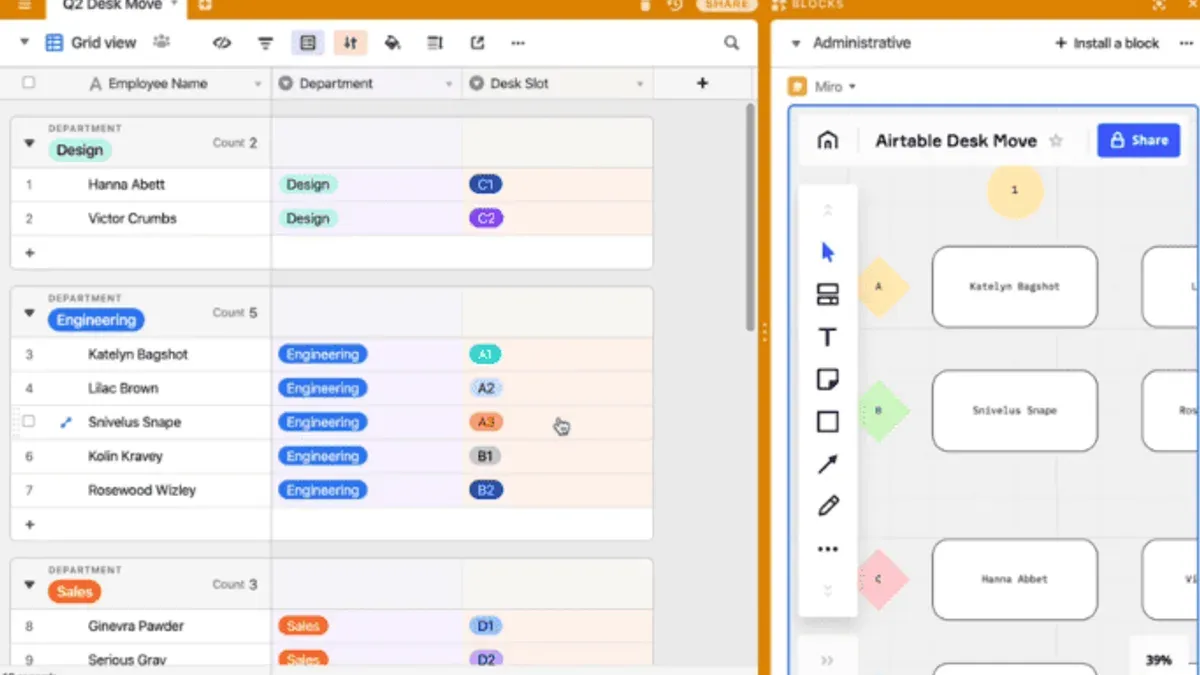
Leverage Miro’s collaboration tools to boost team engagement. Use comments for asynchronous feedback, voting to prioritize ideas during brainstorming sessions, and timers to keep meetings and workshops on track. These tools encourage participation and keep workflows transparent.
Set up retrospective boards to reflect on project progress. One team used a dedicated board divided into frames for “What Went Well,” “What Didn’t,” and “Action Items,” allowing all members to add notes and vote on priorities. This visual approach made follow-up actions clear and accountable.
Visualize project staffing by creating a frame with team member cards, each tagged by role and availability. This helps you balance workloads and quickly identify resource gaps.
- Create frames for each project phase or topic
- Apply tags consistently for filtering and searching
- Encourage use of comments, voting, and timers during collaboration
- Build retrospective boards with clear sections and voting options
- Use visual staffing cards tagged by role and availability
Read next
- Moving from Airtable to Microsoft Planner Checklist: A Practical Expert Guide
- Moving from Airtable to ClickUp Checklist: Expert Guide for Smooth Transition
- Moving from Airtable to Basecamp Checklist: A Clear Expert Guide
- Moving from Airtable to Asana Checklist: Your Expert Transition Guide
Frequently asked questions
How to move around miro board?
To move around a Miro board, use your mouse or trackpad to click and drag the canvas. Alternatively, hold down the spacebar to temporarily switch to the hand tool for panning. You can also zoom in and out using the mouse wheel or the zoom controls in the bottom-right corner to navigate large boards efficiently.
How to leave a miro board?
To leave a Miro board, click your profile avatar in the top-right corner and select "Boards" to return to your dashboard. Alternatively, close the browser tab or app window. If you want to stop sharing or access, remove collaborators via the "Share" button before exiting.
How to navigate a miro board?
Navigation on a Miro board involves zooming, panning, and using the Sidebar’s Frames panel to jump between sections. Use keyboard shortcuts like '+' and '-' to zoom, and arrow keys can move the canvas slightly. The minimap in the bottom-right corner offers a quick overview and lets you jump to different board areas.
How to set up a miro board?
Start setting up a Miro board by creating frames to organize content visually. Use templates or add shapes, sticky notes, and text boxes to structure your workflow. Configure board settings via the three-dot menu for permissions, and customize the background color to enhance clarity.
How to navigate miro?
Navigating Miro involves mastering the toolbar on the left for tools, the top menu for settings, and the canvas for content interaction. Use keyboard shortcuts like 'V' for the select tool, 'T' for text, and 'Z' for zoom. Regularly use the Frames panel to move quickly between key areas on your board.
What this advice does not cover
This guide does not cover automations or integrations available in Airtable that Miro cannot replicate; teams relying heavily on relational data may need additional tools or custom solutions to maintain complex database functionalities.
Additionally, if your workflows depend on scripting or API-driven processes native to Airtable, consider supplementing Miro with dedicated automation platforms or developer support.
Quick checklist
- Review your Airtable base and identify essential data to migrate.
- Export data in CSV format for easy import into Miro.
- Design your Miro board with clear sections representing projects, tasks, and timelines.
- Use Miro’s table widget to recreate key Airtable tables and organize content logically.
- Familiarize yourself with Miro’s navigation controls: zoom, frames, and keyboard shortcuts for efficient movement.
- Create a transition checklist within Miro to track migration progress and outstanding tasks.
- Double-check for missing data or misaligned content after migration.
- Avoid trying to replicate complex Airtable relational features directly in Miro.
- Experiment with Miro’s collaboration features like comments and tags to enhance team interaction.
Start by setting up a pilot Miro board with a subset of your Airtable data to test layout and workflow adaptations before full migration. This step helps you identify challenges early and ensures your team gains confidence with the new visual collaboration environment.