Moving from Airtable to Notion Checklist for a Smooth Transition
This checklist guides you through exporting, cleaning, and importing data to ensure a smooth transition when moving from Airtable to Notion.


Short answer: Moving from Airtable to Notion requires understanding how data structures and workflows differ between the two platforms. You need a clear, step-by-step plan to export, clean, and import your data while adjusting your processes to fit Notion’s flexible, page-based environment. This moving from Airtable to Notion checklist ensures you avoid disruptions and common pitfalls during the migration.
This article covers the essential differences in database design, the benefits of switching, how to prepare your Airtable data for export, and a detailed import process for Notion. It also highlights optimization strategies for collaboration and efficiency in Notion and warns you about mistakes that often catch users off guard when transitioning. You’ll leave with a practical, actionable guide tailored to your project management or team leadership needs.
Understand the Core Differences Between Airtable and Notion Databases
Airtable operates as a hybrid between a spreadsheet and a database, presenting data in tables with rows and columns that resemble Excel but enhanced with relational database features. Each table is distinct and structured, making it straightforward to define field types like single select, attachments, or linked records.
In contrast, Notion uses a flexible system of nested pages and blocks. Its databases are collections of pages that can be viewed in various formats such as tables, lists, boards, galleries, or calendars, but the underlying data is essentially pages with properties. This allows for more contextual content alongside database entries but requires a different mindset than Airtable’s strict tabular approach.
| Feature | Airtable | Notion |
|---|---|---|
| Data Structure | Tables with fixed fields and rows | Pages with properties inside nested blocks |
| Relations | Linked records between tables with automatic rollups | Relation property linking pages, less automatic aggregation |
| Views and Filtering | Multiple table views with granular filters and sorts | Views as different representations of the same database, filters are simpler |
For example, a project tracker in Airtable might have a "Tasks" table linked to a "Clients" table with rollups summarizing client activity. In Notion, this translates to a Tasks database with a relation property linking to Client pages, but rollups require manual setup and behave differently. Expect to rebuild these relational logics in Notion rather than expecting a direct one-to-one migration.
Why Moving from Airtable to Notion Can Benefit Your Workflow
Notion extends beyond the capabilities of a traditional database by offering an all-in-one workspace that integrates notes, tasks, calendars, and databases seamlessly. This flexibility allows you to consolidate project documentation, meeting notes, and task tracking in one environment, reducing context switching.
Unlike Airtable’s database-centric design, Notion supports varied workflows through customizable page templates and nested hierarchies, which adapt well to teams that require a mix of structured data and rich content. For example, a product team can maintain a roadmap database alongside detailed specs and user feedback pages, all linked within a single workspace.
Consider a marketing team that migrated from Airtable to Notion: they combined campaign tracking with collaborative content drafts and editorial calendars. This unified setup improved visibility across tasks and boosted real-time collaboration by centralizing communication and resources, something Airtable’s table-focused interface made cumbersome.
Prepare Your Airtable Data for Export and Cleanup
Start by auditing your Airtable base to identify redundant or obsolete records and fields that no longer serve your workflow. For example, archived projects or empty columns should be removed to streamline your dataset. This cleanup reduces clutter and prevents unnecessary data from migrating into Notion.
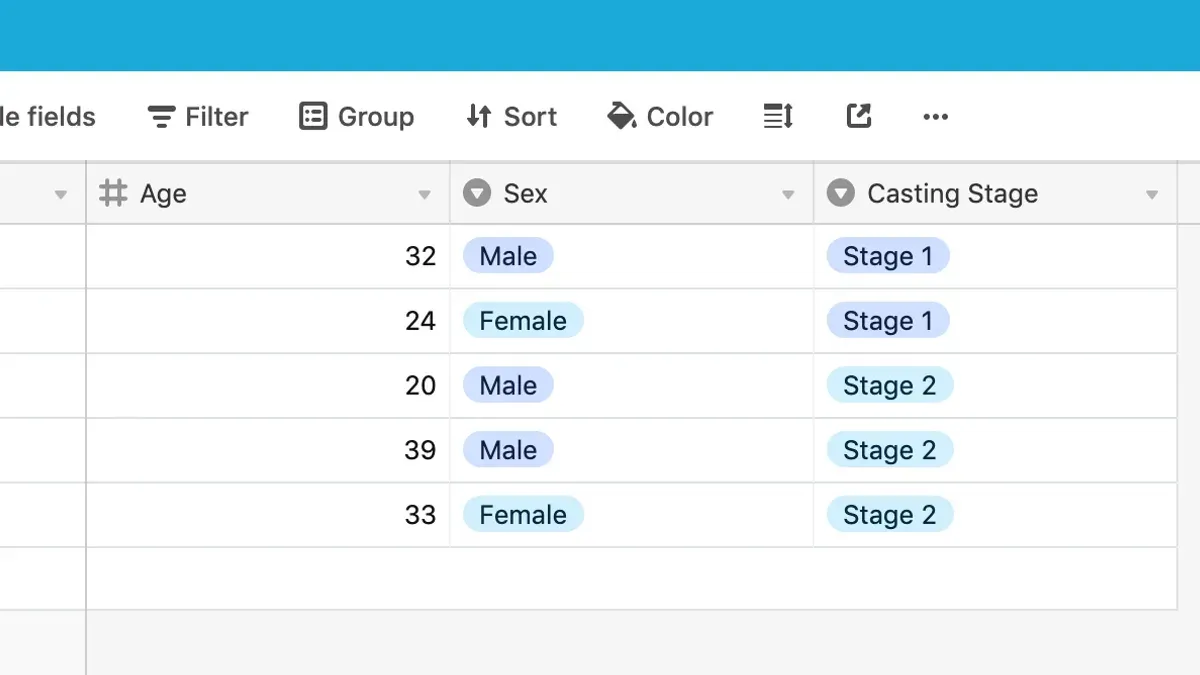
Next, standardize your data formats and naming conventions. Ensure date fields follow a consistent format like YYYY-MM-DD, and rename columns to clear, concise titles without special characters or spaces that could complicate import mapping. For instance, rename "Start Date" and "End Date" uniformly if they vary across tables.
When exporting, choose formats compatible with Notion’s import capabilities. Notion supports CSV files for tables, so export each Airtable table as a CSV via Airtable’s "Download CSV" option found under the view dropdown menu. If you have attachments, export them separately or host them externally, as Notion does not import attachments embedded in CSVs.
Example: After cleaning, a project tracker table might have columns "Task Name," "Due Date," and "Status," all uniformly formatted. Export this as a CSV file named "ProjectTracker.csv" ready for import.
- Remove obsolete records and unused fields
- Standardize date formats and column names
- Export each table as a CSV file via Airtable's view menu
- Handle attachments separately from CSV exports
Step-by-Step Process to Import Airtable Data into Notion
Start by exporting your cleaned Airtable tables as CSV files via the “Download CSV” option found under the view menu. For example, export your “Projects” and “Tasks” tables separately. Next, in Notion, create new databases by choosing “Table” under “Add a new page.” Use the “Merge with CSV” import feature to upload each CSV file into its corresponding Notion database.
Because Notion does not automatically recreate Airtable’s linked records, manually rebuild relationships by adding relation properties. For instance, link the “Tasks” database to “Projects” by adding a Relation property and connecting matching records. This manual step ensures your workflow maintains integrity.
Adjust views and filters within Notion as needed. Unlike Airtable’s advanced formula capabilities, Notion supports simpler formulas and filters under the database “Filter” and “Sort” menus. Recreate essential views like Kanban or Calendar using Notion’s board or calendar views based on your imported data.
Consider this example: you export a “Tasks” CSV with columns for task name, due date, and project link (as text). After import, you add a Relation property to link each task to its project, then create a Board view grouped by “Project” for easy tracking.
- Export each Airtable table as CSV.
- Create corresponding Notion databases via new pages.
- Import CSV files using Notion’s merge/import feature.
- Manually add Relation properties to recreate linked records.
- Set up filters, sorts, and views within Notion’s database options.
Optimize Your New Notion Setup for Collaboration and Efficiency
After importing your Airtable data, tailor Notion’s features to closely match and improve your workflows. Start by creating database templates for repetitive tasks or records—use the “New” button dropdown inside your database to save time on data entry and maintain consistency.
Next, build linked databases on dedicated team pages or dashboards to present filtered or related views of your data. For example, link a project tasks database filtered by assignee alongside a calendar view to give your team a clear, customized workspace.
Leverage Notion’s page nesting to organize databases and documents hierarchically. This setup mimics folder structures while preserving relational context. Enable Comments on pages and database entries for inline discussion, which centralizes feedback and reduces email overload.
Set precise permissions and sharing settings by clicking the “Share” button on each page or database. Use the “Can edit,” “Can comment,” and “Can view” roles to control access at a granular level, ensuring sensitive data remains protected while enabling collaboration.
Visualize your workspace with dashboards combining multiple linked databases, calendars, and task lists. This consolidated view supports quick status checks and prioritization.
- Create database templates via the “New” dropdown for efficiency
- Use linked databases filtered by team or project on dashboards
- Organize pages with nesting to reflect team structure
- Enable comments on pages and database entries for collaboration
- Configure permissions using the “Share” menu to balance access and security
Avoid Common Mistakes When Switching from Airtable to Notion
One frequent pitfall is underestimating the effort required to manually rebuild complex relationships and formulas. For example, Airtable’s linked records and formula fields don’t transfer automatically; you must reconstruct these connections inside Notion using linked databases and rollup properties, which can be time-consuming if not planned.
Another mistake is assuming every Airtable feature has a direct Notion equivalent. Airtable’s advanced filtering and grouped views may need creative workarounds in Notion’s simpler views. Expect to adjust your workflow rather than replicate it exactly.
Finally, migrating cluttered or unstructured data without thorough cleanup often leads to chaos in Notion. One team’s failed migration involved importing dozens of CSVs filled with inconsistent naming conventions and unused fields, resulting in a fragmented workspace and lost time reorganizing.
- Plan for manual recreation of relationships and formulas in Notion.
- Review Airtable features you rely on to identify necessary workflow adjustments.
- Clean and standardize data before export to prevent importing clutter.
Read next
- Moving from Airtable to Miro Checklist: Expert Guide for Seamless Transition
- Moving from Airtable to ClickUp Checklist: Expert Guide for Smooth Transition
- Moving from Airtable to Asana Checklist: Your Expert Transition Guide
- Moving from Airtable to Basecamp Checklist: A Clear Expert Guide
Frequently asked questions
How do Airtable and Notion databases compare in handling relational data?
Airtable supports robust relational data through linked records and can handle many-to-many relationships with ease, offering specialized field types for lookups and rollups. Notion also supports relations but with simpler linking between databases, lacking some advanced aggregation features like rollups. The trade-off is that Notion’s relations are more user-friendly for basic linking but less powerful for complex data models.
Can I automate data sync between Airtable and Notion during transition?
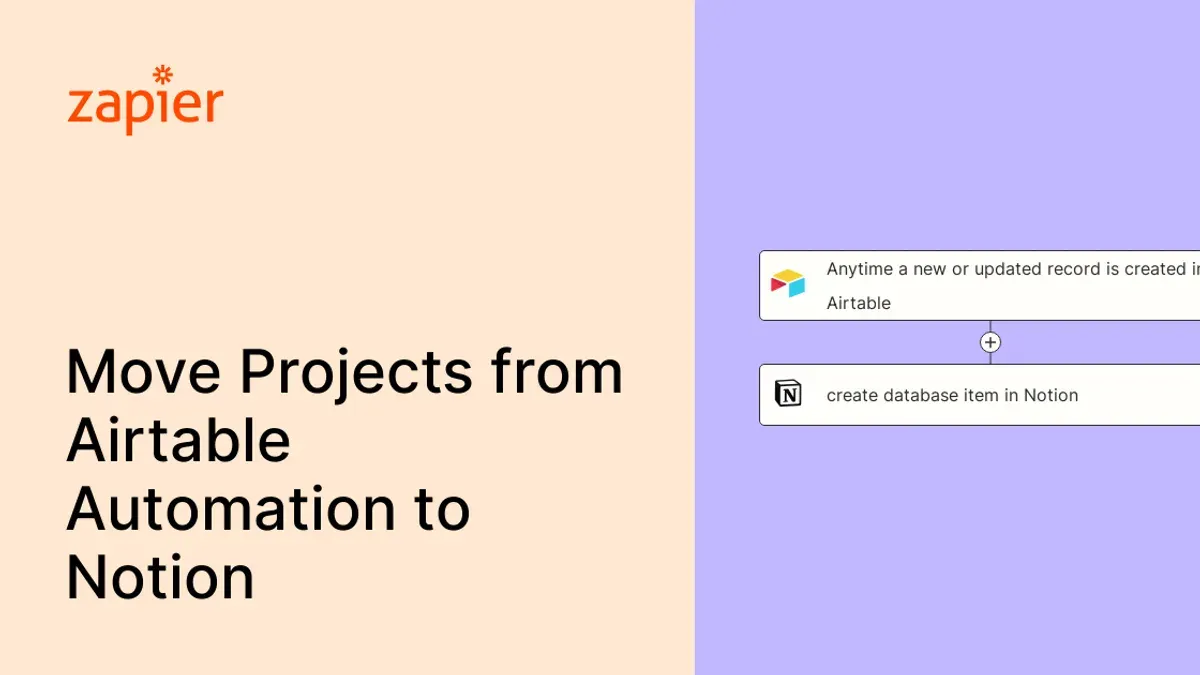
There is no native automated sync between Airtable and Notion, but you can use third-party tools like Zapier or Make to set up partial data synchronization. These automations often require manual configuration and may not support real-time syncing or complex data structures, so use them cautiously during the migration to avoid data inconsistencies.
What limitations should I expect when moving formulas from Airtable to Notion?
Notion’s formula capabilities are more limited than Airtable’s, especially regarding functions for date manipulation, complex conditional logic, and rollups. You may need to simplify or recreate formulas manually in Notion, and some Airtable formulas won’t translate directly. Plan to test and adjust formulas after import to maintain functionality.
Is it possible to revert back to Airtable after migrating to Notion?
Reverting to Airtable is possible but requires exporting data from Notion as CSV and manually re-importing it to Airtable. You will lose any Notion-specific features like nested pages or relations not captured in flat exports. Maintaining backups before migration ensures you can restore your original Airtable setup if needed.
Quick checklist
- Review your Airtable tables for linked records and attachments before export
- Export Airtable data as CSV files, ensuring each table is separated
- Create corresponding databases in Notion with matching properties and relations
- Import CSV files into Notion databases carefully, adjusting property types as needed
- Rebuild or adapt linked relations in Notion databases manually
- Set up shared access and permissions in Notion for your team
- Test key workflows in Notion to confirm functionality and efficiency
- Document any manual steps required for ongoing data updates or automation
This guide does not cover migration of Airtable apps, scripts, or integrations that are not supported by Notion
If your workflow relies heavily on custom Airtable apps, scripts, or complex third-party integrations, this migration process will not cover those components. You will need to identify alternative solutions or rebuild automations natively in Notion or with external tools like Zapier or Make. Consider consulting a specialist if your setup involves advanced scripting or API-dependent automations to avoid workflow disruptions.
The most useful next step is to map out your current Airtable base’s structure in detail, focusing on tables, linked records, and formulas. This clarity lets you design your Notion workspace with precision, minimizing surprises during import and ensuring your new setup supports your workflow effectively from day one.