
How to Install and Use the Canva App on Your Mac: A Step-by-Step Guide
A step-by-step guide to installing and using the Canva app on your Mac for a seamless design experience.

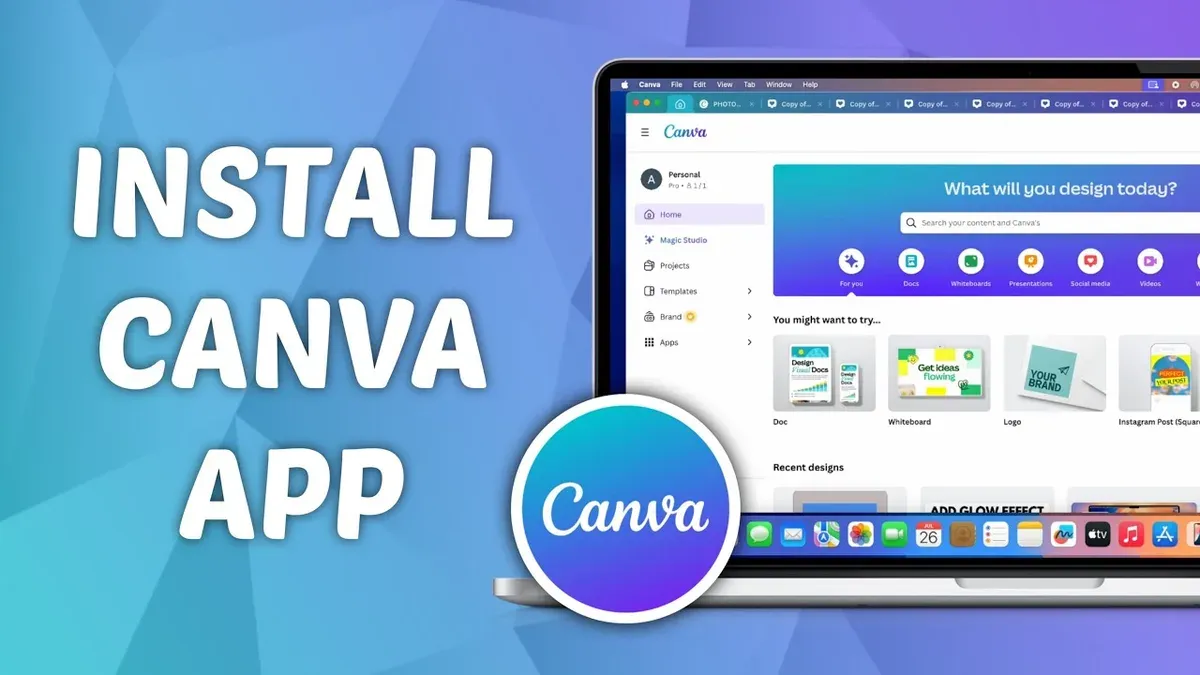
Short answer: To install the Canva app on Mac, download the official installer from the Canva website or the Mac App Store, then follow the on-screen prompts to complete installation. Once installed, launch the app from your Applications folder or Dock for a streamlined design experience tailored to macOS.
This guide covers everything you need to know about how to install Canva app on Mac, from the system requirements and download sources to detailed installation steps. You'll also learn how to navigate the app efficiently, add it to your desktop for quick access, and understand the differences between using Canva on Mac versus through a web browser. Additionally, common issues specific to Mac users are addressed with practical troubleshooting tips to ensure smooth operation.
Before you start: What you need to install Canva on Mac
To install the Canva app on your Mac without hiccups, first verify your Mac’s system compatibility. Canva requires macOS 10.14 Mojave or later, so ensure your device runs this version or a newer one. You can check this by clicking the Apple menu > About This Mac and reviewing the macOS version.
Next, confirm you have enough free disk space. The Canva app needs at least 500 MB of available space for installation and smooth operation. You can check your disk space by selecting the Apple menu > About This Mac > Storage.
A stable internet connection is essential both for downloading the app and for signing in or creating a Canva account. Slow or intermittent connections can cause download failures or sign-in issues.
Speaking of accounts, make sure you have a Canva account ready before installation. You can use either a free or Pro account. If you don’t have one, sign up on Canva’s website beforehand to avoid delays during app setup.
- Check your macOS version: Apple menu > About This Mac > Overview tab; verify it is 10.14 or later.
- Check available disk space: Apple menu > About This Mac > Storage tab; ensure at least 500 MB free.
- Confirm your internet connection is stable by visiting a website or running a speed test.
- Create or verify your Canva account by visiting canva.com and logging in or signing up.
How to download Canva app on Mac
To download the Canva app safely on your Mac, you have two reliable options: the official Canva website and the Apple App Store. Both sources ensure you get the latest version, free from malware or outdated files.
Downloading directly from the official Canva website gives you the desktop app installer tailored for Mac. This method guarantees you receive the most recent updates promptly since Canva manages their website releases actively.
The Apple App Store offers a convenient alternative where the app is vetted by Apple’s security protocols. Updates here may sometimes lag slightly behind the website but provide added peace of mind with Apple's review process.
Avoid third-party download sites, as they often host outdated versions or modified installers that risk your device’s security.
Keep in mind that downloading the desktop app is different from using Canva’s web app. The desktop app lives locally on your Mac, providing faster access and offline capabilities for some features, whereas the web app runs in your browser without installation.
- Open your preferred browser and go to https://www.canva.com/download. You should see a "Download for Mac" button prominently displayed.
- Click the "Download for Mac" button. The installer file (.dmg) will begin downloading to your Mac’s default download folder.
- Alternatively, open the App Store on your Mac, type "Canva" into the search bar, and select the official Canva app from the results.
- Click "Get" or "Install" in the App Store. The app will download and appear in your Applications folder when complete.
- Verify the app’s authenticity by checking the developer name is "Canva" and the app icon matches Canva’s branding.
How to install Canva app on Mac step-by-step
- Locate the downloaded installer or open the App Store page. If you downloaded the installer from the Canva website, it will usually be in your Downloads folder with a name like Canva.dmg. If you chose the App Store, open the App Store app and find the Canva page.
- Open the installer file or click Get/Open in the App Store. For the downloaded installer, double-click the Canva.dmg file. This mounts a virtual disk and opens a new Finder window with the Canva app icon. In the App Store, click Get then Install, and wait for the process to complete.
- Drag the Canva app icon to the Applications folder (installer method only). This copies Canva to your Applications directory. You should see a progress bar. Once done, eject the mounted disk by clicking the eject icon next to Canva in Finder sidebar.
- Open Canva from the Applications folder or Launchpad. The first time you open it, macOS will warn that it’s downloaded from the internet. Click Open to confirm.
- Grant permissions requested by Canva. During installation or first launch, you may see dialogs requesting access to files or screen recording for design previews. Click OK or Allow to ensure full functionality. You can adjust these later in System Preferences > Security & Privacy.
- Sign in to your Canva account. After the app launches, enter your Canva credentials or use single sign-on options like Google or Facebook. Successful sign-in brings you to the Canva dashboard.
- Set up initial preferences. Choose your default file saving location and preferred canvas size if prompted. This ensures the app matches your workflow from the start.
Following these steps carefully helps avoid common pitfalls like permission denials or installation stalls. If installation seems stuck, check your internet connection or restart the Mac and try again.
How to use Canva app on Mac: Basic navigation and features
When you open the Canva app on your Mac, you enter the workspace where all your design projects live. The left sidebar houses your main navigation: Home, All your designs, Shared with you, and Trash. The top bar includes a search field, a button to create a new design, and access to your account settings.
To create a new design, click the Create a design button at the top right. You’ll see a dropdown with popular formats like Presentation, Instagram Post, or Custom Size. Selecting one opens a new editing window with a blank canvas or a template you can choose from the right panel.
Opening an existing project is as simple as clicking All your designs in the sidebar, then selecting the file you want to work on. The app autosaves your progress both locally and to your Canva cloud account, ensuring seamless sync with the web version.
Use the Templates tab on the right to browse pre-designed layouts. Drag and drop elements like images, text boxes, and shapes onto your canvas. Upload your own assets via the Uploads tab if you want to personalize designs.
Saving is automatic, but you can export your design any time by clicking Share in the top right, then Download. Choose file type (PNG, JPG, PDF) and location. This flexibility lets you keep a local copy or rely on cloud storage.
Example walkthrough:
- Click Create a design and select Instagram Post. A new window opens with a blank canvas.
- Choose a template from the right panel; the canvas updates with the design.
- Click Uploads, then Upload media to add a photo from your Mac. Drag it onto the canvas.
- Edit text by clicking on any text box and typing your message.
- Click Share > Download, select PNG format, and save to your Desktop.
- Open the All your designs tab later to find this project synced across devices.
How to add Canva app to desktop and open it easily
Creating quick access points for the Canva app on your Mac streamlines your workflow. You can pin Canva to the Dock, create a desktop shortcut (alias), and set it to launch automatically at startup if you use it frequently.
Pin Canva app to the Dock
- Open the Canva app from the Applications folder or Launchpad. You should see the Canva icon appear in the Dock.
- Right-click (or Control-click) the Canva icon in the Dock.
- Hover over "Options" in the menu.
- Select "Keep in Dock." The Canva icon stays in the Dock even after you close the app.
- Confirm by closing Canva and clicking the Dock icon to reopen it quickly.
Create a desktop shortcut (alias) for Canva
- Open Finder and navigate to the Applications folder.
- Locate the Canva app icon.
- Right-click the Canva app and select "Make Alias."
- Drag the newly created alias to your desktop.
- Double-click the desktop alias to launch Canva and verify it opens correctly.
Set Canva app to launch at startup
- Open System Settings and go to "Users & Groups."
- Select your user account and click the "Login Items" tab.
- Click the "+" button below the list of apps.
- Navigate to the Applications folder, select Canva, and click "Add."
- Restart your Mac to ensure Canva launches automatically after startup.
These steps create convenient access to Canva, saving you time and making your design work more seamless.
Does Canva work on Mac and Windows? Comparing experiences
Canva's desktop apps for Mac and Windows offer nearly identical core functionality, ensuring you can create, edit, and share designs seamlessly across both platforms. Features like templates, photo editing, collaboration tools, and export options are consistent, maintaining a uniform user experience regardless of your operating system.
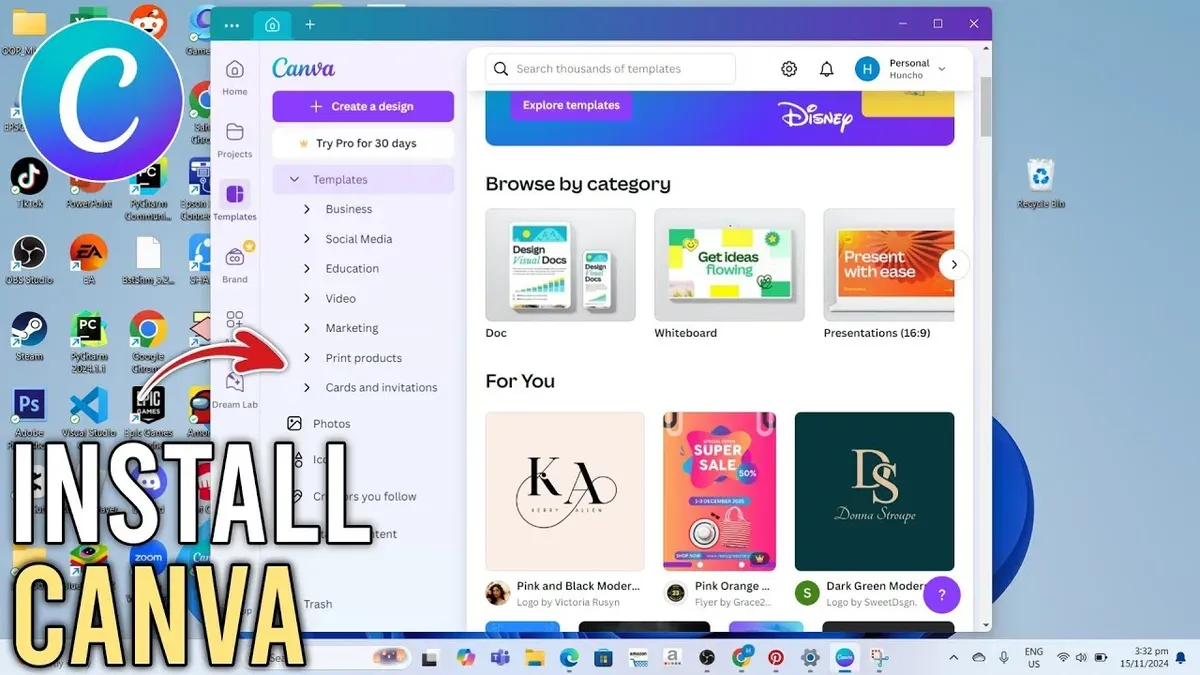
Performance-wise, both versions run smoothly on modern hardware, but Mac users occasionally report longer load times during startup, likely due to macOS security checks. Windows users may experience slightly higher CPU usage when running multiple design-heavy projects simultaneously. However, neither platform demands excessive system resources, and the app remains responsive under typical workloads.
Some macOS-specific features include native Touch Bar support on MacBook Pros and integration with macOS notifications, which enhance workflow subtly but do not impact core functionality. Conversely, the Windows version supports certain keyboard shortcuts optimized for Windows environments and integrates better with Windows file explorer for drag-and-drop operations.
Overall, if you switch between Mac and Windows, your Canva projects and experience remain consistent. Minor platform-specific optimizations exist but do not limit your design capabilities or access to Canva's tools.
Troubleshooting common issues installing or using Canva on Mac
If the Canva app won’t install or update, start by checking your macOS version against Canva’s minimum requirements. An outdated OS can block installation. If you see an error like “App can’t be opened because it is from an unidentified developer,” go to System Preferences > Security & Privacy > General and click Open Anyway for Canva.
For sign-in or account sync problems, verify your internet connection and try logging out and back in. If you encounter the error “Unable to connect to server,” reset Canva’s cache by quitting the app, then reopening it while holding the Option key. This forces a fresh data sync.
App crashes or slow performance often stem from insufficient RAM or background processes. Close other memory-heavy apps and restart Canva. If crashes persist, reinstall Canva after deleting its preferences folder found at ~/Library/Preferences/com.canva.desktop.plist.
Firewall or security settings can block Canva’s network access. To fix this, open System Preferences > Security & Privacy > Firewall > Firewall Options, and ensure Canva is listed and allowed incoming connections. If it isn’t, add Canva manually.
- Check macOS version matches Canva requirements; update macOS if needed.
- Allow app from unidentified developer via Security & Privacy settings.
- Fix sign-in by logging out, then holding Option while reopening app to clear cache.
- Improve performance by closing other apps and deleting Canva preferences if crashing.
- Allow Canva through firewall by adding it to allowed apps in Firewall Options.
Read next
- How to Install Obsidian on Mac: A Clear Step-by-Step Guide
- How to Install Notion on Mac: A Clear Step-by-Step Guide
- How to Install Slack on Mac: A Clear Step-by-Step Guide
- How to Install Discord on Mac: A Step-by-Step Guide for Smooth Setup
Frequently asked questions
How to download canva app on computer?
To download the Canva app on your computer, visit the official Canva website and navigate to the app download section. Choose the version compatible with your operating system—Mac or Windows—and click the download button. The installer file will save to your downloads folder, ready for installation.
How to download canva app on laptop?
Downloading the Canva app on a laptop follows the same process as on a desktop. Open your laptop’s web browser, go to Canva’s official site, and select the app download option. Make sure your laptop meets the minimum system requirements before proceeding.
How to use canva app on laptop?
Once installed, open the Canva app and sign in with your account. The interface includes a left-hand sidebar for templates, a top menu for file options, and a central canvas area for editing. Use drag-and-drop to add elements and the toolbar above the canvas for customization controls.
How to install canva app on laptop?
After downloading the installer file, double-click it to start installation. Follow the on-screen prompts, including agreeing to terms and selecting the installation location. Once complete, the Canva app will appear in your applications folder or start menu for easy launching.
How to open canva in app?
To open Canva in the app, launch it from your applications folder, dock, or start menu. If you’re not already signed in, enter your credentials. You can also set the app to open at login via system preferences for quicker access.
What this guide does not cover
This guide does not cover using Canva on iOS devices or the Android app, which have different installation and usage processes. Users with very old Mac models or outdated macOS versions may face compatibility issues not addressed here. If your Mac cannot run the latest macOS updates or the Canva app fails to install, consider using the Canva web version through a supported browser instead.
Quick checklist
- Verify your Mac meets the minimum macOS requirements for the Canva app.
- Download the official Canva installer from the Canva website.
- Run the installer and follow on-screen prompts to complete installation.
- Launch Canva from the Applications folder or add it to your desktop for quick access.
- Familiarize yourself with the app’s sidebar navigation and design tools.
- Compare Canva’s desktop and web versions to choose what fits your workflow best.
- Refer to troubleshooting tips if you encounter installation or performance issues.
To get the most out of Canva on your Mac, start by creating a simple design project immediately after installation. This hands-on approach will help you explore key tools and settings while building your familiarity with the app’s interface. Experiment with templates and shortcuts early on to streamline your design process and make your creative work more efficient.



