
How to Install CapCut on Mac: A Step-by-Step Expert Guide
This guide shows how to install CapCut on Mac using native apps or emulators, with tips for Mac models and troubleshooting advice.

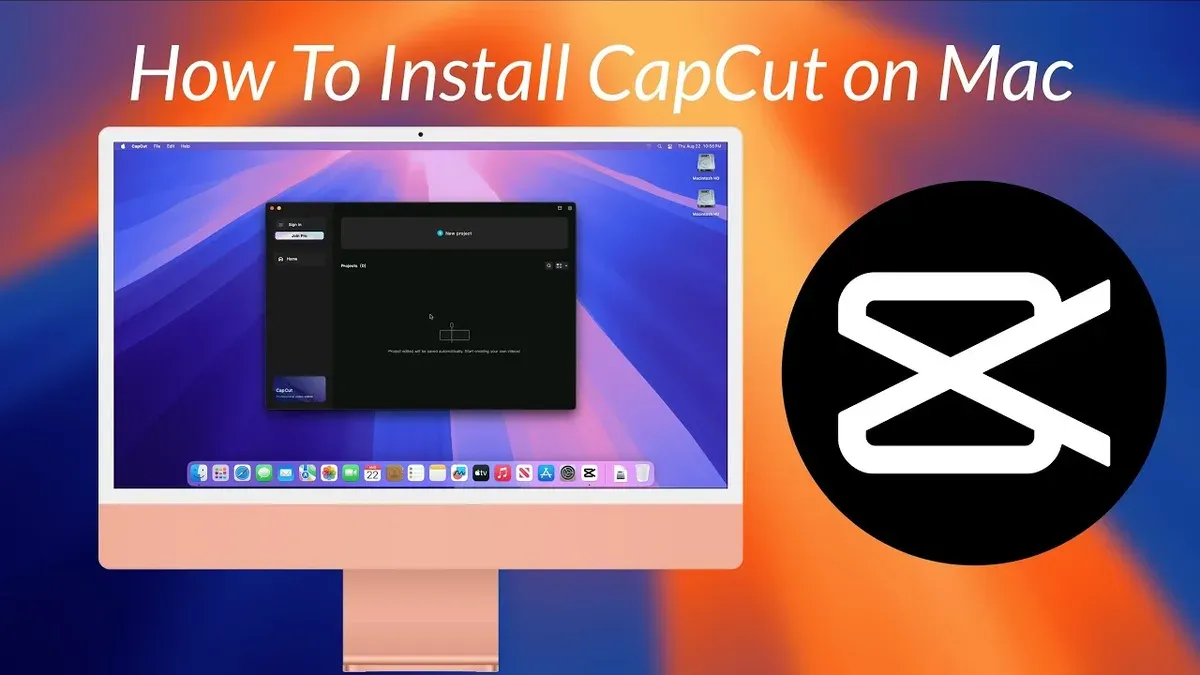
Short answer: You can install CapCut on Mac either by downloading the official native Mac app available on the Mac App Store or by using an Android emulator if the native app is unavailable or restricted in your region. This guide covers both straightforward native installation and reliable workaround methods to get CapCut running smoothly on your MacBook Air or Pro.
This article explains how to install CapCut on Mac with step-by-step instructions, including specific tips for MacBook models and regional considerations like those in India. You’ll also find troubleshooting advice and alternative approaches such as virtual machines and cross-platform tools, helping you choose the best method for your video editing needs.
Before You Start: What You Need to Install CapCut on Mac
To install CapCut on your Mac smoothly, you must verify your hardware, software, and account readiness first. CapCut’s native Mac app requires macOS Big Sur (11.0) or later and works best on Macs with Apple Silicon chips (M1, M2). Older Intel Macs may still run CapCut but often need an Android emulator or virtual machine to access the app.
A stable internet connection is essential throughout installation and usage, as CapCut downloads sizable files and updates. Ensure you have at least 2 GB of free storage space to accommodate the app and its temporary files during editing.
You’ll need an Apple ID to download apps from the Mac App Store if using the native version. Alternatively, if using an emulator, you might require a Google account to access the Google Play Store for CapCut’s Android version.
Regionally, CapCut availability varies. In countries like India, the native Mac app might not be listed due to restrictions or regional policies. In such cases, workarounds like emulators become necessary.
| Mac OS Version | CapCut Compatibility |
|---|---|
| macOS Monterey (12.0) or later | Native CapCut app supported on Apple Silicon |
| macOS Big Sur (11.0 - 11.6) | Native app supported on Apple Silicon; limited support on Intel |
| macOS Catalina (10.15) and earlier | Requires emulator or virtual machine |
| Requirement | Details |
|---|---|
| Storage Space | Minimum 2 GB free recommended |
| Internet | Stable broadband connection |
| Accounts | Apple ID for Mac App Store; Google account for Play Store (emulator) |
| Region | Native App Availability |
|---|---|
| India | Limited or no native Mac app; emulator needed |
| US, Europe, other regions | Native Mac app available |
- Check your Mac model and macOS version by clicking the Apple menu > About This Mac. You should see macOS Big Sur or newer for native support.
- Verify you have at least 2 GB of free disk space via Finder > Go > Computer, then right-click your startup disk and choose Get Info.
- Ensure your internet connection is stable by opening a website or running a speed test.
- Confirm you have an active Apple ID for downloading from the Mac App Store or a Google account ready if using an Android emulator.
- Determine your region’s CapCut app availability by checking the Mac App Store or CapCut’s website for your country.
Once these prerequisites are confirmed, you’ll be ready to proceed with the installation method best suited to your Mac and location.
How to Install CapCut on MacBook: Using the Official Mac App
Installing the official CapCut app on your MacBook is straightforward if the native Mac version is available in your region. The safest source is the Mac App Store, ensuring you get the latest and secure version.
- Open the App Store on your MacBook from the Dock or Applications folder.
- Use the search bar at the top-left to type "CapCut" and press Enter.
- Locate the official CapCut app by checking the developer name (usually Bytedance) and app icon.
- Click the Get button, then Install. You may be prompted to enter your Apple ID password or use Touch ID to authorize the download.
- Once installed, open System Preferences > Security & Privacy > Privacy tab to grant CapCut necessary permissions such as access to the microphone, camera, and files. This step ensures full functionality.
- Launch CapCut from the Applications folder or Launchpad. On the first launch, you may see a welcome screen or tutorial; follow the prompts for initial setup.
- Verify installation success by importing a sample video clip and testing basic editing tools like trimming and adding transitions.
If you encounter any installation dialogs or permission prompts, carefully review them before confirming. Screenshots of the App Store page and permission dialogs help confirm you are in the right process.
- Open Mac App Store
- Search and locate official CapCut app
- Download and install
- Set app permissions via Security & Privacy
- Launch and verify basic functionality
How to Install CapCut on Mac Using an Android Emulator
If the native CapCut app is unavailable or limited on your Mac, using an Android emulator provides an effective workaround by running the mobile version seamlessly. Popular emulators like BlueStacks and Nox Player are compatible with macOS and offer good performance for video editing apps.
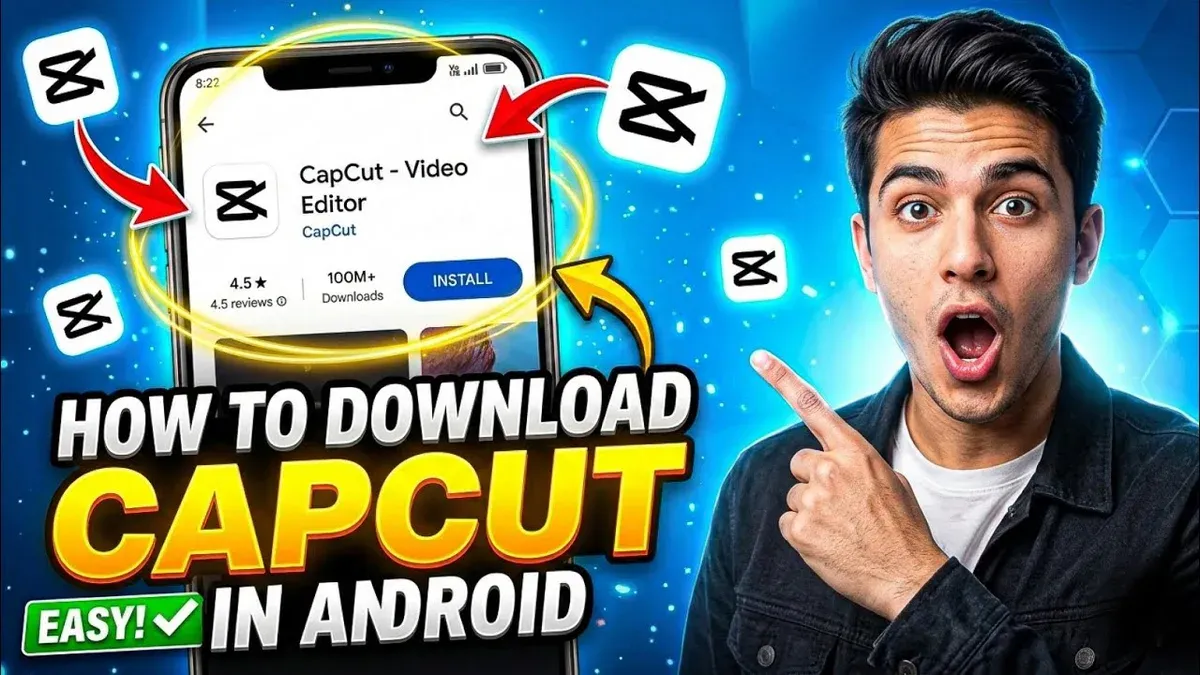
- Download a reliable Android emulator: Visit the official website of BlueStacks or Nox Player and download the macOS version. Successful download is indicated by the installer file appearing in your Downloads folder.
- Install the emulator: Open the installer and follow the on-screen prompts. When installation completes, the emulator icon will appear in your Applications folder.
- Launch the emulator and sign in: Open the emulator and sign into your Google account to access the Play Store. The Play Store home screen should load without errors.
- Install CapCut via Play Store or APK: Search for "CapCut" in the Play Store and install it like on a phone. Alternatively, download the CapCut APK from a trusted source and use the emulator’s "Install APK" feature (usually in the sidebar) to add it manually. The app icon will appear inside the emulator once installed.
- Adjust emulator settings for performance: Set the emulator to use at least 4 CPU cores and 4 GB RAM via the Settings menu under Performance. Enable graphics engine options like OpenGL for smoother video editing. Save and restart the emulator to apply changes.
- Launch and use CapCut: Open CapCut inside the emulator to start editing videos. The interface matches the mobile app, and you can import media files from your Mac via emulator shared folders.
Performance benchmarks generally show BlueStacks provides stable frame rates and responsive controls on Macs with M1 or M2 chips, while Nox Player is lighter but may have occasional input lag on older Intel Macs. Choose the emulator that offers the best balance of speed and stability for your device.
- Download BlueStacks or Nox Player for Mac
- Install and launch the emulator
- Sign in to Google Play Store or prepare APK
- Install CapCut via Play Store or APK
- Configure CPU, RAM, and graphics settings
- Open CapCut and import media
How to Install CapCut on MacBook Air and MacBook Pro: Differences and Tips
The MacBook Air and MacBook Pro differ significantly in hardware, which affects CapCut’s installation and performance. The MacBook Pro’s more powerful CPU and GPU provide smoother video editing and faster rendering times. In contrast, the Air’s lower-spec processors may lead to slower app responsiveness and longer export durations.
Battery consumption is another key difference. CapCut uses substantial resources during video editing, and the MacBook Air’s smaller battery runs down faster compared to the Pro. You’ll notice higher energy usage on the Air, especially with prolonged editing sessions or exporting high-resolution videos.
To optimize CapCut on MacBook Air, reduce the playback resolution within the app to "Preview" or "Half" quality and close background apps to free up RAM. On the MacBook Pro, you can safely use "Full" playback quality for precise editing and enable hardware acceleration in CapCut’s settings for better performance.
Potential issues on the Air include occasional app lag and overheating during intensive tasks. To mitigate this, use a cooling pad and monitor CPU usage via Activity Monitor. Updating macOS and CapCut regularly also helps stability across both models.
- Open CapCut and navigate to Preferences > Playback Quality; set to "Half" on MacBook Air and "Full" on MacBook Pro. You should see smoother playback matching your hardware.
- Enable hardware acceleration under Preferences > Performance on MacBook Pro for improved rendering speed; this option may be limited on MacBook Air.
- Close unnecessary background apps via Activity Monitor to free RAM; CapCut should respond more quickly afterward.
- Monitor battery usage in System Preferences > Battery during CapCut use; expect faster drain on MacBook Air.
- Use a cooling pad with MacBook Air if you notice overheating during extended editing sessions; the system should maintain stable performance longer.
How to Use CapCut on MacBook: Basic Setup and Getting Started
After installing CapCut, launch the app from your Applications folder or Dock. Begin by creating a new project via the New Project button on the main interface. Import media files by clicking the Import icon or dragging files directly into the media library panel. Supported formats include MP4, MOV, and JPEG, commonly used on Mac systems.
CapCut offers essential editing tools like trimming, splitting, and adding transitions, accessible via the toolbar above the timeline. Use Mac-specific shortcuts such as Command + Z to undo and Command + S to save frequently. The timeline supports multi-track editing, so arrange video, audio, and effects layers precisely.
When ready to export, click Export in the top-right corner. Choose resolution options optimized for Mac playback, such as 1080p at 30fps, to balance quality and file size. Select the H.264 codec for broad compatibility. Save exports to your preferred folder for easy access.
To integrate CapCut projects with other Mac applications like Final Cut Pro or iMovie, export your video or audio files in standard formats. You can also import raw media between apps to continue editing seamlessly.
- Open CapCut; click New Project. You should see a blank timeline and media library.
- Import files via Import button or drag-and-drop; media appears in the library panel.
- Use toolbar tools to trim and arrange clips; timeline updates with each edit.
- Press Command + S to save progress regularly.
- Click Export, select 1080p resolution and H.264 codec; exported file saves to chosen folder.
- Open exported file in other Mac apps for further editing or sharing.
How to Install CapCut on Mac in India: Regional Considerations and Workarounds
CapCut’s availability on the Mac App Store in India can be limited due to regional restrictions, sometimes resulting in messages like “This app is not available in your country.” This can block direct installation and requires workarounds.
One common approach is using a VPN to connect to a country where CapCut is available. Reliable VPNs such as ExpressVPN or NordVPN are recommended for stable connections and strong privacy protocols. After activating the VPN, you must restart the App Store to reflect the new region.
Alternatively, downloading CapCut from trusted third-party sources is possible but risky. Always verify the app’s authenticity by checking digital signatures and user reviews to avoid counterfeit software that may contain malware or compromise your data.
Using VPNs or alternative app stores carries legal and security considerations. While VPN usage is legal in India, circumventing geo-restrictions may violate terms of service. Ensure your VPN provider has a clear privacy policy, and avoid downloading apps from unverified websites to protect your Mac from security threats.
- Activate a reputable VPN (e.g., ExpressVPN, NordVPN) and connect to a country where CapCut is available. You should see your location change in the VPN app.
- Close and reopen the Mac App Store. The store should now display apps available in the VPN region.
- Search for CapCut and proceed with the installation. You should be able to download and launch the app without geo-block errors.
- If using a third-party source, download the installer from a verified site and check the app’s digital signature by right-clicking the app, selecting Properties, and confirming the developer’s identity. The app should show a verified developer status.
Troubleshooting Common Issues When Installing CapCut on Mac
If CapCut fails to download or crashes during installation, first check your internet connection and available disk space. An "Installation Failed" error often indicates insufficient storage or interrupted download. Clearing cache in the Mac App Store or restarting your Mac can resolve temporary glitches.
When using an Android emulator, performance issues like lag or freezing may arise. Adjust the emulator's allocated RAM and CPU cores via its settings menu. For example, in BlueStacks, go to Settings > Engine and increase resources; you should see smoother video playback afterward.
Permission and security settings can block installation. If you encounter "App cannot be opened because the developer cannot be verified," go to System Preferences > Security & Privacy > General and click "Open Anyway" for CapCut. Also, enable app installation from identified developers under Allow apps downloaded from.
CapCut running slow or becoming unresponsive often relates to background processes or insufficient system resources. Quit unused apps and close browser tabs to free up RAM. Reset CapCut preferences by deleting its cache folder located at ~/Library/Containers/com.lemon.lvoverseas. Restart CapCut to test responsiveness.
- Check your Mac’s storage and internet stability; the app should download without interruption.
- Adjust emulator resource allocation; CapCut should run smoothly inside the emulator.
- Modify security settings to allow installation; the app should open without verification errors.
- Free up system resources and clear CapCut cache; the app should respond faster and not freeze.
Alternative Ways to Run CapCut on Mac: Virtual Machines and Cross-Platform Tools
If native and emulator options do not meet your needs, consider advanced methods like virtual machines or compatibility layers to run CapCut on your Mac. These solutions allow you to run the Windows version of CapCut, expanding your options.
Using Windows Virtual Machines
Virtual machines such as Parallels Desktop and VMware Fusion enable you to install a full Windows environment on your Mac. Once Windows is installed, you can download and run the Windows CapCut app as if you were on a PC.
- Install Parallels Desktop or VMware Fusion and create a new Windows virtual machine; you should see a fully functional Windows desktop.
- Set up Windows with necessary drivers and network access; confirm that Windows updates run properly.
- Download and install the Windows version of CapCut from its official site; the app should launch without errors.
Virtual machines offer near-native performance on MacBook Pro models with M1/M2 chips using optimized versions of Parallels. However, resource usage is high: expect significant RAM allocation (8GB+) and CPU load, which can reduce battery life and increase fan noise.
Using CrossOver
CrossOver is a compatibility layer that runs many Windows apps on Mac without a full Windows install. It translates Windows API calls to macOS, allowing lighter resource use than a virtual machine.
- Download and install CrossOver from its official website; launch CrossOver and open the installer.
- Use CrossOver to install CapCut's Windows installer; the app icon should appear in CrossOver's application list.
- Launch CapCut through CrossOver; it should open with basic functionality.
CrossOver can be less stable with complex apps and may lack certain features or cause graphical glitches. Performance is generally better than emulators but below native apps.
Compared to Android emulators, virtual machines provide full Windows compatibility but at a higher resource cost. CrossOver balances performance and resource use but may sacrifice stability. Your choice depends on your Mac’s specs and whether you prioritize performance, compatibility, or battery life.
Read next
- How to Install DaVinci Resolve on Mac: A Step-by-Step Expert Guide
- How to Install GIMP on Mac: A Clear Step-by-Step Guide
- How to Install Blender on Mac: A Clear Step-by-Step Guide
- How to Install Figma on Mac: A Step-by-Step Expert Guide
Frequently asked questions
Can you get capcut on mac?
Yes, CapCut is available for Mac users. You can install the native Mac app directly from the official CapCut website or the Mac App Store, depending on your region. Alternatively, you can use an Android emulator to run the mobile version if the native app is not accessible in your location.
How to install capcut on pc?
To install CapCut on a PC, download the official Windows version from the CapCut website or Microsoft Store. If unavailable, use an Android emulator like BlueStacks or Nox Player to run the mobile app. Installation involves downloading the installer, running it, and following the on-screen prompts.
How to download capcut on mac?
Download CapCut on Mac by visiting the official CapCut site or the Mac App Store and clicking the download button. If the app isn’t available natively in your region, use an Android emulator such as Bluestacks, install it, then download CapCut from the Google Play Store within the emulator.
Can you get CapCut on Mac?
CapCut is accessible on Mac through a native application or via Android emulation. Native installation offers better performance, but if the app's not available in your region, the emulator workaround ensures you can still use CapCut on your MacBook Air or Pro.
How to install CapCut on PC?
Install CapCut on PC by downloading the Windows installer from CapCut’s official website or Microsoft Store. If the app isn’t available, install an Android emulator, launch it, and download CapCut from the Google Play Store inside the emulator environment.
Quick checklist
- Verify your Mac’s OS version supports the CapCut native app or the chosen emulator.
- Choose the installation method that fits your Mac model and regional availability.
- Download CapCut from the official Mac App Store when possible for the smoothest experience.
- If using an Android emulator, select a lightweight option like BlueStacks and allocate sufficient resources.
- For users in India, prepare to use VPNs or region-specific app stores if the native app is unavailable.
- Follow basic setup steps to configure CapCut’s permissions and preferences after installation.
- Refer to troubleshooting tips if you encounter performance or installation errors.
- Consider virtual machines only if emulators or native apps don’t meet your needs.
What this guide does not cover
This guide does not cover professional video editing software alternatives to CapCut and is focused on installation methods rather than advanced editing techniques. If you require complex editing features or industry-standard workflows, explore dedicated software like Final Cut Pro or Adobe Premiere Pro instead.
The instructions here assume you are comfortable adjusting system settings and installing third-party software; if not, seeking assistance from a knowledgeable technician or Apple Support is advisable.
Now that you understand your installation options and regional considerations, the best next step is to select the method that aligns with your Mac model and region, then follow the detailed steps to get CapCut running efficiently on your device.



