
How to Install Figma on Mac: A Step-by-Step Expert Guide
Follow this expert guide to install Figma on Mac with step-by-step instructions, including plugin setup and troubleshooting tips.

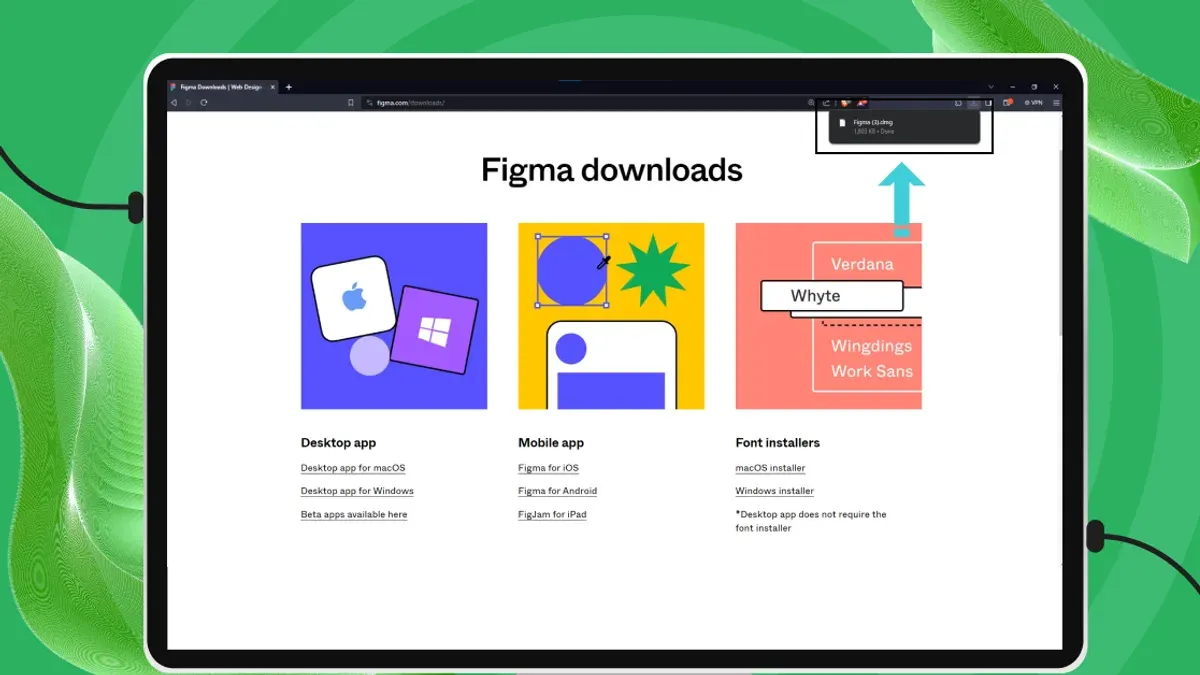
Short answer: To install Figma on Mac, download the official Figma desktop app from figma.com, open the downloaded.dmg file, then drag the Figma icon into your Applications folder. Launch the app from Applications or Spotlight to get started.
This guide covers exactly how to install Figma on Mac with clear, step-by-step instructions tailored to Mac users. You'll also learn how to install plugins and fonts within Figma, get a quick overview of installing Figma on other platforms, decide between the desktop app and browser usage, and troubleshoot common installation issues specific to Mac. Each section explains the why behind each step, helping you avoid pitfalls and optimize your setup for smooth design work.
Before you start: What you need to install Figma on Mac
Ensure your Mac is running macOS 10.13 High Sierra or later, as this is the minimum supported version for the Figma desktop app. You can check this by clicking the Apple menu and selecting "About This Mac"; the version number appears in the overview.
Prepare a stable internet connection to download the installer and receive updates smoothly. Interruptions during download or update processes can cause installation failures or corrupt files.
Verify that you have at least 500 MB of free disk space available. The Figma desktop app itself is relatively lightweight, but additional space is necessary for cache, offline files, and plugin assets.
While optional, setting up a Figma account before installation streamlines syncing your projects and accessing community plugins. You can easily sign up at figma.com with an email address; having an account ready helps you start designing immediately after installation.
- Open the Apple menu and select "About This Mac". Confirm your macOS version is 10.13 or newer. You should see your OS version number displayed.
- Check your internet connection by loading a webpage or running a speed test. A stable connection without frequent drops is ideal.
- Open Finder, select your primary disk, then press Command+I or right-click and choose "Get Info" to see available disk space. Ensure it exceeds 500 MB free.
- Visit figma.com and create a free account if you don’t have one. After registration, you should see the dashboard upon logging in.
How to install Figma on Macbook step-by-step
- Open your preferred web browser and go to the official Figma website at https://www.figma.com/downloads/. You will see a clear option for downloading the Figma desktop app for macOS.
- Click the button labeled "Download for macOS" to start downloading the Figma installer. The file downloaded will be a .dmg disk image, typically named Figma.dmg.
- Once the download completes, locate the Figma.dmg file in your Downloads folder and double-click it. This will mount the disk image and open a new window showing the Figma app icon alongside a shortcut to your Applications folder.
- Drag the Figma app icon directly into the Applications folder shortcut. This installs Figma on your Mac and ensures it is available in your system-wide Applications directory for easy access.
- Open the Applications folder and double-click the Figma app to launch it. The first time you open it, macOS may show a security warning; confirm you want to open the app as it is from a verified developer.
- After launching, you will see the Figma sign-in screen. Enter your Figma account credentials or use the option to create an account if you haven’t done so. Signing in enables syncing and access to your projects.
- On first run, Figma may request permissions such as access to files or notifications. Approve these permissions to ensure full functionality, especially for file imports and plugin usage.
- You can now set basic preferences such as theme (light or dark mode) and file autosave options from the Figma menu bar under Figma > Preferences.
When installed successfully, launching Figma should open the main design interface without errors, and your recent files or drafts will appear upon login.
- Download from official site https://www.figma.com/downloads/
- Open and mount .dmg file
- Drag Figma app to Applications folder
- Launch Figma and sign in
- Grant requested permissions and set preferences
How to install Figma plugins
Plugins enhance your Figma experience by automating tasks, adding new features, and improving workflow efficiency. Installing and managing them within the desktop app is straightforward and secure.
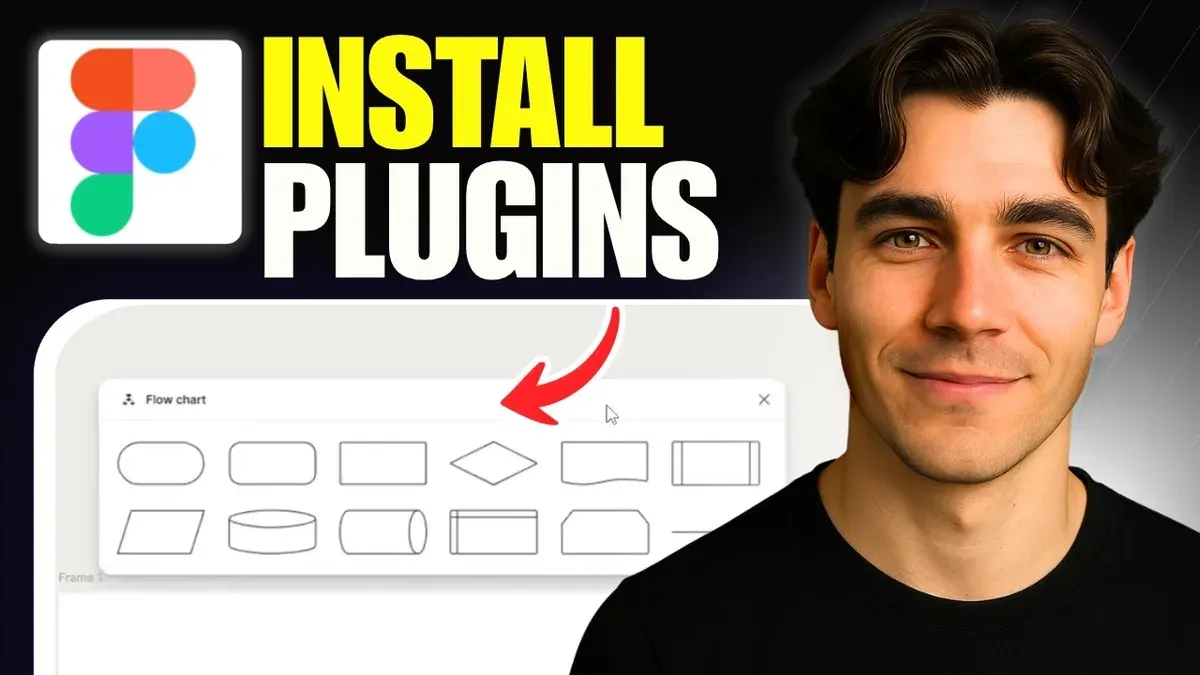
- Open your Figma desktop app and navigate to the Community tab on the left sidebar. You will see a search bar and categories of available plugins.
- Type the name or functionality of the plugin you want into the search bar. For example, search for "Iconify" to find an icon plugin. The results will list plugins with descriptions and user ratings.
- Click on the desired plugin to view details, including permissions it requires. When ready, click the Install button. You may be prompted to grant permissions; approve these to enable the plugin's full functionality.
- Once installed, access the plugin any time by opening a file, then selecting the Menu (the Figma logo in the top-left corner), navigating to Plugins, and choosing the installed plugin from the list.
- To keep plugins running smoothly, regularly check for updates. In the Community tab under your profile, you can view installed plugins and update them if new versions are available.
Using plugins like "Unsplash" for images or "Autoflow" for connecting objects significantly reduces manual work, streamlining your design process.
- Open Community tab and search plugins
- Click plugin and select Install
- Grant permissions if prompted
- Access plugins from Menu > Plugins
- Manage and update plugins via Community tab
How to install fonts on Figma Mac
Figma on Mac uses your system fonts, so installing custom fonts involves adding them to your Mac first. Use the built-in Font Book app to manage your fonts efficiently.
- Open Font Book from your Applications folder or Spotlight search. You should see a list of installed fonts.
- Click the File menu, then select Add Fonts... Navigate to the font file (typically.ttf or.otf) on your Mac and select it. Once added, the font appears in Font Book without errors.
- Restart the Figma desktop app to ensure it refreshes its font list and recognizes the new fonts. You should see the font available in Figma’s font dropdown.
- If the font still doesn’t appear, download and install the Figma Font Helper app from Figma’s official website. This utility syncs local fonts with Figma’s desktop environment, resolving many font visibility issues.
- Launch Font Helper and follow the prompts to enable font syncing. This step often fixes missing fonts, especially with sandboxed apps. After enabling, restart Figma again.
- When working on team projects, confirm collaborators have the same fonts installed or use Figma’s font substitution warnings to avoid design inconsistencies.
Common issues include fonts not activating in Font Book (check for duplicates or disabled fonts) and permissions blocking Figma’s access. Ensuring Figma has Full Disk Access under System Preferences > Security & Privacy > Privacy can help.
- Install fonts via Font Book by adding.ttf or.otf files
- Restart Figma desktop app to refresh font list
- Use Figma Font Helper app if fonts don’t appear
- Check system permissions if fonts remain missing
- Coordinate font use in team projects to avoid substitution
How to install Figma on Windows and Linux: Quick overview
Installing Figma on Windows is straightforward with official desktop apps available for both Windows 10 and Windows 11. You download the installer directly from Figma’s website, run it, and follow the on-screen prompts. Once installed, launching the app gives you a native experience similar to macOS, including offline access to your designs.
- Go to figma.com/downloads and select the Windows installer. You should see a file named FigmaSetup.exe downloading.
- Run the FigmaSetup.exe file and follow the installation wizard. When complete, you will see a Figma icon on your desktop or Start menu.
- Open the Figma app and sign in with your credentials. The interface should load quickly, displaying your recent files and projects.
Linux users do not have an official desktop client. Instead, you can use Figma entirely through supported web browsers like Chrome or Firefox. Some community-developed unofficial clients exist, but these may lack stability and features compared to official apps. Running Figma in a browser on Linux offers full access to design and collaboration tools but requires a constant internet connection and may have performance differences.
Compared to macOS, Windows installations provide a similarly seamless desktop experience. Linux usage relies on the browser, which might limit offline access and deep system integrations like font syncing or plugin management. User feedback often notes that the macOS app feels more polished and tightly integrated, while Windows users appreciate the official support but sometimes report minor bugs. Linux users accept the browser approach as functional but less convenient.
How to install Figma on your desktop: Choosing between desktop app and browser
Deciding between the Figma desktop app and the browser version depends on your workflow, performance needs, and environment. Each option offers unique advantages that suit different user scenarios.
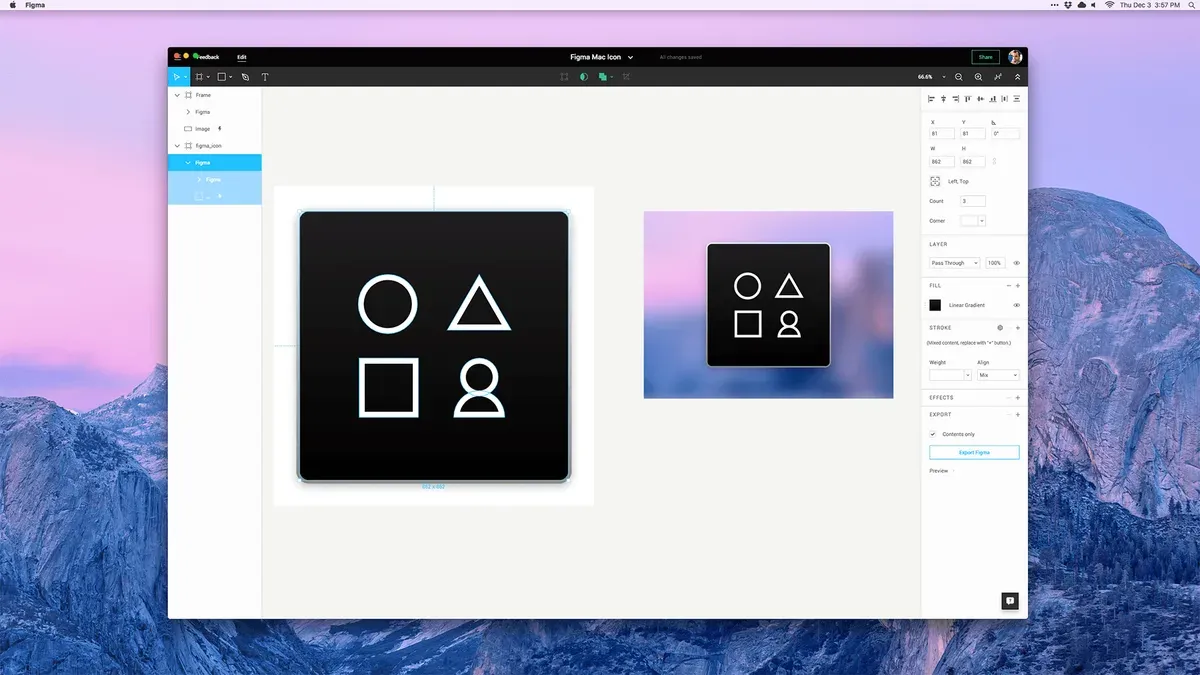
Advantages of the Desktop App
The desktop app provides offline access, allowing you to continue working without an internet connection. It offers native notifications that keep you informed about comments, updates, and collaboration activity. Performance tends to be smoother, especially when handling large files or complex projects, because the app can utilize system resources more efficiently than a browser tab.
Workflows that involve frequent file switching, real-time collaboration, or require quick response times benefit from the desktop app. For example, UI designers working on multi-page prototypes or teams relying heavily on Figma's commenting feature often see improved productivity using the desktop app.
Advantages of the Browser Version
The browser version requires no installation, providing instant access from any device with internet connectivity. Updates happen seamlessly in the background with no need to download or restart the app. This makes it ideal for users who switch between devices or prefer not to install additional software.
It is also suitable for occasional users or those who want to quickly review or comment on designs without committing to a full installation.
When to Prefer One Over the Other
If you prioritize performance, offline availability, and system notifications, install the desktop app. If you need flexibility across multiple devices, want zero-install hassle, or use Figma intermittently, the browser version is preferable.
- Assess your work environment: If you often work without stable internet or handle large projects, choose the desktop app. You should see smoother performance and offline functionality.
- Consider your device usage: If you switch devices frequently or use public/shared computers, the browser version allows easy access without installation.
- Evaluate update preferences: The desktop app requires manual updates but not frequent restarts, whereas the browser updates automatically with each page load.
- Decide based on notifications: If staying alerted to collaboration changes is critical, the desktop app’s native notifications provide better visibility.
- Make your choice and either download the desktop app or open Figma in your preferred browser to start working immediately.
Troubleshooting common Figma installation issues on Mac
Figma installation or operation issues on Mac often stem from macOS security settings, outdated software, or permission conflicts. Addressing these typical failure points can restore smooth functionality.
Installer won’t open or app won’t launch
macOS Gatekeeper may block Figma's installer or app if it is from an unidentified developer or not notarized. To fix this, go to System Preferences > Security & Privacy > General, and look for an "Allow Anyway" button below the blocked app message. Clicking this permits the app to open. After this step, the installer or app should launch without issue.
- Attempt to open the Figma installer or app; if blocked, note the message in Security & Privacy.
- Open System Preferences > Security & Privacy > General.
- Click Allow Anyway next to Figma's blocked message.
- Try opening the installer or app again; it should now launch.
Many installation failures resolve after adjusting Gatekeeper settings this way.
App crashes or freezes
Outdated macOS or Figma versions can cause instability. Make sure your Mac runs the latest macOS updates via System Preferences > Software Update and that Figma is updated from its website or app store. Clearing Figma's cache by quitting the app and deleting cache files in ~/Library/Application Support/Figma can also help.
Plugins not installing or working
Plugin issues often relate to permissions or compatibility. Confirm that Figma has Full Disk Access under System Preferences > Security & Privacy > Privacy. Also, verify plugin compatibility with your Figma version by checking the plugin's page in the Figma Community.
Fonts not showing up
If fonts do not appear in Figma despite installation, ensure they are properly added to Font Book and enabled. Restart Figma after font installation. If problems persist, confirm the Font Helper app is running, as it syncs system fonts with Figma.
Read next
- How to Install Obsidian on Mac: A Clear Step-by-Step Guide
- How to Install Notion on Mac: A Clear Step-by-Step Guide
- How to Install Slack on Mac: A Clear Step-by-Step Guide
- How to Install Discord on Mac: A Step-by-Step Guide for Smooth Setup
Frequently asked questions
How to install figma in windows?
To install Figma on Windows, visit the official Figma website and download the desktop installer for Windows. Run the.exe file, follow the installation prompts, and launch the app once complete. Ensure your Windows version supports Figma's system requirements, typically Windows 10 or later.
How to install figma in your desktop?
You can install Figma on your desktop by downloading the desktop app from Figma’s website, available for Mac and Windows. After downloading, run the installer and follow the setup instructions. Alternatively, you can use Figma directly in your web browser without installation, but the desktop app offers offline access and improved performance.
How to install figma on linux?
Figma does not offer an official Linux desktop app, but you can use the web version through any modern browser like Chrome or Firefox. For offline use, consider third-party wrappers or Electron-based apps, but these are not officially supported and may lack some features or security guarantees.
how to install figma in windows
Installing Figma on Windows involves downloading the Windows installer from Figma’s website. After downloading, open the installer file, follow the on-screen instructions, and launch Figma. Make sure your system meets minimum requirements, such as running Windows 10 or newer.
how to install figma on windows 11
To install Figma on Windows 11, download the Windows installer directly from Figma’s official site. Run the downloaded.exe file and complete the installation wizard. Windows 11 fully supports Figma’s desktop app, so installation is straightforward without compatibility issues.
What this guide does not cover
This guide does not cover enterprise deployment methods such as installing Figma via Intune on Mac, which requires specialized IT knowledge and permissions. If you’re managing installations for a large organization or need centralized control over Figma deployment, consult your IT department or refer to official enterprise documentation.
Quick checklist
- Confirm your Mac meets the minimum system requirements for Figma desktop app.
- Download Figma from the official website to ensure authenticity and latest updates.
- Follow macOS security prompts to allow installation from identified developers.
- Install desired Figma plugins via the Figma desktop app or web interface.
- Set up local fonts using the Figma Font Helper for seamless font access.
- Choose between using the Figma desktop app for offline convenience or the web app for instant access without installation.
- If you encounter issues, check permissions, clear caches, or reinstall the app before seeking advanced troubleshooting.
To get the most out of Figma on your Mac, start by setting up the desktop app and configuring your preferred plugins and fonts. This foundation ensures a smooth, optimized design experience tailored to your workflow.



