
How to Install GIMP on Mac: A Clear Step-by-Step Guide
This guide shows you how to install GIMP on Mac with simple steps, covering installation, plugins, and troubleshooting tips.

Short answer: To install GIMP on Mac, download the official macOS installer from the GIMP website, open the downloaded.dmg file, then drag the GIMP app into your Applications folder. Launch GIMP, grant necessary permissions, and you're ready to start editing images.
This article guides you through how to install GIMP on Mac with clear, step-by-step instructions tailored for MacBook Pro, MacBook Air, and other Mac models. You’ll learn not only the installation process but also where GIMP is installed, how to add plugins for enhanced functionality, and tips for troubleshooting common issues. The guide highlights key differences in installation nuances across Mac devices and explains why certain steps matter for a smooth setup experience.
Before You Start: What You Need to Prepare
Before installing GIMP on your Mac, ensure your system meets the basic requirements to avoid installation interruptions. GIMP supports macOS versions 10.9 (Mavericks) and later, so confirm your Mac runs at least this version by clicking the Apple menu > About This Mac.
A stable internet connection is essential since the GIMP installer is several hundred megabytes. Interruptions during download can corrupt the file, causing installation errors.
Verify you have at least 500 MB of free disk space, which covers the application and temporary files during installation. More space is recommended if you plan to install plugins or save large projects.
To guarantee security and authenticity, always download GIMP from the official site at gimp.org. Third-party sources can bundle outdated or compromised versions, putting your Mac at risk.
macOS security settings can block apps from unidentified developers. Before installation, go to System Preferences > Security & Privacy > General tab and check if "Allow apps downloaded from" is set to "App Store and identified developers". You may need to authorize GIMP manually when opening the installer.
- Check your macOS version via Apple menu > About This Mac; ensure it is 10.9 or newer.
Expected result: macOS version displayed meets or exceeds 10.9. - Confirm your internet connection is active and stable.
Expected result: You can browse websites or stream video without interruption. - Verify disk space by opening Finder, selecting your startup disk, and pressing Command+I.
Expected result: At least 500 MB of free space available. - Open System Preferences > Security & Privacy > General; confirm app download settings permit installations from identified developers.
Expected result: The setting shows "App Store and identified developers" or you see an option to allow GIMP after attempting to open it.
Download GIMP Safely for macOS
To ensure a secure and smooth installation of GIMP on your Mac, always download the installer from the official GIMP website. This guarantees you get the latest stable version free from malware or tampering. The official site clearly highlights the macOS download link, typically offering a .dmg file format, which is the standard disk image format for macOS applications.
A .dmg file acts like a virtual disk drive that mounts on your desktop when opened. It contains the application and allows for a simple drag-and-drop installation into your Applications folder. This method is preferred on Macs because it preserves system integrity and makes uninstallation straightforward. Avoid downloading GIMP from third-party sites or unofficial sources, as these can host outdated versions or malicious software posing security risks.
- Open your preferred web browser and go to https://www.gimp.org/downloads/. You should see a clear section for macOS downloads.
- Click the download link for macOS. The file will usually be named something like gimp--x86_64.dmg. Once downloaded, locate the file in your Downloads folder.
- Verify the file size roughly matches the size listed on the website to confirm a complete download. The browser should show a download completion notification.
Following these steps ensures you have the official, safe GIMP installer ready for your Mac. This approach minimizes risk and prepares you for a hassle-free installation.
Install GIMP on Your Mac: Step-by-Step
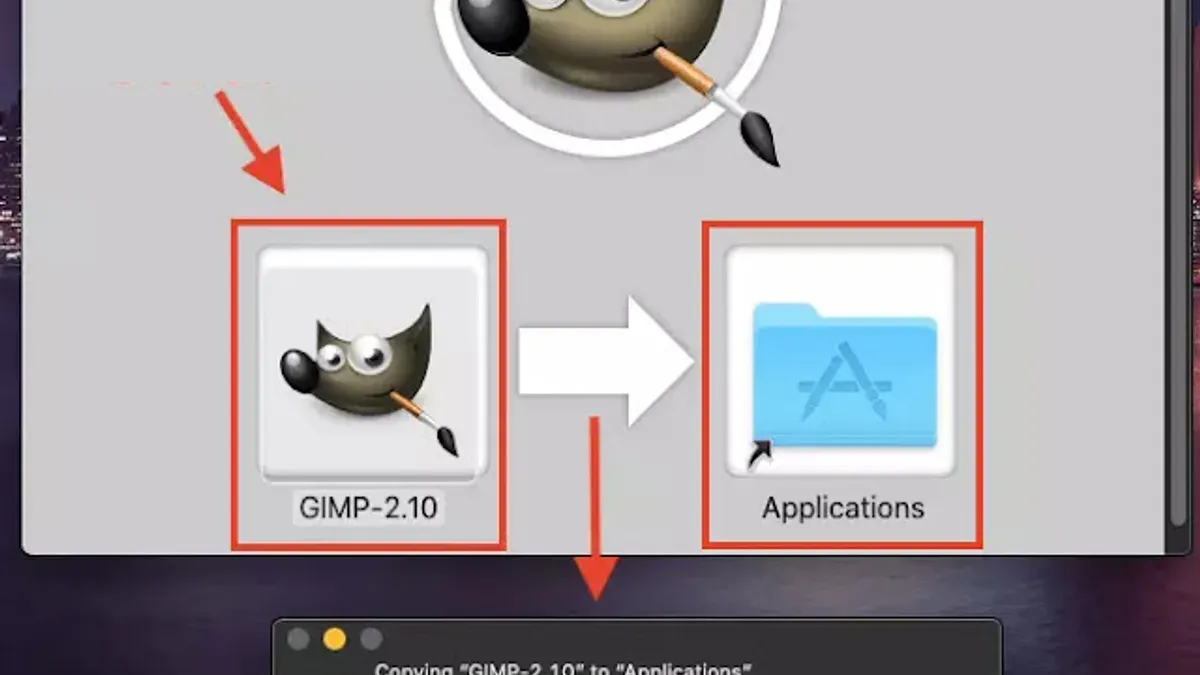
- Locate the downloaded .dmg file, usually in your Downloads folder, and double-click it to mount the installer disk image. A new window will open showing the GIMP application icon and a shortcut to your Applications folder.
- Drag the GIMP icon directly into the Applications folder shortcut within this window. This copies the application to your Mac’s main applications directory, which is the recommended location for system-wide access.
- After copying finishes, eject the mounted .dmg by right-clicking its icon on the Desktop or in Finder’s sidebar and selecting Eject. This unmounts the installer image safely.
- Open your Applications folder and locate the GIMP app. On first launch, macOS Gatekeeper may block the app because it is from an identified developer not registered with Apple. If you see a warning, go to System Preferences > Security & Privacy > General and click Open Anyway. Confirm your choice in the subsequent prompt to allow GIMP to run.
- When launching GIMP for the first time, macOS may request permission to access folders or system resources. Grant these permissions as they enable plugins and file handling to work properly.
- Once open, verify GIMP’s interface loads fully without error. You have successfully installed GIMP on your Mac.
Common visual indicators include the drag-and-drop cursor icon during installation, the Gatekeeper security prompt offering the Open button, and the GIMP splash screen upon successful launch.
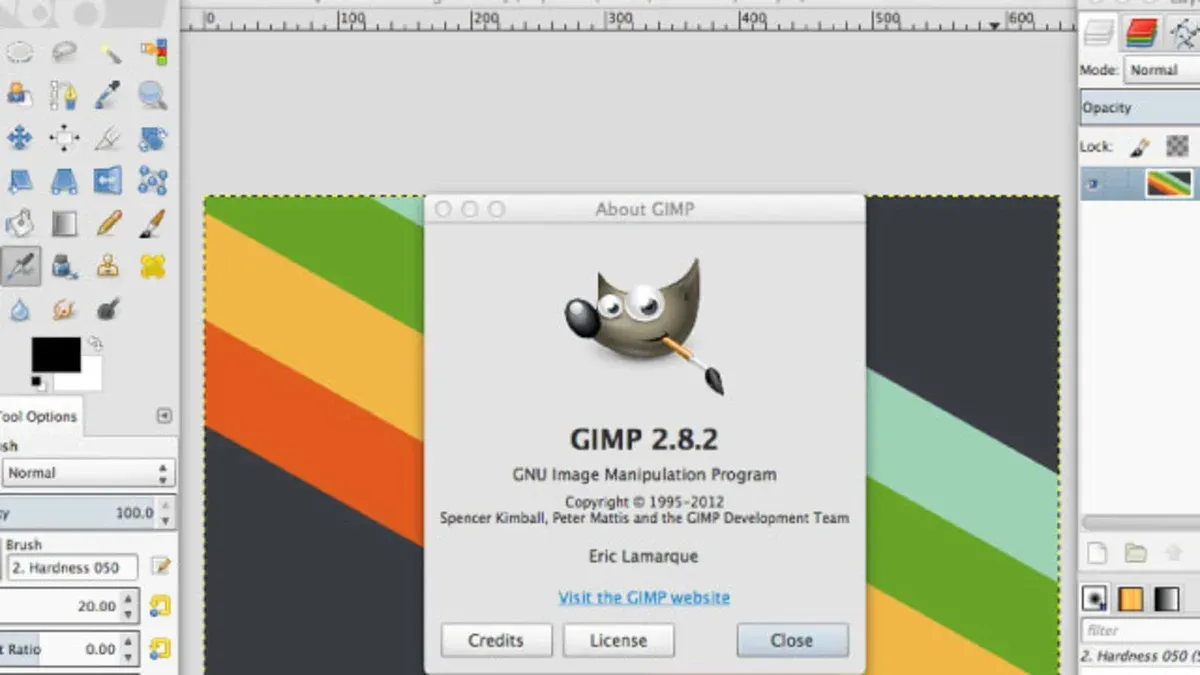
- Open the downloaded .dmg file
- Drag GIMP to the Applications folder
- Eject the installer disk image
- Allow GIMP through Gatekeeper if prompted
- Grant necessary permissions on first launch
- Confirm GIMP launches successfully
Where Does GIMP Install to on Mac?
By default, when you install GIMP on your Mac, the main application is placed in the /Applications folder. This is the standard location for most macOS apps, making GIMP easy to find and launch from Launchpad or Finder's Applications sidebar.
However, GIMP also uses additional folders for configuration, plugins, and user-specific data. These are stored within your user Library, which is hidden by default to prevent accidental changes.
Locating the GIMP Application
- Open Finder.
- Click on Applications in the sidebar.
- Look for GIMP.app within the list.
- Double-click to launch; if it opens successfully, it confirms the correct installation location.
This placement ensures that GIMP is accessible system-wide for your user account.
Finding GIMP Configuration and Plugin Files
Your personal GIMP settings, plugins, brushes, and scripts are stored in hidden subfolders within your home directory. The typical path is:
/Users/yourusername/Library/Application Support/GIMP/2.10/
Here, "2.10" represents the GIMP version folder and may vary with newer releases.
- In Finder, click the Go menu in the top bar.
- Hold the Option key to reveal the hidden Library option and select it.
- Navigate to Application Support > GIMP > 2.10.
- Inside, you'll find folders for plugins, brushes, and other user data.
Accessing these folders allows you to add plugins manually, back up your settings, or troubleshoot issues related to extensions and customizations.
How to Install a GIMP Plugin on Mac
Enhance GIMP's functionality by adding plugins specifically designed to extend its capabilities. On a Mac, plugins must be placed in the correct directory within your user Library folder to be recognized by GIMP.
- Locate the GIMP plugins folder: Open Finder, press Command + Shift + G, and enter
~/Library/Application Support/GIMP/2.10/plug-ins. This is the standard path where GIMP looks for user-installed plugins. - Download the plugin from a reputable source: Choose a plugin compatible with your GIMP version, such as the popular "Resynthesizer" plugin for advanced texture editing. Ensure the plugin is macOS-compatible and preferably distributed as a precompiled binary or script.
- Install the plugin: Extract the downloaded plugin if compressed. Copy the plugin file or folder into the
plug-insdirectory you opened earlier. For example, place the "resynthesizer" executable and associated scripts directly inside this folder. - Set plugin permissions: Ensure the plugin file has executable permissions. Right-click the plugin file, select Get Info, and under Sharing & Permissions, confirm your user can read and write. Alternatively, use Terminal to run
chmod +xon the plugin executable. - Restart GIMP: Close and reopen GIMP to load the new plugin. If installed correctly, the plugin will appear in the menus, commonly under Filters or a dedicated submenu.
- Verify plugin availability: For the Resynthesizer plugin, check under Filters > Enhance > Heal Selection. Selecting this confirms the plugin is active and ready for use.
Following these steps ensures your GIMP installation on Mac gains new features through plugins without confusion about file locations or permissions.
Troubleshooting Common Installation Issues on Mac
When macOS blocks GIMP from launching, you’ll usually see an alert stating “GIMP can’t be opened because Apple cannot check it for malicious software.” To fix this, open System Preferences > Security & Privacy > General tab, and look for an "Open Anyway" button near the bottom. Click it, then try reopening GIMP; this overrides the security setting for that app specifically.
If GIMP installation fails or the app behaves erratically, the downloaded installer might be corrupted. Redownload the.dmg file from the official GIMP website and verify its file size matches the one listed on the download page. After mounting the installer, drag GIMP into the Applications folder carefully to avoid permission issues.
If plugins aren’t recognized after installation, ensure they are correctly placed in ~/Library/Application Support/GIMP/plug-ins with executable permissions. To set permissions, use Finder's Get Info and check “Read & Write” for your user or use Terminal with chmod +x on the plugin files. Then, restart GIMP to load the plugins.
For updating or reinstalling GIMP, first quit the app, then delete the GIMP application from Applications and remove the GIMP folder in ~/Library/Application Support/ to clear old settings. Reinstall using the fresh.dmg installer to avoid conflicts from previous versions.
- Open System Preferences > Security & Privacy > General. Look for “Open Anyway” if GIMP is blocked, then click it. You should be able to launch GIMP without security warnings.
- Verify your downloaded installer’s file size matches the official size listed online. If it differs, redownload to avoid corrupted installation.
- Place plugins in
~/Library/Application Support/GIMP/plug-insand set executable permissions via Finder or Terminal (chmod +x). Restart GIMP to activate plugins. - For clean reinstall, delete GIMP from Applications and remove settings in
~/Library/Application Support/GIMP/. Then install fresh from the official.dmg.
Installing GIMP on MacBook Pro vs MacBook Air: Any Differences?
When installing GIMP on MacBook Pro and MacBook Air, the core installation process remains the same, but hardware architecture and performance can influence your experience.
Hardware Architecture: Intel vs Apple Silicon
Recent MacBook Pro and Air models use Apple Silicon chips (M1, M2), while older ones rely on Intel processors. GIMP currently offers a universal binary that runs natively on both architectures. However, if you use plugins or extensions compiled for Intel only, you may need to run GIMP using Rosetta 2 on Apple Silicon Macs. Rosetta 2 translation allows Intel-based apps to run seamlessly but may slightly reduce performance.
Performance Expectations
MacBook Pro models generally have higher-performance CPUs, more RAM options, and better graphics capabilities than MacBook Air. This means GIMP will handle large files, complex filters, and multitasking more smoothly on a MacBook Pro. The MacBook Air is capable for standard image editing but may show lag with very large projects or intensive processing.
Model-Specific Troubleshooting Tips
On Apple Silicon Macs, if you encounter plugin crashes or UI glitches, try launching GIMP with Rosetta 2: find the GIMP app in Finder, right-click and select "Get Info," then check "Open using Rosetta." For Intel Macs, ensure your macOS version supports the GIMP release you downloaded.
| Specification | MacBook Pro | MacBook Air |
|---|---|---|
| Processor | Intel Core i5/i7 or Apple M1/M2 | Intel Core i3/i5 or Apple M1/M2 |
| RAM | 8GB to 64GB | 8GB to 24GB |
| Graphics | Dedicated GPU or integrated Apple GPU | Integrated Apple GPU |
| Typical Use | Heavy editing, multitasking | Light to moderate editing |
Read next
- How to Install Blender on Mac: A Clear Step-by-Step Guide
- How to Install Figma on Mac: A Step-by-Step Expert Guide
- How to Install and Use the Canva App on Your Mac: A Step-by-Step Guide
- How to Install Obsidian on Mac: A Clear Step-by-Step Guide
Frequently asked questions
How to install macro gimp?
To install macros in GIMP, you typically need to add them as scripts or plugins. Place the macro files, usually with extensions like.scm or.py, into GIMP's scripts or plug-ins folder found within the GIMP user directory (~/Library/Application Support/GIMP/2.10/ on Mac). After copying, restart GIMP and find the macro under the appropriate menu, often Script-Fu or Python-Fu. Ensure the macro is compatible with your GIMP version to avoid errors.
How to install gimp?
Installing GIMP involves downloading the official installer from gimp.org and running it on your device. For macOS, you open the downloaded.dmg file and drag the GIMP.app to your Applications folder. On Windows, run the.exe installer and follow the prompts. Always confirm you’re downloading from the official site to avoid corrupted or unsafe versions.
How to install gimp on windows 11?
Download the Windows installer from the official GIMP website and run the.exe file. Follow the setup wizard prompts, including agreeing to the license and selecting installation options. Once installed, launch GIMP from the Start menu or desktop shortcut. It’s straightforward and similar to previous Windows versions.
How to install gimp on ubuntu?
Open the Terminal and type sudo apt update to refresh package lists. Then install GIMP via sudo apt install gimp. This installs the latest stable version available in Ubuntu’s repositories. You can also get newer versions via Flatpak or Snap if you prefer the latest features.
How to install gimp on macbook pro?
Download the official GIMP.dmg file from gimp.org. Open it and drag the GIMP.app icon into your Applications folder. If macOS blocks the app on first launch due to security settings, go to System Preferences > Security & Privacy, then allow GIMP under the General tab. This process is the same for MacBook Pro and other Mac models.
Quick checklist
- Prepare your Mac by ensuring macOS is updated and you have administrator access.
- Download GIMP only from the official website or trusted sources to avoid security risks.
- Follow the installer instructions carefully, granting necessary permissions in System Preferences > Security & Privacy if prompted.
- Locate GIMP in the /Applications folder to confirm proper installation.
- Install plugins by placing them in the correct folder: ~/Library/Application Support/GIMP/2.10/plug-ins.
- If installation stalls or GIMP won’t launch, check Gatekeeper settings and remove quarantine flags using Terminal if needed.
- Note differences in storage paths and permissions between MacBook Pro and MacBook Air models when troubleshooting.
This guide does not cover advanced GIMP configuration or troubleshooting on non-macOS platforms, nor does it address compiling GIMP from source.
If you require highly customized GIMP builds, integration with professional workflows, or use on Windows or Linux, consider specialized resources tailored to those environments. For most Mac users, following these steps ensures a stable, fully functional GIMP installation ready for both casual editing and moderate plugin use.
Your next step is to open GIMP and explore the Preferences menu under GIMP > Preferences to customize your environment, including input devices and theme settings. This setup will help you optimize your workflow and avoid common pitfalls related to default configurations.



