
How to Install Illustrator on Mac: A Clear Step-by-Step Guide
Follow this clear step-by-step guide to install Illustrator on your Mac, covering system requirements, download, and troubleshooting tips.

Short answer: To install Illustrator on Mac, download the Adobe Creative Cloud app from Adobe’s official website, sign in or create an Adobe ID, then find Illustrator in the app and click install. This straightforward process ensures you get the latest version optimized for your Mac.
This guide covers how to install Illustrator on Mac with clear, step-by-step instructions. You’ll learn what system requirements and preparations are needed before downloading, the difference between free trial and full purchase options, and alternative legitimate free methods. Whether you’re using a MacBook, MacBook Pro, or another Mac model, you’ll find precise advice tailored for your device. Additionally, this article explains how to troubleshoot common installation issues and manage updates and subscriptions effectively to keep your Illustrator running smoothly.
Before you start: What you need to install Illustrator on Mac
To install Adobe Illustrator on your Mac smoothly, ensure your system meets Adobe’s official requirements. Illustrator requires macOS version 11.0 (Big Sur) or later, with at least 8 GB of RAM recommended for optimal performance. You will need a minimum of 2 GB of available hard disk space for installation, but having at least 10 GB free is wise to accommodate cache files and updates.
A stable internet connection is essential, as downloading the installer and activation require online access. Additionally, you must have an Adobe ID to sign in. If you don’t have one, you can create a free account on Adobe’s website.
Understand the licensing options before proceeding: Adobe offers a free 7-day trial giving full access to Illustrator’s features, after which you must subscribe to continue usage. Subscription plans vary but typically start with a monthly fee for the single app. Avoid unauthorized free versions, as these pose security risks and lack official support.
- Check your macOS version by clicking the Apple menu > About This Mac; confirm it’s 11.0 or later.
- Verify at least 10 GB of free disk space via Finder > Go > Computer, right-click your drive, and select Get Info.
- Ensure your internet connection is active and stable by opening a website in Safari.
- Create or sign in to your Adobe ID at adobe.com to access downloads and subscriptions.
- Decide if you want to start with the free trial or purchase a subscription plan from Adobe’s plans page.
How to download Illustrator for Mac from Adobe’s official site
Begin by opening your preferred browser and navigating directly to Adobe’s official website at adobe.com. Avoid third-party sites to prevent counterfeit software and potential security risks.
- On Adobe's homepage, hover over the Creative & Design menu and select Illustrator from the dropdown. This takes you to the Illustrator product page.
- Click the Free Trial button if you want to test Illustrator without immediate payment, or choose Buy now to subscribe directly. Both options lead to user account verification or sign-in.
- Sign in with your Adobe ID or create one if you haven't already. This step authenticates your access and links the download to your Adobe account.
- After sign-in, the download option for the Mac installer appears. Click Download to begin fetching the installation file. Watch your browser’s download bar for progress.
- Once downloaded, verify the file’s integrity by checking its size against Adobe’s published installer size on their support pages or by ensuring the file opens without errors. This confirms the download is complete and untampered.
Watch out for fake download sites offering “free” Illustrator versions or suspiciously small installer files. Official Adobe pages always use https:// and display their trademark logo prominently. If the site URL or interface looks different or asks for unusual permissions, close the tab immediately.
How to install Adobe Illustrator on Mac after download
Once you have downloaded the Adobe Illustrator installer, locate the .dmg file in your Downloads folder. Double-click it to mount the installer volume, which will open a new window showing the Adobe Illustrator installer icon.
- Double-click the Adobe Illustrator Installer icon. You will see the installation wizard launch, starting with a welcome screen prompting you to continue. Click Continue.
- Review the software license agreement when prompted. Click Agree to proceed with the installation.
- If macOS displays a security prompt stating the installer is from an unidentified developer or requires permission, open System Preferences > Security & Privacy > General. Click Allow next to the message about Adobe Illustrator to grant necessary permissions. You may need to unlock this pane by clicking the padlock icon and entering your Mac password.
- The installer will then request your system password to authorize the installation. Enter it and click Install Software.
- Once installation files copy, the Adobe Creative Cloud app will launch to manage the installation. Sign in with your Adobe ID credentials when prompted. This step connects your license or trial to your account.
- After signing in, wait for the installation to complete. You will see a confirmation screen stating that Illustrator has been installed successfully.
- Close the installer and open the Applications folder. Locate and launch Adobe Illustrator to start your first session. The app may perform initial setup tasks and display a welcome screen.
Following these steps carefully ensures a smooth installation without common permission or sign-in issues. If you encounter warnings, always verify you are installing the official Adobe version.
How to install Illustrator on MacBook or MacBook Pro specifically
Installing Adobe Illustrator on your MacBook or MacBook Pro requires attention to your device’s architecture and power settings to ensure smooth setup and optimal performance. Apple Silicon models (M1, M2) run Illustrator natively, providing faster installation and better performance compared to Intel-based Macs.
If you have an Intel Mac, the installation process is straightforward, but if you run an older version of Illustrator not yet optimized for Apple Silicon, macOS will prompt you to install Rosetta 2. Rosetta 2 translates Intel-based apps for Apple Silicon, enabling compatibility. You’ll see a pop-up asking to install Rosetta 2 when you launch Illustrator or its installer, and simply follow the on-screen instructions.
Before installing, make sure your MacBook is plugged into power or has sufficient battery to avoid interruptions. Power-saving modes like Low Power Mode may slow down installation or trigger sleep, so temporarily disable them via System Settings > Battery.
For easier installation and management, use the Adobe Creative Cloud app. It detects your Mac’s chip architecture and installs the appropriate version of Illustrator. Creative Cloud also simplifies updates and license management, especially useful if you use multiple Adobe apps.
- Connect your MacBook or MacBook Pro to power and disable Low Power Mode to prevent installation interruptions.
- Open the Adobe Creative Cloud app; it automatically detects your Mac’s chip type (Apple Silicon or Intel).
- Initiate Illustrator installation; if prompted, accept and install Rosetta 2 (only on Apple Silicon Macs running Intel-only app versions).
- Wait for the installation to complete — Apple Silicon Macs typically install faster due to native support.
- Launch Illustrator to verify installation success and confirm smooth operation.
How to install Illustrator on Mac for free: Trial and alternative legitimate options
Adobe Illustrator offers a free trial that lets you use the full version without restrictions for a limited time, typically seven days. To access this, register on Adobe's official site and download the trial directly; you’ll need to sign in with your Adobe ID. After the trial expires, the full Illustrator experience requires a paid subscription.
Adobe provides discounted subscription plans for students and educators, which significantly reduce the monthly cost. These plans offer the same full-featured Illustrator, making them a practical option if you qualify.
If you want to explore completely free vector graphic editors, consider alternatives like Inkscape or GIMP. These programs differ from Illustrator in interface and advanced features but cover many basic to intermediate design needs without any cost.
- Go to Adobe's Illustrator page and select the free trial option; you should see a download prompt after signing in.
- Install and launch Illustrator; full features will be available during the trial period.
- Before the trial ends, evaluate if you need the full subscription or want to explore discounted plans if eligible.
- If choosing free alternatives, download Inkscape or GIMP from their official sites; confirm installation by opening the app and creating a new project.
How to install Adobe Illustrator on Windows: Quick comparison for cross-platform users
The installation process for Adobe Illustrator on Windows closely parallels that on Mac. Both platforms require downloading the installer from Adobe’s official site and using the Adobe Creative Cloud desktop app to manage installation and updates. Signing in with your Adobe ID is essential on both systems.
However, system requirements differ notably. Windows users must ensure compatibility with supported Windows versions (such as Windows 10 or later) and hardware specifications, which vary slightly from macOS requirements. Permissions on Windows are generally managed through User Account Control (UAC), which prompts for administrator approval during installation, whereas macOS requires explicit permission settings through its Security & Privacy preferences due to stricter app notarization and gatekeeper rules.
The Adobe Creative Cloud app interface remains consistent across platforms, but Windows users benefit from a more straightforward installation flow without additional macOS-specific security prompts. Mac users encounter unique steps like allowing system extensions and managing privacy settings to grant Illustrator the necessary system access.
| Step | Windows | Mac |
|---|---|---|
| Download source | Adobe official website | Adobe official website |
| Installer type | .exe file, run with admin rights | .dmg file, requires mounting and permissions |
| Permissions | UAC prompt for admin approval | Security & Privacy settings approval |
| Creative Cloud app | Same interface, manages installation | Same interface, manages installation |
| Security prompts | Minimal beyond UAC | Gatekeeper and notarization checks |
- Download the Illustrator installer from Adobe’s official site on your Windows PC; expect an.exe file.
- Run the installer; when prompted by UAC, click Yes to allow changes.
- Follow the Adobe Creative Cloud app prompts to sign in and begin installation; you’ll see progress within the app.
- Once installed, launch Illustrator from the Start menu or Creative Cloud app; the first run will finalize setup.
This side-by-side understanding helps Mac users appreciate why their installation involves extra security steps, while Windows users experience a more straightforward flow.
Troubleshooting common installation issues on Mac
If you encounter the error “installer can’t be opened because it is from an unidentified developer,” macOS is blocking the app due to security settings. To fix this, go to System Preferences > Security & Privacy > General. Click Open Anyway next to the blocked installer message. Then rerun the installer; you should see a prompt to open the app.
If the Adobe Creative Cloud app fails to install or update, verify that your internet connection is stable and quit any running Adobe processes using Activity Monitor. Then restart your Mac and try reinstalling Creative Cloud from the official Adobe website. A successful install will show Creative Cloud launching and signing in without errors.
For sign-in or license verification errors, ensure your Adobe ID credentials are correct and your subscription is active. Sometimes, signing out of Creative Cloud and signing back in resolves token refresh issues. If you see messages like “Couldn’t verify your license”, check Adobe’s status page for outages and restart your Mac before retrying.
If Illustrator crashes on first launch, clear cached app data by deleting the Adobe Illustrator folder within ~/Library/Application Support/Adobe. Also, update macOS and Creative Cloud apps to the latest versions. A stable launch shows Illustrator opening without spinning beach ball delays or crashes.
- Open System Preferences > Security & Privacy > General to allow blocked installers; you should see an option to Open Anyway.
- Quit Adobe processes in Activity Monitor, restart your Mac, and reinstall Creative Cloud; the app should launch smoothly.
- Sign out and back into Adobe Creative Cloud; license verification errors should clear up.
- Delete Illustrator cache in ~/Library/Application Support/Adobe and update all software; Illustrator should start without crashing.
Keeping Illustrator updated and managing your subscription on Mac
Maintaining Adobe Illustrator’s performance depends on keeping it updated and managing your subscription carefully. Use the Adobe Creative Cloud app as your central hub for updates and subscription control.
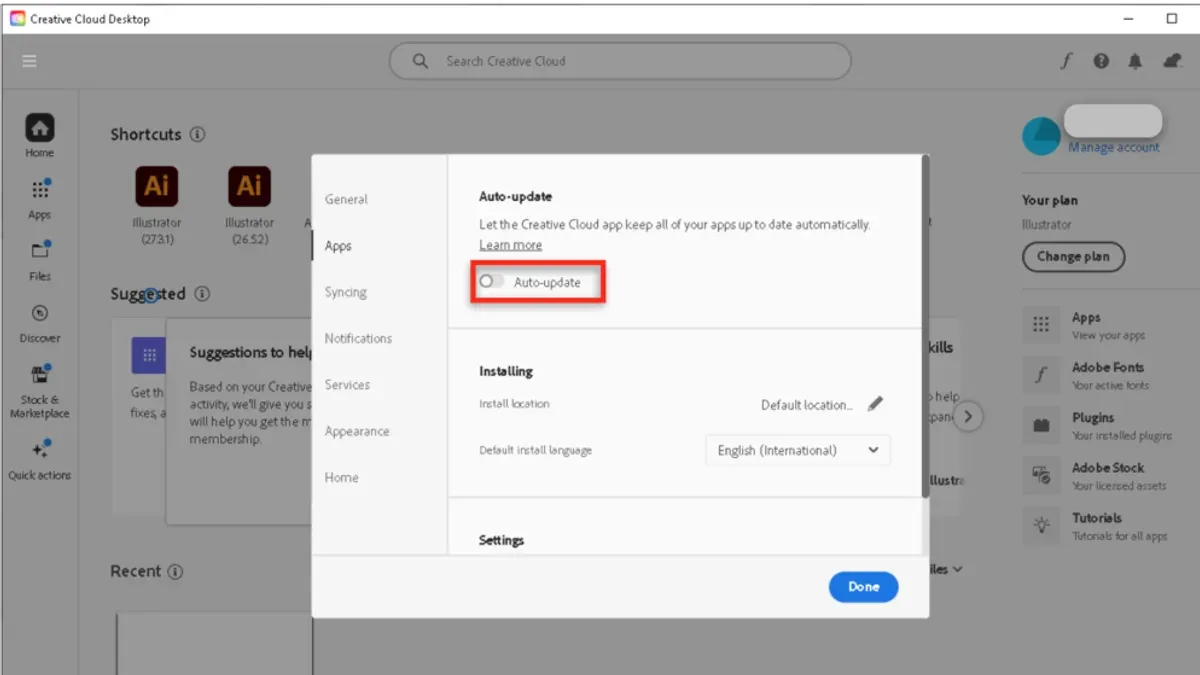
Updating Illustrator via Creative Cloud
Open the Creative Cloud app from your Applications folder or menu bar. Navigate to the Apps tab where you will see Illustrator listed. If an update is available, a blue Update button appears next to Illustrator. Click it to start the process.
- Launch the Adobe Creative Cloud app; you should see the Apps tab by default.
- Locate Illustrator in the list — if an update is ready, the Update button will be visible.
- Click Update and wait for the download and installation to complete.
- Once finished, the button will change to Open, indicating the latest version is installed.
You can also check for updates manually by selecting the three-dot menu next to Illustrator and choosing Check for Updates.
Managing Your Subscription
To avoid unexpected charges, manage your subscription through your Adobe account online. Visit account.adobe.com and sign in.
- Go to the Plans section to view your active subscriptions.
- Here, you can see renewal dates, change plans, or cancel your subscription.
- Set reminders before the renewal date to review your usage and decide if you want to continue.
Adobe sends email notifications before billing, but checking your account regularly is the best way to stay in control.
Keeping Illustrator updated ensures compatibility with macOS and access to new features, while subscription management helps you avoid surprises and tailor your plan to your needs.
Read next
- How to Install Photoshop on Mac: A Clear Step-by-Step Guide
- How to Install Krita on Mac: A Step-by-Step Expert Guide
Frequently asked questions
How to get illustrator on mac?
You get Illustrator on Mac by visiting Adobe’s official website and downloading it through the Creative Cloud app. You need an Adobe ID to sign in or create an account, then select Illustrator from the apps list to download and install. Ensure your Mac meets the minimum system requirements before starting.
How to install illustrator for free?
To install Illustrator for free, you can start with Adobe’s official 7-day free trial available on their website. This trial gives you full access to all features without payment. Alternatively, if you’re a student or educator, check if you qualify for discounts or free access through your institution.
How to install illustrator?
After downloading the Illustrator installer from Adobe’s site or via Creative Cloud, open the installer file and follow the on-screen prompts. You’ll be asked to sign in with your Adobe ID and choose installation preferences. The process usually takes a few minutes, after which Illustrator will be ready to launch.
How to install illustrator on mac for free?
Installing Illustrator on Mac for free primarily involves using Adobe’s trial version, which is fully functional for a limited time. Download it from Adobe’s official page, install via the Creative Cloud app, and enjoy the software without restrictions during the trial period. There are no legitimate permanently free versions of Illustrator, so avoid unauthorized downloads.
How to install adobe illustrator on windows?
Installing Adobe Illustrator on Windows mirrors the Mac process: download the Creative Cloud installer from Adobe’s official site, run the installer, and sign in with your Adobe ID. Select Illustrator from the Creative Cloud app, then download and install it. Make sure your Windows PC meets Adobe’s system requirements to avoid issues.
Quick checklist
- Confirm your Mac meets Adobe Illustrator’s minimum system requirements, including macOS version and available disk space.
- Download Illustrator only from Adobe’s official website or the Creative Cloud app to avoid security risks.
- Follow the installation prompts carefully and allow any necessary permissions in System Preferences > Security & Privacy.
- If installing on a MacBook or MacBook Pro, ensure your device is connected to power to avoid interruptions.
- Choose the free trial if you want to test Illustrator before purchasing, or explore Adobe’s limited free offerings if available.
- Keep Illustrator updated regularly via the Creative Cloud app to access new features and security patches.
- If you encounter issues, check for macOS updates, restart your Mac, or consult Adobe support resources.
Honest limits
This guide does not cover installing cracked or pirated versions of Illustrator, as these are illegal and unsafe. Using unauthorized software risks malware, data loss, and legal consequences.
Users with very old Macs or unsupported macOS versions may not be able to install the latest Illustrator versions and should consider alternative software compatible with their system.
Next step
To start confidently, visit Adobe’s official website and download the Creative Cloud app. This app manages your Illustrator installation, updates, and subscription options, streamlining the entire process and ensuring you always have access to the latest legitimate version.



