
How to Install KiCad on Mac: A Step-by-Step Expert Guide
Step-by-step guide to installing KiCad on Mac, covering downloads, security settings, and setup tips for seamless PCB design.

Short answer: To install KiCad on Mac, download the official DMG installer from the KiCad website, open it, and drag the KiCad.app to your Applications folder. Then, configure security permissions in macOS to allow the app to run smoothly, and install the necessary libraries to start designing PCBs without delay.
This guide covers how to install KiCad on Mac with clear, step-by-step instructions tailored to macOS’s unique environment. You’ll learn why each step matters, how to avoid common pitfalls like Gatekeeper blocks or missing libraries, and tips for setting up KiCad effectively after installation. Whether you’re an electronics hobbyist or a professional, this article ensures you can confidently get KiCad running on your Mac and start designing without confusion or wasted time.
Before you start: What you need to install KiCad on Mac
To ensure a smooth KiCad installation on your Mac, first verify your macOS version. The latest KiCad builds support macOS 11 Big Sur and later, including macOS 12 Monterey and macOS 13 Ventura. Older versions may face compatibility issues or lack support.
Your Mac should have at least 4 GB of RAM and 3 GB of free disk space to accommodate KiCad and its libraries comfortably. A stable internet connection is essential not only for downloading KiCad but also for fetching updates and libraries during setup.
KiCad on macOS may require XQuartz, an open-source implementation of the X Window System. XQuartz facilitates graphical rendering for some KiCad components and plugins. Installing it beforehand prevents runtime errors related to display and interaction issues.
macOS’s security settings can block KiCad installation or launch. You may encounter prompts in System Settings > Privacy & Security > Security where you need to allow apps from identified developers. If a warning says "KiCad can't be opened because Apple cannot check it for malicious software," click Open Anyway. Also, granting permissions for file access and network connections will avoid unexpected interruptions.
- Check your macOS version by clicking the Apple icon > About This Mac. Confirm it’s macOS 11 or newer.
You should see your macOS version clearly displayed. - Ensure your Mac has at least 4 GB RAM and 3 GB free disk space via the Storage tab in About This Mac.
You should confirm available storage and memory meet minimum requirements. - Verify your internet connection is active and stable by opening a website in Safari.
The page should load without delay. - Download and install XQuartz from the official site (https://www.xquartz.org/). After installation, restart your Mac.
XQuartz should launch correctly from your Applications folder. - Prepare for security prompts during KiCad installation by opening System Settings > Privacy & Security. Scroll to the Security section and be ready to allow KiCad when prompted.
You should see a prompt allowing you to "Open Anyway" if macOS blocks the app initially.
Download KiCad for Mac from the official source
Obtaining KiCad from the official website guarantees you get the latest stable version free from tampering or outdated files. Avoid third-party download sites that may offer older or modified installers, risking security and compatibility.
- Open your preferred web browser and go to https://kicad.org. You should see the official KiCad homepage.
- Navigate to the "Downloads" section by clicking the link in the top menu. This page lists installers for all supported platforms.
- Locate the macOS option and click the download button for the stable release. Stable releases have passed thorough testing, ensuring reliability, unlike nightly builds, which are experimental and may contain bugs.
- After the download completes, look for available checksum files (usually SHA256) on the same page or linked nearby. These checksums confirm the file integrity.
- Open the Terminal app on your Mac and run the command
shasum -a 256 /path/to/downloaded/file.dmgreplacing the path with your actual file location. The output should match the checksum listed on the KiCad website exactly. - If the checksums match, you have a verified authentic installer ready for use. If not, delete the file and re-download to avoid corrupted or compromised software.
Example checksum verification output:
f3b2c1e7d4a5e67890123bcdef4567890abcdef1234567890abcdef1234567890 KiCad-6.0.0-macOS.dmg
This output matches the SHA256 string published by KiCad, confirming file integrity.
Following these steps ensures you safely download the correct KiCad installer for macOS without confusion or security risks.
Install KiCad on macOS step-by-step
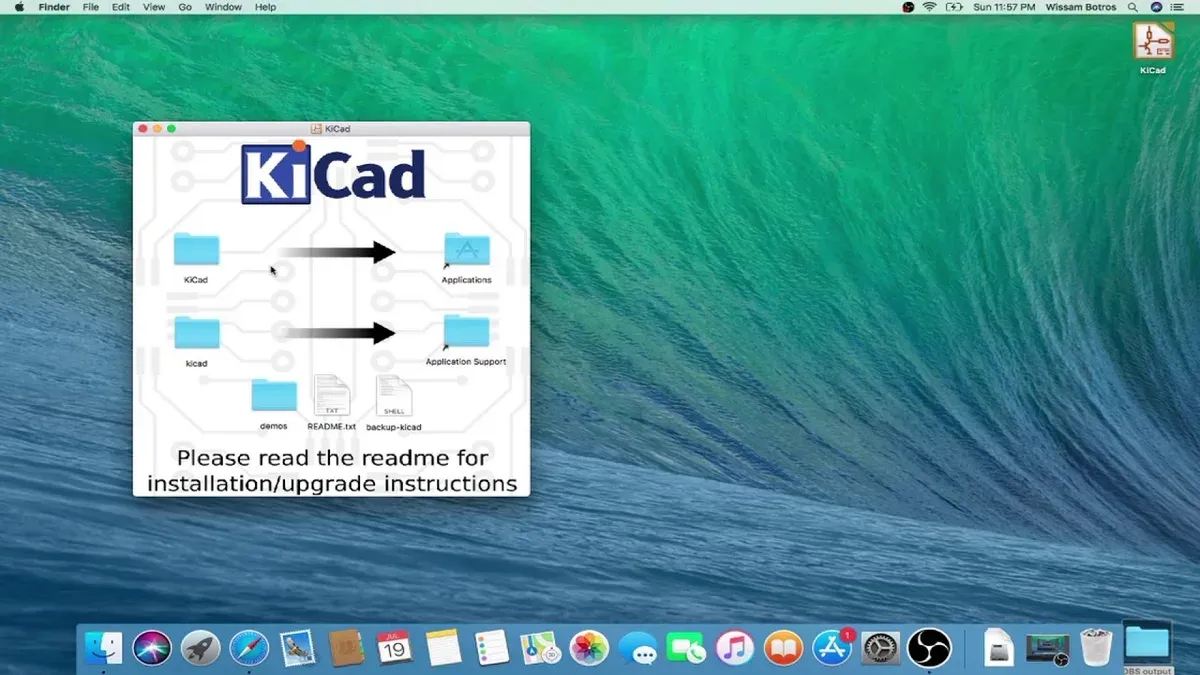
- Open the downloaded.dmg file. Locate the KiCad.dmg installer in your Downloads folder and double-click it. This will mount a virtual disk and open a Finder window showing the KiCad application icon and a shortcut to the Applications folder. Seeing these confirms the disk image mounted correctly.
- Drag KiCad to the Applications folder. Click and drag the KiCad icon onto the Applications shortcut. This copies the app to your system-wide Applications directory, ensuring KiCad has the proper permissions and is accessible like other apps. Installing here avoids permission problems and simplifies future updates.
- Eject the mounted disk image. Once the copy completes, right-click the mounted KiCad disk on your Desktop or in Finder’s sidebar and select "Eject." This cleans up the virtual drive and avoids confusion from running KiCad directly from the.dmg, which can cause issues with file access and updates.
- Adjust macOS security settings if KiCad is blocked. The first time you open KiCad, macOS may prevent it from launching due to its security protocols. If you see an alert like "KiCad cannot be opened because the developer cannot be verified," go to System Settings > Privacy & Security > Security & Privacy and click "Open Anyway" next to the KiCad warning. This grants explicit permission to run the app.
- Launch KiCad for the first time. Open KiCad from your Applications folder or Launchpad. On first launch, you may encounter setup prompts to configure default library paths and environment variables. Follow these prompts carefully to ensure KiCad can locate essential components for PCB design. Successful launch shows the KiCad project manager window ready for your designs.
Each step ensures KiCad installs cleanly and runs smoothly on macOS, preventing common pitfalls like permission errors or launch blocks. Proper installation in the Applications folder is crucial for stability and seamless future updates.

- Open the KiCad.dmg file.
- Drag KiCad to the Applications folder.
- Eject the mounted disk image after copying.
- Allow KiCad in macOS Security & Privacy if blocked.
- Launch KiCad and complete initial setup prompts.
How to install KiCad libraries on Mac
KiCad libraries contain the essential symbol, footprint, and 3D model files that allow you to design printed circuit boards accurately. Without properly configured libraries, KiCad cannot provide the components you need or verify PCB layouts effectively.
Often, the KiCad installer includes a basic set of libraries, but updating to the latest official libraries or adding custom ones ensures you have access to the newest components and features.
- Locate or download the official KiCad libraries. If your installation did not include libraries or you want the latest versions, download the official KiCad libraries from the KiCad GitHub repository at https://gitlab.com/kicad/libraries. You will get folders like kicad-symbols, kicad-footprints, and kicad-packages3d. Once downloaded, place these folders in a central location such as /Users/yourname/Documents/KiCad/libraries for easy management.
- Open KiCad preferences to configure library paths. Launch KiCad and go to Preferences > Configure Paths. Here, add or update entries for KICAD_SYMBOL_DIR, KICAD_FOOTPRINT_DIR, and KICAD_3D_MODEL_DIR to point to the folders where you stored the downloaded libraries. For example, /Users/yourname/Documents/KiCad/libraries/kicad-symbols for symbols.
- Verify libraries are recognized. Open the Symbol Editor and Footprint Editor from KiCad’s main window. You should see the full list of components from the updated libraries. If not, recheck the configured paths and folder permissions.
- Keep libraries updated and add custom ones. Regularly pull updates from the official repository or use KiCad’s built-in library updater. To add custom libraries, place them in a separate folder and add that path under Preferences > Manage Symbol Libraries or Manage Footprint Libraries. This way, you can maintain your own components without overwriting official files.
Example folder paths on macOS:
| Library Type | Default Location (installed) | Custom Location (recommended) |
|---|---|---|
| Symbols | /Applications/KiCad/kicad-symbols | /Users/yourname/Documents/KiCad/libraries/kicad-symbols |
| Footprints | /Applications/KiCad/kicad-footprints | /Users/yourname/Documents/KiCad/libraries/kicad-footprints |
| 3D Models | /Applications/KiCad/kicad-packages3d | /Users/yourname/Documents/KiCad/libraries/kicad-packages3d |
How to use KiCad effectively after installation
Once KiCad is installed, your next step is to create a new project to begin designing PCBs. Start KiCad and select File > New Project > New Project. Name your project and choose a folder; you should see a project file (.pro) along with subfolders for schematics and PCB layouts appear.
The main KiCad interface features several key components: the Project Manager window, the schematic editor (Eeschema), the PCB layout editor (Pcbnew), and the footprint and symbol libraries. These tools work together in a seamless workflow.
- Open the schematic editor (Eeschema) from the Project Manager. You should see a blank sheet and toolbars for placing components and wiring.
- Create your circuit by placing symbols and connecting pins with wires. Save your schematic to confirm changes.
- Switch to the PCB layout editor (Pcbnew). Import your netlist from the schematic; this maps your circuit connections onto the PCB canvas.
- Arrange footprints and route tracks to define the physical PCB layout. Use design rule checks (DRC) to ensure connectivity and spacing rules are met.
- Generate manufacturing files by selecting File > Plot to create Gerber files and drill files needed for fabrication.
KiCad’s user interface on Mac is consistent with other platforms, but menu placements and window behaviors follow macOS conventions—expect standard Mac menu bars and window controls. This cross-platform consistency helps when collaborating across operating systems.
For detailed guidance, consult the official KiCad documentation at docs.kicad.org, which includes tutorials and reference manuals. The KiCad user community is active on forums like the KiCad.info user forum and Reddit, offering practical help and project examples.
Example project folder structure after saving your first project:
- MyProject.pro (project file)
- MyProject.sch (schematic file)
- MyProject.kicad_pcb (PCB layout file)
- 3D Models and Libraries folders (if configured)
Including screenshots of the Project Manager window and schematic editor on Mac can help you recognize these components as you start.
How to install KiCad on Windows compared to Mac
Installing KiCad on Windows generally follows a more straightforward process than on Mac, primarily due to different system security models and installation workflows. Windows users download a single executable installer (.exe) from the official KiCad website, which bundles KiCad and its libraries together, simplifying setup.
| Aspect | Mac Installation | Windows Installation |
|---|---|---|
| Installer Type | Disk image (.dmg) file requiring manual copy to Applications | Standalone executable (.exe) installer with guided wizard |
| Security & Permissions | macOS Gatekeeper may block unsigned apps; requires manual approval via System Preferences > Security & Privacy | Standard Windows UAC prompt; fewer permission hurdles during installation |
| Library Handling | Separate library setup needed, configuring paths in preferences | Libraries are installed automatically alongside the application |
| Common Issues | macOS-specific Gatekeeper blocks, missing dependencies like XQuartz | Occasional issues with Windows Defender or antivirus blocking installer |
Windows installation proceeds as follows:
- Download the KiCad Windows installer (.exe) from the official source. You should see the file appear in your Downloads folder.
- Run the installer by double-clicking it; accept User Account Control prompts to proceed.
- Follow the setup wizard steps: accept license, choose installation folder, and select components.
- Wait for installation to complete; the wizard will confirm success and offer to launch KiCad.
- Launch KiCad; verify libraries are loaded automatically by checking the preferences under “Configure Paths.”
Compared to Mac, Windows installation is more automated with fewer manual steps. Mac users must handle security permissions explicitly and set library paths manually, which can cause confusion if skipped. For detailed Windows-specific instructions and troubleshooting, refer to the official KiCad Windows installation guide.
Troubleshooting common KiCad installation issues on Mac
KiCad installation on macOS can sometimes run into issues linked to the platform’s security features, library configuration, or system updates. Here’s how to resolve the most frequent problems.
KiCad won’t open due to macOS security restrictions
If you see a message like "KiCad can’t be opened because Apple cannot check it for malicious software," macOS is blocking the app due to its Gatekeeper settings.
- Open System Preferences and go to Security & Privacy.
- Under the General tab, look for a message stating KiCad was blocked from opening.
- Click Allow Anyway.
- Try opening KiCad again; you may be prompted with a new dialog—click Open to launch.
This bypasses Gatekeeper’s block while keeping your system protected.
Missing or misconfigured libraries causing errors
Errors like "Library path not found" or missing symbols/footprints usually stem from incorrect library paths.
- Open KiCad and navigate to Preferences > Configure Paths.
- Verify that paths for symbol libraries, footprint libraries, and 3D models point to the correct folders inside the KiCad installation or user library directories.
- If any path is incorrect or empty, update it to the proper directory (commonly under
/Applications/KiCad.app/Contents/SharedSupportor your user library folder).
After fixing paths, restart KiCad to apply changes.
Performance issues or crashes on certain macOS versions
Some users report slowdowns or crashes, often linked to incompatible macOS versions or graphics drivers.
- Ensure your macOS is updated to the latest point release available for your hardware.
- Check for any pending KiCad updates that might address compatibility fixes.
- If crashes persist, reset KiCad’s configuration by deleting the
kicad.profile in your project or resetting preferences via Preferences > Reset to Defaults.
Running KiCad on older macOS versions might require using legacy builds available on the official site.
Problems running KiCad after macOS updates
Post-update issues often involve permission changes or broken symlinks.
- Recheck macOS security settings as described above to ensure KiCad is allowed to run.
- Run the Terminal command
xattr -cr /Applications/KiCad.appto remove extended attributes that may block execution. - Verify your library paths again since updates may affect mounted volumes or user directories.
- Restart your Mac to clear any locked resources.
Following these steps typically resolves update-related issues.
Read next
- How to Install Inkscape on Mac: A Complete Step-by-Step Guide
- How to Install Krita on Mac: A Step-by-Step Expert Guide
- How to Install SketchUp on Mac: A Step-by-Step Expert Guide
- How to Install Blender on Mac: A Clear Step-by-Step Guide
Frequently asked questions
How to download kicad?
To download KiCad, visit the official KiCad website at kicad.org and navigate to the Downloads section. Choose the appropriate version for your operating system, such as macOS, and click the download link. Avoid third-party sites to ensure you get the latest stable release without added risks.
How to download kicad for windows?
For Windows, head to the KiCad official site and select the Windows installer from the Downloads page. You will typically find an.exe file; download and save it to your preferred folder before running the installer. Make sure your Windows version meets the minimum requirements, usually Windows 10 or later.
How to download kicad software?
Downloading KiCad software involves visiting the official KiCad website and selecting the download for your platform—macOS, Windows, or Linux. Confirm your system's compatibility, then start the download of the installer package. Only use the official site to guarantee authentic, up-to-date software.
Does kicad work on mac?
Yes, KiCad fully supports macOS and runs natively on Mac computers. The macOS version includes all major features available on other platforms. However, macOS-specific steps during installation, like adjusting security settings for unsigned apps, are necessary to avoid issues.
How to install kicad software?
After downloading the appropriate installer for your system, open the file to begin installation. On macOS, drag the KiCad app to the Applications folder and adjust security preferences if prompted. On Windows, run the.exe installer and follow the setup wizard, ensuring you install required libraries and dependencies for full functionality.
Quick checklist
- Verify your Mac meets KiCad’s minimum macOS version requirements.
- Download KiCad only from the official KiCad website to avoid corrupted or unsafe files.
- Follow the macOS installer prompts carefully, granting permissions when requested.
- Install KiCad libraries by cloning or downloading the official repository and configuring paths in KiCad preferences.
- Adjust your macOS security settings if KiCad is blocked from opening initially.
- Familiarize yourself with KiCad’s project and schematic workflows immediately after installation.
- Compare installation steps if you plan to use KiCad on multiple operating systems to avoid confusion.
- Consult troubleshooting steps for common issues like missing libraries or application crashes.
What this guide does not cover
This guide does not cover using KiCad on Mac with virtualization or emulation software, which may have different installation nuances. Users with very old Mac hardware or outdated macOS versions may not be able to run the latest KiCad versions reliably and should consider either upgrading their system or using an older compatible KiCad release.
Now that you have KiCad installed and set up correctly, the most effective next step is to open a sample project and explore the schematic editor, paying special attention to component placement and net connections. This hands-on approach solidifies your understanding and prepares you to design PCBs efficiently without confusion.



