
How to Install Linux Ubuntu in UTM on Mac: A Step-by-Step Guide
Follow this step-by-step guide to install Linux Ubuntu in UTM on your Mac, optimized for both Intel and Apple Silicon architectures.

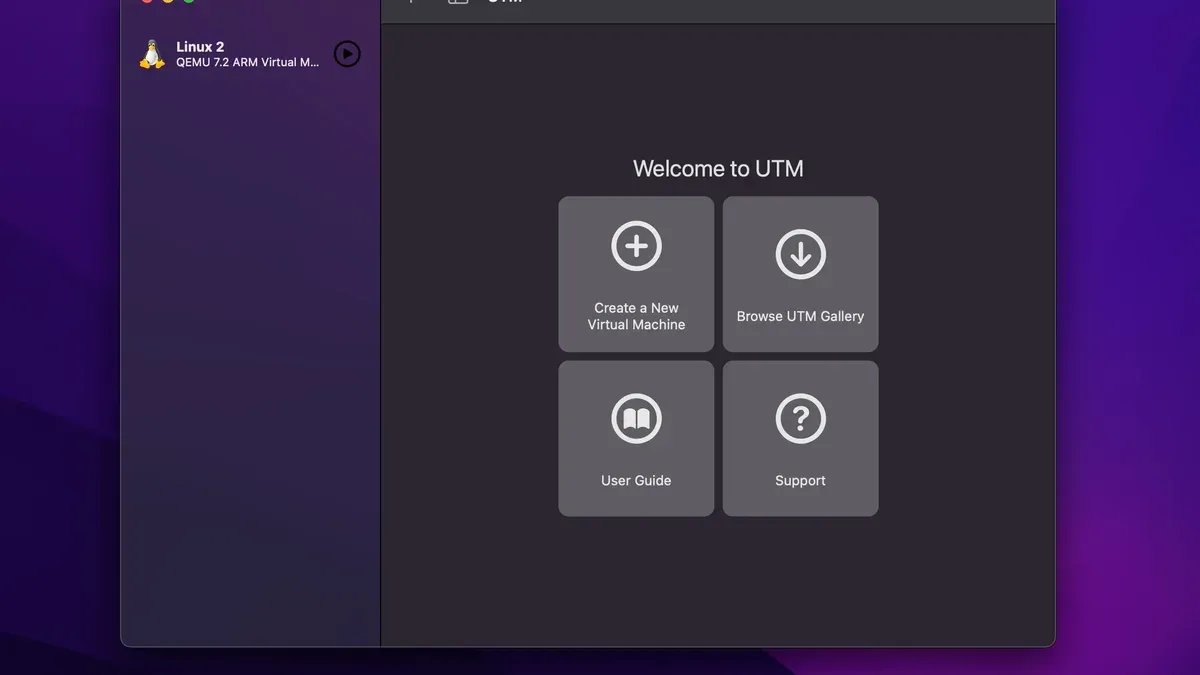
Short answer: Installing Linux Ubuntu in UTM on Mac is straightforward once you have the right tools and settings. UTM supports both Intel and Apple Silicon Macs, enabling you to run Ubuntu through virtualization with optimized performance tailored to your hardware. This guide walks you through the entire process—from downloading UTM to configuring Ubuntu inside the virtual machine—so you can run Linux seamlessly on your Mac.
This article covers how to install Linux Ubuntu in UTM on Mac with a focus on practical steps and performance considerations specific to Mac users. You'll learn how to set up UTM, download the correct Ubuntu ISO, configure virtual hardware for Intel and Apple Silicon chips, and avoid common pitfalls that generic guides often overlook. Whether you have a MacBook Pro, iMac, or another Mac model, this step-by-step guide arms you with the knowledge to get Ubuntu running efficiently using UTM virtualization.
Before you start: What you need to install Ubuntu in UTM on Mac
Begin by identifying your Mac’s chip architecture: Intel or Apple Silicon (M1, M2, or later). This distinction determines which Ubuntu ISO and UTM version you must download. Intel Macs use x86_64 ISOs, while Apple Silicon requires ARM64-compatible Ubuntu ISOs.
Download UTM exclusively from https://mac.getutm.app to ensure you get the latest stable release optimized for your Mac. Install it by dragging the app into your Applications folder and launch it to confirm successful installation.
Next, obtain the appropriate Ubuntu ISO image from https://ubuntu.com/download. The desktop ISO for x86_64 is roughly 3 GB, whereas ARM64 ISOs can be slightly smaller but vary by release. Choose the correct architecture to avoid boot errors.
Verify your Mac has at least 8 GB of RAM and 30 GB of free disk space available. Ubuntu runs smoothly with 2-4 GB RAM allocated in UTM, but more is better for multitasking. Storage should accommodate the ISO plus an installed Ubuntu system and your data.
Understand that UTM leverages Apple's Hypervisor framework for virtualization on Intel and Apple Silicon, but performance and compatibility differ. Apple Silicon virtual machines run ARM64 Ubuntu natively, offering better efficiency, while Intel Macs rely on x86_64 virtualization with typical overhead.
- Check your Mac’s model and chip type under About This Mac > System Report > Hardware Overview. You should see “Processor Name” or “Chip” listed.
- Download UTM from the official website and install it. Open UTM to verify it launches without errors.
- Download the matching Ubuntu ISO (x86_64 for Intel, ARM64 for Apple Silicon) from Ubuntu’s official site.
- Ensure you have at least 8 GB RAM total and 30 GB free disk space.
- Familiarize yourself briefly with virtualization basics: UTM creates a virtual machine that runs Ubuntu isolated from macOS, requiring dedicated resources.
How to install UTM on Mac
Begin by visiting the official UTM website at mac.getutm.app. Download the latest stable DMG file directly from this trusted source to ensure you receive an unmodified and secure version.
Once the download completes, open the DMG file from your Downloads folder. You will see the UTM app icon and a shortcut to your Applications folder.
- Drag the UTM icon into the Applications folder shortcut. This copies UTM to your system-wide app directory, allowing easy access and proper permissions.
- Open the Applications folder and double-click the UTM app to launch it. The first launch may prompt a security confirmation from macOS. Click "Open" to proceed.
- UTM will ask for permission to access system resources needed for virtualization. Accept these prompts for optimal performance and full functionality.
- After launch, explore the Preferences pane available under the UTM menu. Here, adjust default VM storage locations and network settings if necessary. For most users, the default configurations are sufficient and optimized for Mac.
UTM is free and open-source software. It does not require any license purchase, making it accessible for all Mac users. The app is regularly updated via the official website, so check for updates occasionally to maintain compatibility and security.
Successful installation is confirmed when UTM opens without errors and displays the main interface with options to create, import, or manage virtual machines.
- Download UTM DMG from official site
- Drag UTM to Applications folder
- Launch UTM and allow macOS security prompts
- Configure preferences if desired, or use defaults
- Confirm UTM main window loads successfully
How to install Ubuntu on Mac in UTM
- Open UTM and click the + (Create a New Virtual Machine) button. You should see a prompt to select the installation method.
- Choose Virtualize for Apple Silicon Macs or Emulate for Intel Macs, then select Linux as the operating system type. This ensures UTM configures hardware compatibility correctly.
- Assign CPU cores according to your Mac’s capabilities: a good balance is 2 to 4 cores to maintain host performance. Allocate RAM between 4GB and 8GB depending on your Mac’s total memory, as Ubuntu runs comfortably within this range.
- Create a new drive for Ubuntu by setting the storage size to at least 20GB. This provides enough space for the OS and essential applications without wasting disk space.
- Attach the Ubuntu ISO file you previously downloaded by adding it as a removable bootable drive in the CD/DVD section. This will boot the VM into the Ubuntu installer.
- Configure network settings to use Shared Network (SLIRP) for easy internet access without extra setup, and select a display resolution that matches your Mac’s screen for optimal clarity.
- Start the VM by clicking Play. The Ubuntu installer will launch inside the VM window.
- Follow the standard Ubuntu installation wizard: select language, keyboard layout, installation type, and user credentials. Proceed until the installer completes and prompts for a reboot.
- After reboot, eject the ISO from the virtual CD/DVD drive to avoid booting the installer again.
- Install UTM Guest Tools by downloading the ISO from the UTM website, mounting it inside the VM, and running the installation script. This improves graphics performance and enables clipboard sharing.
By following these steps, you set up a fully functional Ubuntu VM optimized for your Mac’s hardware, ready for daily use or development.
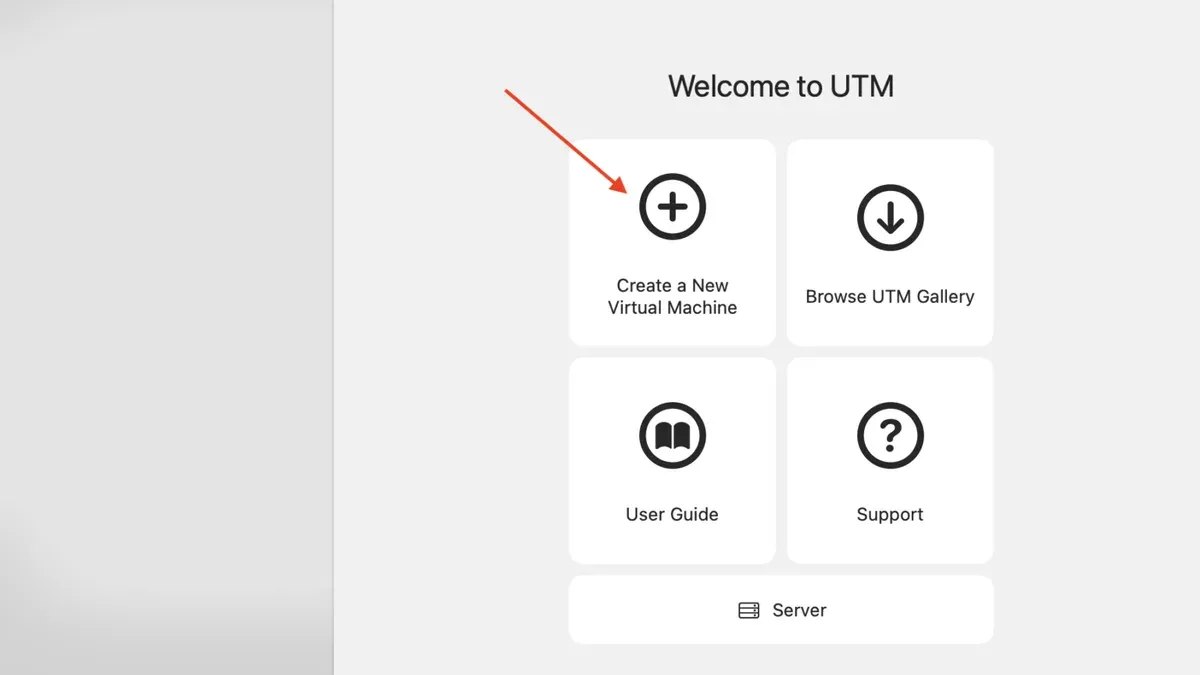
How to install Ubuntu on Intel Mac vs Apple Silicon Mac using UTM
Ubuntu installation in UTM varies notably between Intel and Apple Silicon Macs due to their distinct CPU architectures. Intel Macs use x86_64 architecture, requiring the Ubuntu Desktop ISO for amd64, while Apple Silicon Macs run on ARM64 architecture, so you must select the Ubuntu ARM ISO version to ensure compatibility.
Performance-wise, Apple Silicon Macs generally offer better virtualization efficiency with lower power consumption, but the ARM version of Ubuntu may have fewer prebuilt packages or require additional setup for some software. Intel Macs run the standard Ubuntu x86 version, which has broader software support but may have slower VM performance compared to Apple Silicon.
To optimize your UTM VM on Intel Macs, allocate multiple CPU cores (at least 4 if available) and 4–8 GB of RAM. Enable the "QEMU Acceleration" option if your Mac supports it. For Apple Silicon Macs, assign 4 CPU cores and 6–8 GB RAM to balance performance and thermal constraints. Also, set the VM's architecture explicitly to ARM64 in UTM when creating the VM.
Steps to install Ubuntu on UTM for each Mac type:
- Identify your Mac chip type via "About This Mac".
- Download the correct Ubuntu ISO: amd64 for Intel, ARM64 for Apple Silicon.
- Create a new VM in UTM. For Intel, choose x86_64 architecture; for Apple Silicon, select ARM64.
- Assign CPU cores and RAM: Intel (4+ cores, 4–8 GB RAM), Apple Silicon (4 cores, 6–8 GB RAM).
- Enable hardware acceleration options: "QEMU Acceleration" on Intel; "Virtio" drivers on Apple Silicon.
- Attach the downloaded ISO and start the VM to begin installation.
Benchmarks show Apple Silicon VMs in UTM tend to boot faster and have smoother UI responsiveness than Intel counterparts, but software compatibility on ARM requires careful consideration. Adjusting VM resources based on your Mac’s configuration and intended use will yield the best results.
How to install tmux on Ubuntu running in UTM on Mac
tmux is a terminal multiplexer that lets you manage multiple terminal sessions within a single window, ideal for organizing workflows or running long processes without interruption. Installing tmux in your Ubuntu VM enhances your command-line efficiency and session persistence.
- Open the Ubuntu terminal inside your UTM VM. You should see a prompt like username@ubuntu:~$.
- Update your package lists to ensure you have access to the latest software versions. Run:
sudo apt update
You will see output listing package sources followed by a summary such as "Reading package lists... Done." This confirms your package information is current. - Install tmux by running:
sudo apt install tmux
During installation, you may be prompted to confirm by typing y. The output will end with "Setting up tmux..." indicating successful installation. - Start a tmux session by typing:
tmux
The terminal will change to a status bar at the bottom showing session info, confirming tmux is running. - Within tmux, open a new pane by pressing Ctrl+b then % (vertical split), or Ctrl+b then " (horizontal split). This allows you to run multiple commands side-by-side.
- Detach from your tmux session without closing it by pressing Ctrl+b then d. You return to the normal shell prompt, and your tmux session continues running in the background.
- To reattach to your tmux session, enter:
tmux attach
You will return to your saved workspace.
These steps ensure you have tmux installed and can use its basic features to improve terminal management inside your Ubuntu VM on Mac.
How to download Ubuntu on Mac for use in UTM
To run Ubuntu in UTM on your Mac, you need the appropriate ISO file. Always download the ISO from Ubuntu’s official site to ensure authenticity and security.
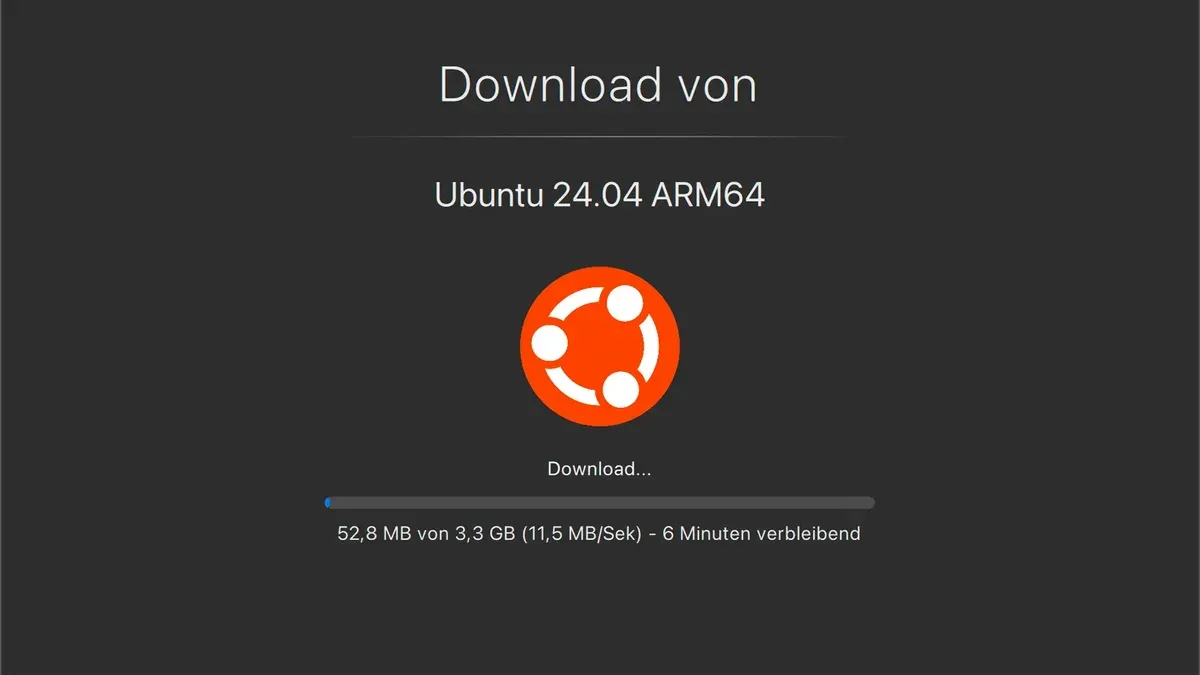
- Open your Mac’s browser and go to https://ubuntu.com/download/desktop. You should see the latest Ubuntu Desktop download page.
- Choose the Ubuntu flavor that suits your needs. The default Ubuntu Desktop is recommended for most users. Alternatives like Kubuntu or Xubuntu offer different desktop environments but require separate downloads, accessible via the “Flavours” link on the page.
- Select the architecture matching your Mac’s chip: x86_64 (64-bit Intel/AMD) for Intel Macs, or ARM64 (aarch64) for Apple Silicon Macs. The download button typically defaults to the correct architecture based on your browser’s user agent, but verify manually to avoid compatibility issues.
- Download the ISO file and save it to a known location on your Mac. The file size is usually around 3 GB, so ensure a stable internet connection.
- Verify the ISO integrity by comparing its checksum with the official one provided on the Ubuntu website. Download the checksum file from the checksum page, then open Terminal and run:
For SHA256 checksum verification:
shasum -a 256 /path/to/ubuntu.iso
Replace /path/to/ubuntu.iso with the actual file path. The output hash should exactly match the official checksum. If it doesn’t, delete the corrupted ISO and re-download.
Using official sources protects you from tampered or outdated files that could cause installation failures or security risks.
- Visit Ubuntu’s official desktop download page
- Choose the Ubuntu flavor and correct architecture (x86_64 or ARM64)
- Download the ISO file to your Mac
- Verify the ISO file’s SHA256 checksum using Terminal
- Confirm checksum matches official values before proceeding
Troubleshooting common issues installing Ubuntu in UTM on Mac
If your Ubuntu VM won’t boot or freezes during installation, first check the VM's architecture matches your Mac’s chip: ARM64 for Apple Silicon, x86_64 for Intel. An error like “Kernel panic” or a stuck black screen often means architecture mismatch or insufficient RAM (allocate at least 4GB). Also verify the ISO integrity; corrupted downloads cause hangs.
When Ubuntu installation fails or hangs, review the UTM VM’s console log. Look for messages like "Failed to mount CD-ROM" or "Installation step timed out." These indicate ISO issues or virtual hardware misconfiguration. Recreate the VM with recommended settings: 2+ CPU cores, 4GB RAM, and a VirtIO disk interface.
For slow or sluggish performance, enable UTM’s "Virtio" drivers for disk and network. Disable unneeded VM features like sound or USB passthrough to reduce overhead. On Apple Silicon Macs, ensure you use ARM64 Ubuntu images for optimal speed.
If you face network connectivity problems inside Ubuntu, check that the VM’s network mode is set to "Shared Network (SLIRP)" or "Bridged Network" if supported. Inside Ubuntu, verify the network interface is up with ip a. A missing DHCP lease often requires restarting the VM or manually configuring IP settings.
Display resolution or input device issues, such as no mouse capture or limited screen size, often stem from missing or unconfigured SPICE guest tools. In UTM settings, enable the SPICE display and install the spice-vdagent package inside Ubuntu. This enables dynamic resolution and smooth mouse integration.
- Confirm VM architecture and ISO match your Mac’s chip; a successful boot reaches the Ubuntu installer screen.
- Check UTM VM logs for installation errors; a clean log means no hardware mismatch or corrupted media.
- Enable Virtio drivers and reduce VM features for better performance; Ubuntu desktop should respond smoothly.
- Set VM network to Shared or Bridged mode; Ubuntu network interface shows an IP address with ip a.
- Enable SPICE display and install spice-vdagent in Ubuntu; you should get dynamic screen resizing and proper mouse capture.
Read next
- How to Install and Use UTM on Mac: A Complete Step-by-Step Guide
- How to Install Windows 11 ARM on Mac: A Clear Step-by-Step Guide
- How to Install VirtualBox on Mac: A Complete Step-by-Step Guide
- How to Install Parallels Desktop on Mac: A Step-by-Step Guide
Frequently asked questions
How to install ubuntu on a macbook?
To install Ubuntu on a MacBook, you typically use virtualization software like UTM to create a virtual machine. Download the Ubuntu ISO, create a new VM in UTM, assign appropriate CPU cores and memory, and mount the ISO as the boot drive. Follow the on-screen Ubuntu installer prompts inside the VM to complete the installation.
How to install ubuntu on macbook pro?
Installing Ubuntu on a MacBook Pro involves downloading the Ubuntu ISO and setting up a virtual machine using UTM or similar software. For Apple Silicon MacBook Pros, use the ARM64 version of Ubuntu; for Intel models, use the standard AMD64 ISO. Configure resources such as RAM and storage based on your MacBook Pro’s specs before starting the installation.
What is utm in mac?
UTM is a virtualization app for Mac that allows you to run different operating systems like Linux or Windows in a virtual machine. It supports both Intel and Apple Silicon Macs, providing an easy-to-use interface to configure and run VMs without complex command-line tools. UTM uses QEMU under the hood, optimized for macOS.
How to install utm on ios?
Installing UTM on iOS involves downloading the app via TestFlight or sideloading since it’s not officially on the App Store. You need a developer account or access to a build link to install UTM on your iPhone or iPad. After installation, you can create virtual machines similarly to the Mac version, though performance and features may be more limited.
What is linux utm?
Linux UTM refers to running a Linux operating system inside the UTM virtual machine on a Mac. UTM acts as the host virtualization platform, enabling you to install and operate Linux distributions like Ubuntu on both Intel and Apple Silicon Macs. This setup provides a sandboxed Linux environment without dual-booting or partitioning your Mac’s drive.
Quick checklist
- Verify your Mac has at least 8 GB of RAM for smooth Ubuntu virtualization.
- Download the latest UTM version compatible with your Mac’s chip (Intel or Apple Silicon).
- Obtain the official Ubuntu ISO image optimized for your architecture (x86_64 for Intel, ARM for Apple Silicon).
- Configure UTM virtual machine with appropriate CPU cores (2-4) and allocate at least 4 GB of RAM.
- Enable SPICE display and VirtIO storage for better performance.
- Install Ubuntu following the UTM VM’s guided steps, choosing the correct drive and settings.
- Install tmux inside Ubuntu by running sudo apt update and sudo apt install tmux.
- Address common errors like kernel panics by adjusting VM settings or updating UTM.
What this guide does not cover
This guide does not cover dual-booting Ubuntu on Mac hardware; it focuses solely on virtualization using UTM. Performance in UTM may not match native Ubuntu installations, especially on older Macs or machines with limited RAM. Installing UTM on Windows or running Ubuntu in UTM on Windows is outside the scope of this article.
For users requiring maximum performance or full hardware access, consider a dedicated installation or alternative virtualization solutions tailored for your specific Mac model.
Next, explore UTM’s advanced settings to fine-tune your virtual machine’s resources and optimize Ubuntu’s responsiveness on your Mac.



