
How to Install Parallels Desktop on Mac: A Step-by-Step Guide
Follow this step-by-step guide to install Parallels Desktop on your Mac and run Windows or other OS smoothly without rebooting.

Short answer: Installing Parallels Desktop on Mac is straightforward. You download the installer from the official Parallels website, run the installer package, and follow the on-screen prompts to complete the installation. This process enables you to run Windows or other operating systems seamlessly on your Mac without rebooting.
This guide covers exactly how to install Parallels Desktop on Mac with clear, step-by-step instructions. Beyond installation, it explains how to set up virtual machines, install macOS within Parallels, and use the software effectively. You’ll also get expert insights on how Parallels Desktop works under the hood and honest advice on when it’s the right solution for your Mac setup.
Before you start: What you need to install Parallels Desktop on Mac
Ensure your Mac meets the hardware and software requirements for Parallels Desktop to run smoothly. The minimum macOS version supported is macOS 10.15 Catalina, though running the latest macOS provides better compatibility and security. Your Mac should have at least 4 GB of RAM, but 8 GB or more is recommended for optimal performance, especially if you plan to run resource-intensive applications within the virtual machine.
Disk space is critical: allocate at least 16 GB for the Parallels Desktop application and virtual machines, with 32 GB or more advised if you intend to install multiple operating systems or large software suites. A continuous internet connection is necessary to download the installer, activate your license, and obtain updates.
A valid Parallels Desktop license is required; however, you can opt for the free trial version to evaluate the software before purchasing. Additionally, you need installation media or an image file (such as an ISO) for the operating system you want to run in Parallels Desktop—commonly Windows, Linux distributions, or additional macOS versions.
| Requirement | Minimum | Recommended |
|---|---|---|
| macOS Version | 10.15 Catalina | Latest macOS |
| RAM | 4 GB | 8 GB or more |
| Disk Space | 16 GB | 32 GB or more |
| Internet | Required for download and activation | Stable broadband connection |
- Verify your Mac’s specifications: Open the Apple menu and select "About This Mac." Confirm your macOS version, RAM, and available disk space. You should see your system details here.
- Ensure you have a stable internet connection: Open a web browser and load a webpage to confirm connectivity.
- Obtain a Parallels Desktop license or download the free trial: Visit the official Parallels website, sign up or log in, and download the installer. The downloaded file should appear in your Downloads folder.
- Prepare your operating system installation media or download an ISO image: For Windows, download an official ISO from Microsoft’s website; for Linux, get it from the distribution’s site. The file should be accessible on your Mac.
How to install Parallels Desktop on Mac
- Download the installer from the official Parallels website. Navigate to parallels.com and select the Mac version. When the download completes, locate the ParallelsDesktop.dmg file in your Downloads folder.
- Open the downloaded DMG file. Double-click the ParallelsDesktop.dmg to mount the installer. You should see a window with the Parallels Desktop icon and an Applications folder shortcut.
- Run the installer by dragging the Parallels Desktop icon into the Applications folder. This copies the app to your system. Once copied, eject the mounted DMG by clicking the eject icon next to it in Finder.
- Launch Parallels Desktop from the Applications folder. The first time you open it, macOS will prompt you to confirm you want to open an app downloaded from the internet. Click "Open" to continue.
- Grant necessary permissions. Parallels Desktop requires access to system features. You’ll see prompts asking for permissions such as Accessibility and Full Disk Access. Open System Preferences when prompted, add Parallels Desktop to the respective lists, and restart the app if needed.
- Enter your license key or start a free trial. On first launch, a window will prompt you to activate your copy. Paste your license key exactly as provided or choose the option to start a free trial if you want to evaluate the software first.
- Configure basic preferences. After activation, Parallels will ask if you want to enable features like automatic updates and integration with Mac features such as Touch Bar support. Adjust these settings now or modify them later under Preferences.
Each step typically presents clear on-screen instructions or prompts to guide you through the process. Pay close attention to permission requests, as missing these will block Parallels Desktop from running correctly.
How to set up Parallels Desktop on Mac
Setting up Parallels Desktop involves creating a virtual machine (VM) and configuring it for smooth performance. You decide which operating system (OS) you want: Windows, Linux, or macOS. Each has its installation method and resource needs.
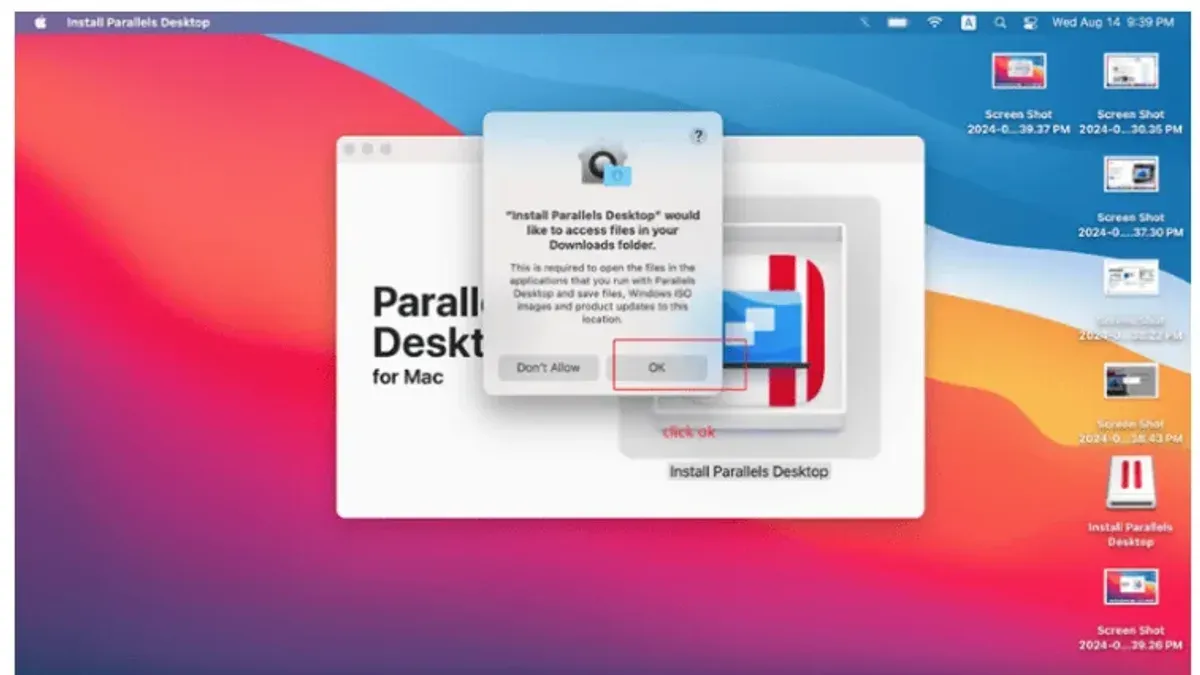
- Open Parallels Desktop and click "File" > "New" to start creating a new virtual machine. The Installation Assistant window appears.
- Choose your installation source. Select "Install Windows or another OS from a DVD or image file". Browse to your ISO file or insert physical media. The system will detect the OS type.
- Confirm the OS type and version. For example, if installing Windows 10, Parallels will suggest optimized settings. Verify these and adjust if needed.
- Set up the VM with recommended settings. Parallels suggests CPUs, RAM, and disk space based on your Mac’s specs and the OS. For a Windows VM, 4 GB RAM and 2 CPUs work well for general use, with at least 64 GB disk space.
- Name your VM and select its location. Keep the default unless you want to organize VMs in a specific folder.
- Begin installation. Parallels will start the OS installer inside the VM. Follow the OS’s standard setup process.
- After OS installation completes, install Parallels Tools. From the VM menu, choose "Actions" > "Install Parallels Tools". This enables integration features like shared folders, clipboard syncing, and better graphics performance.
- Adjust resource allocation post-installation if needed. Open VM "Configure" > "Hardware" tab to increase or decrease CPU cores, RAM, or disk size. Balance performance with your Mac’s overall capabilities.
Following these steps ensures your VM runs efficiently, integrating seamlessly with macOS for a smooth experience.
How to install macOS on Parallels Desktop
Running macOS as a guest OS on Parallels Desktop is legally permitted only on Apple hardware, so ensure you comply with Apple's licensing terms. Technically, Parallels supports macOS virtual machines, but you need to prepare the correct installer image and configure the VM accordingly.
- Obtain the macOS installer: Download the macOS installer app from the Mac App Store or use Apple's official software update servers. To create a compatible installer image, use the Terminal command createinstallmedia to make a bootable USB or convert the installer app into an ISO disk image.
- Create a new VM for macOS: In Parallels Desktop, select File > New and choose Install Windows or another OS from a DVD or image file. Point Parallels to your macOS ISO or installer media. The wizard will detect macOS and set recommended defaults.
- Configure VM settings for macOS: Open Configure > Hardware and ensure the virtual machine's CPU and RAM meet macOS minimums (at least 4 GB RAM and 2 CPU cores recommended). Enable Retina resolution support in Options > Full Screen > Retina for crisp display scaling.
- Start the VM and install macOS: Boot the VM; you should see the macOS installer screen. Follow the standard macOS installation prompts: disk utility formatting, selecting the VM's virtual disk, and proceeding with the installation. The process takes several minutes with progress bars indicating installation stages.
- Complete initial setup and install Parallels Tools: After installation, set up macOS like a new Mac. Then, install Parallels Tools from the menu Actions > Install Parallels Tools to enable better integration, including mouse, shared folders, and Retina display support.
Typical installation progress includes loading the macOS recovery environment, preparing the disk, copying files, and multiple restarts within the VM. If the installer fails to detect the disk, check that the virtual hard drive is properly attached and formatted as APFS or HFS+.
How does Parallels Desktop work on Mac?
Parallels Desktop uses virtualization technology to create virtual machines (VMs) that run other operating systems, like Windows or Linux, within macOS. Instead of rebooting your Mac, Parallels allocates resources such as CPU, memory, and disk space dynamically to the VM, isolating it from the host system while allowing seamless interaction.
Core to Parallels is its hypervisor, which manages hardware abstraction and ensures efficient communication between the guest OS and Mac hardware. This approach enables you to run multiple OS environments simultaneously without the need to partition your drive or restart, unlike Boot Camp.
Integration features enhance usability: Coherence mode lets Windows apps run alongside macOS apps without showing the full Windows desktop; shared folders provide easy access to files across systems; and copy-paste works bidirectionally between guest and host.
Performance-wise, Parallels Desktop balances speed with convenience. While Boot Camp offers native performance by booting directly into Windows, it requires rebooting and dedicates all resources to that OS. Other virtualization tools, such as VMware Fusion and VirtualBox, may lag slightly in ease of integration or speed but offer similar virtualization basics.
Use cases for Parallels include software development across platforms, running Windows-only applications, testing different OS versions, gaming at moderate settings, and maintaining legacy apps without switching devices.
| Feature | Parallels Desktop | Boot Camp | VMware Fusion / VirtualBox |
|---|---|---|---|
| OS Running Mode | Virtualized alongside macOS | Native boot (dual boot) | Virtualized alongside macOS |
| Reboot Required | No | Yes | No |
| Integration (Coherence/shared folders) | Yes | No | Limited |
| Performance | High, near native | Native | Moderate to High |
| Use Cases | Dev, testing, legacy apps, casual gaming | Gaming, heavy apps, full resource use | Dev, testing, legacy apps |
How to run Parallels Desktop on Mac
Running Parallels Desktop efficiently involves mastering virtual machine management and seamless interaction between macOS and guest operating systems. Start your virtual machine (VM) by opening Parallels Desktop and selecting the VM from the Control Center, then clicking the Start button. Once running, you can switch between macOS and the VM simply by clicking outside or inside the VM window.
To integrate applications from the guest OS directly into macOS, enable Coherence mode via View > Enter Coherence. This mode hides the VM desktop and lets you launch Windows apps like native Mac apps, ideal for workflows such as editing documents in Microsoft Office or testing software in Windows without switching screens.
Managing your VM’s state is crucial. Use snapshots to save the VM’s exact condition before major changes by selecting Actions > Manage Snapshots. This allows quick rollback if needed. Regular backups of your VM files prevent data loss, and Parallels typically prompts for software updates, which you should apply promptly to maintain security and performance.
Common workflows include running Windows-only software side-by-side with Mac apps, developing cross-platform software, or testing websites in different browsers. Switching between full-screen, windowed, and Coherence modes adapts Parallels to your workflow style.
- Open Parallels Desktop and select your virtual machine; click Start to launch it. You should see the guest OS desktop appear.
- Switch focus between macOS and the VM by clicking inside or outside the VM window; the mouse and keyboard input follows accordingly.
- Enable Coherence mode from the View menu to run guest OS applications directly on your Mac desktop.
- Take a snapshot before making significant changes via Actions > Manage Snapshots; confirm the snapshot saves successfully.
- Regularly check for Parallels updates under Parallels Desktop > Check for Updates and install any available to keep the software optimized.
How to uninstall Parallels Desktop on Mac
Before uninstalling Parallels Desktop, back up all important virtual machines and data to avoid accidental loss. Virtual machines can contain valuable files and configurations that are not recoverable once deleted.
- Quit Parallels Desktop and all running virtual machines. Confirm that no Parallels-related processes are active by checking Activity Monitor.
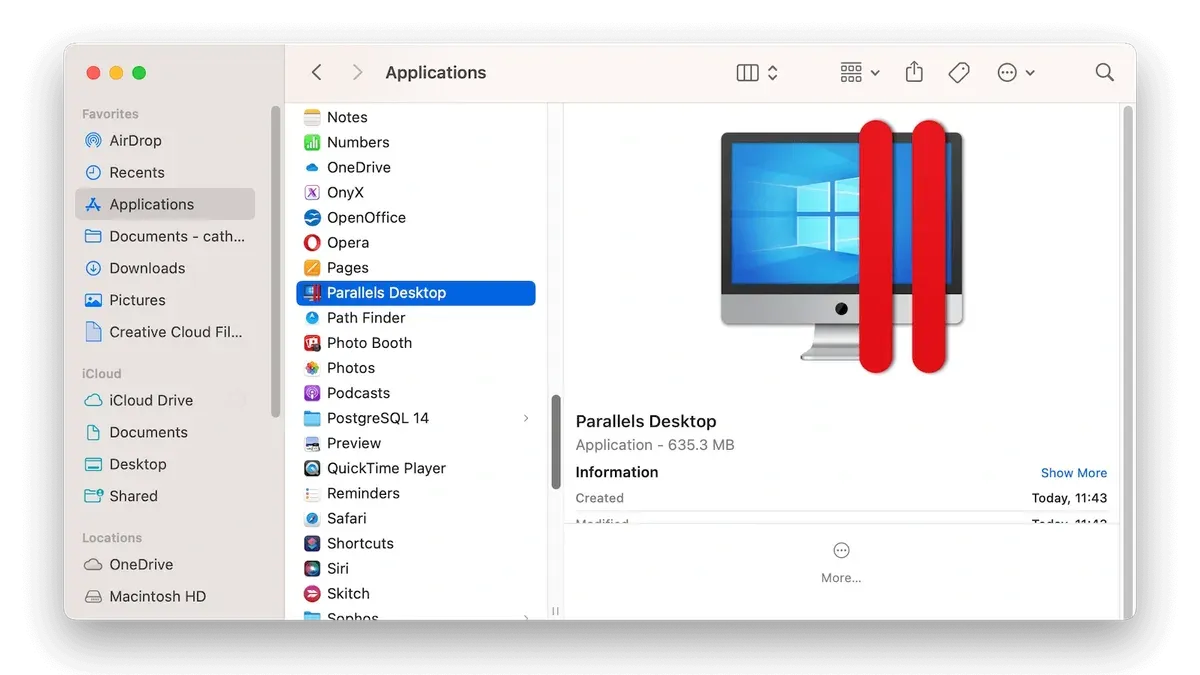
- Open the Parallels Desktop application folder in Finder, usually located in /Applications/Parallels Desktop.app. Double-click Uninstall Parallels Desktop if available.
- If the uninstaller is missing or you prefer manual removal, drag Parallels Desktop.app to the Trash. Then, empty the Trash to remove the main application.
- Delete virtual machine files, typically stored in /Users/your_username/Documents/Parallels/. Move the entire Parallels folder to Trash to recover significant disk space.
- Remove leftover system files and preferences. In Finder, press Shift+Command+G and enter ~/Library/Preferences/. Delete files starting with com.parallels. Next, check ~/Library/Application Support/ and ~/Library/Caches/ for Parallels-related folders and delete them.
- Optionally, clear login items by going to System Settings > Users & Groups > Login Items and removing Parallels entries.
After these steps, restart your Mac to ensure all components are fully removed.
- Backup all virtual machines and data
- Run Parallels uninstaller or delete the app manually
- Remove virtual machine files from Documents
- Clear Parallels system preferences and support files
- Restart Mac to finalize removal
Troubleshooting common Parallels Desktop installation and setup issues
Installation stuck or fails due to permissions or macOS security settings
If Parallels Desktop installation halts with errors like “System Extension Blocked” or fails to complete, macOS security settings are often the cause. Go to System Preferences > Security & Privacy > General and look for a message about blocked software from Parallels. Click Allow to grant necessary permissions. Then, restart your Mac and retry installation. Ensure you run the installer with administrator rights.
Virtual machine performance issues or crashes
Slow or crashing VMs can result from insufficient allocated resources or conflicting software. Open Parallels Desktop, select your VM, then go to Actions > Configure > Hardware. Increase RAM and CPU cores within recommended limits, typically no more than half your Mac’s resources. Disable resource-heavy background apps on macOS. If crashes persist, check for Parallels updates under Parallels Desktop > Check for Updates.
Activation or license key errors
Errors like “Invalid license key” or “Activation failed” usually stem from typing mistakes or network issues. Carefully re-enter your key found in your Parallels account or purchase email. Ensure your Mac is online and firewalls are not blocking Parallels. If problems continue, sign out and back into your Parallels account via Parallels Desktop > Account > Sign Out/Sign In.
Network or device sharing problems between Mac and guest OS
If network connectivity or device sharing (USB, printers) fails, verify your VM’s settings. In Parallels, select the VM, then Actions > Configure > Hardware > Network, and confirm the network mode is “Shared” or “Bridged” as needed. For USB devices, ensure Actions > Configure > Hardware > USB & Bluetooth allows the VM to connect. Restart both the VM and Parallels after changes.
- Open System Preferences > Security & Privacy, click Allow if Parallels is blocked; you should see no further block messages.
- Allocate more RAM and CPU cores in VM configuration; VM performance should improve noticeably.
- Re-enter license key carefully; activation should complete without error.
- Set network to “Shared” or “Bridged” and enable USB in VM settings; devices and network should function correctly.
Read next
- How to Install and Use CrossOver on Mac: A Clear Step-by-Step Guide
- How to Install Battle.net on Mac: A Step-by-Step Guide
- How to Install Steam on Mac: A Clear Step-by-Step Guide
- How to Install Epic Games Launcher on Mac: A Step-by-Step Guide
Frequently asked questions
How to install parallels on mac?
Download the Parallels Desktop installer from the official Parallels website. Open the downloaded.dmg file and double-click the installer icon. Follow the on-screen prompts to complete the installation, including entering your Mac password when requested and agreeing to the software license.
How to set up parallels on mac?
After installation, launch Parallels Desktop and choose to create a new virtual machine. Select the source for your operating system installation, such as an ISO file or a physical disk. Configure the virtual machine settings like CPU cores, RAM allocation, and disk space before starting the installation process.
How to install parallel desktop on mac?
To install Parallels Desktop, first download the installer from the Parallels website. Open the installer and proceed through the setup assistant, which will guide you through installation steps including license activation and system permissions. Make sure your Mac meets the minimum system requirements before starting.
How to run parallels on mac?
Open the Parallels Desktop application from your Applications folder or Dock. Select the virtual machine you want to run and click the Start button. You can switch between Coherence mode to integrate apps with macOS or Full Screen mode for a dedicated Windows experience.
What is parallels desktop for mac?
Parallels Desktop for Mac is virtualization software that allows you to run Windows, Linux, or other operating systems alongside macOS. It enables seamless access to Windows applications without rebooting, integrating features like shared folders, drag-and-drop, and hardware acceleration.
Quick checklist
- Confirm your Mac meets Parallels Desktop's minimum system requirements, including macOS version and available disk space.
- Download the latest Parallels Desktop installer from the official website.
- Run the installer and follow the on-screen prompts to complete installation.
- Create and configure your virtual machine with appropriate settings for CPU, RAM, and storage.
- Install macOS or your preferred operating system inside the virtual machine.
- Familiarize yourself with Parallels Desktop controls and integration features like Coherence mode and shared folders.
- Set up backups for your virtual machines to avoid data loss.
What this guide does not cover
This guide does not cover advanced network configurations, custom virtual machine setups for enterprise environments, or using Parallels Desktop on unsupported Mac hardware. If you require complex multi-VM networking, specialized hardware passthrough, or deployment in large-scale IT infrastructure, consult Parallels' enterprise documentation or professional support.
For casual or professional Mac users seeking straightforward virtualization, this guide provides the essential steps and best practices to get started confidently.
The best next step is to launch Parallels Desktop and create your first virtual machine. Take time to adjust CPU and memory allocations based on your Mac’s performance and the virtual machine’s workload to ensure smooth operation tailored to your needs.



