
How to Install Photoshop on Mac: A Clear Step-by-Step Guide
This guide explains how to install Photoshop on Mac safely and efficiently with step-by-step instructions and troubleshooting tips.

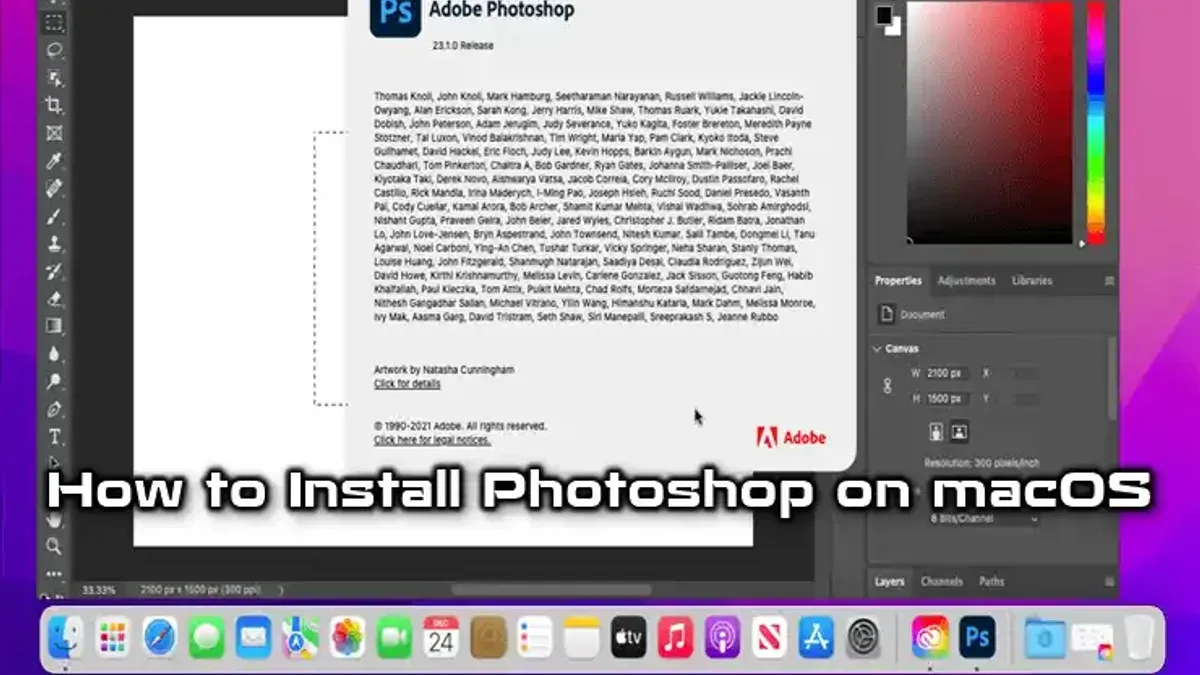
Short answer: To install Photoshop on Mac, start by downloading the official Adobe Creative Cloud installer from Adobe’s website. Then, follow the guided installation process to install Photoshop, ensuring your Mac meets the minimum macOS version and hardware requirements.
This article covers practical steps on how to install Photoshop on Mac safely and efficiently, including detailed instructions tailored for MacBook Air, MacBook Pro, and Apple Silicon (M1/M2) models. You will also learn about legitimate free options like Adobe’s trial version, common pitfalls to avoid during installation, troubleshooting tips, and how to keep Photoshop updated for optimal performance. Whether you’re new to Adobe or upgrading your Mac, this guide gives you clear, expert advice to install Photoshop confidently and correctly.
Before you start: What you need to install Photoshop on Mac
Installing Photoshop on your Mac requires checking compatibility, preparing your system, and understanding your options regarding licensing. First, verify your Mac model: Photoshop supports both Intel-based Macs and Apple Silicon (M1, M2) Macs, but performance and installation steps may vary slightly depending on the chip.
Your macOS must be version 11.0 (Big Sur) or later. Adobe’s official minimum requirements specify macOS 11.0 or newer to run the latest Photoshop versions reliably. Ensure you have at least 4GB of RAM and a minimum of 4GB free storage, though 8GB RAM and more storage space are recommended for smooth operation.
A stable internet connection is necessary to download the installer and activate the software. You will also need an Adobe account to sign in; this account manages your subscription or trial activation. Adobe offers a free 7-day trial with full features and separate free apps with limited capabilities, but fully free versions of Photoshop do not exist—only trials or paid subscriptions.
Before starting, confirm you have:
- Checked your Mac model and chip (Apple menu > About This Mac) and confirmed it runs macOS 11.0 or higher.
- Verified at least 4GB free disk space and 4GB RAM, with more recommended.
- Created an Adobe ID at adobe.com if you don’t have one, ready for sign-in.
- Ensured a reliable internet connection to download and activate Photoshop.
Meeting these prerequisites sets a smooth foundation for installing Photoshop on any Mac.
How to download Photoshop on Mac safely and officially
Downloading Photoshop directly from Adobe’s official website guarantees you get the latest, fully secure version optimized for your Mac. Avoid third-party sites, which often offer outdated or modified installers that risk malware or poor performance.
- Open your preferred web browser and go to https://www.adobe.com. You should see Adobe’s homepage with clear navigation for products.
- Hover over the “Creative Cloud” menu and select Photoshop from the dropdown. This ensures you access the Mac-compatible version.
- Click the “Free Trial” or “Buy Now” button depending on your intent. This will prompt downloading the Adobe Creative Cloud installer.
- Once downloaded, open the Creative Cloud installer.dmg file and follow the on-screen instructions to install the app that manages Photoshop and other Adobe apps.
- Launch the Creative Cloud app and sign in with your Adobe ID. If you don’t have one, create an account on the spot.
- Within Creative Cloud, locate Photoshop and click “Install”. This step downloads the full Photoshop app optimized for your Mac model.
Official Adobe downloads offer faster, more reliable installation speeds and automatic updates compared to third-party sources that often deliver slower or corrupted files.
How to install Photoshop on MacBook, MacBook Air, and MacBook Pro
- Run the Creative Cloud installer you downloaded from Adobe’s website. You should see the installer window titled “Creative Cloud Installer.” If macOS prompts you with a security warning, click Open to proceed.
- When prompted, enter your Mac user password to allow the installer to make changes. This step grants the necessary permissions for installing software.
- Once the Creative Cloud app launches, sign in with your Adobe ID. The app interface will display a dashboard with available Adobe applications.
- Navigate to the Apps tab in Creative Cloud. Scroll to find Photoshop, then click the Install button next to it. The button will change to show the installation progress.
- During installation, a progress bar will appear below Photoshop’s name. Wait for it to reach 100% and display Installed. This confirms the process completed successfully.
- After installation, Photoshop will appear under the Installed section. Click Open to launch Photoshop for the first time.
- On first launch, if macOS prompts for permissions like access to files or the microphone, click OK or Allow to enable full Photoshop functionality.
How to install Photoshop on Mac M1 and Apple Silicon models
Apple Silicon Macs with M1 or M2 chips run on a different architecture than Intel-based Macs, which affects software compatibility. Adobe provides a native ARM version of Photoshop optimized for these chips, delivering significantly better performance and efficiency compared to the Intel version running under Rosetta 2 emulation.
When installing Photoshop on an Apple Silicon Mac, first ensure you download the ARM-native version through the Adobe Creative Cloud app. This version is designed to leverage the full power of your chip, reducing battery drain and improving speed.
If you encounter plugins or features not yet supported on the ARM-native version, Creative Cloud will automatically run Photoshop under Rosetta 2. Rosetta 2 translates Intel-based apps for Apple Silicon but may cause slightly slower performance.
To check if Photoshop is running natively, use the Finder to locate the Photoshop app, select it, press Command+I, and look for the “Kind” field. It should say “Application (Universal)” or “Application (Apple Silicon).” If it says “Application (Intel),” it’s running under Rosetta 2.
After installation, keep Photoshop updated; Adobe regularly releases optimizations for Apple Silicon. Also, close other intensive apps during editing to maintain smooth performance, and consider enabling the “Use Graphics Processor” option in Photoshop’s preferences for better rendering acceleration.
- Open Adobe Creative Cloud and sign in with your Adobe ID.
- Search for Photoshop and click Install. The ARM-native version will be selected automatically if your Mac supports it.
- Wait for the installation to complete, then launch Photoshop from the Applications folder.
- Confirm native operation by selecting Photoshop in Finder, pressing Command+I, and checking the “Kind” information.
- If you experience compatibility issues, allow Photoshop to run under Rosetta 2 when prompted.
How to install Photoshop on Mac for free: trial and alternatives
You can try Adobe Photoshop for free by signing up for Adobe’s official free trial, which grants full access for a limited time—usually seven days. This trial offers the complete feature set, letting you explore Photoshop without restrictions before deciding to subscribe. After the trial ends, you must purchase a plan to continue using the software legally.
- Visit the Adobe Photoshop free trial page and click “Start free trial.” You will be prompted to create or sign in to an Adobe account.
- Download and install the Adobe Creative Cloud app, then launch it and select Photoshop to begin your trial installation.
- Once installed, open Photoshop to confirm full access to all features during the trial period.
For permanent free photo editing, Adobe offers Photoshop Express, a lightweight app with basic editing tools available on the Mac App Store. While it lacks advanced features, it is a legitimate option for quick edits without cost.
Additionally, several free open-source and lightweight alternatives run well on Mac and cover various editing needs. Popular options include GIMP, which offers extensive tools similar to Photoshop, and Pixelmator Photo, which provides a user-friendly interface and essential editing functions. These apps ensure you can work on images without subscription fees.
Avoid unauthorized or cracked versions of Photoshop. These pose security risks, may not work correctly, and violate Adobe’s terms of service, potentially leading to legal issues.
- Sign up for Adobe’s 7-day full-feature Photoshop trial via Adobe’s official site.
- Use Photoshop Express from the Mac App Store for basic free editing.
- Explore free alternatives like GIMP or Pixelmator Photo for more robust editing without cost.
- Never download Photoshop from unofficial or cracked sources to avoid security and legal risks.
How to troubleshoot common Photoshop installation issues on Mac
Photoshop installation on Mac can encounter errors like Creative Cloud installer failures, permission blocks, or compatibility problems. Addressing these efficiently ensures a smooth setup.
Fixing Creative Cloud Installer Errors
If you see error codes such as 1001 or 50, first quit the Creative Cloud app and restart your Mac. Then, clear Creative Cloud cache by deleting the folders "Adobe Creative Cloud" and "OOBE" found in ~/Library/Application Support/Adobe. Relaunch the installer; successful restart shows the installation progress bar without interruption.
Adjusting Permissions and Security Settings
macOS may block installer access. Go to System Preferences > Security & Privacy > Privacy tab. Under Full Disk Access and Files and Folders, ensure Creative Cloud and Photoshop have permissions enabled. If a "blocked software" warning appears, click "Allow" in the Security & Privacy pane, then retry installation.
Resolving Compatibility Issues
Photoshop requires macOS versions that meet Adobe’s minimum. If your macOS is outdated, update via System Preferences > Software Update. Installation typically fails if the OS is unsupported, showing error code 50 or 1007.
Handling Disk Space and Download Speed
Insufficient disk space causes errors or stalled downloads. Check available space in About This Mac > Storage. Free at least 10 GB for Photoshop. Slow downloads benefit from switching to a wired Ethernet connection or pausing other bandwidth-heavy apps.
When to Contact Adobe Support
If errors persist after these steps—especially uncommon error codes like 183 or persistent installer crashes—contact Adobe Support via their official website or app chat for personalized troubleshooting.
- Quit Creative Cloud and restart your Mac. You should see the desktop after reboot.
- Delete Creative Cloud cache folders in ~/Library/Application Support/Adobe. After, the cache folders should be gone.
- Open System Preferences > Security & Privacy > Privacy, enable permissions for Creative Cloud and Photoshop. Permissions checkboxes should be ticked.
- Update macOS if needed via Software Update. After update, macOS version will meet Adobe’s requirements.
- Check disk space under About This Mac > Storage and free at least 10 GB. Available space should exceed this.
- Retry installation. The progress bar should advance without error.
- If errors continue, contact Adobe Support with error codes ready.
How to install older versions of Photoshop on Mac (like Photoshop 7.0)
Installing legacy Photoshop versions such as Photoshop 7.0 on modern Macs presents significant challenges due to compatibility issues with recent macOS releases. Photoshop 7.0 was built for classic Mac OS and early versions of macOS, so it does not natively support macOS Catalina and later, which have dropped support for 32-bit applications.
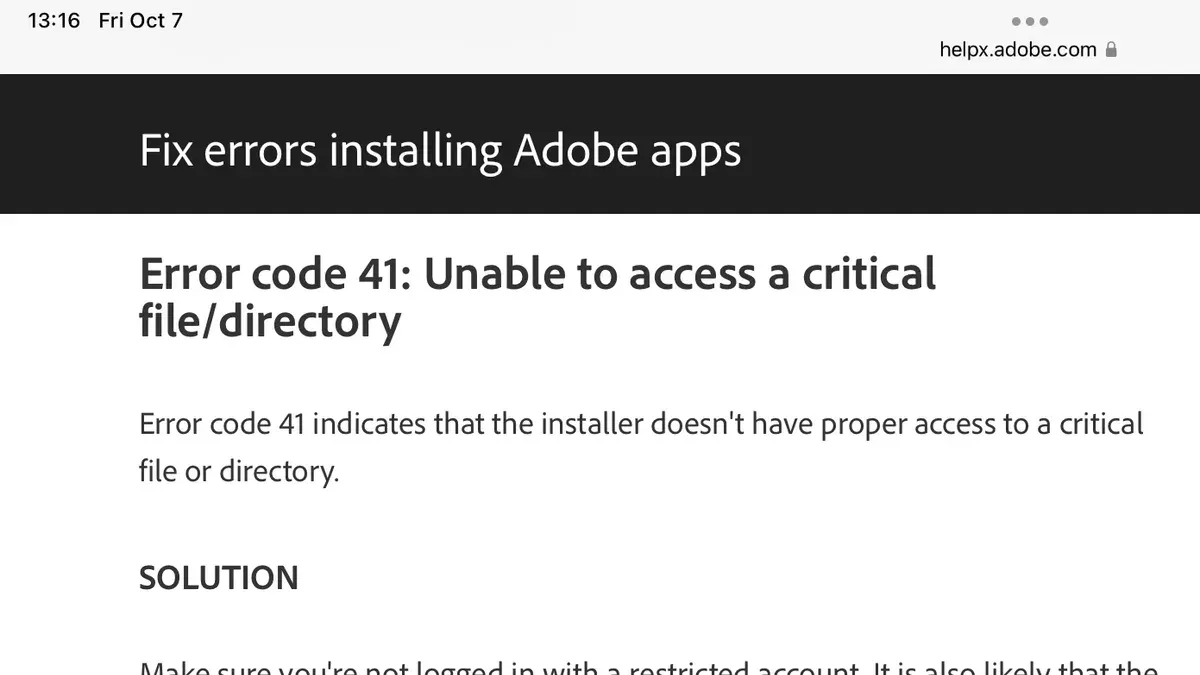
Locating legitimate older installer files is critical to remain compliant with Adobe's licensing. Official Adobe sources rarely provide installers for versions this old. Trusted secondary sources include authorized resellers with legacy software archives or your own original installation media if available.
To run Photoshop 7.0 on recent Macs, virtualization or emulation is often required. Solutions like running a virtual machine with macOS Mojave or earlier, or using emulators for classic Mac OS, can enable installation and use. However, these methods demand technical setup and may not deliver full performance or stability.
Adobe generally recommends using current Photoshop versions optimized for Apple Silicon and recent macOS for improved security, performance, and ongoing updates. Legacy versions lack support for modern features and file formats, making them less practical for most users.
| macOS Version | Photoshop 7.0 Compatibility |
|---|---|
| macOS Mojave (10.14) and earlier | Compatible with some workarounds |
| macOS Catalina (10.15) and later | Not compatible (no 32-bit support) |
- Obtain a legitimate Photoshop 7.0 installer from original media or trusted secondary source. When successful, you will have a.dmg or installer package ready.
- Set up a virtual machine running macOS Mojave or earlier using software like Parallels Desktop or VMware Fusion. The VM should boot to the chosen macOS version.
- Transfer the Photoshop 7.0 installer to the virtual machine and run the installer inside the VM. It should complete without errors if compatibility requirements are met.
- Launch Photoshop 7.0 within the VM to confirm it runs. Expect limited performance and no support for newer macOS features.
How to keep Photoshop updated and maintain performance on Mac
Keeping Photoshop up to date ensures you have the latest features and security fixes, plus optimized performance. Use the Creative Cloud app to manage updates efficiently and avoid installation issues.
- Open the Creative Cloud app and navigate to the Apps tab. You should see an Update button next to Photoshop when an update is available. Clicking it initiates the update process.
- Before updating, back up your Photoshop preferences by exporting settings from Edit > Presets > Export/Import Presets. This prevents loss of custom brushes, actions, or workspaces if the update resets preferences.
- After the update completes, launch Photoshop to verify it opens without errors and that your preferences are intact. The version number should reflect the latest update in Photoshop > About Photoshop.
- Optimize your Mac for Photoshop performance by enabling Reduce Transparency and disabling Automatic Graphics Switching in System Preferences > Accessibility > Display and Energy Saver respectively. These settings help allocate GPU and CPU resources effectively.
- Check plugin compatibility post-update. Visit the plugin manufacturer's site or Adobe's forums to confirm your essential plugins support the updated Photoshop version, as incompatible plugins can degrade performance or cause crashes.
Performance benchmarks commonly show smoother interface response and faster rendering times after updates, reflecting Adobe’s continuous optimizations documented in their update logs. Staying current and managing settings carefully keeps Photoshop running reliably on your Mac.
Read next
- How to Install GIMP on Mac: A Clear Step-by-Step Guide
- How to Install Blender on Mac: A Clear Step-by-Step Guide
- How to Install Figma on Mac: A Step-by-Step Expert Guide
Frequently asked questions
How to get photoshop free on mac?
You can get Photoshop free on Mac by signing up for Adobe’s official free trial, which typically lasts seven days and offers full access to all features. After the trial, you must subscribe to continue using it. Alternatively, consider free Adobe-supported apps like Adobe Photoshop Express for basic editing on Mac.
How to photoshop pictures free on mac?
For free photo editing on Mac without Photoshop, use Adobe Photoshop Express available in the Mac App Store or explore free alternatives like GIMP or Pixelmator Photo. These apps support common editing tasks such as cropping, color correction, and retouching without subscription fees.
How to install photoshop in mac?
Download Photoshop from the official Adobe website or the Creative Cloud app. After downloading, open the installer, follow the on-screen prompts to sign in with your Adobe ID, and complete the installation. Ensure your Mac meets the minimum system requirements for smooth operation.
How to install Photoshop on Mac for free?
To install Photoshop for free on Mac, download the Adobe Creative Cloud desktop app and start a free trial of Photoshop through it. This trial provides full features but lasts only about a week. No legitimate method offers permanent free installation of the full Photoshop version.
How to get Photoshop free on Mac without subscription?
Obtaining Photoshop free on Mac without a subscription is limited to the trial period offered by Adobe. Beyond that, Adobe does not provide free permanent access to Photoshop. For ongoing free use, consider Adobe’s free apps or open-source alternatives that do not require subscriptions.
Quick checklist
- Confirm your Mac meets the minimum system requirements for the Photoshop version you want.
- Download Photoshop only from Adobe’s official website or the Mac App Store.
- For Apple Silicon Macs, ensure you select the appropriate installer optimized for M1/M2 chips.
- Use the Adobe Creative Cloud app for streamlined installation and updates.
- Consider the free trial if you want to test before purchasing, but remember it requires a valid payment method.
- Regularly update Photoshop to benefit from performance improvements and security patches.
- If installing older Photoshop versions, be prepared for compatibility issues and limited support.
What this guide does not cover
This guide does not cover illegal or pirated Photoshop versions, which pose security risks and violate Adobe’s terms. Older Photoshop versions may not run reliably on the latest macOS without workarounds or virtualization tools. Free trials are time-limited and require a valid payment method to sign up, so plan accordingly.
For professional workflows requiring legacy features or extensive plugin support, consider reaching out to Adobe support or consulting specialized forums for guidance on advanced installations.
Now that you know how to install Photoshop confidently on any Mac, your next step is to launch the Adobe Creative Cloud app, sign in or create your Adobe ID, and begin downloading the version that fits your needs. This ensures you get the latest updates, full compatibility, and access to Adobe’s support ecosystem.



