
How to Install Rhino on Mac: A Precise Step-by-Step Guide
This guide provides a clear, step-by-step process to install Rhino on Mac, covering system requirements, licensing, and troubleshooting tips.

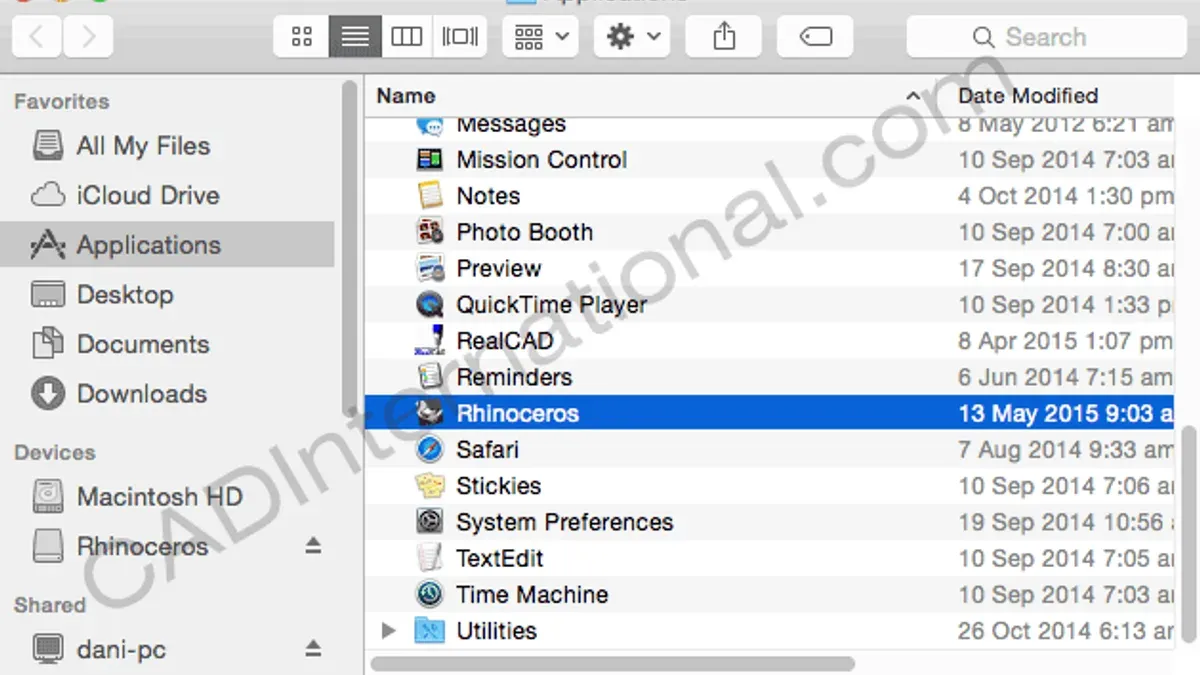
Short answer: To install Rhino on Mac, you download the official installer from the Rhino website, open the.dmg file, and drag the Rhino app to your Applications folder. After launching Rhino, you activate it using a valid license or start a free trial to explore its features.
This guide walks you through how to install Rhino on Mac step-by-step, clarifying system requirements and compatibility to ensure smooth performance. You’ll also learn how to handle licensing and activation on macOS, distinguish Mac-specific installation details from Windows procedures, and get tips on uninstalling or troubleshooting. Whether you are evaluating Rhino or ready to commit, this article equips you to confidently set up and start using Rhino 3D on your Mac.
Before You Start: What You Need to Install Rhino on Mac
To ensure a smooth installation of Rhino on your Mac, first verify your system meets the official requirements. Rhino supports macOS versions from 10.13 (High Sierra) onward, but newer macOS versions improve stability and performance. Your Mac should have at least 8 GB of RAM for basic modeling tasks, though 16 GB or more is recommended for complex projects. Ensure you have a minimum of 600 MB of free disk space for the installation files and additional space for project files.
A stable internet connection is essential for downloading Rhino and activating your license. Interruptions during activation can cause errors or delays. Prepare your Wi-Fi or Ethernet connection accordingly.
You’ll also need a McNeel account to activate Rhino. If you do not have one, you can create it during installation or beforehand at the official McNeel website. This account manages your license keys and access to the Rhino services.
Understand that Rhino offers different versions: the full licensed version and a free trial. The trial is fully functional but time-limited, allowing you to evaluate the software before purchasing. Confirm which version you intend to install to avoid confusion during activation.
- Check your macOS version by clicking the Apple menu and selecting "About This Mac." Confirm it is 10.13 or higher.
- Open "About This Mac" > "System Report" to verify RAM and available storage under "Memory" and "Storage." Ensure you meet the minimum requirements.
- Test your internet connection by visiting a website or running a speed test to confirm stability.
- Visit the McNeel website to create or log in to your McNeel account. Keep your credentials ready.
- Decide whether to download the trial or full version based on your needs.
How to Download Rhino for Mac Safely
To ensure you get a genuine and secure Rhino installer for Mac, always download it directly from the official Rhino website or an authorized reseller. Avoid third-party sites that might offer outdated or tampered versions, which could compromise your computer’s security.
- Open your preferred web browser and go to https://www.rhino3d.com/download/mac. You should see the official Rhino for Mac download page.
- Identify the latest stable version available for Mac, such as Rhino 8 or the most recent release listed. You will find download links clearly labeled for Mac.
- Click on the appropriate download link for the Mac version. The installer file size typically ranges from 400MB to 600MB, indicating a full feature set.
- If you want to try Rhino before purchasing, select the free trial option visible on the page. This trial is fully functional but limited to a specific number of days.
- After downloading, verify the file by checking its digital signature or source URL if your browser offers this information. This helps confirm authenticity.
Remember, Rhino is not free software; the trial period lets you evaluate it legally before deciding to buy a license. Relying on the official site ensures you receive updates and support while avoiding counterfeit versions that often lack key features or contain malware.
How to Install Rhino on Mac: Step-by-Step Instructions
- Locate the downloaded Rhino.dmg file in your Downloads folder and double-click it to mount the disk image. You should see a new window open showing the Rhino application icon.
- Drag the Rhino icon to the Applications folder shortcut within the same window. This copies the app to your Mac's main Applications directory.
- Once copied, eject the mounted disk image by right-clicking it on the desktop or in Finder and choosing Eject. This safely unmounts the installer volume.
- Open your Applications folder and double-click Rhino.app to launch the program for the first time. You may see a security prompt asking to confirm opening an app downloaded from the internet; click Open.
- Grant permissions if macOS asks for access to files or folders needed by Rhino, such as Documents or Downloads. This ensures Rhino functions without restrictions.
- On the initial launch screen, you will be prompted to activate Rhino. Enter your license key if you have one, or choose Start Evaluation to begin the free trial period.
- After activation or trial setup, Rhino will open its main interface, ready for use. You can now adjust preferences or start a new modeling project.
Commonly missed steps include ejecting the installer disk image after copying and granting permission requests promptly to avoid functionality issues.
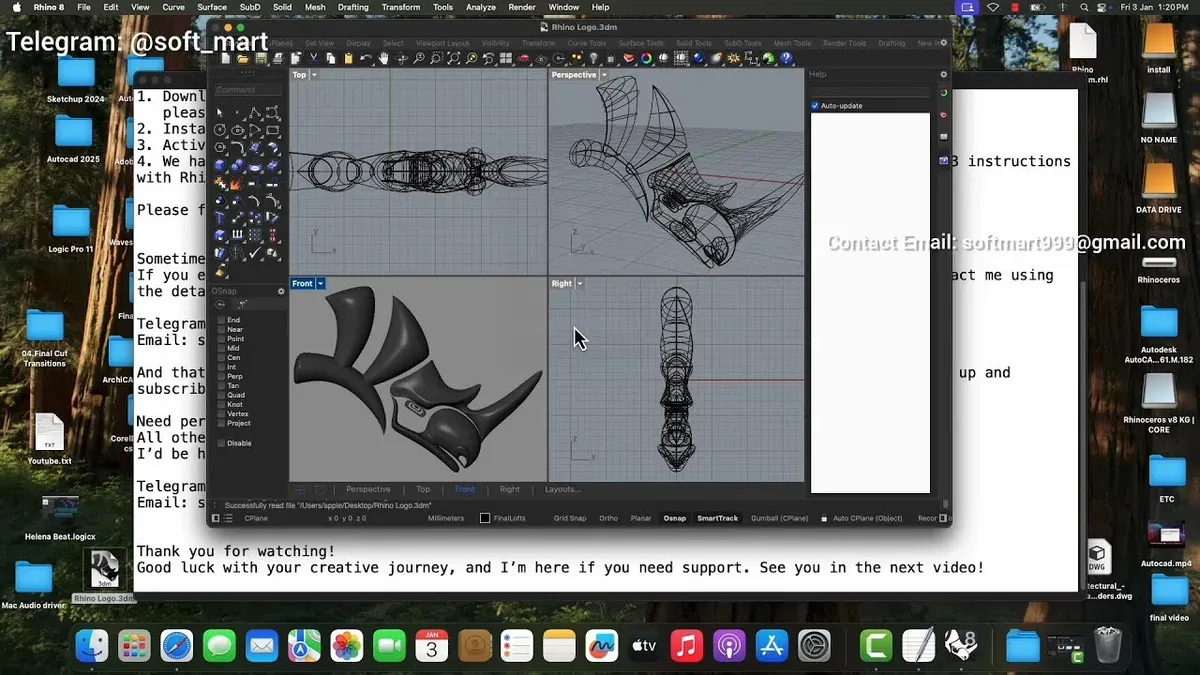
- Open Rhino.dmg
- Drag Rhino to Applications
- Eject the disk image
- Launch Rhino and confirm app opening
- Grant requested permissions
- Activate with license key or start trial
Does Rhino Work on Mac? Understanding Compatibility and Performance
Rhino offers native support on macOS, providing a user interface and core functionality designed specifically for Mac users. This means you get a stable, optimized experience without relying on emulators or virtual machines. Rhino for Mac features near parity with its Windows counterpart, supporting most modeling tools, rendering options, and scripting capabilities.
However, some plugins and features available on Windows are not present on the Mac version. For example, certain third-party rendering engines and Grasshopper plugins may have limited or no Mac support. The official McNeel feature comparison chart highlights these differences, helping you anticipate any workflow adjustments.
Performance on Mac hardware is generally efficient, especially on Apple Silicon models, which deliver smooth handling of complex models. Benchmark tests shared by users show that Rhino runs comparably well on MacBook Pro and iMac models, though raw rendering speed can vary depending on GPU capabilities.
One key difference is the integration with macOS conventions, such as the menu bar, trackpad gestures, and file system navigation, which differ from Windows. This can affect shortcuts and plugin installation methods. Overall, Rhino on Mac maintains a robust feature set tailored to macOS users, with a few trade-offs mostly related to specialized plugins.
How to Add Windows in Rhino on Mac Using Virtualization or Boot Camp
If you need to run Windows-only versions of Rhino or specific plugins not available on Mac, you can add Windows to your Mac through virtualization software or Boot Camp. Each method has distinct advantages depending on your performance needs and workflow.
Using Virtualization Software
Applications like Parallels Desktop and VMware Fusion allow you to run Windows alongside macOS without rebooting. To set this up, install your chosen virtualization app, create a new Windows virtual machine (VM), and complete the Windows installation. Once Windows is running, install Rhino for Windows inside the VM as you would on a PC.
- Download and install Parallels Desktop or VMware Fusion on your Mac. When done, launch the app and select New to create a VM.
- Follow prompts to install Windows using an ISO file. When installation finishes, Windows will boot inside a window or full-screen on your Mac.
- Inside Windows, download and install Rhino for Windows, then activate your license as usual.
Virtual machines offer convenience and simultaneous macOS access but can reduce Rhino’s performance, especially for graphics-intensive tasks, due to hardware resource sharing.
Using Boot Camp for Dual Boot
Boot Camp lets you install Windows on a separate partition, enabling you to boot directly into Windows for native performance—ideal for demanding Rhino workflows or plugins.
- Open the Boot Camp Assistant app on your Mac and follow the steps to partition your drive and install Windows from an ISO image.
- Restart your Mac and boot into Windows. Complete the Windows setup and install Boot Camp drivers.
- Install Rhino for Windows and activate your license.
Boot Camp delivers full hardware utilization and better graphics performance but requires rebooting your Mac to switch between macOS and Windows.
Choosing Between Virtualization and Boot Camp
Virtualization is best for casual or mixed macOS/Windows use due to easy switching, while Boot Camp suits users needing maximum Rhino performance on Windows. Licensing for Rhino remains separate per platform; ensure your license permits installation on both Windows and macOS if applicable.
- Virtualization: Easy setup, simultaneous OS use, moderate performance impact.
- Boot Camp: Native Windows performance, reboot required to switch OS.
- Both require valid Windows and Rhino licenses.
How to Uninstall Rhino from Your Mac Completely
To fully remove Rhino from your Mac and avoid conflicts during reinstallation, you must delete both the application and all associated hidden files scattered across system folders. This ensures no leftover data occupies disk space or interferes with future installs.
- Quit Rhino if it’s running. Open the Applications folder, locate Rhino.app, and drag it to the Trash. Confirm that the app is no longer visible in Applications.
- Open Finder, press Shift+Command+G to open the “Go to Folder” window, then enter
~/Library/Preferences/. Locate any files or folders beginning with com.mcneel.Rhino and move them to Trash. This removes preference files. - Go to
~/Library/Application Support/and delete the McNeel folder if present. This folder contains user-specific support data and caches. - Navigate to
~/Library/Caches/and remove any caches related to Rhino or McNeel products. - Check
/Library/Application Support/(note this is the root Library folder, not your user Library) and delete the McNeel folder if found. This step clears system-level support files. - Empty the Trash to finalize removal of all files.
- Restart your Mac and verify that Rhino no longer launches and no residual files remain by searching your Library folders for "Rhino" or "McNeel".
Common issues include missing hidden folders due to permissions or incomplete deletion causing activation errors on reinstall. Using Finder’s “Go to Folder” with exact paths helps avoid accidentally leaving files behind.
How to Use Rhino on Mac: Getting Started with Essential Features
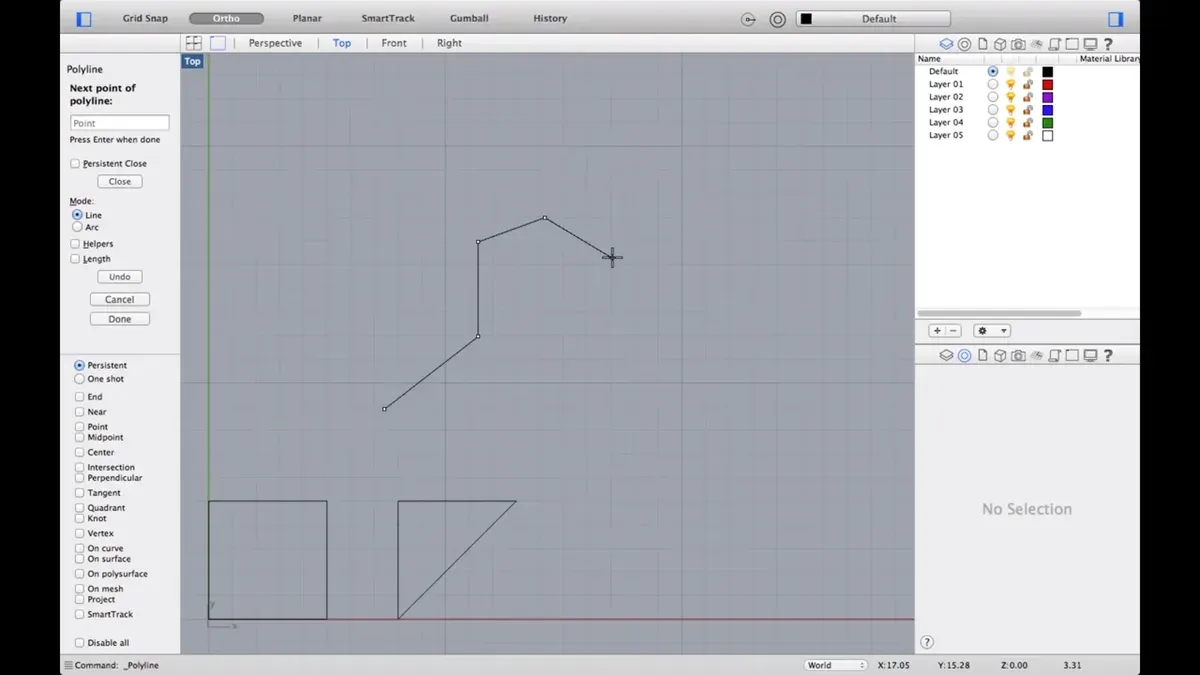
Rhino’s user interface on Mac is clean and optimized for macOS conventions, featuring a customizable toolbar at the top, the viewport area in the center, and panels for layers, properties, and command history on the right. Compared to Windows, menus are streamlined but retain all core functions, ensuring a smooth transition.
Basic Navigation and Common Commands
- Use a two-finger drag on the trackpad to pan across your model; the scroll gesture zooms in and out smoothly.
- Rotate your view by holding the Option key and dragging with one finger or by using a connected three-button mouse’s right-click and drag.
- Execute commands by typing them directly into the command bar at the top; pressing Enter confirms the command.
Opening, Saving, and Managing Files
- To open or save files, use the File menu and select Open or Save As; Rhino supports.3dm files natively and exports to common formats like.obj and.stl.
- Keep your file organized by using the Layers panel to group objects, accessed via the right sidebar.
Customizing Shortcuts and Settings
- Go to Rhino > Preferences > Keyboard to view and customize keyboard shortcuts; assigning commands to familiar keys speeds up your workflow.
- Adjust viewport display modes under View > Display Modes to switch between Wireframe, Rendered, or Shaded views, optimizing performance or visual fidelity as needed.
By familiarizing yourself with these essentials, you can confidently start modeling in Rhino on your Mac. For visual guidance, Rhino’s official documentation provides screenshots comparing Mac and Windows interfaces and example workflows illustrating these steps.
Troubleshooting Common Issues When Installing or Running Rhino on Mac
If the Rhino installer won’t open or complete, first ensure your macOS version meets the minimum requirement. If you see an error like “Installer can’t be opened because Apple cannot check it for malicious software”, go to System Preferences > Security & Privacy > General and click Open Anyway for the Rhino installer, then try again.
License activation errors often display messages such as “Activation failed: Unable to contact server” or “Invalid license key”. Verify your internet connection and confirm you entered your license key exactly as provided. If using a firewall or VPN, temporarily disable them during activation. For persistent issues, log into your McNeel account online to check license status or request support.
Crashes or slow performance can result from outdated macOS versions, incompatible plugins, or insufficient hardware resources. Ensure you are running the latest Rhino update by checking Help > Check for Updates. Disable third-party plugins if instability continues. Closing other memory-intensive apps may improve responsiveness.
For unresolved problems, visit the official Rhino support forums at discourse.mcneel.com where many common issues and fixes are documented. Contact Rhino support directly via their website with detailed error messages and system information.
- Check macOS version compatibility; the installer should launch without system errors.
- If blocked by security settings, approve the installer in System Preferences; installer opens successfully.
- Enter license key exactly; activation confirms successful license registration.
- Update Rhino using the built-in updater; the latest version installs with improved stability.
- Disable plugins if crashes persist; Rhino runs without unexpected quits.
- Consult Rhino forums or support with detailed logs; receive targeted help or patches.
Read next
- How to Install SketchUp on Mac: A Step-by-Step Expert Guide
- How to Install AutoCAD on Mac: A Step-by-Step Expert Guide
- How to Install Revit Alternatives on Mac: A Step-by-Step Guide
- How to Install Blender on Mac: A Clear Step-by-Step Guide
Frequently asked questions
Is rhino compatible with mac?
Yes, Rhino is fully compatible with Mac systems. It is specifically developed to run natively on macOS with a user interface tailored to Mac conventions. Rhino for Mac supports most features found in the Windows version, though some plugins and Windows-specific tools may not be available.
How to download rhino for free?
You can download a free trial of Rhino from the official McNeel website. This trial version offers full functionality for a limited period, typically 90 days, allowing you to evaluate the software before purchasing a license. Avoid downloading Rhino from third-party sites to ensure software integrity and security.
How to install rhino on windows?
To install Rhino on Windows, download the installer from McNeel's official site. Run the.exe file, follow the installation wizard by agreeing to the license terms, and choose your installation preferences. Once installed, launch Rhino and activate your license or start the trial.
How to download rhino 8?
Rhino 8 can be downloaded from the official Rhino website once it is publicly released. Ensure you select the correct version for your operating system, either Mac or Windows. If you already own a previous version, check your account or email for upgrade instructions or access.
Is Rhino compatible with Mac?
Rhino is designed to be compatible with Mac, offering a native macOS version. It supports the latest macOS versions and hardware, providing a smooth experience without the need for virtualization. Some Windows-only features may be absent, but core modeling and rendering capabilities are fully supported.
Quick checklist
- Verify your Mac meets the minimum system requirements: macOS 10.14 or later, 8GB RAM recommended.
- Download the official Rhino for Mac installer only from McNeel's website to avoid corrupted or unsafe files.
- Follow the installer prompts carefully, including granting necessary permissions in System Preferences if requested.
- Activate your Rhino license through the software’s built-in licensing dialog or start a free trial if you are evaluating.
- Understand your Mac’s hardware and software compatibility to optimize Rhino’s performance and avoid unexpected crashes.
- Use virtualization tools like Parallels or Boot Camp only if you need Windows-specific Rhino plugins or features.
- Uninstall Rhino completely by removing the application and associated preference files if needed to troubleshoot or reinstall.
- Check Rhino’s Help menu and McNeel’s support resources for any troubleshooting tips related to your macOS version.
This guide does not cover advanced plugin installation or scripting for Rhino on Mac, which may require additional resources or Windows environments.
If your workflow depends heavily on Windows-only Rhino plugins or custom scripts, consider running Rhino in a Windows environment via virtualization or Boot Camp. For advanced users integrating complex plugins, consulting specialized resources or McNeel’s developer forums is recommended.
To get started effectively, focus on installing the native Rhino for Mac build as outlined here and familiarize yourself with its interface and core features. This foundation will ensure you use Rhino confidently and determine whether your needs require additional Windows-based solutions.



