
How to Install SketchUp on Mac: A Step-by-Step Expert Guide
Follow this expert guide to easily install SketchUp on your Mac, including setup, plugins, and troubleshooting tips.

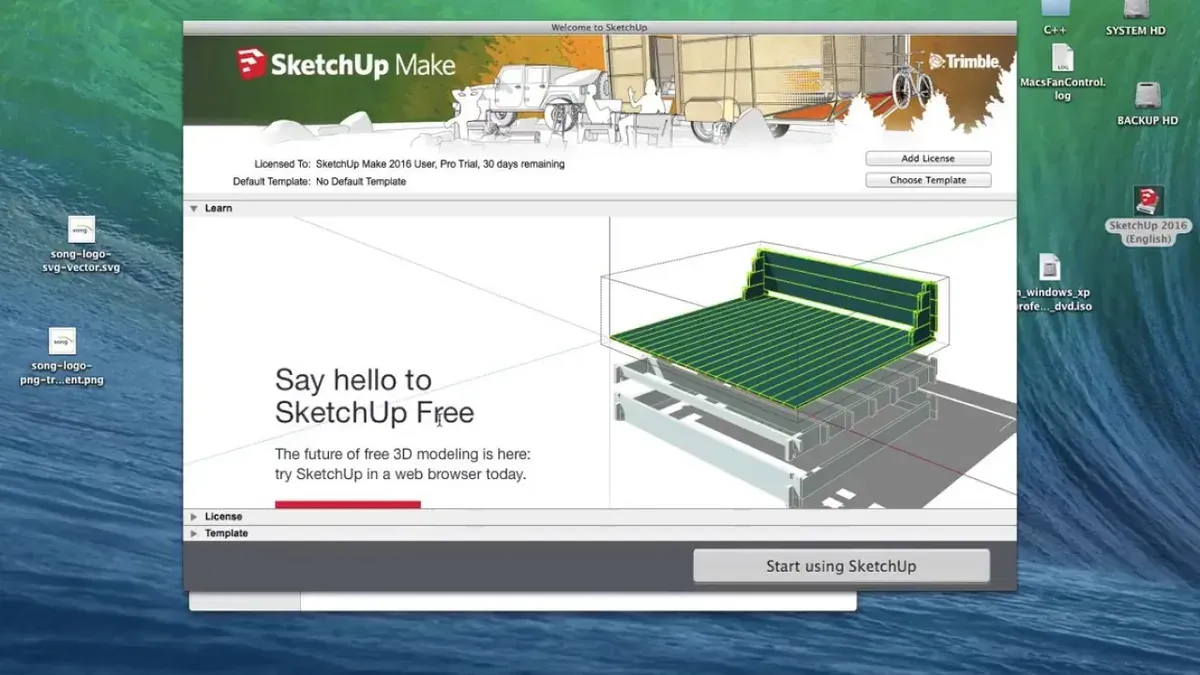
Short answer: Installing SketchUp on your Mac is straightforward when you follow the right steps. You download the official SketchUp installer from the Trimble website, run the installation package, and complete the setup by signing in with your Trimble account.
This guide covers everything you need to confidently manage how to install SketchUp on Mac, including downloading safely, performing the installation, and setting up the software for first use. It also walks you through installing key plugins like V-Ray and Enscape, which are essential for rendering and visualization workflows on MacBook Air, MacBook Pro, or other Mac models. Additionally, you’ll find hardware considerations and troubleshooting tips to ensure a smooth experience from installation to your first project.
Before you start: What you need to install SketchUp on your Mac
Ensure your Mac meets the official SketchUp system requirements for smooth installation and operation. SketchUp requires macOS 11 Big Sur or later; check this by clicking the Apple menu > About This Mac. Your Mac should have at least 8 GB of RAM, a 2.1+ GHz processor, and 700 MB of free storage for the app itself, plus additional space for projects and plugins.
Before installation, create or log in to a Trimble account at https://www.sketchup.com/login. This account is essential for activating SketchUp and accessing your license or trial. Trimble accounts are widely used and support managing your SketchUp products and services.
You need a stable internet connection to download SketchUp and activate your license. Decide whether to use SketchUp Free, Pro, or a trial version based on your needs. Pro offers advanced features and plugin support, which is necessary if you plan to install V-Ray or Enscape.
Prepare for plugin installation by verifying your Mac’s graphics capabilities. V-Ray and Enscape require compatible GPUs supporting Metal API. Confirm your Mac model supports these plugins by checking Apple’s specifications or the plugin developers’ recommendations.
- Check your macOS version: Apple menu > About This Mac > Overview tab. You should see macOS 11 or later.
- Verify hardware specs: Apple menu > About This Mac > System Report > Memory and Storage sections.
- Create or log in to your Trimble account: visit https://www.sketchup.com/login and follow prompts to sign up or authenticate.
- Confirm your internet connection is active and stable by opening a browser and loading a webpage.
- Decide which SketchUp version suits your needs: Free for basic use, Pro or trial for full capabilities and plugin access.
- Check Mac model's GPU compatibility with Metal API by visiting Apple’s support pages or plugin documentation.
Download SketchUp app for Mac safely and legally
To ensure you get the authentic SketchUp app for your Mac, always start by visiting the official SketchUp website at sketchup.com. Downloading from unofficial sources like getintopc or similar sites risks outdated software, malware, or incomplete installations that can compromise your Mac’s performance and security.
On the SketchUp homepage, navigate to the Products menu and select SketchUp Pro. Here, you will find options tailored for Mac users. SketchUp offers a Free web-based version, accessible via browser without installation, suited for lightweight projects and quick access. However, this version lacks the full features and offline capabilities of the desktop app.
If you require full functionality, download the SketchUp Pro installer or the free trial version for Mac. The trial provides all Pro features for a limited time, allowing you to test before purchasing.
- Go to https://www.sketchup.com and click Products.
- Select SketchUp Pro and choose the Mac version on the download page; you should see a file named like SketchUpPro--mac.dmg.
- Click Download and wait for the file to complete; avoid any prompts to download from third-party sites.
- Verify the file size is consistent with the official site’s listed size (usually several hundred megabytes).
- Once downloaded, open the.dmg file to begin installation.
How to install SketchUp on Mac: step-by-step setup
After downloading the SketchUp installer (.dmg file) from the official site, locate it in your Downloads folder.
- Double-click the.dmg file to open the installation window. You should see the SketchUp icon and a shortcut to the Applications folder.
- Drag the SketchUp icon into the Applications folder shortcut. This copies the app to your Mac’s Applications directory.
- Open the Applications folder and double-click the SketchUp app to launch it for the first time.
- If macOS blocks the app because it’s from an unidentified developer, go to System Preferences > Security & Privacy > General tab. Click Open Anyway beside the message about SketchUp.
- Return to SketchUp and open it again. The macOS security prompt will appear; click Open to grant permission.
- The SketchUp Installation Wizard will now guide you through setup, including license agreement acceptance and choosing installation options. Follow the prompts carefully.
- Once installation completes, SketchUp will launch the initial setup window. Sign in with your Trimble account to activate SketchUp Pro or select the free version if you prefer.
- After activation, you’ll access the main SketchUp interface, ready for your projects.
Keep screenshots of each step handy for reference, especially the macOS security prompts and installation wizard screens, to confirm you’re on the right track.
How to set up SketchUp on Mac for first use
- Customize your toolbars and workspace: Open SketchUp and go to View > Toolbars. Enable the toolbars you frequently use such as Large Tool Set and Camera. Arrange these toolbars by dragging them to your preferred position, often placing them on the left or top for easy access. When done, your workspace should display your chosen tools without clutter.
- Set default templates and units: Navigate to SketchUp > Preferences > Templates. Select a template that matches your typical project scale, for example, Architectural Millimeters or Engineering Feet. Then, under Model Info > Units, set your default unit format (e.g., decimal feet or millimeters) and precision to avoid conversion errors later. Confirm that these settings persist on new files.
- Configure input devices for Mac: In SketchUp > Preferences > Accessibility, check settings that optimize trackpad or mouse behavior. For trackpad users, enable gestures for zoom and pan under System Preferences > Trackpad > Scroll & Zoom. For mouse users, make sure right-click and middle-click functions are properly assigned for orbiting and context menus. Test these inputs by orbiting and zooming in the default model.
- Install essential extensions from Extension Warehouse: Click Window > Extension Warehouse, sign in, then search and install popular plugins like CleanUp³ for model optimization and Solid Inspector² for error detection. Installed extensions enhance your workflow and become available in the Extensions menu or toolbar.
- Organize saving and file management: Set a dedicated folder on your Mac, such as Documents > SketchUp Projects, for all your files. Use File > Save As to name projects clearly and save increment versions regularly (e.g., ProjectName_v1.skp). Enabling autosave in Preferences > General prevents data loss. Familiarize yourself with macOS Finder tags to quickly locate SketchUp files later.
Optimizing your SketchUp setup on Mac by customizing toolbars, templates, input devices, and extensions creates a streamlined workspace. This tailored environment reduces friction and lets you focus on design effectively from the start.
How to install SketchUp on MacBook Air and MacBook Pro: hardware considerations
MacBook Air and MacBook Pro differ significantly in hardware, impacting SketchUp’s installation and performance. The MacBook Pro typically features faster processors, dedicated or higher-power integrated graphics, and more RAM options, which translate to smoother 3D modeling and rendering tasks.
On MacBook Air models, especially those with lower RAM (8GB) and integrated graphics, optimize SketchUp settings by reducing the number of visible edges and disabling shadows during modeling. Use the “Window” > “Preferences” > “OpenGL” panel to lower anti-aliasing quality and turn off hardware acceleration if you encounter lag.
Consider upgrading your RAM to at least 16GB if you frequently work with large models or complex plugins like V-Ray or Enscape. Storage should ideally be SSD-based with sufficient free space (minimum 20% free) to handle cache and temp files efficiently.
Battery life and thermal management are critical when running SketchUp on MacBooks. On MacBook Air, avoid running SketchUp on battery alone during intense sessions to prevent throttling; plug into power and keep vents clear. The MacBook Pro’s active cooling allows longer high-performance use but monitor temperatures with tools like Activity Monitor or iStat Menus to prevent overheating.
Checklist for smooth SketchUp operation on MacBook Pro:
- Ensure at least 16GB RAM and SSD storage with ample free space
- Keep macOS and SketchUp updated for optimized hardware support
- Use external displays sparingly to reduce GPU load
- Monitor CPU/GPU temperatures during rendering tasks
- Keep SketchUp’s OpenGL settings at default or higher for best visuals
How to install V-Ray for SketchUp on Mac
Before installing V-Ray, verify that your SketchUp version and macOS are compatible with the V-Ray plugin. Visit the Chaos Group website for the latest compatibility matrix.
- Go to the official Chaos Group website and download the V-Ray for SketchUp installer specific for Mac. You should see a DMG file once the download completes.
- Open the downloaded DMG file and double-click the installer package. The installer will guide you through the steps; wait for it to complete installing the plugin files into SketchUp.
- Launch SketchUp. The V-Ray toolbar and menu should appear automatically, confirming the integration.
- Activate your V-Ray license by navigating to V-Ray > License Manager within SketchUp. Enter your license key and confirm activation. A successful activation screen will appear.
- Access V-Ray Asset Editor from the toolbar. Load a sample scene or your own model and set up a basic render using default settings.
- Start the render by clicking the Render button. A rendered image preview window should open, displaying your scene with V-Ray's rendering applied.
Rendered image samples and the license activation window confirm the plugin is correctly installed and licensed. Adjust settings in the Asset Editor to optimize render quality and performance for your Mac.
How to install Enscape on SketchUp Mac
Enscape is a powerful real-time visualization plugin compatible with the latest versions of SketchUp for Mac. Before installation, verify your SketchUp version supports Enscape by checking the official Enscape website for compatibility details.
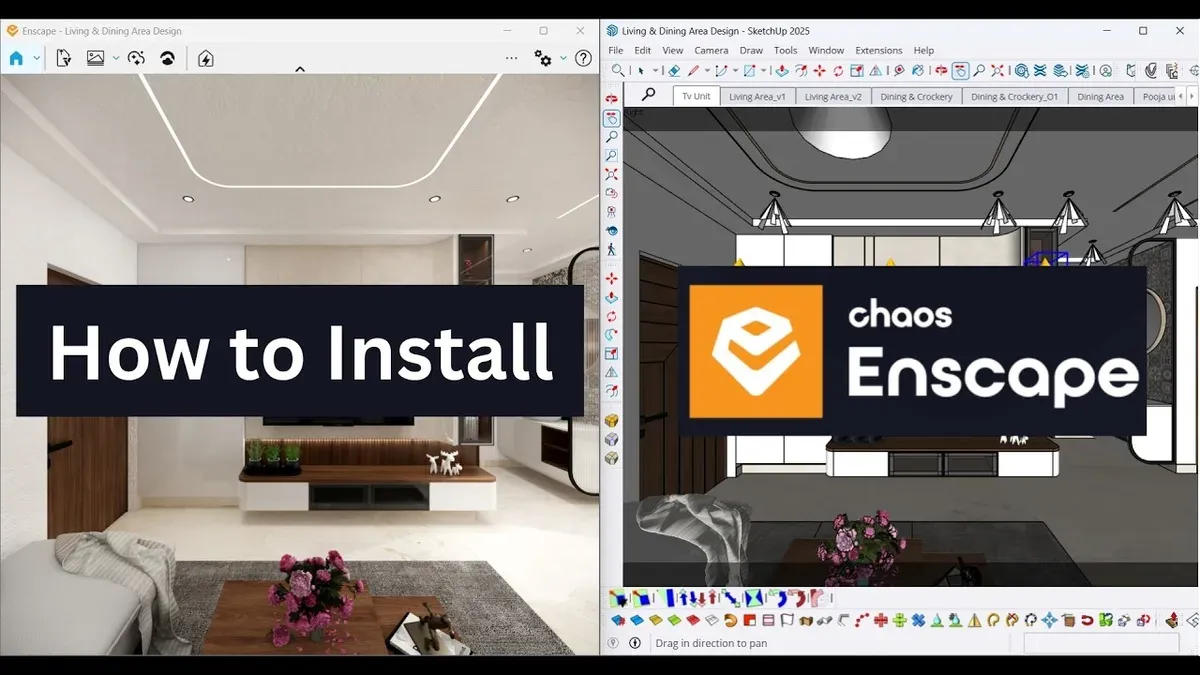
- Download the Enscape Mac installer: Visit the official Enscape website and download the Mac-specific installer. Once downloaded, locate the file in your Downloads folder.
- Run the installer: Double-click the Enscape installer package. Follow the on-screen prompts to install the plugin. Successful installation is indicated by the appearance of the Enscape plugin folder in your Applications directory.
- Activate the Enscape plugin within SketchUp: Open SketchUp, go to Window > Extension Manager, and ensure Enscape is listed and enabled. If not visible, restart SketchUp.
- Configure Enscape settings for your Mac hardware: Access Enscape's settings via the toolbar icon. Set the rendering quality to “Medium” for MacBook Air or adjust to “High” on MacBook Pro models with dedicated GPUs. Enable GPU acceleration if available to optimize performance.
- Run your first walkthrough visualization: Load a SketchUp model, then click the Enscape start button. A new window opens with a real-time render of your model. Use the WASD keys or mouse to navigate smoothly through the scene.
Visual examples of Enscape renders include realistic lighting, shadows, and reflections, providing immersive walkthroughs directly from SketchUp. These help verify your installation and get you started creating compelling presentations.
Troubleshooting common SketchUp installation issues on Mac
If macOS blocks SketchUp because it’s from an unidentified developer, open System Preferences > Security & Privacy > General and click Open Anyway next to the blocked app notification. This bypass lets you run SketchUp safely.
If the installation freezes or crashes, ensure macOS is up to date and you have sufficient disk space. Force quit the installer via Apple menu > Force Quit, then restart your Mac and run the installer again.
Plugin compatibility problems often arise after macOS or SketchUp updates. Disable all plugins via Window > Extension Manager, then enable them one-by-one to identify the culprit. Check plugin developer websites for Mac-compatible updates.
License activation errors like “Activation failed” or “Invalid license” usually mean network issues or mismatched credentials. Confirm your Trimble account details and internet connection, then retry activation. Contact SketchUp support if problems persist.
To uninstall SketchUp cleanly, drag the SketchUp app from the Applications folder to the Trash, then remove preferences and support files from ~/Library/Application Support/SketchUp and ~/Library/Preferences/com.sketchup.*. Restart your Mac before reinstalling.
- Open System Preferences > Security & Privacy > General and allow SketchUp if blocked. You should see an option to open the app.
- If installation freezes, quit the installer and restart your Mac. Relaunch installer until it completes smoothly.
- Disable all plugins in Window > Extension Manager, then enable one at a time. Problematic plugins cause errors or crashes when activated.
- Verify your Trimble account credentials and internet connection for license activation. Activation should complete without errors.
- Uninstall SketchUp by deleting the app and related support files, then restart your Mac before reinstalling.
Read next
- How to Install AutoCAD on Mac: A Step-by-Step Expert Guide
- How to Install Illustrator on Mac: A Clear Step-by-Step Guide
- How to Install Photoshop on Mac: A Clear Step-by-Step Guide
- How to Install Blender on Mac: A Clear Step-by-Step Guide
Frequently asked questions
Does sketchup work on mac?
Yes, SketchUp is fully compatible with macOS. You can run SketchUp on MacBook Air, MacBook Pro, and other Mac models that meet the minimum system requirements, such as having macOS Mojave (10.14) or later and sufficient RAM and graphics capabilities. The interface and features are tailored to work smoothly with Mac hardware.
How to use sketchup on mac?
After installing SketchUp on your Mac, launch the application from the Applications folder or Dock. Use the toolbar and menus to start a new project or open existing files. Utilize trackpad gestures or a mouse for navigation, and customize your workspace under Window > Preferences for toolbars, shortcuts, and template settings.
How to install vray for sketchup on mac?
First, ensure you have SketchUp installed and closed. Download the V-Ray installer for Mac from the official Chaos Group website. Run the installer and follow prompts to integrate V-Ray with SketchUp; it will automatically add the V-Ray toolbar and menu. After installation, launch SketchUp and activate V-Ray via Extensions > V-Ray toolbar.
How to install sketchup in macbook air?
Download the SketchUp Mac installer from the official SketchUp website. Double-click the.dmg file to mount it, then drag the SketchUp app icon into the Applications folder. Ensure your MacBook Air meets the hardware requirements—at least 8GB RAM and a recent macOS version—for optimal performance during installation and use.
Is sketchup available for mac?
SketchUp is available as a native application for macOS, providing the same core functionality as on Windows. You can download it directly from SketchUp’s official website, ensuring you get the latest version optimized for Mac hardware and system updates.
Quick checklist
- Verify your Mac runs macOS Big Sur or later for full SketchUp compatibility.
- Download SketchUp and plugins only from their official websites to avoid security risks.
- Follow the exact installer prompts, allowing necessary permissions in System Preferences > Security & Privacy.
- Configure SketchUp preferences immediately after installation to optimize performance.
- Ensure your MacBook Air or Pro meets minimum hardware specs: at least 8GB RAM and a dedicated or integrated GPU supporting Metal.
- Install V-Ray and Enscape plugins via their dedicated macOS installers, confirming compatibility with your SketchUp version.
- Check for software updates regularly and reboot your Mac after installations to avoid glitches.
What this guide does not cover
This guide does not cover SketchUp installation on older Macs that no longer support the latest macOS versions or SketchUp releases; users with legacy hardware may face compatibility issues. If your Mac is running macOS Catalina or earlier without upgrade options, consider alternate design software or upgrading your hardware.
For enterprise environments requiring network installations or volume licensing, consult your IT department or SketchUp’s business support for tailored solutions beyond this walkthrough.
To move forward confidently, launch SketchUp now and explore its built-in tutorials and help center. Familiarizing yourself with the interface and default tools is the best step to maximize your setup and prepare for plugin integration.



