
How to Install Slack on Mac: A Clear Step-by-Step Guide
Follow this clear step-by-step guide to install Slack on your Mac, choosing between user-specific or machine-wide installation options.

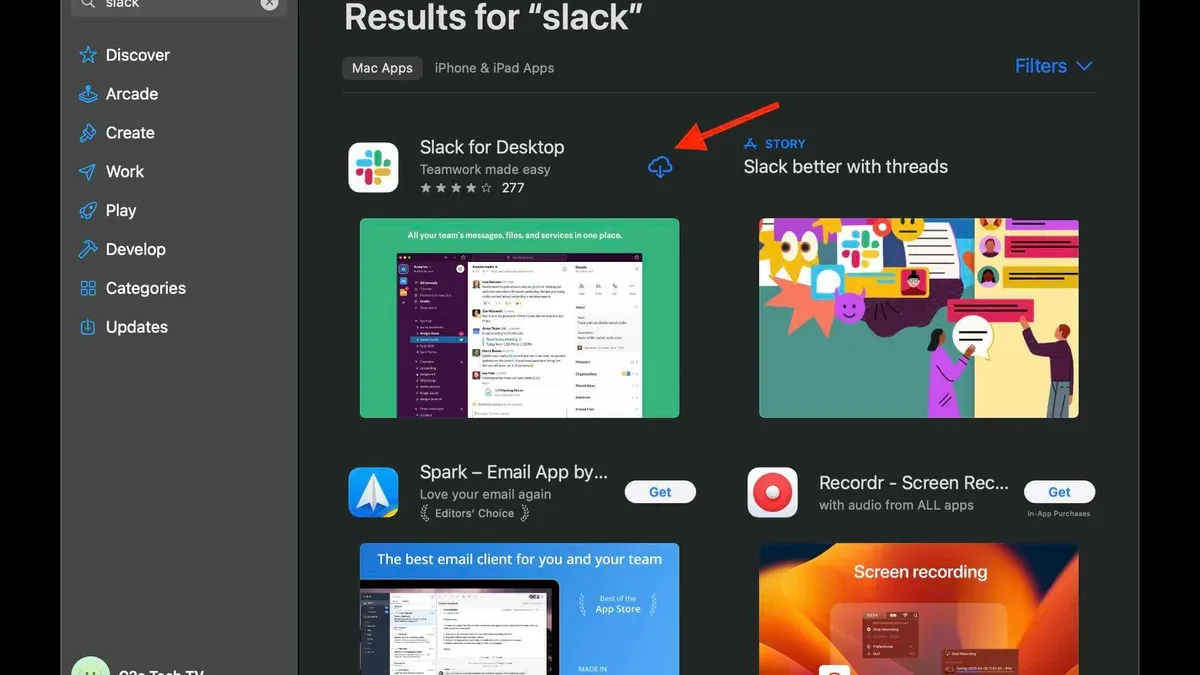
Short answer: To install Slack on Mac, download the official Slack app from the Slack website or the Mac App Store, then follow the straightforward installation prompts. You can choose between a user-specific install or a machine-wide install depending on your needs and permissions.
This guide covers how to install Slack on Mac with clear, step-by-step instructions. You will learn to decide between installation methods, perform the installation on MacBook or MacBook Pro, and troubleshoot common issues. Additionally, it explains the benefits and trade-offs of machine-wide versus user-specific installations, ensuring your Slack setup runs smoothly and securely.
Before you start: What you need to install Slack on Mac
To install Slack smoothly on your Mac, first confirm your system meets its requirements. Slack supports macOS versions 10.14 Mojave and later, so if your Mac runs an earlier OS, you'll need to update before proceeding.
A stable internet connection is essential both to download the installer and to enable Slack’s cloud-based communication features once installed. Ensure your connection is reliable to avoid interruptions.
Decide whether you want a personal (user-specific) or machine-wide installation. A personal install places Slack only in your user account, which is simpler and requires fewer permissions. Machine-wide installation makes Slack available to all users on the Mac but requires administrator privileges and can be preferable in multi-user environments.
Check that you have at least 150 MB of free disk space to accommodate the app and its data. Insufficient space can lead to failed installs or app crashes.
Verify you have the necessary permissions to install apps. For a personal install, standard user permissions usually suffice. For a machine-wide install, you’ll need administrator rights. Common permission errors occur if you attempt a machine-wide install without admin access, resulting in prompts like “You don’t have permission to open the application.”
- Open the Apple menu and select About This Mac. Confirm your macOS version is 10.14 or later.
- Check your internet connection by opening a website or running a speed test; ensure it loads without errors.
- Decide if Slack should be installed for all users (machine-wide) or just your account.
- Open Finder, select your Mac’s startup disk, and check available space in the bottom info bar or via Get Info. Confirm at least 150 MB free.
- Confirm you have administrator rights if doing a machine-wide install by opening System Preferences > Users & Groups and checking your account type.
How to install Slack on my computer: Downloading the Slack app for Mac
Start by navigating to the official Slack website at https://slack.com/downloads/mac. This ensures you get the latest and safest version, avoiding third-party sites that might distribute outdated or compromised software. Alternatively, you can download Slack from the Mac App Store if you prefer app store management.
When on the Slack download page, check your Mac’s processor type: Intel or Apple Silicon (M1, M2). Slack provides separate installers optimized for each architecture. Download the Apple Silicon version if your Mac has an M1 or newer chip for better performance and battery efficiency. Otherwise, choose the Intel version.
Note the difference between the Slack app and the Slack web client. The app is a standalone program that runs natively on your Mac, offering better integration, notifications, and offline access. The web client runs in a browser but lacks some native features and can consume more system resources.
- Open your preferred browser and go to https://slack.com/downloads/mac. You should see a clear "Download" button for Mac.
- Identify your Mac’s processor type by clicking the Apple menu > About This Mac. If it says "Apple M1" or "Apple M2," download the Apple Silicon version; otherwise, get the Intel version.
- Click the appropriate "Download" button. The Slack installer file (.dmg) will begin downloading. The file size is typically around 80-100 MB.
- Once downloaded, locate the.dmg file in your Downloads folder. Double-click it to open the installer.
Following these steps ensures you obtain the correct Slack installer securely and ready for installation.
How to install Slack on MacBook and MacBook Pro: Installing the app step-by-step
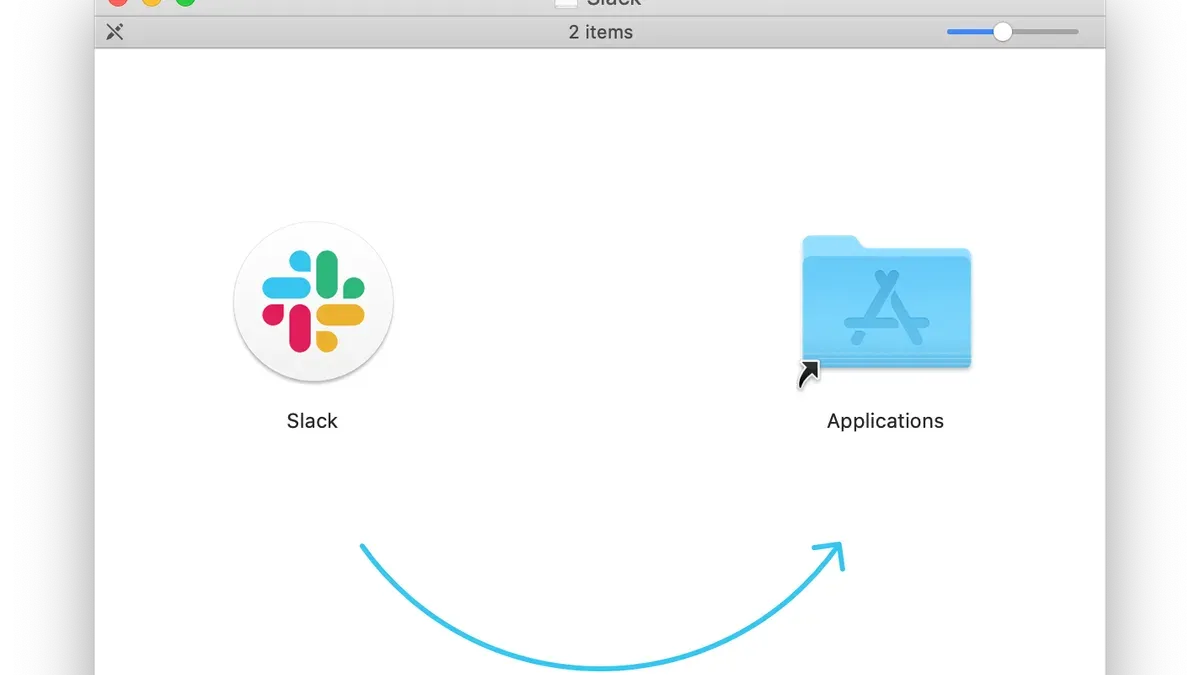
- Locate the downloaded Slack.dmg file in your Downloads folder and double-click it to open. You will see a new window with the Slack icon and a shortcut to the Applications folder.
- Click and drag the Slack icon into the Applications folder shortcut. This action copies Slack to your Applications directory, which ensures the app is properly installed and accessible from Launchpad or Spotlight.
- Once the copying finishes, eject the Slack disk image by clicking the eject icon next to Slack in the Finder sidebar or right-clicking the mounted Slack volume on the desktop and selecting "Eject".
- Open the Applications folder and double-click the Slack app to launch it for the first time. macOS may display a prompt stating "Slack.app is an application downloaded from the internet. Are you sure you want to open it?" Click "Open" to proceed.
- When Slack launches, it may request permissions such as access to notifications or microphone depending on your intended use. Grant these permissions through the system prompts to enable full functionality.
Installing Slack in the Applications folder rather than running it directly from the disk image is important because it ensures the app is fully integrated with your system, allows automatic updates, and prevents the app from disappearing when you eject the disk image.
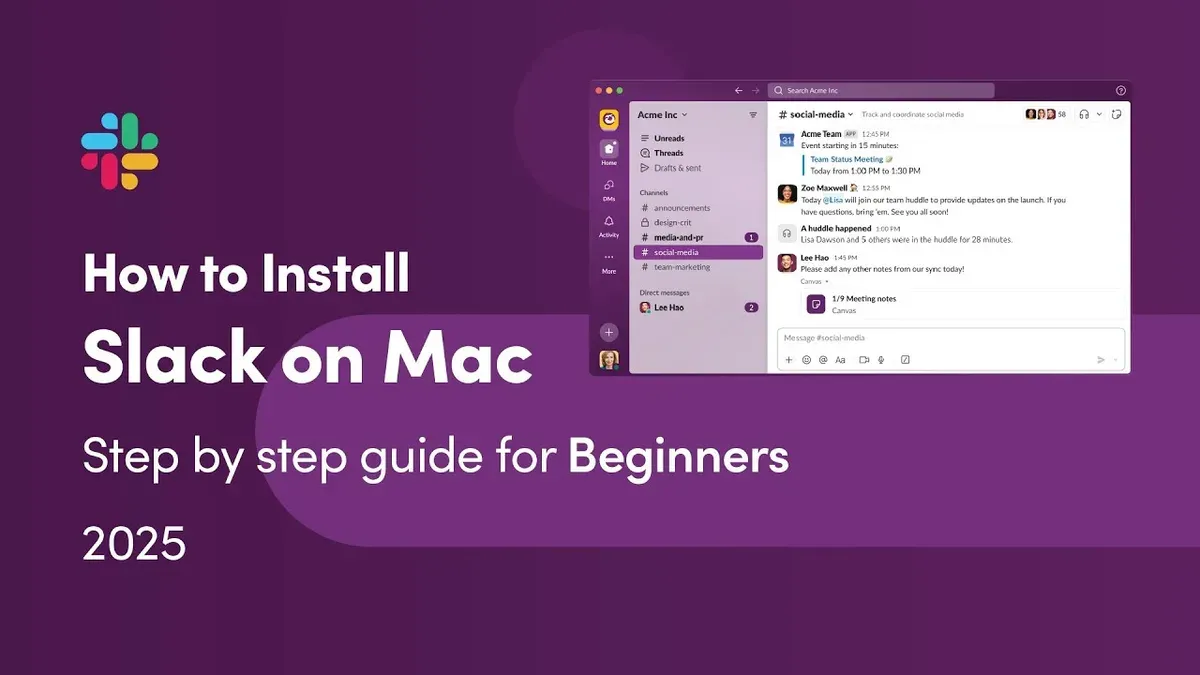
Typical confirmation dialogs include the macOS security warning on first launch and progress bars during the copying step. After installation, Slack will open with a welcome screen prompting you to sign in or create a workspace.
How to install Slack on macOS with machine-wide installation
A machine-wide installation of Slack installs the app for all users on a Mac rather than just a single user account. This approach is ideal for shared Macs, enterprise environments, or IT-managed machines where multiple users need access to Slack without reinstalling it individually.
Machine-wide installs require administrator privileges because the app is placed in a system-wide location, typically /Applications, making it accessible to all accounts.
Compared to a user-specific install, which resides in the user's ~/Applications folder, machine-wide installation centralizes management and updates but requires admin rights to initiate.
| Feature | User-Specific Install | Machine-Wide Install |
|---|---|---|
| Installation Location | ~/Applications (user folder) | /Applications (system folder) |
| Availability | Only the installing user | All users on the Mac |
| Admin Rights | Not required | Required |
| Update Management | Per user | Centralized for all users |
To perform a machine-wide installation, you can use the Slack installer with admin privileges or the command line. Slack provides a PKG installer designed for this purpose.
- Download the Slack Mac OS X Machine-Wide Installer.pkg from the official Slack website or your IT distribution channel.
- Double-click the PKG file to launch the installer. You will see a standard macOS installation window.
- Click Continue to proceed through the prompts and accept the license agreement.
- When prompted, enter your administrator username and password to authorize the installation.
- Complete the installation, which places Slack in the /Applications folder accessible to all users.
- Verify the installation by switching to another user account and launching Slack from the system Applications folder.
If you prefer the command line, use the following command in Terminal with admin rights:
sudo installer -pkg /path/to/Slack_Machine_Wide_Installer.pkg -target /
This command runs the installer package with root privileges, placing Slack in the system Applications directory.
How to uninstall and install Slack on Mac: Reinstalling to fix issues
Reinstalling Slack can resolve common problems such as app crashes, login failures, or update errors. Before uninstalling, back up any important Slack data stored locally, such as exported messages or downloaded files, since uninstalling removes app data.
To fully remove Slack, you must delete both the app and its supporting files, including caches and preferences.
- Quit Slack completely by right-clicking its Dock icon and selecting Quit. If it doesn’t quit, use Force Quit from the Apple menu. This ensures no files are locked during deletion.
- Open the Applications folder and drag the Slack app to the Trash. Confirm it is removed from your Applications directory.
- In Finder, press Shift + Command + G to open Go to Folder. Enter
~/Library/Application Support/Slackand move this folder to Trash. This deletes local app data and cache. - Repeat the previous step for
~/Library/Caches/com.tinyspeck.slackmacgapand~/Library/Preferences/com.tinyspeck.slackmacgap.plist. These files store preferences and temporary data that can cause issues if corrupted. - Empty the Trash to permanently remove all Slack files from your Mac.
- Restart your Mac to clear any lingering system processes related to Slack.
- Download the latest Slack installer from the official Slack website and install it using your preferred method.
- Launch Slack and sign in as usual. You should see a clean installation free of previous issues.
Common troubleshooting cases where reinstalling helps include persistent login loops, Slack freezing on launch, or failure to receive notifications. Removing corrupted caches and preferences often clears these problems.
- Backup important Slack exports before uninstalling.
- Quit Slack fully before deleting files.
- Delete app, caches, and preferences from Library folders.
- Empty Trash and restart Mac.
- Download fresh installer and reinstall Slack.
How to use Slack on Mac: Basic setup after installation
Once Slack is installed, launching it will prompt you to sign in with your Slack workspace credentials. Use your workspace email and password or single sign-on method as required. After signing in, Slack syncs your channels and messages, preparing you for collaboration.
- Open Slack from your Applications folder or Dock. You should see the Slack sign-in screen.
- Enter your workspace URL or select it if previously used. Click Continue.
- Input your email and password or authenticate via single sign-on. Upon success, Slack loads your workspace interface.
To stay informed without disruption, configure Slack's macOS notifications. Go to Slack > Preferences > Notifications. Choose notification triggers such as Direct messages, mentions, and keywords for balanced alerting. On macOS, also check System Preferences > Notifications & Focus > Slack to allow banners, sounds, and badge app icons.
The Slack menu bar icon offers quick access to your workspace and message search. Click the icon to open Slack or use keyboard shortcuts like Command + Shift + K to jump to a channel or direct message. Familiarizing yourself with shortcuts boosts navigation speed.
- Sign in with your workspace credentials when launching Slack.
- Set notifications in Slack preferences and macOS system settings.
- Use the menu bar icon for quick Slack access.
- Learn key shortcuts: Command + Shift + K for channel navigation, Command + K for quick switcher.
Troubleshooting Slack installation on Mac: Fix common problems
If Slack won’t open or install, macOS security settings may be blocking it. You might see the error "Slack can’t be opened because it is from an unidentified developer." To fix this, go to System Settings > Privacy & Security, find the message about Slack under "Security & Privacy," and click Allow Anyway. Then try opening Slack again.
Older macOS versions or incompatible hardware can cause errors like "This app requires macOS 11 or later," preventing installation. Confirm your macOS version by clicking the Apple menu and selecting About This Mac. If your system is outdated, update macOS via the Software Update pane or consider using Slack’s web client as an alternative.
Network problems may block Slack download or sign-in. If you see errors such as "Unable to connect to Slack" or downloads stalling, verify your internet connection is stable. Disable VPNs or proxies temporarily, as they can interfere with Slack's servers. Also, check your firewall settings under System Settings > Network > Firewall and ensure Slack is allowed.
For persistent issues, clear Slack’s cache by deleting the folder ~/Library/Application Support/Slack and reinstall the app. Visit Slack’s official Mac support page for detailed guidance.
- Check macOS security settings for blocked apps; click Allow Anyway in Privacy & Security, then open Slack — Slack launches successfully.
- Verify macOS version; update if below 11 — installation proceeds without version errors.
- Test internet connection; disable VPN/proxy; adjust firewall to permit Slack — Slack downloads and signs in correctly.
- Clear Slack cache folder and reinstall if problems persist — app works without crashes or login issues.
Read next
- How to Install Discord on Mac: A Step-by-Step Guide for Smooth Setup
- How to Install Spotify on Mac: A Clear Step-by-Step Guide
- How to Install VirtualBox on Mac: A Complete Step-by-Step Guide
- How to Install and Use UTM on Mac: A Complete Step-by-Step Guide
Frequently asked questions
How to install slack on windows?
To install Slack on Windows, visit the official Slack website and download the Windows installer. Once downloaded, run the installer and follow the on-screen prompts to complete the installation. Slack will then be accessible from your Start menu or desktop shortcut for easy launching.
How to install slack app?
Installing the Slack app begins with downloading the appropriate installer for your device from the official Slack website or app store. After downloading, open the installer and follow the step-by-step instructions to complete the setup. Ensure you have a stable internet connection during installation for a smooth process.
How to install slack on iphone?
On your iPhone, open the App Store and search for "Slack." Tap the download button to install the app. After installation, open Slack and sign in with your workspace credentials or create a new account to start collaborating.
How to install Slack on Windows compared to Mac?
The installation process on Windows typically involves downloading an.exe installer, whereas on Mac, it involves a.dmg file. Windows users follow a standard setup wizard, while Mac users drag the Slack app into the Applications folder. Both platforms require internet access, but Mac installations offer an option for machine-wide or user-specific installs, which is less common on Windows.
How to install Slack app on iPhone?
Open the App Store on your iPhone and search for "Slack." Tap the download icon next to the Slack app and wait for the installation to finish. Once installed, launch the app and log in with your Slack workspace details to begin using it.
Quick checklist
- Ensure your Mac runs macOS 10.12 or later for Slack compatibility.
- Decide between user-specific or machine-wide installation based on your needs.
- Download the Slack installer directly from slack.com/downloads/mac for authenticity and security.
- Follow the installer prompts carefully and grant necessary permissions when asked.
- If reinstalling, use the official uninstall method to avoid leftover files.
- After installation, sign in with your Slack credentials and customize notifications.
- Consult the troubleshooting section if you encounter launch issues or permission errors.
What this guide does not cover
This guide does not cover Slack installation on Linux or Chrome OS, nor does it address advanced enterprise deployment via MDM systems, which require specialized IT knowledge. For large organizations managing multiple devices, consult your IT department or Slack’s enterprise support resources to set up Slack securely and at scale.
To keep your Slack experience optimal, regularly check for app updates via the Slack menu under Slack > Check for Updates. This ensures you have the latest features and security patches without manual reinstallation.



