
How to Install a Tally ERP Alternative on Mac: A Step-by-Step Guide
Discover how to install a Tally ERP alternative on Mac with detailed steps, requirements, and troubleshooting tips for seamless use.

Short answer: You cannot install Tally ERP directly on a Mac because it is Windows-only software. Instead, installing a Tally ERP alternative on Mac involves selecting a compatible ERP solution designed for macOS and following its specific installation process.
This article covers how to install Tally ERP alternative on Mac by guiding you through what you need before starting, why Tally ERP isn’t natively supported on Mac, how to pick the best alternative for your business needs, and detailed steps for installation and initial setup. You’ll also find troubleshooting tips to resolve common issues with Mac-compatible ERP software installations.
Before You Start: What You Need to Install a Tally ERP Alternative on Mac
To install a Tally ERP alternative on your Mac, first ensure your system meets the basic requirements. Most ERP software for Mac runs smoothly on macOS versions from 10.14 (Mojave) onward, with at least 8 GB of RAM and sufficient disk space—usually a minimum of 10 GB free. A stable internet connection is necessary for downloading installation files and receiving updates without interruption.
Since Tally ERP 9 is strictly Windows-only, Mac users must opt for alternatives that run natively or via reliable Mac-compatible environments. Before migrating, back up your existing financial data from Tally ERP on your PC to avoid data loss during the transition.
Here is a comparison of popular Tally ERP alternatives suited for Mac users:
| ERP Software | Native Mac Support | Key Features | Pricing Model |
|---|---|---|---|
| Zoho Books | Yes | Invoicing, Inventory, GST Compliance | Subscription-based |
| QuickBooks Online | Via Web Browser | Accounting, Payroll, Reporting | Subscription-based |
| Odoo | Yes | Modular ERP, CRM, Inventory | Open-source & Paid Options |
| Busy Accounting | No (Requires Windows Emulator) | Accounting, Stock Management | One-time License |
- Check your Mac’s macOS version via Apple menu > About This Mac; confirm it meets or exceeds 10.14 (Mojave). Success: the version number displays correctly.
- Verify RAM and free disk space by clicking About This Mac > Storage and Memory tabs. Success: you see at least 8 GB RAM and 10 GB free space.
- Confirm your internet connection stability by opening a browser and loading a website without delays or drops. Success: website loads promptly.
- Backup existing financial data from Tally ERP on your PC using Tally’s Export Data feature; save files to an external drive or cloud storage. Success: backup files are accessible and complete.
- Review the comparison table above to shortlist a Mac-compatible Tally ERP alternative that fits your business needs.
Is Tally a ERP Software? Understanding What You’re Replacing
Tally ERP is a comprehensive accounting and business management software widely used by small and medium enterprises. It covers financial accounting, inventory management, payroll, taxation, and compliance, consolidating multiple business processes in a single platform. Officially offered by Tally Solutions, it is designed to simplify business operations and reporting.
However, Tally ERP is exclusively developed for Windows operating systems, lacking native support for Mac. This Windows-only availability is a key reason Mac users seek alternatives that run smoothly on their devices. The absence of a Mac version means you cannot install Tally ERP directly on macOS without workarounds like virtual machines or dual boot setups, which may be complicated or resource-intensive.
Users look for Tally ERP alternatives on Mac primarily for three reasons: full Mac compatibility, equivalent or improved features, and straightforward installation without technical hurdles. Choosing a Mac-native ERP solution ensures better performance, native integration, and easier maintenance, making it a practical choice for Mac-based businesses.
How to Choose the Right Tally ERP Alternative for Your Mac
Choosing the right ERP alternative involves evaluating critical features and how they fit your business needs. Start by comparing accounting capabilities such as ledger management, invoicing, and tax calculations to ensure the software covers your core financial processes.
Next, assess the user interface for ease of navigation and clarity. A clean, intuitive design reduces training time and boosts productivity. Check reporting tools to confirm they offer customizable reports and compliance support tailored to your region's regulations.
Consider whether a cloud-based or desktop application suits your workflow better. Cloud apps provide access from multiple devices and automatic updates, while desktop apps may offer faster performance without internet dependency.
Evaluate cost structures including subscription fees, one-time purchases, and licensing terms. Compare these against your budget and expected usage scale.
Finally, review user ratings and expert analyses from reputable sources to identify reliability and customer satisfaction trends.
| Feature | Alternative A | Alternative B | Alternative C |
|---|---|---|---|
| Accounting Features | Comprehensive ledger, tax support | Basic ledger, limited tax functions | Advanced invoicing, multi-currency |
| User Interface | Modern, intuitive | Traditional, cluttered | Clean, customizable |
| Reporting | Custom reports, compliance ready | Standard reports | Extensive analytics |
| Cloud/Desktop | Cloud | Desktop | Cloud |
| Cost Model | Subscription | One-time license | Subscription |
| User Rating | 4.5/5 | 3.8/5 | 4.2/5 |
- List your essential accounting needs and match them against alternatives’ features; you should see which options fully meet your requirements.
- Test demo versions or trial accounts to experience the user interface and reporting tools firsthand; you should find the interface intuitive and reports comprehensive.
- Decide on cloud versus desktop based on your mobility needs and internet reliability; you should identify which deployment mode fits your environment.
- Compare pricing plans and licensing details to calculate total cost of ownership; you should pinpoint options within your budget.
- Read multiple user reviews and expert ratings to gauge satisfaction and support quality; you should recognize consistent strengths and weaknesses.
How to Install Your Chosen Tally ERP Alternative on Mac: Step-by-Step
- Download the official installer or access the cloud platform. Visit the vendor’s official website to download the Mac-compatible installer file (usually a.dmg or.pkg) or sign up for their cloud service. You should see a clear download button or sign-up form.
- Run the installer or create your user account. Open the downloaded file and follow the on-screen prompts to install the software. For cloud platforms, complete the registration and verify your email. Successful installation shows a completion message or launches the app; cloud platforms direct you to the dashboard upon login.
- Configure initial settings including company profile and tax details. Upon first launch, input your company name, financial year, GST or VAT registration numbers, and other relevant tax details. The setup wizard guides you through these, confirming each section as completed.
- Import existing data if applicable. Use the import tool found under File > Import (or similar) to bring in your previous accounting data, often supported in CSV, XML, or proprietary Tally export formats. A successful import displays a summary of imported records without errors.
- Verify installation success and launch the app. Close and reopen the application to ensure settings are saved and the software runs without error. You should be able to access the main dashboard and perform basic operations like creating ledgers or invoices.
Following these steps ensures a smooth installation and initial setup of your Mac-compatible Tally ERP alternative, ready for daily accounting tasks.
How to Use Your Tally ERP Alternative: Basic Setup and First Steps
Upon launching your chosen Tally ERP alternative, you will encounter a dashboard with key modules such as Ledgers, Vouchers, Inventory, and Reports. These modules replicate the essential functions you used in Tally ERP 9, organized for intuitive access on Mac.
- Create a ledger: Navigate to Accounts > Ledgers > New Ledger. Enter the ledger name (e.g., "Sales Account") and assign it to the appropriate group, such as "Sales Accounts." Save the ledger. You should see it listed among your ledgers.
- Enter a voucher: Go to Transactions > Vouchers > New Voucher. Select the voucher type (e.g., Sales). Choose the ledger you created earlier, input the amount (e.g., 1000), and add a description. Save the voucher. It will appear in the transaction list.
- Generate a report: Access Reports > Trial Balance. The report will display all ledgers and their balances, including your recent entry.
Common workflows mirror Tally ERP 9, such as creating ledgers before vouchers and regularly generating reports to monitor business health. Look for a built-in help menu or online support link, often found under Help > User Guide or Support, providing detailed assistance and tutorials.
Troubleshooting Common Issues Installing or Running Tally ERP Alternatives on Mac
Installation errors often stem from insufficient permissions or unmet system requirements. If you see messages like "Installation failed due to lack of permissions," open System Preferences > Security & Privacy > Privacy tab, then enable Full Disk Access for the installer app. Also, verify your macOS version and available storage space meet the software’s minimum requirements.

Performance issues such as sluggish response or freezing can usually be improved by optimizing your Mac. Close unnecessary apps to free up RAM, update macOS to the latest version via System Preferences > Software Update, and consider restarting your Mac to clear temporary files.
Data import/export problems often involve format incompatibility or corrupted files. Ensure your data files conform to the ERP’s supported formats (e.g., CSV, XLSX). When importing, use the ERP’s built-in import tools rather than manual copying to prevent errors.
Connectivity issues with cloud-based ERP solutions frequently relate to network settings or firewall restrictions. Confirm your Mac’s network allows outbound connections on required ports (usually 443 for HTTPS). Disable VPNs temporarily to check if they interfere with the connection.
- Fix installation permission errors: Go to System Preferences > Security & Privacy > Privacy > Full Disk Access, add the installer, then retry installation. You should see the installation progress bar without interruption.
- Resolve performance lags: Close all unused applications and restart your Mac. After reboot, the ERP should launch and operate smoothly without freezing.
- Correct data import/export failures: Convert your files to supported formats and use the software’s import/export wizards. Successful import will show data properly populated in your ERP interface.
- Address cloud connectivity problems: Check network settings to ensure port 443 is open, disable VPNs, and confirm your internet is stable. You should then be able to log in and sync data without errors.
Read next
- How to Install and Use CrossOver on Mac: A Clear Step-by-Step Guide
- How to Install and Use UTM on Mac: A Complete Step-by-Step Guide
Frequently asked questions
How to install tally erp 9?
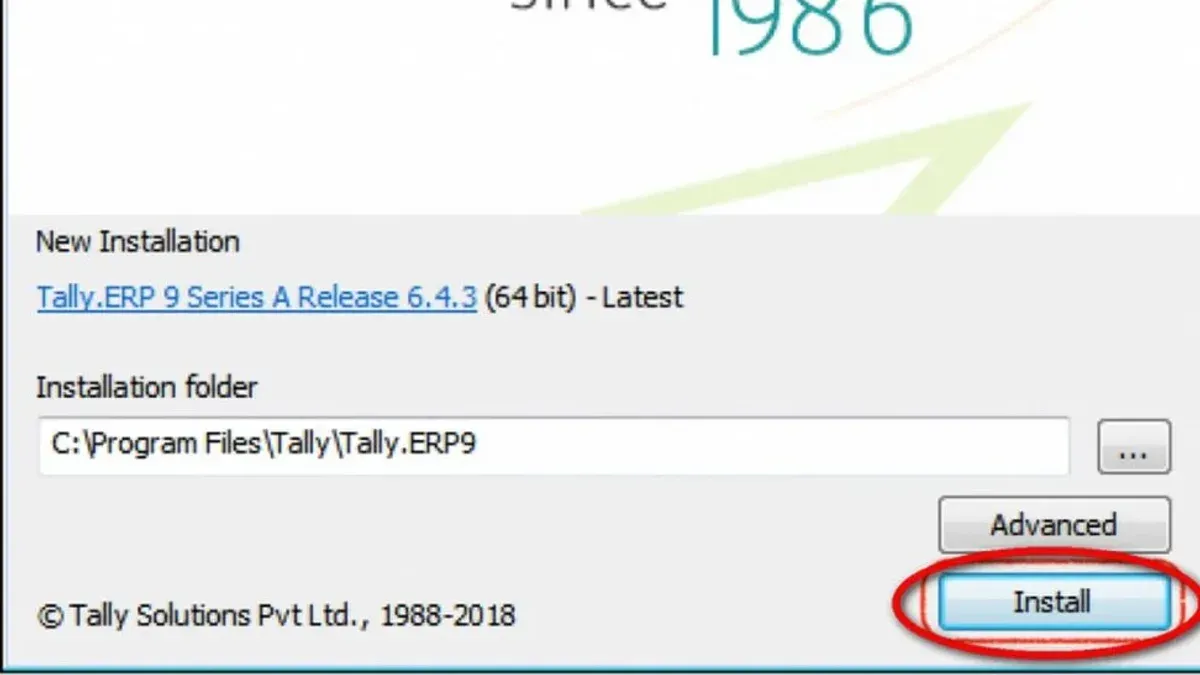
To install Tally ERP 9, download the official installer from the Tally Solutions website. Run the setup file and follow the on-screen prompts, choosing the installation directory and license type. After installation, activate your license by entering your license key under the Licensing menu in the software.
How to use tally erp?
Start by creating a company in Tally ERP and setting up your financial year. Use the Gateway of Tally to access ledgers, vouchers, and reports. Familiarize yourself with the Voucher Entry screen to record transactions and generate financial statements through the Display menu.
How to install Tally ERP 9 on Mac?
Tally ERP 9 is not natively supported on Mac OS. To run it, you must use virtualization software like Parallels Desktop or VMware Fusion to install Windows on your Mac first. Then, install Tally ERP 9 within the Windows environment.
How to use Tally ERP effectively for my business?
Customize your chart of accounts to match your business structure and consistently record transactions. Regularly reconcile accounts and generate profit and loss statements to monitor performance. Utilize built-in features like inventory management and GST compliance to streamline operations.
Is there a free Tally ERP 9 alternative for Mac?
Yes, some free ERP alternatives compatible with Mac include Odoo Community Edition and ERPNext. These open-source options offer core accounting and inventory features but may require more initial setup compared to paid software.
Quick checklist
- Confirm your Mac meets the minimum system requirements of the chosen ERP software, including macOS version and available storage.
- Download the official Mac-compatible installer from the vendor’s website to avoid security risks.
- Follow the installation wizard carefully, granting necessary permissions like full disk access if prompted.
- Complete the initial setup by configuring company details, user roles, and default accounting settings.
- Test key functions such as invoice creation and report generation to verify proper installation and operation.
- Keep your software updated regularly to benefit from security patches and feature improvements.
This guide does not cover installing Tally ERP 9 itself on Mac via virtual machines or emulators, which can be complex and unstable for everyday business use.
If you require the exact Tally ERP 9 environment, consider running it on a dedicated Windows PC or through a professionally managed cloud solution to ensure stability and support.
The most practical next step is to select a Tally ERP alternative that natively supports macOS and begin the installation process as outlined. This approach delivers a smoother experience tailored to your Mac, helping you manage your business finances efficiently without the complications of running unsupported software.



