
How to Install Windows 11 ARM on Mac: A Clear Step-by-Step Guide
Discover a clear step-by-step guide to install Windows 11 ARM on Mac, covering preparation, installation, and troubleshooting for Apple Silicon Macs.

Short answer: Installing Windows 11 ARM on Mac is feasible on Apple Silicon machines like the M1 and later, but it requires specific tools such as Parallels Desktop or alternative virtualization software. You must prepare your Mac by securing a Windows 11 ARM image and ensuring your system meets the necessary requirements to run Windows effectively.
This guide covers how to install Windows 11 ARM on Mac with a clear, step-by-step approach. You’ll learn what you need before starting, how to use Parallels Desktop to create a smooth installation, alternative methods without Parallels, how to manage the Windows ARM installer and updates, and how to troubleshoot common challenges. This practical walkthrough helps you evaluate if running Windows on your Apple Silicon Mac aligns with your needs and guides you through the realities of the process beyond generic instructions.
Before you start: What you need to install Windows 11 ARM on Mac
Installing Windows 11 ARM on a Mac requires specific hardware and software prerequisites. Only Apple Silicon Macs—those with M1, M2, or later chips—can run Windows 11 ARM virtual machines effectively. Intel-based Macs use different architectures and are not compatible with ARM Windows virtualization.
You will need a Windows 11 ARM64 ISO image, which must be downloaded from official Microsoft channels or trusted sources to ensure authenticity and security. The ISO is typically larger than 4 GB, often around 5 GB, so plan your download accordingly.
Virtualization software that supports ARM-based Windows is essential. Parallels Desktop is the most widely used option because native Boot Camp support for running Windows on Apple Silicon Macs is not available due to architecture differences.
Make sure your Mac has at least 64 GB of free disk space to accommodate the Windows installation, virtual machine files, and future updates. It is strongly recommended to back up your data before proceeding to avoid accidental loss.
Be aware that Windows 11 ARM has limitations compared to the traditional x86 Windows versions. Some legacy applications may not run properly, and performance can vary depending on software optimization.
| Mac Model | Compatible with Windows 11 ARM Virtualization |
|---|---|
| MacBook Air (M1, M2) | Yes |
| MacBook Pro (M1, M1 Pro, M1 Max, M2) | Yes |
| Mac mini (M1, M2) | Yes |
| Intel-based Macs | No |
- Confirm your Mac has an Apple Silicon chip (M1 or later). You can check this by clicking the Apple menu > About This Mac, where the chip type is displayed.
- Download the official Windows 11 ARM64 ISO from Microsoft’s website or a trusted source. You should see a file of roughly 5 GB once the download completes.
- Install virtualization software that supports ARM Windows, such as Parallels Desktop. After installation, you should be able to create a new ARM-based VM.
- Ensure you have at least 64 GB of free disk space on your Mac. Check this in Finder by selecting your startup disk and pressing Command + I.
- Back up your Mac using Time Machine or another backup method. This ensures you can restore your data if anything goes wrong.
How to install Windows 11 ARM on Mac M1 using Parallels Desktop
- Download Parallels Desktop with ARM support from the official Parallels website and install it on your Mac. After launching, ensure you have the latest version that explicitly supports Apple Silicon Macs.
- Obtain the Windows 11 ARM64 ISO from Microsoft's official site and place it in an accessible folder. This ISO is necessary for the VM installation process.
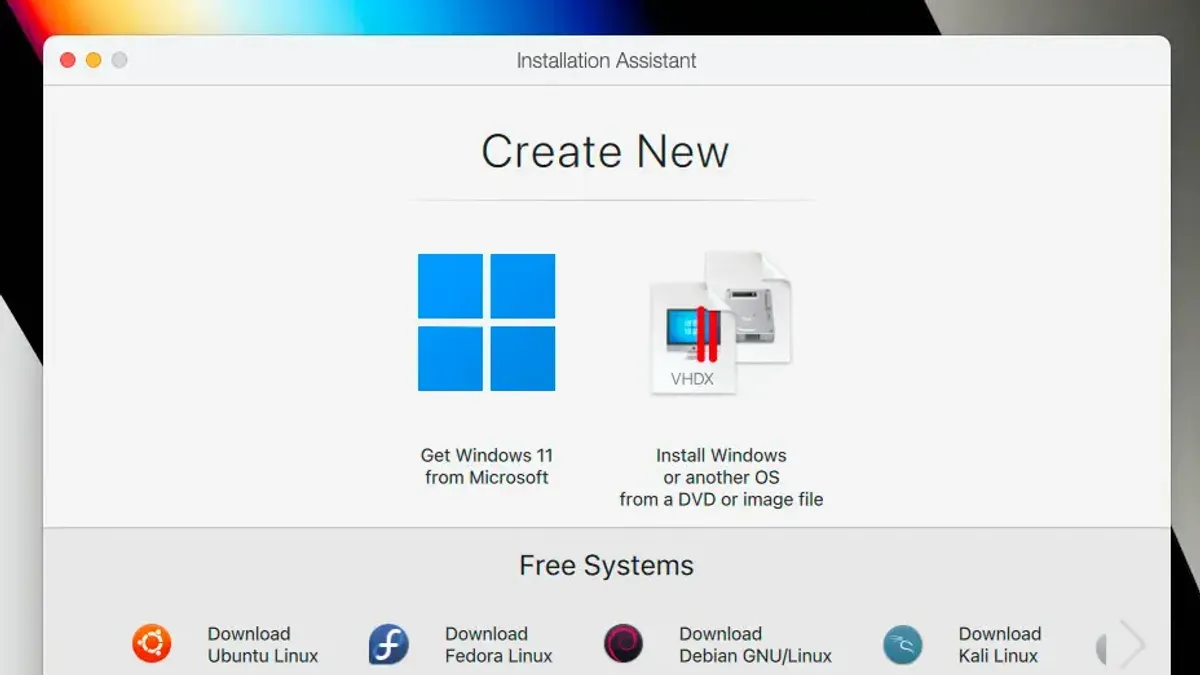
- Open Parallels Desktop, select File > New, then choose Install Windows or another OS from a DVD or image file. Point to your Windows 11 ARM ISO. Parallels will detect the image and prompt to create a new virtual machine.
- Customize the VM settings by clicking Configure. Under Hardware > CPU & Memory, allocate at least 4 CPU cores and 8 GB RAM for optimal performance. Assign 64 GB or more for the virtual hard disk under Hard Disk settings. Enable Nested Virtualization only if you plan to run additional VMs inside Windows.
- Start the VM; the Windows 11 installation wizard should launch. Proceed with the installation steps, selecting language, edition, and partitioning as needed. When prompted, select Custom: Install Windows only to install on the virtual disk.
- After installation, Windows 11 will boot into setup. Complete the initial configuration, including region, account setup, and privacy settings.
- Activate Windows using a valid license key if available; otherwise, proceed with limited functionality. Then, from the Parallels menu, select Actions > Install Parallels Tools to install drivers and utilities that enhance performance and integrate Mac hardware features like Retina display and shared folders.
Performance benchmarks typically show a smooth experience with these settings on M1 Macs, with noticeable improvements when allocating sufficient RAM and CPU cores compared to default configurations.
How to install Windows 11 ARM64 on Mac without Parallels
If you want a free alternative to Parallels for running Windows 11 ARM64 on your Apple Silicon Mac, UTM is a solid choice. UTM is an open-source virtualization tool built on QEMU that supports ARM Macs natively, allowing you to create and run Windows 11 ARM virtual machines without licensing fees.
- Download UTM from the official site and install it. Once installed, launch UTM to start creating a new virtual machine.
- Click the 2B20button, choose "Virtualize," and select "Windows" as the operating system. When prompted, load your Windows 11 ARM64 ISO file. If the ISO is not recognized automatically, select it manually from your storage.
- Configure VM settings: assign at least 4 CPU cores and 8GB RAM for reasonable performance. Use the "virtio" network and disk drivers to improve I/O speed. Allocate at least 64GB of disk space with a VirtIO block device for storage.
- Start the VM and proceed with the Windows installation. The process will be slower than in Parallels due to less optimized hardware acceleration, so expect longer boot and installation times.
- After installation, install the SPICE guest tools via UTM menus to enhance mouse integration and display responsiveness.
Performance-wise, UTM runs Windows 11 ARM64 with noticeable lag compared to Parallels, especially in graphics and disk I/O operations. Hardware support is limited: features like GPU acceleration and seamless integration with macOS are missing or rudimentary. Nevertheless, UTM serves well for testing and light use cases.
Example VM configuration settings to improve stability include enabling "Hypervisor.framework" acceleration and setting the display to "virtio" with 1024x768 resolution for compatibility. Avoid allocating too many cores, as it can cause instability in UTM.
- Download and install UTM from the official website
- Create a new virtual machine and load the Windows 11 ARM64 ISO
- Assign 4 CPU cores, 8GB RAM, and 64GB VirtIO disk
- Install Windows and SPICE tools for better usability
- Be prepared for longer installation times and limited hardware support
How to install Windows 11 ARM installer and manage updates on Mac
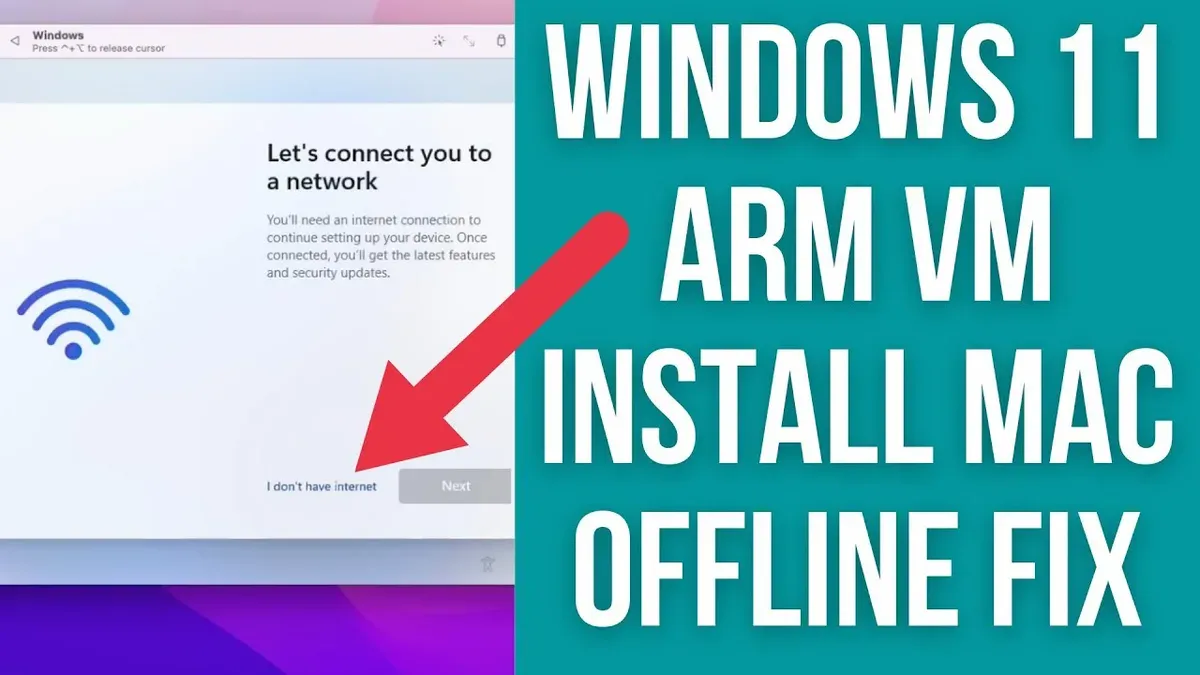
- Complete Windows 11 ARM post-install setup: After booting your ARM VM, follow the on-screen prompts to configure region, keyboard layout, and network. You should arrive at the Windows desktop without error.
- Activate Windows 11 ARM: Open Settings > System > Activation. Enter your valid Windows 10/11 ARM license key or digital license linked to your Microsoft account. Upon success, the status changes to "Windows is activated." Activation errors like 0xC004F074 indicate server connectivity issues; retry with an active internet connection.
- Install Parallels Tools or VM integration drivers: For Parallels, select Actions > Install Parallels Tools from the menu. This installs drivers for graphics, networking, and shared folders, improving performance and hardware compatibility. After installation, reboot the VM to confirm smooth operation.
- Manage Windows Update on ARM: Navigate to Settings > Update & Security > Windows Update. Click Check for updates. The system downloads ARM-compatible updates ensuring security and performance. Avoid manually installing x86/x64 updates which may cause errors.
- Handle common update errors in ARM VMs: Errors like 0x80070005 (access denied) often stem from insufficient VM permissions; ensure your VM has admin rights. Error 0x8024200D (update file corruption) requires running Windows Update Troubleshooter from Settings > Troubleshoot. Restart and reattempt updates after fixes.
How to install Windows 11 ARM on Mac: Troubleshooting common issues
When installing Windows 11 ARM on your Apple Silicon Mac, you may encounter several typical problems. Addressing these promptly ensures a smooth experience.
VM won’t boot or crashes during installation
If your virtual machine fails to start or crashes mid-installation, verify that your virtualization software supports ARM architecture and that you allocated at least 4 GB of RAM and 64 GB of disk space. Check that hardware acceleration is enabled in the VM settings. Users have reported that disabling nested virtualization or adjusting CPU cores to 2 often stabilizes performance.
Windows 11 ARM ISO not recognized or fails to load
An unrecognized ISO usually means the file is corrupted or incomplete. Confirm the ISO checksum matches official sources. Re-download the ISO if needed. Also, ensure the ISO is attached correctly in the VM’s CD/DVD drive settings.
Performance issues or freezing inside the VM
Performance problems often stem from insufficient resource allocation or outdated virtualization software. Increase RAM to 8 GB if possible and allocate at least 2 CPU cores. Close other intensive Mac applications to free resources. Enabling integration tools or drivers provided by your virtualization app can reduce freezing and improve responsiveness.
Networking or peripheral devices not working in Windows
Check that network adapters are enabled and bridged or NAT mode is selected in the VM settings. For USB peripherals, ensure USB passthrough is activated and your virtualization software supports the device type. Restarting the VM or reconnecting devices often resolves connection issues.
Activation or licensing errors specific to ARM Windows on Mac
Activation failures frequently arise from using generic or non-ARM Windows licenses. Confirm your Windows 11 ARM license is valid and matches the edition installed. If activation prompts persist, use the Windows Activation Troubleshooter inside the VM.
Follow this checklist to systematically troubleshoot:
- Confirm virtualization software supports Apple Silicon and ARM.
- Verify Windows 11 ARM ISO integrity and proper attachment.
- Allocate sufficient RAM (8 GB recommended) and CPU cores (2 or more).
- Enable hardware acceleration and disable nested virtualization if unstable.
- Activate integration tools or drivers for better performance.
- Check network and USB passthrough settings.
- Use an appropriate ARM Windows license and run activation troubleshooter if needed.
Read next
- How to Install VirtualBox on Mac: A Complete Step-by-Step Guide
- How to Install and Use CrossOver on Mac: A Clear Step-by-Step Guide
Frequently asked questions
How to install windows 11 on mac?
You can install Windows 11 on a Mac by using virtualization software like Parallels Desktop or UTM, which support Apple Silicon Macs. The process involves downloading a Windows 11 ARM64 ISO, configuring the virtual machine with appropriate resources, and completing the Windows setup. Boot Camp is not supported on Macs with Apple Silicon chips, so virtualization is the practical method.
How to install windows 11 on arm64?
Installing Windows 11 on ARM64 devices requires using an ARM64-compatible Windows 11 ISO image. On Macs with Apple Silicon, you must use virtualization tools that support ARM architecture, such as Parallels Desktop or UTM. After creating a virtual machine configured for ARM64, mount the ISO and follow the Windows installation prompts.
Can you install windows on a mac?
Yes, you can install Windows on a Mac, but the method depends on the Mac's processor. Intel-based Macs allow direct installation via Boot Camp Assistant, while Apple Silicon Macs require virtualization software to run Windows 11 ARM. The experience differs, with virtualization adding an abstraction layer but providing compatibility.
Can you install windows 11 arm on mac?
Windows 11 ARM can be installed on Apple Silicon Macs using virtualization software such as Parallels Desktop or UTM. Direct native installation is not supported due to hardware restrictions. Virtualization lets you run Windows 11 ARM alongside macOS, but you should consider performance and driver support limitations.
Can you install Windows 11 ARM on Mac M1?
Yes, you can install Windows 11 ARM on Mac M1 devices using virtualization solutions like Parallels Desktop, which offers optimized support for Apple Silicon. The process involves downloading the Windows 11 ARM64 ISO and setting up a virtual machine configured for ARM. Keep in mind that some Windows applications may not run natively and that hardware access is virtualized.
Quick checklist
- Confirm your Mac has Apple Silicon (M1 or later) — Intel Macs are not supported for this method.
- Download and install the latest Parallels Desktop or prepare an alternative virtualization tool if avoiding Parallels.
- Obtain a valid Windows 11 ARM ISO from Microsoft's official source.
- Allocate sufficient disk space (at least 64GB recommended) and RAM (4GB minimum) for the virtual machine.
- Disable FileVault temporarily if you encounter installation permission issues.
- Regularly check for Windows updates within the ARM installation to maintain security and compatibility.
- Have a reliable backup of your Mac before proceeding in case of unexpected errors.
What this guide does not cover
This guide does not cover installing Windows 11 ARM on Intel-based Macs, nor does it support dual-booting via Boot Camp because Apple Silicon Macs do not support Boot Camp for Windows. If you require native dual-boot functionality or have an Intel Mac, consider alternative approaches such as using Boot Camp on Intel systems or running Windows on a dedicated PC. Additionally, this guide excludes advanced customization of Windows ARM builds or running legacy x86 applications outside of supported emulation layers.
The single most useful next step is to start by preparing your Mac’s environment: ensure your system software is updated via System Preferences > Software Update, download the official Windows 11 ARM ISO from Microsoft’s website, and install Parallels Desktop if you choose that route. Setting up these essentials correctly upfront will save time and prevent common installation hurdles.



