Microsoft Copilot Implementation Timeline: What You Need to Know
Explore the Microsoft Copilot implementation timeline, from development to rollout, to effectively integrate this AI assistant in your organization.

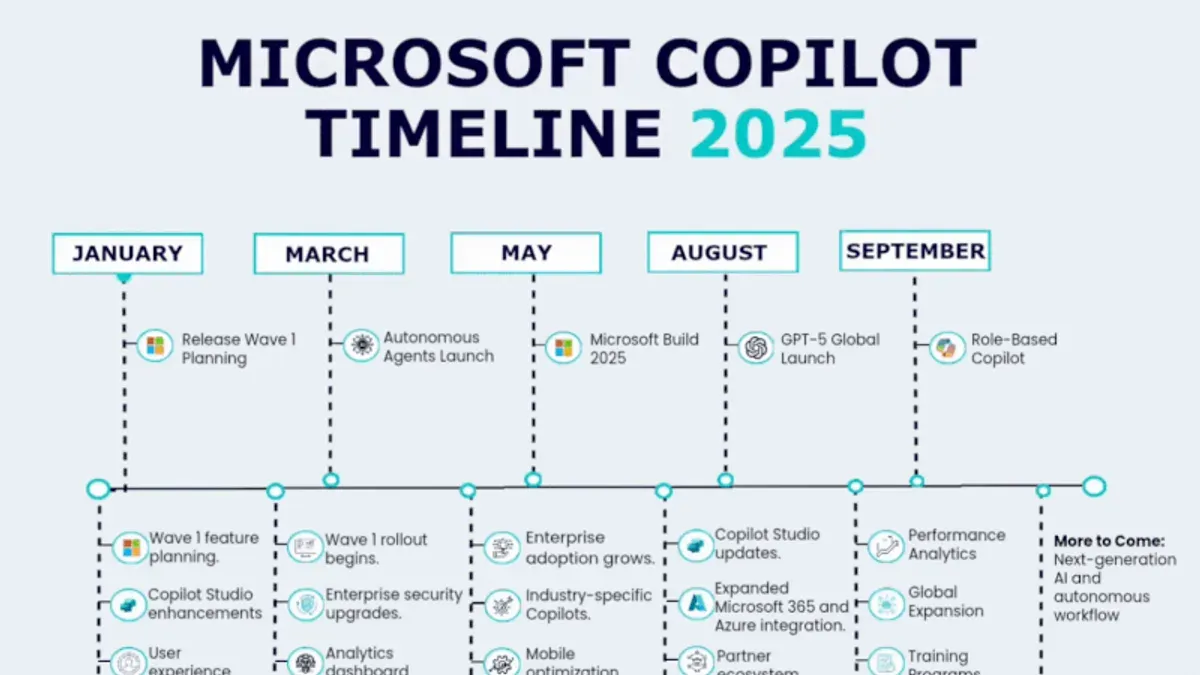
Short answer: The Microsoft Copilot implementation timeline spans from its initial development phase through gradual rollout to users, with key milestones marking its introduction and expansion. Understanding this timeline helps you plan your deployment and integration strategy effectively.
This article covers the Microsoft Copilot implementation timeline by linking historical milestones to practical steps for you to implement Copilot within your organization. You'll learn when Microsoft began working on Copilot, when it was introduced and launched, and how to start using it effectively today. Avoid common pitfalls with actionable advice tailored for IT managers and digital transformation leaders focused on boosting productivity and workflow automation.
When did Microsoft start working on Copilot?
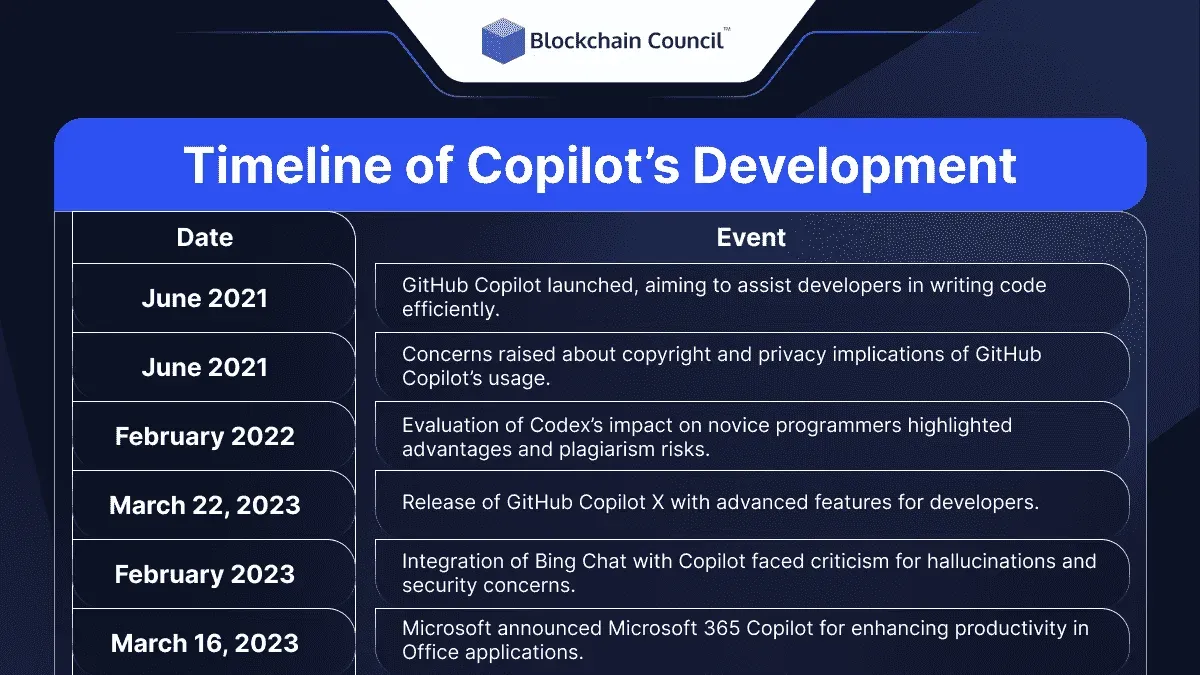
Microsoft's work on Copilot began with early AI integration experiments in its productivity suite. Initial efforts date back to 2019 when Microsoft introduced AI-powered features in Office apps like Excel and Word, focusing on intelligent suggestions and automation. These experiments laid the groundwork for a more ambitious AI assistant.
By mid-2021, Microsoft partnered with OpenAI to leverage advanced large language models, accelerating Copilot's development. This collaboration enabled the formal Copilot concept to emerge, combining AI with Microsoft 365's ecosystem to assist users with tasks such as drafting emails, generating summaries, and automating workflows.
For example, early prototypes demonstrated Copilot’s ability to analyze spreadsheet data and suggest complex formulas, a capability that evolved into the integrated AI assistant you see today. These milestones reflect a deliberate progression from simple AI tools to a sophisticated assistant embedded across Microsoft products.
When did Microsoft introduce Copilot?
Microsoft officially introduced Copilot in March 2023 during the Microsoft Build conference, marking its first public announcement. The company showcased Copilot integrated within Microsoft 365 apps, emphasizing how it assists with content generation and workflow automation. Following the announcement, Microsoft initiated a phased rollout, starting with targeted pilot programs for enterprise customers and select early adopters.
The phased approach allowed Microsoft to gather real-world feedback and refine Copilot’s capabilities. Initial pilot users reported significant time savings when drafting documents and automating repetitive tasks, which informed subsequent updates. By mid-2023, Copilot became available to a broader range of Microsoft 365 subscribers through controlled releases, gradually expanding access across organizational tiers.
Picture an IT manager receiving early access for their organization, enabling team members to experiment with AI-generated email drafts or data summaries within Excel. This initial exposure helped identify common setup challenges, such as permissions configuration and training needs, which Microsoft addressed in later updates to smooth the onboarding process.
How to get started with Microsoft Copilot?
To deploy Microsoft Copilot, begin by confirming your Microsoft 365 subscription supports Copilot features; typically, enterprise-level plans are required. Ensure your organization uses the latest versions of Microsoft 365 apps like Word, Excel, and Teams, as Copilot integration depends on updated software and cloud connectivity. Verify that your IT environment meets minimum prerequisites: Windows 10 or later, 8 GB RAM minimum, and the latest Azure Active Directory configurations to allow AI-powered services.
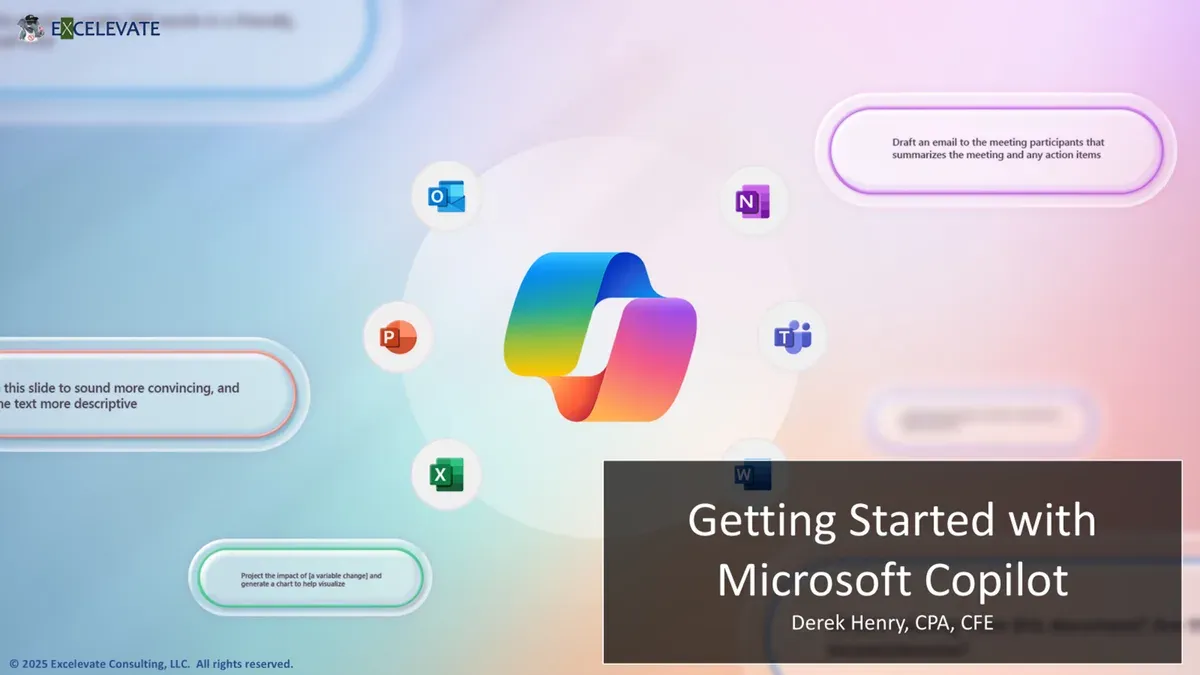
Enable Copilot through the Microsoft 365 admin center by navigating to Settings > Org settings > Services, then selecting Microsoft Copilot and toggling it on for targeted user groups. For example, enable Copilot first for a pilot team before broader deployment to manage adoption effectively. Users will see Copilot icons within supported apps once enabled, allowing them to access AI-driven suggestions directly in the interface.
Train your users by providing brief demonstrations focusing on practical tasks like drafting documents or automating data analysis. Set realistic expectations about Copilot’s capabilities: it assists but does not replace human judgment or expertise. Encourage feedback to identify common issues and tailor training accordingly.
- Check Microsoft 365 plan and app versions for Copilot compatibility
- Enable Copilot in the admin center under Org settings > Services
- Start with a pilot group before full rollout
- Train users on practical Copilot tasks and manage expectations
When did Microsoft launch Copilot?
Microsoft officially launched Copilot for commercial use in July 2023, following a period of limited preview releases earlier that year. The preview phase allowed select organizations to test Copilot’s features, gather feedback, and identify integration challenges before broader distribution. This staged approach ensured that by the time of full launch, the product was more stable and ready for enterprise-scale deployment.
The transition from preview to full launch marked a significant increase in adoption rates, as organizations gained confidence in Copilot’s capabilities and Microsoft expanded availability across Microsoft 365 licenses. For example, a mid-sized IT firm participating in the preview initially used Copilot for document drafting within Microsoft Word, then after launch, scaled its use across Teams and Excel, streamlining workflows company-wide.
This phased launch strategy balanced early innovation with risk management, helping you avoid common pitfalls like premature rollout to unprepared teams. Understanding this timeline helps you plan your own rollout more effectively by aligning training and infrastructure upgrades with Microsoft’s product availability.
How to start using Microsoft Copilot effectively?
Begin by integrating Copilot features incrementally into everyday tasks. Focus first on high-impact apps like Word for drafting and editing documents, Excel for data analysis, and Outlook for managing emails. For example, use Copilot in Word to generate initial report drafts, then switch to Excel to automate data summaries, cutting down manual work significantly.
Set clear objectives such as reducing time spent on repetitive tasks or improving data accuracy. Train your team to use Copilot's AI suggestions critically—encourage them to verify outputs rather than accepting them blindly. Avoid overwhelming users by rolling out advanced features only after basic functions are well adopted.
Common mistakes include expecting Copilot to replace human oversight and neglecting to update workflows based on user feedback. Case studies from early adopters show productivity gains when Copilot is used as an assistant, not a substitute, enhancing creativity and decision-making.
- Start with core apps: Word, Excel, Outlook
- Set specific goals for Copilot use
- Train users to review AI outputs critically
- Roll out features gradually
- Collect and act on user feedback to refine usage
Can Copilot create a timeline?
Yes, Microsoft Copilot can generate project timelines and schedules, primarily within Microsoft Word, Excel, and PowerPoint. You prompt Copilot by asking it to create a timeline based on your project phases, deadlines, or milestones. For example, in Word, you might type: "Create a project timeline for launching a new software product with phases for research, development, testing, and deployment." Copilot then drafts a structured timeline that you can edit and format.
In Excel, Copilot can generate tables with start and end dates, duration calculations, and conditional formatting to visualize progress. You can ask it to build a Gantt chart style schedule by providing tasks and dates. In PowerPoint, it can create timeline slides with bullet points or visuals summarizing project stages.
Limitations include the need for clear, structured prompts and subsequent user review to ensure accuracy. Copilot may not capture complex dependencies or automatically update timelines without manual input. Always refine outputs and cross-check with your project management tools.
- Use explicit prompts specifying phases, dates, or milestones
- Leverage Excel for tabular timeline data and progress visualization
- Review and customize Copilot’s draft timelines before sharing
- Combine Copilot output with dedicated project management software for complex schedules
Is Microsoft Copilot up to date?
Microsoft regularly updates Copilot’s AI models through a managed cloud service, ensuring the system benefits from ongoing improvements without manual intervention on your part. These updates happen on a rolling basis, often monthly or quarterly, depending on the component, with Microsoft deploying enhancements to its underlying large language models and integration layers.
Copilot also connects dynamically to live data through Microsoft Graph, which aggregates real-time information from your Microsoft 365 environment—emails, calendars, documents, and more. This live data feed keeps Copilot’s responses relevant to your current workflows rather than relying solely on static training data.
For example, when you ask Copilot to summarize your team’s latest project status, it pulls the freshest details from Planner tasks and Outlook updates via Microsoft Graph. However, feature rollouts and interface changes follow a predictable update cycle, typically deployed during regular service windows. You should monitor the Microsoft 365 admin center under Health > Message Center for announcements on upcoming changes to Copilot.
- Expect AI model updates monthly or quarterly through cloud deployment.
- Copilot uses Microsoft Graph for live data integration, ensuring current context.
- Check Microsoft 365 admin center for update notifications and feature rollouts.
- Plan training refreshers post-updates to align users with new capabilities.
Frequently asked questions
How to launch microsoft copilot?
To launch Microsoft Copilot, open a supported Microsoft 365 app like Word or Excel. Look for the Copilot icon in the ribbon or toolbar, typically labeled "Copilot" or featuring an assistant symbol. Click it to activate the sidebar where you can input commands or queries. Ensure your Microsoft 365 subscription includes Copilot access and that your admin has enabled it in the Microsoft 365 admin center.
How to launch Microsoft Copilot?
Launching Microsoft Copilot follows the same steps regardless of capitalization: open a compatible app such as Outlook or PowerPoint, find the Copilot button in the toolbar, then click to open the assistant pane. You may need to update your Microsoft 365 apps to the latest version to see the Copilot feature. If it’s not visible, check with your IT administrator to confirm your license and permissions.
What is the Microsoft Copilot implementation guide?
The Microsoft Copilot implementation guide is a step-by-step resource for deploying Copilot across your organization. It covers prerequisites like Microsoft 365 licensing, admin setup in the Microsoft 365 admin center, user access controls, and integration with existing workflows. The guide also advises on training users, managing adoption, and monitoring usage to maximize productivity gains.
What is the Microsoft Copilot studio implementation guide?
The Microsoft Copilot Studio implementation guide details how to customize and extend Copilot capabilities using the Copilot Studio platform. It includes instructions on configuring AI prompts, integrating proprietary data sources, and building tailored workflows to meet specific business needs. This guide is intended for IT professionals and developers responsible for fine-tuning Copilot within their enterprise environment.
What is the history of Microsoft Copilot?
Microsoft began developing Copilot technology after acquiring OpenAI’s GPT-3 models and integrating them with Microsoft 365 tools. The initial announcements about Copilot came in early 2023, followed by a phased rollout to enterprise customers. The launch included integration into core apps like Word, Excel, and Outlook to automate tasks and enhance productivity through AI assistance.
Quick checklist
- Confirm your Microsoft 365 subscription includes Copilot access under your plan and licensing.
- Verify administrator permissions to enable Copilot features in Microsoft 365 admin center.
- Set up relevant team and user access via Azure Active Directory groups for controlled rollout.
- Train users on Copilot commands within supported apps like Word, Excel, and Teams.
- Establish clear data governance policies to avoid unintended data exposure when using AI features.
- Monitor usage patterns and gather user feedback to refine implementation and identify training gaps.
What this advice does not cover
This article does not cover technical troubleshooting for complex enterprise environments or custom AI model tuning beyond standard Microsoft Copilot features. If your organization requires deep integration with proprietary systems or custom AI workflows, consult specialized Microsoft support or a certified Microsoft partner. Additionally, security audits and compliance reviews specific to your industry should be handled by your internal security team or external consultants.
Focus your next step on enabling Copilot via the Microsoft 365 admin center, confirming licenses, and assigning permissions accurately. This foundational setup avoids common pitfalls that delay user adoption and productivity gains.
See also: How to Switch from Google Gemini to Microsoft Copilot Without Losing Momentum · Switching from ChatGPT to Microsoft Copilot: What You Need to Know · Khanmigo Implementation Timeline: How to Start and Succeed · Google Gemini Implementation Timeline: What You Need to Know