
Moving from Airtable to Asana Checklist: Your Expert Transition Guide
Learn how to effectively move from Airtable to Asana checklist by reorganizing your data into tasks and subtasks for better workflow management.


Short answer: Moving from Airtable to Asana checklist requires shifting from a database-style setup to a task-focused workflow. You’ll reorganize Airtable’s records into Asana tasks and subtasks, adapting fields into Asana’s custom fields and sections to maintain clarity and continuity.
This guide covers the practical steps for exporting and preparing your Airtable data, transferring tasks and completed items into Asana, and optimizing your new task lists to fit Asana’s project management style. You’ll learn how to handle key differences like relational data and automations, ensuring your team experiences minimal disruption during the transition.
Understand the differences between Airtable and Asana workflows
Airtable operates like a hybrid between a spreadsheet and a database, where each record is a row with multiple customizable fields. This setup allows you to build complex, relational data structures and view your information in grid, calendar, or gallery formats. Checklists in Airtable are typically managed as individual records or as multi-select fields within a record, making it flexible but less focused on task progression.
Asana, by contrast, centers around tasks and projects. Each task is a discrete unit that can contain subtasks, comments, attachments, and a checklist directly within its interface. This task-centric design emphasizes workflow progression, accountability, and collaboration by enabling assignees, due dates, and status updates per task or subtask.
| Feature | Airtable | Asana |
|---|---|---|
| Data Structure | Records with multiple fields in a database/spreadsheet style | Tasks and subtasks within projects, list or board views |
| Checklist Management | Multi-select fields or separate records representing checklist items | Native subtasks and checklist items inside each task |
| Collaboration | Comments on records, limited task assignment | Real-time updates, assignees, due dates, comments per task |
| Progress Tracking | Manual status fields, views for filtering | Task completion status, progress charts, automated notifications |
For example, an Airtable checklist for a content project might include a table where each article is a record and checklist items are fields like "Drafted," "Edited," and "Published" marked with checkboxes. In Asana, the same checklist becomes a main task titled "Article Production" with subtasks for "Draft," "Edit," and "Publish," each assignable to team members with due dates and comments. This shift means when migrating, you need to rethink checklist items as actionable tasks rather than just data points.
Adapting to Asana's task-focused workflow enhances team collaboration by clearly defining responsibilities and deadlines, and it improves progress tracking through visual status updates and notifications, which are less native to Airtable's database environment.
Prepare your Airtable data for migration to Asana
Start by identifying which Airtable bases, tables, and views contain the tasks and checklists you need to move. Focus on tables where each record corresponds to a task or checklist item. Views with filtered or grouped data can help isolate relevant subsets for export.
Cleaning and standardizing your data before export is critical. Remove any duplicate or irrelevant records. Ensure key fields like task names, due dates, assignees, and statuses are consistently formatted. For example, unify date formats to YYYY-MM-DD and standardize dropdown or single select options to match Asana’s task fields.
Airtable supports exporting data as CSV or JSON files. Since Asana’s import tool primarily accepts CSV files for task creation, exporting your checklist table as CSV is usually the best option. The CSV should include columns for task name, description, assignee email, due date, and any custom fields relevant to your workflow.
For example, if you have a checklist table named "Project Launch Tasks," use Airtable’s view menu to select the relevant view and then click on “Download CSV.” Before export, verify that your task names are in the first column and that there are no merged cells or complex formulas, as these can disrupt Asana’s import.
Organizing your Airtable export this way ensures that when you import into Asana, your tasks will appear with the correct titles, assignments, and due dates, minimizing manual cleanup later.
- Identify and select bases, tables, and views with tasks/checklists
- Clean and standardize data formats and remove duplicates
- Export checklist tables as CSV files from Airtable
- Ensure task names are first column and fields match Asana’s import structure
How to move tasks in Asana: step-by-step migration process
Start by exporting your Airtable tasks as a CSV file, ensuring each row represents a task and columns include task details like name, due date, assignee, and checklist items. In Asana, navigate to the target project and select "Add Tasks" > "Import Spreadsheet". Upload your CSV file here.
Asana will map your CSV columns to its task fields—verify that task names, due dates, and assignees align properly. Checklist items from Airtable should be imported as subtasks in Asana for better task management. Since Airtable checklists are often comma-separated in a single field, use a third-party tool or a manual process to split these into individual subtasks post-import.
For example, if a task "Prepare launch materials" has checklist items "Write copy, Design graphics, Review content," import the task first, then create three subtasks named exactly as those checklist items under the parent task. Assign each subtask and set due dates as needed.
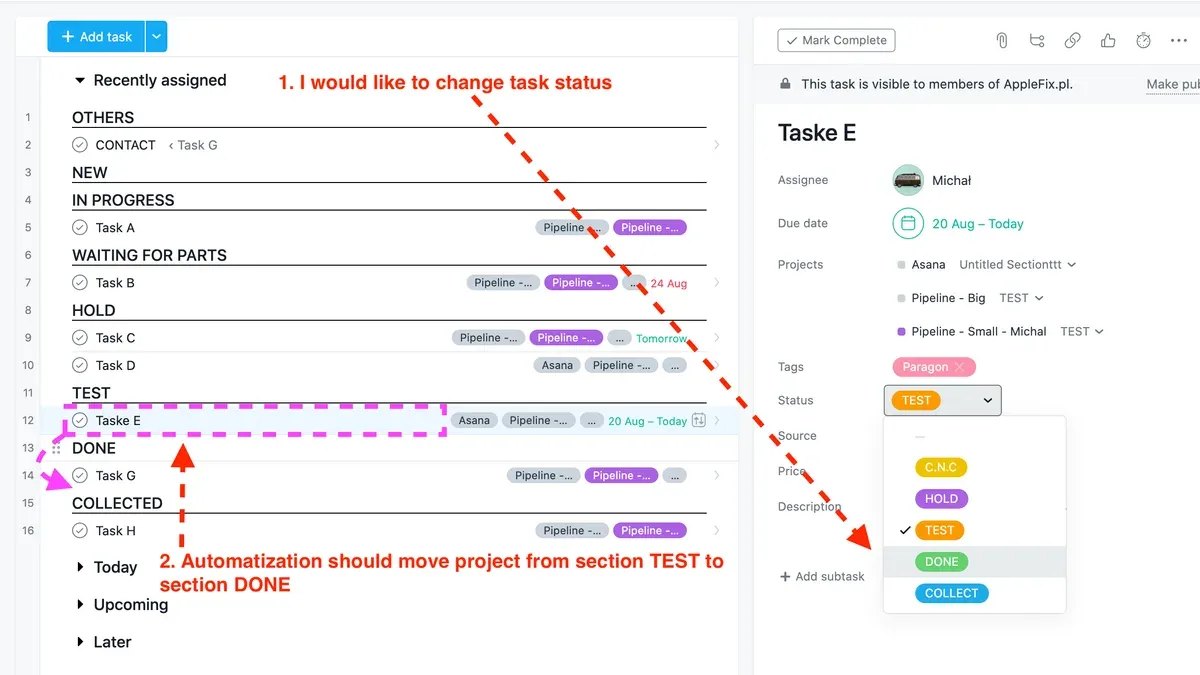
After import, organize tasks by sections or tags within Asana to mirror your Airtable views. Assign team members directly in Asana by clicking the assignee field on each task or subtask. Set due dates via the calendar picker to maintain scheduling consistency.
- Export Airtable tasks as CSV with checklist items in one column
- Use Asana’s "Import Spreadsheet" to upload CSV to the desired project
- Map CSV columns correctly during import
- Convert checklist items into subtasks manually or with a third-party tool
- Assign tasks and subtasks, set due dates, and organize with sections or tags
How to move completed tasks in Asana
When migrating completed tasks from Airtable to Asana, you face two main options: mark them as complete during import or import first and mark complete afterward. If you include a "Completed" column in your CSV with values like "True" or "Yes," Asana can automatically set those tasks as complete during import, preserving their status. This method saves time but requires accurate data formatting upfront.
Alternatively, importing all tasks as incomplete and then bulk updating their status inside Asana gives you control post-migration. You can filter tasks by project, select completed ones, and mark them complete using the task action menu. This flexibility allows you to verify imported tasks before changing their state.
Decide whether to migrate completed tasks or archive them separately. Migrating completed tasks maintains full history and context in your project but can clutter active task views if not filtered. Archiving completed tasks into a dedicated “Completed Archives” project keeps your current projects clean but separates historical data, requiring cross-reference.
For example, imagine a marketing project with 200 tasks, 50 of which are completed. Importing all tasks with completion status saves time and keeps history intact, but you should immediately apply Asana’s filter “Show only incomplete tasks” for daily work. Alternatively, moving completed tasks into a separate project called "Marketing Completed" keeps your main project streamlined but may require switching views when reviewing past work.
- Include a "Completed" status column in your CSV for automatic completion during import
- Or import all tasks, then bulk mark completed tasks inside Asana
- Use filters like "Incomplete tasks" to focus on active work
- Consider archiving completed tasks in a separate project to reduce clutter
- Pick the approach based on your need for historical visibility versus project clarity
How to leave a project in Asana and manage your projects effectively
When you no longer need to be part of a project in Asana, you can remove yourself to reduce clutter and focus on relevant work. Navigate to the project, click the drop-down arrow next to the project name in the header, then select Leave Project. This removes the project from your sidebar and notifications without affecting other members.
If you need to reorganize tasks after migration, moving entire sections between projects can be invaluable. Open the section by clicking its name, select all tasks within (using Shift+click or Ctrl/Cmd + A), then drag them to the target project listed in the right pane under Projects. This preserves task details and subtasks, enabling flexible project structure.
For managing multiple projects efficiently, create a consistent naming convention and use teams in Asana to group related projects. Onboard team members by assigning clear roles and sharing project briefings directly in task comments or project descriptions to keep everyone aligned from the start.
For example, if you migrated marketing campaigns and product development projects, leaving the former after completion helps you focus on ongoing tasks. Moving leftover campaign follow-up tasks into a separate archive project maintains clarity and accessibility.
- To leave a project: open project > click drop-down arrow > select Leave Project
- To move sections: open section > select all tasks > drag to new project under Projects
- Adopt consistent project naming and group projects into teams
- Assign roles and share context with team members via task comments and project descriptions
Read next
- Airtable Rollout Plan for New Employees: A Practical Expert Guide
- Master Airtable Implementation Timeline: From Setup to Project Success
- Moving from Seesaw to Remind: A Complete Transition Checklist
Frequently asked questions
How to move a task in asana?
To move a task within Asana, open the task, click the project field near the top, and select or add the new project where you want the task to reside. Alternatively, drag and drop the task between sections or projects in the sidebar or project view. Keep in mind that moving a task can affect its associated tags and dependencies, so review these after the move.
how to move completed tasks in asana
Completed tasks can be moved just like active ones by changing their project assignment or dragging them between sections. However, be aware that completed tasks may not appear by default in all project views, so adjust the filter settings to show completed tasks to confirm the move. This ensures your historical data remains intact within the new project context.
how to leave a project in asana
To leave a project, open the project, click on the project header’s drop-down menu, and select "Leave Project." This removes you from the project’s members list and stops notifications without deleting any tasks or affecting other members. You can rejoin later if needed by having a project member invite you again.
how to move a task in asana
Moving a task means reassigning it to a different project or section. Open the task and use the project field to add or remove projects, or drag the task in the project list or board view to the desired location. Confirm that dependencies and custom fields remain accurate after the move to avoid workflow disruption.
asana frequently asked questions for tasks
Common questions about Asana tasks include how to assign tasks to team members, set due dates, and organize tasks with tags or custom fields. Tasks can be duplicated for repetitive work, and subtasks allow breaking down complex activities. Asana also supports task comments and attachments to centralize communication, making task management transparent and collaborative.
Limitations of this guide
This guide does not cover migrating complex Airtable automations or deeply nested relational databases, which may require custom integration tools or developer support. If your workflows rely heavily on Airtable’s scripting blocks, API integrations, or multi-level linked records, consider consulting with a technical specialist. This approach focuses strictly on task-level migration and checklist adaptation to Asana’s task-centric model.
Quick checklist
- Review Airtable bases and identify key tables to convert into Asana projects or sections.
- Export Airtable data in CSV format, ensuring task details and due dates are intact.
- Create corresponding projects and sections in Asana before importing tasks.
- Import tasks via Asana’s CSV importer, mapping fields to task names, descriptions, assignees, and due dates.
- Manually recreate checklist items inside Asana tasks if needed, as Airtable’s nested records don’t transfer directly.
- Move completed tasks to a dedicated “Completed” section or archive project.
- Set project permissions and notify your team about the new workflow in Asana.
Begin by auditing your current Airtable checklists and deciding which elements translate directly into Asana tasks versus those needing adaptation. Starting with a pilot project can reveal practical adjustments before a full migration. This focused approach helps you maintain productivity and minimize disruption during the transition.



