Moving from Blooket to Microsoft Forms: Your Step-by-Step Checklist
This checklist helps you transition from Blooket to Microsoft Forms while maintaining assessment effectiveness and adapting workflows.

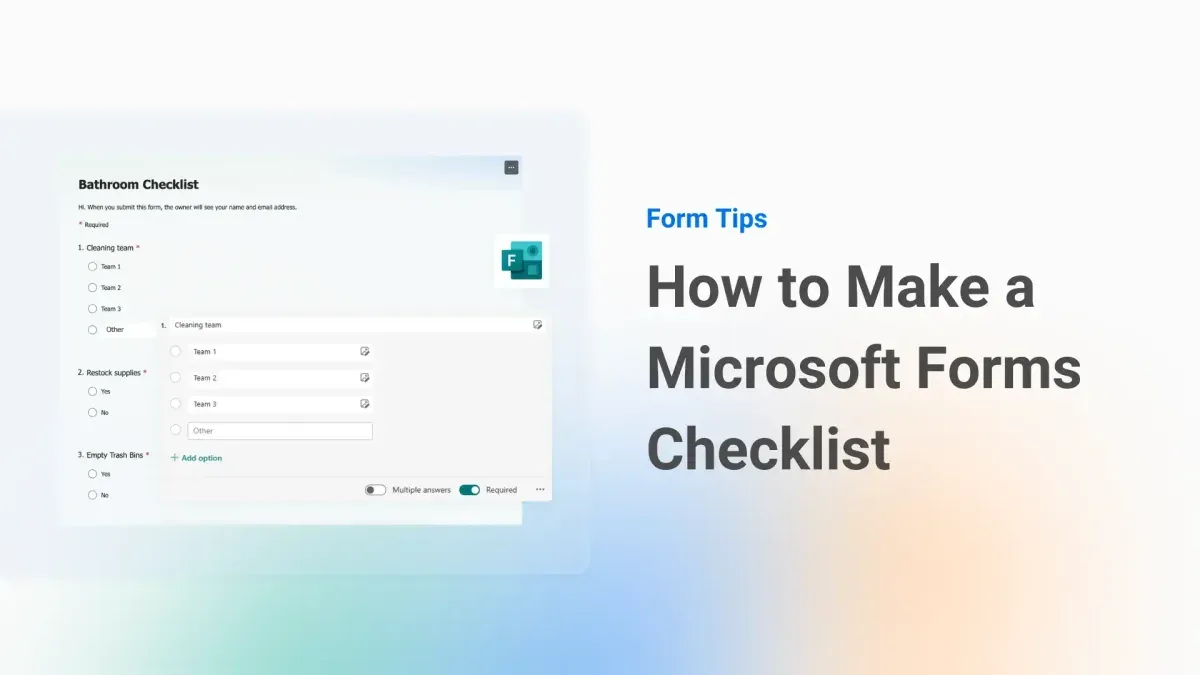
Short answer: Moving from Blooket to Microsoft Forms requires adapting from a game-based quiz setup to a straightforward form-based approach. This moving from Blooket to Microsoft Forms checklist helps you retain assessment effectiveness while adjusting workflows for Microsoft Forms’ structure and data management.
This article guides you through the key differences between Blooket and Microsoft Forms, how to rebuild your quizzes, and ways to keep students engaged without gamification. It also highlights common pitfalls to avoid and explains how to integrate Microsoft Forms smoothly into your Microsoft 365 environment for streamlined grading and reporting.
Why switch from Blooket to Microsoft Forms?
Blooket excels at engaging students through gamified quizzes, making learning fun and interactive. However, it falls short when you need detailed grading options, individual response tracking, or integration with broader educational tools. Microsoft Forms offers the flexibility to create quizzes, surveys, and polls with customizable question types and automatic grading, fitting a wider range of assessment goals.
For example, if you want to analyze student performance across multiple classes or export results for detailed review, Microsoft Forms lets you download data in Excel or sync responses directly with Microsoft Teams and OneNote. This integration simplifies workflow for educators already using Microsoft 365. Blooket’s reporting focuses on aggregate scores and lacks granular data export, making it less practical for compliance or formal assessment reporting.
Consider a middle school teacher who needs to generate detailed reports for parent-teacher conferences. Microsoft Forms allows exporting individual scores and question-by-question analysis, which Blooket does not support. Educators shifting platforms often cite this capability as a decisive factor, alongside the need for secure data handling and compatibility with school IT policies.
| Feature | Blooket | Microsoft Forms |
|---|---|---|
| Gamification | Strong: game modes, points, leaderboards | Minimal: simple quiz formats |
| Assessment Types | Quizzes only | Quizzes, surveys, polls |
| Data Export | Limited, aggregate scores only | Full Excel export, detailed individual data |
| Integration | Limited third-party tools | Full Microsoft 365 suite integration |
| Compliance & Security | Basic | Enterprise-level, customizable |
How does Microsoft Forms work differently from Blooket?
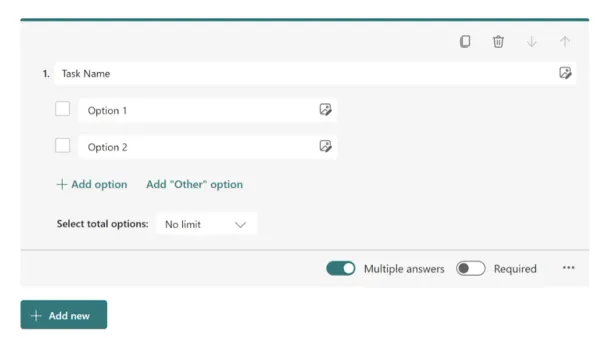
Microsoft Forms offers a straightforward interface focused on quiz creation through a web-based dashboard. You start by selecting “New Quiz,” then add questions using types like multiple choice, text, rating, or date. Branching logic is available under the “...” menu in each question’s settings, allowing you to direct respondents to different questions based on their answers—a feature useful for adaptive assessments. Automatic grading is built-in for objective questions; you assign correct answers and point values as you create the quiz.
Unlike Blooket, Microsoft Forms removes game elements such as points races, timers, and competition. The emphasis shifts from engagement through gamification to clear assessment results. This means you lose the game-like excitement but gain a focus on precise scoring and feedback.
Data export is seamless. Once responses are collected, you can open results directly in Excel with a single click or view summary charts in Forms. Integration with Microsoft Teams lets you assign quizzes as tasks or share them easily within your team or class channels.
Picture creating a quiz for a history lesson: In Blooket, you’d set up a timed match with team points. In Microsoft Forms, you build a quiz with branching questions about historical periods, automatically grade answers, and export results to Excel for detailed analysis.
How to recreate your Blooket quizzes in Microsoft Forms?
Start by exporting or copying your Blooket quiz questions manually, since there’s no direct import tool for Microsoft Forms. Identify each question type in Blooket and map it to the closest Microsoft Forms equivalent: multiple-choice questions become "Choice" type; true/false is also "Choice" with two options; short answer questions translate to "Text" type.
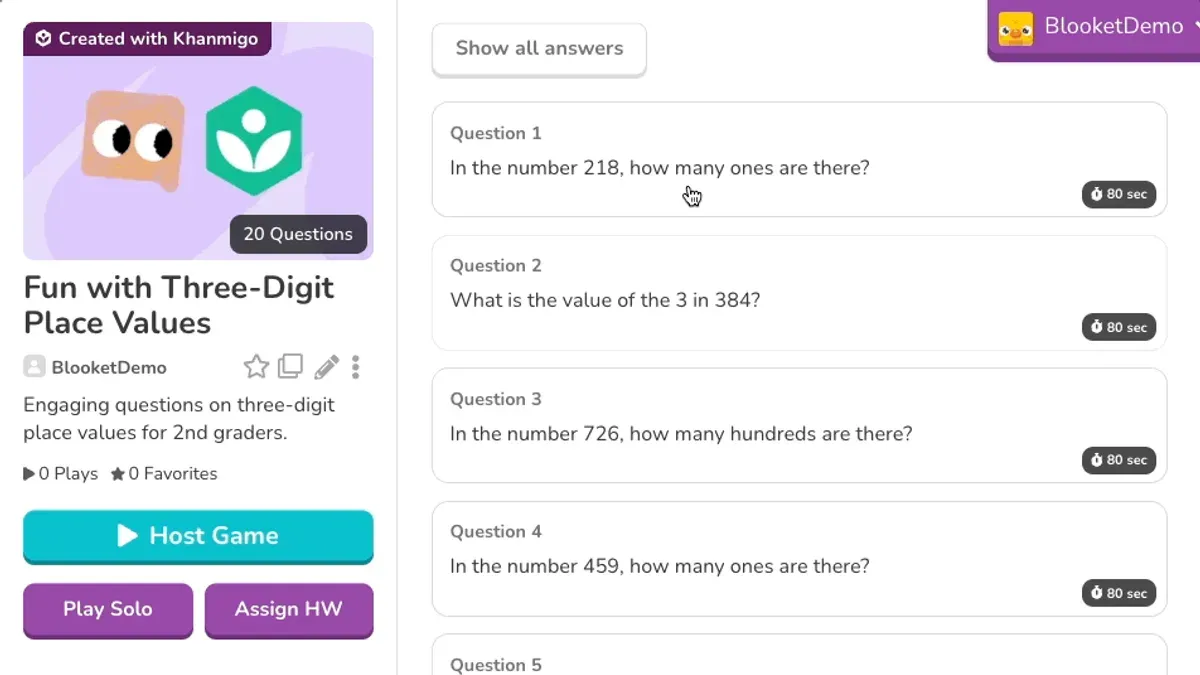
For example, a Blooket quiz question asking "What is the capital of France?" with multiple choices transfers directly to a Microsoft Forms Choice question. However, if your Blooket question included timed responses or power-ups, remove or adapt these elements since Forms focuses on straightforward assessment.
Use Microsoft Forms’ branching feature to mimic game-like engagement. For instance, after a correct answer, branch the respondent to a "Well done!" feedback page or a follow-up challenge question. Set up immediate feedback with correct/incorrect messages under each question to maintain interaction.
Worked Example: A Blooket quiz with 10 multiple-choice questions, some with timed answers, was recreated in Forms by creating Choice questions, disabling time limits, and adding branching after questions 3 and 7 to offer bonus challenge questions. This preserved engagement without gamification. Screenshots show the original Blooket question bank and the adapted Microsoft Forms interface with branching logic visible.
- Manually copy quiz questions from Blooket to Microsoft Forms
- Match Blooket question types to Forms equivalents (Choice, Text)
- Remove timed or gamified mechanics; focus on clear questions
- Use branching to add conditional navigation and feedback
- Set immediate feedback messages per question to simulate engagement
What practical tips help maintain student engagement without Blooket’s gamification?
Transitioning from Blooket’s game-based motivation to Microsoft Forms requires deliberate strategies to keep learners invested. Use Microsoft Forms’ feature to add immediate feedback and customized messages for each question. After a student answers, provide tailored responses via the "Settings > Feedback" option, reinforcing correct answers or guiding improvement. This instant interaction mimics the rapid reward cycle of gamification.
Enrich questions by embedding multimedia elements. Insert images or short videos using the "Insert media" button to illustrate concepts vividly. For example, in a science quiz, embed a video showing a chemical reaction, then ask related questions. This breaks the monotony of text and captures attention.
Pair Forms quizzes with platforms that offer social interaction. Integrate quizzes into Microsoft Teams channels where students can discuss results, share insights, or engage in friendly competition. Alternatively, use LMS features with badges or leaderboards to complement Forms’ straightforward interface.
Educators report that these combined tactics help bridge the engagement gap when leaving Blooket-style games. For instance, a math teacher added video hints and Teams discussions, maintaining high participation and enthusiasm despite the loss of direct gamification.
- Enable immediate, customized feedback per question in Microsoft Forms.
- Use images and videos to enrich quiz questions.
- Incorporate Microsoft Teams or LMS gamified features alongside Forms.
- Encourage social interaction to sustain motivation.
What common mistakes should you avoid when switching to Microsoft Forms?
Expecting Blooket-style real-time leaderboards in Microsoft Forms leads to frustration. Forms offers detailed analytics after submission, but it lacks dynamic, in-game rankings. For example, one educator shared how students repeatedly asked for live scores that Forms cannot provide, causing engagement drops. Adjust expectations by explaining the assessment format upfront.
Skipping quiz testing before releasing it to students is another frequent error. Microsoft Forms’ branching logic and automatic grading can behave unexpectedly if not thoroughly checked. A trainer once sent a quiz where the branching led to dead ends, confusing learners. Always use the “Preview” button and test every question path on different devices before distribution.
Improper permissions and sharing settings cause access issues or accidental data exposure. By default, Forms may restrict access to users within your organization or allow anyone with the link to submit. Set permissions by navigating to "Share" > "Who can fill out this form?" and choose the appropriate option. One teacher accidentally left the form open to anyone with the link, leading to irrelevant responses.
Neglecting to analyze post-assessment reports wastes the detailed data Forms provides. Many users collect responses but fail to explore the "Responses" tab’s summary and individual insights. Effective use of these reports helps tailor future instruction and identify knowledge gaps.
- Don’t expect real-time leaderboards; communicate Forms’ reporting style to students.
- Always preview and test quizzes thoroughly before sharing.
- Check and configure sharing permissions explicitly under "Share" settings.
- Review response data carefully to inform teaching decisions.
How to integrate Microsoft Forms quizzes into your existing Microsoft 365 workflow?
Microsoft Forms fits seamlessly into the Microsoft 365 ecosystem to simplify quiz management, grading, and communication. Start by linking your quiz responses to an Excel workbook—open your Form, go to the Responses tab, and click the green Excel icon. This creates a live spreadsheet that updates in real time as students submit answers, enabling immediate data analysis without manual exports.

Next, add your quiz as a Forms tab within Microsoft Teams. In the desired Team channel, click the + button, select Forms, then choose "Add an existing form". Pick your quiz and set it to collect responses, making it easy to assign and monitor student submissions directly inside Teams conversations.
Finally, automate notifications or grading summaries using Power Automate. Create a flow triggered by new Form responses that sends emails to you or students with summary details or flags specific scores. For example, an educator set up a flow that emails them daily score summaries and notifies students who scored below a threshold, reducing manual follow-up and speeding feedback.
- Link quiz responses to Excel for real-time tracking
- Add quizzes as Forms tabs in Microsoft Teams for streamlined assignment
- Use Power Automate to send automatic notifications or grading summaries
Frequently asked questions
Can I import Blooket question banks directly into Microsoft Forms?
No, Microsoft Forms does not support direct import of question banks from Blooket. You need to manually recreate your questions by copying and pasting or typing them into Microsoft Forms. For bulk import, consider preparing questions in Excel and using Microsoft Forms' quiz import feature, but this requires formatting adjustments.
How do I keep students motivated without game elements?
Focus on clear, concise feedback and timely results to maintain motivation. Use Microsoft Forms' branching logic to personalize quizzes and add variety. Incorporate multimedia like images or videos and set achievable goals with visual progress indicators to engage students without gamification.
Is Microsoft Forms suitable for large classes?
Yes, Microsoft Forms can handle large classes efficiently. It supports numerous responses without performance issues, and its data export options allow easy management of large datasets. However, monitor response limits depending on your Microsoft 365 subscription to avoid hitting caps.
Can I track individual student progress using Microsoft Forms?
You can track individual responses by requiring students to sign in with their Microsoft accounts. This enables you to see who submitted each quiz and review their answers individually. Use the Responses tab to filter, export, or analyze data per student for detailed progress tracking.
What this advice does not cover
This guide does not cover switching to Microsoft Forms if you rely heavily on gamification as a primary teaching tool, as Forms lacks these game mechanics. If your lessons depend on elements like real-time competition, power-ups, or leaderboards to motivate students, consider retaining Blooket or exploring other platforms designed specifically for gamified learning. Also, this advice assumes you have access to Microsoft 365 and basic familiarity with Forms; educators without these resources should seek alternative tools or training.
Quick checklist
- Export or note all Blooket quiz questions and answers before switching.
- Open Microsoft Forms and create a new quiz under the "Forms" app in Microsoft 365.
- Manually input or copy your quiz questions, selecting question types that best match your original format.
- Use branching and sections in Forms to simulate some engagement and adaptive pathways.
- Set up automatic grading options for multiple-choice and short-answer questions.
- Share quizzes via direct link, Teams, or email for easy student access.
- Check response data in Forms or export to Excel for deeper analysis.
- Incorporate clear instructions and concise feedback to compensate for reduced gamification.
Start by creating a simple quiz in Microsoft Forms using a sample Blooket quiz you already have. This hands-on step reveals where your original approach needs adapting and helps you build a workflow that balances assessment flexibility with student engagement.
See also: Moving from Blooket to Kahoot Checklist: How to Transition Smoothly · Moving from Blooket to Google Forms Checklist: A Practical Guide · Switching from Blooket to Gimkit: What You Need to Know · Switching from Blooket to Formative: A Practical How-To Guide