Switching from Blooket to Gimkit: What You Need to Know
Discover key steps and tips for switching from Blooket to Gimkit to enhance your classroom quiz experience with better control and engagement.

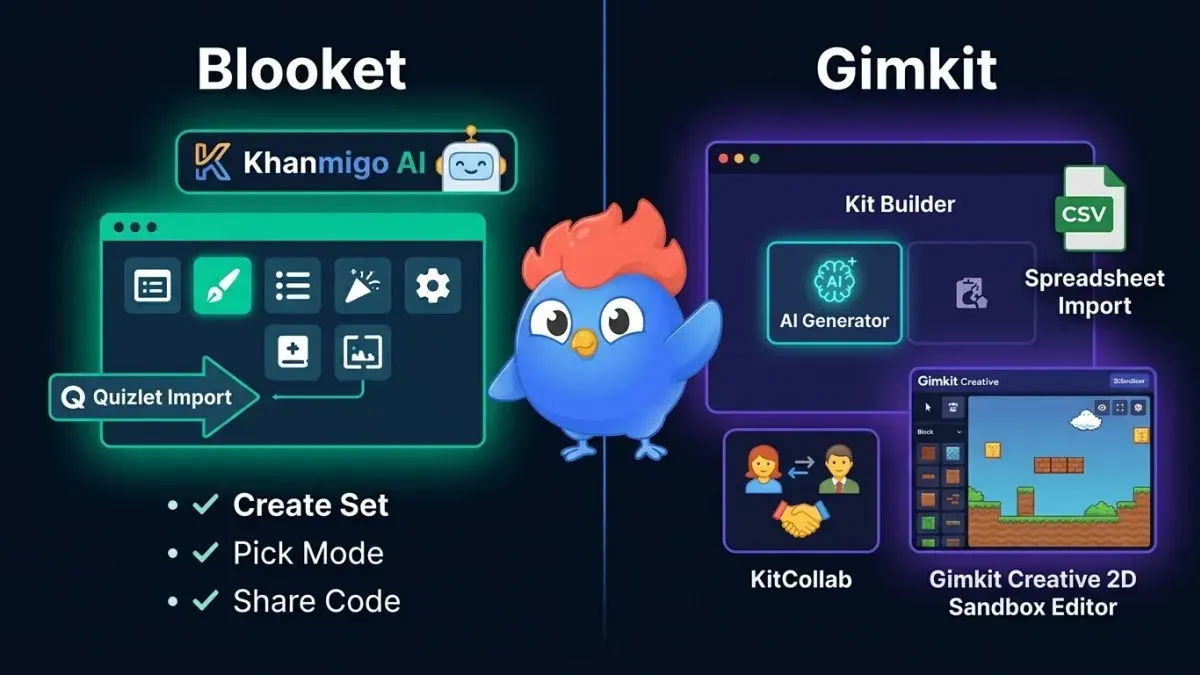
Short answer: Switching from Blooket to Gimkit is straightforward but requires understanding key differences in setup, gameplay, and content management. Gimkit offers more control over question pacing and real-time feedback, but it demands a slightly steeper learning curve.
This article covers practical steps to log in and set up Gimkit for your class, compares it directly with Blooket for classroom use, and explains how to handle common challenges like content transfer and access issues. You will get clear guidance on what to expect when switching from Blooket to Gimkit and how to use Gimkit effectively without any coding skills.
Is Gimkit better than Blooket?
Both Gimkit and Blooket offer engaging quiz-based learning but differ in key areas that affect classroom use. Blooket relies on fast-paced question rounds with unlockable avatars called "Blooks" to keep students motivated. Gimkit uses a cash-earning mechanic where students answer questions to earn in-game money, which they spend on power-ups or upgrades, adding layers of strategy and replay value.
Content creation is more flexible in Gimkit. It allows importing question sets via CSV and offers multiple question types, including multiple-choice, checkbox, and open-ended. Blooket’s question editor is simpler but limits question types and customization. Gimkit’s ability to schedule kits and randomize questions adds adaptability for different lesson plans.
Pricing models vary: Blooket offers a free plan with unlimited games but limits advanced features like detailed reports. Gimkit’s free tier allows basic game creation but restricts the number of live kits and access to premium power-ups. Monthly subscriptions for Gimkit unlock all features, including detailed analytics and team play modes, which Blooket includes in its paid tier as well.
Unique to Gimkit are features like the "Power Up Shop" and "Teams Mode," which create collaborative dynamics. Blooket excels in variety with game modes such as "Tower Defense" and "Crazy Kingdom." For classroom management, Gimkit provides more granular reporting on student progress and time spent per question, which helps track learning gaps more precisely.
Imagine running a review session: Gimkit lets you track who struggles with specific questions and adapt on the fly, while Blooket keeps energy high with fast rounds and colorful avatars. Your choice depends on whether you prioritize content flexibility and data or immediate engagement and simplicity.
| Feature | Blooket | Gimkit |
|---|---|---|
| Game Mechanics | Fast quiz rounds, avatar collection | Cash earnings, power-ups, strategy |
| Content Flexibility | Basic question editor, limited types | Multiple question types, CSV import |
| Pricing | Free with limited reports, paid for analytics | Free with limited kits, subscription for full access |
| Unique Features | Multiple game modes | Power Up Shop, Teams Mode |
| Classroom Management | Basic reports | Detailed analytics, student tracking |
“Gimkit’s detailed reports helped me identify which topics my students struggled with most during review sessions, saving me prep time.” – Teacher
“Blooket’s fast rounds keep students excited and focused, especially in younger grades.” – Educator
Which is better Blooket or Gimkit for classroom use?
Blooket suits younger students or classrooms prioritizing quick, engaging review sessions. Its fast-paced games like Tower Defense or Cafe allow easy entry and lively competition, ideal for early elementary grades or mixed-ability groups. Teachers focusing on vocabulary or basic math find Blooket’s straightforward quiz style fits well with short bursts of activity.
Gimkit fits classrooms aiming for deeper learning and critical thinking, often in middle or high school settings. It supports varied question types, including open-ended questions, and offers automatic grading plus detailed analytics. For example, a high school biology teacher used Gimkit to create sets that integrated video explanations and tracked student progress over a semester, helping tailor instruction effectively.
Technically, Blooket runs smoothly on most devices with minimal setup, requiring only a browser and a session code. Gimkit demands a stable internet connection and occasionally faces firewall blocks in some schools, which may require IT support to resolve. Both platforms work well on tablets and laptops, but Gimkit’s richer media content can strain older devices.
Integration-wise, Gimkit offers better export options for grades and connects with Google Classroom, simplifying assignment management. Blooket’s focus remains on in-session play with limited external tool integration. Educators relying heavily on LMS systems might prefer Gimkit for streamlined workflow.
Consider a middle school history teacher who uses Blooket for quick warm-ups and Gimkit for end-of-unit mastery checks. The choice depends on your teaching style, subject demands, and available tech support. If you want rapid engagement without much setup, Blooket is your go-to. For ongoing assessment and data-driven instruction, Gimkit fits better.
How to log in to Gimkit and start using it
Begin by going to gimkit.com. The homepage shows two main buttons: Log In and Sign Up. Teachers create accounts using email or Google login, while students typically join via a game code without needing an account. If you are a teacher, click Sign Up to create your account by entering your email and setting a password or choose the Google sign-in option for quicker access.
Once logged in, the dashboard displays options to Create New Kit, Create New Game, or Join Game. To start a new game, select Create New Game, choose the kit you want to use, and configure game settings like time limits or power-ups. If joining an existing game as a student, click Join Game and enter the game code provided by the teacher.
Common login issues include password errors, forgotten passwords, or browser incompatibility. If you can’t log in, first try resetting your password via the Forgot Password? link. Ensure cookies and JavaScript are enabled and use updated browsers like Chrome or Firefox. If the site is blocked on your network, check firewall or school restrictions.
For example, after signing in with your Google account, you land on your dashboard. Click Create New Game, pick a kit about fractions, set a 15-minute timer, and launch. Students enter the displayed game code on gimkit.com, hit Join Game, and start playing immediately.
- Visit gimkit.com, choose login or signup
- Teachers create accounts; students join with codes
- Use dashboard to create or join games
- Reset passwords or update browser if login fails
- Check network settings if site is blocked
How to set up a Gimkit for your class
Start by creating a new kit from the Gimkit dashboard. Click “New Kit,” name it clearly for your lesson, and choose whether to build questions from scratch or import them via CSV or Quizlet. For example, if you’re preparing a biology review, title it “Biology Unit 3 Review” and import a set of flashcards you already have. Double-check imported questions for formatting errors before proceeding.
Next, customize settings under the “Game Settings” tab. Select a game mode—such as “Classic,” “Team Mode,” or “Trust No One”—based on your class size and engagement style. Adjust time limits per question; five seconds works well for quick recall, but increase this if questions are complex. Enable or disable power-ups depending on whether you want students to use game mechanics strategically or focus on pure content.
Assign the kit to your students by generating a join code or sharing the direct link. Use the “Classroom” feature to create groups and track individual progress. This lets you see who has completed the kit and analyze which questions caused difficulties. For example, you might notice many students miss a particular question and decide to reteach that concept.
To optimize engagement, mix question types—multiple choice, fill-in-the-blank, and true/false. Rotate between game modes in different sessions to maintain interest. Avoid overly long kits; 30-40 questions ensure focus without fatigue. Remind students to use headphones if playing in noisy environments.
- Create or import your question kit with a clear, descriptive name.
- Customize game mode, time limits, and power-ups under “Game Settings.”
- Assign the kit via join code or direct link and organize students into groups.
- Monitor progress and question performance using the dashboard analytics.
- Use varied question types and keep kits concise for best engagement.
How to transfer content or progress from Blooket to Gimkit
There is no direct tool to transfer questions or student progress from Blooket to Gimkit. The platforms use different data formats and do not support exporting/importing full game sets or student results between each other. This means you cannot move content or scores automatically.
To migrate your content, you need to manually recreate question sets in Gimkit. Start by exporting your Blooket question set as a CSV file via the "Export Questions" option in the Blooket dashboard. Then, open this file to copy questions and answers. In Gimkit, create a new kit by selecting "Create Kit" from the dashboard, click "Add Question," and paste each question and its answers individually. This process is time-consuming but necessary for a smooth transition.
Student progress and scores cannot be moved. Each platform tracks this data internally with no sharing capacity. Plan for a fresh start on Gimkit with no prior scores or levels carried over. Communicate to students that their previous performance on Blooket will not affect their Gimkit experience.
Managing the transition means running new Gimkit games side-by-side with Blooket initially. Use this overlap period to familiarize students with Gimkit’s interface while still leveraging Blooket’s engagement. Gradually phase out Blooket once Gimkit sets are ready and students are comfortable.
Example: If you had a 20-question review set on Blooket, export it, open the CSV, and copy each question-answer pair into Gimkit’s "Add Question" fields. Expect roughly 5–10 minutes per set depending on complexity.
- Export Blooket questions via dashboard > "Export Questions"
- Open CSV and copy question/answer data
- In Gimkit, go to dashboard > "Create Kit" > "Add Question"
- Manually input each question and answer option
- Run both platforms concurrently during transition
- Inform students about the reset of progress
Why is Gimkit sometimes blocked and how to fix it
Gimkit is often blocked on school or institutional networks due to strict firewalls and content filters designed to limit access to external websites. Common reasons include filters targeting gaming platforms, blocking based on category tags like "educational games," or IP address restrictions. You might see error messages such as "Access Denied," "This site is blocked by your administrator," or a timeout warning when trying to load Gimkit.
Schools typically implement these rules via network management tools like Cisco Umbrella, Barracuda Web Filter, or Lightspeed Systems. These tools categorize websites and block those deemed non-essential or distracting. Even if Gimkit is educational, it can be flagged because it resembles a gaming site or uses third-party content delivery networks.
To resolve this, start by contacting your IT department or network administrator. Request an exception for Gimkit by providing its exact URL (https://www.gimkit.com) and explaining its educational use. Administrators can whitelist the site or adjust category filters. Be specific about the error message and the devices affected, as policies might differ between Wi-Fi and wired connections.
If you control your own network or device, try these troubleshooting steps: clear browser cache, use a different browser, check firewall settings, or test using a mobile hotspot to isolate the problem. On managed Chromebooks or iPads, restrictions might come from device-level policies requiring admin intervention.
When access cannot be granted, consider alternatives like running Gimkit on a separate guest network with relaxed rules or using offline quiz tools. Communicating clearly with IT and understanding their policies is key to finding workable solutions.
- Note any error messages and when they occur
- Provide your IT team with Gimkit’s exact URL
- Request site whitelisting or category filter adjustments
- Test on multiple devices and networks to isolate the issue
- Use guest networks or offline alternatives if blocking persists
How to use Gimkit effectively without coding skills
You can fully use Gimkit’s powerful features without any coding knowledge. Start by creating a kit through the dashboard by clicking “Create a Kit,” then adding questions with multiple-choice answers using the built-in editor. Use preset question types like multiple choice or checkbox, and add images or hints directly in the interface—no programming required.

Gimkit offers no-code game modes such as “Team Mode,” “Classic,” or “Timed,” which you select from the “Game Settings” menu. Power-ups like “Double Points” or “Freeze” activate automatically during gameplay and require only a toggle to enable. These features enhance engagement and strategy without needing technical setup.
Integrate Gimkit with classroom tools like Google Classroom or Microsoft Teams by connecting your accounts in “Settings” under “Integrations.” This syncs rosters and assignments smoothly without manual data entry or coding. You can assign kits directly to your classes from these platforms.
Common pitfalls include forgetting to enable power-ups or not previewing the kit before assigning. Preview your kit by clicking “Preview” and simulate the game to verify questions and settings. Avoid overly complex question structures that confuse students. Keep kits clear and focused to maximize effectiveness.
For example, a non-technical teacher can create a 15-question kit on fractions by using the “Create a Kit” button, entering questions via the simple form, selecting “Classic” game mode, toggling power-ups on, linking to their Google Classroom, and previewing the game before launching it to students.
- Create kits using the dashboard’s question editor
- Select game modes and toggle power-ups in settings
- Connect classroom accounts for easy rostering
- Preview kits to catch errors
- Keep questions straightforward and clear
Frequently asked questions
How to get gimkit answers?
Gimkit answers are provided during gameplay when students respond to questions. You see correct answers after each question or round, depending on your settings. Attempting to find answers outside the platform violates its terms and is discouraged. Focus on using Gimkit to reinforce learning rather than seeking shortcuts.
How to transfer gimkit to blooket?
There is no direct way to transfer content or progress from Gimkit to Blooket because they use different formats and platforms. You will need to manually recreate question sets in Blooket. Exporting questions from Gimkit as CSV and importing them into Blooket is possible but requires formatting adjustments.
How to use github for blooket?
GitHub is not officially integrated with Blooket. Some users share custom question sets or scripts on GitHub, but use caution with third-party code to avoid security risks. Blooket's platform itself does not require or support GitHub for regular classroom use.
How to start gimkit?
To start Gimkit, go to gimkit.com and click “Log in” using your Google, Microsoft, or email account. After logging in, click “New Kit” to create a game or choose an existing kit from your library. Then select “Start” to launch the game and share the join code with your class.
Why is gimkit blocked?
Gimkit can be blocked by school or district firewalls due to content filtering or security policies. If this happens, ask your IT administrator to whitelist gimkit.com. Some blocks stem from network restrictions on game-based learning sites or perceived inappropriate content filters.
Quick checklist
- Evaluate your classroom needs for engagement and content type before switching.
- Log in to Gimkit via gimkit.com using your email or Google account.
- Create a new kit under the “My Kits” tab; import questions manually or from CSV files.
- Inform your students of the new join code each session; note progress does not transfer from Blooket.
- If Gimkit is blocked, check your network firewall and request access from IT using gimkit.com domain.
- Use Gimkit’s built-in question editor and game modes without needing coding skills.
What this advice does not cover
This guide does not cover data privacy regulations or detailed IT network configurations. Educators should consult their institution’s policies before making platform changes or requesting network permissions. If your institution has strict software approval processes, coordinate with IT staff to avoid access issues. For detailed content migration beyond basic question transfer, consider professional support or platform-specific integrations.
Start by creating a simple Gimkit game with a set of questions you already use in Blooket. This practical step helps you familiarize yourself with Gimkit’s workflow and identify any classroom-specific adjustments before fully switching platforms.
See also: Switching from Blooket to Formative: A Practical How-To Guide · Moving from Blooket to Edpuzzle: Your Complete Checklist · Blooket Rollout Plan for Homeschool Families: A Step-by-Step Guide