Moving from Formative to Pear Deck: Your Complete Checklist
This checklist guides you step-by-step to switch from Formative to Pear Deck, covering account setup, interactive slides, and PowerPoint integration.

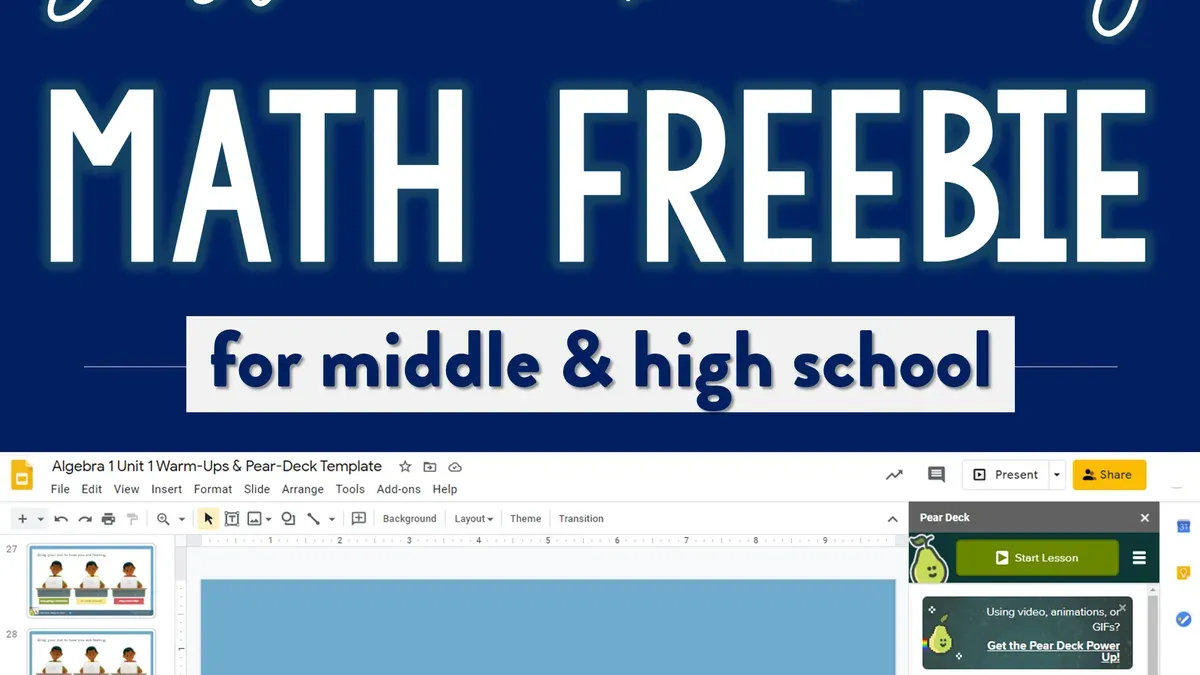
Short answer: Switching from Formative to Pear Deck is straightforward once you understand Pear Deck’s interface, live engagement tools, and PowerPoint integration. This moving from Formative to Pear Deck checklist guides you through accessing Pear Deck, creating presentations, running lessons live, and embedding Pear Deck in PowerPoint slides for seamless delivery.
This article covers each step clearly and practically. You’ll learn how to sign into Pear Deck, build interactive slides using its templates and question types, and engage students with real-time responses. It also details how to add Pear Deck’s add-in to PowerPoint, a feature many teachers miss, which helps keep your existing slide decks while adding live interactivity. Finally, it highlights common pitfalls to avoid during the transition, ensuring you don’t lose functionality or student engagement.
How to access Pear Deck
You start by creating a Pear Deck account at peardeck.com. You can sign up using your Google or Microsoft account, which streamlines login and syncs with your existing school credentials. Pear Deck offers a free plan with basic interactive slides and student-paced activities. For advanced features like detailed reports, integrations, and premium question types, you need a paid subscription.
Once your account is ready, install the Pear Deck add-on for Google Slides or the Pear Deck add-in for PowerPoint. For Google Slides, open a presentation, click "Extensions" > "Add-ons" > "Get add-ons," then search for "Pear Deck" and install it. For PowerPoint, visit the Microsoft Store within PowerPoint, search for "Pear Deck," and add it to your ribbon. These tools let you embed interactive questions directly into your slides.
You can also access Pear Deck through some LMS platforms if your school supports it, or install the Pear Deck Chrome extension for quick access and management. This flexibility means you can integrate Pear Deck into your existing workflow without switching platforms completely.
| Feature | Free Plan | Paid Plan |
|---|---|---|
| Interactive Slide Types | Basic | Full range including draggable and drawing |
| Student-Paced Mode | Yes | Yes |
| Detailed Reports | No | Yes |
| Integration with LMS | Limited | Full |
| PowerPoint Add-in | Available | Available |
Example: You’re logged into your Google account and open a Google Slides deck for your upcoming lesson. You install the Pear Deck add-on via the Extensions menu, then launch Pear Deck from the sidebar to start adding interactive questions. This will let you present live with Pear Deck’s engagement tools and track student responses in real-time.
- Sign up at peardeck.com using Google or Microsoft accounts
- Choose free or paid plan based on needed features
- Install Pear Deck add-on for Google Slides or add-in for PowerPoint
- Optionally, access Pear Deck through your LMS or Chrome extension
- Launch Pear Deck within your presentation software to start creating interactive lessons
How to make a Pear Deck presentation
Start a new Pear Deck lesson by opening Google Slides or PowerPoint and selecting the Pear Deck add-on. For Google Slides, click on "Add-ons" > "Pear Deck" > "Start Lesson". In PowerPoint, use the Pear Deck tab on the ribbon and click "Create New". You can begin from a blank slide deck or import existing slides, including those from Formative quizzes.
Convert a Formative quiz by recreating each question as an interactive Pear Deck slide. For example, a multiple-choice question in Formative becomes a Pear Deck "Multiple Choice" slide. Add draggable slides for ranking or matching activities, and text response slides for open-ended questions. Screenshots of these question types appear within the Pear Deck sidebar when adding new slides.
Use Pear Deck's free lesson library to find pre-made templates that suit various subjects and engagement goals. Templates like "Opinion Meter" or "Number Slide" encourage participation and can be customized to fit your lesson's content. Incorporate these templates to save time and diversify question formats.
Design lessons to maximize participation by alternating question types and including interactive elements every few slides. Avoid long stretches of passive content; instead, prompt students to respond actively. Use Pear Deck’s “Student-Paced” mode to allow more thoughtful answers or “Instructor-Paced” to control timing tightly.
- Open Google Slides or PowerPoint and launch Pear Deck add-on
- Recreate or import slides from Formative quizzes
- Add interactive question types: multiple choice, draggable, text response
- Use Pear Deck’s lesson library and templates for variety
- Mix question types to keep students engaged and alternate pacing
How to use Pear Deck
Start your live Pear Deck session by opening your prepared presentation and clicking the "Start Lesson" button. Pear Deck generates a unique join code, typically a 5- to 7-character alphanumeric string, which you share with your students verbally or on the board. Students enter this code at joinpd.com on their devices to connect to your session instantly.

Once joined, students see your slides synced in real time, allowing you to present while they interact. You monitor their responses and progress through the teacher dashboard, accessible via the Pear Deck sidebar or web interface. This dashboard displays each student’s answers, participation status, and engagement level slide-by-slide, enabling quick intervention if some lag behind.
For example, during a live math quiz, you can spot which students struggle with a problem by viewing their input on the dashboard. You can then address issues immediately or adjust the lesson pace. After the session, save all responses by exporting them as a Google Sheet or PDF, giving you a record to review or share with parents and administrators.
Teachers new to Pear Deck often miss the dashboard’s real-time insights, which are vital for interactive lessons. Using these features can noticeably improve student engagement and understanding compared to static quiz formats.
- Launch your Pear Deck presentation and click "Start Lesson"
- Share the generated join code with students
- Instruct students to go to joinpd.com and enter the code
- Use the teacher dashboard to monitor responses live
- Export session data for review after class
How to add Pear Deck to PowerPoint
Start by installing the Pear Deck add-in directly within PowerPoint. Open PowerPoint, go to Insert > Get Add-ins, and search for “Pear Deck.” Click Add to install. Once added, Pear Deck appears as a new tab on the ribbon. This seamless integration lets you build interactive lessons without leaving PowerPoint.
Next, create or import your slides as usual. To add Pear Deck interactive elements, select the Pear Deck tab and choose question types like draggable, multiple choice, or text response. For example, if you have a slide on photosynthesis, insert a draggable activity where students label parts of a leaf directly on the slide. This keeps everything in one place, unlike Google Slides workflows that require switching tabs and windows.
When presenting, launch your Pear Deck session from the tab. Share the join code with students, who respond live on their devices. You see their answers in real time within PowerPoint. If the add-in freezes or doesn’t load, restart PowerPoint or check your internet connection—these are the most common fixes. Users appreciate that this integration reduces toggling between apps and keeps the lesson flow uninterrupted.
- Open PowerPoint and go to Insert > Get Add-ins
- Search for and add the Pear Deck add-in
- Create/import slides as usual
- Use the Pear Deck tab to insert interactive questions
- Start the session and share the join code
- Troubleshoot by restarting PowerPoint or checking connectivity if needed
Common mistakes to avoid when switching from Formative to Pear Deck
Teachers often underuse Pear Deck’s full range of interactive question types, limiting engagement. For example, sticking only to multiple-choice questions misses opportunities to use draggable slides or text responses, which can deepen student participation. Feedback from educators shows that neglecting these options can lead to engagement drops, with some reporting students becoming passive during lessons.
Many educators overlook Pear Deck’s PowerPoint integration, which can streamline lesson prep by allowing direct creation and presentation within PowerPoint. Ignoring this feature means juggling multiple platforms unnecessarily, increasing setup time and the risk of technical glitches during class.
Failing to clearly explain to students how to join Pear Deck sessions causes confusion and delays. Teachers have noted that when students don’t know to visit joinpd.com and enter the session code promptly, valuable class time is lost troubleshooting access issues.
Overloading slides with too many interactive elements creates cognitive overload and frustrates students. For example, placing three or more question types on a single slide often causes students to freeze or submit incomplete answers, reducing the effectiveness of the activity.
- Explore and use varied Pear Deck question types beyond just multiple choice
- Integrate Pear Deck directly with PowerPoint to simplify lesson prep
- Brief students in advance on how to join sessions at joinpd.com with the session code
- Limit interactive elements per slide to one or two to avoid confusion
Frequently asked questions
How do I join a Pear Deck lesson?
To join a Pear Deck lesson, students go to joinpd.com and enter the session code provided by the teacher. The code appears on the teacher’s screen once the lesson starts. Students can also use Google or Microsoft accounts to sign in for a more personalized experience.
How do I add the Pear Deck extension?
To add the Pear Deck extension, open the Chrome Web Store and search for "Pear Deck for Google Slides." Click "Add to Chrome" and accept the permissions. Once installed, you can access Pear Deck directly within Google Slides via the add-ons menu.
What is Pear Assessment in Pear Deck?
Pear Assessment is a feature within Pear Deck that allows you to create interactive formative assessments. It includes question types like multiple choice, draggable, and text response that students answer live. This tool helps you gauge student understanding in real time during lessons.
Are there free Pear Deck lessons available for teachers?
Yes, Pear Deck offers a library of free lessons that teachers can access without a paid subscription. These cover various subjects and grade levels and can be customized to fit your classroom needs. You can find them through the Pear Deck website or within the add-on interface.
What this advice does not cover
This guide does not cover advanced Pear Deck premium features that require paid subscriptions, such as detailed student analytics or specialized lesson templates. Educators managing very large classes might encounter limitations with live session controls and should explore Pear Deck’s scalability options directly. If your teaching setup relies heavily on specific LMS integrations beyond Google Classroom or Microsoft Teams, consult Pear Deck’s official support for tailored guidance.

Quick checklist
- Sign in at join.peardeck.com or access Pear Deck through the Google Slides Add-ons menu.
- Create your Pear Deck presentation by opening Google Slides and selecting 'Add-ons' > 'Pear Deck' > 'Start Lesson'.
- Use interactive question types such as draggable sliders and multiple choice to engage students live.
- Add Pear Deck to PowerPoint via the Pear Deck add-in from Microsoft AppSource and enable it before presenting.
- Avoid uploading static PDFs expecting interactive features; convert lesson materials into Slides or PowerPoint first.
Your next step is to open a sample lesson in Pear Deck and practice adding interactive slides, focusing on the 'Draggable' and 'Multiple Choice' question types. This direct experience will clarify how Pear Deck’s live engagement tools differ from Formative and prepare you for seamless classroom use.
See also: Moving from Formative to Padlet: Your Step-by-Step Checklist · Moving from Formative to Nearpod: Essential Checklist for Teachers · Moving from Formative to Microsoft Forms: A Practical Checklist · Moving from Formative to Kahoot: Your Complete Transition Checklist