
Moving from MacBooks to Windows Laptops: Essential Checklist for a Smooth Transition
A checklist to smoothly transition from MacBooks to Windows laptops by preparing data, apps, and settings to avoid disruptions.

Short answer: Successfully moving from MacBooks to Windows laptops requires understanding the core differences in operating systems, preparing your data and applications for migration, and configuring your new device to match your workflow needs. A well-structured moving from MacBooks to Windows laptops checklist helps you avoid disruptions and maintain productivity throughout the transition.
This article covers the essential technical and workflow changes that can cause friction when switching platforms. You will find actionable steps to bridge these gaps, including how to handle file system differences, application alternatives, keyboard shortcuts, and security settings. The guide also helps you set up your Windows laptop for optimal performance and avoid common pitfalls that could slow down your adaptation.
Understand the Key Differences Between macOS and Windows
macOS centers on a tightly integrated ecosystem with a minimalist design philosophy emphasizing consistency and simplicity. Windows, by contrast, supports vast hardware diversity, offering flexibility but also variability in user experience and driver behavior. This core difference affects how you navigate and manage files.
For example, macOS uses Finder with a unified sidebar and tags for file organization, while Windows employs File Explorer featuring a hierarchical folder tree and Quick Access links. macOS defaults to APFS, optimized for SSDs, whereas Windows typically uses NTFS, which handles permissions and metadata differently.
Default applications also diverge: Safari versus Edge, Mail versus Outlook, and Preview versus Photos, requiring you to adapt or replace tools. Hardware-wise, MacBooks offer uniform quality and performance, while Windows laptops vary widely in build, keyboard layouts, and port availability, impacting compatibility with peripherals.
| Feature | macOS | Windows |
|---|---|---|
| File Management | Finder with tags and sidebar favorites | File Explorer with folder tree and Quick Access |
| System Navigation | Dock, Spotlight search | Taskbar, Start menu, Cortana search |
| Default Apps | Safari, Mail, Preview | Edge, Mail, Photos |
| File System | APFS optimized for SSDs | NTFS with broad compatibility |
| Hardware | Uniform MacBook models | Diverse laptops with varied specs |
Consider this scenario: on macOS, tagging a file "ProjectX" lets you quickly find it via Finder’s sidebar. On Windows, you’d rely on folder structure or add it to Quick Access, which requires more manual setup. Understanding these differences prepares you to adapt your workflow efficiently, avoiding friction after the switch.
Prepare Your Data and Applications for Migration
Begin by backing up your Mac data to avoid loss during the transition. Use Time Machine by connecting an external drive, then select System Preferences > Time Machine > Select Backup Disk, and start the backup. Complement this with manual transfers of essential folders like Documents, Desktop, and Downloads via Finder to an external drive or cloud storage.
Next, inventory your Mac applications and find Windows equivalents. For example: Safari maps to Microsoft Edge or Google Chrome; Pages to Microsoft Word; Keynote to Microsoft PowerPoint; Final Cut Pro to Adobe Premiere Pro or DaVinci Resolve; and Mail to Outlook. Cross-platform cloud services like OneDrive, Google Drive, or Dropbox ease file format compatibility and syncing.
To facilitate data transfer, use tools like Windows’ built-in File Sharing for network transfers or third-party apps such as EaseUS Todo PCTrans. External SSDs formatted as exFAT ensure compatibility for large files between macOS and Windows.
- Connect an external drive and set up Time Machine backup
- Manually copy critical folders to external or cloud storage
- Create a detailed list of Mac apps and research Windows counterparts
- Choose cross-platform cloud services for seamless syncing
- Use network transfer tools or exFAT external drives for file migration
Set Up Your New Windows Laptop for Productivity
To ease your transition from macOS, start by adjusting Windows settings to mimic familiar macOS ergonomics. Navigate to Settings > Devices > Touchpad and enable three-finger swipe gestures to switch between apps, similar to macOS Mission Control. For keyboard remapping, use Microsoft PowerToys to swap the Ctrl and Windows keys, aligning with the Mac's Cmd key position.
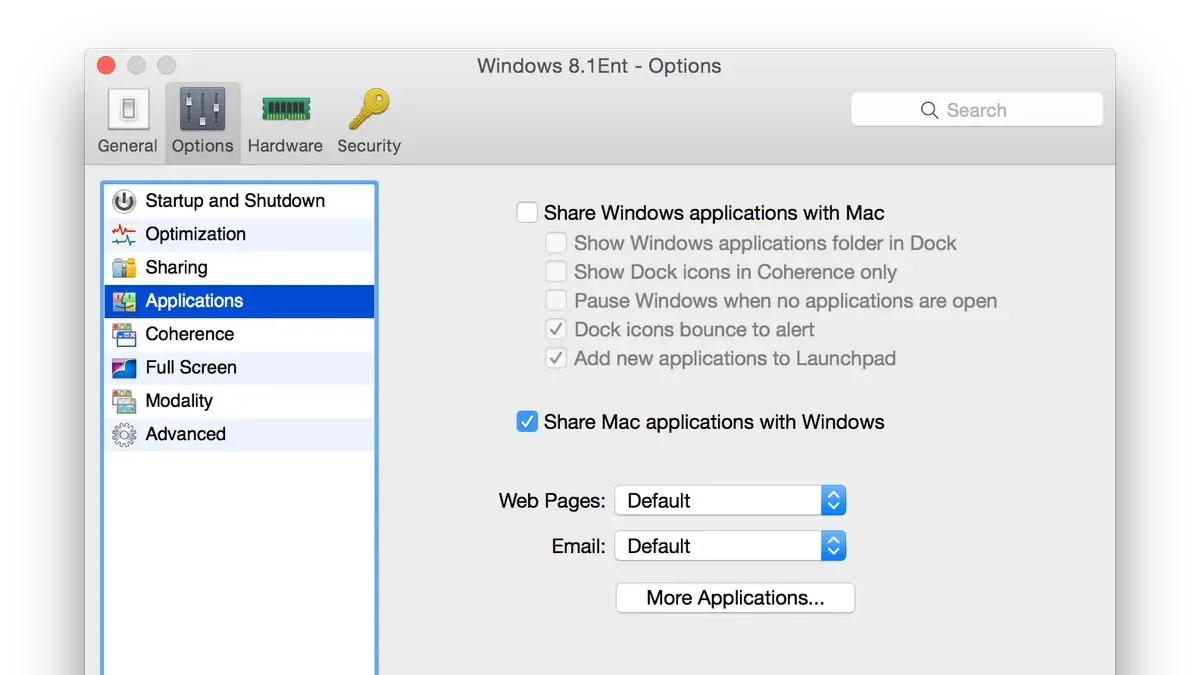
Next, install utilities like PowerToys for window management (FancyZones) and AutoHotkey for custom shortcuts. Complement these with a clipboard manager such as ClipClip to replicate macOS clipboard history.
Manage user accounts by creating a Microsoft account for seamless syncing, then review privacy settings under Settings > Privacy > General to disable telemetry and restrict app permissions. Enable Windows Defender and configure firewall rules for security.
For hardware calibration, go to Settings > System > Display > Advanced Display Settings > Color Calibration to adjust color profiles, ensuring accurate hues like on your Mac. In Power & Sleep settings, set balanced power plans to optimize battery life without compromising performance.
For example, remapping keys with PowerToys involves opening Keyboard Manager, selecting "Remap a key," then swapping the Left Windows key with Left Ctrl to mirror the Mac layout. This minor tweak reduces errors and speeds up shortcut use.
- Enable three-finger swipe gestures in Touchpad settings
- Install PowerToys and configure FancyZones and Keyboard Manager
- Create and secure Microsoft account; review privacy settings
- Calibrate display color profile via Advanced Display Settings
- Adjust power plans for balanced battery and performance
Migrate Your Workflow and Files Without Losing Efficiency
When moving your workflow to Windows, start by reorganizing your files within Windows Explorer. Unlike macOS’s Finder, Windows Explorer allows you to pin frequently used folders to Quick Access for faster navigation. Create a clear folder hierarchy with descriptive folder names and use the Details view to sort files by date, type, or size.
Windows productivity features like Snap Layouts let you arrange multiple open windows quickly by hovering over the maximize button and choosing a layout, streamlining multitasking. Virtual desktops further separate workspaces, helping you focus on different projects without clutter.
Adapting keyboard shortcuts is key. For example, macOS’s Command+C/V becomes Ctrl+C/V in Windows, but some shortcuts differ more significantly—Alt+Tab replaces Command+Tab for switching apps, and Windows+D shows the desktop instantly. Create a personalized shortcuts cheat sheet to ease muscle memory retraining.
Consider this scenario: editing a document while referencing emails and a browser window. Using Snap Layouts, you can arrange these three windows evenly within 5 seconds, compared to manually resizing on macOS, which often takes longer. Leveraging these tools replicates your macOS workflow efficiently and can improve your pace.
- Pin key folders to Quick Access in Windows Explorer
- Use Snap Layouts for rapid window organization
- Set up and practice Windows virtual desktops
- Create a shortcuts cheat sheet mapping macOS keys to Windows
Avoid Common Pitfalls When Switching Platforms
Many users underestimate the complexity of migrating from macOS to Windows, often encountering productivity drops due to overlooked software compatibility. For instance, attempting to run macOS-exclusive apps without verified Windows equivalents can stall critical tasks. Skipping a comprehensive backup before starting migration risks irreversible data loss, especially when system restores or rollback options are unfamiliar.
The Windows user interface and settings present a steeper learning curve than many anticipate. Key differences such as the location of system settings (found in "Settings" > "System" rather than macOS's "System Preferences") and the use of Control Panel for legacy configurations can confuse new users, leading to frustration and inefficient workflows.
Hardware driver updates are another common oversight. Without installing the latest drivers from the laptop manufacturer's website or Windows Update, devices may underperform or lose functionality—such as missing audio output or disabled touchpads. Additionally, neglecting Windows security configurations, including enabling Windows Defender and setting up Firewall rules, leaves the system vulnerable.
Consider a professional who migrated without checking driver updates or security settings; they experienced frequent device disconnects and a security breach due to disabled firewall rules. This example highlights the critical nature of these often-skipped steps.
- Verify software compatibility before migration
- Create a full backup of all data
- Familiarize yourself with Windows Settings and Control Panel
- Download and install all recommended hardware drivers
- Enable and configure Windows security features immediately
Maintain and Optimize Your Windows Laptop Post-Migration
To keep your Windows laptop running smoothly, prioritize regular system updates via Settings > Update & Security > Windows Update. These updates include security patches and driver improvements critical for hardware compatibility. Neglecting driver updates, especially for graphics and network adapters, can cause performance drops or connectivity issues.
Customize Windows to your comfort by exploring Settings > Accessibility. Adjust text size, enable Narrator or Magnifier, and tweak color filters to reduce eye strain during long work sessions. For example, enabling Night Light reduces blue light exposure, helping maintain focus in low-light environments.
When errors occur, use built-in troubleshooting tools found under Settings > Update & Security > Troubleshoot. These wizards automatically detect and fix common issues like audio problems, network failures, or printer errors without complex manual steps.
If problems persist, seek expert help through Microsoft’s official support website or specialized forums such as TenForums and the Microsoft Community. These platforms offer solutions vetted by experienced users and professionals, which can save you time and prevent missteps.
Monthly Maintenance Checklist:
- Run Windows Update and install all recommended updates
- Update device drivers via Device Manager or manufacturer software
- Review and adjust Accessibility settings for comfort improvements
- Run Windows Troubleshooter for any persistent system issues
- Backup important files using File History or OneDrive
- Review startup programs through Task Manager to optimize boot time
Read next
- Moving from MacBooks to Chromebooks: Your Complete Checklist
- Moving from Android Tablets to Windows Laptops: Your Complete Checklist
- Switching from Chromebooks to Windows Laptops: Your Expert Guide
Frequently asked questions
What are the biggest challenges when moving from MacBooks to Windows laptops?
The primary challenges include adapting to a different user interface, managing driver and hardware compatibility, and transitioning software workflows. Windows uses a distinct file system and system settings layout, which can cause friction. Additionally, keyboard shortcuts and trackpad gestures differ, requiring a relearning phase to maintain productivity.
How do I find Windows alternatives for my favorite Mac apps?
Start by listing your essential Mac applications, then research Windows counterparts known for similar features and reliability. Websites like AlternativeTo.net provide user reviews and comparisons. For example, replace macOS-exclusive Final Cut Pro with Adobe Premiere Pro or DaVinci Resolve, and switch from Safari to Microsoft Edge or Google Chrome for browsers.
Can I keep using my existing files and documents without compatibility issues?
Most common file formats like DOCX, XLSX, PDF, and JPEG are cross-platform compatible. However, proprietary Mac formats such as Pages or Keynote require exporting to universal formats like DOCX or PPTX before migrating. It’s advisable to test critical files by opening them on Windows with compatible software before fully switching.
What hardware differences should I expect between MacBooks and Windows laptops?
Windows laptops vary widely in build, with options ranging from budget to high-end configurations, unlike MacBooks’ standardized hardware. Expect differences in keyboard layout, ports (Windows often includes USB-A, HDMI), and trackpad sensitivity. Battery management and thermal profiles also differ, so monitoring settings like Windows’ Battery Saver mode helps optimize usage.
What this advice does not cover
This guide does not cover migrating from MacBooks to Windows tablets or hybrid devices, which may have different considerations such as touch interface optimization, pen input configuration, and hardware-specific drivers. If your transition involves devices like the Surface Pro or other convertibles, seek specialized resources tailored to those platforms.
Quick checklist
- Review key macOS versus Windows interface and file system differences to adjust workflow expectations.
- Back up all critical data and verify integrity before starting migration.
- Inventory and identify Windows-compatible applications or find suitable alternatives.
- Configure Windows settings: enable dark mode via Settings > Personalization > Colors, set up Power & Sleep options for battery optimization.
- Migrate files using OneDrive or an external drive ensuring folder structure consistency.
- Customize keyboard shortcuts in Windows to mirror macOS commands where possible.
- Install essential drivers and run Windows Update to ensure system stability.
- Enable Windows Security features, including Defender Antivirus and Firewall.
- Plan a phased workflow migration to minimize productivity loss during transition.
- Regularly create system restore points during the first weeks of use for quick recovery.
The single most useful next step is to create a detailed migration plan that includes a timeline, prioritized workflows, and fallback options. This proactive approach helps you anticipate friction points and maintain productivity without surprises as you fully switch from macOS to Windows laptops.



