
Moving from Windows Laptops to Chromebooks: Your Essential Checklist
A clear checklist helps you transition smoothly from Windows laptops to Chromebooks by addressing key differences, preparation, and training.

Short answer: Moving from Windows laptops to Chromebooks requires thoughtful preparation to address differences in operating systems, application compatibility, and user workflows. A clear, expert-driven moving from Windows laptops to Chromebooks checklist helps you avoid common pitfalls and ensures a smooth transition for your team or organization.
This article covers the practical implications of switching to Chromebooks, focusing on why the change matters for knowledge workers and IT decision-makers. You will learn how to understand key differences, evaluate your specific needs, prepare data and applications, set up devices for deployment, train your team effectively, and sidestep frequent mistakes that can disrupt productivity.
Understand the Differences Between Windows Laptops and Chromebooks
Windows laptops run on the Windows operating system, a full-featured OS designed to support a vast range of native desktop applications and robust hardware. Chromebooks operate using Chrome OS, a lightweight, cloud-centric OS primarily built around the Chrome browser and web applications, with added support for Android apps from Google Play.
Windows offers extensive compatibility with traditional software like Microsoft Office desktop versions, Adobe Creative Suite, and specialized enterprise applications. In contrast, Chromebooks rely heavily on web apps such as Google Workspace and Android apps, requiring you to verify that critical software has suitable web or Android counterparts.
Hardware-wise, Windows laptops vary widely from entry-level to high-performance machines with dedicated GPUs. Chromebooks usually feature efficient, energy-saving processors optimized for quick boot times and long battery life, but generally lack the power needed for heavy video editing or 3D rendering.
Security updates on Chromebooks occur automatically every 4 to 6 weeks, managed by Google, minimizing user intervention. Windows updates are more frequent and user-controlled, sometimes causing disruptions during critical work hours.
| Feature | Windows Laptop | Chromebook |
|---|---|---|
| Operating System | Windows 10/11 with desktop OS capabilities | Chrome OS, browser-centric with Linux and Android app support |
| App Ecosystem | Native desktop apps, broad third-party software | Web apps, Android apps, limited Linux apps |
| Hardware | Wide range, from basic to high-end GPUs and CPUs | Energy-efficient CPUs, limited high-end performance |
| Security & Updates | User-initiated updates, frequent restarts | Automatic updates every 4-6 weeks, seamless |
Picture this: If your team relies on heavy Microsoft Office desktop tools and legacy Windows software, moving to Chromebooks means you need to ensure web or Android alternatives can fully replace those tools without workflow disruption.
Evaluate Why Moving to Chromebooks Matters for Your Use Case
Switching to Chromebooks can significantly reduce your total cost of ownership. Consider a small business replacing 50 Windows laptops, each costing around $700 plus $150 yearly for maintenance and software licenses. Over three years, expenses can exceed $127,500. In contrast, Chromebooks typically cost $300 to $400 upfront with minimal maintenance, lowering three-year expenses by nearly half.
Chromebooks simplify device management through centralized Google Admin Console controls, allowing you to push updates and policies without onsite IT intervention. This ease translates to fewer support hours and consistent software versions across devices. Enhanced security features like sandboxing and verified boot reduce risks of malware and unauthorized changes, minimizing downtime and data breaches.
However, Chromebooks have limitations. Offline functionality is limited compared to Windows, potentially disrupting workflows if internet access is unreliable. Specialized Windows-only software may require alternatives or virtualization, adding complexity.
Weigh these factors against your team’s daily tasks and software needs. If cost savings, streamlined management, and security align with your goals, and your workflows mostly depend on web or Android apps, Chromebooks offer tangible benefits.
Prepare Your Data and Applications for the Switch
Begin by listing all critical Windows applications your team relies on daily. Identify Chromebook-compatible alternatives such as Microsoft 365 online replacing the desktop Office suite, or Google Workspace apps like Docs and Sheets. While Microsoft Teams has a fully featured web version, Adobe Photoshop requires alternatives like Photopea or using virtualization tools for legacy software.
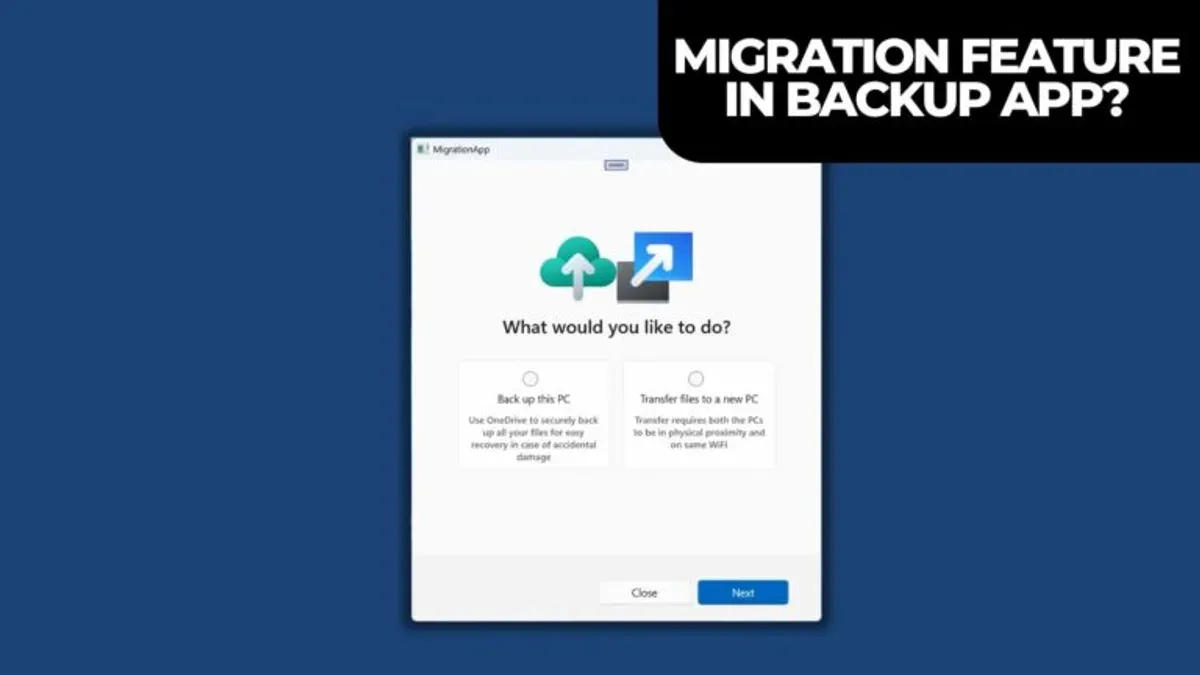
Back up all essential data to cloud storage solutions compatible with Chromebooks, such as Google Drive or OneDrive. This ensures seamless access post-migration and reduces dependency on local storage. For example, migrating shared project files from a Windows file server to Google Drive allows instant access and collaboration without relying on VPNs.
Leverage web and Android apps available via the Chrome Web Store and Google Play Store to cover workflow needs. However, if proprietary Windows software is indispensable, consider virtualization options like Parallels Desktop for Chromebook Enterprise or remote desktop connections to maintain access.
- Create an inventory of essential Windows apps and find Chromebook equivalents.
- Back up data to Google Drive or other cloud services.
- Test key workflows with web and Android apps before full migration.
- Plan for virtualization or remote desktop for legacy Windows apps.
Set Up Your Chromebooks for Seamless Deployment
Start by enrolling all Chromebooks in the Google Admin Console to enable centralized management. Navigate to Devices > Chrome > Settings, then select your organizational unit to configure user profiles, policies, and permissions tailored to your team’s needs. For example, restrict USB access or block specific websites directly from the console to maintain security standards.
Preload essential apps and extensions by adding them under Devices > Chrome > Apps & Extensions. This ensures every device has the necessary tools without manual installation. Prioritize web apps and extensions critical to your workflows, such as Google Workspace, VPN clients, or accessibility tools.
Configure network settings including Wi-Fi SSIDs and proxy configurations centrally to avoid individual device setup. Enable security features like Verified Access and Safe Browsing to protect users from threats. Regularly update policies to reflect evolving security requirements and user feedback.
For example, an IT manager setting up 50 Chromebooks for a sales team might create an organizational unit named “Sales” with policies limiting access to social media, preloading CRM and communication apps, and pushing Wi-Fi credentials automatically.
- Enroll all Chromebooks via Google Admin Console under the correct organizational unit
- Configure user profiles and permissions (e.g., USB restrictions, site whitelisting)
- Preload key apps and extensions centrally for consistent access
- Set up network and security settings like Wi-Fi, proxy, and Verified Access
- Test deployment on a small batch before full rollout to catch issues early
Train Your Team and Adjust Workflows for Chromebook Use
To ensure smooth adoption, train your team on Chromebook essentials such as using keyboard shortcuts like Ctrl + Search to open the launcher or Alt + Tab for quick app switching. Emphasize cloud-first workflows by integrating Google Drive and web-based collaboration tools like Google Docs and Sheets, replacing traditional desktop apps.
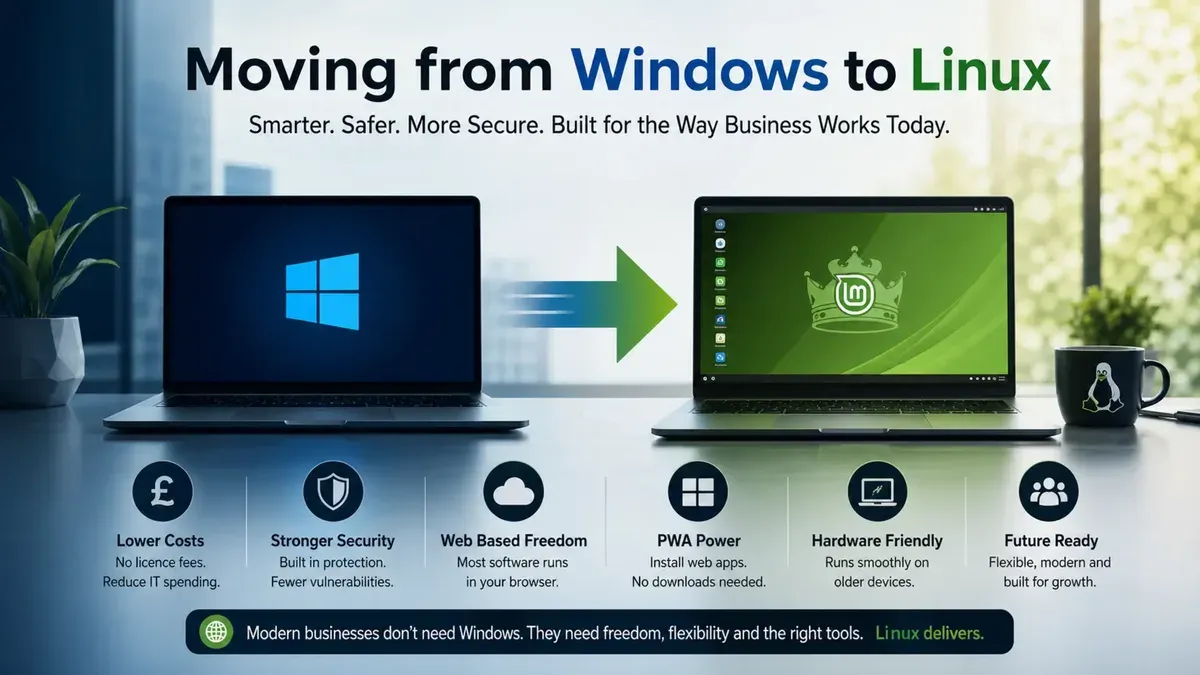
Provide clear resources for troubleshooting, including access to Google’s support site and internal FAQs tailored to your organization’s specific setup. Establish a feedback loop through regular check-ins or surveys to identify pain points and areas for improvement, encouraging iterative workflow adjustments.
For example, an educational institution reported smoother remote collaboration after training teachers to use Google Classroom alongside Chromebooks, resulting in fewer support tickets and improved assignment turnaround times. This demonstrates how targeted training and workflow shifts can boost productivity and user confidence.
- Highlight key shortcuts and features in training sessions
- Shift workflows to leverage cloud and web tools
- Provide accessible troubleshooting resources
- Encourage ongoing feedback and adapt workflows accordingly
Avoid Common Mistakes When Switching from Windows to Chromebooks
One frequent error is underestimating app compatibility challenges. For instance, a small business switched to Chromebooks expecting their specialized Windows-only invoicing software to run seamlessly. Without proper virtualization or cloud alternatives, invoicing halted, causing workflow disruption. Always test critical applications on Chromebooks beforehand and prepare alternatives or virtual environments.
Neglecting user training and support planning can stall adoption. A school district overlooked ongoing support after initial training, leading to user frustration and increased helpdesk tickets. Plan continuous training sessions and establish clear support channels to maintain productivity.
Skipping thorough data backup and migration validation risks data loss. In one case, an organization migrated files to Google Drive but failed to verify completeness, resulting in missing project documents. Validate backups fully before decommissioning Windows devices.
Overlooking network and peripheral compatibility can cripple functionality. For example, a company found their legacy printers lacked Chromebook drivers, halting printing tasks. Confirm that Wi-Fi settings, VPNs, printers, and other peripherals are Chromebook-compatible and configure them in advance.
- Test critical Windows apps on Chromebooks and plan alternatives
- Schedule ongoing user training and support
- Perform complete data backup and migration validation
- Verify network and peripheral compatibility before deployment
Read next
- Moving from MacBooks to Chromebooks: Your Complete Checklist
- Switching from Windows Laptops to Android Tablets: Your Expert Guide
- Chromebooks Implementation Timeline: From Concept to Classroom Success
- Switching from Chromebooks to Windows Laptops: Your Expert Guide
Frequently asked questions
Can I run my Windows applications on a Chromebook?
Chromebooks do not natively run traditional Windows applications, but you have options. You can use web-based versions of many apps or rely on Android apps available through the Google Play Store. For specific Windows software, consider using remote desktop solutions like Microsoft Remote Desktop or virtualization via services such as Parallels Desktop for Chromebook Enterprise, though these require additional licensing and setup.
How do I transfer files from a Windows laptop to a Chromebook?
Transfer files by uploading them to cloud storage services such as Google Drive, which integrates seamlessly with Chromebooks. Alternatively, use a USB flash drive or an external hard drive; the Chromebook’s Files app allows you to copy files directly from these devices. For network transfers, setting up file sharing via SMB protocol is possible through Chrome OS’s built-in file sharing feature.
What are the main security benefits of using Chromebooks?
Chromebooks benefit from automatic, frequent updates that patch security vulnerabilities without user intervention. They use sandboxing to isolate applications and processes, reducing malware risks. Verified Boot ensures system integrity at startup, and data encryption protects user information, making Chromebooks a robust option for secure environments.
Is offline work possible on a Chromebook and to what extent?
Chromebooks support offline work for many apps like Google Docs, Sheets, and Slides once you enable offline mode in Google Drive settings. You can create, edit, and save files locally, which sync automatically when internet connectivity resumes. However, some web-dependent applications and services have limited or no offline functionality, so plan accordingly based on your workflow.
Quick checklist
- Confirm all essential Windows applications have Chromebook-compatible alternatives or set up virtualization (e.g., VMware Horizon, Citrix Workspace).
- Back up user data to cloud storage like Google Drive or Microsoft OneDrive before migration.
- Configure Google Admin Console for device enrollment, user policies, and app management.
- Test network connectivity and printer compatibility with Chrome OS before full rollout.
- Schedule training sessions focused on Chrome OS features, keyboard shortcuts, and web-based productivity tools.
- Communicate workflow changes clearly, especially around file sharing and offline capabilities.
- Verify security settings such as enabling Verified Boot and setting up 2-step verification for user accounts.
This checklist does not cover specialized software requirements
This checklist does not cover transitioning specialized software that requires full Windows environments without virtualization or remote desktop solutions. If your organization depends on heavy-duty Windows-only applications like advanced CAD software, full-scale Adobe Creative Suite, or proprietary legacy systems, consider maintaining a hybrid environment or deploying virtual desktops to meet those needs effectively.
Start by evaluating your core application compatibility to prevent disruption. Run a pilot program with a small user group to identify hidden workflow gaps and ensure seamless integration before committing to a full Chromebook deployment.



