Your No-Nonsense Guide to Moving from Formative to Google Forms Checklist
This checklist helps you transition from Formative to Google Forms, covering key differences, export tips, and strategies for smooth adoption.

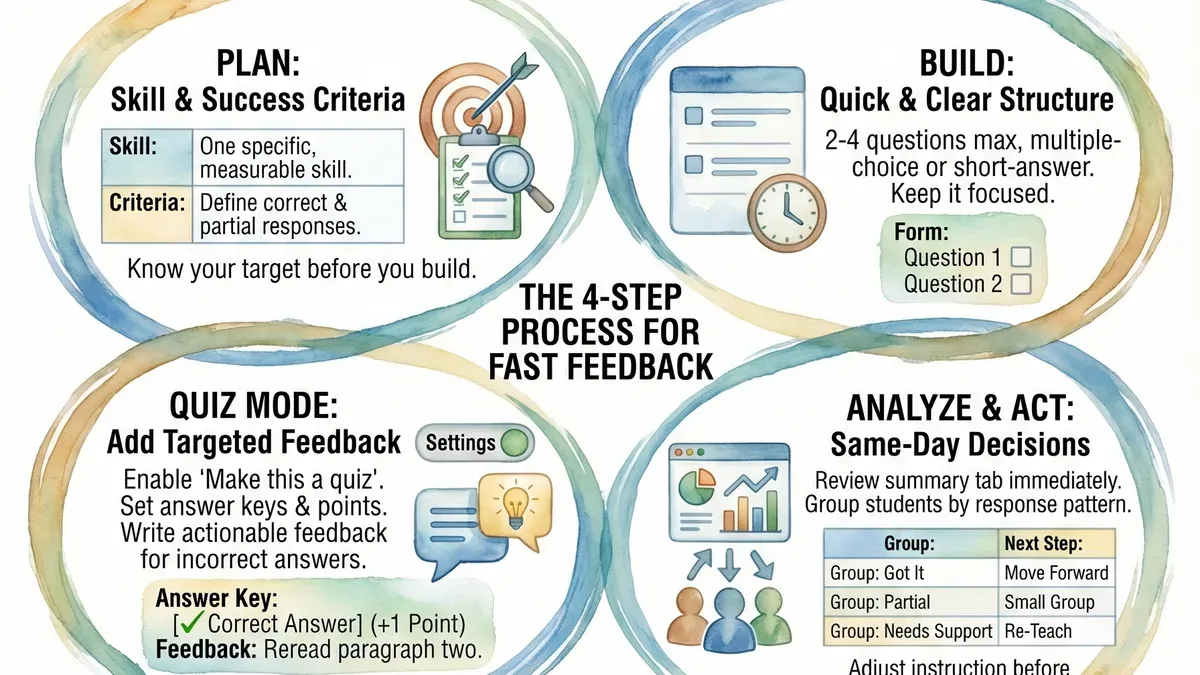
Short answer: Moving from Formative to Google Forms requires careful planning to manage differences in question types, grading options, and data export methods. This moving from Formative to Google Forms checklist will help you avoid common pitfalls and ensure your assessments remain effective and manageable.
This guide covers the key technical and pedagogical trade-offs you encounter when switching platforms. You'll learn how to export your content efficiently, adapt your assessments to Google Forms' environment, and avoid mistakes specific to this transition. Finally, it outlines strategies for training your team and students to use Google Forms smoothly, maintaining assessment integrity and workflow efficiency.
Why move from Formative to Google Forms?
You might consider switching from Formative to Google Forms primarily for tighter integration with Google Workspace. Google Forms works seamlessly with Google Drive, Sheets, and Classroom, allowing you to automate data collection and streamline grading workflows without third-party connectors. For example, responses automatically populate a Google Sheet, enabling real-time analysis and custom scripts for grading.
Cost is another factor. Google Forms is free with your Google account, whereas Formative often involves subscription fees and feature caps. If budget constraints are tight or you want to avoid platform limits on the number of assignments or students, Google Forms offers a more scalable solution.
Pedagogically, Formative excels in formative assessment—offering instant feedback, open-ended response grading, and interactive question types. Google Forms, in contrast, favors simpler quiz structures with multiple choice, checkboxes, and short answers. This means a shift from dynamic, ongoing feedback to more straightforward assessment delivery.
Finally, grading automation differs. Google Forms supports automatic grading for objective questions but lacks the nuanced feedback loops Formative provides. If your priorities include rapid grading and integration with Google tools, Google Forms fits better. If you rely on detailed formative feedback, expect to adapt your assessment design accordingly.
What are the main differences in question types and assessment features?
Formative offers interactive question types like live response and drawing questions that let students submit sketches or annotate images in real time. Google Forms lacks these dynamic options; its question types are static, including multiple choice, short answer, checkboxes, and file uploads. For example, a Formative drawing question where students label a diagram cannot be directly replicated in Google Forms, which requires workarounds like asking students to upload an image file.
Real-time feedback in Formative enables immediate, personalized comments during assessments. Google Forms supports auto-grading for multiple choice, dropdown, and checkbox questions but does not allow live, teacher-written feedback during the quiz. Instead, feedback is given after submission, typically through answer keys or quiz summaries.
Regarding multimedia, Formative allows embedding videos, audio, and interactive content inline with questions. Google Forms supports inserting images and YouTube videos but does not support embedded audio files or interactive elements. Question branching in Google Forms is limited to simple section-based navigation, lacking the adaptive assessment flows possible in Formative.
| Feature | Formative | Google Forms |
|---|---|---|
| Live response questions | Yes | No |
| Drawing/annotation | Yes | No (requires file upload) |
| Real-time teacher feedback | Yes | No |
| Auto-grading | Yes, wide range | Yes, limited to specific question types |
| Multimedia embedding | Videos, audio, interactive | Images, YouTube videos only |
| Adaptive branching | Advanced | Basic section navigation |
How to efficiently export and import your content from Formative to Google Forms
Formative allows you to export assessment data primarily as CSV for student responses, PDF for printable copies, and HTML for full report views. However, it doesn’t provide a direct export format compatible with Google Forms. To migrate your quizzes, start by exporting your student response data via Reports > Export > CSV. This preserves scores and timestamps but not question formatting.
For the questions themselves, you need to manually recreate them in Google Forms since bulk import from Formative is unavailable. Open your Formative quiz side-by-side with a new Google Form and copy each question and answer option. For a 20-question quiz, expect about 15–30 minutes for accurate transfer, depending on complexity.
Some third-party tools and scripts claim to automate elements of this process, but they often require technical setup and risk incomplete migration. To minimize data loss, export your CSV results before closing Formative, and keep a PDF backup of the original quiz layout for reference.
Example: Export the CSV of student answers from Formative, save it locally, then create a Google Form replicating each question. Upload the CSV separately to your gradebook or data system, as Google Forms cannot import response data directly.
- Export student data via Reports > Export > CSV in Formative
- Save a PDF copy of the quiz layout for visual reference
- Open Google Forms and manually recreate questions one by one
- Consider third-party scripts only if comfortable with technical workarounds
- Keep backups of all exports to avoid data loss
How to redesign your assessments for Google Forms' environment
Google Forms lacks the interactive layering of Formative, so simplify your assessments by focusing on clear, straightforward questions. Break complex tasks into multiple, discrete items. For example, instead of a single drag-and-drop activity, use separate multiple-choice or checkbox questions that test each concept individually. This preserves pedagogical intent while fitting the platform’s linear flow.
Structure your form with section breaks (via the “Add section” button) to group related questions and improve navigation. Use descriptive section titles and concise instructions to guide respondents. This helps maintain engagement and reduces confusion.
Leverage add-ons like Form Publisher for automated feedback reports or Flubaroo for grading quizzes. These tools compensate for Google Forms’ limited native feedback options and streamline your grading workflow.
For feedback, design a post-submission confirmation message with general guidance, then review responses manually or with add-ons to provide personalized follow-up. A common workflow is: student submits → automated summary → teacher reviews and comments via email or shared doc.
Example: Convert a Formative interactive math quiz into a Google Form by splitting multi-part problems into separate questions, adding sections for each skill area, and using Flubaroo to auto-grade multiple-choice items. Then send tailored feedback through a linked Google Doc shared after review.
What common mistakes should you avoid during the transition?
Assuming all Formative features have direct Google Forms equivalents leads to frustration. For example, Formative’s real-time student responses and instant feedback cannot be replicated in Google Forms without manual workarounds. One district tried replicating dynamic question types using Google Forms’ limited branching logic, only to confuse students and lose valuable interaction data.
Ignoring data export compatibility and backups is another major pitfall. Some educators exported student results from Formative but overlooked that Google Forms uses a different spreadsheet format. This mismatch caused data loss and forced re-collection of responses, wasting time and causing stress.
Overcomplicating Google Forms with too many sections, images, or complex branching slows load times and frustrates students. A high school created a 15-section Google Form to mimic a Formative assessment, but students abandoned the form mid-assessment due to its length and confusing navigation.
Neglecting to test new forms with actual users before rollout is a costly error. A middle school launched a Google Forms quiz without pilot testing, resulting in unexpected submission errors and unclear question wording that reduced data quality and required a full retake.
- Don’t expect one-to-one feature matches between Formative and Google Forms.
- Always verify export formats and keep backups before switching.
- Keep Google Forms simple to maintain student engagement.
- Test new forms with students and colleagues before full deployment.
How to train your team and students on the new tool to ensure smooth adoption
Start by segmenting users into groups like teachers, administrators, and students. Each group has distinct needs; teachers require training on form creation and grading, students on submission procedures. Develop quick-start guides tailored for each group, focusing on core tasks such as creating a quiz, accessing responses, or submitting answers. For example, a teacher’s guide should explain navigating Google Forms’ “Settings” to enable quiz mode and assign point values.

Schedule live training sessions or recorded demos covering basics and common troubleshooting steps. Use screen-sharing to demonstrate creating a multi-section form and enabling feedback via the “Responses” tab. Set up dedicated support channels, like a shared Google Chat room or an email alias, for real-time questions and feedback. Encourage users to report interface issues or confusion points promptly.
After launch, monitor form usage through Google Forms’ response summaries and Google Workspace Admin reports. Identify drop-off points or inconsistent grading patterns. Iterate on form designs and training materials accordingly. For instance, if many students struggle with a navigation step, add a step-by-step video or FAQ.
- Identify user groups and tailor guides for each
- Create quick-start guides focused on essential tasks
- Host live or recorded training demos with screen sharing
- Establish support channels for ongoing help and feedback
- Use usage data to refine forms and training materials post-launch
Frequently asked questions
Can I automatically transfer all my Formative quiz data to Google Forms?
No, there is no direct tool to automatically transfer quiz data from Formative to Google Forms. You must export your Formative quizzes as PDFs or CSVs and manually recreate the questions in Google Forms. Data such as student responses and grading will not transfer and require separate handling, like exporting results from Formative before switching.
What are the biggest limitations of Google Forms compared to Formative?
Google Forms lacks real-time student response monitoring and detailed analytics that Formative offers. It does not support interactive question types like drag-and-drop or audio responses. Additionally, Google Forms' feedback options are limited; it cannot provide instant, individualized feedback during the quiz the way Formative does.
How do I maintain real-time feedback features when switching?
Google Forms does not natively support real-time, per-question feedback during assessments. To approximate this, use the quiz settings to assign point values and enable automatic grading, but feedback is only shown after submission. Alternatively, combine Google Forms with Google Classroom or third-party add-ons designed for feedback, though this adds complexity.
Is Google Forms suitable for complex formative assessments?
Google Forms can handle basic formative assessments but struggles with complex needs like adaptive pathways or multimedia integration. It is best for straightforward quizzes with multiple choice, short answer, or checkbox questions. For assessments requiring nuanced data analysis or interactive elements, you will face workflow adjustments and potential limitations.
Quick checklist
- Review your Formative question types and note which have no direct Google Forms equivalent.
- Export student data from Formative via the Data tab before starting the migration.
- Manually recreate or adapt complex question formats using Google Forms’ Multiple choice, Checkbox, and Short answer types.
- Adjust assessment logic by leveraging Google Forms’ built-in quiz settings and answer feedback.
- Test each form thoroughly, checking response validation and branching behavior.
- Prepare training materials focused on Google Forms’ interface differences, especially around grading and sharing.
- Schedule a transition window with your team to minimize disruption and collect feedback for improvements.
This guide does not cover transitioning from Formative to other platforms or extensive custom integrations which may require developer support.
This guide focuses solely on the move from Formative to Google Forms using standard platform features. If your assessments rely heavily on embedded scripts, custom APIs, or third-party add-ons, consider consulting a developer or a specialized integration expert. Similarly, if you plan to merge Google Forms data with other systems beyond Google Sheets, you’ll need additional tools and expertise not addressed here.
The single most useful next step is to start by exporting your existing Formative content and student data immediately. This preserves your records and gives you a concrete base to rebuild in Google Forms without losing critical information. From there, prioritize recreating your most frequently used assessment types before moving on to more complex items.
See also: Moving from Formative to Gimkit: A Complete Setup and Usage Checklist · How to Transition from Formative to Edpuzzle: A Step-by-Step Checklist · Switching from Edpuzzle to Formative: A Practical Explainer · Moving from Blooket to Google Forms Checklist: A Practical Guide