Switching from Edpuzzle to Padlet: A Clear Guide for Teachers
Discover practical steps to switch from Edpuzzle to Padlet and enhance classroom interaction with versatile, multimedia collaboration tools.

Short answer: Switching from Edpuzzle to Padlet means moving from a video-focused quiz tool to a flexible, multimedia collaboration board. You get more interactive options, better student engagement, and adaptable workflows for diverse classroom activities.
This article covers what Padlet offers compared to Edpuzzle, how to set up your Padlet classroom, step-by-step instructions for use, ways to manage Padlet as a teacher, how students interact with it, and common pitfalls to avoid during the switch. You’ll get clear, practical steps so you can confidently replace Edpuzzle with Padlet without losing workflow efficiency or classroom control.
What is Padlet and why switch from Edpuzzle?
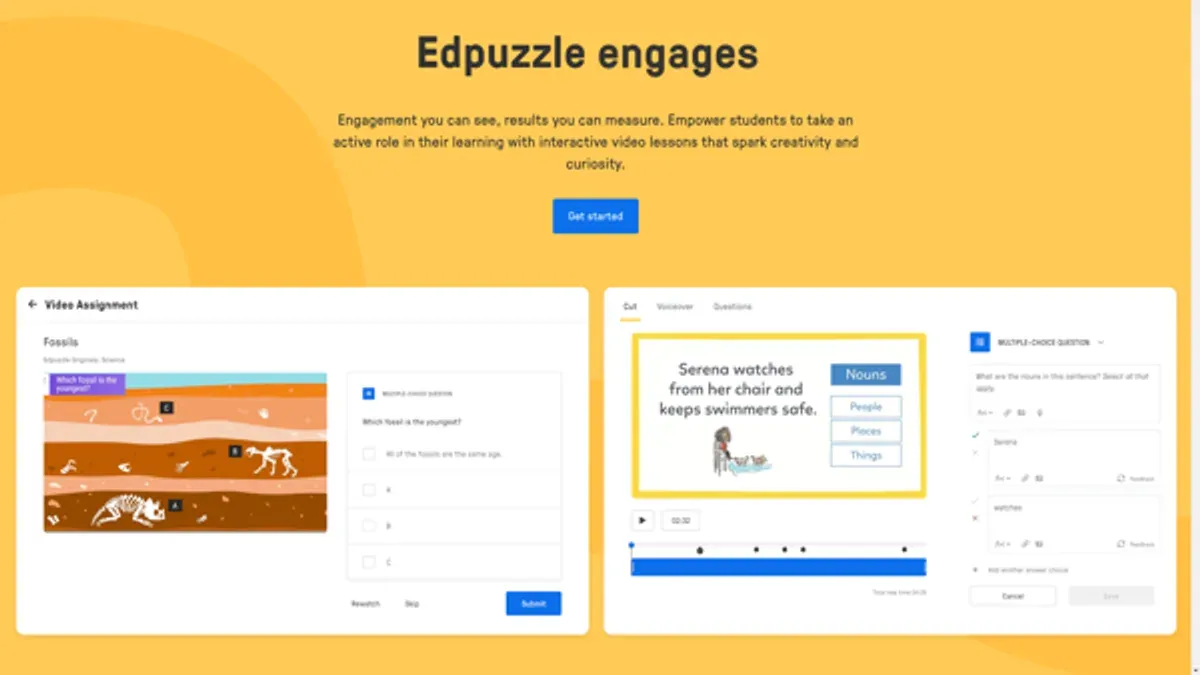
Padlet is a digital collaboration and content-sharing board that lets you create interactive spaces where students can post text, images, links, videos, and files. Unlike Edpuzzle, which centers on video lessons embedded with quizzes, Padlet offers a flexible platform for a wide range of classroom activities beyond video-based learning.
Edpuzzle’s strength lies in its video quiz format, but it limits interaction to watching and answering questions on videos. Padlet breaks those boundaries by supporting brainstorming sessions, threaded discussions, project sharing, and real-time collaboration. For example, you can set up a Padlet board where students contribute ideas on a historical event, upload their research, and comment on peers’ work—all in one place.
Here’s a comparison: Edpuzzle is ideal for delivering and assessing video content, while Padlet encourages diverse interaction modes, such as collective mind mapping, peer feedback, and multimedia presentations. If you want to extend engagement beyond video quizzes and foster dynamic classroom conversations and projects, Padlet offers a more versatile solution.
| Feature | Edpuzzle | Padlet |
|---|---|---|
| Primary function | Video lessons with embedded quizzes | Interactive collaboration boards |
| Student interaction | Answer questions on videos | Post text, images, files, comments |
| Use cases | Video comprehension assessment | Brainstorming, discussions, project sharing |
| Collaboration | Individual or class video work | Real-time multi-user input and feedback |
How to set up Padlet for your classroom
Start by creating a teacher account at padlet.com/signup using your school email. Choose "Teacher" when prompted to tailor the experience. After logging in, click "Make a Padlet" and select a board type; for classroom use, "Canvas" or "Shelf" offer flexible layouts for collaborative work and resource organization.
Next, customize privacy settings under the "Settings" tab. Set "Privacy" to "Secret" or "Password Protected" to control who can access the board. Enable "Visitors can write" if you want students to contribute directly. Organize boards by class or topic using clear titles and tags, such as "Biology 10 - Photosynthesis" or "History - Ancient Civilizations," so you can quickly locate them later.
Enrich your boards by uploading multimedia files or documents. Click the "+" button, then "Upload" or "Link" to add videos, PDFs, or images relevant to your lesson. For example, a configured biology board could feature a YouTube clip on photosynthesis, a PDF worksheet, and a space for student notes all on one Canvas.
Here’s a quick checklist for setup:
- Create a teacher account at padlet.com/signup
- Choose a suitable board type (Canvas or Shelf)
- Adjust privacy to "Secret" or "Password Protected"
- Allow student contributions by enabling "Visitors can write"
- Organize boards with clear titles and tags
- Upload multimedia and documents to enrich content
How to use Padlet step by step
Start by creating a post on your board using the pink plus button in the bottom right corner. You can add text, images, videos, links, or files by selecting the appropriate icon in the post window. For example, upload a short video introduction and attach a link to a relevant article to set up a lesson prompt.
Once posts are added, you can edit or rearrange them by dragging to reorder or clicking the pencil icon to modify content. Use the three-dot menu on each post to delete or duplicate it. This keeps your board organized and focused on your lesson goals.
Manage student contributions with moderation tools found in the board settings under “Privacy & Moderation.” Enable post approval to review submissions before they appear. This prevents off-topic or inappropriate content from disrupting the class flow.
Share your board by clicking the “Share” button at the top right. Copy the link or generate an embed code for your LMS. This ensures students access the correct board without extra login steps.
- Create posts with varied media types using the plus button
- Edit and reorder posts via drag-and-drop and the pencil icon
- Enable moderation to approve student posts before publishing
- Share boards using direct links or LMS embed codes
How to use Padlet as a teacher
Use Padlet to design activities that foster active participation. Create polls to gauge understanding, collaborative notes for brainstorming, or exit tickets to capture key takeaways at the lesson's end. Access these features under the "Add Content" menu when editing a board. Templates like "KWL Chart" or "Brainstorming Wall" streamline setup and suit various classroom goals.
Track student engagement through Padlet's analytics, available in the board settings under "Stats." Here, you can monitor post counts, view participation timelines, and identify less active students. For example, a history teacher running a unit on World War II used Padlet to collect collaborative notes and exit tickets, then reviewed analytics to ensure all students contributed at least once per day.
Manage multiple classes by naming boards clearly and grouping them in folders labeled by class or subject. Pin important boards for quick access. Avoid mixing boards from different classes to prevent confusion. Efficient organization saves time and keeps student work orderly.
- Create interactive activities using polls, notes, and exit tickets
- Use education-specific templates to speed up activity design
- Regularly review analytics to monitor and encourage participation
- Organize boards in clearly named folders by class or subject
- Pin frequently used boards for easy navigation
How to interact with Padlet for students
Students access Padlet boards through a direct link or a QR code provided by you, requiring no account setup unless you enable login for added security. Once inside, they can post their ideas by clicking the 2B20button or double-clicking anywhere on the board. Depending on your settings, students may edit their posts later; this flexibility lets them correct mistakes or add new insights without cluttering the board.
Encouraging interaction goes beyond posting. Students can use the reactions menu—icons like thumbs-up or smiley faces—to quickly respond to peers’ contributions. Commenting is another way to deepen discussion; students tap a post and select 22Add comment22, fostering a conversational flow that mimics in-class dialogue.
For example, in a literature class, students might post their analysis of a poem and others comment to ask questions or add perspectives. A student survey indicated many found Padlet intuitive, with minimal barriers to participation, boosting engagement compared to traditional discussion boards.
Set clear guidelines to keep interactions respectful and focused. Remind students to stay on topic and use comments constructively. Moderation tools let you remove inappropriate content quickly, maintaining a safe learning environment.
- Share direct board links or QR codes for easy access.
- Encourage posting and allow edits within permission settings.
- Promote use of reactions and comments to build discussion.
- Establish clear rules for respectful, purposeful interactions.
Common mistakes to avoid when switching from Edpuzzle to Padlet
Expecting Padlet to function exactly like Edpuzzle is a frequent pitfall. Padlet does not offer built-in video quizzing features, so relying on it for the same automatic grading or embedded quiz flow leads to frustration. For example, a teacher who tried to replicate Edpuzzle’s video question sequence on a single Padlet board ended up with a cluttered, confusing layout that hindered student engagement.
Overloading your Padlet boards with too many posts, links, and multimedia items creates chaos rather than clarity. Unlike Edpuzzle’s linear video format, Padlet boards require careful organization. Keep content focused and use sections or columns sparingly to avoid overwhelming students.
Neglecting privacy and moderation settings can expose student data or allow off-topic posts. Always set boards to "Secret" or "Password Protected" under Settings > Privacy, and enable moderation before opening boards to class participation. Early adopters who skipped this step reported inappropriate posts that disrupted class discussions.
Failing to train students on how to engage with Padlet properly results in scattered, low-quality contributions. Clarify expectations for posting, commenting, and respecting others’ work before launching your boards. Teachers who conducted a brief tutorial on interaction norms saw smoother collaboration and higher-quality input.
- Don’t expect automated video quizzes; use Padlet for open-ended collaboration instead.
- Limit content per board; avoid overwhelming students with too many posts.
- Set board privacy to "Secret" or "Password Protected" and enable moderation.
- Provide clear instructions on posting and commenting etiquette to students.
Frequently asked questions
How to edit a padlet?
To edit a Padlet, open the specific Padlet and click the "Settings" gear icon in the upper-right corner. From there, select "Edit Padlet" to change the title, description, and wallpaper. You can also adjust privacy and posting permissions in this menu.
How to use padlet in the classroom?
Use Padlet in the classroom by creating interactive boards where students can post text, images, links, or videos. Assign activities such as brainstorming, Q&A, or collaborative projects. Share the Padlet link or QR code with students for easy access.
How to use padlet for teachers?
Teachers use Padlet to gather student responses, organize lesson materials, and facilitate discussions. Set up different Padlet formats like grids or timelines to match the lesson plan. Monitor student posts in real-time and leave comments to guide learning.
How to edit a Padlet?
Editing a Padlet involves accessing the "Settings" icon on the Padlet page, then selecting "Edit Padlet." Here, you can modify the layout, appearance, and access controls. Remember to save changes before exiting the settings.
How to use Padlet in the classroom?
In the classroom, Padlet serves as a platform for collaborative learning by letting students add content on shared boards. Use it for exit tickets, group brainstorming, or peer feedback. Make sure to set clear posting guidelines and deadlines for student contributions.
What this advice does not cover
This guide does not cover advanced Padlet enterprise features or integration with specific district-level IT systems, which may require separate support. If your school uses Single Sign-On (SSO) with custom settings or needs to comply with strict data privacy regulations, consult your IT department before proceeding. Also, this article does not address migrating large volumes of student data from Edpuzzle to Padlet, which may need specialized tools or manual work.
Quick checklist
- Create your Padlet account and verify your email.
- Set up a new Padlet board using the "Wall" or "Canvas" format for collaborative activities.
- Adjust privacy settings to "Secret" or "Password Protected" for controlled student access.
- Invite students via link or email, and explain how to post and comment.
- Use the "Moderation" feature to review posts before they go live if desired.
- Regularly export or archive Padlet boards to save student contributions.
Start by creating a simple Padlet board and inviting a small group of students. This hands-on approach helps you understand the platform’s interaction dynamics and identify workflow tweaks before scaling to full class use.
See also: Switching from Edpuzzle to Gimkit: A Practical Guide for Teachers · Switching from Edpuzzle to Formative: A Practical Explainer · Moving from Edpuzzle to Microsoft Forms: A Practical Transition Guide · Moving from Edpuzzle to Kahoot: Your Step-by-Step Checklist