Moving from Edpuzzle to Kahoot: Your Step-by-Step Checklist
This checklist guides you through shifting from Edpuzzle’s video lessons to Kahoot’s interactive quizzes with practical, actionable steps.

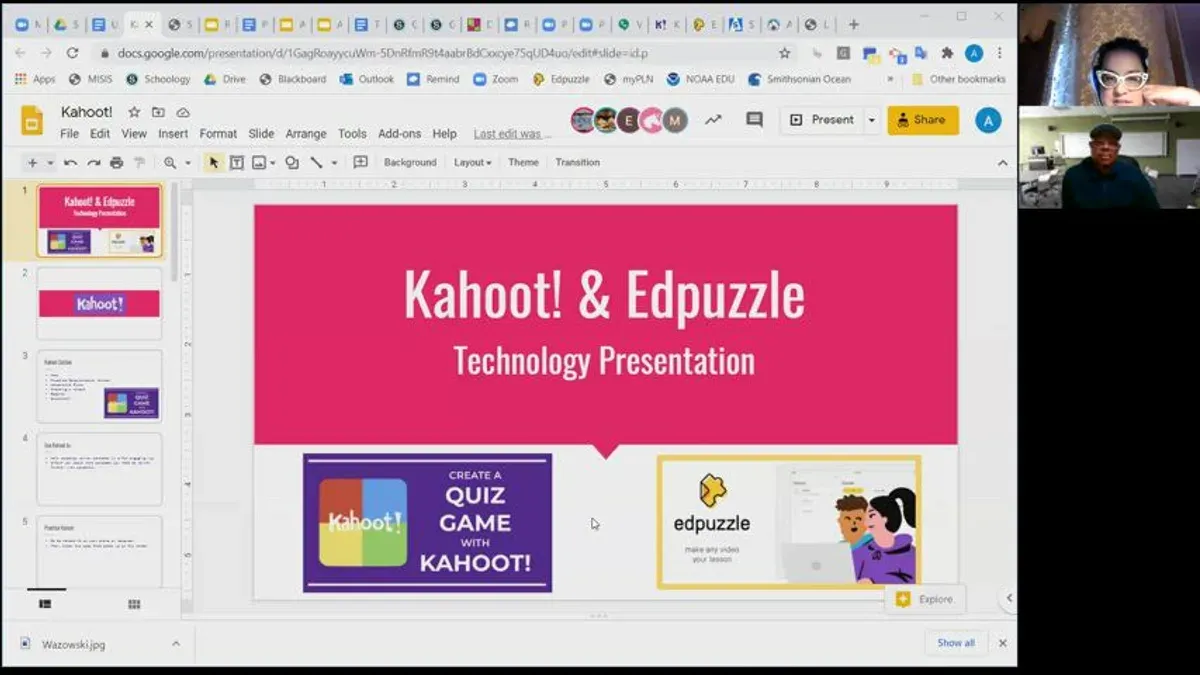
Short answer: Moving from Edpuzzle to Kahoot means shifting from video-based, self-paced lessons to live, game-like quizzes with instant feedback. This moving from Edpuzzle to Kahoot checklist guides you through the practical steps to recreate your content, adjust to Kahoot’s interactive features, and manage classroom dynamics effectively.
This article covers the key differences between Edpuzzle and Kahoot, how to set up and customize Kahoot quizzes, including question randomization and sharing options. You’ll also learn how to integrate Kahoot smoothly in your classroom and avoid common pitfalls when making the switch. The focus stays on actionable instructions and settings you need to know, without fluff or vague advice.
What are the key differences between Edpuzzle and Kahoot?
Edpuzzle is built around video lessons where you embed questions directly into the video timeline. Learners watch at their own pace, answering multiple-choice, open-ended, or true/false questions as they go. Kahoot, in contrast, focuses on live, gamified quizzes that drive real-time engagement. You launch a quiz session; students join with a game PIN and answer questions on a timer, creating competition and immediate feedback.
Content creation differs notably. Edpuzzle lets you trim videos and insert questions with precise timing controls. Kahoot offers a wider variety of question types beyond multiple-choice, including polls, puzzles, and slides with images or videos, but it lacks video editing. User roles vary: Edpuzzle teachers track individual video progress and responses quietly, while Kahoot hosts control the pace and can spotlight high performers publicly.
| Feature | Edpuzzle | Kahoot |
|---|---|---|
| Core Content | Video lessons with embedded questions | Live, interactive quizzes and polls |
| Interaction Mode | Self-paced | Real-time, competitive |
| Question Types | Multiple-choice, open-ended, true/false | Multiple-choice, polls, puzzles, slides |
| User Roles | Teacher assigns; student completes individually | Host controls quiz flow; students respond live |
| Accessibility | Video captions; rewind/fast-forward | Live audio/video optional; timed responses |
Imagine you want to check student comprehension after showing a science video. With Edpuzzle, you embed questions at key moments; students pause and answer as they watch alone. With Kahoot, you instead launch a quiz after the lesson, and everyone answers simultaneously, racing against the clock. Understanding this fundamental shift prepares you for how you’ll design and deliver content moving forward.
How to set up a Kahoot quiz after moving from Edpuzzle
Start by signing up or logging into your Kahoot account at kahoot.com. Unlike Edpuzzle’s video-based interface, Kahoot centers on quiz creation with a clear step-by-step process. Click the Create button on the top right to open the quiz builder.
First, name your quiz and provide a brief description if needed. Then, add questions by choosing from multiple question types: multiple-choice, true/false, puzzle (ordering), or poll. For each question, enter the prompt and answer options, marking the correct one(s). You can also add images or videos to any question by clicking the Add media icon—a feature to increase engagement.
Set quiz options by clicking Settings. Choose a time limit per question—typically 20 seconds works well for classrooms. Enable the points system to encourage competition or turn it off for practice. Decide if you want random question order here or later in the play options. Once finished, save your quiz.
Example: Create a 5-question quiz on ecosystems with multiple-choice questions, add relevant images for each, set 30 seconds per question, and enable points to boost student engagement during live sessions.
- Log into Kahoot and click Create.
- Name your quiz and add a description.
- Add questions: select type, enter text, mark correct answers.
- Add images/videos to questions for interaction.
- Set time limits and toggle points in Settings.
- Save your quiz ready for classroom use.
How to randomize question order in Kahoot
Kahoot offers a shuffle feature that randomizes the order of questions each time the quiz runs. This helps keep students engaged by reducing predictability and discouraging memorization of question sequences. You can find this setting under the quiz’s “Settings” tab labeled as Shuffle questions.
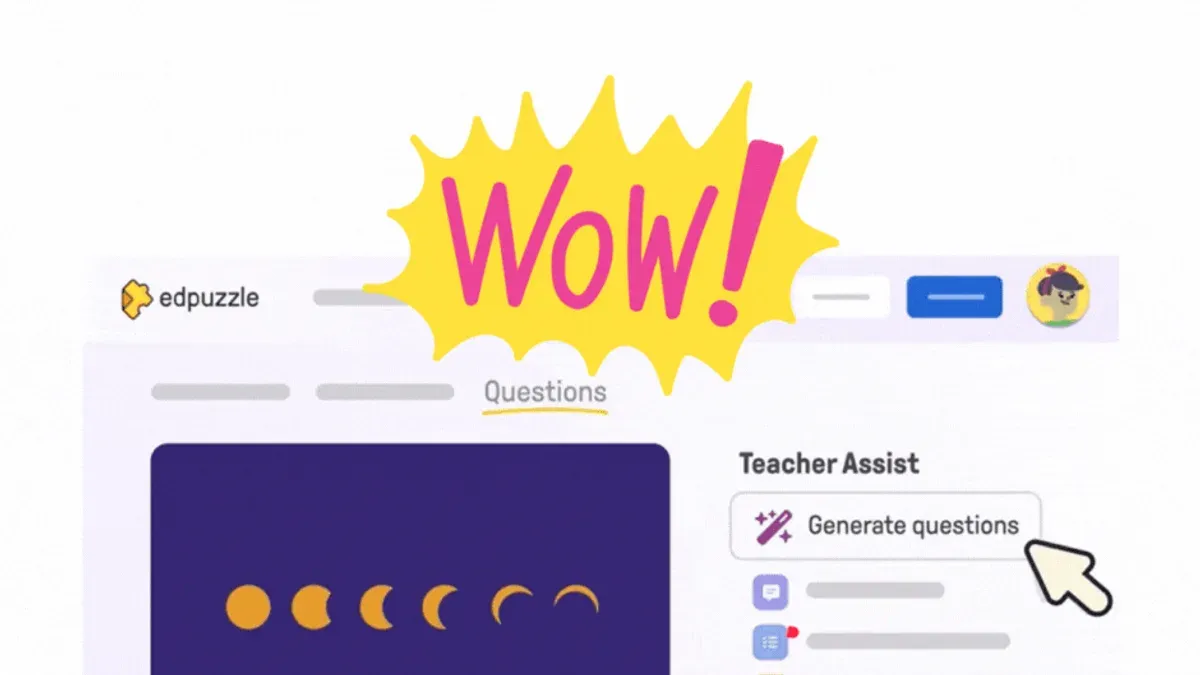
To enable randomization, open your Kahoot quiz, go to Settings, and toggle on Shuffle questions. When switched on, each quiz session presents questions in a different order. If you want a fixed sequence, simply toggle it off. This flexibility lets you control the flow depending on your classroom goals.
For example, if you run a 10-question quiz with shuffle enabled, students won’t always face the same question first. This prevents them from gaming the system by remembering early questions and keeps the competitive element fresh. However, note that some quizzes requiring logical flow might not work well with shuffling.
- Open Kahoot and select your quiz
- Click Settings at the top
- Find and toggle on Shuffle questions
- Save changes before running the quiz
- Toggle off to disable question randomization
How to set Kahoot to public and share quizzes
To make your Kahoot quiz accessible to others, start by changing its privacy settings. Open your Kahoot dashboard, select the quiz you want to share, then click the Settings icon. In the Visibility section, choose Public. This setting makes your quiz searchable and usable by anyone in the Kahoot community.
Next, share your quiz by copying the unique link provided under the Share tab. You can send this link via email or embed the quiz on a website using the embed code available there. For example, a math teacher might embed a public quiz on their school’s resource page for easy student access.
Remember that public quizzes must respect copyright rules and maintain high content quality. Avoid using unauthorized images or videos and double-check your questions for accuracy. Public quizzes represent your professional standards and can be widely used once published.
- Go to your Kahoot quiz and click Settings.
- Set Visibility to Public.
- Copy the quiz link or embed code from the Share tab.
- Distribute the link or embed as needed.
- Verify content complies with copyright and quality standards before publishing.
How to use Kahoot effectively in the classroom
Run live Kahoot games to maximize real-time engagement. Start by selecting "Play" then "Teach" mode to project questions and monitor student responses instantly. Time each question carefully; a typical range is 20 to 30 seconds, balancing speed and thoughtful answers. If time is tight, reduce questions or shorten timers to keep energy high.
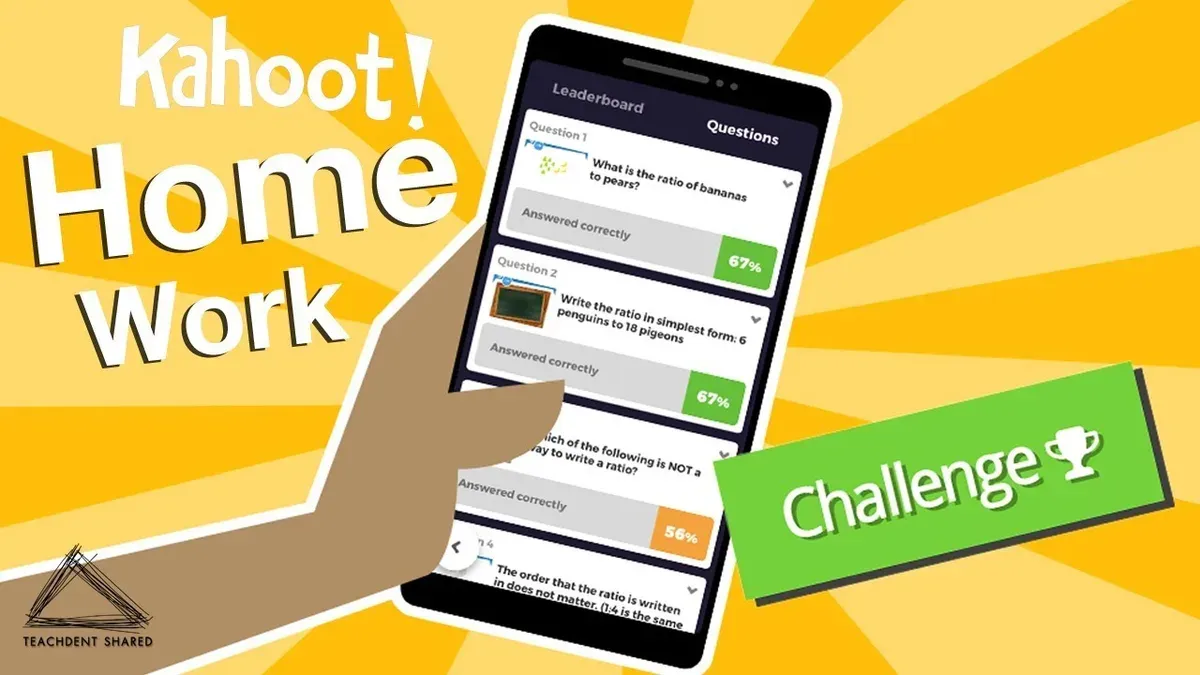
Assign challenges for homework or flipped classroom models. Students complete quizzes at their own pace, giving you flexibility. Review individual or class reports under "Reports" in your Kahoot dashboard to track progress and identify knowledge gaps. This data helps tailor follow-up lessons.
Adjust settings for age groups. Elementary students benefit from simpler language, fewer answer choices, and longer timers. For example, a third-grade teacher used Kahoot’s “Ghost Mode” to encourage friendly competition over multiple days, increasing participation and retention.
One educator recommends previewing quizzes fully before class to ensure smooth transitions. Avoid rushing; pause between questions to explain answers or address confusion. This approach fosters both engagement and learning.
Common mistakes to avoid when switching from Edpuzzle to Kahoot
Expecting Kahoot to function like Edpuzzle’s video platform is a frequent error. For example, a teacher tried embedding a long video with questions expecting students to complete it at their own pace. Kahoot does not support paused video interactions; it relies on timed, live engagement. Adjust your approach to focus on short, interactive quizzes rather than video lessons.
Neglecting to tailor quiz settings for your students’ age or group size can impair engagement. One educator set all questions to 60 seconds, which was too long for younger learners, causing loss of focus. Use the “Time limit per question” setting under quiz options to match your group’s attention span.
Ignoring privacy settings when sharing quizzes risks exposing content unintentionally. A common slip is leaving quizzes public when they contain proprietary or sensitive material. Always review the “Visibility” option under the quiz’s settings and choose “Private” or “Shared with specific users” as needed.
Overloading quizzes with too many or overly complex questions dilutes effectiveness. One failed attempt involved a 40-question Kahoot with mixed formats, which overwhelmed students and extended session time excessively. Aim for 15–20 clear, focused questions. Use simpler question types like multiple choice or true/false for smoother gameplay.
Frequently asked questions
How to randomize kahoot questions?
Randomizing questions in Kahoot is done by enabling the “Randomize question order” option before starting the game. Go to the game lobby, click the gear icon for settings, and toggle on “Randomize question order.” This shuffles questions each time players join, keeping the quiz fresh. Note that this applies only during live games, not when creating or editing the quiz.
How to use kahoot in the classroom?
Use Kahoot in the classroom by launching a live game and sharing the game PIN with students. Students join via kahoot.it on their devices. Use Kahoot’s real-time leaderboard and timer to maintain engagement. You can also assign kahoots as self-paced challenges for homework to extend learning outside class.
How to log out of kahoot?
To log out, click your profile icon in the top right corner of the Kahoot website or app. Select “Log out” from the dropdown menu. This ensures your account is secure, especially on shared devices. Remember to save your work before logging out to avoid losing any unsaved quiz changes.
How to shuffle questions in kahoot?
Shuffling questions is the same as randomizing their order. In the game lobby, access the settings gear and turn on “Randomize question order.” This rearranges questions for each session, preventing predictability. You cannot shuffle questions within the quiz editor, only in game settings before launch.
How to set a kahoot to public?
When editing your kahoot, click the “Settings” tab, then find the “Visibility” section. Choose “Public” to allow others on Kahoot to find and use your quiz. Confirm changes by clicking “Save.” Keep in mind that public kahoots can be accessed by anyone, so avoid sharing sensitive or proprietary content.
What this advice does not cover
This article does not cover advanced Kahoot features like integrations with LMS platforms, detailed analytics, or paid subscription benefits such as branding customization or team collaboration tools. Educators who require these capabilities should consult Kahoot’s official resources or support channels to get specialized guidance. This guide focuses solely on the fundamental transition steps and basic classroom use.
Quick checklist
- Create a Kahoot account if you don’t have one already.
- Rebuild your quizzes manually in Kahoot using the quiz creator tool.
- Use the “Shuffle questions” option under Quiz settings to randomize question order.
- Set your Kahoot visibility to “Public” via the settings menu to share with others.
- Use Kahoot’s Live Game mode for real-time classroom engagement.
- Avoid expecting direct video embedding like in Edpuzzle; instead, link videos separately if needed.
- Test your Kahoot before class to check timing and question flow.
Start by creating your first Kahoot quiz from scratch using the dashboard’s “Create” button. Focus on mastering the core quiz setup and live hosting features before exploring extras. This practical step will let you experience Kahoot’s user controls and game dynamics firsthand, making your transition smoother and more effective.
See also: Switching from Edpuzzle to Gimkit: A Practical Guide for Teachers · Switching from Edpuzzle to Formative: A Practical Explainer · How to Switch from Edpuzzle to Blooket: A Practical Guide · Edpuzzle Rollout Plan for School Librarians: A Practical Guide