Jamf School Implementation Timeline: A Clear Guide for IT Admins
This guide explains the Jamf School implementation timeline, helping IT admins plan device enrollment, setup, and admin workflows for smooth deployment.

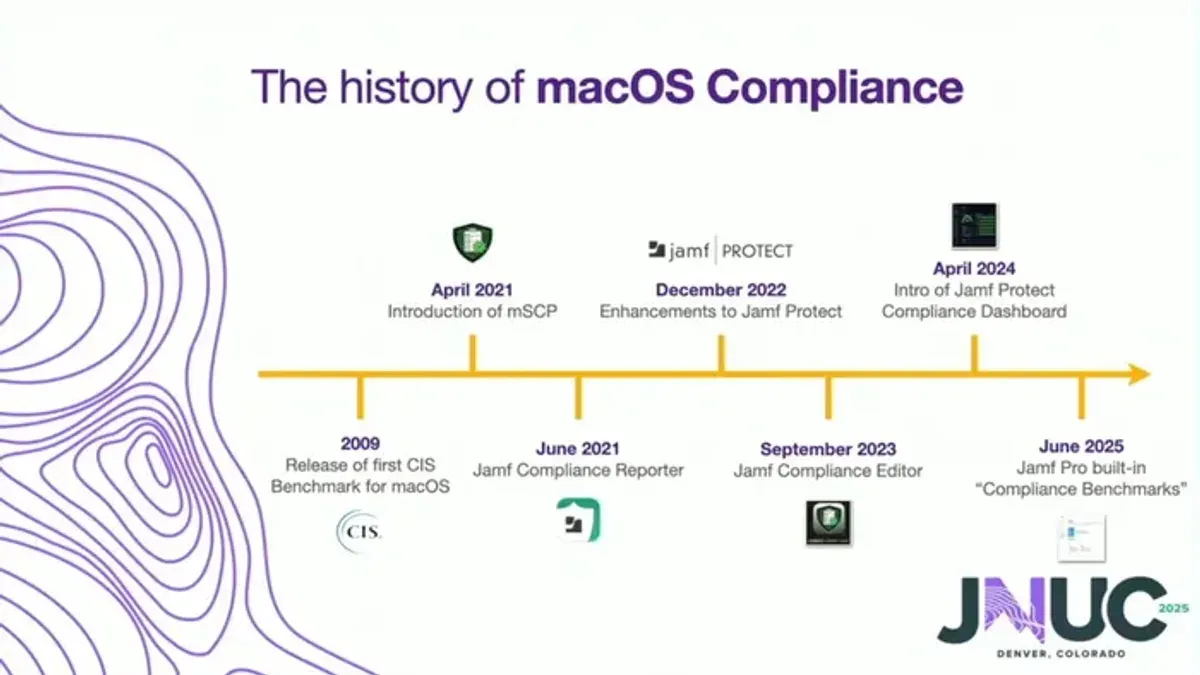
Short answer: The Jamf School implementation timeline typically spans several weeks, depending on your school's size and preparation. It involves stages like initial setup, device enrollment, configuring user-initiated enrollment, and admin access setup. Planning each phase carefully ensures a smooth rollout with minimal disruption.
This guide covers the Jamf School implementation timeline in detail, focusing on the steps and decision points IT administrators face. You'll learn how user-initiated enrollment works, how to configure admin login workflows, and how Jamf School differs from Jamf Pro. This practical overview helps you plan effectively and avoid common pitfalls during your deployment.
What is Jamf School and why does it matter?
Jamf School is a mobile device management (MDM) solution designed specifically for educational environments. It focuses on managing Apple devices such as iPads, Macs, and Apple TVs, offering tailored tools that simplify deployment and ongoing administration. Unlike general MDM products, Jamf School integrates deeply with Apple's ecosystem, allowing features like user-initiated enrollment through Apple School Manager and streamlined app distribution.
Schools choose Jamf School for its ease of use and education-centric workflows. For example, IT admins can enable teachers or students to enroll devices themselves via a simple URL or QR code, reducing administrative overhead. This direct integration also supports strict compliance requirements and security policies, ensuring devices are monitored and protected while maximizing user productivity.
Consider a middle school deploying 500 iPads. With Jamf School, the IT team can push settings, apps, and restrictions remotely, while teachers can manage classroom device use on the fly. This level of control and flexibility is less common in generic MDMs that lack education-specific features.
When did Jamf go public and how does that impact Jamf School?
Jamf went public through its initial public offering on July 26, 2020. This milestone marked its transition into a publicly traded company, providing increased transparency and access to capital. For you as an IT administrator, this means Jamf has greater resources to commit to product development, including Jamf School.
The company’s leadership has consistently emphasized education as a core focus. CEO statements highlight Jamf’s dedication to supporting schools with robust Apple device management tools. This commitment translates into reliable updates, timely support, and a clear roadmap tailored to educational needs.
Imagine deploying Jamf School in your district knowing the platform is backed by a stable, publicly accountable company. You can expect continuous feature enhancements and security improvements, reducing risk in your implementation plan and ensuring long-term viability.
How to learn Jamf School effectively
Start with Jamf's official training programs available on their website under the "Jamf School Training" section. These include role-based courses and certifications that cover core concepts like device enrollment, profile configuration, and management workflows. Plan a learning timeline of several weeks, dedicating time to complete beginner and intermediate courses before moving on to advanced topics.
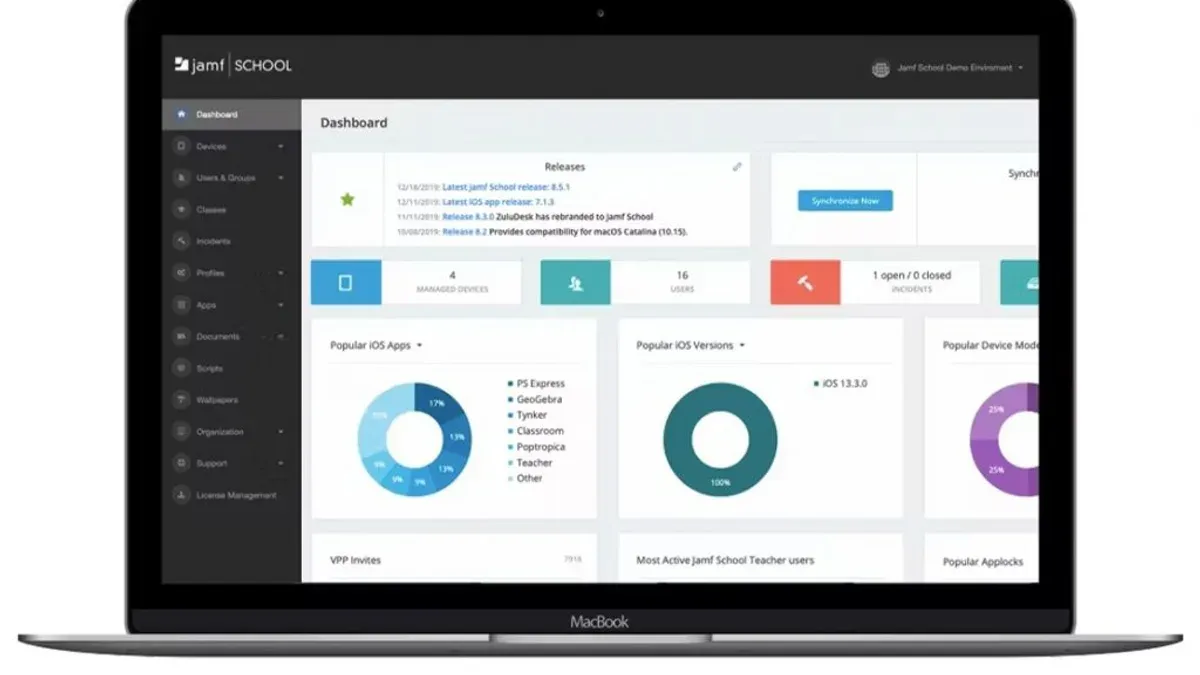
Engage actively in community forums such as Jamf Nation and attend Jamf-hosted webinars that focus on recent updates and feature deep dives. User groups often share real-world implementation tips that highlight common challenges and solutions.
Set up a test environment within Jamf School by creating a sandbox instance or using demo accounts provided by Jamf. This hands-on practice lets you experiment with user-initiated enrollment flows and admin console navigation without affecting live data. For example, simulate enrolling a device via the Self Service portal to understand each step from the user perspective.
- Enroll in official Jamf School training and certification courses.
- Participate in Jamf community forums and webinars regularly.
- Create and use a test environment to practice real workflows.
How does Jamf School user initiated enrollment work?
User-initiated enrollment lets students or staff start the device setup themselves, streamlining deployment by offloading initial steps from IT. It requires users to connect their Apple device to a network, then visit the Jamf School enrollment portal, typically via a URL provided by IT. This method reduces bottlenecks during mass rollouts but depends on user compliance and clear instructions.
The enrollment process begins when the user powers on the device and reaches the Setup Assistant. After selecting language and Wi-Fi, the user is prompted to enter the enrollment URL or scan a QR code. They then authenticate with credentials predefined by IT, which triggers device configuration profiles to install automatically. The device then enrolls into Jamf School, applying policies and app installations set by administrators.
For example, a teacher receiving a new iPad accesses the enrollment page, signs in with their school credentials, and completes setup in about 10 minutes. This hands-off approach accelerates deployment compared to manual IT setups but requires clear communication to avoid incomplete enrollments.
Key steps to ensure smooth user-initiated enrollment:
- Prepare and share the enrollment URL or QR code clearly with users.
- Set up user credentials and authentication methods beforehand.
- Provide step-by-step instructions or training for end users.
- Monitor enrollment progress via the Jamf School dashboard.
Jamf School login and admin access: what you need to know
Jamf School separates login procedures by user role to maintain security and streamline access. Students and teachers typically log in using their unique credentials tied to the school’s directory service, allowing access to devices and apps relevant to their role. Administrators use a distinct login interface accessible via the Jamf School Manager portal, requiring stronger authentication methods like two-factor authentication to protect sensitive controls.
Admin roles and permissions are managed under Settings > Users & Roles. Here, you assign granular permissions—such as device management, app deployment, or reporting—to different admin groups. For example, a help desk admin might have rights to reset passwords but not to change enrollment profiles.
Best practices for secure login include enforcing strong passwords, enabling session timeouts, and regularly reviewing role assignments. Common login issues involve expired passwords or misconfigured permissions, which can be quickly diagnosed by checking the Audit Logs and Login Activity reports in the admin portal.
Picture this: during rollout, a teacher cannot access their managed device because their account was accidentally assigned student-level permissions. Quickly correcting this in Users & Roles prevents disruption and maintains security.
- Use directory services integration for consistent user credentials
- Assign admin roles with the principle of least privilege
- Enable two-factor authentication for all admin accounts
- Regularly audit login and permission logs
- Prepare a troubleshooting checklist for common login errors
Jamf Pro vs Jamf School: which is right for your school?
Jamf Pro targets large-scale, diverse Apple deployments across enterprises and education, offering granular control over every device setting. Jamf School focuses exclusively on education, streamlining Apple device management with features like user-initiated enrollment and simplified policy creation tailored for schools. If your environment demands complex workflows, custom scripting, and extensive integration, Jamf Pro fits better. For straightforward deployment and management primarily within Apple education ecosystems, Jamf School reduces complexity and speeds implementation.

Feature-wise, Jamf Pro supports advanced inventory management, custom app deployment, and detailed reporting, while Jamf School emphasizes ease of use with pre-built education profiles and classroom management tools. Scalability differs: Jamf Pro handles thousands of devices across multiple sites with layered permissions, whereas Jamf School suits schools or districts prioritizing quick onboarding and minimal IT overhead.
Cost and support also influence choice. Jamf Pro typically involves higher licensing fees and longer setup, requiring trained administrators. Jamf School’s pricing and support align with school budgets and IT capacity, enabling faster rollout. For example, a district with a small IT team and 1,000 iPads found Jamf School’s user-initiated enrollment and simplified admin portal cut deployment time in half compared to a previous Jamf Pro pilot.
Common pitfalls to avoid during your Jamf School implementation
Failing to plan for user training and ongoing support causes frustration and increases helpdesk calls. For example, a school district skipped hands-on workshops, leaving teachers uncertain about user-initiated enrollment steps, which delayed device rollout by weeks. Don’t assume users will intuitively understand the Jamf School self service portal or enrollment flows.
Underestimating device enrollment and configuration complexity also stalls deployment. Jamf School requires precise setup of enrollment profiles, supervised mode, and configuration policies. One IT admin recounted how missed enrollment profile settings in the "Enrollment Settings" > "PreStage Enrollments" led to devices not appearing in the console, creating troubleshooting delays.
Mismanaging app restrictions and deadlines causes user dissatisfaction and policy conflicts. Blocking apps like FaceTime or iMessage without clear communication can disrupt classroom activities. Also, ignoring the "Self Service" app update schedule may delay critical app availability, causing confusion. Set explicit policies and communicate changes well before deadlines.
- Provide structured user training on enrollment and self service.
- Double-check enrollment profiles and supervision mode settings.
- Communicate app restrictions and Self Service update timelines clearly.
Frequently asked questions
What is the jamf?
"jamf" typically refers to Jamf, a company specializing in Apple device management solutions for organizations. It provides tools to deploy, manage, and secure Apple devices at scale, focusing on environments like education and enterprise.
What is the Jamf?
Jamf is a platform designed to simplify Apple device management. It includes products like Jamf Pro and Jamf School, which offer different features tailored to enterprise and educational institutions respectively.
How to learn Jamf?
To learn Jamf, start with Jamf’s official training and certification programs available on their website. Use hands-on experience by setting up a test environment and explore Jamf’s documentation and community forums for practical guidance.
Jamf user initiated enrollment — how does it work?
User Initiated Enrollment in Jamf School lets end users begin device enrollment themselves. They visit a specific URL or use the Jamf Self Service app to start enrollment, authenticate, and apply the appropriate profiles and settings defined by the admin.
Jamf School block FaceTime — can I control app access?
Yes, in Jamf School you control app access through Restrictions settings. Navigate to Devices > Profiles > Restrictions to block FaceTime or restrict specific app usage. This lets you enforce policies on student devices effectively.
What this guide does not cover
This guide does not cover advanced Jamf Pro features beyond typical school use cases or integrations with non-Apple devices. Implementation timelines may vary significantly depending on your school’s size, existing infrastructure, and the experience level of your IT staff. If your environment includes complex multi-platform needs or you require deep customization and scripting, consider consulting Jamf Pro documentation or a Jamf-certified consultant.
Quick checklist
- Confirm your school’s device inventory and Apple DEP enrollment status.
- Set up Apple School Manager and link it to Jamf School.
- Configure user-initiated enrollment profiles with clear instructions for staff and students.
- Establish admin accounts with appropriate role-based access in Jamf School settings.
- Test enrollment workflows on a small group before full rollout.
- Compare Jamf School and Jamf Pro feature sets relevant to your school’s needs.
- Document common issues encountered during pilot testing to address before wider deployment.
The single most useful next step is to schedule a pilot deployment with a representative group of devices and users. Focus on refining the enrollment process and admin access flows during this phase to ensure your full rollout is smooth and meets your school’s operational needs.
See also: Moving from Clever to Jamf School: Your Complete Checklist · Moving from ClassLink to Jamf School: Your Precise Migration Checklist