Switching from Edpuzzle to Quizlet: A Practical Guide for Educators
Discover practical steps for switching from Edpuzzle to Quizlet to keep students engaged using flashcards, games, and study sets.

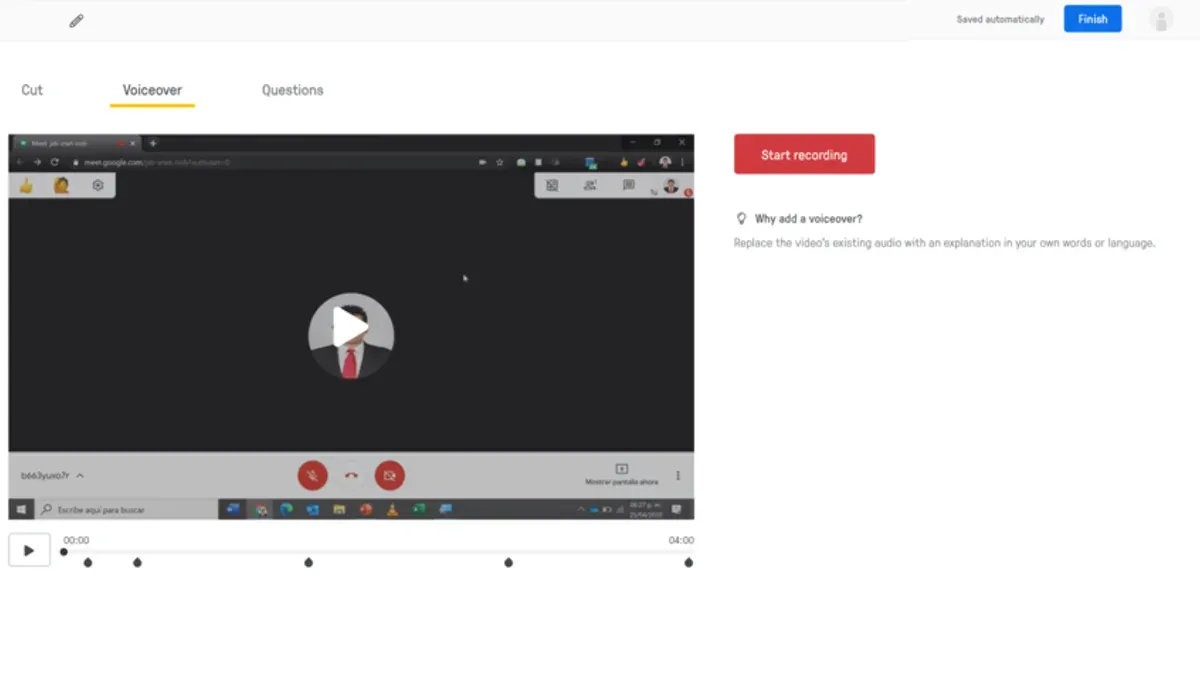
Short answer: Switching from Edpuzzle to Quizlet means moving from video-centric interactive lessons to a focus on flashcards, games, and study sets. Quizlet does not support embedding questions directly into videos but offers varied tools to reinforce knowledge through repetition and testing.
This article covers how to leverage Quizlet’s features to replace Edpuzzle’s video interactivity, including creating and assigning content, monitoring student progress, handling common transition challenges, optimizing your workflow, and maintaining academic integrity. You’ll get precise steps to adapt your teaching approach and ensure your students stay engaged while making the platform switch.
What is Edpuzzle and why do teachers use it?
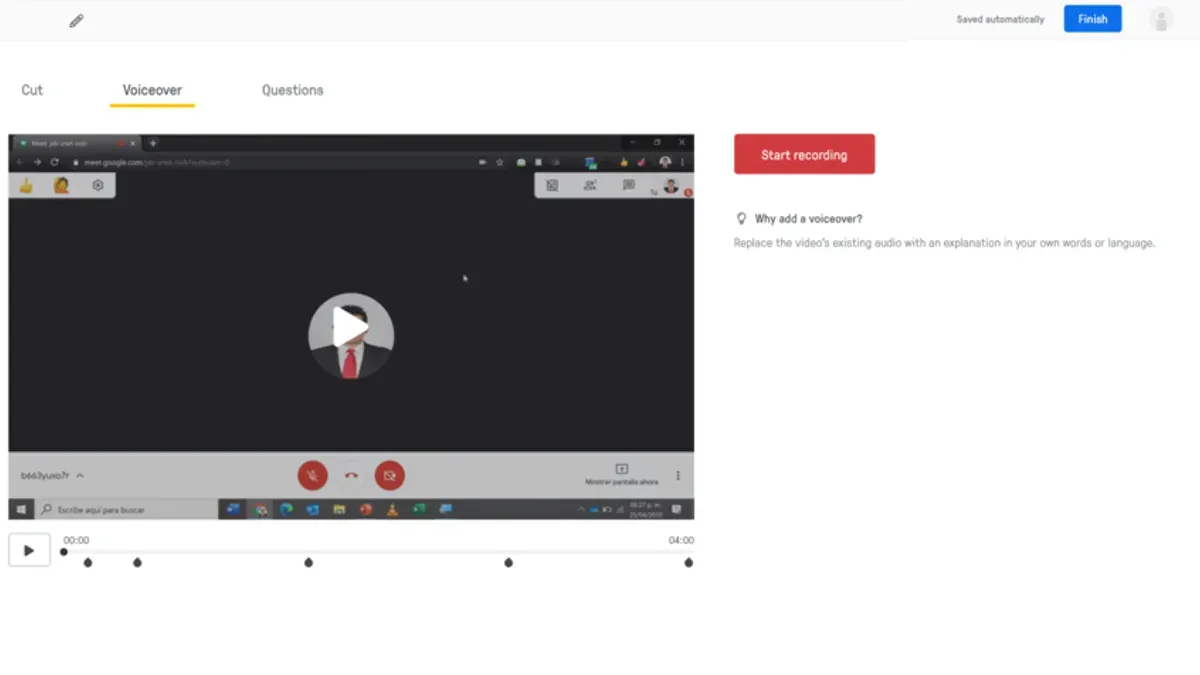
Edpuzzle is a platform designed for creating interactive video lessons by allowing teachers to edit existing videos, embed questions, and track student progress in real time. Its core feature is the ability to pause videos and insert multiple-choice, open-ended, or true/false questions directly into the timeline, which transforms passive viewing into active learning. Teachers can assign these videos through Edpuzzle’s dashboard, monitor completion rates, and analyze responses to gauge understanding.
Many educators use Edpuzzle to deliver formative assessments during video-based lessons, which helps maintain student engagement and provides immediate insight into learning gaps. For example, a science teacher might assign a 10-minute video on photosynthesis, embedding questions after each major concept. This setup encourages students to process information actively rather than just watch passively, while the teacher can identify who needs extra support.
Typical classroom use includes flipped classrooms where students watch videos before class, homework assignments with embedded comprehension checks, and remote learning scenarios requiring asynchronous engagement. Edpuzzle’s assignment tracking is a key benefit, enabling teachers to see who watched the video, how much they watched, and how they answered embedded questions.
While exact usage numbers vary, Edpuzzle is widely adopted across K-12 schools due to its straightforward interface and integration with learning management systems. Educators often highlight its ability to combine video content with assessment, making it easier to blend multimedia teaching with measurable outcomes.
What does Quizlet offer that differs from Edpuzzle?
Quizlet centers on flashcards, study sets, and interactive games designed to boost memorization and review rather than video-based assessments. Unlike Edpuzzle, which embeds questions directly into videos, Quizlet uses text and images to create multimodal learning experiences without native video embedding. This means you won't find video quizzes but will gain tools focused on repetitive practice and active recall.
Quizlet’s core features include creating customizable flashcard sets, leveraging study modes like Learn and Write, and engaging students with game modes such as Match and Gravity. These games encourage rapid recall and make study sessions more interactive. For example, in the Match game, students pair terms with definitions under time pressure, which research suggests improves retention through active engagement.
Class progress monitoring on Quizlet tracks student activity across study sets and games, offering insights into familiarity and accuracy rates. This contrasts with Edpuzzle’s video watch and question completion stats. Quizlet reports on how often students review specific cards and their success in practice modes, helping you identify content requiring reinforcement.
| Feature | Quizlet | Edpuzzle |
|---|---|---|
| Content type | Flashcards, text, images | Interactive videos |
| Video embedding | No native support | Yes, core feature |
| Assessment style | Memorization via games and quizzes | Video-based questions |
| Student progress tracking | Activity and accuracy on sets | Video watch time and question responses |
| Engagement modes | Multiple games (Match, Gravity) | Video pauses for questions |
Picture this: instead of pausing a video to answer a question, your students race to match vocabulary terms on Quizlet’s Match game. This shifts the focus from passive viewing to active retrieval, a fundamental difference in how the platforms engage learners. If your priority is reinforcing facts and concepts through repetition and varied study paths, Quizlet offers a distinct alternative to Edpuzzle’s video quiz format.
How to create and assign Quizlet content after leaving Edpuzzle
Start by translating your Edpuzzle video lessons into Quizlet study sets. Identify key terms, definitions, and concepts from the video’s script or your lesson notes. For example, if your Edpuzzle video covered photosynthesis, list vocabulary like "chlorophyll," "light-dependent reactions," and "glucose" along with clear, concise definitions. Use these pairs to create flashcards in Quizlet's "Create" menu under "Study Set."
To build your set efficiently, use Quizlet’s bulk import feature. Paste your terms and definitions separated by tabs or commas into the import box, minimizing manual entry. Add images from Quizlet’s library to reinforce visual learning, but note you cannot embed videos directly. Once your set is ready, enhance it by enabling Quizlet’s games and practice modes, which replace Edpuzzle’s interactive video questions with active recall exercises.
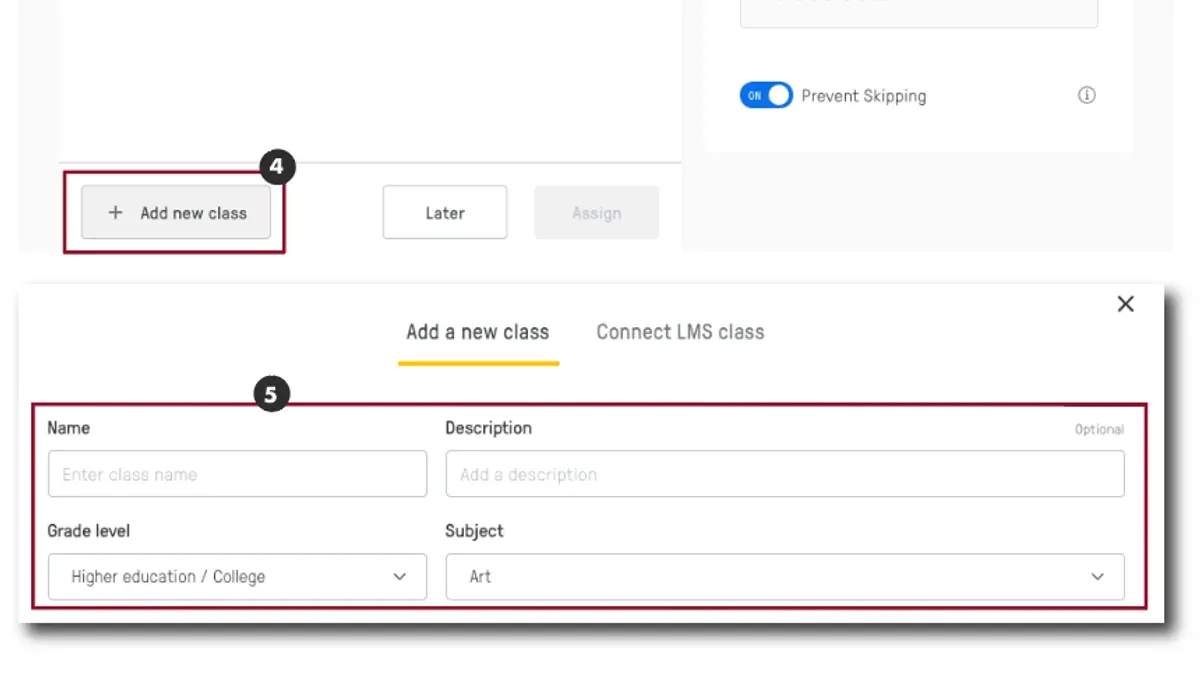
Assign your new Quizlet study set by selecting "Assign" in the set menu. Choose your class from your Quizlet Classes or create one if needed. Set a due date and select whether students can access study modes, games, or tests. Track student progress through the "Class Progress" tab, where you can monitor completion rates and individual scores, although Quizlet’s analytics are less granular than Edpuzzle’s video engagement data.
- Extract key terms and definitions from your Edpuzzle videos
- Create or import those terms into a Quizlet study set via the "Create" menu
- Add images to flashcards to aid retention
- Assign the set to your class with due dates and access settings
- Monitor student progress using the "Class Progress" dashboard
How to manage student progress and feedback in Quizlet vs. Edpuzzle
Edpuzzle provides granular tracking of student interaction with video lessons. Through the "Progress" tab, you see exactly which students watched the video, how much of it they completed, and their responses to embedded questions. This detailed data allows you to pinpoint where students struggle, such as specific quiz questions missed or sections frequently rewatched.
Quizlet's tracking operates differently. Instead of video engagement, it reports on study set usage, including time spent, correct response rates, and participation in games like "Match" or "Live." Access these insights via the "Class Progress" page, where you see who completed assigned sets and their overall accuracy. However, Quizlet does not track time spent on individual flashcards or detailed question-by-question video response patterns.
For example, if you assign a Quizlet set on vocabulary, you might see that 85% of your class completed it with an average accuracy of 75%. You can then identify students who scored below a threshold and plan targeted reviews. Unlike Edpuzzle's video checkpoints, Quizlet requires you to interpret progress by combining completion status and performance metrics.
To leverage Quizlet data for formative assessment, regularly monitor the "Class Progress" tab, look for patterns in incorrect answers, and encourage students to use Quizlet’s "Learn" mode for adaptive practice. Supplement this with direct feedback or follow-up activities based on observed gaps.
- Use Edpuzzle’s "Progress" tab for detailed video watch and question response data.
- Check Quizlet’s "Class Progress" page for study set completion and accuracy reports.
- Identify students needing help by filtering low scores or incomplete assignments.
- Interpret Quizlet data by combining completion rates with accuracy and game participation.
- Plan follow-up reviews based on Quizlet performance patterns rather than video interaction checkpoints.
Common challenges switching from Edpuzzle to Quizlet and how to avoid them
One major challenge is the loss of video interactivity when moving from Edpuzzle to Quizlet. Teachers relying on embedded video questions must compensate by redesigning content as flashcards or using Quizlet's diagrams and images. For example, a history teacher who used video clips with embedded quizzes found that creating sets with timeline flashcards and image labeling helped maintain engagement despite no direct video playback.
Adjusting student expectations is another hurdle. Students familiar with interactive video quizzes may resist the shift to text-heavy flashcards and need clear instructions on new study methods. Providing a walkthrough of Quizlet’s features, including games like Match or Gravity, helps students adapt and stay motivated.
Technical issues often arise during content import and user management. Edpuzzle videos and quizzes cannot be imported directly; teachers must manually recreate content in Quizlet. Account synchronization also differs: Quizlet’s class management requires teachers to send class codes rather than importing rosters. A common mistake is skipping the distribution of class codes, which delays student access.
Troubleshooting tips include preparing a transition checklist, scheduling a demo session for students, and using Quizlet’s help center resources. One teacher reported that after losing video quizzes, they scheduled a live class to introduce Quizlet’s tools and shared step-by-step guides, resulting in smoother adoption.
- Redesign video content as flashcards or diagrams to replace interactivity
- Communicate new expectations and provide feature tutorials to students
- Manually recreate content; no direct import from Edpuzzle
- Distribute Quizlet class codes promptly for student access
- Use transition checklists and live demos to ease the change
How to speed up your workflow on Quizlet compared to Edpuzzle
Quizlet offers several tools to help you work faster once you move past Edpuzzle’s video-focused interface. Use keyboard shortcuts like Ctrl + N (or Cmd + N on Mac) to quickly create new study sets without navigating menus. Bulk import lets you paste lists of terms and definitions directly into Quizlet’s import tool, saving time over manual entry. For instance, copying a list of vocabulary from a spreadsheet and importing it can cut creation time by more than half.
Templates and shared study sets provide ready-made content to adapt or assign immediately. Instead of building every set from scratch, start with a proven template or duplicate a colleague’s shared set and customize it. This reduces repetitive work and ensures consistency across classes.
Managing assignments and reviewing progress is easier on the go with Quizlet’s mobile app. You can create and edit sets, assign them, and monitor student completion from your phone or tablet. This flexibility fits into busy schedules where desktop access isn’t always possible.
Imagine you have a week’s worth of Edpuzzle videos to convert. Use the bulk import feature to paste all terms into Quizlet at once. Then assign the sets via the mobile app while commuting. This workflow can replace hours of manual entry and desktop-only management.
- Use Ctrl/Cmd + N to create new sets fast
- Bulk import terms and definitions from spreadsheets
- Leverage templates and shared sets to avoid reinventing content
- Manage assignments and monitor progress via the mobile app
How to ensure academic integrity and fairness with Quizlet assignments
Quizlet’s open content model poses risks for academic integrity since many study sets are publicly accessible or shared widely. Students can easily find answers by searching the platform, which contrasts with Edpuzzle’s closed, teacher-controlled quizzes. To maintain test security, you must use Quizlet’s private class features and control access tightly.
Start by creating a private class under the "Classes" tab. When you assign study sets, set them to "Only people in your class can see this set" in the visibility options. Share the class join code directly with students and remind them not to distribute it. This limits access and reduces the chance of unauthorized sharing.
For example, if you assign a vocabulary set on Quizlet, make sure it’s private and linked only to your class. If the set were public, students outside your class might access the answers, undermining fairness. Private settings prevent this but require you to manage who joins carefully.
Consider alternative assessments alongside Quizlet. Use open-book or open-resource formats where memorization is less critical, or combine Quizlet study with in-class written exams. Some educators pair Quizlet practice with timed, proctored tests to uphold standards.
- Create a private class from the "Classes" menu.
- Set study set visibility to "Only people in your class can see this set."
- Share the join code privately and monitor class membership.
- Use Quizlet for practice, not high-stakes testing.
- Complement with controlled, in-person assessments.
Frequently asked questions
How to use edpuzzle in the classroom?
To use Edpuzzle in the classroom, create an account and select or upload a video. Add interactive elements like multiple-choice questions or open-ended prompts at key points. Assign the video to your class via the "My Classes" tab and monitor student progress through the "Student Analytics" section.
How to get answers on edpuzzle?
Teachers can access student responses by navigating to the specific video assignment and selecting the "View Answers" option under the "Student Analytics" dashboard. This area displays each student's submitted answers and completion status.
How to use edpuzzle for teachers?
Teachers should start by setting up classes and importing or creating video lessons. Use the editing tools to add questions and audio notes. Distribute assignments by sharing class codes or direct links, then track engagement and scores using the analytics provided.
How to retake an edpuzzle quiz?
Students can retake a quiz only if the teacher has enabled the "Allow Re-takes" option in the assignment settings. Without this enabled, retakes are not possible. Check assignment settings under "Edit Assignment" to adjust retake permissions.
How to view edpuzzle answers?
To view answers, go to the "Student Analytics" tab for the assigned video. Click on a student’s name to see detailed responses to each question. This view also shows timestamps and how long students spent on each segment.
What this guide does not cover
This guide does not cover integrating video content directly into Quizlet, as Quizlet lacks native video quiz functionality. If your teaching heavily depends on interactive video lessons, consider supplementing Quizlet with dedicated video tools or continuing to use Edpuzzle alongside Quizlet for other activities. Also, this guide does not address third-party integrations or district-wide platform migration policies, which may require additional technical support.
Quick checklist
- Identify Quizlet study modes that align with your learning objectives (e.g., Learn, Write, Test).
- Create or import sets using clear, concise terms and definitions or questions.
- Assign Quizlet sets via the "Classes" feature to organize students.
- Use Quizlet’s Progress dashboard to monitor completion and accuracy.
- Set clear time limits and randomized question order to reduce cheating risks.
- Communicate new assignment procedures and expectations to students clearly.
- Prepare a backup plan for video content by linking to external resources when needed.
Start by creating a simple Quizlet set with terms or questions relevant to your current curriculum. Assign it to a class, then monitor student progress using the "Progress" tab. This practical step lets you experience Quizlet’s workflow firsthand and adjust your approach before scaling up. Focus on mastering Quizlet’s core strengths—flashcard-based learning and varied study modes—to successfully replace Edpuzzle’s video-driven interactivity.
See also: Switching from Edpuzzle to Padlet: A Clear Guide for Teachers · Switching from Edpuzzle to Gimkit: A Practical Guide for Teachers · Switching from Edpuzzle to Formative: A Practical Explainer · How to Switch from Edpuzzle to Blooket: A Practical Guide