How to Switch from Edpuzzle to Blooket: A Practical Guide
Learn practical steps to switch from Edpuzzle to Blooket for more engaging, gamified quizzes and easier classroom management.

Short answer: Switching from Edpuzzle to Blooket offers a more interactive, gamified way to engage students and simplifies quiz management with user-friendly tools. Blooket’s game modes and straightforward setup address many frustrations Edpuzzle users encounter, particularly around student engagement and content flexibility.
This article covers why you might want to switch, how Edpuzzle works and where it falls short, preparing your existing Edpuzzle content for Blooket, getting started with Blooket, and handling common challenges during the transition. You’ll also find tips to maximize Blooket’s benefits compared to Edpuzzle as you make the switch.
Why switch from Edpuzzle to Blooket?
Edpuzzle often frustrates users with a clunky interface, frequent loading issues, and limited interactivity options. Many educators report difficulties in reusing questions across lessons and a lack of real-time engagement features, which can stall student motivation. For example, waiting for all students to finish a video assignment before seeing any results slows down class momentum.
Blooket addresses these problems by turning quizzes into live, game-based experiences that keep students actively involved. Its interface is streamlined for quick question setup and easy reuse through a simple "Create Set" and "Duplicate" function. Teachers can launch live games where students compete on leaderboards, creating immediate feedback and energy in the classroom.
Compared to Edpuzzle, Blooket excels with features like instant multiplayer modes, diverse game types, and an intuitive dashboard that tracks engagement. This gamified approach helps shift student focus from passive watching to active participation, making lessons more dynamic and memorable.
How does Edpuzzle work, and what causes common user frustrations?
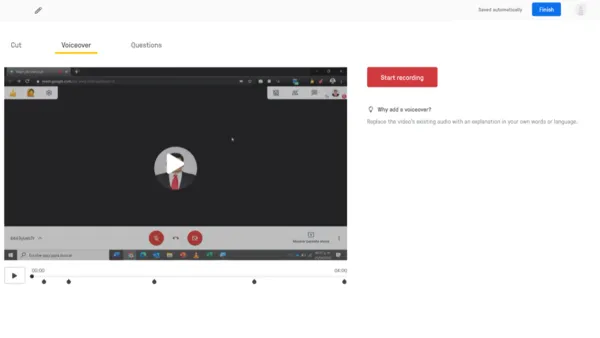
Edpuzzle’s workflow centers on creating video lessons by embedding questions and notes into existing videos or uploaded content. You assign these lessons to students via class codes or direct links. Students watch the videos, answer embedded questions, and submit their work for grading or review.
However, Edpuzzle often restricts skipping or redoing videos to maintain lesson integrity. Teachers can disable fast-forwarding or require completion before moving on, frustrating students who want to review specific parts. For example, a student may wish to skip to a key section but faces a locked timeline, causing repeated viewings of entire videos.
Login issues are common, with errors like “edpuzzle.com refused to connect” frequently reported on user forums. These typically stem from browser security settings, network firewalls, or server outages. Users may also face confusing error messages during sign-in, complicating access during class time.
Many seek hacks or speed-up codes to bypass restrictions, but these often fail due to platform policy enforcement and regular software updates. Attempts to speed up videos outside Edpuzzle’s set speeds can lead to playback errors or incomplete question loading, undermining the learning experience.
How to prepare your Edpuzzle content for a smooth Blooket transition
Start by auditing your existing Edpuzzle lessons to identify quiz questions that work independently of video timing. Focus on multiple choice or short answer questions that can be extracted without losing context. Skip questions heavily reliant on video pauses or annotations that don't translate well to Blooket’s format.
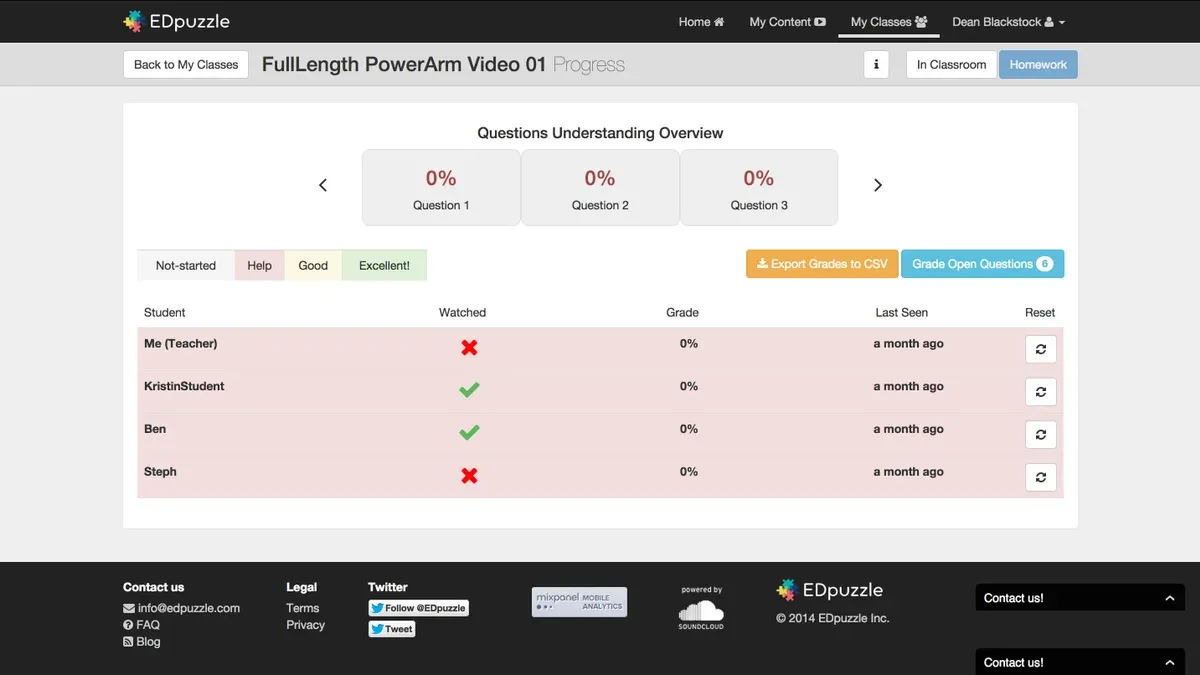
Edpuzzle does not offer a direct export for quizzes, so manually copy questions and answers from each assignment. Open your Edpuzzle dashboard, select an assignment, then use the Questions tab to review each item. Copy question text and answer choices into a spreadsheet or text document for easy reference.
Restructure video-based questions by removing references to video timestamps and making them standalone quizzes. For example, if an Edpuzzle lesson asks, "What is the main idea at 2:15?", rephrase to "What is the main idea discussed in the lesson?" This fits Blooket’s quiz format better and keeps students focused on content instead of video navigation.
As a worked example, take a science Edpuzzle lesson on photosynthesis with five multiple choice questions linked to video segments. Extract those questions and answers, then enter them into Blooket’s Create Question Set page. Choose a game mode like Tower Defense to gamify the quiz and set time limits for each question to maintain engagement.
- Review Edpuzzle assignments for standalone questions
- Manually copy questions and answers from the Questions tab
- Remove video-specific references and rephrase questions
- Organize content in a document or spreadsheet
- Import questions into Blooket’s Create Question Set interface
How to set up and use Blooket after switching from Edpuzzle
Start by creating a free Blooket account at blooket.com using your email or Google credentials. Once logged in, the dashboard presents options like "Create," "Discover," and "Host." The "Create" tab lets you build new quizzes by inputting questions manually or pasting prepped questions from your Edpuzzle audit. Each question requires a prompt, multiple answer choices, and the correct answer marked clearly.
After quiz creation, navigate to the "Host" tab to launch live game sessions. Select your quiz and choose a game mode; popular modes include "Tower Defense" and "Gold Quest," which gamify question answering. Share the generated game code with your students, who join via blooket.com and enter the code, allowing you to control pacing and question flow.
Use the "Reports" feature to monitor student participation and performance. It shows detailed stats per question and per student, helping identify areas needing review. To illustrate, imagine creating a 10-question science quiz from your Edpuzzle questions, hosting a "Factory" mode game, and viewing a report after to gauge which concepts students struggled with most.
- Sign up at blooket.com with email or Google
- Use "Create" to build or import quizzes
- Launch games via "Host" and select a mode
- Share game code with students for joining
- Monitor engagement and results in "Reports"
How to handle common challenges during and after the switch
You must manage expectations when moving from Edpuzzle to Blooket. Blooket focuses on gamified quizzes and does not support video lessons or embedded video pacing controls that Edpuzzle offers. If you expect a direct one-to-one replacement of all Edpuzzle features, you’ll face frustration. Instead, view Blooket as a tool to enhance engagement through interactive game modes rather than a video lesson platform.
Content loss or duplication often happens when you import questions manually. To avoid this, keep a clear checklist of Edpuzzle questions already transferred, and use consistent naming in Blooket quizzes. For example, if you have a “Chapter 5 Review” Edpuzzle lesson, name the Blooket quiz identically to prevent creating duplicate sets.
Students may resist the new format, especially if they are used to passive video lessons. Introduce Blooket gradually, starting with low-stakes games, and explain the benefits of active participation. This reduces pushback and builds comfort with the platform.
Technical issues can include login troubles and game session glitches. Advise students to use updated browsers like Chrome or Firefox and clear cache if problems persist. For hosts, test game settings beforehand and familiarize yourself with the “Host Settings” panel where you can adjust timers, question order, and player limits.
- Set realistic expectations about Blooket’s gamified focus versus Edpuzzle’s video lessons
- Track transferred questions with clear, consistent naming to avoid duplication
- Introduce Blooket gradually to ease student adaptation
- Use updated browsers and clear cache to prevent technical glitches
- Test game settings ahead and learn to adjust options in the Host Settings panel
How to get the most out of Blooket compared to Edpuzzle
Blooket’s strength lies in its variety of game modes, such as Tower Defense, Cafe, and Battle Royale, each catering to different class sizes and teaching styles. Use Tower Defense for smaller groups focused on individual mastery and Battle Royale for large, fast-paced competitions that energize students. These modes allow you to switch between competitive and collaborative dynamics, boosting motivation and peer interaction.
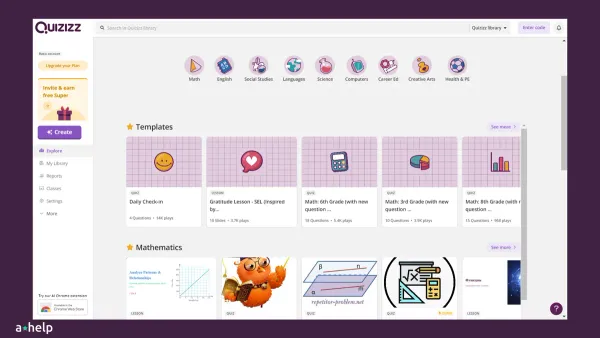
The platform’s intuitive quiz sharing and reuse features save you time. You can duplicate quizzes or borrow from a vast public library, then tweak questions to fit your lesson goals. This reduces preparation time compared to rebuilding from scratch.
Integrate Blooket with tools like Google Classroom by sharing game codes or embedding quizzes in lesson plans to maintain a seamless instructional flow. For example, a teacher using Blooket’s Cafe mode saw noticeably higher student participation than with Edpuzzle videos, as students competed to serve virtual customers using quiz answers, turning review sessions into lively, interactive experiences.
Frequently asked questions
How to skip on edpuzzle?
Skipping a video segment on Edpuzzle depends on the settings chosen by your instructor. If skipping is allowed, you can use the progress bar to jump ahead or click the skip button if visible. However, many teachers disable skipping to ensure full video engagement, so this option may not always be available.
How to redo edpuzzle?
To redo an Edpuzzle assignment, check if your teacher has enabled multiple attempts. If allowed, you can simply reopen the assignment and start again. If not, contact your instructor to request permission or a reset for a new attempt.
How to log into edpuzzle?
Visit edpuzzle.com and click the "Log in" button at the top right. You can sign in using your Google, Microsoft, or Clever accounts, or enter your email and password directly. For school accounts, select the appropriate login method provided by your institution.
How to use edpuzzle?
Edpuzzle lets you assign interactive videos by adding questions, audio notes, and comments. After logging in, create or find a video, customize it with embedded questions, then assign it to your students. Students watch the video and answer questions inline, allowing you to track their progress and understanding.
How to speed up edpuzzle?
To speed up video playback on Edpuzzle, use the playback speed control located at the bottom right of the video player. You can select faster speeds like 1.25x or 1.5x. Keep in mind, speeding up too much may reduce comprehension, so adjust based on your needs.
Quick checklist
- Export your Edpuzzle video URLs and question lists manually to have a reference.
- Create a Blooket account and explore the "Create" tab to set up new question sets.
- Reformat your Edpuzzle questions for Blooket’s multiple-choice style, ensuring clarity and brevity.
- Test your Blooket game in preview mode before assigning it to students.
- Communicate the switch to students and provide basic instructions for joining Blooket games.
- Monitor student engagement and adjust question difficulty or game modes accordingly.
What this advice does not cover
This guide does not cover switching from Blooket back to Edpuzzle or migrating quiz data between other platforms outside Edpuzzle and Blooket. If you need to transfer quiz content from platforms like Kahoot or Quizizz, consult their specific support resources. Additionally, this guide assumes a basic familiarity with Edpuzzle and Blooket interfaces and does not address advanced scripting or API integrations.
The single most useful next step is to start building a simple Blooket game using your existing Edpuzzle questions. Focus on mastering Blooket’s game modes and question formatting to see firsthand how its gamified approach can boost engagement while simplifying quiz management.
See also: How to Switch from Blooket to Quizlet and Import Your Quizzes · Blooket Rollout Plan for Homeschool Families: A Step-by-Step Guide · Edpuzzle Rollout Plan for School Librarians: A Practical Guide