How to Reopen a Closed Assignment in Blackboard: A Step-by-Step Guide
This guide explains how to reopen a closed assignment in Blackboard by adjusting availability, due dates, and managing grading settings.

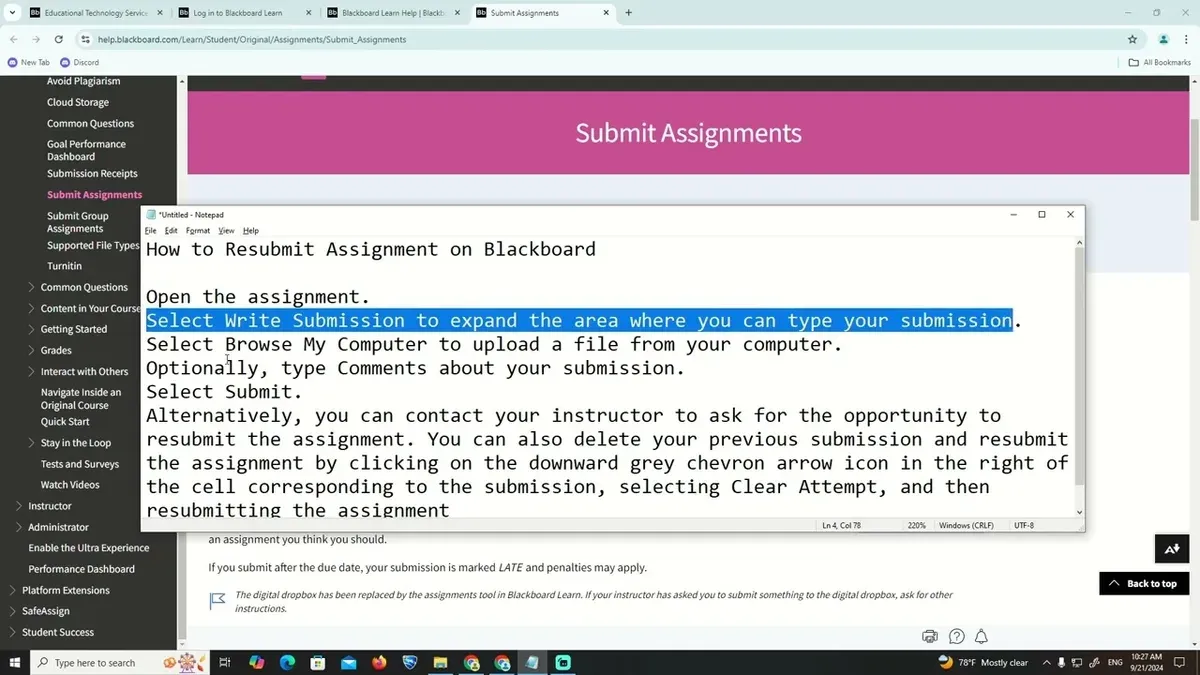
Short answer: You can reopen a closed assignment in Blackboard by adjusting its availability settings and due dates within the assignment's control panel. This allows students to submit late work or make corrections after the original deadline. You must also manage notifications and grading settings to handle reopened submissions properly.
This article covers how to reopen a closed assignment in Blackboard with clear, step-by-step instructions. You will learn how to locate the assignment, modify availability and due dates, communicate changes to your students, and manage grading and submission records afterward. The guide also addresses common issues you might encounter if Blackboard restricts reopening, providing practical workarounds to maintain control over your course assignments.
Before You Start: What You Need to Reopen a Closed Assignment
You must have instructor or administrator access to the Blackboard course to reopen a closed assignment. Without proper permissions, the options to edit assignment availability will be unavailable. Confirm your role by checking the course control panel or contacting your institution’s Blackboard administrator.
Prepare the assignment details before making changes. Have the assignment name, original due date, time restrictions, and any special settings on hand. This helps you restore or adjust parameters accurately without disrupting course flow.
Review your institution’s policy on late submissions and reopening assignments. Some schools require formal approval or restrict reopening assignments to maintain fairness and compliance with academic standards.
Blackboard interfaces differ by version and institution customization. Common layouts include the Ultra Course View and the Original Course View. Knowing which UI you use will guide you through the correct menus and settings, as options may be labeled or located differently.
- Confirm you have instructor or admin access: you should see the full course control panel upon login.
- Gather assignment details: note the exact assignment title and original due dates.
- Check institutional policies: verify reopening is allowed and if there are conditions.
- Identify your Blackboard interface: Ultra or Original Course View to anticipate menu options.
Checklist:
- Instructor or admin access confirmed
- Assignment name and original due date documented
- Institutional policy on reopening reviewed
- Blackboard UI version identified
Step 1: Locate the Assignment and Access Its Settings
Start by logging into your Blackboard course and navigating to the content area where the closed assignment resides. Most courses organize assignments under a dedicated section labeled "Assignments" in the course menu or within a specific content folder. Locate this section and find the exact assignment you want to reopen.
Once you find the assignment title, click on it to open the assignment’s overview page. Here, look for the menu or button labeled "Edit" or "Settings"—these options are typically found near the top right of the assignment page or within a dropdown menu next to the assignment title.
Clicking "Edit" or "Settings" will open the configuration panel where you can adjust availability dates and other parameters. If you do not see these options, verify your permissions or consult your institution’s Blackboard support, as editing rights are required to make changes.
- Log in to Blackboard and open your course.
- Navigate to the "Assignments" section or relevant content folder.
- Find and click the closed assignment’s title to open its page.
- Click the "Edit" or "Settings" button near the top of the assignment page.
- Confirm the assignment settings panel appears, ready for adjustments.
Step 2: Adjust Availability and Due Dates to Reopen the Assignment
To reopen a closed assignment in Blackboard, you must modify its availability and due date settings to allow submissions again. Begin by opening the assignment's settings panel. Locate the Due Date field and extend it to a new future date, for example, changing it from October 1 to October 10. Next, check the Availability section and make sure the assignment is set to Available to students. If it was previously marked as unavailable, students will not see the assignment regardless of due dates.
Also, review the Grading Period option if your institution uses grading periods. If the assignment is tied to a closed grading period, submissions might be blocked despite availability settings. Adjust the grading period or disable this restriction if necessary.
After saving changes, students will see the assignment reopen with the new due date and be able to submit or resubmit work. Before adjustment, the assignment appeared closed and inaccessible; after, it will appear active with open submission options.
- Open the assignment settings panel; the settings page loads.
- Change the Due Date to a future date; the new due date is displayed.
- Set Availability to Available; the assignment status updates to visible.
- Check and adjust Grading Period if needed; submission restrictions are lifted.
- Save the settings; students can now access and submit the assignment.
Step 3: Communicate Changes to Students Effectively
After reopening an assignment, notify your students immediately to prevent confusion. Use Blackboard's Announcement tool or Course Messages to send clear, direct notifications. Include the updated deadlines, any conditions for late submissions, and specify if exceptions to standard policies apply.
Be explicit about grading implications, such as whether late penalties will be waived or if submissions after reopening receive full credit. This transparency reduces questions and clarifies expectations.
Here is a practical approach:
- Go to the Control Panel and select Course Tools > Announcements. Click Create Announcement. You should see the announcement editor open.
- Compose a message with a clear subject, for example: "Assignment Reopened: Submission Deadline Extended." Include details like new due dates, submission instructions, and grading notes. Preview the message to confirm clarity.
- Choose to send the announcement immediately or schedule it. Confirm by checking the Announcements page to see the message listed.
- Optionally, send a Course Message to target specific students or groups by navigating to Course Tools > Send Email. Select recipients and compose a concise message reiterating the announcement.
Example announcement text:
Subject: Assignment X Reopened – New Deadline
The assignment previously closed on [old date] is now reopened. You may submit or resubmit your work until [new due date]. Late submissions will be accepted without penalty. Please review the assignment instructions and submit via Blackboard before the deadline.
Contact me if you have questions.
Step 4: Manage Grading and Submission Records After Reopening
Before reopening the assignment, review any existing submissions and grades. Decide if you will keep previous grades intact or overwrite them when new submissions come in. This ensures transparency and consistency in your grading policy.
Adjust the Grade Center settings to accommodate late submissions. Navigate to the Grade Center, find the assignment column, and edit its settings to allow for late penalties or extended deadlines. For example, you can set a deduction of 10% per day late or exempt late penalties for reopened assignments.
Document all grading changes clearly. Use the Grade Center Notes or an external log to record when the assignment was reopened, changes in due dates, and any adjustments to grading rules. This helps maintain audit trails required for accreditation or institutional review.
- Open the Grade Center and locate the column for the reopened assignment; you should see existing grades listed.
- Click the arrow next to the assignment name and select "Edit Column Information"; confirm you can modify settings such as "Include this Column in Grade Center Calculations." This indicates you have control over grading parameters.
- Set "Late Submission Policy" under the assignment’s settings if available; enter the percentage deduction or mark it as exempt. When saved, the Grade Center will automatically apply penalties or allow late submissions accordingly.
- Record all changes in the Grade Center Notes section or export a grade report with comments; this log should include reopening date, new deadlines, and penalty rules. This ensures a clear audit trail.
Troubleshooting: What to Do If You Can’t Reopen an Assignment
If you encounter issues reopening a closed assignment, first verify if institutional policies restrict reopening. Some schools disable this feature to maintain academic integrity. If you see error messages like "You do not have permission to change this assignment" or "Reopening is disabled by your institution," contact your LMS administrator for clarification.
Blackboard may also show outdated statuses due to caching or synchronization delays. Clear your browser cache and refresh the course page. Wait a few minutes and try again to ensure the interface reflects the latest settings.
If reopening remains impossible, create a new assignment with updated availability and due dates. Instruct students to submit there, and manually link or download previous submissions for grading continuity. Label the new assignment clearly to avoid confusion.
Persistent technical problems should be reported to Blackboard support or your institution’s LMS support team. Provide error screenshots and detailed descriptions to expedite resolution.
- Check institutional restrictions; confirm you have necessary permissions. Successful check means no policy blocks or error messages denying reopening.
- Clear browser cache and reload Blackboard. You should see refreshed assignment status reflecting your changes.
- If reopening fails, create a new assignment with a clear title and new due dates. Students should be able to submit there without errors.
- Contact support with detailed error information if none of the above solve the problem; expect a response with troubleshooting or fixes.
Frequently asked questions
Can I reopen an assignment after the grading period has closed?
Yes, you can reopen an assignment even if the grading period is closed, but this depends on your institution’s Blackboard grade center settings. If the grade center is locked or frozen, you may need administrative assistance to unlock it first. Once unlocked, adjust the assignment availability and due dates to accept submissions again.
Will students be notified automatically when I reopen an assignment?
No, Blackboard does not send automatic notifications when you reopen an assignment. You must inform your students directly via Announcements, Email, or Course Messages to ensure they are aware of the extended submission window.
How do late submissions affect my gradebook after reopening?
Late submissions after reopening will appear in the gradebook with a late flag if that feature is enabled. Grades entered for these submissions will update the overall assignment score unless overridden. Monitor the grade center to ensure any late penalties or adjustments are applied consistently.
What if my Blackboard interface looks different from the steps shown?
Blackboard interfaces vary by institution and version. If your interface differs, look for similar terms like "Assignments," "Grade Center," or "Course Content" in your main navigation menu. Contact your institution’s Blackboard support or consult updated help guides specific to your version for tailored instructions.
Quick checklist
- Confirm you have instructor or course admin rights in Blackboard.
- Locate the assignment via Course Content or Control Panel > Grade Center > Assignments.
- Access the assignment’s settings and adjust the Availability Dates to reopen it.
- Update the Due Date to reflect the new submission window.
- Notify students using Announcements or Course Messages about the reopened assignment.
- Review and manage grading options, including allowing new submissions and resubmissions.
- Check submission logs to track late or updated submissions after reopening.
- If you can’t reopen the assignment, verify permissions or contact Blackboard support.
What this advice does not cover
This guide does not cover reopening assignments in the Blackboard Ultra interface, which uses a different layout and workflow. If your institution uses Ultra, consult your LMS administrator or Blackboard’s official Ultra support resources for precise instructions. Also, this guide does not address bulk reopening of multiple assignments or integration with third-party grading tools.
To reopen a closed assignment effectively, your most practical next step is to adjust the assignment’s Availability Dates in the Full Grade Center or the assignment settings panel. This simple change restores student access and enables submissions while preserving grading records. Then communicate clearly to students about the reopened window and any new expectations.
See also: How to Grade Student Work Efficiently in Blackboard · How to Leave Clear, Actionable Feedback on Student Work in Blackboard · How to Handle Plagiarism Concerns in Blackboard: A Clear Step-by-Step Guide